
'%3e%3cpath%20fill-rule='evenodd'%20clip-rule='evenodd'%20d='M19%208.5C24.799%208.5%2029.5%2013.201%2029.5%2019C29.5%2024.6782%2024.9928%2029.3036%2019.361%2029.4939L19%2029.5C18.8794%2029.5%2018.7592%2029.498%2018.6396%2029.4939L18.2811%2029.4758C12.8174%2029.1063%208.5%2024.5574%208.5%2019C8.5%2013.201%2013.201%208.5%2019%208.5ZM22.3063%2010.6267L22.2342%2010.6539C21.3423%2011.0061%2020.5541%2011.6368%2020.5606%2012.4987C20.5631%2012.8302%2020.869%2014.8871%2020.2141%2014.8486C19.5589%2014.8102%2019.413%2013.8753%2018.7116%2013.616C17.5944%2013.2026%2016.9819%2014.3401%2017.0939%2015.3106C17.1695%2015.9655%2018.9289%2018.3871%2017.9028%2019C17.292%2019.3651%2015.7279%2017.5692%2015.1007%2017.1842C14.4805%2016.8034%2013.2758%2017.3333%2012.4974%2016.7029C11.9874%2016.2899%2012.3881%2014.4098%2012.2786%2013.8372C12.2271%2013.5698%2012.1155%2013.3689%2011.9794%2013.2166L12.0402%2013.2934C10.7653%2014.8464%2010%2016.8339%2010%2019C10%2023.8465%2013.8307%2027.7982%2018.6295%2027.9925L18.6769%2027.9747C18.8597%2027.8677%2019.0394%2027.7557%2019.216%2027.6387C19.4137%2027.4534%2019.5436%2027.2072%2019.5849%2026.9394C19.8806%2025.1222%2018.3616%2025.4302%2017.9367%2024.5622C17.5489%2023.7695%2018.5712%2023.7684%2018.5524%2021.7923C18.4607%2021.1774%2018.5279%2020.547%2018.7211%2020.0315C19.1834%2018.7987%2020.7077%2017.2643%2022.5889%2018.0081C23.5567%2018.3906%2023.1524%2019.9831%2023.4737%2020.3394C24.251%2021.2018%2025.3228%2020.6863%2026.2856%2021.2253C26.7816%2021.5032%2026.9797%2022.41%2027.056%2023.2248L27.038%2023.0528C27.6534%2021.8348%2028%2020.4579%2028%2019C28%2015.1968%2025.6409%2011.9445%2022.3063%2010.6267Z'%20fill='%23757575'/%3e%3ccircle%20cx='19'%20cy='19'%20r='10.125'%20stroke='%23757575'%20stroke-width='2.25'/%3e%3c/g%3e%3cdefs%3e%3cclipPath%20id='clip0_1827_14613'%3e%3crect%20width='24'%20height='24'%20fill='white'%20transform='translate(7%207)'/%3e%3c/clipPath%3e%3c/defs%3e%3c/svg%3e)


Music is a part of everyday life, but managing it across devices can get messy fast. Many of us store our favorite tracks in Google Drive thinking we’ll access them anytime, only to realize it’s not that simple when it comes to actually pressing play on Android. The files are there, but smooth playback, offline listening, and playlists often aren’t. That’s exactly what this guide solves, I’ll show you how to play Google Drive music files on Android using easy, reliable tools so your playlists stay just a tap away.
Why Access Google Drive Music on Android?
Google Drive offers cloud-based storage that’s perfect for backing up your music library. You can upload thousands of tracks without eating up your local phone storage. It’s a smart way to keep your playlists available across devices, whether you’re switching phones or streaming on your tablet.
But convenience fades if you can’t easily play or organize those files. Many users face limited playback options or poor offline access. So, it becomes essential to find apps and methods that bridge this gap smoothly. This guide covers practical, step-by-step methods and tools to help you learn how to play MP3 files from Google Drive on Android and stream your Drive music files effortlessly, both online and offline.
I used to juggle between downloads and media players, wasting time re-uploading songs. Once I found reliable apps that connect directly to Google Drive, the entire experience became smoother.
How to Play Google Drive Music Files on Android
Listening to your favorite tracks straight from Google Drive on Android can be super handy, especially if you’ve got your whole music library stored online. With just a few steps, you can stream or even download your songs for offline playback without needing fancy software. Here’s how you can turn your Google Drive into your personal music player on Android.
Method 1 – Using the Google Drive App
This is the simplest way to access your audio files if you don’t mind a few limitations. The Drive app allows you to play MP3s, but only through its built-in player. You can also play Google Drive music files on Android offline by using Drive’s offline feature or downloading the files to your device.
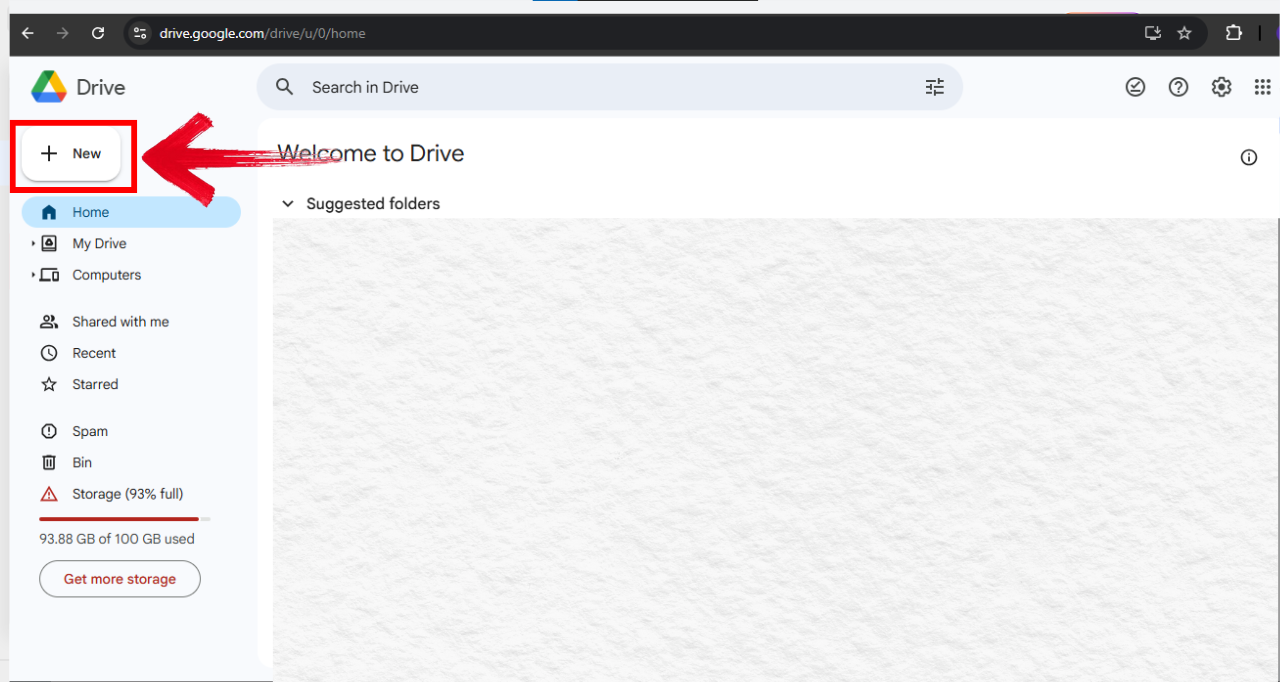
Step 1: First of all, open the Drive app and tap the"+ New".
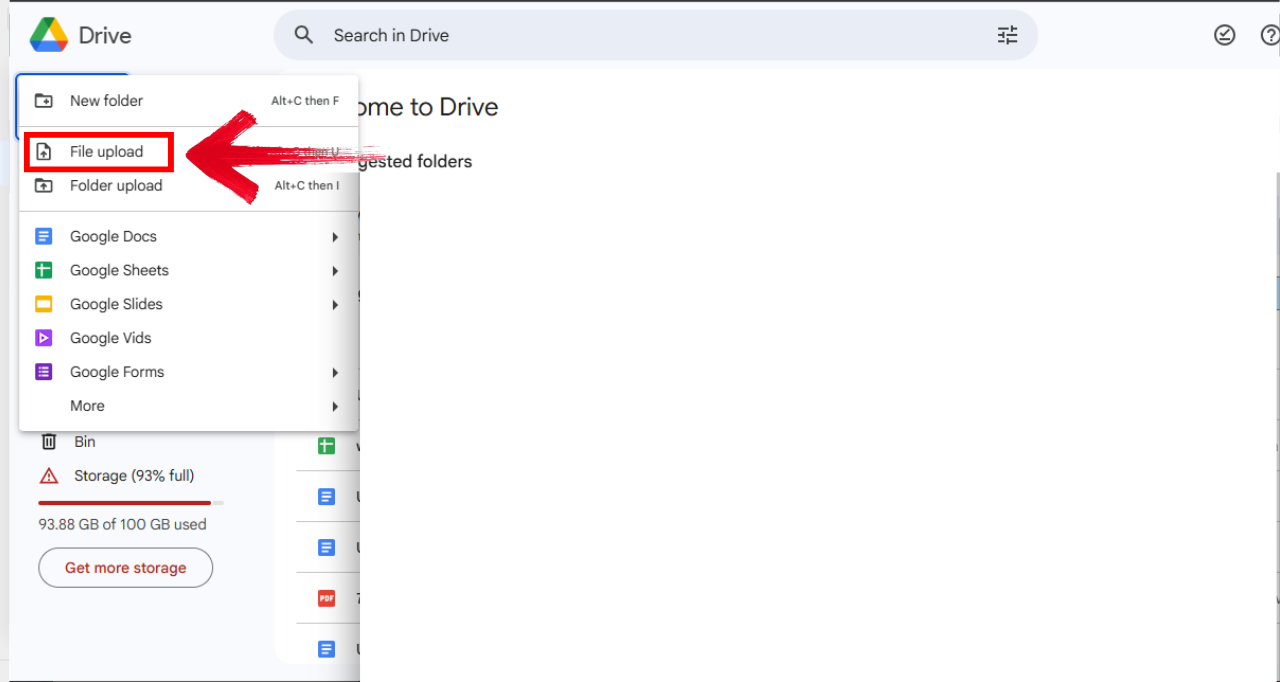
Step 2: Now Select “Upload” and choose your MP3 or audio files.
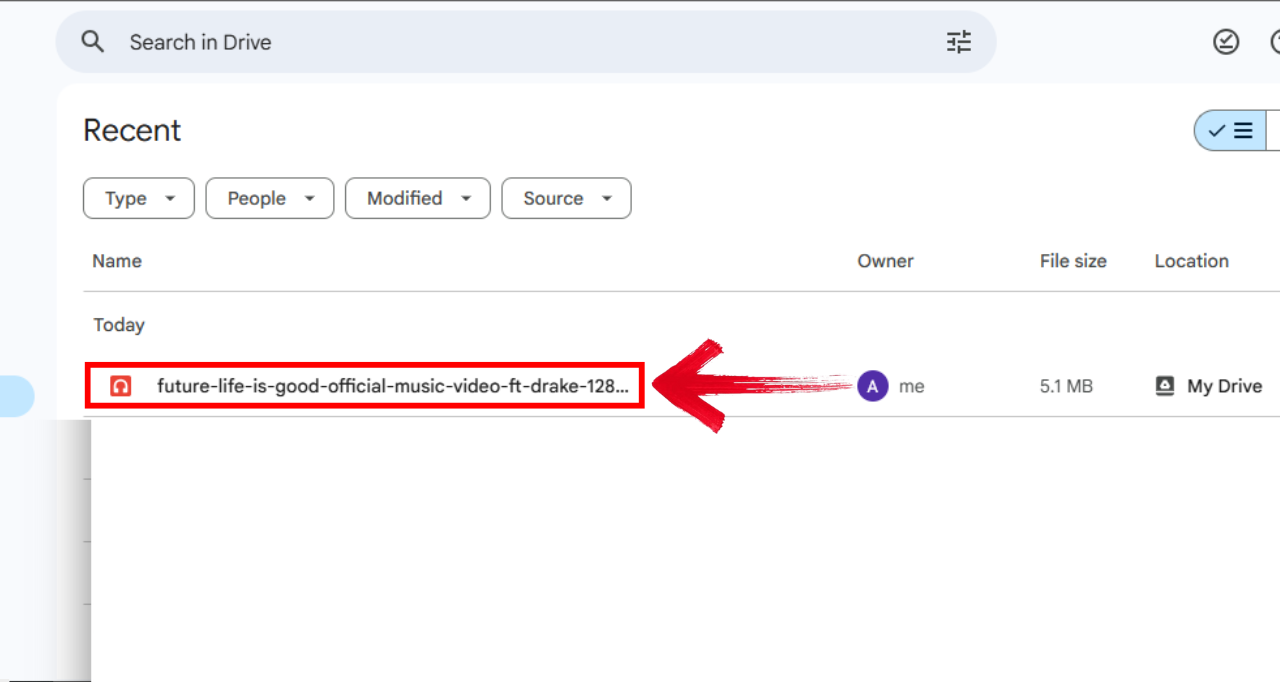
Step 3: Tap any uploaded file to start playback directly. You’ll need an active internet connection for streaming.
Step 4: If you want offline playback, click the three dots on the file selection option and simply click“Download” to make the file available for offline playback.
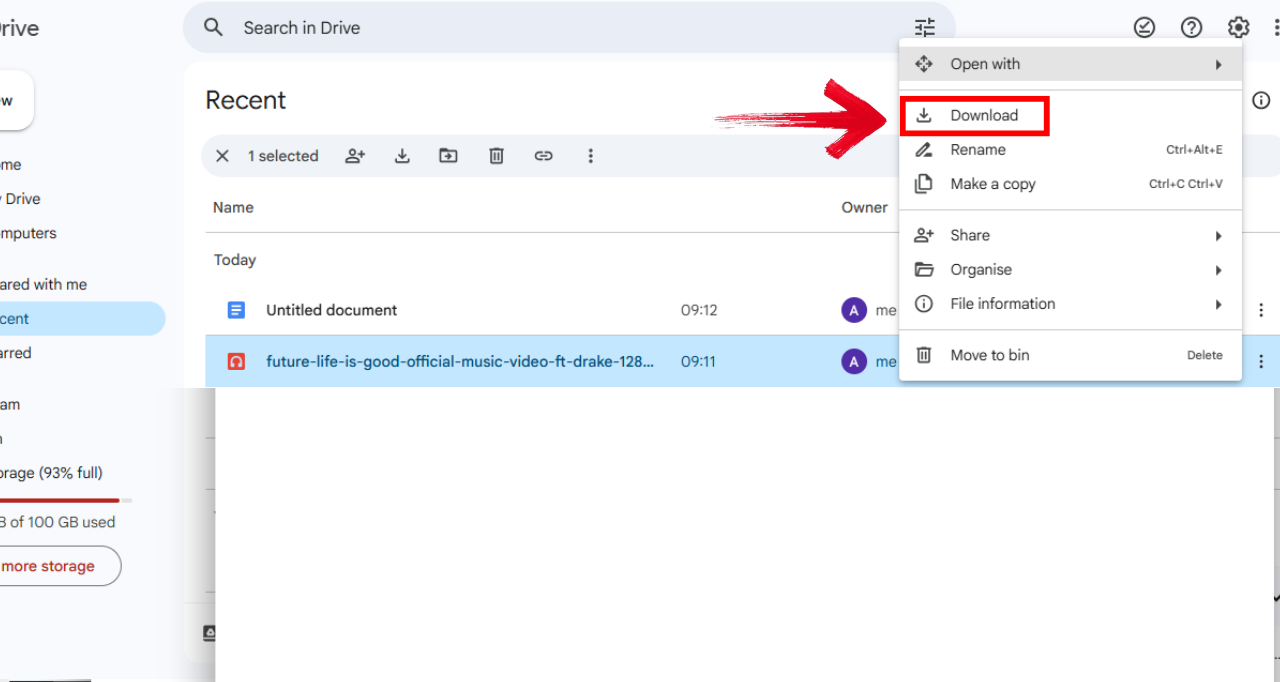
When I first tried this, it worked decently for a few songs, but playlists and equalizers were missing. It’s a good backup plan but not ideal for daily use.
Method 2 – Third-Party Music Players
If you want background playback, equalizers, or even Drive integration, third-party apps are the way to go. These Android apps to play Google Drive music files let you stream or cache your tracks without constant manual downloads. They also make it easy to learn how to stream Google Drive music on an Android device seamlessly, whether online or offline.
VLC for Android
VLC isn’t just a video player, it’s a versatile music tool with Drive access. It supports streaming, playlists, and background playback, making it perfect for casual listeners. It’s also a great Android app to play Google Drive music files effortlessly.
Step 1: First of all, Install VLC from the Play Store.
Step 2: Now open the app and click“Browse” on the bottom of your screen.
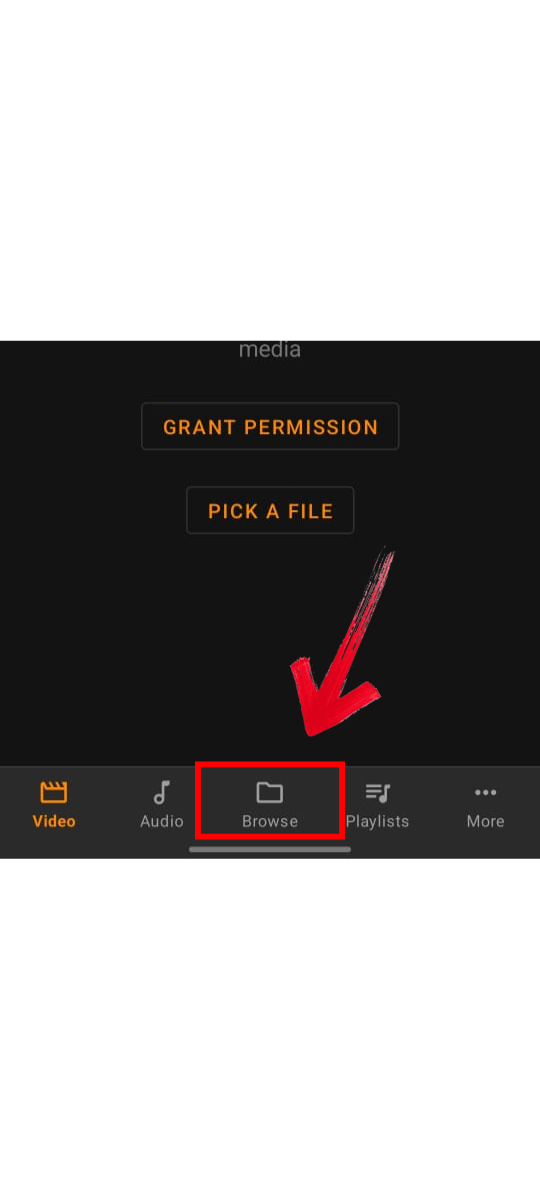
Step 3: It’ll ask for permission to get access to your media, grant permission and the media files will be on your interface.
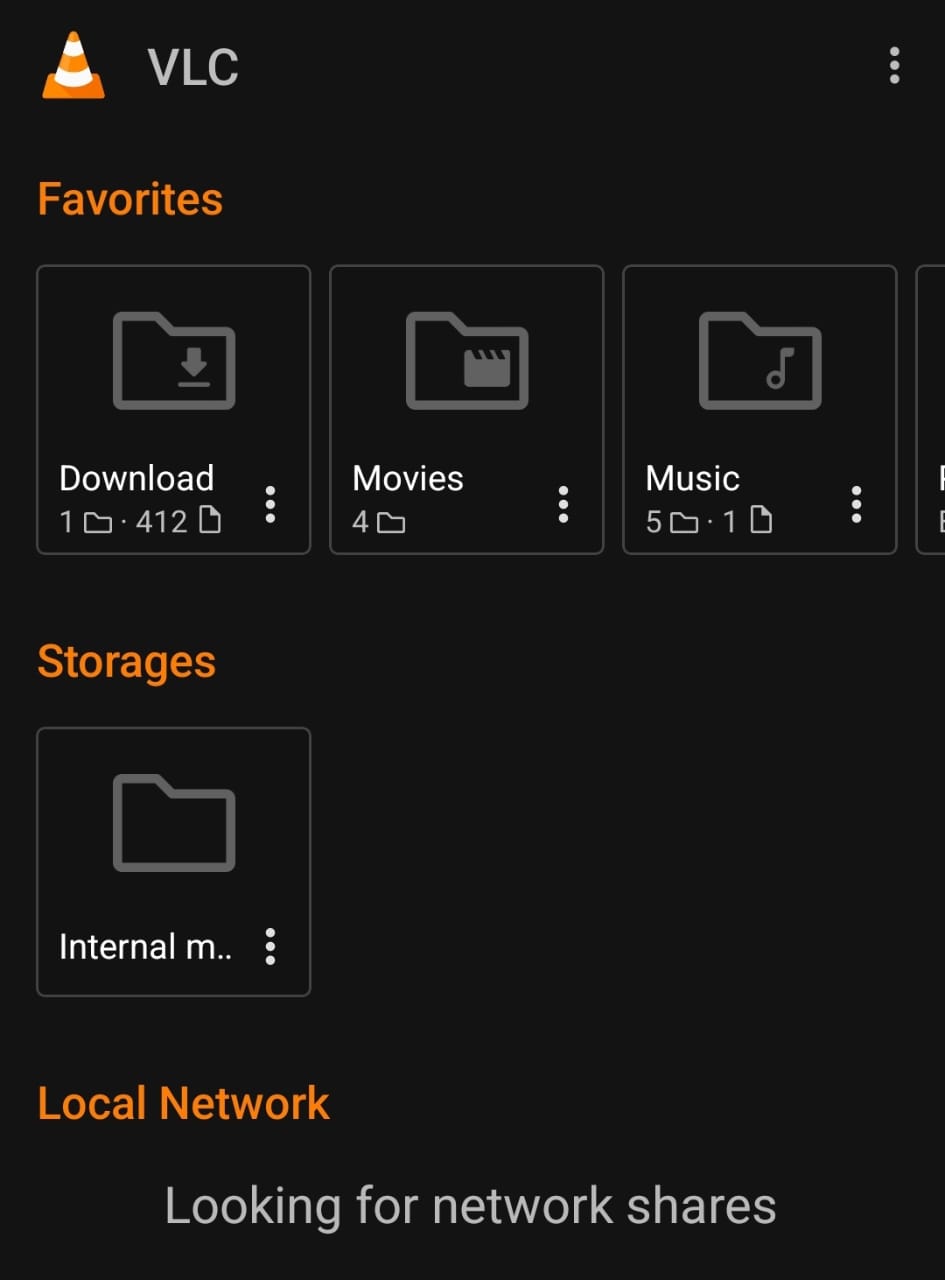
VLC worked like a charm. It felt smooth and didn’t lag while streaming, plus I loved that I could minimize the app and keep listening.
CloudPlayer by doubleTwist
CloudPlayer is a dedicated app designed for streaming and managing cloud-based music. It connects directly to Google Drive, Dropbox, or OneDrive. With CloudPlayer, your Drive library behaves just like local storage, making it one of the best options for how to stream Google Drive music on Android device.
Step 1: Open the CloudPlayerapp, and once you allow the app to access your audio files, your songs will instantly appear on the interface.
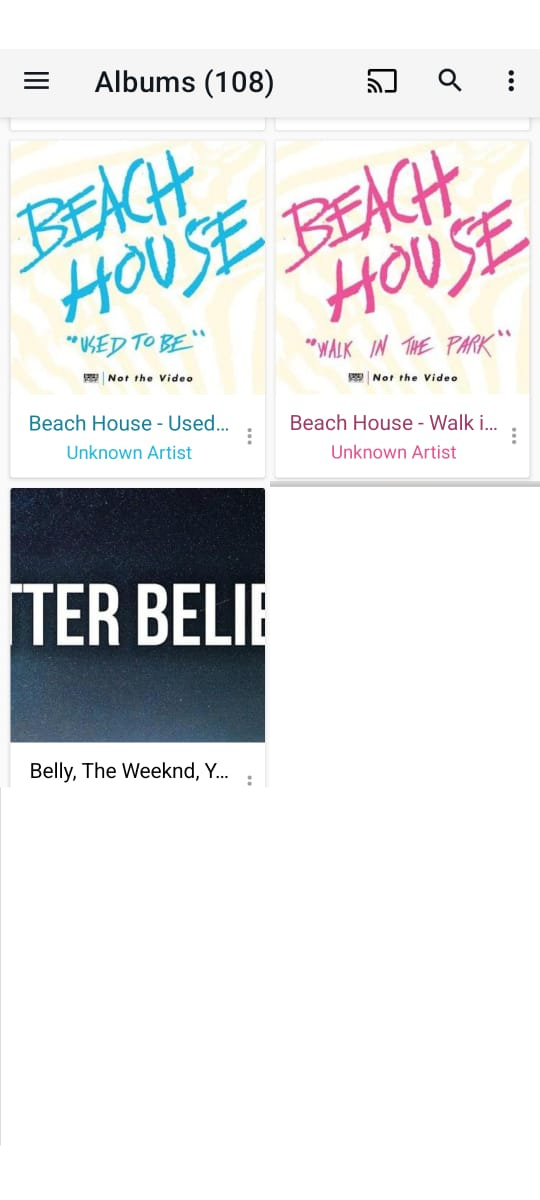
Step 2: You can also go into settings and tweak multiple changes as per your preference.
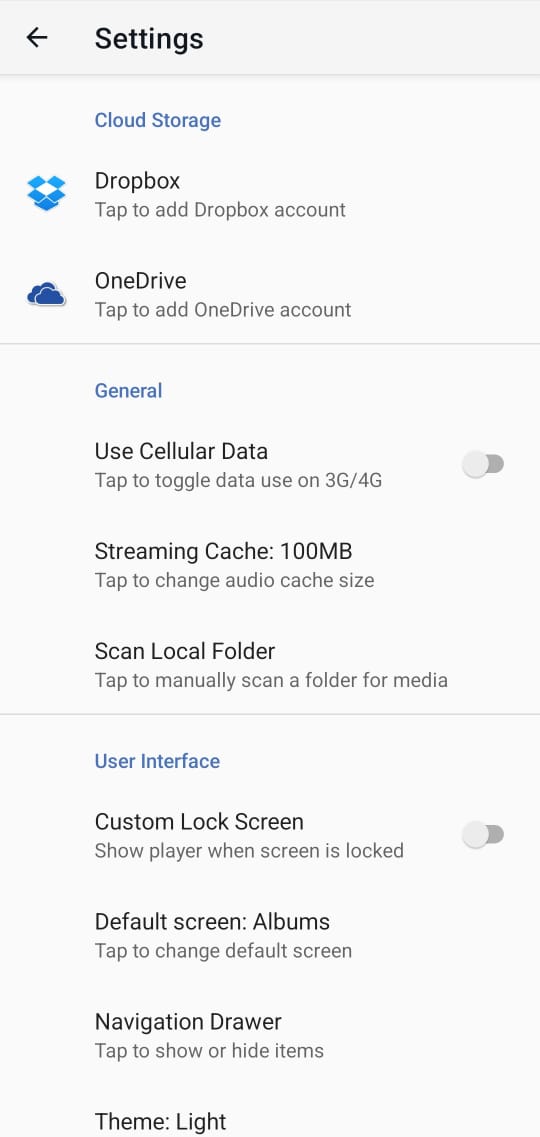
CloudPlayer felt like having Spotify but powered by my own MP3 library. It synced fast and worked beautifully offline.
Drive Audio Player
Drive Audio Player is a web-based tool that lets you stream songs stored in your Google Drive directly. You can open it through your mobile browser and log in to play your Drive audio.
Step 1: Firstly, visit the official website of Drive Audio Player on your browser.
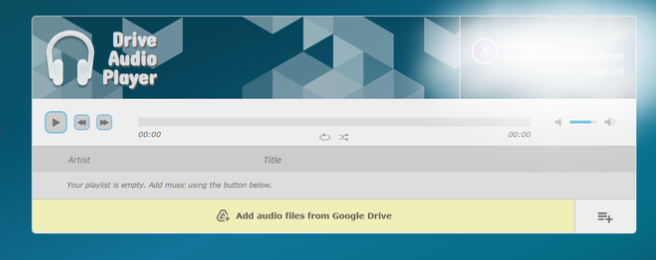
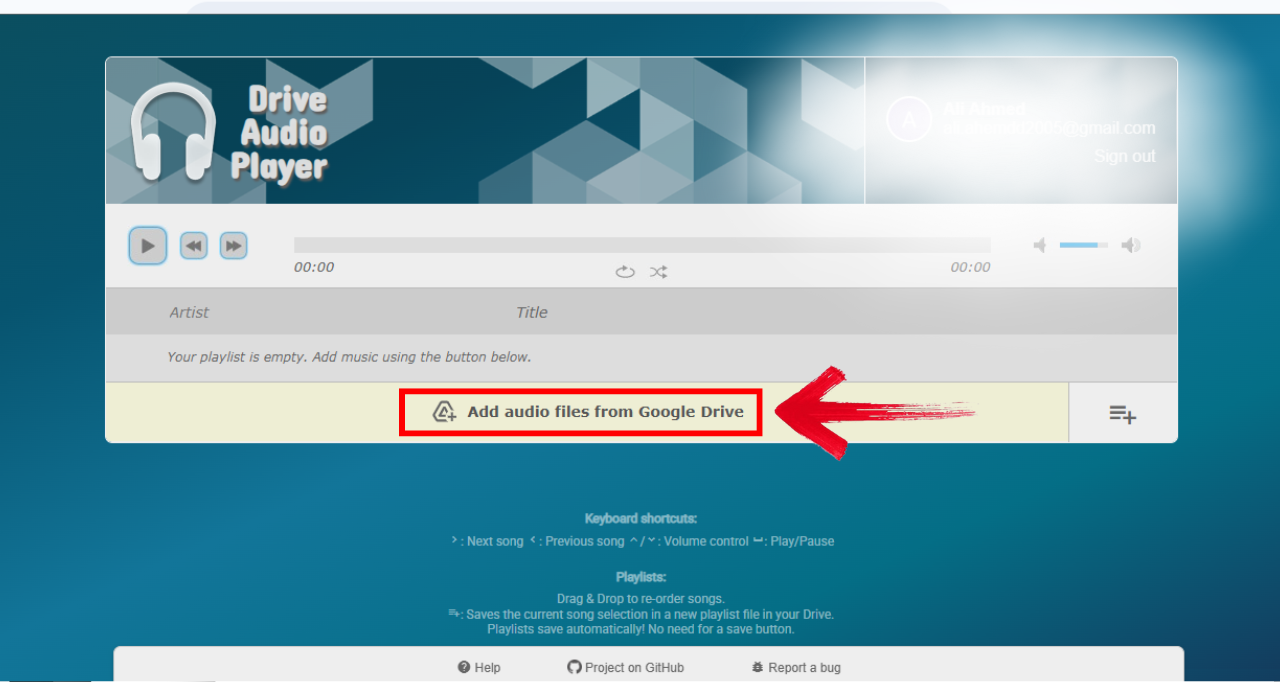
Step 2: Now to browse your Drive music files, click“Add Audio Files From Google Drive” and simply click the file you want to upload.
Step 3: You can now easily listen to your music by clicking the play button.
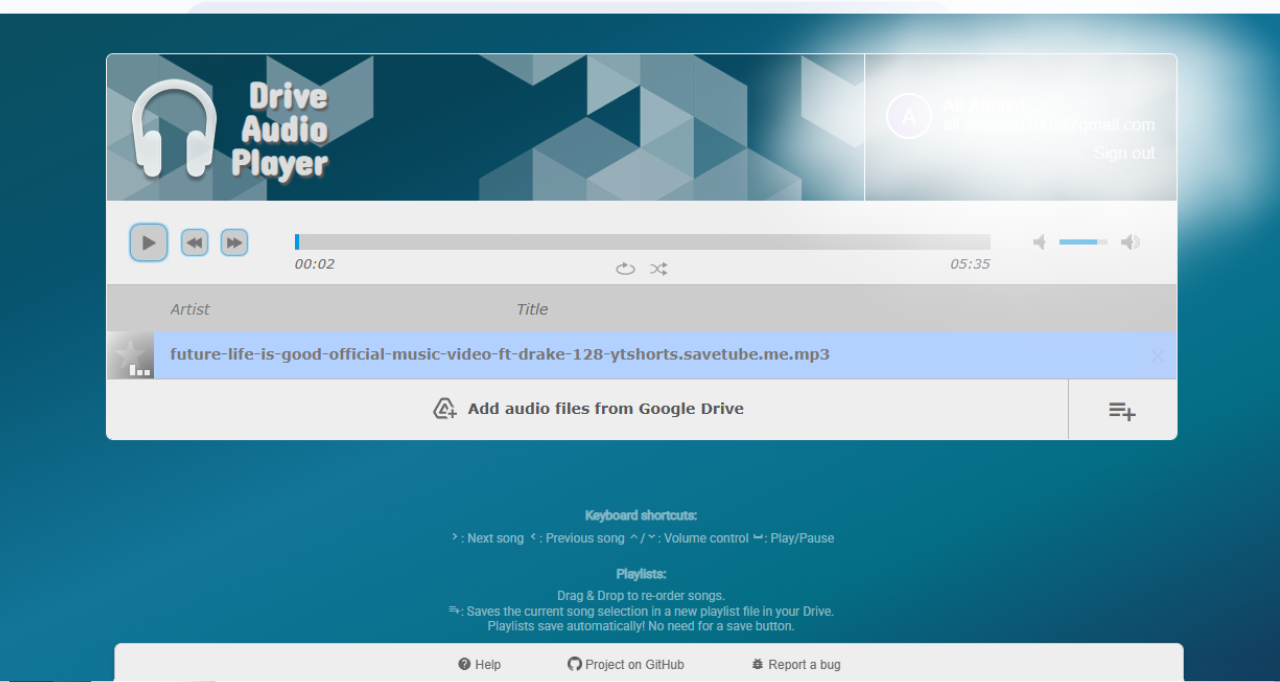
This one’s perfect when you don’t want to install extra apps. It streams directly from your Drive and keeps things light.
Advantages of Third-Party Tools:
Support for background playback and advanced sound control options.
Offer equalizers and crossfade effects that enhance the listening experience.
Enable playlist creation, making it easier to organize large musiccollections.
Provide offline caching, so you don’t depend on Wi-Fi all the time.
Download Your Video with Toolsmart’s YouTube to MP3
Now, while exploring how to play Google Drive music files on Android, I often come across tracks on YouTubethat I wish were in my Drive playlist. That’s when I found Toolsmart’s YouTube to MP3 converter. Toolsmart’s converter is one of my go-to tools for quickly downloading high-quality MP3s. It’s entirely free, simple to use, and doesn’t bombard you with ads or hidden costs.
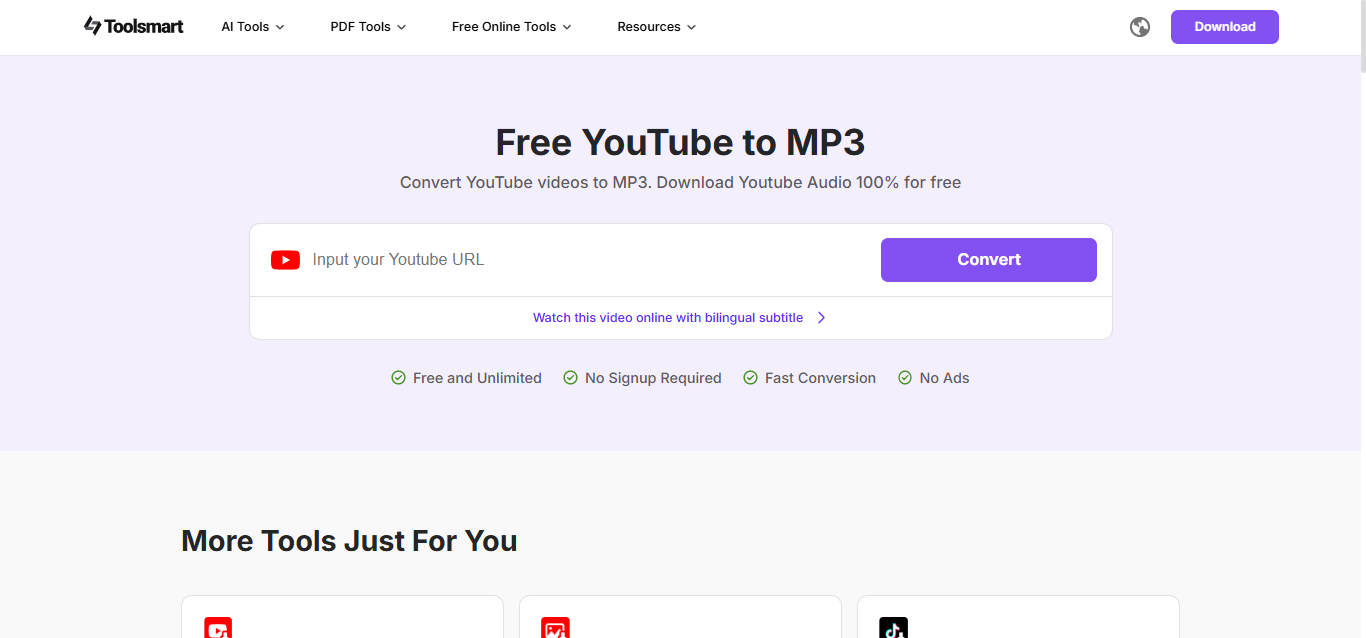
Toolsmart’s YouTube to MP3 feature lets you extract high-quality audio from YouTube videos instantly. The process is web-based, so there’s no need for any installation or registration. It’s designed for quick, hassle-free conversions, making it perfect for anyone who wants clean audio without dealing with complicated tools.
Features:
100% Free: No hidden fees or watermarks.
One-Click Download: Convert and save audio within seconds.
High-Resolution Support: Offers up to 4K video quality for clear conversions.
Multiple Formats: Supports MP3, MP4, MKV, and more.
Ad-Free Interface: You won’t encounter pop-ups or forced sign-ups.
Pros:
Lightning-fast downloads.
Simple and intuitive UI.
Works seamlessly on mobile and desktop.
No limit on conversions.
How to Use:
Here’s an easy way on how to use this tool.
Step 1: First of all, go to the official website ofToolsmart YouTube to MP3 on your browser.
Step 2: Drop your YouTube video link into the input box and hit “Convert” to start the process.
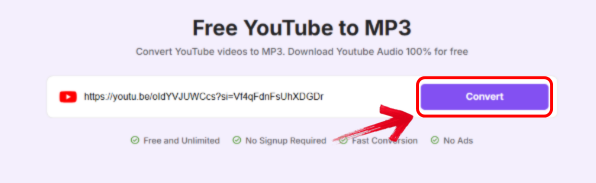
Step 3: Once done, a “Download MP3”option will appear under your link. Click it and it will start downloading and save your audioon your device.

I was impressed by how fast it converted long videos without quality loss. It’s now a staple in my content workflow for gathering music.
Bonus Tips – More AI Tools from Toolsmart
Besides converting YouTube videos, Toolsmart’s tools go beyond basic utilities, they’re built to make your workflow smoother and more creative. From polishing images to crafting story ideas or reformatting text, everything feels effortless and intuitive. Each feature loads fast, works flawlessly in your browser, and doesn’t interrupt your focus with ads.
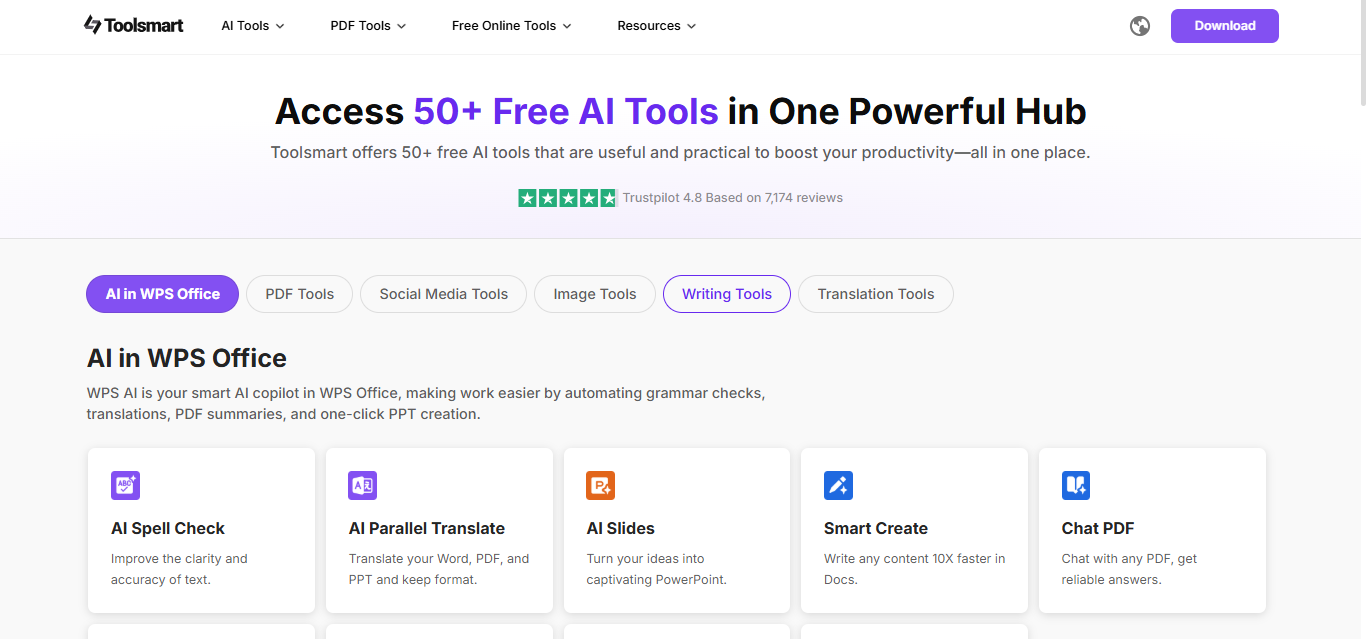
It’s like having a small productivity studio online, available anytime you need it. Once you start exploring, it’s hard not to rely on Toolsmart for your daily digital tasks. All these services are completely ad-free, providing a distraction-free experience. Here are some worth checking out:
Free Image Enhancer: Improve photo clarity with one click.
Free Plot Generator: Perfect for creative writers and storytellers.
Text Style Conversion: Instantly reformat your text into multiple styles.
Document Converters: Seamlessly switch between Word, Excel, PowerPoint, and PDF.
I started using Toolsmart mainly for MP3 conversions but ended up exploring the entire platform. The extra tools save time during content creation and file management.
FAQs
Q1. What’s the difference between “Make available offline” and “Download” in the Drive app?
The former keeps the file inside Drive’s secure storage, playable only through the app. Downloading moves it to your device’s folder, allowing any player to open it.
Q2. Can I stream music directly in VLC without downloading?
Yes, once linked to Google Drive, VLC streams files in real-time, though it still requires an internet connection.
Q3. Why can’t Poweramp connect directly to Drive?
Poweramp focuses on local playback. You need to download songs first and then add them to Poweramp’s folder manually.
Q4. Are Toolsmart conversions safe?
Absolutely. Files are automatically deleted within an hour after conversion, keeping everything secure.
Your Music, Your Cloud, Your Rules
Playing Google Drive music files on Android is actually pretty simple once you know the right tools. The Drive app works great for quick streaming, while apps like VLC or CloudPlayer offer smoother playback and better controls. When I started using Toolsmart YouTube to MP3 alongside them, managing and expanding my music library became effortless. It’s fast, dependable, and perfectly fits the purpose of learning how to play Google Drive music files on Android, ideal for anyone who wants their favorite tracks available anytime, anywhere.


