
'%3e%3cpath%20fill-rule='evenodd'%20clip-rule='evenodd'%20d='M19%208.5C24.799%208.5%2029.5%2013.201%2029.5%2019C29.5%2024.6782%2024.9928%2029.3036%2019.361%2029.4939L19%2029.5C18.8794%2029.5%2018.7592%2029.498%2018.6396%2029.4939L18.2811%2029.4758C12.8174%2029.1063%208.5%2024.5574%208.5%2019C8.5%2013.201%2013.201%208.5%2019%208.5ZM22.3063%2010.6267L22.2342%2010.6539C21.3423%2011.0061%2020.5541%2011.6368%2020.5606%2012.4987C20.5631%2012.8302%2020.869%2014.8871%2020.2141%2014.8486C19.5589%2014.8102%2019.413%2013.8753%2018.7116%2013.616C17.5944%2013.2026%2016.9819%2014.3401%2017.0939%2015.3106C17.1695%2015.9655%2018.9289%2018.3871%2017.9028%2019C17.292%2019.3651%2015.7279%2017.5692%2015.1007%2017.1842C14.4805%2016.8034%2013.2758%2017.3333%2012.4974%2016.7029C11.9874%2016.2899%2012.3881%2014.4098%2012.2786%2013.8372C12.2271%2013.5698%2012.1155%2013.3689%2011.9794%2013.2166L12.0402%2013.2934C10.7653%2014.8464%2010%2016.8339%2010%2019C10%2023.8465%2013.8307%2027.7982%2018.6295%2027.9925L18.6769%2027.9747C18.8597%2027.8677%2019.0394%2027.7557%2019.216%2027.6387C19.4137%2027.4534%2019.5436%2027.2072%2019.5849%2026.9394C19.8806%2025.1222%2018.3616%2025.4302%2017.9367%2024.5622C17.5489%2023.7695%2018.5712%2023.7684%2018.5524%2021.7923C18.4607%2021.1774%2018.5279%2020.547%2018.7211%2020.0315C19.1834%2018.7987%2020.7077%2017.2643%2022.5889%2018.0081C23.5567%2018.3906%2023.1524%2019.9831%2023.4737%2020.3394C24.251%2021.2018%2025.3228%2020.6863%2026.2856%2021.2253C26.7816%2021.5032%2026.9797%2022.41%2027.056%2023.2248L27.038%2023.0528C27.6534%2021.8348%2028%2020.4579%2028%2019C28%2015.1968%2025.6409%2011.9445%2022.3063%2010.6267Z'%20fill='%23757575'/%3e%3ccircle%20cx='19'%20cy='19'%20r='10.125'%20stroke='%23757575'%20stroke-width='2.25'/%3e%3c/g%3e%3cdefs%3e%3cclipPath%20id='clip0_1827_14613'%3e%3crect%20width='24'%20height='24'%20fill='white'%20transform='translate(7%207)'/%3e%3c/clipPath%3e%3c/defs%3e%3c/svg%3e)


With the growing popularity of photo-sharing platforms and editing apps, it's now easier than ever to add personal flair, like stickers, to your images. Stickers help express mood, tell stories, or even add humor and character. Despite the abundance of apps and built-in features, many users still find themselves confused about how to add stickers to photos effectively. So, how to add a sticker to a photo?
In this article, I'll walk you through a range of methods, from native mobile tools on iPhone and Android to third-party apps like Picsart, Fotor, and Canva.
Part 1: How to Add Stickers to Photos on iPhone/Android
On iPhone
Adding stickers to photos on an iPhone has become more intuitive, especially with iOS 17 and above. You can now lift a subject from any photo and convert it into a sticker, then reuse it in Messages or even place it back onto other photos.
Here's how to add a sticker to a photo on iPhoneusing the Photos app and iMessage integration:
Steps:
Step 1: Open the Photos app
Choose a photo from which you want to make a sticker.
Step 2: Long-press the subject in the photo
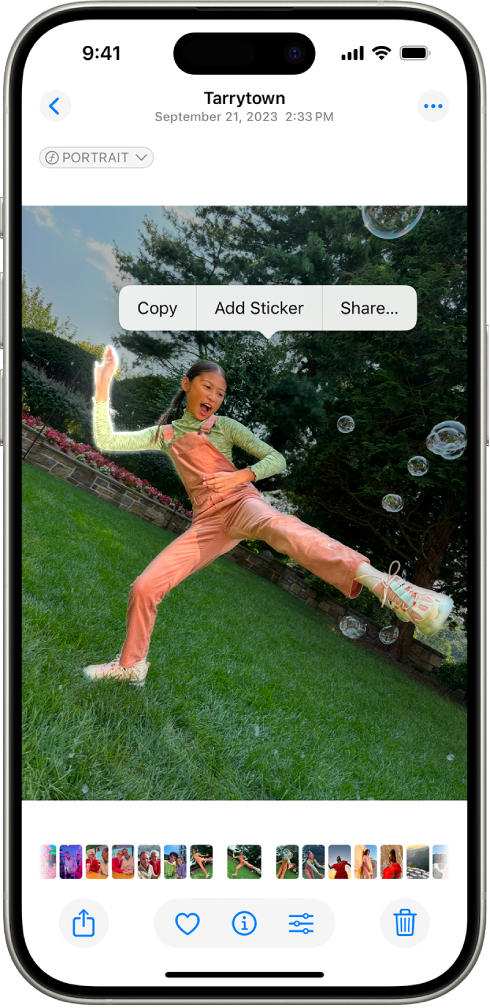
Tap and hold on the main subject (like a person or object). It will be highlighted, and a glowing outline will appear around it.
Step 3: Tap "Add Sticker."
Once the subject is lifted, a pop-up will appear. Tap on Add Sticker.
Step 4: Access your sticker in iMessage
Now open the Messages app. In the text box, tap theStickers icon. Your custom stickers will be saved there.
Step 5: Add the sticker to a new photo
Take a screenshot or use the markup tool to place the sticker onto another photo. You can also copy the sticker from Messages and paste it elsewhere.
My Experience Using This Method
Apple's built-in sticker creation is surprisingly smart and effortless. I tried it with a selfie and was impressed with how cleanly the subject was extracted, even with a cluttered background. If you're wondering how to add a sticker to an existing photo using iPhone tools alone, this method works well with some creative tweaking (like using markup to paste it). That said, it lacks layering or precise resizing, great for fun, not for advanced edits.
On Android Phones (Samsung Gallery)
If you're using a Samsung device, the built-in Gallery app makes it easy to add stickers to your photos, no third-party app needed.
Here's how to add a sticker to a photo using Samsung's Gallery editor:
Steps:
Step 1: Open the Gallery app
Find and open the photo you want to edit.
Step 2: Tap the Pencil icon to enter Edit Mode
This icon is usually at the bottom of the screen.
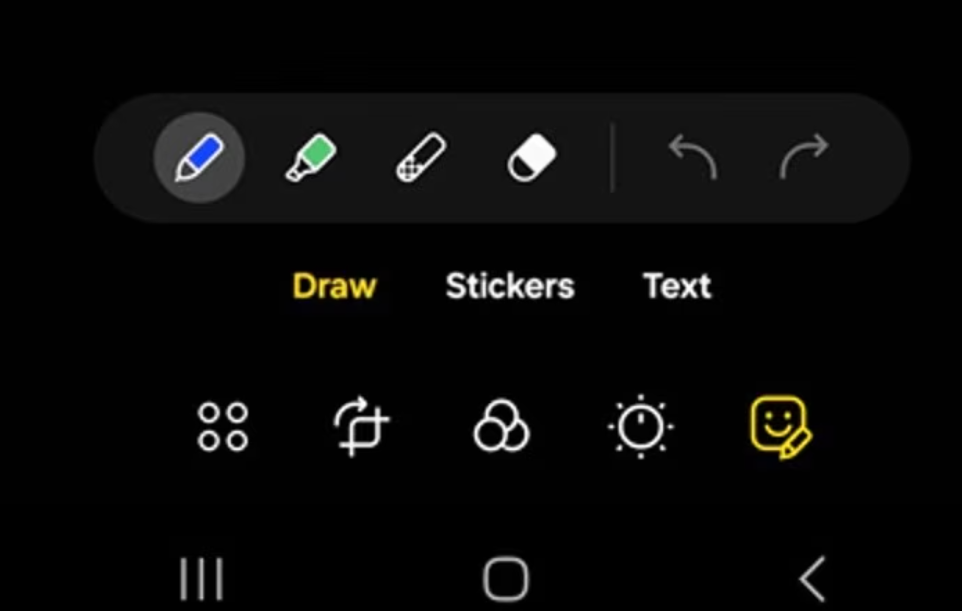
Step 3: Select the Sticker tool
Tap on the smiley face or sticker icon (usually on the bottom toolbar).
Step 4: Choose a sticker
Samsung provides built-in stickers, emojis, and even the option to download more. You can also use AR Emoji stickers or stickers created from other images.
Step 5: Resize and place the sticker
Drag to reposition the sticker. Pinch to resize or rotate it as needed.
Step 6: Tap Save
Once you're satisfied with the placement, tap Saveto apply the changes to your photo.
My Experience Using This Method
When I tested this on my Samsung phone, the process felt smooth and responsive. The sticker selection isn't as extensive as on third-party apps, but for quick and playful edits, it's definitely efficient. This is a solid method if you're looking for how to add stickers to photos on Android without downloading anything new. Just note that some older Samsung models may have slightly different menu placements.


Part 2: Add Sticker With Social Media Platforms – Top 3 Tools Reviewed
1. Picsart
Features:
Huge sticker library (user-generated + official)
AI cutout for creating custom stickers
Background remover and layering tools
Available on web, iOS, and Android
Price:
Free plan available with limited features
Premium (Picsart Gold) starts at $5/month for advanced editing and no watermark
Pros:
Creative freedom with drag-and-drop sticker placement
Supports text, filters, and layering for complex edits
AI tools make sticker-making fun and fast
Cons:
Ads in the free version can be distracting
Some advanced stickers are behind a paywall
It might feel overwhelming for beginners
How to Add a Sticker to a Photo With Picsart
Here's how to add a sticker to a photo using the Picsart app (works similarly on iPhone and Android):
Steps:
Step 1: Open the Picsartapp
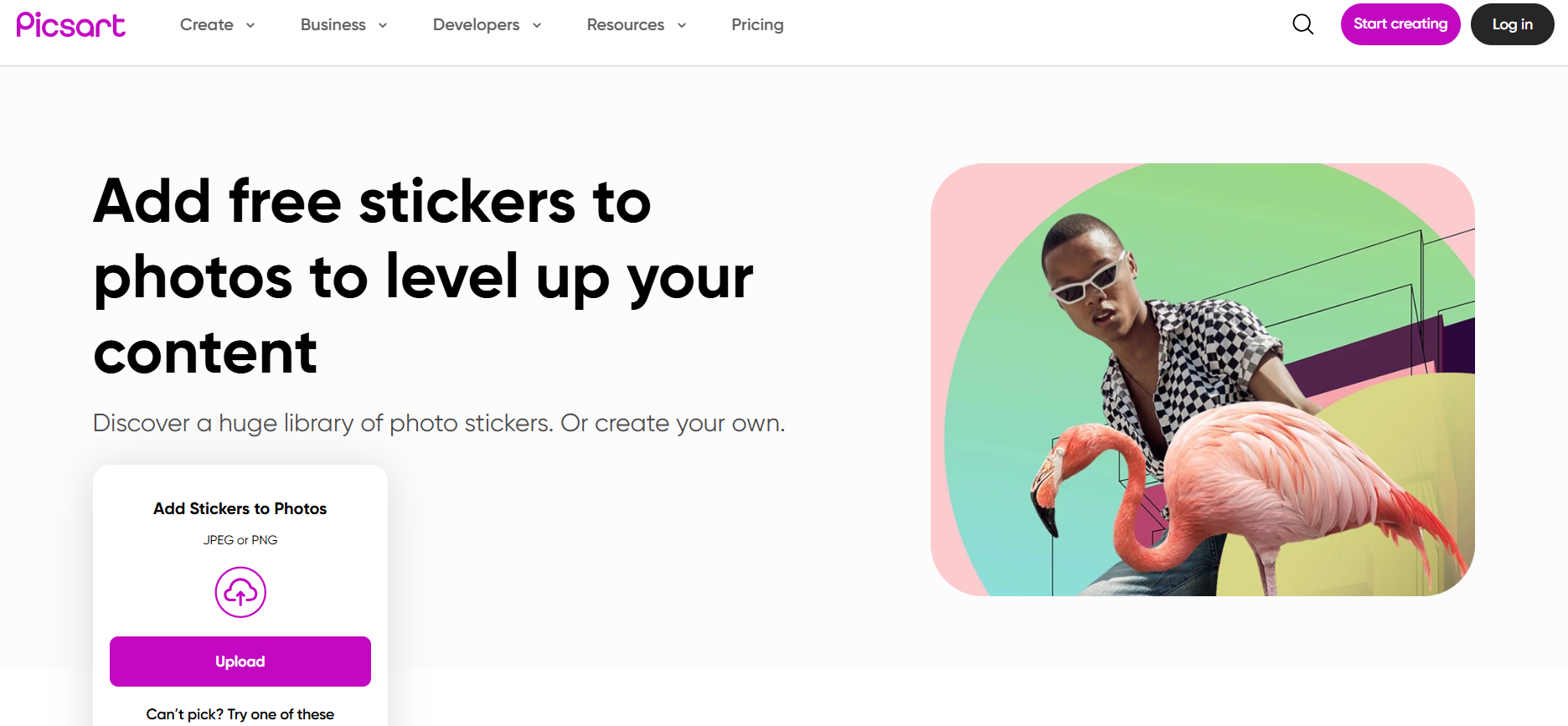
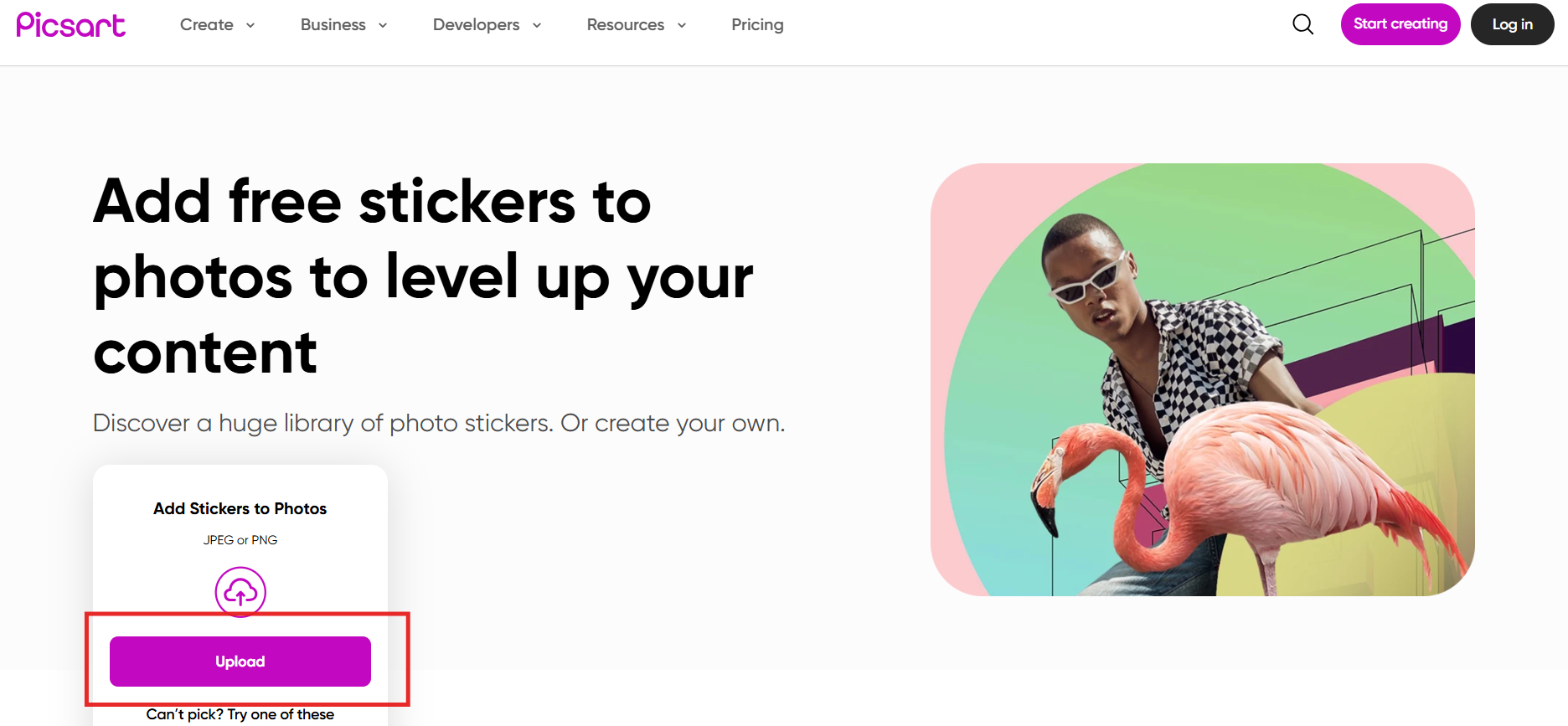
Tap the "Upload" button on the home screen to start a new project.
Step 2: Select your photo
Choose a photo from your gallery or cloud storage.
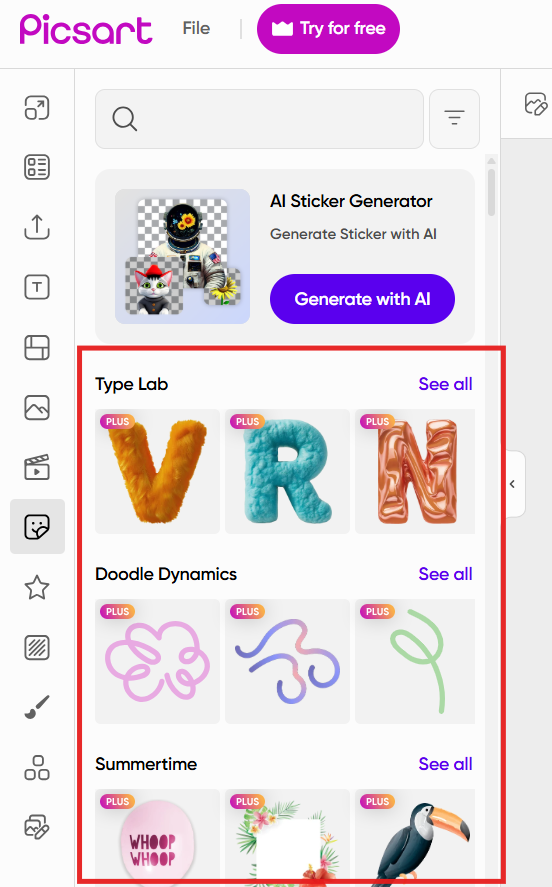
Step 3: Tap on "Sticker" in the toolbar
Search for stickers in categories or use the search bar (e.g., "cute," "emoji," "text bubble").
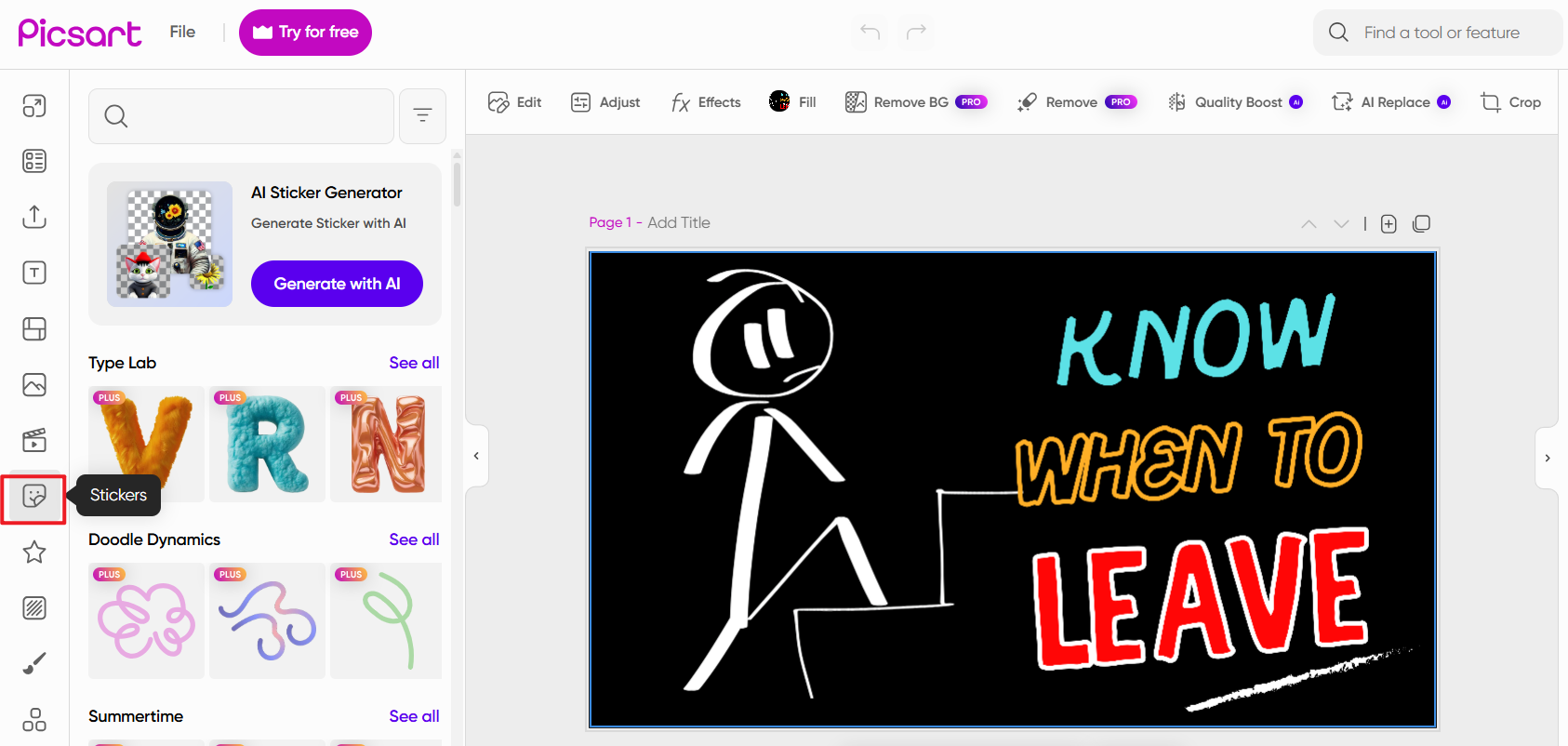
Step 4: Choose a sticker and customize
Drag, rotate, or resize the sticker. You can add multiple layers or blend them using opacity settings. Download the edited photo or share directly to Instagram, WhatsApp, etc.
My Experience Using Picsart
Picsart is my go-to for making fun edits fast. I especially like how the sticker search gives you thousands of options; there's always something creative to add. Plus, if you're wondering how to add background to a sticker on iPhone or Android, Picsart's cutout tool lets you create and use stickers with clean outlines and background tweaks. The only downside is that the free version does have occasional pop-ups and locked content, but the core tools are strong enough for most users.
2. Fotor
Features:
Online and mobile access (iOS, Android, Web)
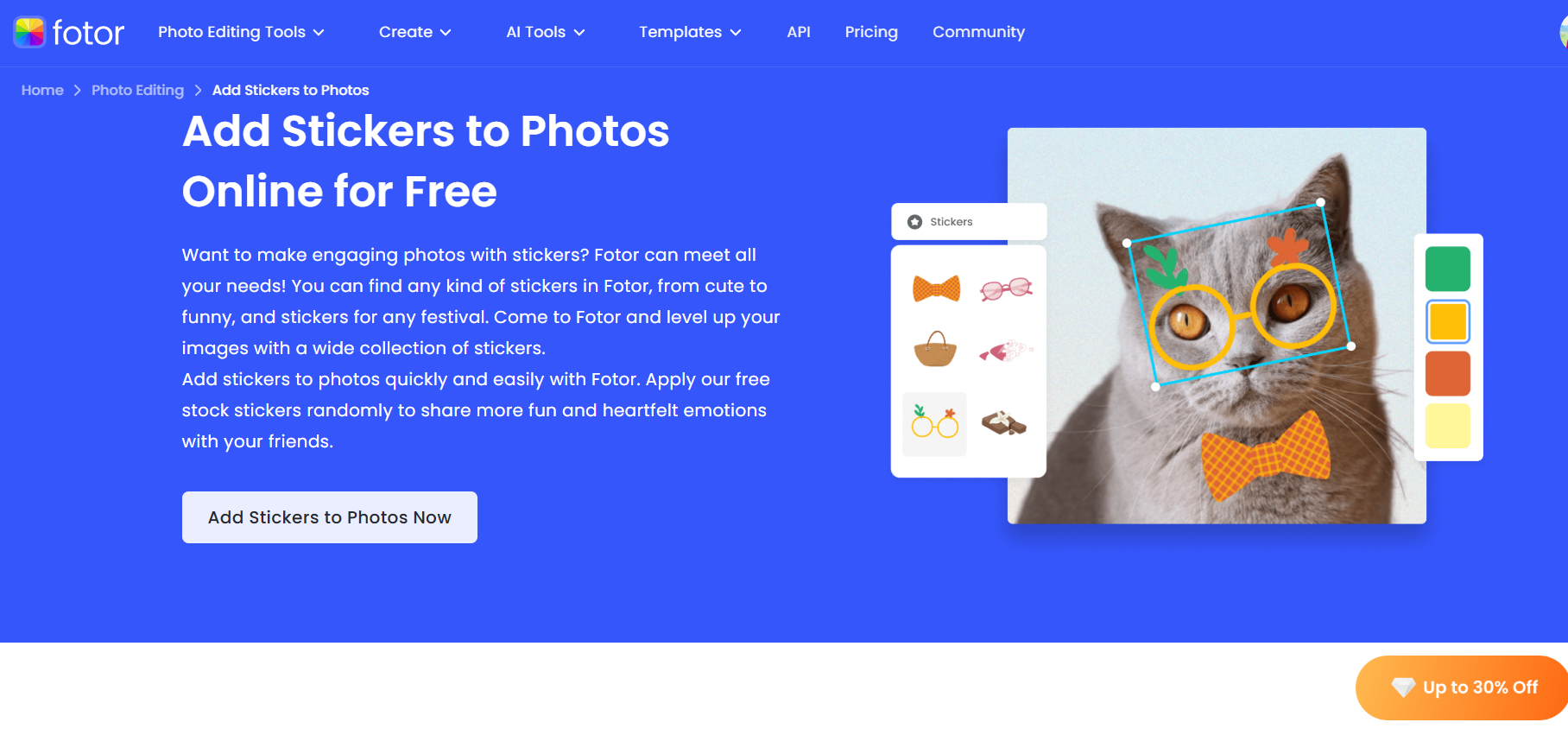
Built-in sticker creator and sticker packs
AI-powered tools for photo enhancement and retouching
Drag-and-drop editor with layers and effects
Price:
Free basic version available
Fotor Pro costs $3.33/month (billed annually) for advanced features
Pros:
Clean, user-friendly interface
Easy to add stickers, text, filters, and frames
No watermark on saved files in the free version
Cons:
Sticker library isn't as extensive as Picsart
Some editing features are locked behind a paywall
A mobile app can lag on older phones
How to Add a Sticker to a Photo With Fotor
Here's how to add a sticker to photos using Fotor's web editor (very similar on mobile too):
Steps:
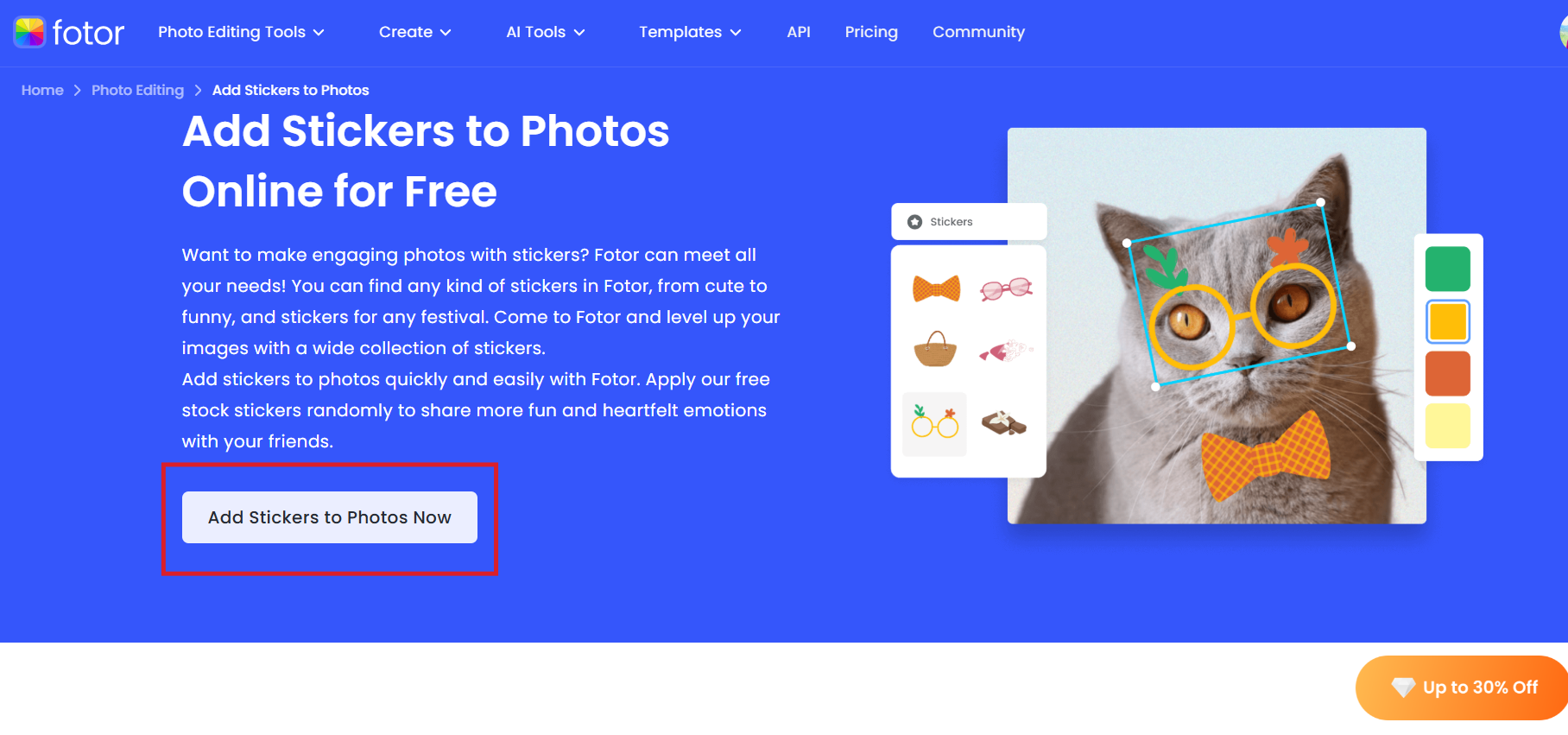
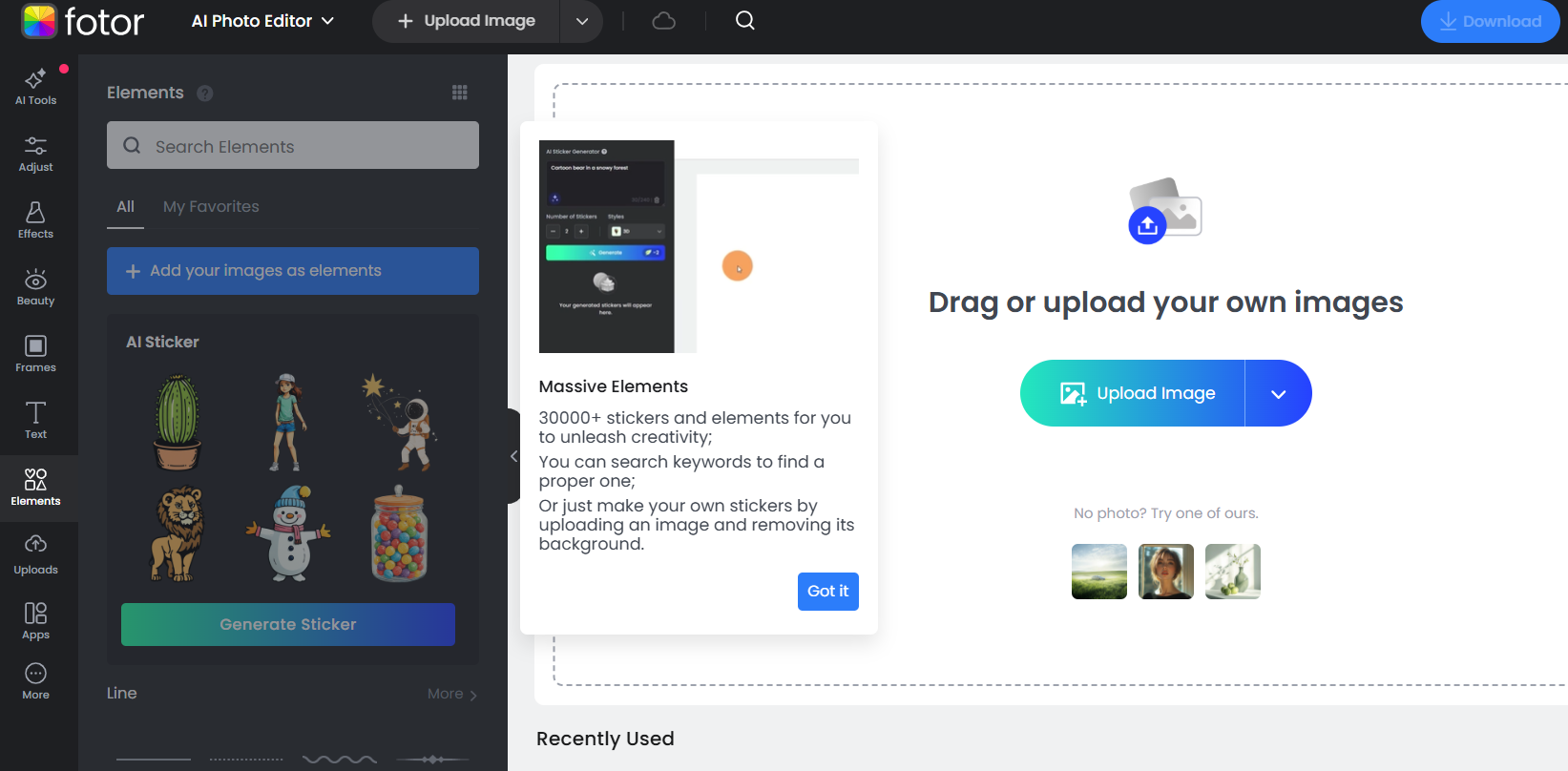
Step 1: Go to the Fotor app
Click on "Add Stickers" to open the editor.
Step 2: Upload your image
Drag and drop your photo or choose one from your device.
Step 3: Select the "Elements" tab
You'll find this in the left-hand menu. Explore various categories like "Cute," "Retro," or "Love."
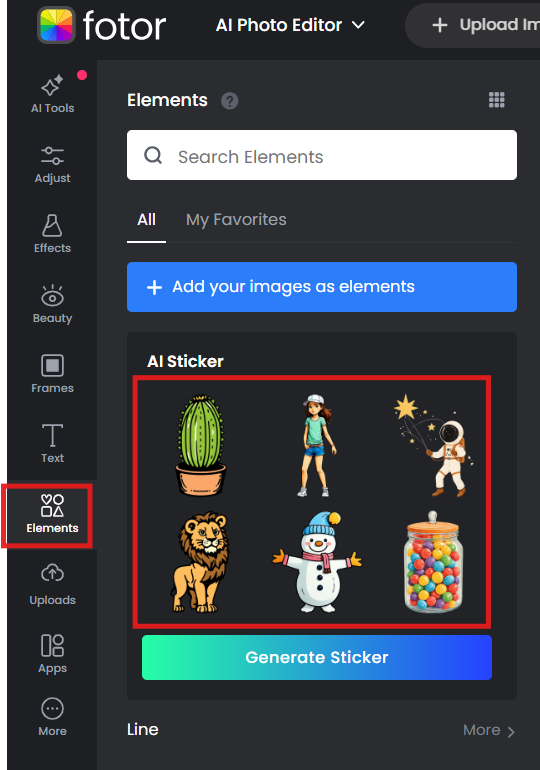
Step 4: Add and adjust your sticker
Click on a sticker to add it to your photo. Resize, rotate, or duplicate it as needed.
Step 5: Save your image
Click "Download" to export your final image in JPG or PNG format.
My Experience Using Fotor
I personally enjoy Fotor for quick edits. It's super intuitive, even if you're new to editing, you won't feel lost. While the sticker selection may be smaller than other tools, it's curated and easy to navigate. If you're using an iPhone and want to edit the sticker outline or experiment with how to add a sticker to an existing photo, Fotor gives you the tools without the learning curve.
3. Canva
Features:
An extensive library of free and premium stickers
Drag-and-drop editor for web, iOS, and Android
Smart design templates, text effects, and animation
Collaboration tools and brand kit options for teams
Price:
Free version available
Canva Pro starts at $12.99/month (offers team features, more assets, and premium tools)
Pros:
Easy for beginners with pro-level results
Huge selection of stickers, GIFs, icons, and elements
Syncs across devices; cloud saves make access seamless
Cons:
Some popular stickers are locked behind Pro
Export options (like transparent background) are limited in the free version
The web version can lag with large files
How to Add a Sticker to a Photo with Canva
Here's how to add a sticker to a photo using Canva's online platform or mobile app:
Steps:
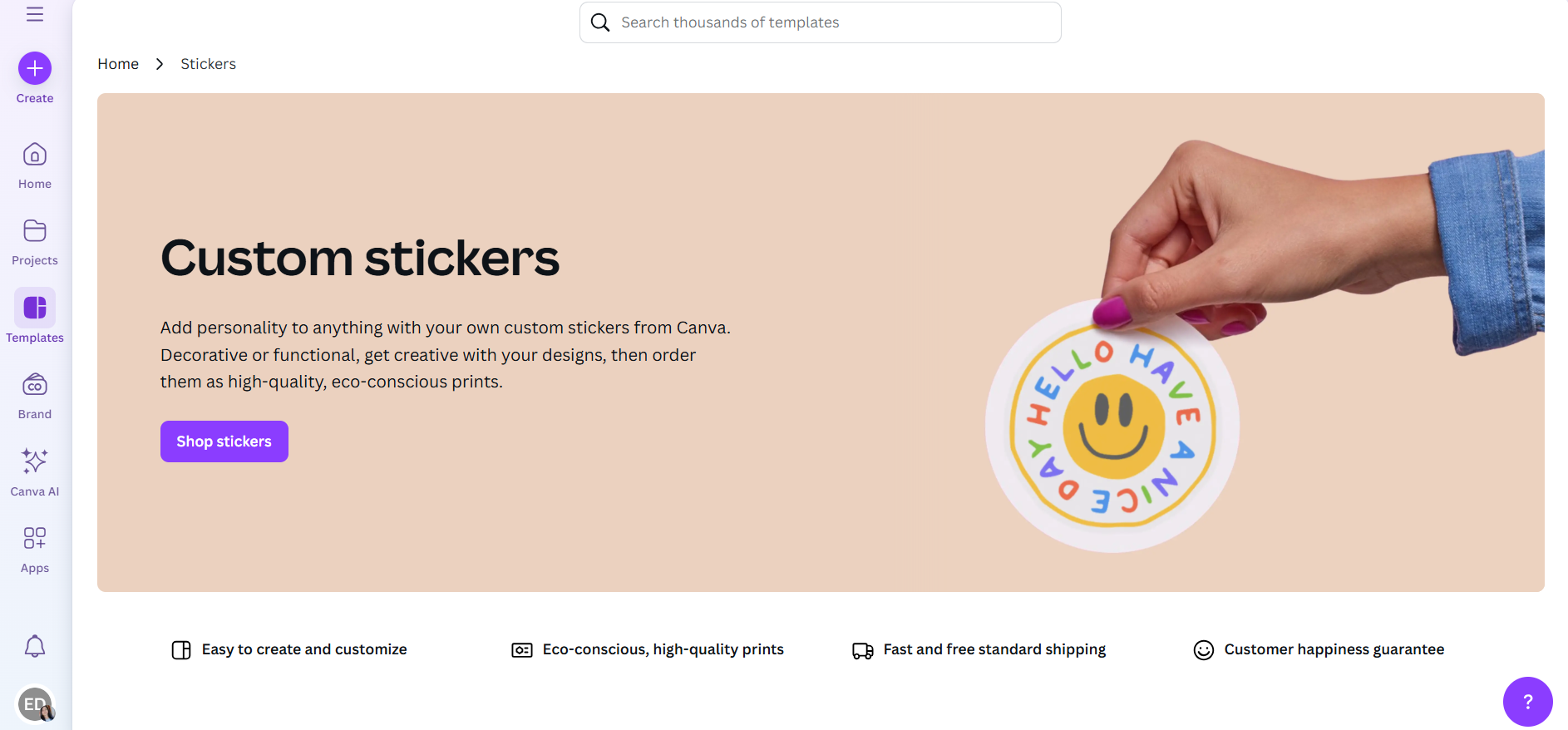
Step 1: Open Canva and sign in
Visit https://www.canva.com/stickers/or launch the app.
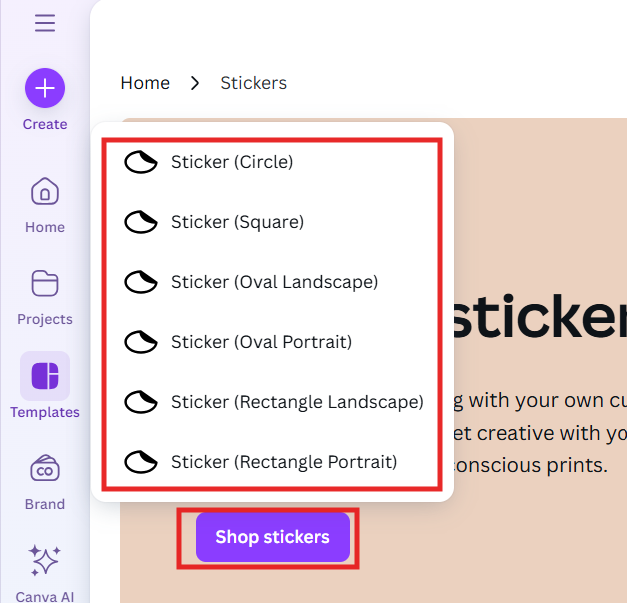
Step 2: Click "Shop Stickers" and choose the shape of the sticker
Upload the image you want to edit.
Step 3: Tap on the "Elements" tab
Go to "stickers" or browse categories.
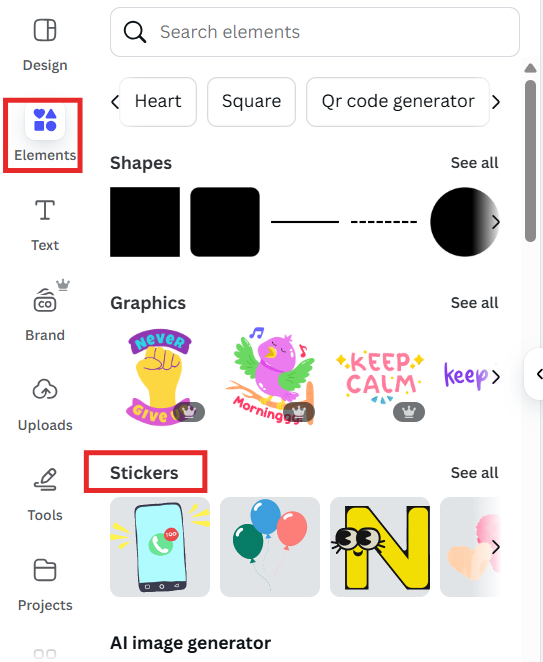
Step 4: Add and customize your sticker
Click on a sticker to add it. Use the corner controls to resize, rotate, or duplicate. You can layer multiple stickers and adjust transparency.
Step 5: Save or share your photo
Click "Share"> "Download" to export your image.
My Experience Using Canva
Canva is a true all-rounder. I've used it countless times for both professional visuals and fun personal edits. The sticker options range from playful to elegant, and the drag-and-drop flow is just smooth. When testing how to add a sticker to a photo on iPhone, Canva's mobile app felt just as reliable as the desktop version. The only thing I missed in the free plan was the ability to remove backgrounds or use animated stickers. But for most sticker needs, it delivers brilliantly.
Part 3: Tools Comparison Table
| Tool | Features | Pros | Cons | Price |
|---|---|---|---|---|
| Picsart | - Large sticker library - AI cutout tool - Background remover | - Huge variety of stickers - AI makes editing fast - Rich layering | - Ads in the free version - Some stickers are paywalled | Free (Premium from $5/mo) |
| Fotor | - Sticker maker - Clean UI - AI retouching tools | - Easy to use - Good for beginners - Free export with no watermark | - Smaller sticker library - Some tools locked in Pro | Free (Pro from $3.33/mo) |
| Canva | - Extensive sticker collection - Design templates - Web & app support | - User-friendly - Ideal for social posts - Strong cross-platform use | - Some assets locked in Pro - Limited export features in the free plan | Free (Pro from $12.99/mo) |
Quick Takeaway: If you want maximum creative control, go with Picsart. For simple edits with clean UI, Fotor is great. And if you're building aesthetic visuals or social media posts, Canva is unbeatable.
Part 4: Complementary Tool – Toolsmart's Free Image Enhancer
Adding stickers makes your photos expressive, but what if the image itself is low-quality, blurry, or dull? That's where Toolsmart's Free Image Enhancer comes in.
Instead of relying on complex tools like Photoshop, Toolsmart offers a free, beginner-friendly solution to upgrade your images in seconds, whether you're working with portraits, landscapes, or product shots.
Why Toolsmart?
One-click AI enhancement
No learning curve, just upload and go
Sharpens blurry images, enhances colors, and improves details
100% browser-based (no download needed)
Free and secure (no data is used for AI training)
How to Use Toolsmart's Free Image Enhancer
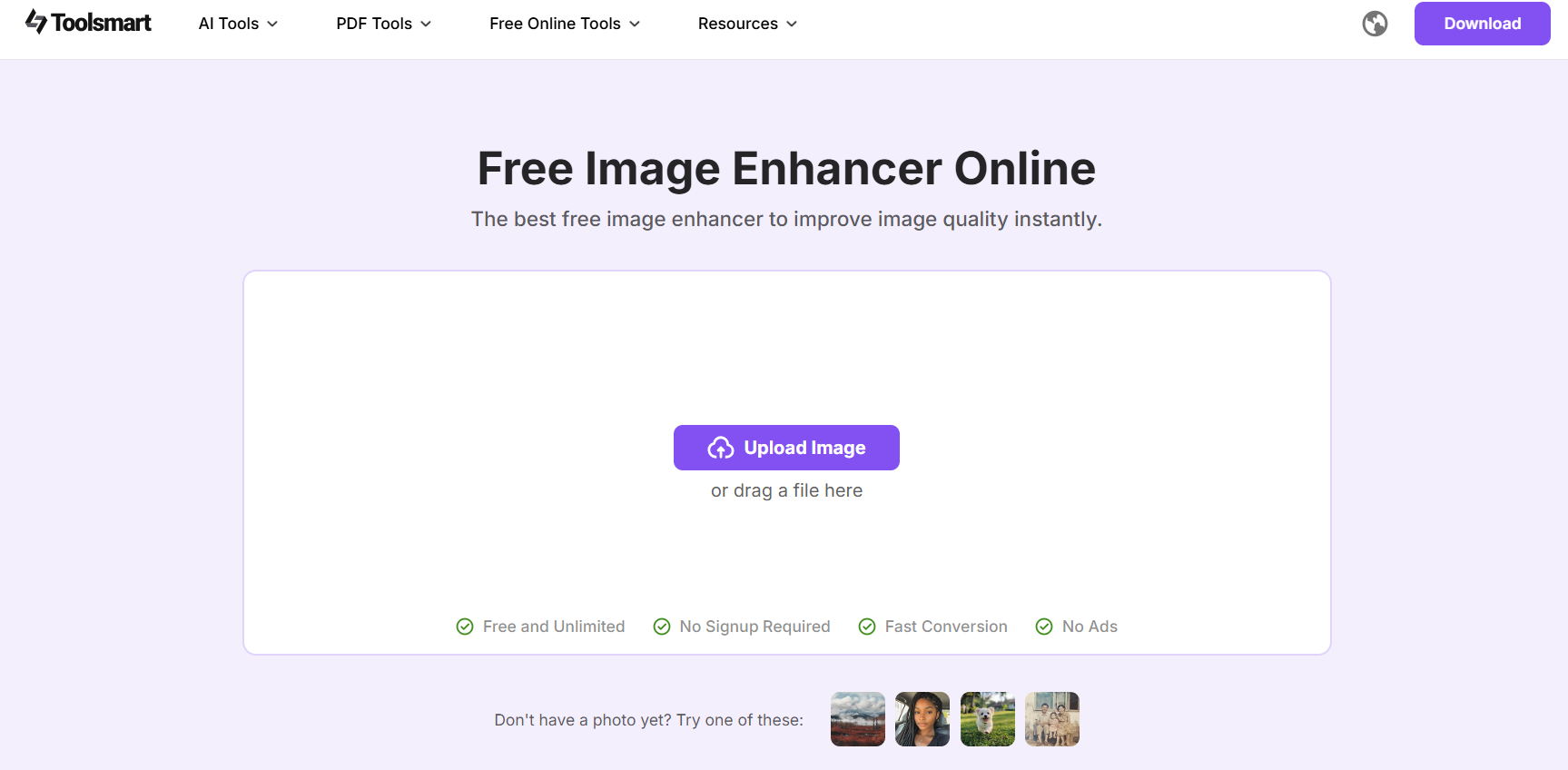
Step 1: Visit Toolsmart Free Image Enhancer
You'll land on a clean interface where you can upload your image.
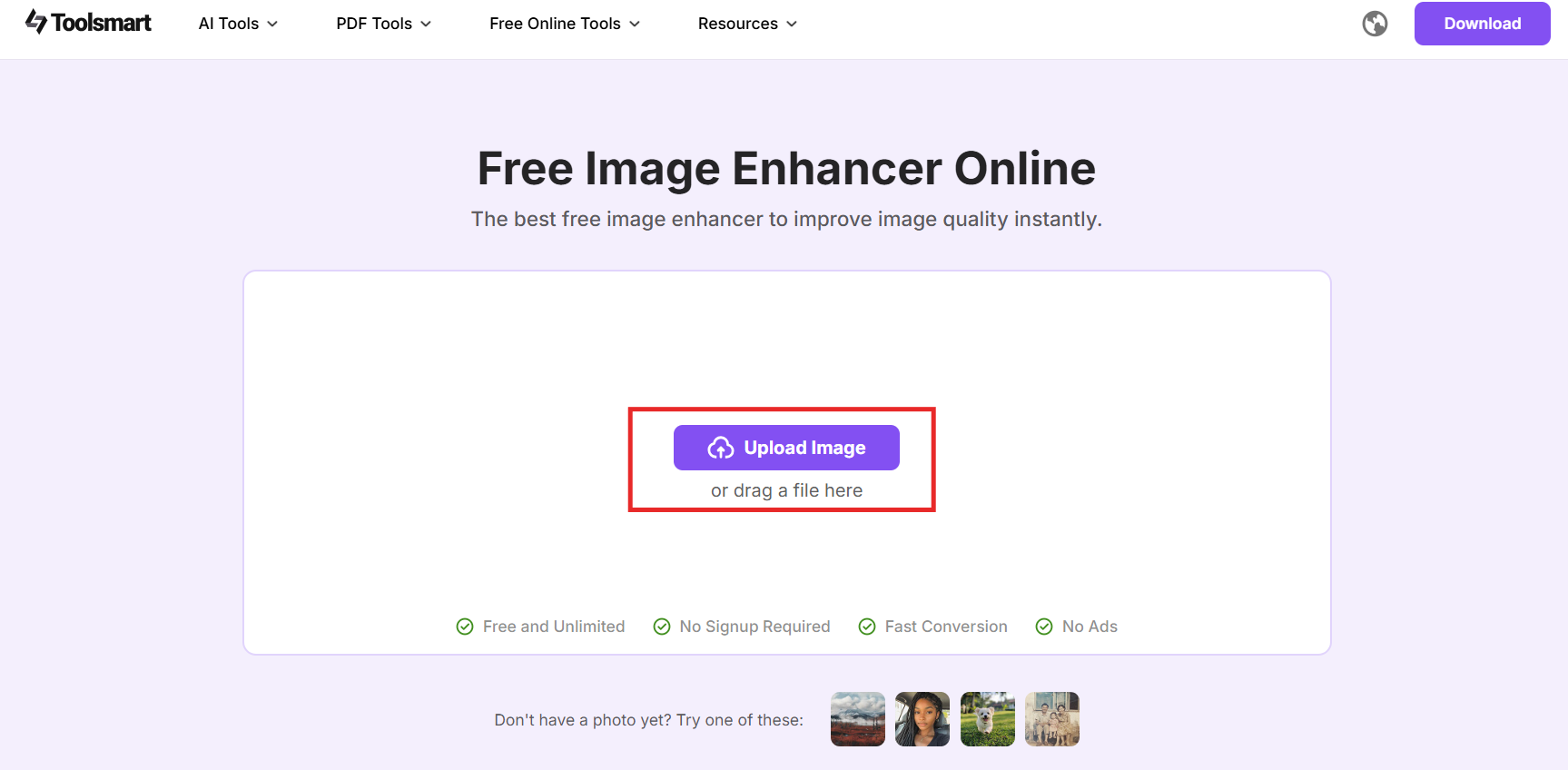
Step 2: Click "Upload Image" and choose a photo
Select the image you want to improve. It can be a selfie, stickered photo, or even a low-res image.
Step 3: Let the AI work its magic
The tool automatically enhances sharpness, lighting, and clarity in seconds.
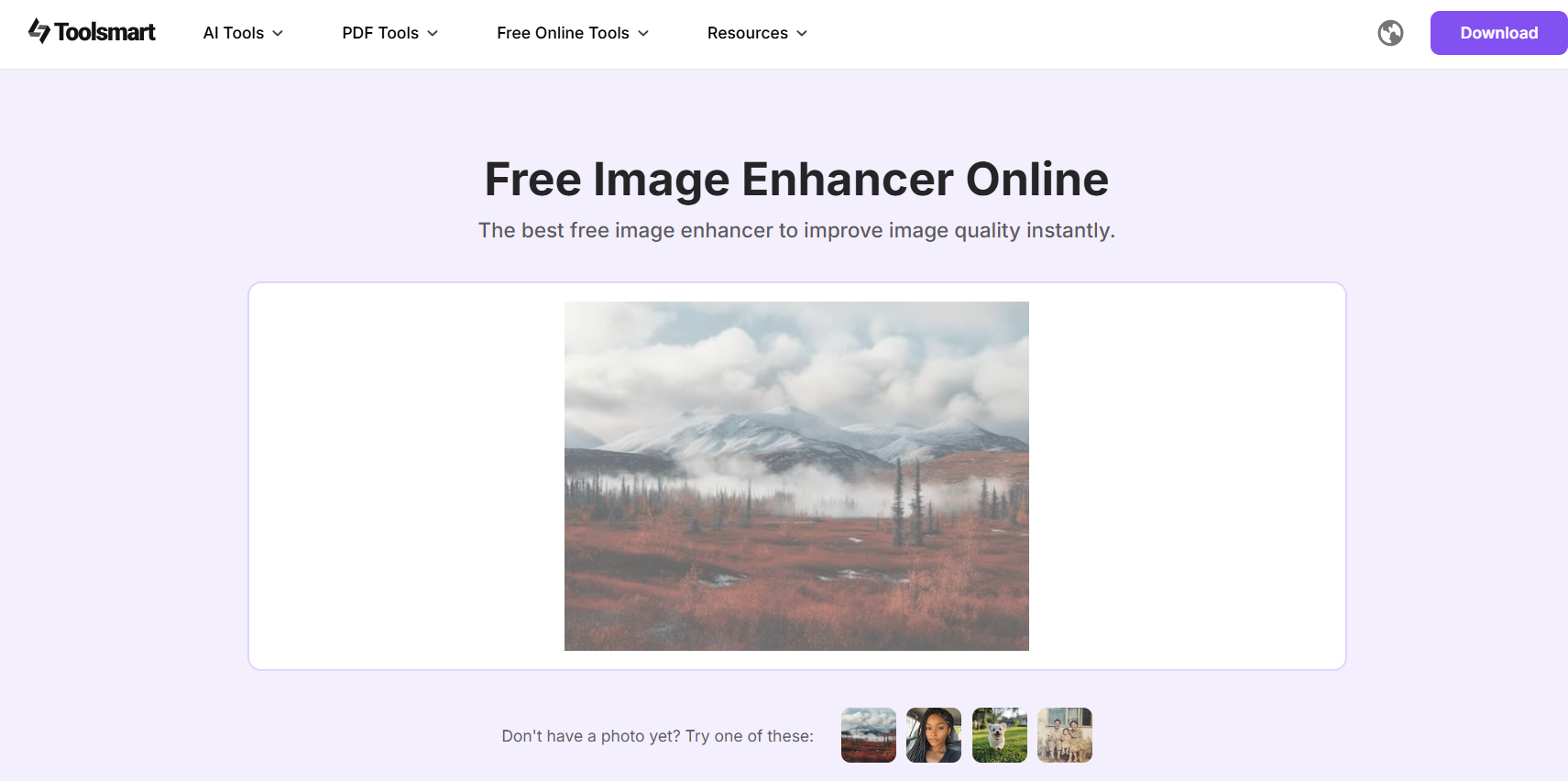
Step 4: Preview and download the result
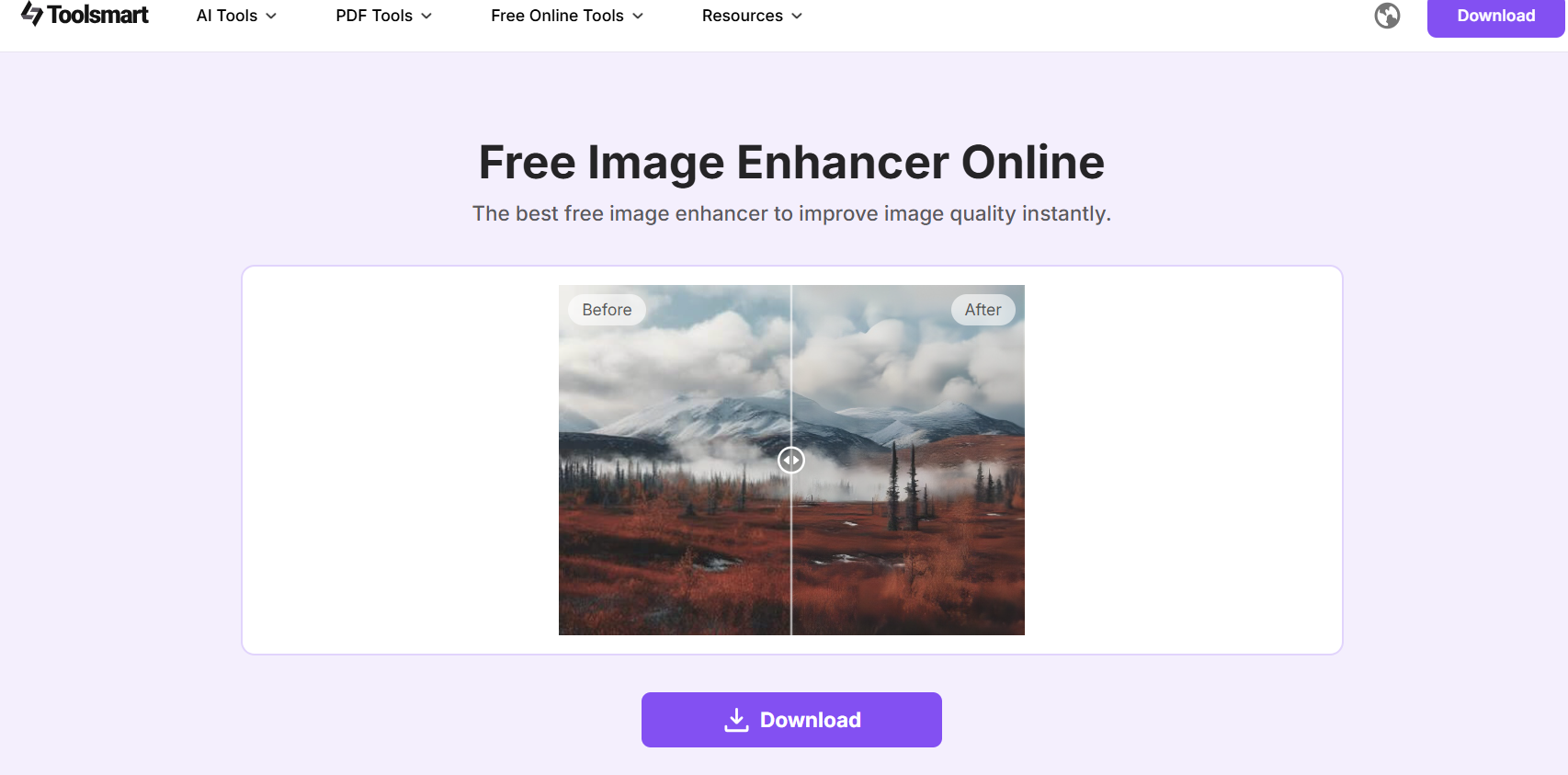
You'll see a side-by-side comparison. If you like the changes, click"Download" to save it.
My Experience Using Toolsmart
I tested Toolsmart with a few photos that had stickers added using Canva and Picsart. Some were slightly pixelated or lacked contrast, Toolsmart brought them back to life. The difference in clarity and brightness was instant. What impressed me most was how smooth the output looked, even without any manual adjustments. It's the perfect final step after sticker edits if you want your photo to look polished and professional.
FAQs
Q1: What kind of images can I enhance with Toolsmart's Free Image Enhancer?
You can enhance nearly any type of image, portraits, landscapes, social media posts, or product photos. Whether it's a selfie with stickers or a low-resolution image, Toolsmart can sharpen and improve it in seconds.
Q2: Are my uploaded images used to train Toolsmart's AI model?
No. Toolsmart values user privacy. Your uploaded images are not stored or used for any training or analysis purposes; they remain private and secure.
Q3: Can I use Toolsmart's enhancer on mobile devices?
Yes. Toolsmart is fully web-based and mobile-friendly. You can access it directly through your mobile browser and enhance images without downloading any software.
Q4: Is there a limit to how many photos I can enhance for free?
While there is no strict daily limit, frequent use may prompt a captcha or request for verification. For occasional users, it remains completely free and unlimited.