
'%3e%3cpath%20fill-rule='evenodd'%20clip-rule='evenodd'%20d='M19%208.5C24.799%208.5%2029.5%2013.201%2029.5%2019C29.5%2024.6782%2024.9928%2029.3036%2019.361%2029.4939L19%2029.5C18.8794%2029.5%2018.7592%2029.498%2018.6396%2029.4939L18.2811%2029.4758C12.8174%2029.1063%208.5%2024.5574%208.5%2019C8.5%2013.201%2013.201%208.5%2019%208.5ZM22.3063%2010.6267L22.2342%2010.6539C21.3423%2011.0061%2020.5541%2011.6368%2020.5606%2012.4987C20.5631%2012.8302%2020.869%2014.8871%2020.2141%2014.8486C19.5589%2014.8102%2019.413%2013.8753%2018.7116%2013.616C17.5944%2013.2026%2016.9819%2014.3401%2017.0939%2015.3106C17.1695%2015.9655%2018.9289%2018.3871%2017.9028%2019C17.292%2019.3651%2015.7279%2017.5692%2015.1007%2017.1842C14.4805%2016.8034%2013.2758%2017.3333%2012.4974%2016.7029C11.9874%2016.2899%2012.3881%2014.4098%2012.2786%2013.8372C12.2271%2013.5698%2012.1155%2013.3689%2011.9794%2013.2166L12.0402%2013.2934C10.7653%2014.8464%2010%2016.8339%2010%2019C10%2023.8465%2013.8307%2027.7982%2018.6295%2027.9925L18.6769%2027.9747C18.8597%2027.8677%2019.0394%2027.7557%2019.216%2027.6387C19.4137%2027.4534%2019.5436%2027.2072%2019.5849%2026.9394C19.8806%2025.1222%2018.3616%2025.4302%2017.9367%2024.5622C17.5489%2023.7695%2018.5712%2023.7684%2018.5524%2021.7923C18.4607%2021.1774%2018.5279%2020.547%2018.7211%2020.0315C19.1834%2018.7987%2020.7077%2017.2643%2022.5889%2018.0081C23.5567%2018.3906%2023.1524%2019.9831%2023.4737%2020.3394C24.251%2021.2018%2025.3228%2020.6863%2026.2856%2021.2253C26.7816%2021.5032%2026.9797%2022.41%2027.056%2023.2248L27.038%2023.0528C27.6534%2021.8348%2028%2020.4579%2028%2019C28%2015.1968%2025.6409%2011.9445%2022.3063%2010.6267Z'%20fill='%23757575'/%3e%3ccircle%20cx='19'%20cy='19'%20r='10.125'%20stroke='%23757575'%20stroke-width='2.25'/%3e%3c/g%3e%3cdefs%3e%3cclipPath%20id='clip0_1827_14613'%3e%3crect%20width='24'%20height='24'%20fill='white'%20transform='translate(7%207)'/%3e%3c/clipPath%3e%3c/defs%3e%3c/svg%3e)


Spotify is one of the largest music streaming platforms in the world, with millions of users across the globe. Getting your music on Spotify can be a game-changer for your career as an artist.
However, despite Spotify's popularity, uploading music isn’t as straightforward as many would hope. Unlike platforms like YouTube, where anyone can simply upload a video, Spotify has restrictions. Direct uploads are not allowed for most users. Many budding artists, especially those without a label or studio budget, may feel frustrated by the complex process.
How exactly do you upload a song to Spotify? Whether you're an artist looking to share your music or a user wanting to add local files to your Spotify account, this guide will walk you through everything you need to know.
Part 1: How to Upload a Song to Spotify - Step-by-Step Guide
Official Guide for Artists:
If you're an artist aiming to get your music on Spotify, you’ll need a Spotify for Artists account. This allows you to manage your artist profile, track your streams, and access essential analytics. The process involves working with a music distributor. Spotify doesn’t directly accept music uploads from independent artists unless you're using a third-party distributor.
Steps to Upload Music on Spotify via a Distributor:
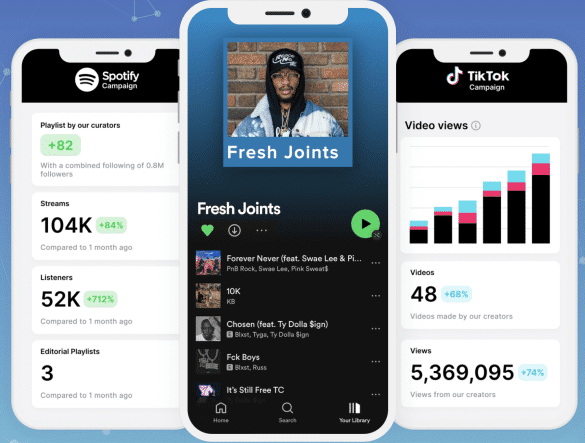
Choose a Distributor: Spotify doesn’t let you upload music directly. So, you must go through a digital distributor, such as TuneCore, CD Baby, or DistroKid.
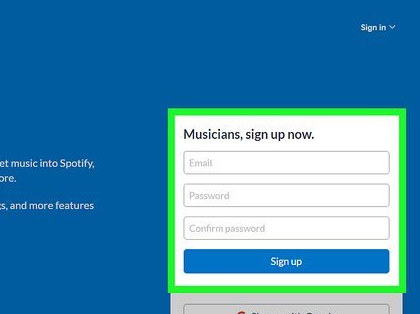
Sign Up for a Distributor Account: Create your account once you've chosen a distributor. You’ll need to provide some basic details, including your artist name, track details, and payment information.
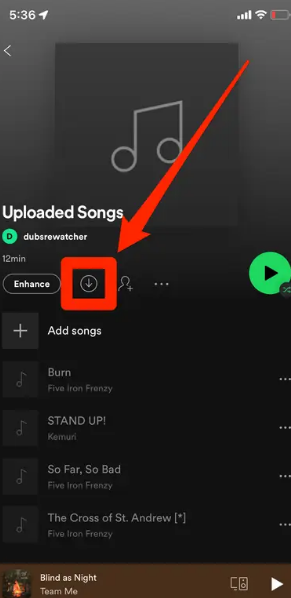
Upload Your Music: You can upload your music tracks after creating your account. Ensure your files are in the allowed format (WAV or MP3). Fill out all required metadata, including track titles, album names, genres, and release dates.
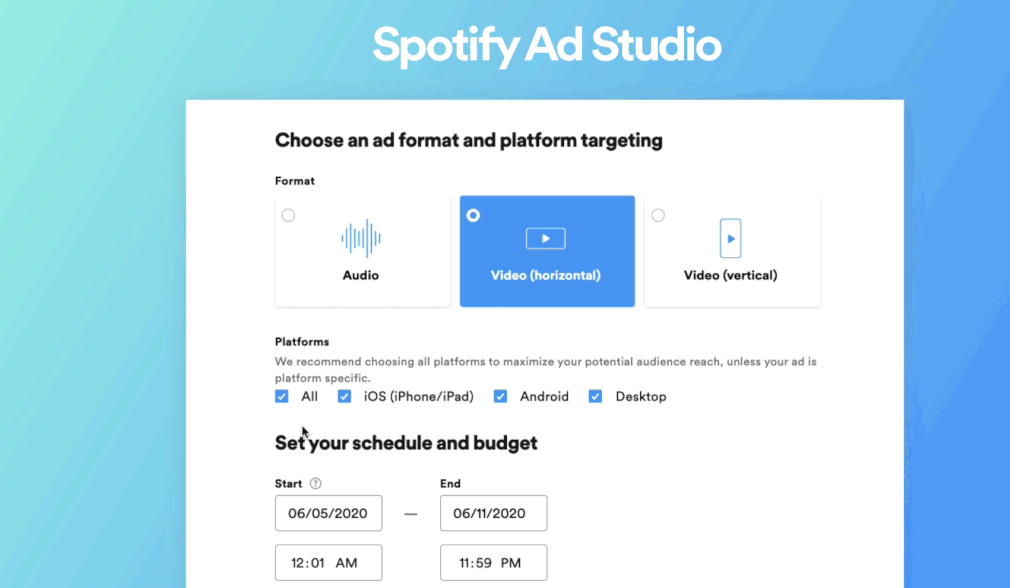
Select Spotify as a Platform: During the distribution process, you can choose which platforms your music should go to, including Spotify. Select it, and your song will be sent to Spotify’s system.
Wait for Approval: After you submit your music, Spotify will review it. Depending on the distributor's timeline, this may take several days to a week.
Official Guide
for Creating an Artist Profile:
Follow this official Spotify guide to create a professional artist profile on Spotify. You'll be able to customize your profile with a bio, images, and links to social media, which helps you engage more with your audience.
Part 2: Upload Your Music to Spotify Using SoundCloud
If you already have music on SoundCloud, you can easily distribute it to Spotify via SoundCloud's direct distribution feature. SoundCloud allows paid users to distribute their music to Spotify and other platforms.
How to Upload Music to Spotify from SoundCloud:
Sign Up for SoundCloud Pro Unlimited: This feature is available to users of SoundCloud Pro and Pro Unlimited. The platform offers integrated distribution services, including automatic delivery to Spotify.
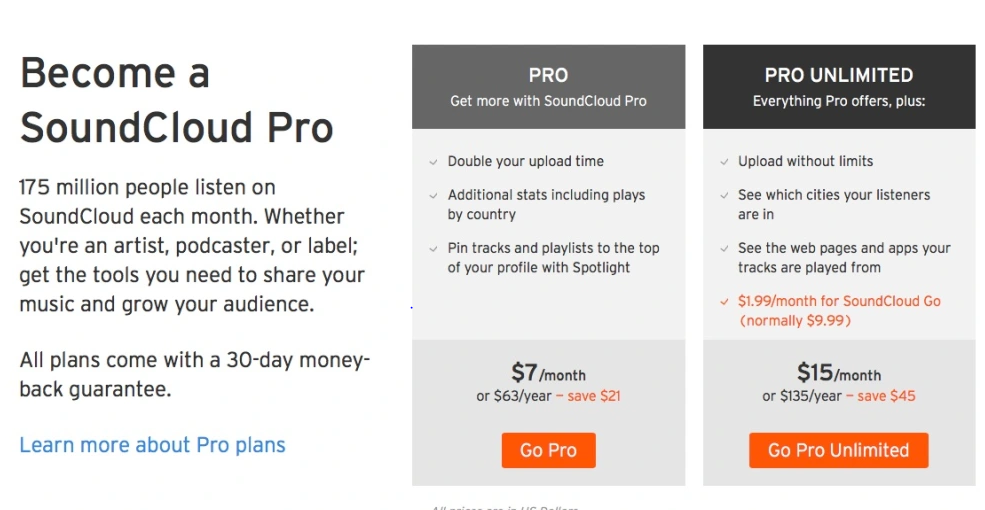
Upload Your Track: Upload your song to your SoundCloud account.
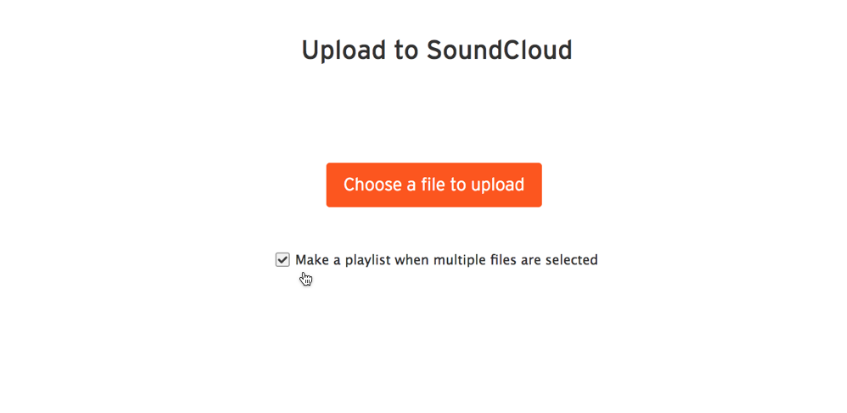
Enable Distribution: Once your track is uploaded, go to your SoundCloud distribution settings and choose the option to distribute your music to Spotify.
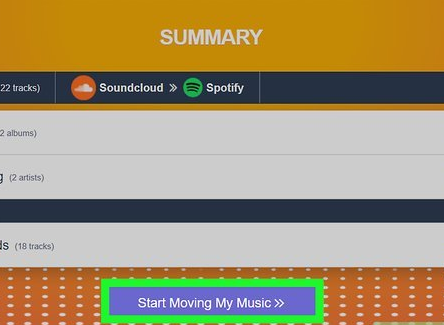
Pay the Distribution Fee: SoundCloud charges a distribution fee for each song sent to Spotify. After the payment, SoundCloud handles the rest of the process for you.
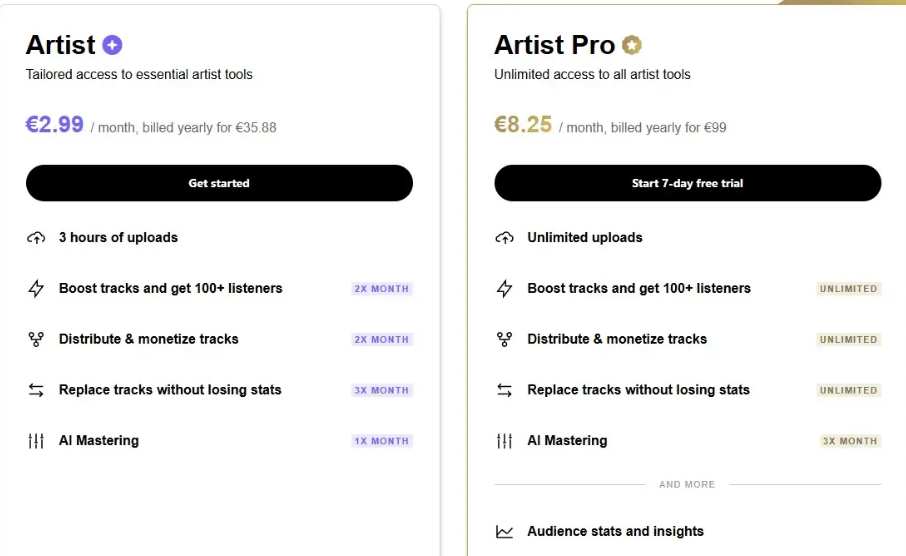
For a detailed guide, refer to this comprehensive guide on using SoundCloud to upload music to Spotify.
Part 3: Upload Your Music to Spotify for Free
Free options are available for artists who are just starting and don’t have a budget for distribution services.
Using RouteNote:
RouteNote is a free digital distributor that allows you, as an
independent, to upload your music to Spotify, YouTube, and more. The
platform also offers a premium option, but the free version is excellent
for those who want to keep costs low.
How to Use RouteNote for Free:
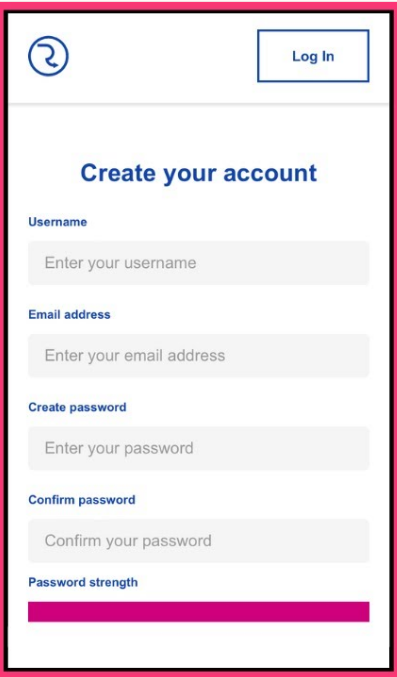
Sign Up for a RouteNote Account: Create an account on RouteNote’s website.
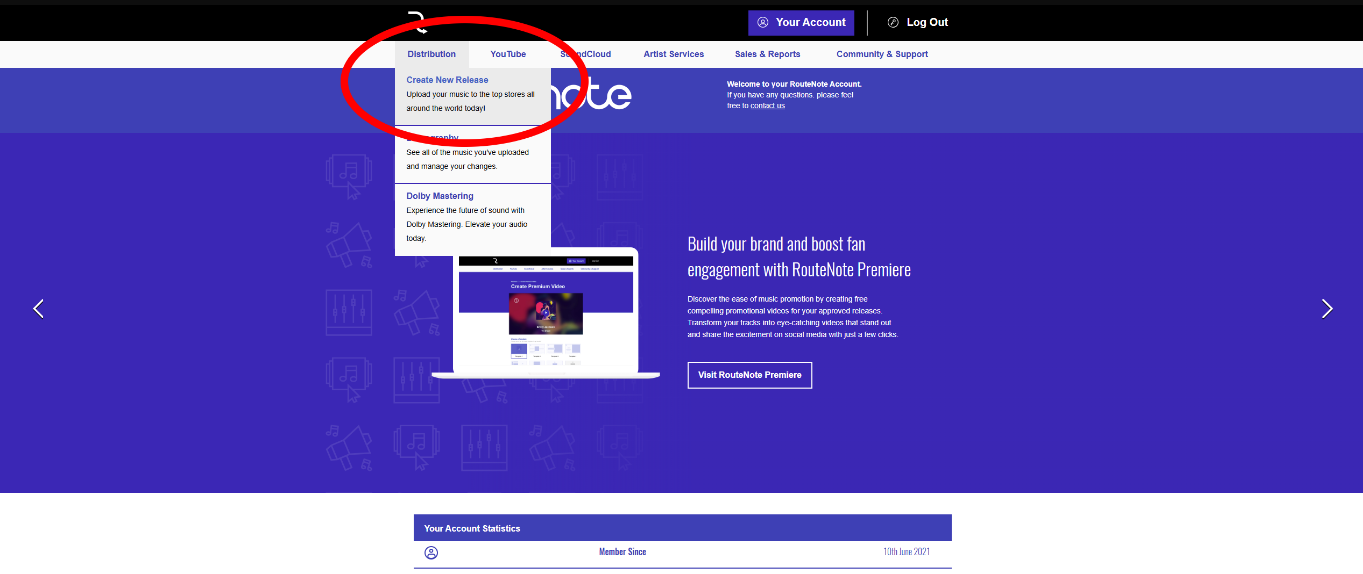
Upload Your Music: Once your account is set up, click “Upload Music.” You will be asked to provide the artist's name, album title, and release date.
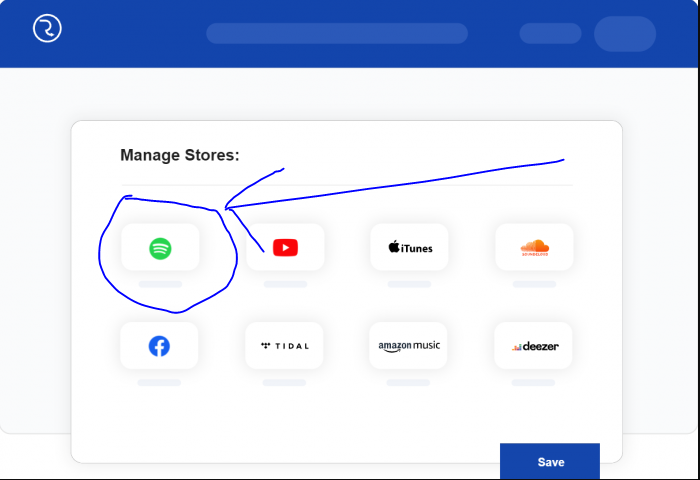
Choose Spotify as a Distribution Platform:RouteNote will distribute your music to Spotify for free, but they take a percentage of your earnings. You can also distribute to other platforms, including YouTube and Apple Music.
Publish Your Track: After completing everything, click “Submit.” Your track will be sent to Spotify.
For more details, check out this RouteNote Blog post on uploading music to Spotify for free.
Part 4: Upload Your Music to Spotify without a Distributor
Unfortunately, Spotify doesn’t allow artists to upload music directly without a distributor. You must use third-party services like TuneCore, DistroKid, or RouteNote to upload your music to the platform.
While some users search for ways to bypass distributors, it’s not possible to legally upload music to Spotify without using an authorized distributor. Here’s an example from Reddit confirming this policy.
Part 5: A Supplement Tool – YouTube Video to MP3 Converter by Toolsmart
Let’s say you want to convert a YouTube video to MP3 to upload your favorite music to Spotify. Toolsmart’s YouTube to MP3 converter can help.
Introducing YouTube to MP3 Converter by Toolsmart:
Function: Toolsmart’s YouTube to MP3 Converter makes it easy to turn any YouTube video into an MP3 file compatible with Spotify. Enjoy unlimited conversions with top-notch audio quality.
Core Features:
Converts YouTube videos to MP3 at 320kbps for high-quality sound.
Free, easy-to-use interface with no need for extra software.
Compatible with all browsers and devices.
Pros:
Fast conversion times.
High-quality MP3 downloads.
Free to use without registration.
Cons:
Limited to YouTube content; doesn’t support all video platforms.
What
Users Say About Free YouTube to MP3 Converter:
Users love Toolsmart's YouTube to MP3 converter for its simplicity and reliability. Many praise its ease of use, particularly for converting music videos into MP3 format quickly and without hassle.
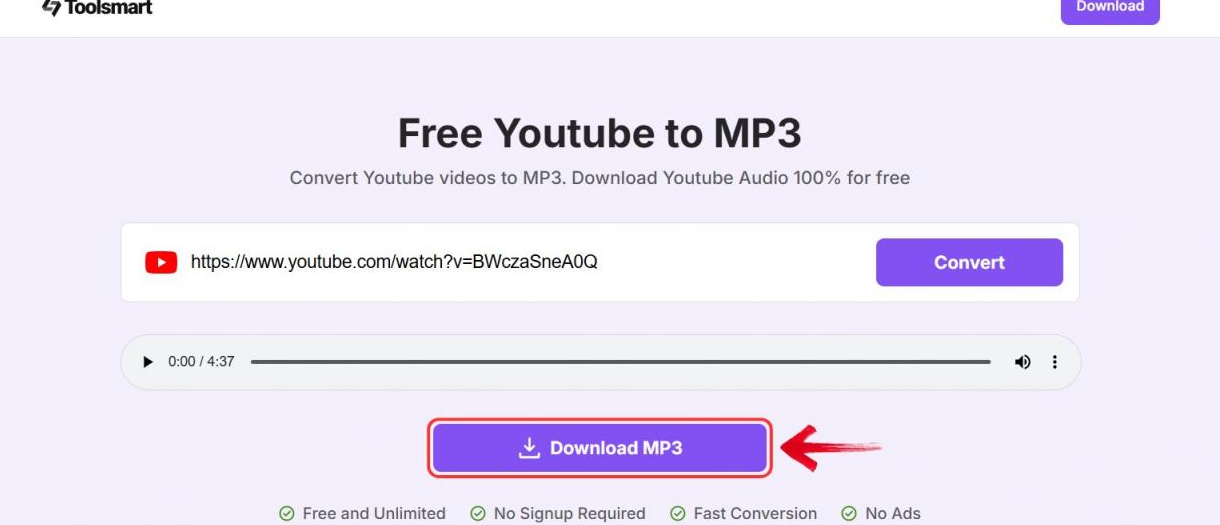
Part 6: How to Use YouTube Video to MP3 Converter by Toolsmart?
Step 1: Go to the YouTube video you want to convert.
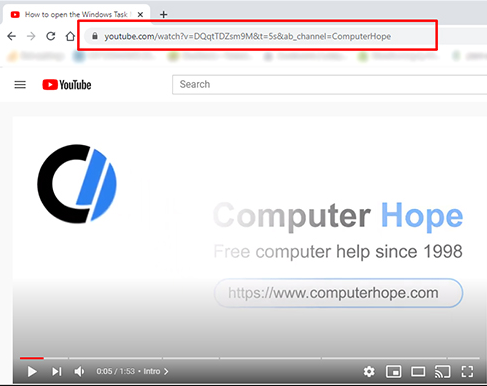
Step 2: Copy the URL of the video.
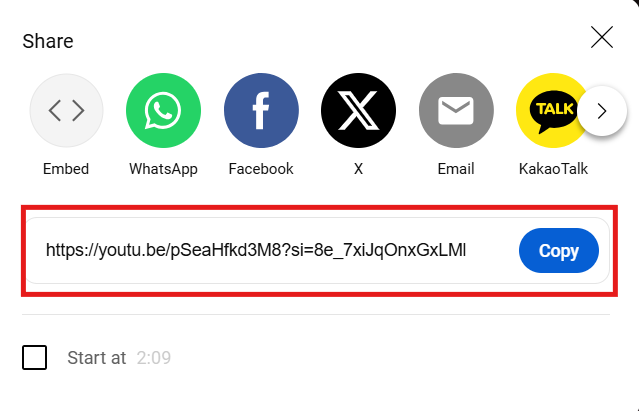
Step 3: Paste the URL into the YouTube to MP3 converter tool on Toolsmart’s website.
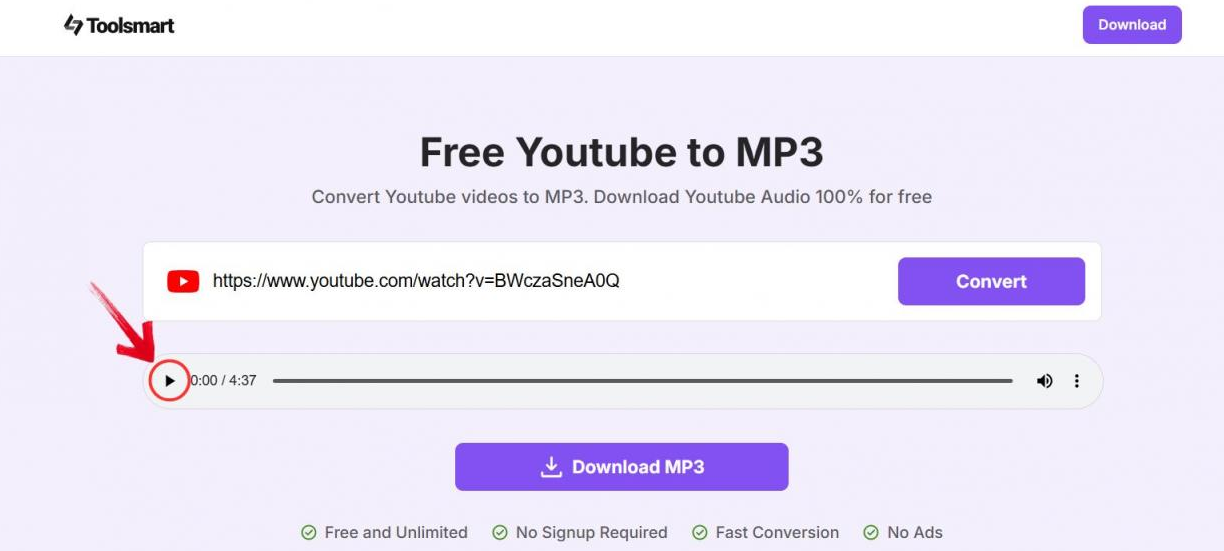
Step 4: Select your desired MP3 quality (up to 320kbps).
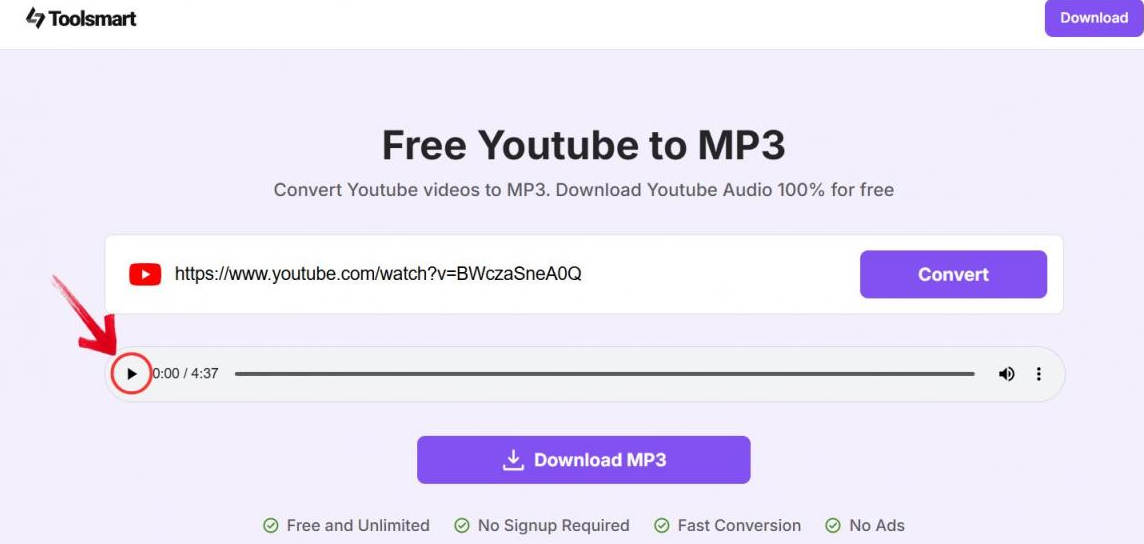
Step 5: Click "Convert" and wait for the conversion
to complete.
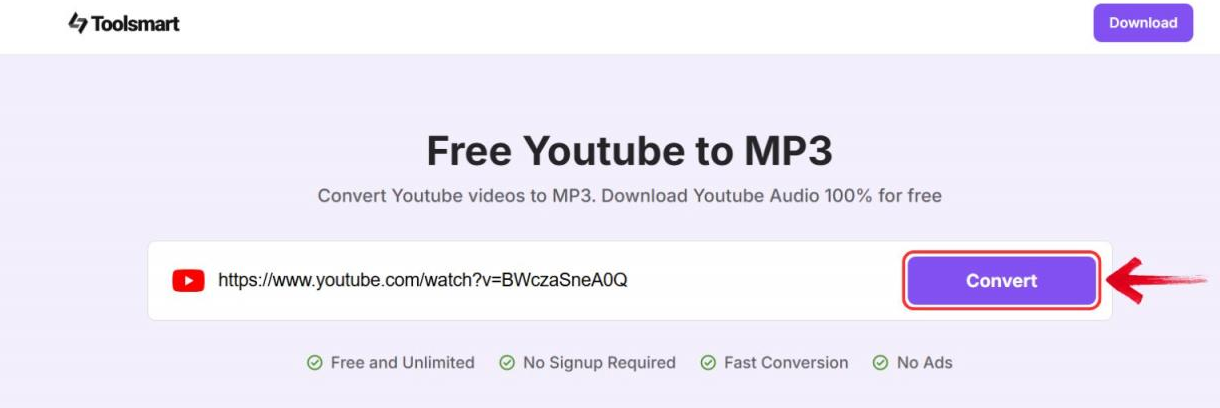
Step 6: Download the MP3 file and upload it to your Spotify account via a distributor.
FAQs
Q1: Can I release my music for free?
Yes, platforms like SoundCloud, Bandcamp, or YouTube allow you
to upload your music for free. Alternatively, you can use cloud storage
platforms like Dropbox or Google Drive to share direct download links
with your fans.
Q2: Why do you need a music distributor for Spotify?
A music distributor helps artists get their music onto major
platforms like Spotify. Distributors like TuneCore and DistroKid act as
intermediaries between you and Spotify, handling the technicalities of
music distribution.
Q3: How long are my converted files stored in the YouTube to
MP3 Converter?
MP3 files are automatically deleted from the servers within 1
hour of conversion. No personal data or conversion history is
stored.
Q4: What is the audio quality of MP3 downloads from this
YouTube to MP3 converter?
Toolsmart provides MP3 conversion up to 320kbps, ensuring your
tracks' best possible audio quality.
Conclusion
Uploading a song to Spotify may initially seem complicated, but with the right tools and knowledge, it becomes an achievable goal for any artist. Whether you use a distributor like RouteNote or SoundCloud or tools like Toolsmart’s YouTube to MP3 Converter, you can get your music on Spotify. Although Spotify doesn’t allow direct uploads from artists, several third-party services can help you.
For those looking to convert videos to MP3, Toolsmart’s converter is a great tool. It will prepare your content for upload. Start your journey to becoming a Spotify artist today!


