
'%3e%3cpath%20fill-rule='evenodd'%20clip-rule='evenodd'%20d='M19%208.5C24.799%208.5%2029.5%2013.201%2029.5%2019C29.5%2024.6782%2024.9928%2029.3036%2019.361%2029.4939L19%2029.5C18.8794%2029.5%2018.7592%2029.498%2018.6396%2029.4939L18.2811%2029.4758C12.8174%2029.1063%208.5%2024.5574%208.5%2019C8.5%2013.201%2013.201%208.5%2019%208.5ZM22.3063%2010.6267L22.2342%2010.6539C21.3423%2011.0061%2020.5541%2011.6368%2020.5606%2012.4987C20.5631%2012.8302%2020.869%2014.8871%2020.2141%2014.8486C19.5589%2014.8102%2019.413%2013.8753%2018.7116%2013.616C17.5944%2013.2026%2016.9819%2014.3401%2017.0939%2015.3106C17.1695%2015.9655%2018.9289%2018.3871%2017.9028%2019C17.292%2019.3651%2015.7279%2017.5692%2015.1007%2017.1842C14.4805%2016.8034%2013.2758%2017.3333%2012.4974%2016.7029C11.9874%2016.2899%2012.3881%2014.4098%2012.2786%2013.8372C12.2271%2013.5698%2012.1155%2013.3689%2011.9794%2013.2166L12.0402%2013.2934C10.7653%2014.8464%2010%2016.8339%2010%2019C10%2023.8465%2013.8307%2027.7982%2018.6295%2027.9925L18.6769%2027.9747C18.8597%2027.8677%2019.0394%2027.7557%2019.216%2027.6387C19.4137%2027.4534%2019.5436%2027.2072%2019.5849%2026.9394C19.8806%2025.1222%2018.3616%2025.4302%2017.9367%2024.5622C17.5489%2023.7695%2018.5712%2023.7684%2018.5524%2021.7923C18.4607%2021.1774%2018.5279%2020.547%2018.7211%2020.0315C19.1834%2018.7987%2020.7077%2017.2643%2022.5889%2018.0081C23.5567%2018.3906%2023.1524%2019.9831%2023.4737%2020.3394C24.251%2021.2018%2025.3228%2020.6863%2026.2856%2021.2253C26.7816%2021.5032%2026.9797%2022.41%2027.056%2023.2248L27.038%2023.0528C27.6534%2021.8348%2028%2020.4579%2028%2019C28%2015.1968%2025.6409%2011.9445%2022.3063%2010.6267Z'%20fill='%23757575'/%3e%3ccircle%20cx='19'%20cy='19'%20r='10.125'%20stroke='%23757575'%20stroke-width='2.25'/%3e%3c/g%3e%3cdefs%3e%3cclipPath%20id='clip0_1827_14613'%3e%3crect%20width='24'%20height='24'%20fill='white'%20transform='translate(7%207)'/%3e%3c/clipPath%3e%3c/defs%3e%3c/svg%3e)


AirDrop is one of the most convenient features within the Apple ecosystem. It allows users to easily wirelessly transfer photos, videos, documents, and other files between Apple devices. Whether you want to quickly send a file to a friend or transfer important documents between your own devices, AirDrop is an essential tool. Despite its simplicity, many users are still unaware of how to turn on AirDrop, what settings they should use, and why it sometimes doesn’t work.
This article will guide you through turning on AirDrop on iPhone, iPad, and Mac. We’ll also share a bonus tip for enhancing your photos using Toolsmart’s Image Enhancer before sending them via AirDrop.
Part 1: Overview of AirDrop
What is AirDrop?
AirDrop is Apple’s proprietary wireless file-sharing feature that lets users quickly transfer files between iPhones, iPads, and Macs. It uses Wi-Fi and Bluetooth to establish a direct connection between devices, bypassing the need for internet connectivity or cables. This makes it an ideal solution for quick and efficient file transfers without the hassle of third-party apps or cloud services.
Function of AirDrop
The primary function of AirDrop is to allow users to send photos, videos, documents, and more between Apple devices. It is highly versatile and easy to use, requiring just a few taps or clicks to send or receive files. You can send content to individual recipients or multiple people at once, and AirDrop even allows you to choose whether or not to make your device discoverable to others.
Part 2: How to Turn On AirDrop on iPhone & iPad
AirDrop is one of the most convenient features on iPhones and iPads. Whether sending a quick photo to a friend or transferring a document between your devices, knowing how to turn on AirDrop is essential.
How to Use AirDrop on iPhone & iPad:
Here’s a simple, step-by-step guide to turn on AirDrop on your iPhone or iPad:
Open Control Center:
On iPhone X or later, swipe down from the top-right corner of your screen.

On iPhone 8 or earlier, swipe up from the bottom of your screen.
Press and hold the network settings card (the one with Airplane Mode, Wi-Fi, and Bluetooth icons).
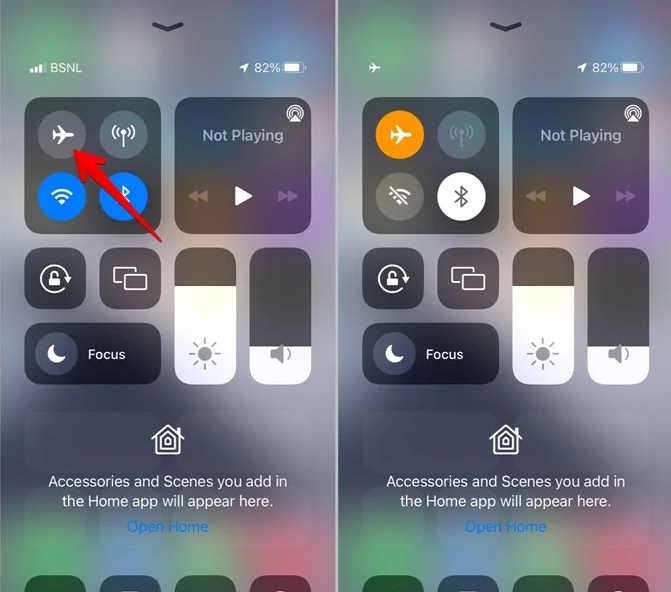
Tap on AirDrop:
You’ll see three options: Receiving Off, Contacts Only, and Everyone.
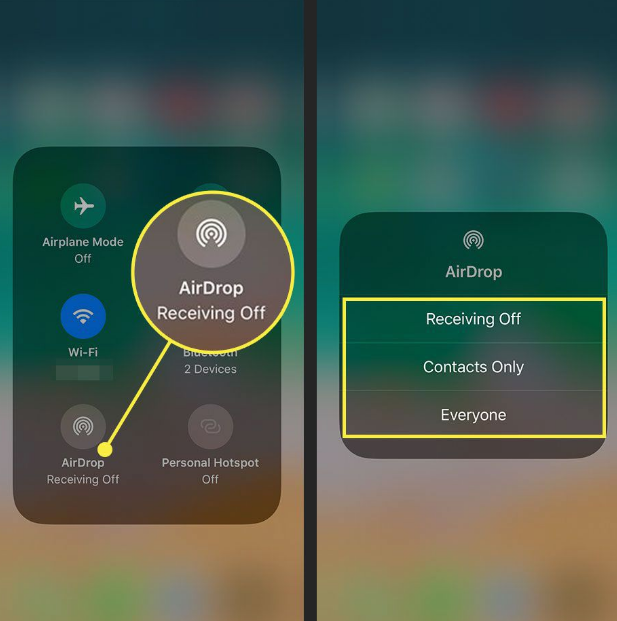
Choose Contacts only if you want people in your contacts to send you files.
Choose Everyone if you want anyone nearby to send you files.
Enable Bluetooth and Wi-Fi:
Ensure Bluetooth and Wi-Fi are enabled on your device, as AirDrop requires these two to function properly.
Once you’ve selected your AirDrop preferences, your device will be discoverable, and you can send and receive files.
For a more detailed guide, check out Apple’s official support page.
Part 3: How to Turn On AirDrop on Mac
AirDrop on a Mac is equally easy to set up. It’s a great way to send files between your Mac and Apple devices, like iPhones or iPads. If you’re using a MacBook or iMac, you can follow these steps to enable AirDrop.
How to Use AirDrop on Mac:
Open Finder:
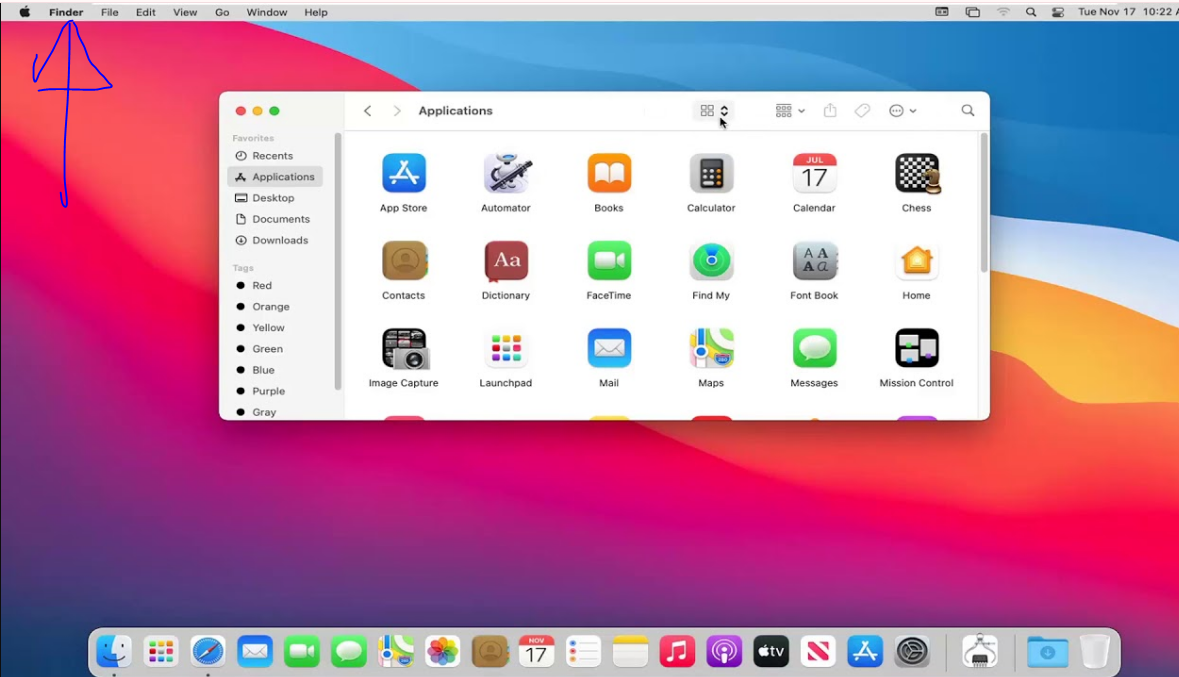
Click on Finder from the dock.
Click on AirDrop in the Finder Sidebar:
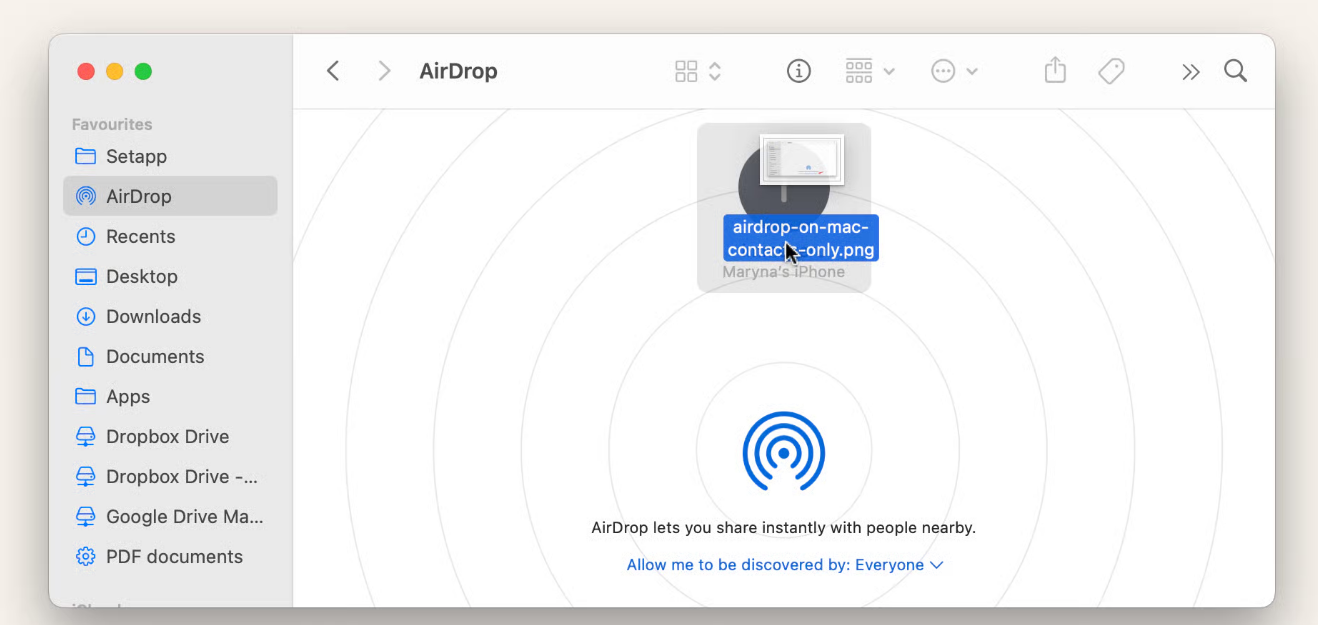
On the left side of the Finder window, you’ll see an AirDrop option. Click on it to open the AirDrop interface.
Ensure Bluetooth and Wi-Fi are On:
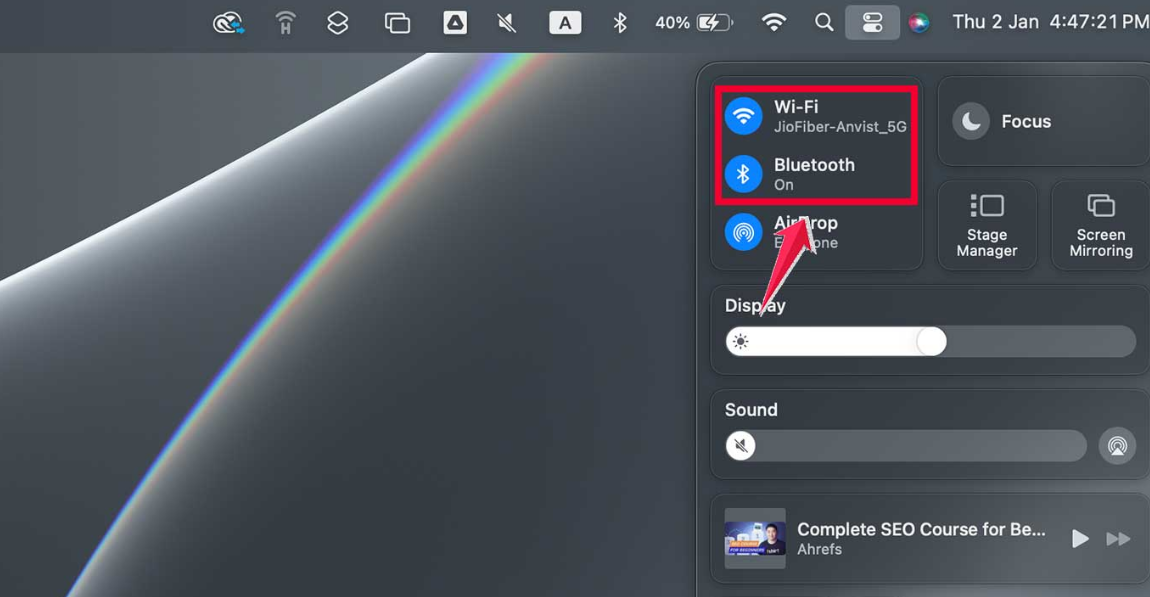
Make sure that Bluetooth and Wi-Fi are enabled on your Mac.
Set AirDrop to “Everyone” or “Contacts Only”:
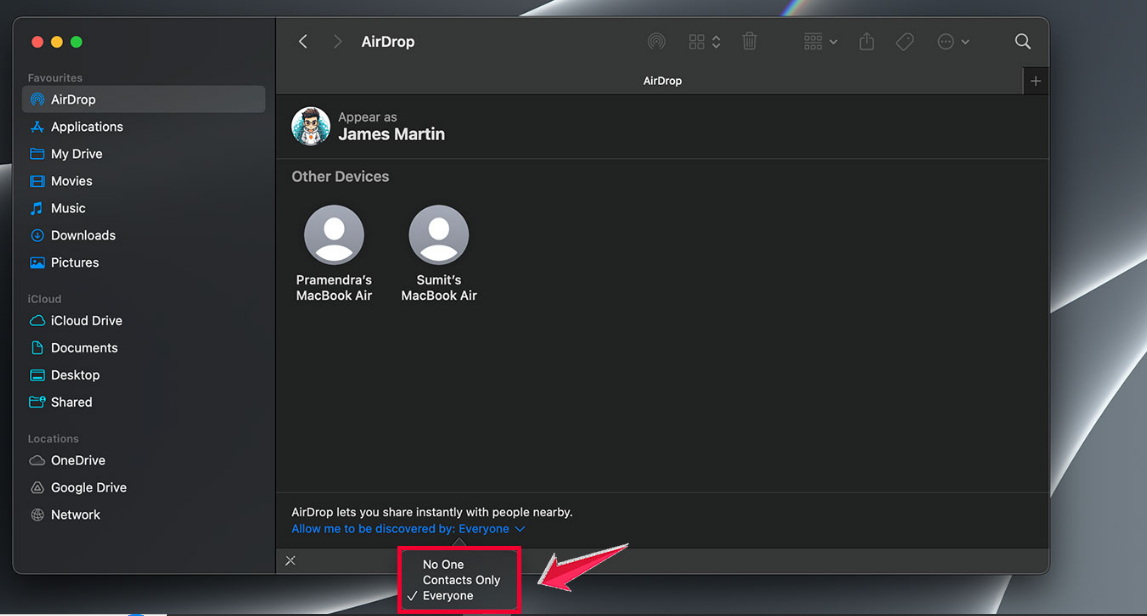
At the bottom of the AirDrop window, you can select who can send you files. Choose Contacts Only to limit access or Everyone for a wider range of users.
Once AirDrop is enabled, your Mac will be ready to send and receive files from other Apple devices.
For additional details, visit this Apple guide.
Part 4: Bonus: Enhance Shared Photos with Toolsmart Image Enhancer
AirDrop makes sharing photos, videos, and files quick and easy, but what if you could enhance the quality of your images before sending them? Toolsmart’s Image Enhancer is a powerful tool that can help you improve the visual quality of your photos, making them look their best before sharing via AirDrop.

Why Use Toolsmart’s Image Enhancer?
Toolsmart’s Image Enhancer is a free online tool for improving the quality of your photos. It optimizes image resolution, color balance, and sharpness, ensuring your shared images look professional and polished. Whether sending a photo for business purposes or sharing a special moment with friends, Toolsmartcan help ensure your pictures look their best.
Features of Toolsmart Image Enhancer:
Resolution Enhancement: Improves the clarity and detail of your images.
Color Correction: Adjust your photos' colors for more vivid and accurate results.
Noise Reduction: Reduces graininess and improves overall quality.
User-Friendly: No technical knowledge is required — just upload and enhance.
Pros:
Free to use with no subscription required.
Fast processing time.
Easy-to-follow interface.
Cons:
Limited advanced features compared to paid alternatives.
Requires an internet connection for cloud processing.
How to Use Toolsmart’s Image Enhancer:
Visit the Toolsmart Image Enhancer website: Toolsmart Image Enhancer

Upload your photo:

Click the Upload button and select the image you want to enhance.
Enhance the image:

The tool will automatically enhance your image. You can preview the changes before saving them.
Download the enhanced photo:
Once the image is enhanced, click Download to save it to your device.
Your photo is ready to be shared via AirDrop, looking better than ever!
FAQs
Q1: Can I use AirDrop without Wi-Fi?
No, AirDrop requires both Bluetooth and Wi-Fi to work. However, you do not need an internet connection for it to function.
Q2: Why isn’t my iPhone showing up for AirDrop?
If you want to receive files from anyone nearby, ensure that your iPhone’s screen is on, your personal hotspot is off, and AirDrop is set to “Everyone.”
Q3: Is AirDrop secure?
Yes. AirDrop transfers are encrypted, ensuring your files are securely sent directly between devices without passing through third-party servers.
Q4: Can Toolsmart Image Enhancer help with AirDrop?
Not directly, but Toolsmart’s Image Enhancer can improve the quality of your images before sending them via AirDrop, giving your photos a professional edge.
Q5: Can I use AirDrop with non-Apple devices?
AirDrop is exclusive to Apple devices and does not work with Android or Windows devices.
Summary
In this article, we’ve walked you through how to turn on AirDrop on your iPhone, iPad, and Mac, covering all the necessary steps to enable this convenient file-sharing feature. We also shared a bonus tip to enhance your photos using Toolsmart’s Image Enhancer before sending them via AirDrop, ensuring that your media looks its best.
AirDrop is a powerful tool for sharing files quickly and securely within the Apple ecosystem. Now, you know exactly how to enable it and make the most of it.
Ready to share your media with ease? Turn on AirDrop on your device and enhance your photos with Toolsmart’s Image Enhancer before sending them off! Let us know how AirDrop has improved your file-sharing experience!


