How to Remove Protection from PDF: A Step-by-Step Guide
April 2, 2026375 views
0
PDFs are among the most popular formats for sharing business,
academic, and personal documents. However, many PDFs are locked by
passwords or editing restrictions, making it difficult to modify, copy,
or print them when needed.
If you have ever tried to edit or extract text from a protected file,
you know how frustrating it can be. Fortunately, several tools now make
this process simple and efficient, even for those without advanced
technical skills. In this guide, you’ll learn how to remove protection
from PDF using trusted online and offline tools.
Use Word, Excel, and PPT for FREE
How to Remove Protection from PDF
Part 1: 4
Best Methods to Remove Protection from PDF
When you want to remove protection from a PDF, choosing the right
tool can save time and effort. Below are four reliable and safe methods
that let you unlock a PDF without a password or restrictions.
1. PDF Unlocker
If you’re looking for a straightforward way to remove protection from
a PDF, PDF Unlocker is one of the simplest tools available. It’s
designed to unlock both password-protected and restricted PDF files,
allowing users to view, print, and edit documents without limitations.
This makes it a reliable choice for professionals or students who
frequently handle locked files.
PDF Unlocker
Key Features:
Supports encrypted PDFs with password or editing restrictions
Works as a quick PDF protection remover for single or multiple files
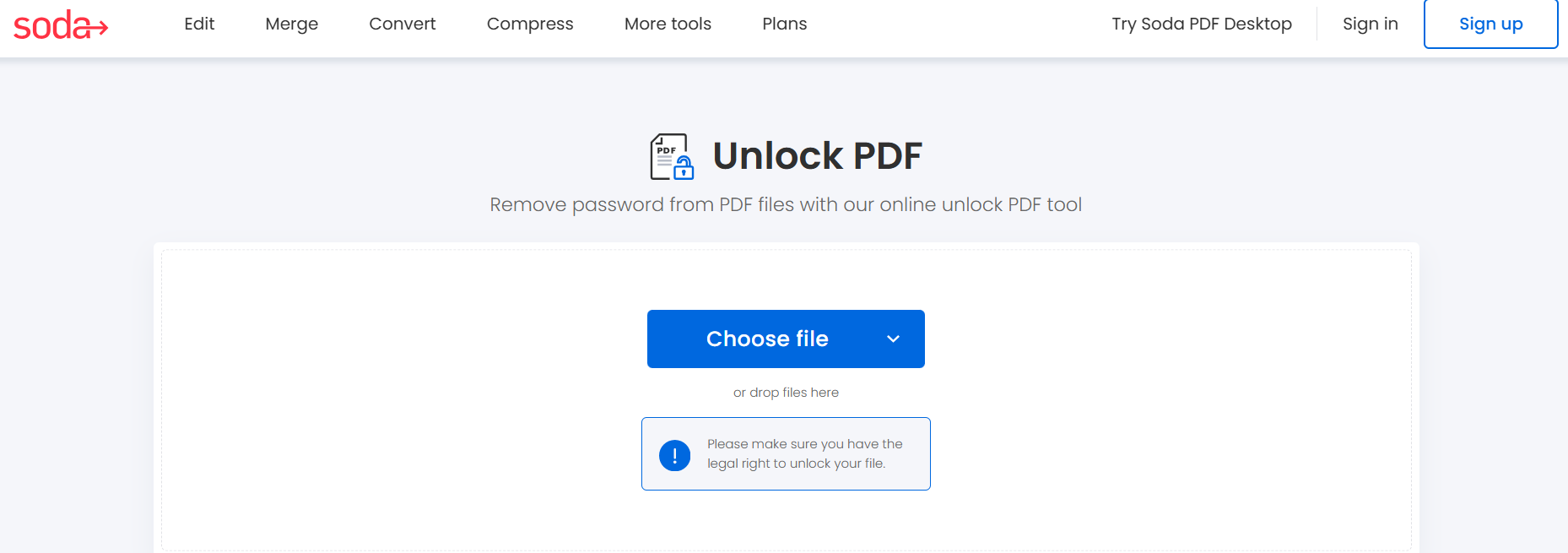
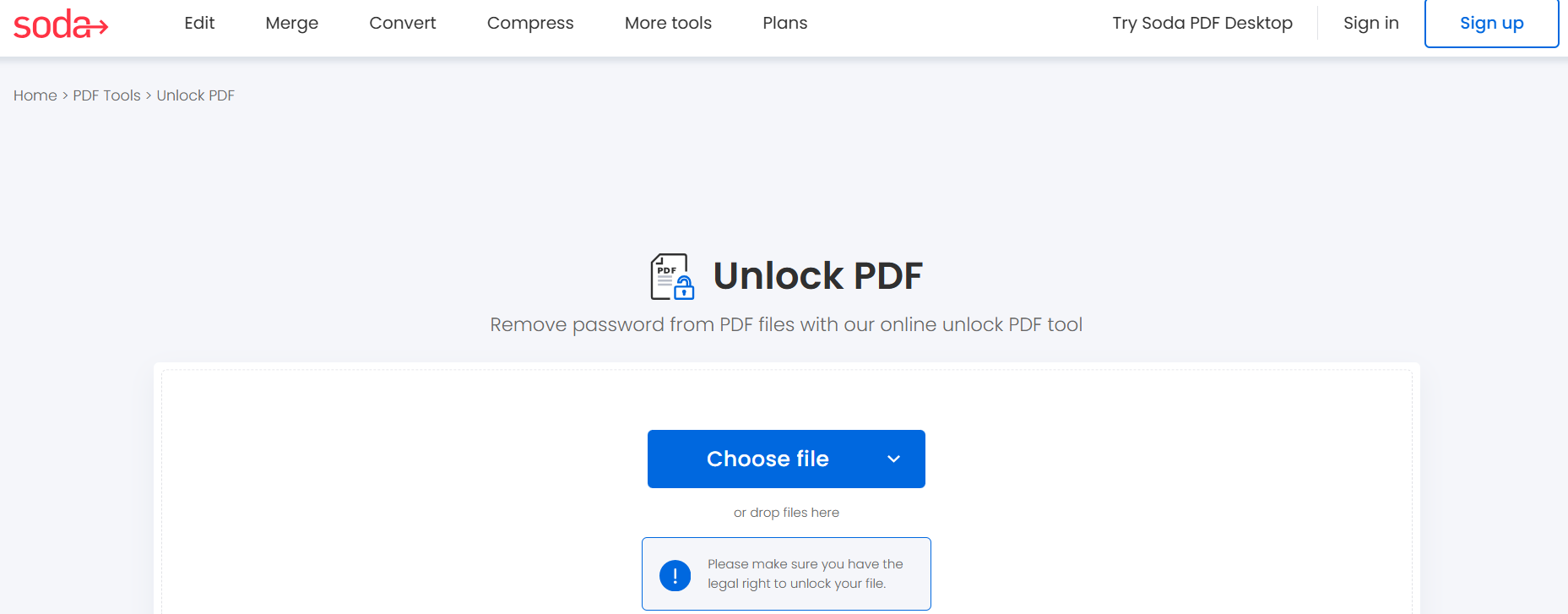
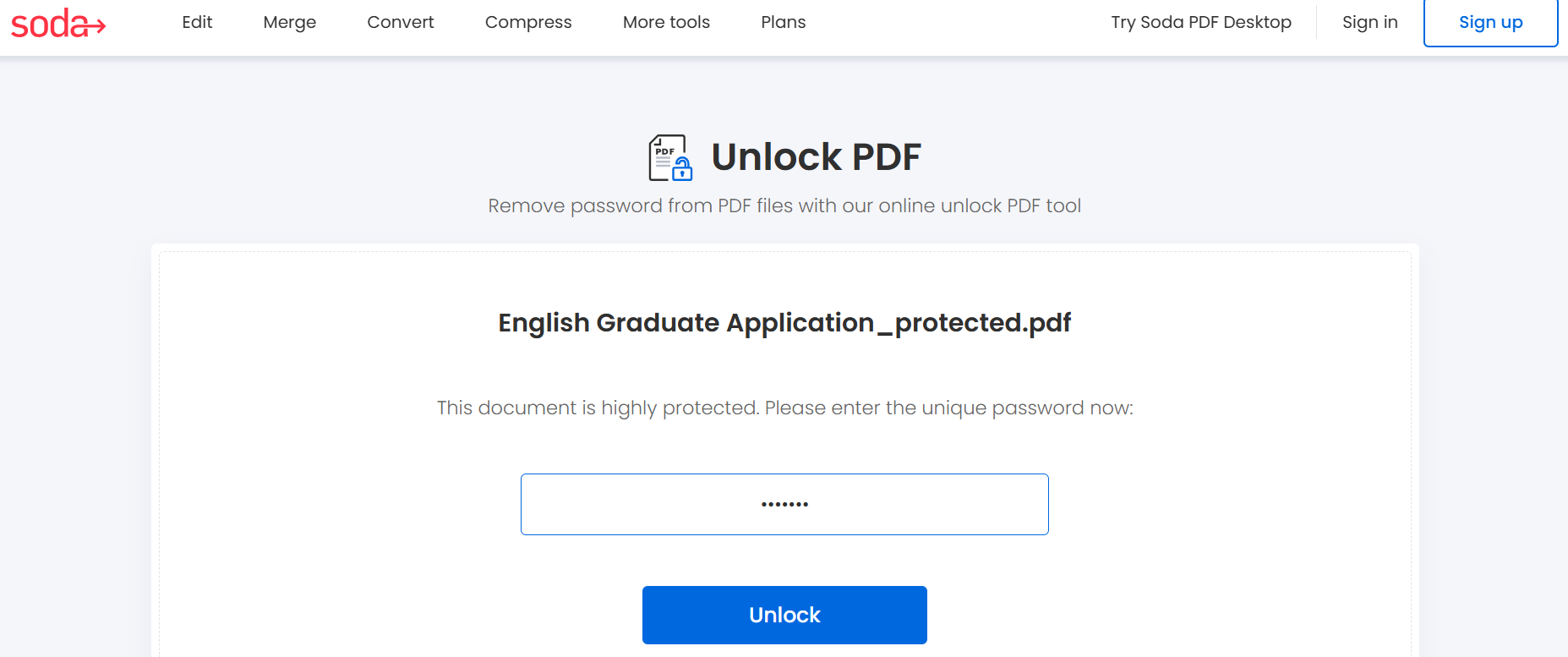
Step 2: Choose the locked file you want to
unlock.
Choose the locked file in PDF Unlocker
Step 3: Click the “Unlock PDF” button to remove
restrictions.
Click Unlock
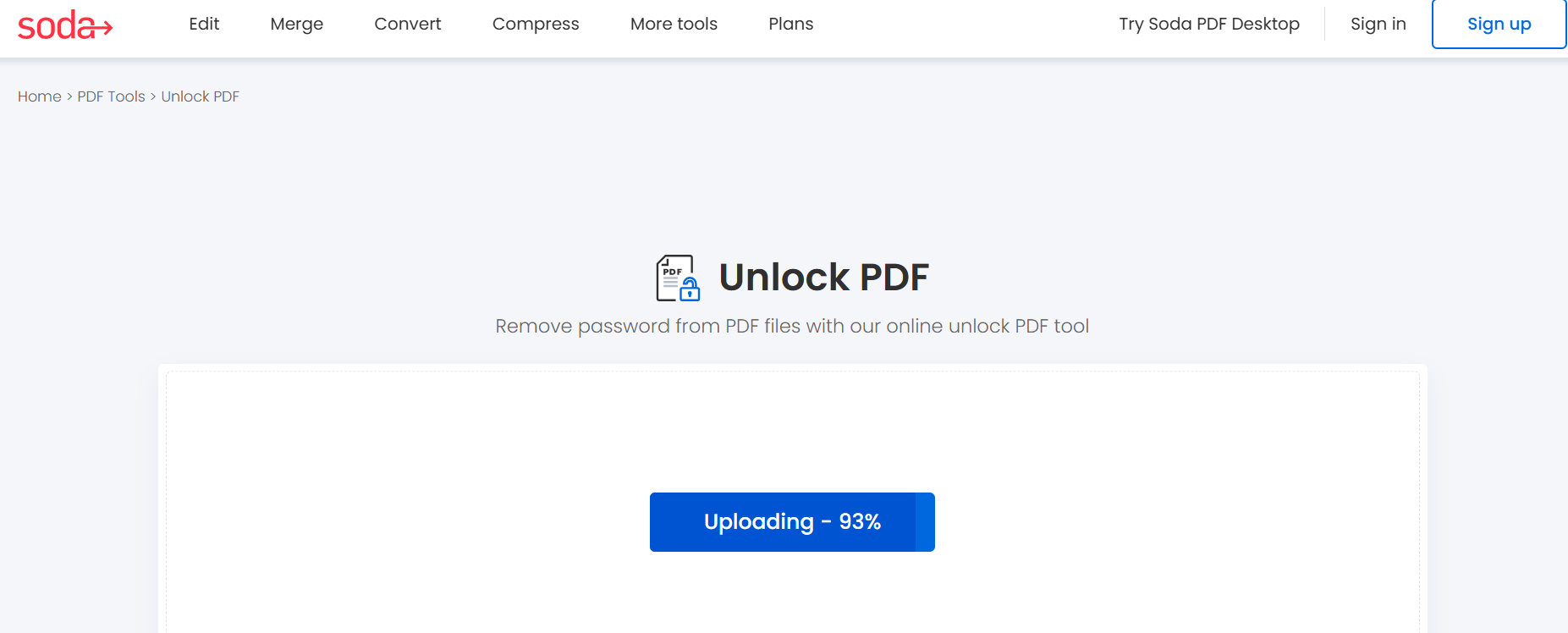
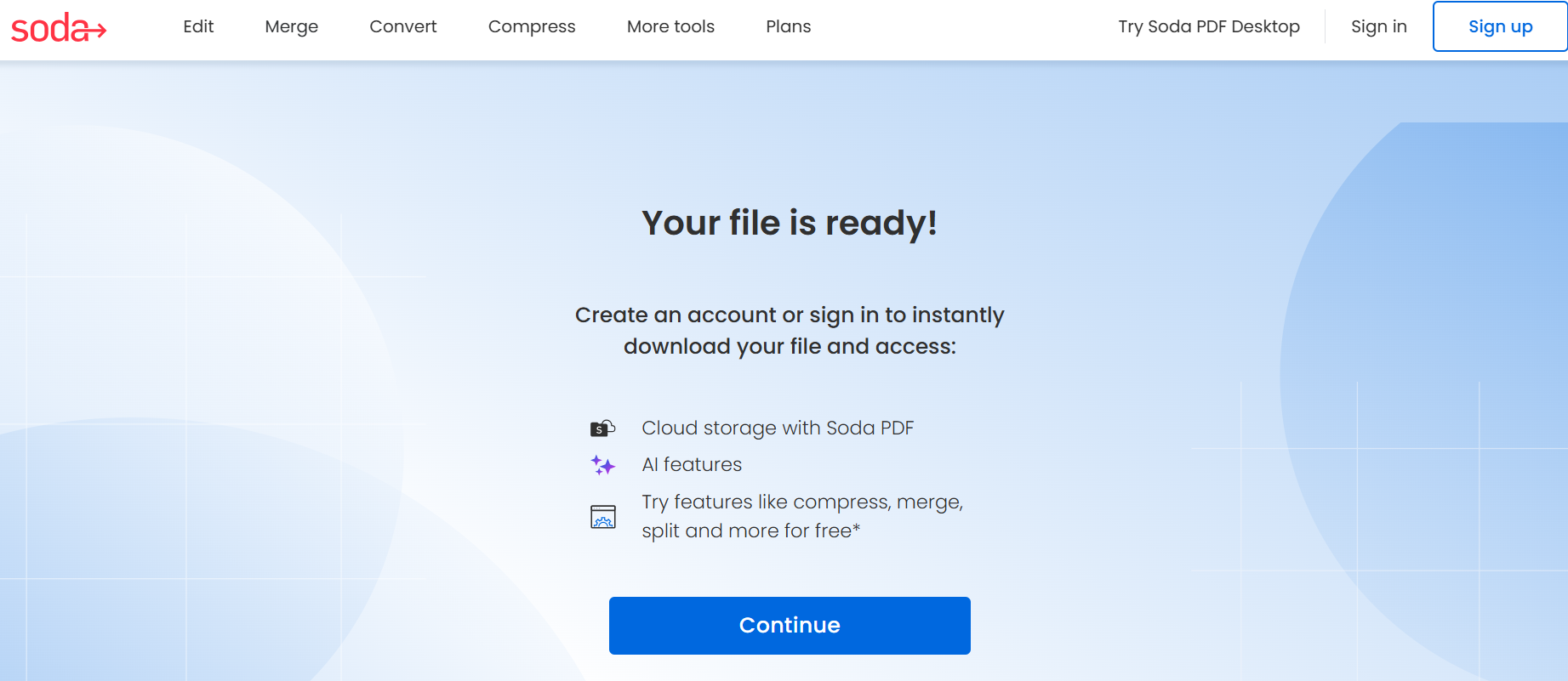
Step 4: Download and save the unprotected
file.
Download the unprotected file
This method is ideal if you want to remove PDF protection quickly and
without installing heavy software. It’s particularly useful when working
with moderate encryption levels or common document restrictions.
Personal Experience:
I tested PDF Unlocker on a few password-limited files, and it
performed efficiently for basic security levels. However, for more
advanced encryption or business-grade documents, you might need a
stronger tool with broader compatibility.
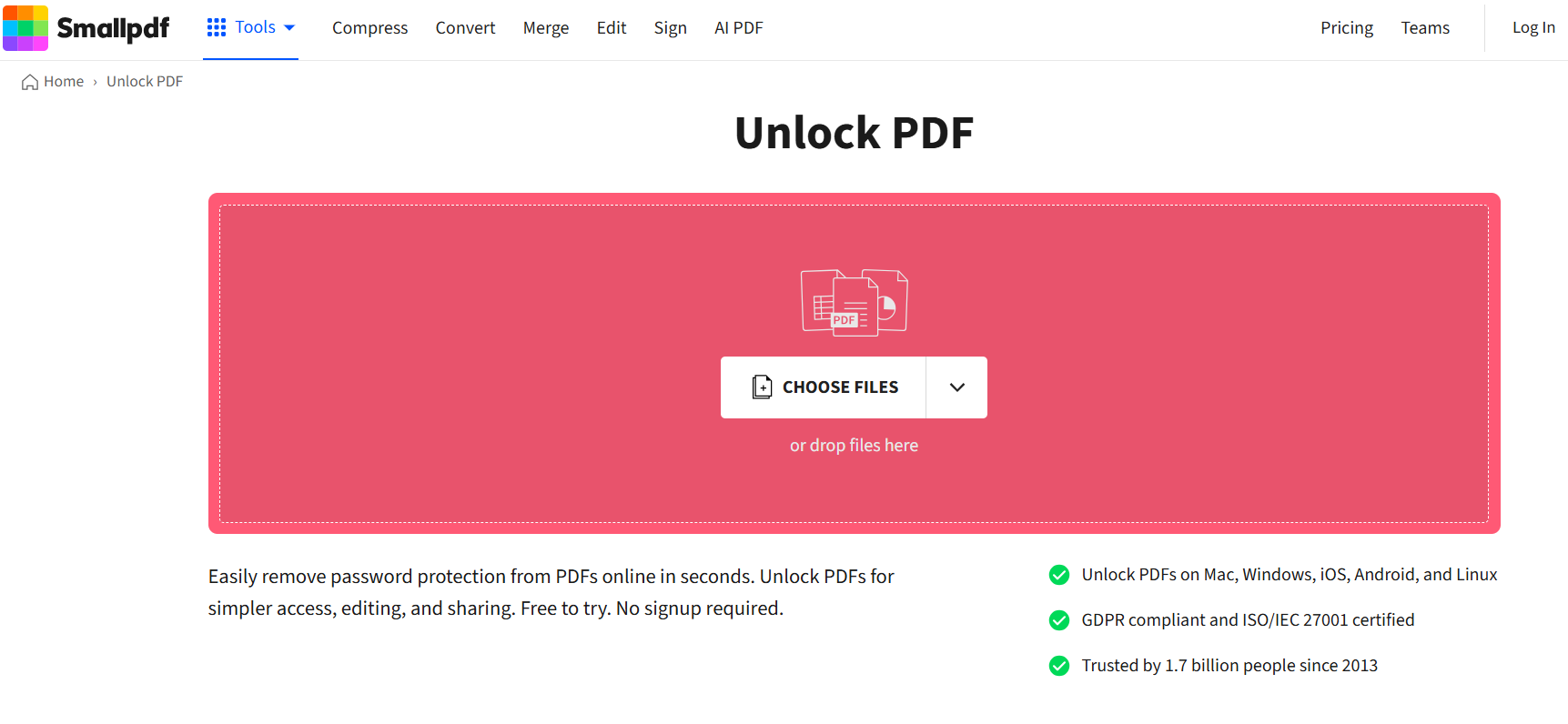
2. Smallpdf
Smallpdf
Smallpdf is one of the most popular online platforms to remove
protection from PDF files instantly. It’s a browser-based solution,
meaning you don’t have to download or install any software. Whether your
file is password-protected or restricted from printing or editing,
Smallpdf can unlock it safely within seconds.
Key Features:
Unlocks both password-protected and restricted PDFs
Removes permissions for editing, copying, and printing
Offers additional tools for merging, compressing, and converting PDFs
Pros:
Cloud-based; no installation required
Quick processing and automatic file deletion after completion
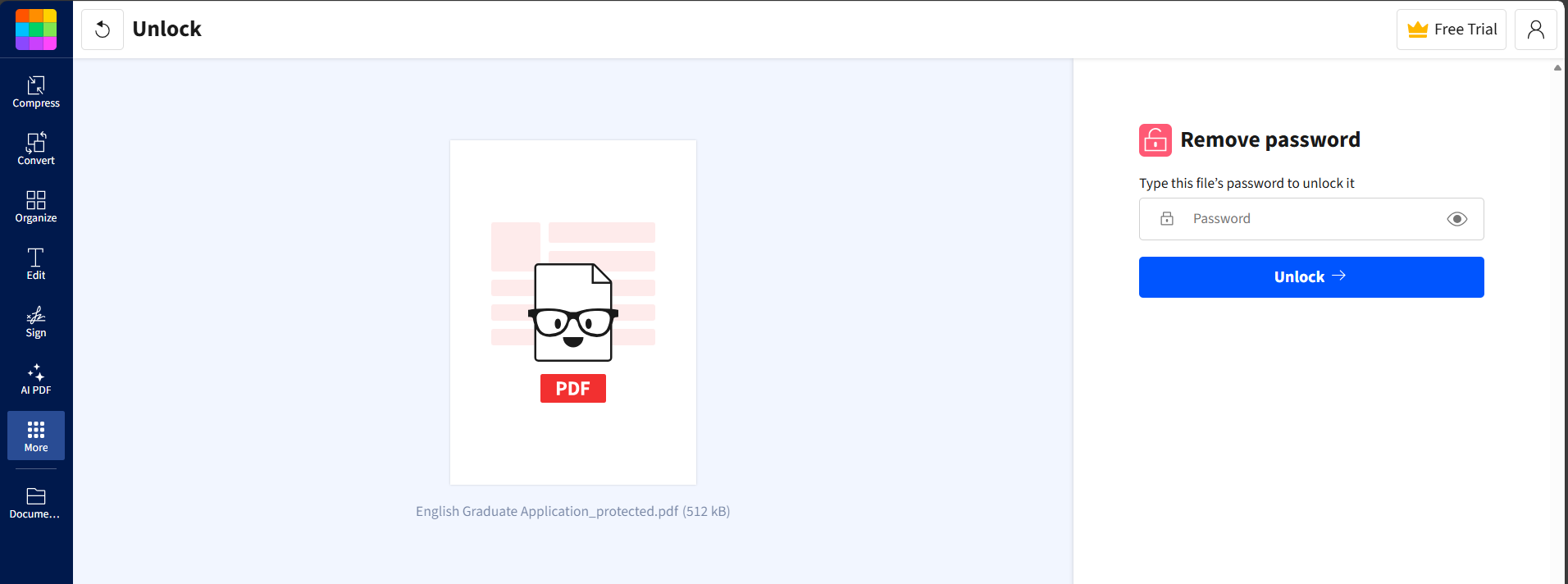
Step 3: Enter the password if you know it, or
use the built-in unlock function to remove PDF protection.
Enter the PDF password in SmallPDF
Step 4: Wait for the process to finish, then
download your unlocked PDF.
Download the PDF in SmallPDF
Smallpdf is especially useful for users who want to unlock PDFs
without PDF software installation. It’s also one of the fastest
web-based tools for removing restrictions safely, without exposing your
document to unnecessary risks.
Personal Experience:
I’ve used Smallpdf several times when I needed to remove protection
from a PDF online. Its interface is intuitive, and the process takes
less than a minute. However, the free version’s daily limit can be
restrictive for users who need to unlock multiple files regularly.
3. ILovePDF
ILovePDF
ILovePDF is another trusted online platform that helps users remove
protection from PDFs quickly and securely. It’s ideal for anyone who
prefers a browser-based tool with extra PDF utilities like merging,
splitting, and compressing files. The site’s clean design and clear
instructions make it simple even for beginners to use.
Key Features:
Works effectively with both encrypted and restricted PDF files
Supports batch unlocking for multiple documents at once
Integrates additional editing tools for modifying PDF content
Pros:
Free and user-friendly interface
Fast online processing without requiring installation
Offers extra editing functions beyond unlocking
Cons:
Certain features, such as unlimited uploads, are only available with a premium account
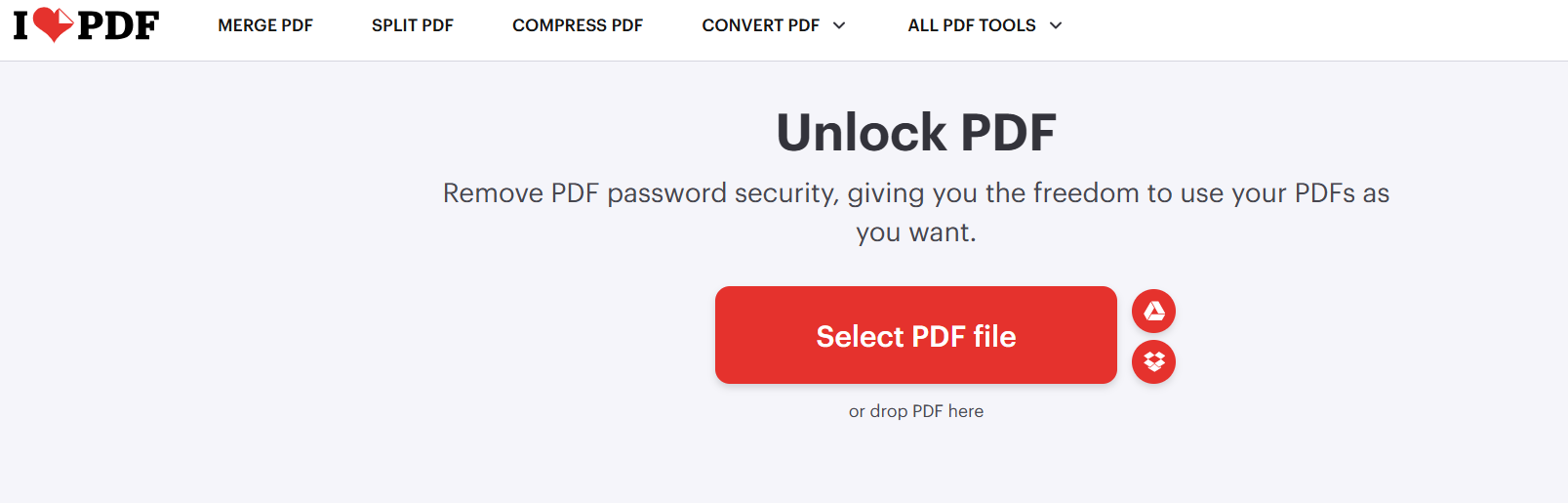
Step 2: Upload the protected PDF from your
device or cloud storage.
Unlock PDF in ILovePDF
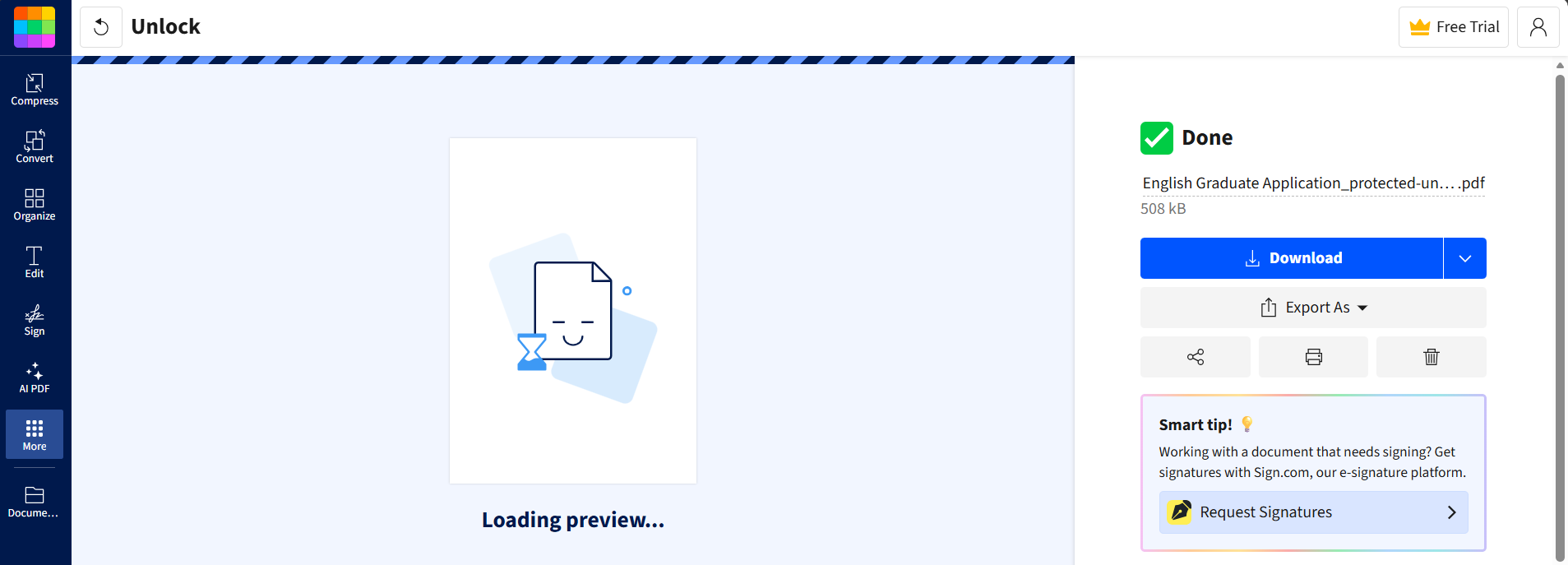
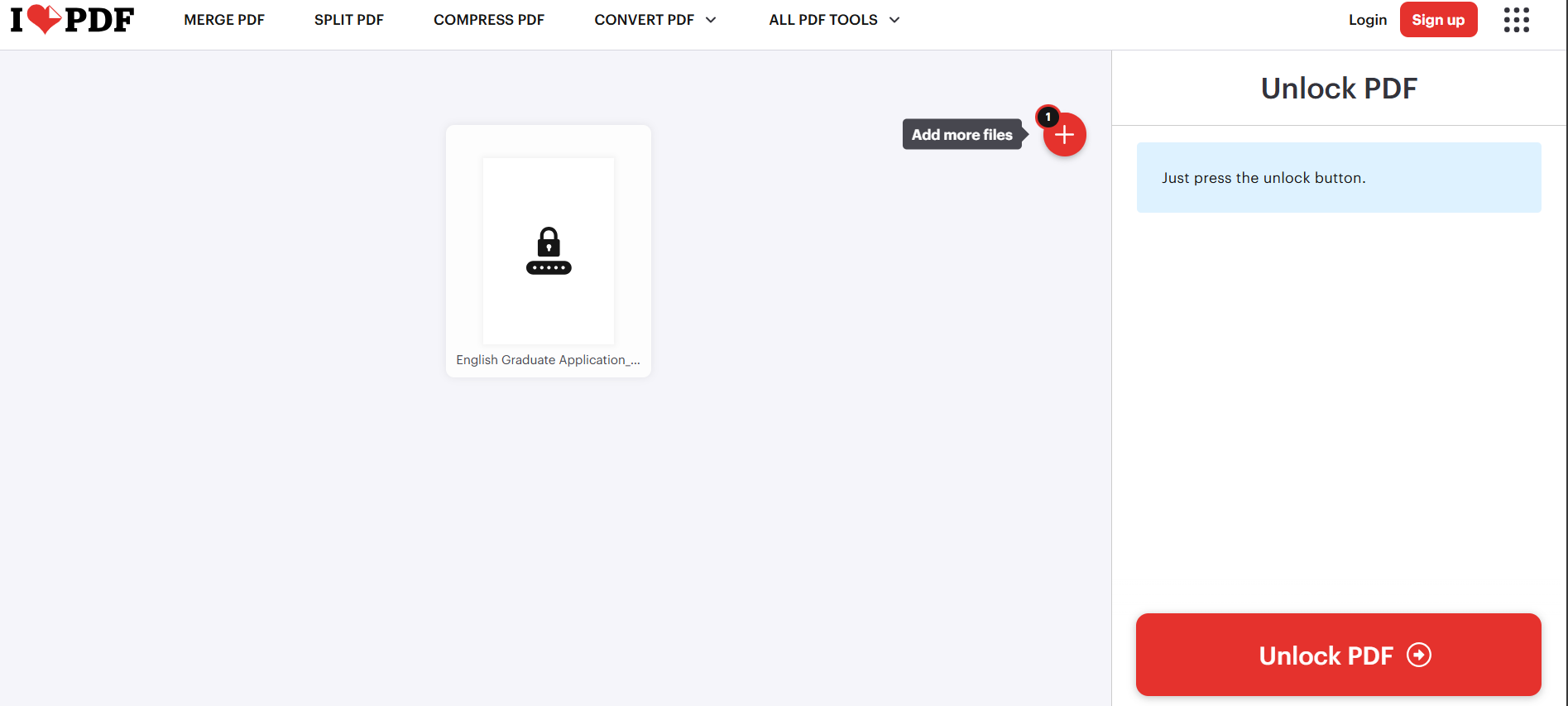
Step 3: Click the “Unlock PDF” button to begin the PDF protection remover process.
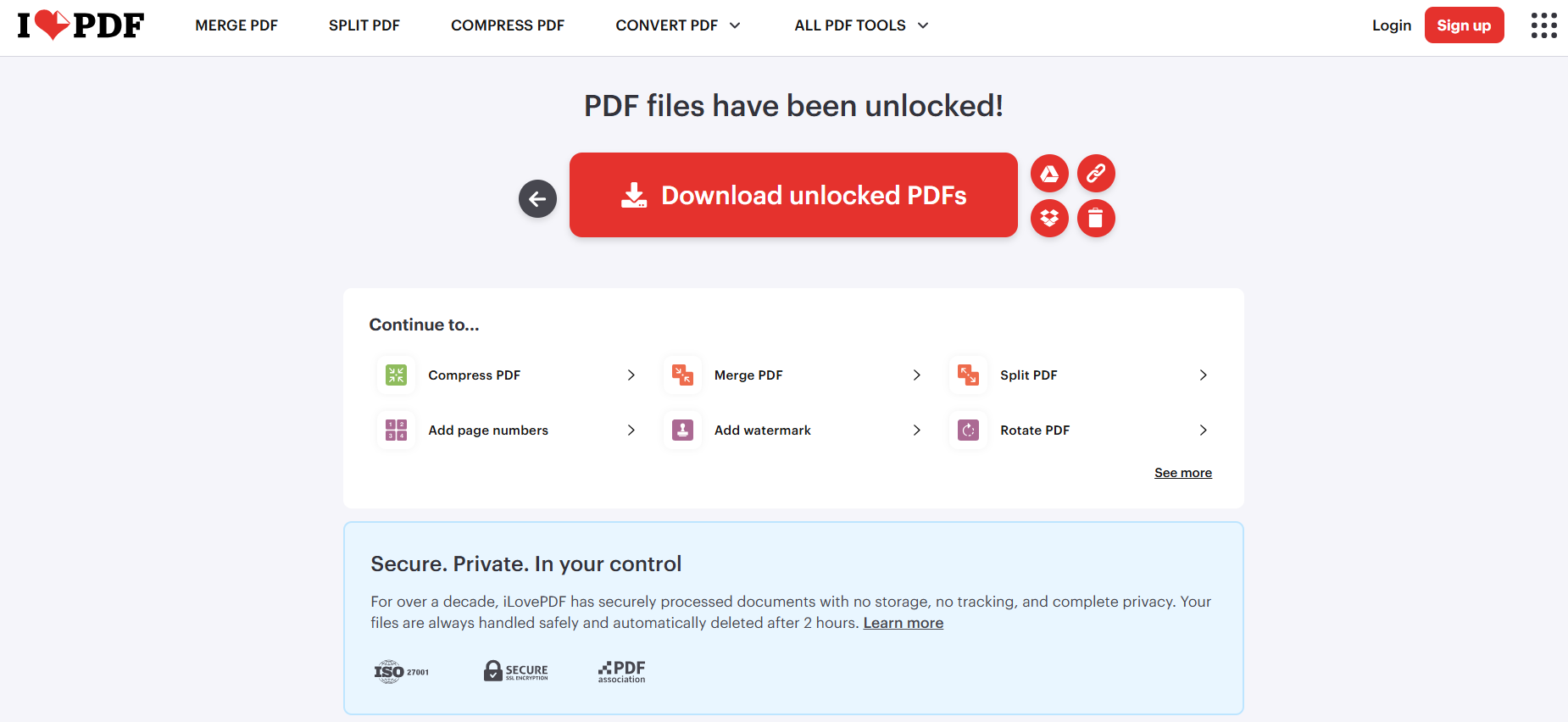
Step 4: Wait for the unlocking process to
complete, then download the accessible version of your file.
Download Unlocked PDF in ILovePDF
ILovePDF is particularly convenient for users who want to unlock PDFs
free of charge and handle multiple files at once. It’s also a good
choice for those who need basic editing options after removing
restrictions.
Personal Experience:
In my experience, ILovePDF stands out for its speed and simplicity.
When I needed to remove PDF protection for multiple reports, its batch
processing feature saved me considerable time. However, large files
sometimes require compression before uploading under the free plan
limits.
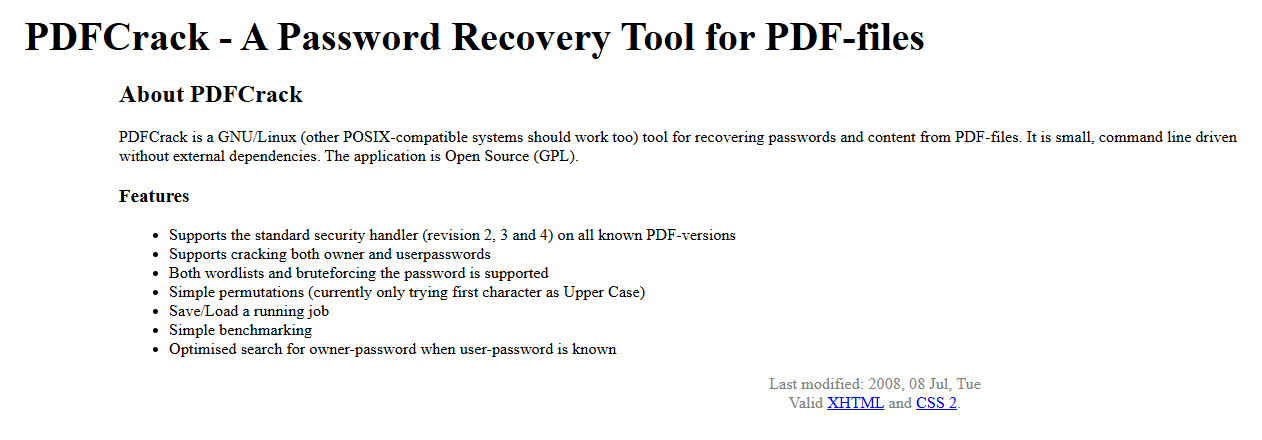
4. PDFCrack
PDFCrack
PDFCrack is a specialized, open-source program designed for PDF
password recovery. Unlike online tools that rely on user-uploaded files,
this software runs locally on your computer, giving you full control and
enhanced privacy. It’s ideal for advanced users who need to unlock
heavily encrypted documents or have lost the password to their own
files.
Key Features:
Performs password recovery for locked PDF documents
Supports both dictionary and brute-force attack methods
Works entirely offline for greater data security
Pros:
100% free and open-source
Works effectively for complex encryption levels
Provides full control over the unlocking process
Cons:
Requires installation and command-line knowledge
May take significant time for strong or lengthy passwords
Step 2: Open the command-line interface and
locate the encrypted file.
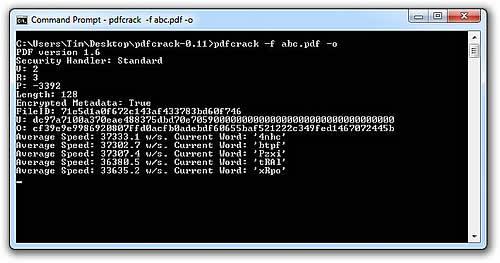
Step 3: Enter the command to start the
decryption process.
PDFCrack command prompt
Step 4: Once the password is retrieved, use it
to remove protection from the PDF and save it without
restrictions.
PDFCrack is best suited for users who are familiar with technical
tools and need advanced PDF password recovery capabilities. It offers a
powerful offline alternative to cloud-based solutions, ensuring data
remains entirely within your system.
Personal Experience:
When I tested PDFCrack, I found it effective for older, moderately
encrypted documents. However, it does require patience and some
technical skill to operate efficiently. For users who prefer simplicity
or quick online solutions, tools like Smallpdf or ILovePDF might be more
suitable.
Part 2:
Comparison Table for PDF Unlocking Tools
The following table summarizes the key aspects of each tool discussed
above. It helps readers choose the best option to remove protection from
PDFs based on their needs, whether they prefer an online service, a free
option, or an advanced PDF protection remover for technical use.
Tool
Ease of Use
Supported File Types and
Formats
Download Required
Free Version
Availability
Notable Limitations /
Ads
PDF Unlocker
Very Easy
Works with most standard PDFs
No
Yes
Limited features in the free version
Smallpdf
Very Easy
Password-protected & restricted
PDFs
No
Yes
Daily limit for free users
ILovePDF
Easy
Encrypted and restricted PDFs
No
Yes
File size limit for free tier
PDFCrack
Moderate
All password-encrypted PDFs
Yes
Yes
Requires technical knowledge; longer
decryption time
Each of these tools can remove PDF protection efficiently, but their
differences lie in usability and technical requirements.
For quick, online unlocking, Smallpdf and
ILovePDF are convenient.
For offline use or deeper PDF password
recovery, PDFCrack provides advanced control.
For simple, lightweight removal, PDF Unlocker
remains a practical option.
Part 3:
Recommended Tool – Toolsmart AnyDoc Translator
If your main goal is not just to remove protection from PDF but also
to translate its content accurately and securely, then Toolsmart AnyDoc
Translator is the ideal choice. Unlike most PDF protection
remover tools, this platform focuses on maintaining document integrity
while providing fast, AI-powered translation capabilities.
Toolsmart AnyDoc Translator
Toolsmart AnyDoc Translator allows users to upload protected or
unprotected PDFs and convert them into their desired language without
compromising formatting. It works entirely online, meaning there’s no
need to install extra software or deal with complicated setup
processes.
Advantages of Toolsmart AnyDoc Translator:
Online Tool: You can access it from any browser without installation.
Simple Interface: The clean, step-by-step design makes the translation process effortless.
Secure: All uploaded files are processed under strict data protection standards.
Specialized Functionality: Unlike typical unlockers that focus on editing, this tool ensures safe and accurate translation of text within PDFs.
This tool is especially useful for professionals who frequently work
with multilingual documents or reports. Even if your PDF is restricted,
Toolsmart can handle it safely, offering a reliable way to save a PDF
without a password while maintaining its structure.
Personal Experience:
When I tried Toolsmart AnyDoc Translator, the results were
impressive. The translations retained formatting and layout consistency,
which is often lost in other tools. For users who value privacy,
accuracy, and convenience, Toolsmart stands out as a practical solution
beyond traditional unlockers.
100% secure
FAQs
Q1: Is the translation of Toolsmart AnyDoc Translator
accurate?
Yes. Toolsmart AnyDoc Translator uses advanced AI-based language
models to ensure high translation accuracy. It preserves both layout and
context, allowing users to work confidently with translated PDFs. Unlike
many other remove protection from PDFs online tools, Toolsmart
prioritizes document fidelity and precision in every translation.
Q2: Does Smallpdf work on all types of password-protected
PDFs?
Smallpdf can unlock most standard password-protected PDFs and remove
restrictions for editing or printing. However, it may struggle with
highly encrypted files. In such cases, more advanced PDF password
recovery software, such as PDFCrack, may be necessary to fully access
the document.
Q3: Can I use PDFCrack if I don’t know the password for a
PDF?
Yes, you can. PDFCrack is specifically designed for PDF password
recovery. It applies brute-force or dictionary-based methods to find the
password, making it possible to remove protection from PDF files when
you’ve lost or forgotten access credentials. Keep in mind that complex
passwords may take longer to recover.
Q4: Can I use Toolsmart AnyDoc Translator for non-translation
purposes?
Toolsmart AnyDoc Translator is optimized for translating and
processing documents rather than unlocking or editing them. While it can
handle protected files safely, its primary purpose isn’t to unlock PDFs
free or edit content; it focuses on secure, accurate translation for
professional use.
Summary
Removing restrictions from a PDF doesn’t have to be complicated. With tools like PDF Unlocker, Smallpdf, ILovePDF, and PDFCrack, users can efficiently remove protection from PDF files and regain access for viewing, editing, or printing. Each option offers unique advantages, ranging from simple web-based interfaces to advanced PDF password recovery methods for heavily encrypted files. Choosing the right one depends on how frequently you work with secured documents and whether you prefer online or offline tools.
For users who need more than unlocking, Toolsmart AnyDoc Translator provides an all-in-one solution. It allows you to translate PDFs securely, maintain formatting accuracy, and even save a PDF without a password while preserving document integrity. Whether you’re handling office reports, academic research, or multilingual projects, Toolsmart ensures privacy, accuracy, and convenience, making it the most reliable choice beyond traditional unlockers.
AI enthusiast with 10 years in tech and writing. Follow me for the latest insights on AI trends and tools to boost your writing, workplace efficiency, and productivity!

'%3e%3cpath%20fill-rule='evenodd'%20clip-rule='evenodd'%20d='M19%208.5C24.799%208.5%2029.5%2013.201%2029.5%2019C29.5%2024.6782%2024.9928%2029.3036%2019.361%2029.4939L19%2029.5C18.8794%2029.5%2018.7592%2029.498%2018.6396%2029.4939L18.2811%2029.4758C12.8174%2029.1063%208.5%2024.5574%208.5%2019C8.5%2013.201%2013.201%208.5%2019%208.5ZM22.3063%2010.6267L22.2342%2010.6539C21.3423%2011.0061%2020.5541%2011.6368%2020.5606%2012.4987C20.5631%2012.8302%2020.869%2014.8871%2020.2141%2014.8486C19.5589%2014.8102%2019.413%2013.8753%2018.7116%2013.616C17.5944%2013.2026%2016.9819%2014.3401%2017.0939%2015.3106C17.1695%2015.9655%2018.9289%2018.3871%2017.9028%2019C17.292%2019.3651%2015.7279%2017.5692%2015.1007%2017.1842C14.4805%2016.8034%2013.2758%2017.3333%2012.4974%2016.7029C11.9874%2016.2899%2012.3881%2014.4098%2012.2786%2013.8372C12.2271%2013.5698%2012.1155%2013.3689%2011.9794%2013.2166L12.0402%2013.2934C10.7653%2014.8464%2010%2016.8339%2010%2019C10%2023.8465%2013.8307%2027.7982%2018.6295%2027.9925L18.6769%2027.9747C18.8597%2027.8677%2019.0394%2027.7557%2019.216%2027.6387C19.4137%2027.4534%2019.5436%2027.2072%2019.5849%2026.9394C19.8806%2025.1222%2018.3616%2025.4302%2017.9367%2024.5622C17.5489%2023.7695%2018.5712%2023.7684%2018.5524%2021.7923C18.4607%2021.1774%2018.5279%2020.547%2018.7211%2020.0315C19.1834%2018.7987%2020.7077%2017.2643%2022.5889%2018.0081C23.5567%2018.3906%2023.1524%2019.9831%2023.4737%2020.3394C24.251%2021.2018%2025.3228%2020.6863%2026.2856%2021.2253C26.7816%2021.5032%2026.9797%2022.41%2027.056%2023.2248L27.038%2023.0528C27.6534%2021.8348%2028%2020.4579%2028%2019C28%2015.1968%2025.6409%2011.9445%2022.3063%2010.6267Z'%20fill='%23757575'/%3e%3ccircle%20cx='19'%20cy='19'%20r='10.125'%20stroke='%23757575'%20stroke-width='2.25'/%3e%3c/g%3e%3cdefs%3e%3cclipPath%20id='clip0_1827_14613'%3e%3crect%20width='24'%20height='24'%20fill='white'%20transform='translate(7%207)'/%3e%3c/clipPath%3e%3c/defs%3e%3c/svg%3e)