'%3e%3cpath%20fill-rule='evenodd'%20clip-rule='evenodd'%20d='M19%208.5C24.799%208.5%2029.5%2013.201%2029.5%2019C29.5%2024.6782%2024.9928%2029.3036%2019.361%2029.4939L19%2029.5C18.8794%2029.5%2018.7592%2029.498%2018.6396%2029.4939L18.2811%2029.4758C12.8174%2029.1063%208.5%2024.5574%208.5%2019C8.5%2013.201%2013.201%208.5%2019%208.5ZM22.3063%2010.6267L22.2342%2010.6539C21.3423%2011.0061%2020.5541%2011.6368%2020.5606%2012.4987C20.5631%2012.8302%2020.869%2014.8871%2020.2141%2014.8486C19.5589%2014.8102%2019.413%2013.8753%2018.7116%2013.616C17.5944%2013.2026%2016.9819%2014.3401%2017.0939%2015.3106C17.1695%2015.9655%2018.9289%2018.3871%2017.9028%2019C17.292%2019.3651%2015.7279%2017.5692%2015.1007%2017.1842C14.4805%2016.8034%2013.2758%2017.3333%2012.4974%2016.7029C11.9874%2016.2899%2012.3881%2014.4098%2012.2786%2013.8372C12.2271%2013.5698%2012.1155%2013.3689%2011.9794%2013.2166L12.0402%2013.2934C10.7653%2014.8464%2010%2016.8339%2010%2019C10%2023.8465%2013.8307%2027.7982%2018.6295%2027.9925L18.6769%2027.9747C18.8597%2027.8677%2019.0394%2027.7557%2019.216%2027.6387C19.4137%2027.4534%2019.5436%2027.2072%2019.5849%2026.9394C19.8806%2025.1222%2018.3616%2025.4302%2017.9367%2024.5622C17.5489%2023.7695%2018.5712%2023.7684%2018.5524%2021.7923C18.4607%2021.1774%2018.5279%2020.547%2018.7211%2020.0315C19.1834%2018.7987%2020.7077%2017.2643%2022.5889%2018.0081C23.5567%2018.3906%2023.1524%2019.9831%2023.4737%2020.3394C24.251%2021.2018%2025.3228%2020.6863%2026.2856%2021.2253C26.7816%2021.5032%2026.9797%2022.41%2027.056%2023.2248L27.038%2023.0528C27.6534%2021.8348%2028%2020.4579%2028%2019C28%2015.1968%2025.6409%2011.9445%2022.3063%2010.6267Z'%20fill='%23757575'/%3e%3ccircle%20cx='19'%20cy='19'%20r='10.125'%20stroke='%23757575'%20stroke-width='2.25'/%3e%3c/g%3e%3cdefs%3e%3cclipPath%20id='clip0_1827_14613'%3e%3crect%20width='24'%20height='24'%20fill='white'%20transform='translate(7%207)'/%3e%3c/clipPath%3e%3c/defs%3e%3c/svg%3e)


Pinterest is full of creative inspiration, but sometimes your boards can get messy. You may have unwanted or old pins cluttering your space. So, how do you remove a pin on Pinterest easily? This guide answers that with step-by-step help. You’ll also learn how to save video pins before deletion.


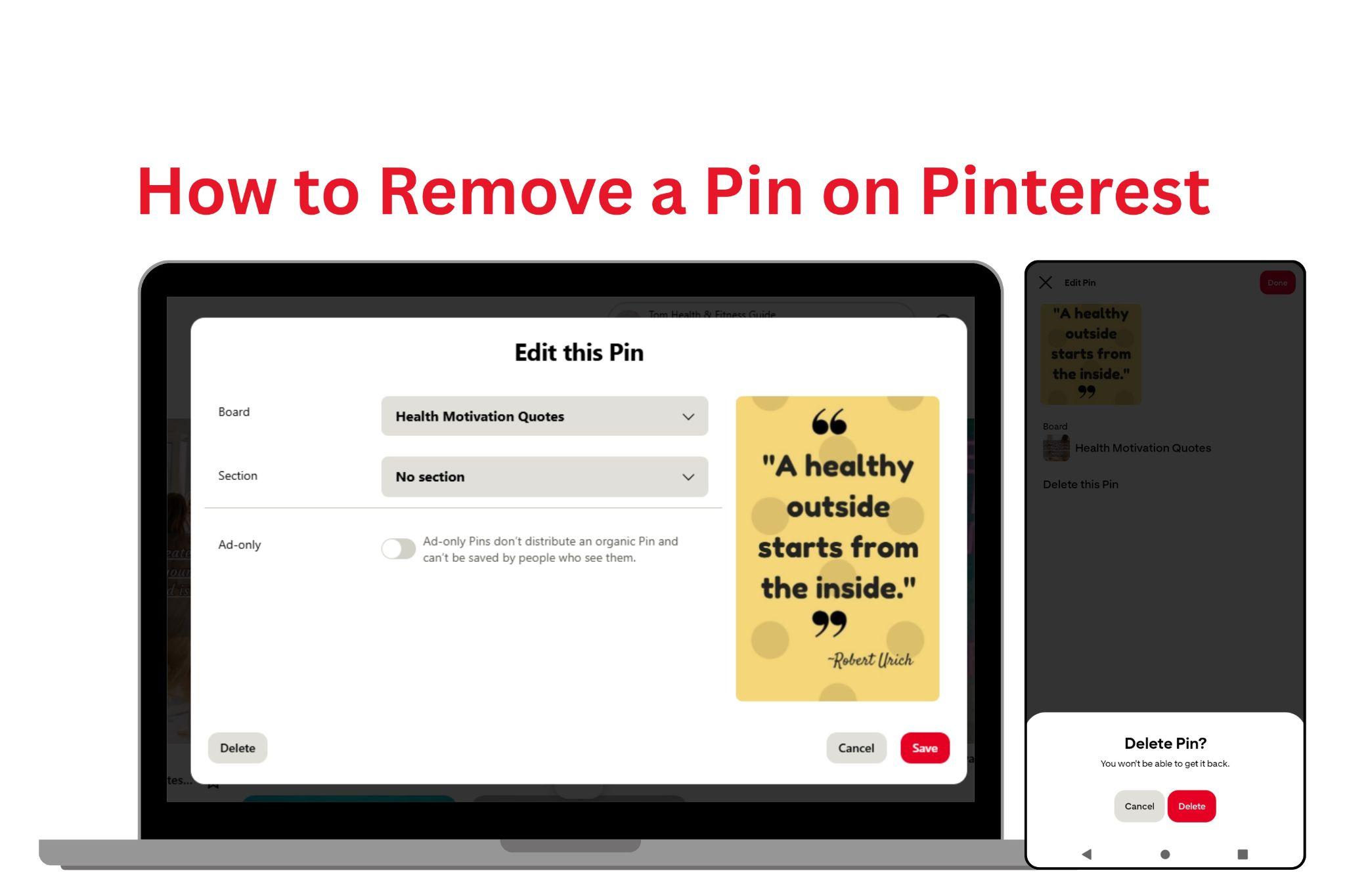
Part 1: Remove a Pin from Pinterest via Mobile App
Deleting a pin on mobile is simple. Whether you use Android or iOS, follow these easy steps:
Step-by-Step Guide:
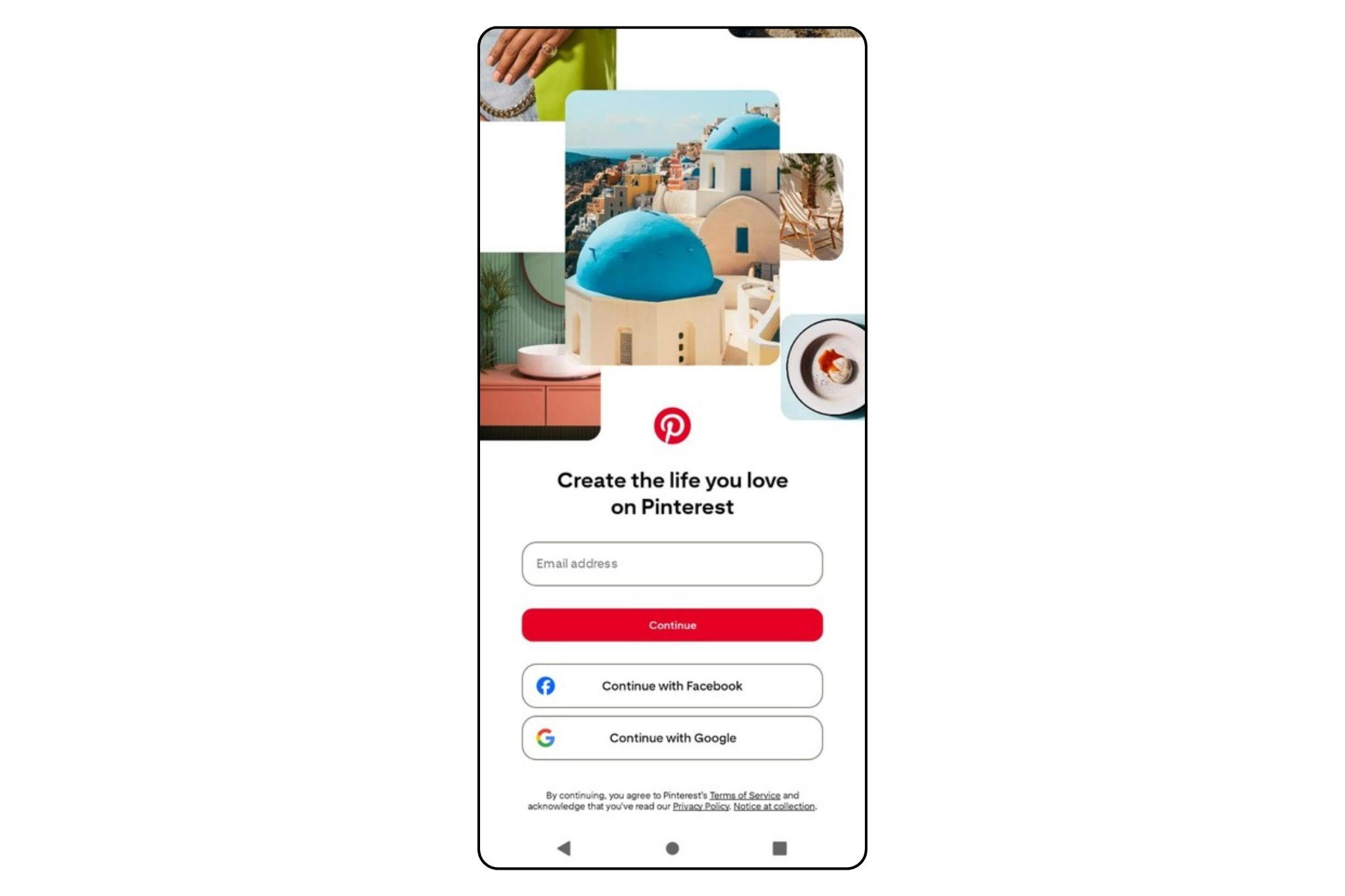
Open the Pinterest App:
Tap the Pinterest icon on your phone and log in to your account.
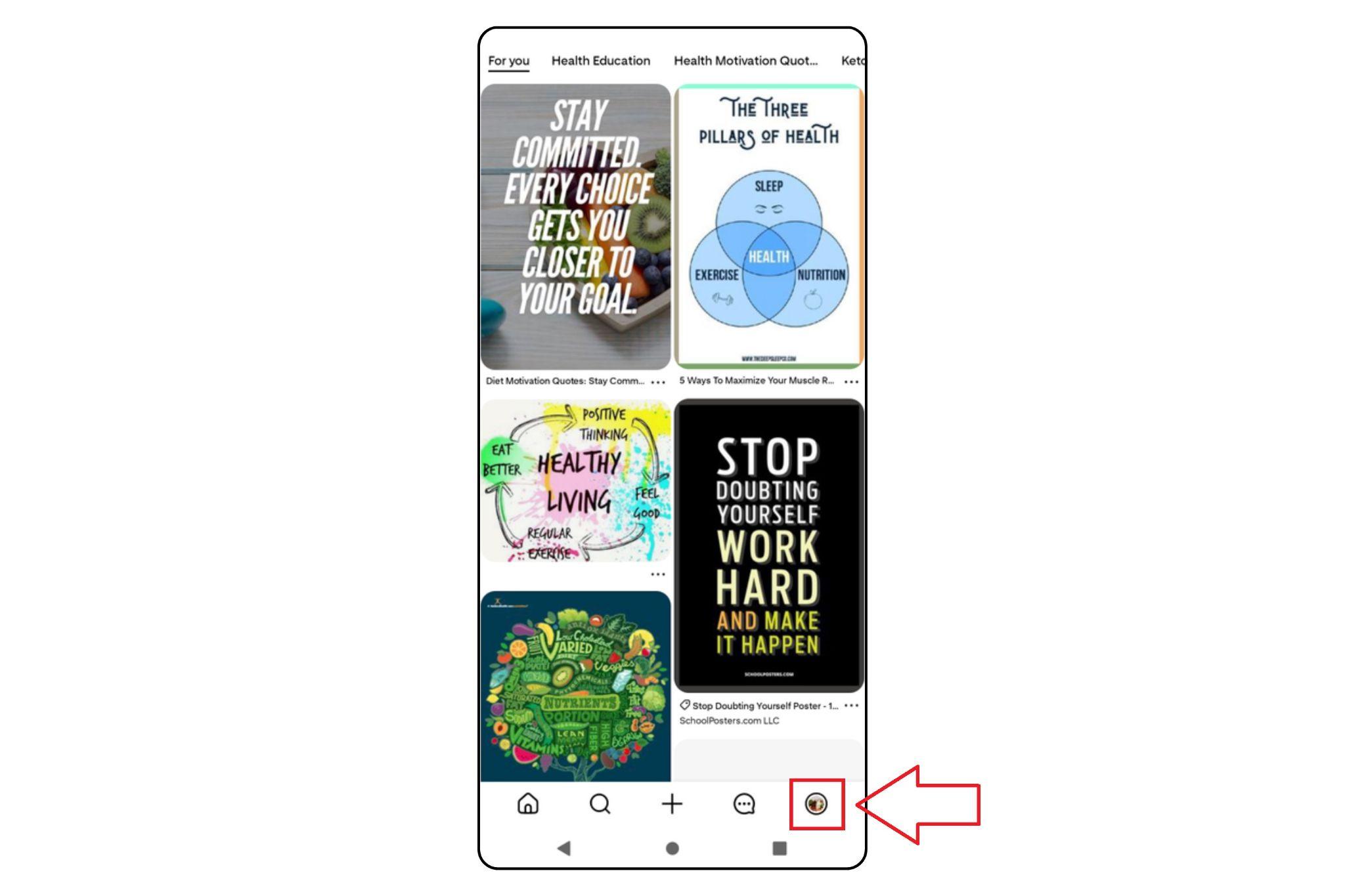
Go to Your Profile:
At the bottom-right corner, tap the profile icon (a person silhouette) to view your boards.
Select a Board:
Scroll and choose the board that contains the pin you want to delete.
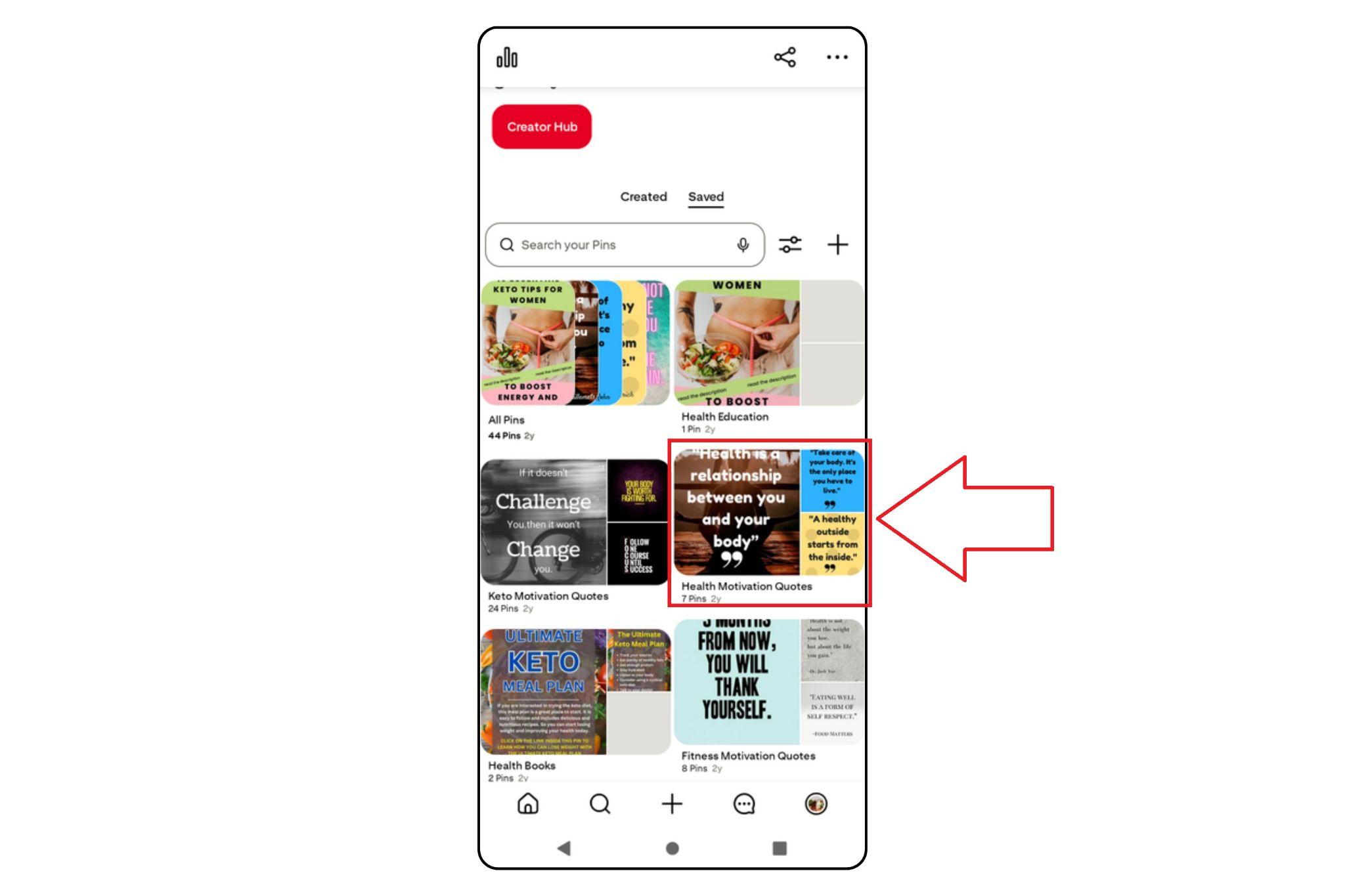
Find the Pin:
Browse through the board and tap the specific pin you want to remove.
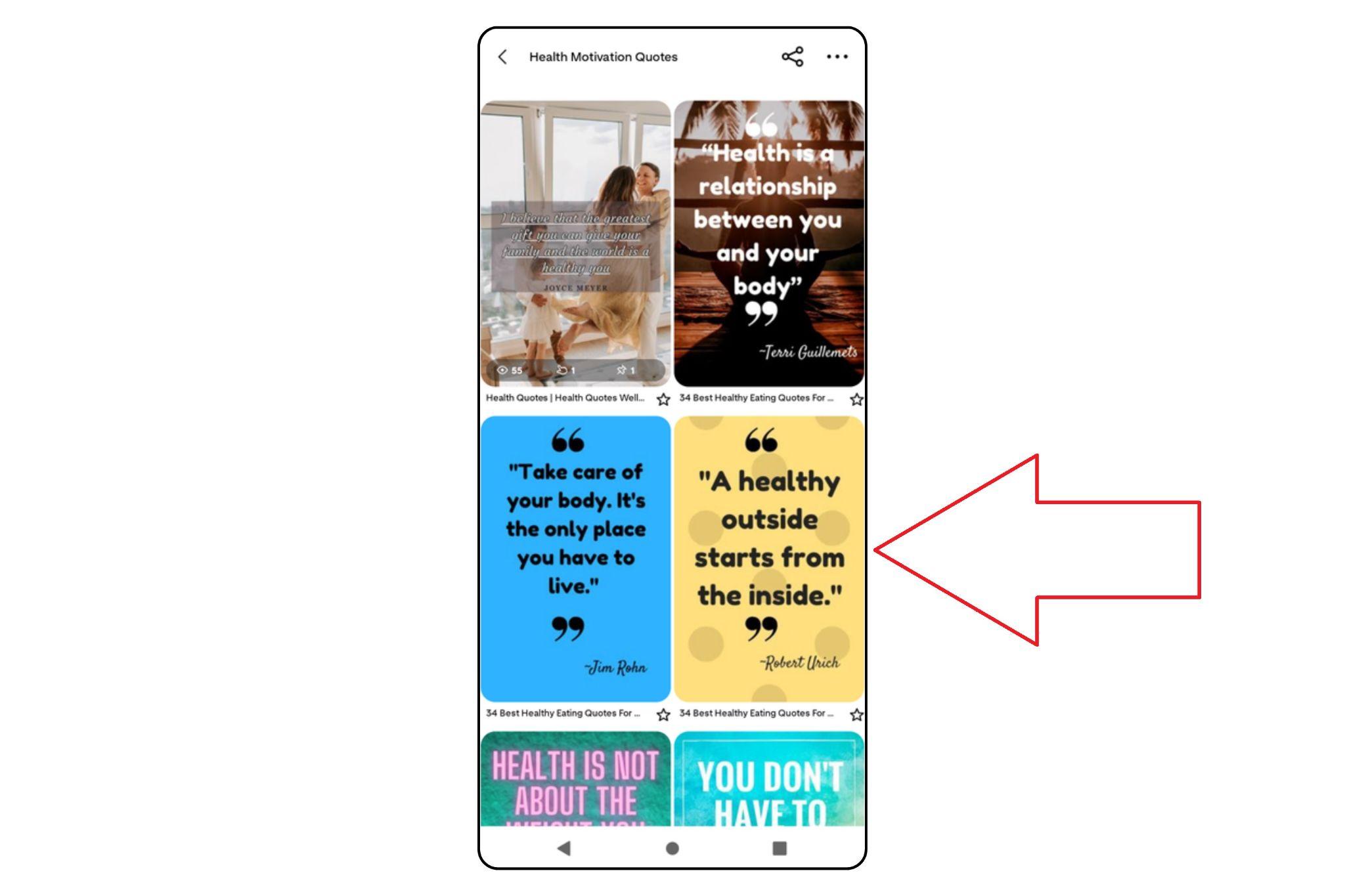
Tap the Three Dots (•••):
In the upper-right corner of the pin screen, tap the three-dot menu icon.
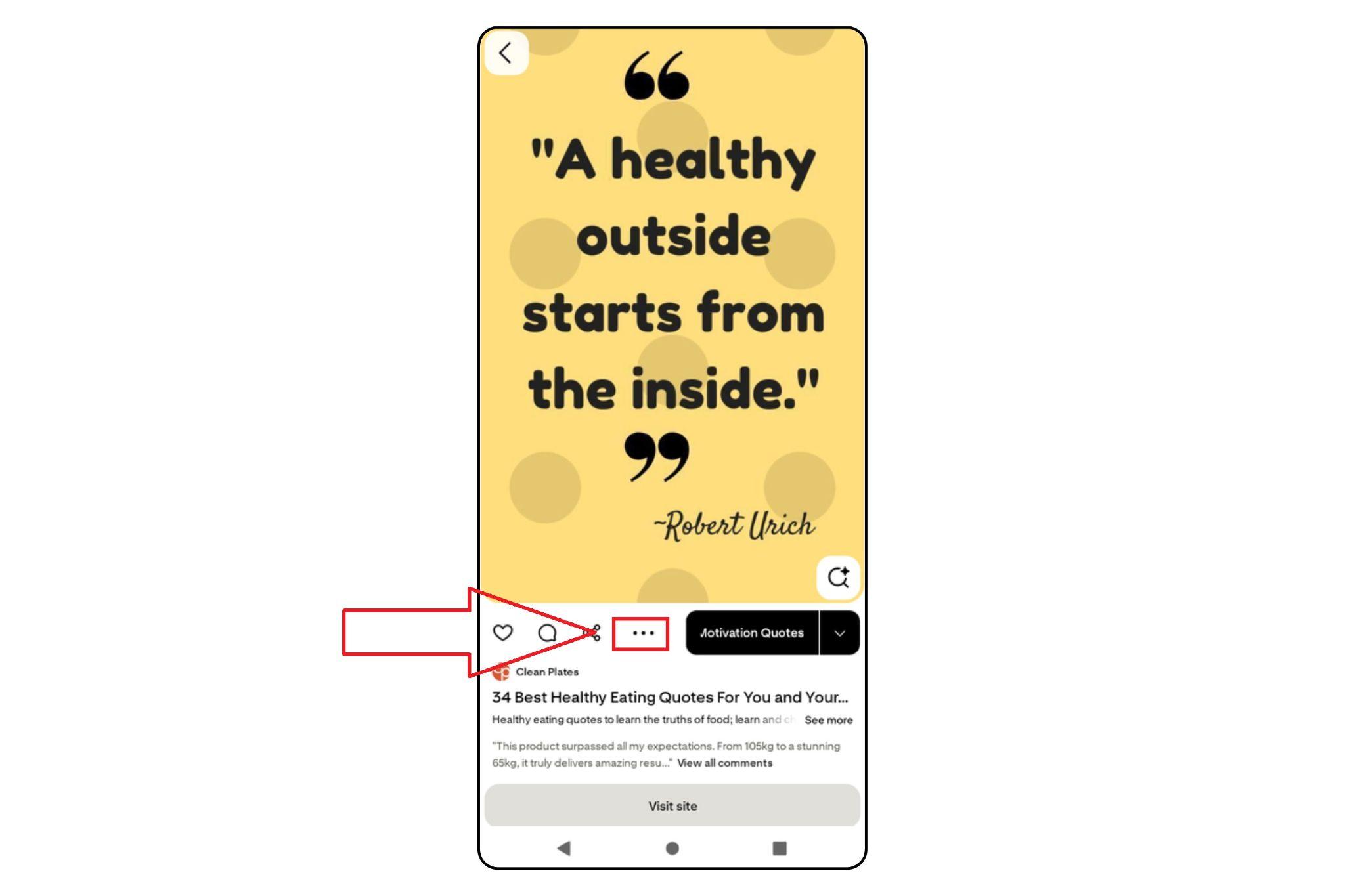
Choose “Edit Pin” or “Delete Pin”:
From the pop-up options, tap “Edit Pin.” You’ll be taken to a new screen with more settings.
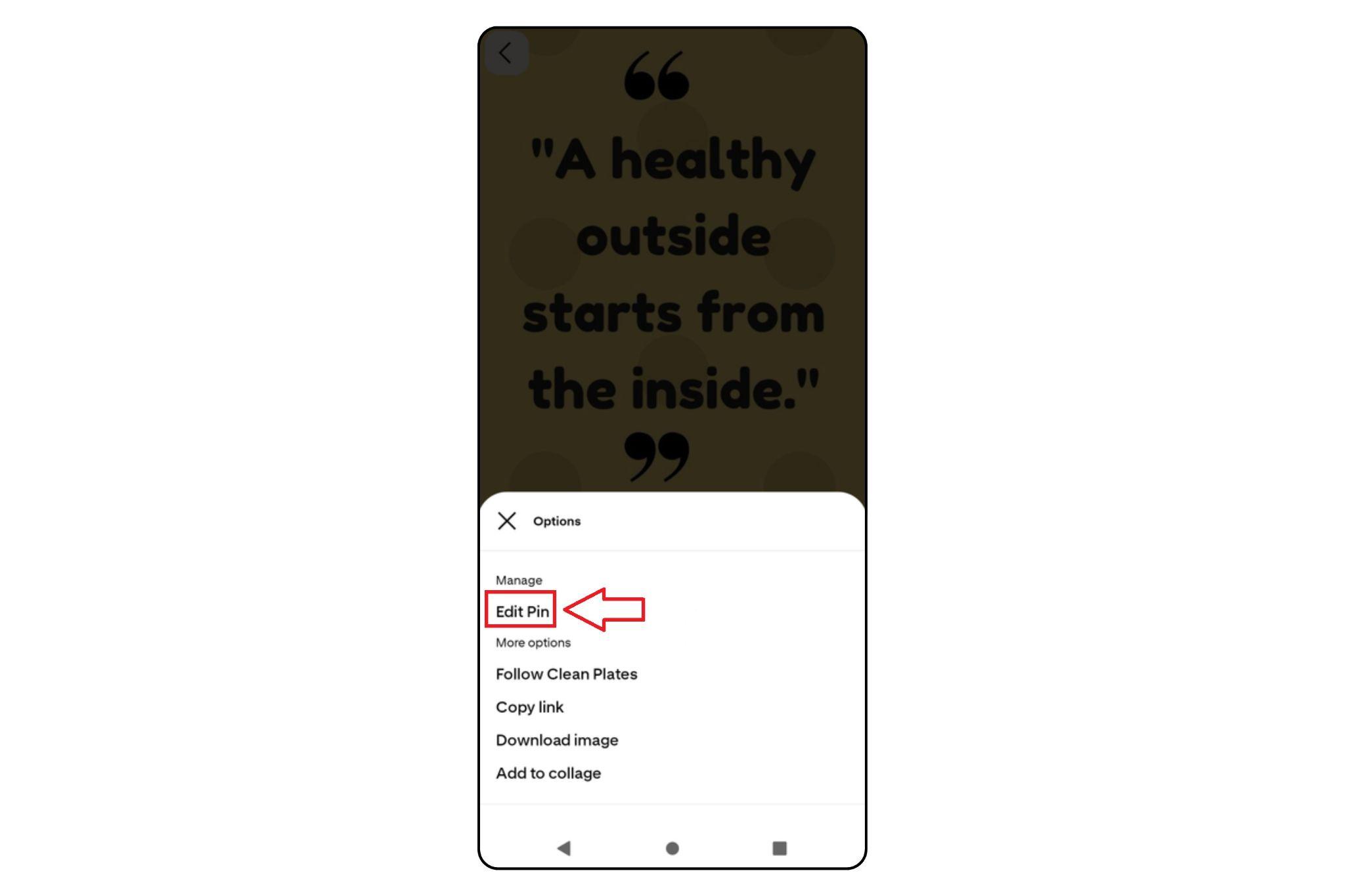
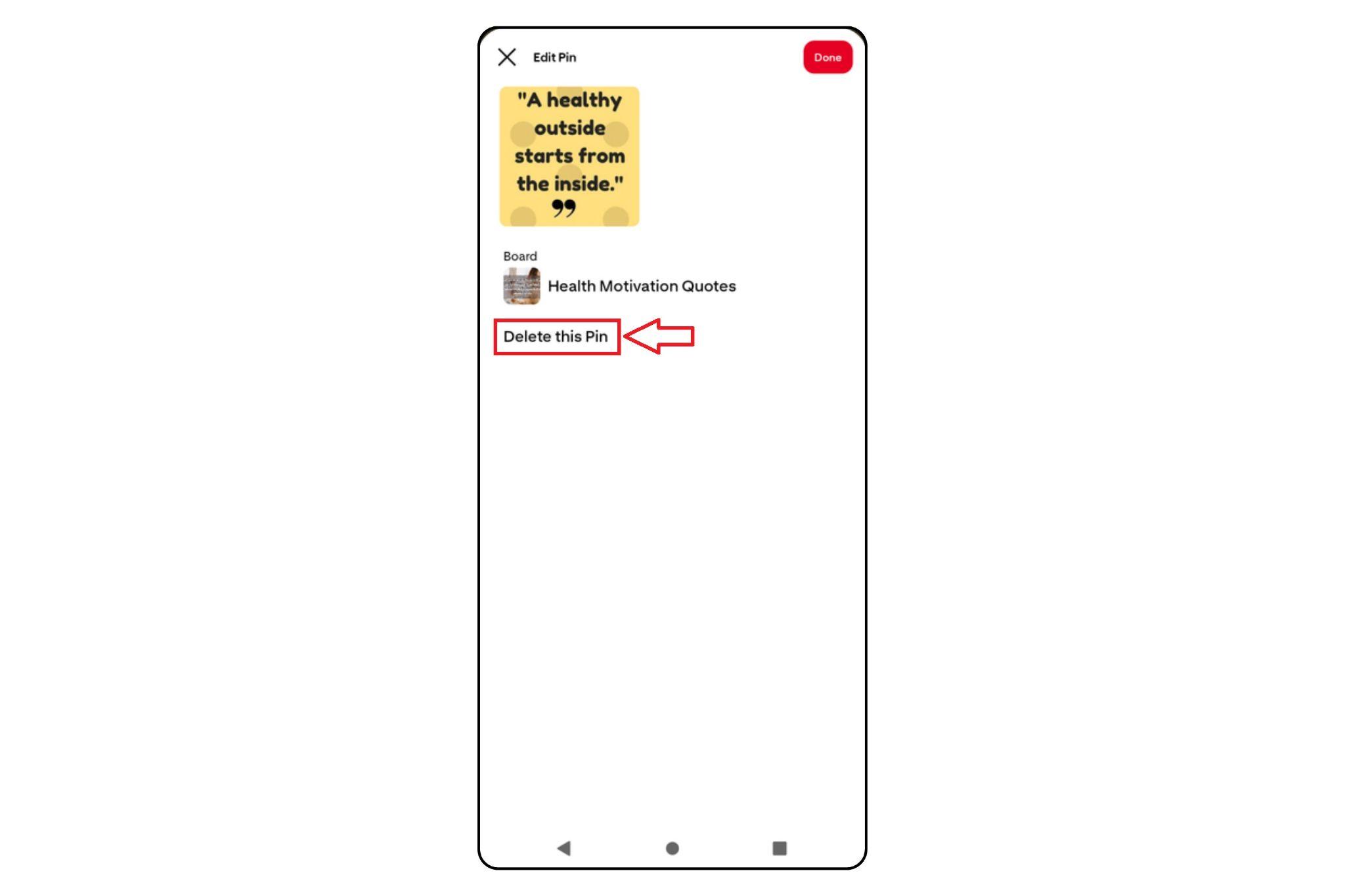
Delete the Pin:
On the bottom of the edit screen, tap “Delete this Pin.”
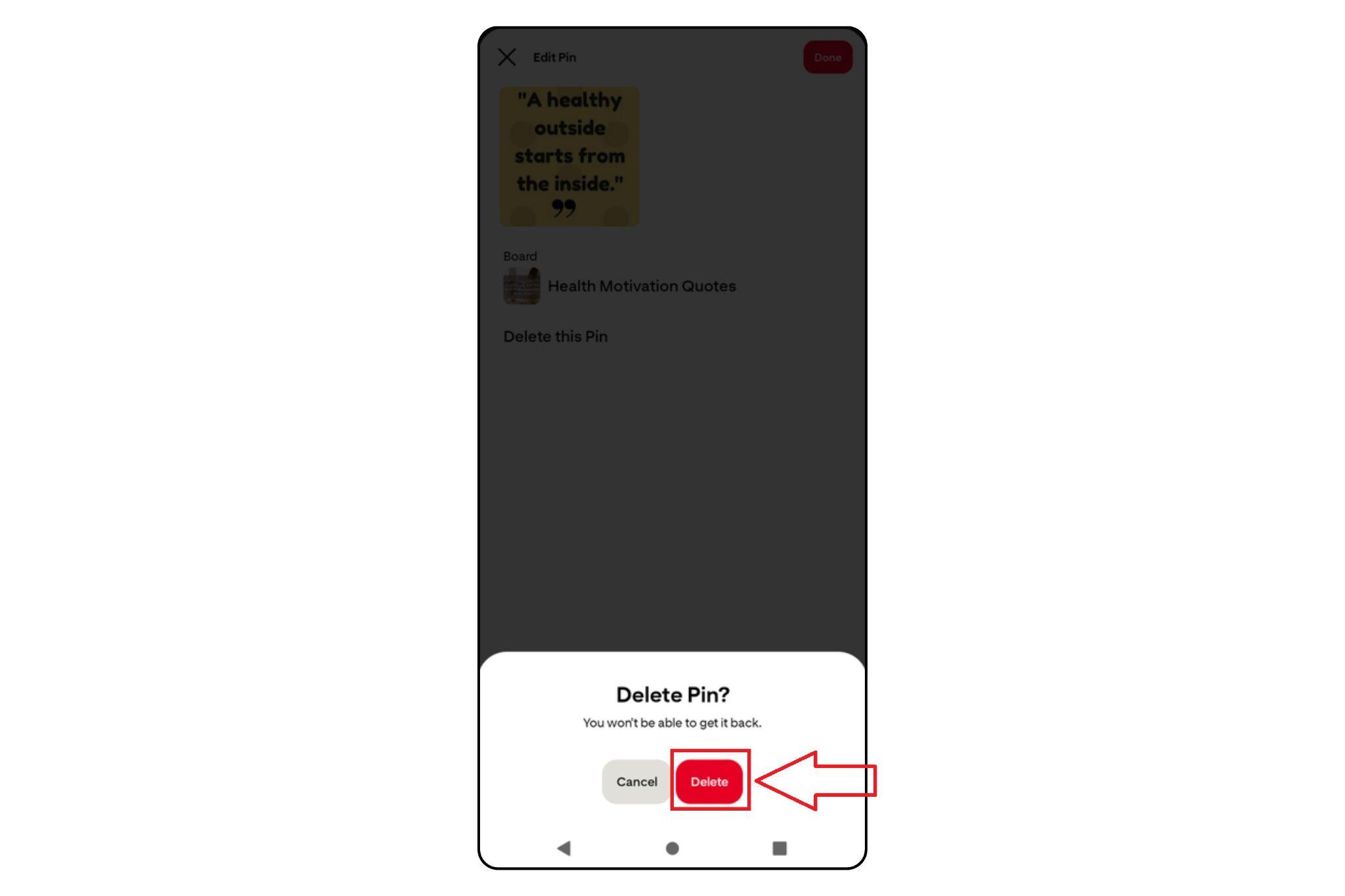
Confirm Deletion:
When Pinterest asks for confirmation, tap “Delete” again.
Part 2: Remove a Pin from Pinterest on Desktop (Web Version)
Deleting a pin from your computer browser is just as easy. Follow these steps:
Step-by-Step Guide:
Go to the Pinterest Website:
Open your browser and go to www.pinterest.com.

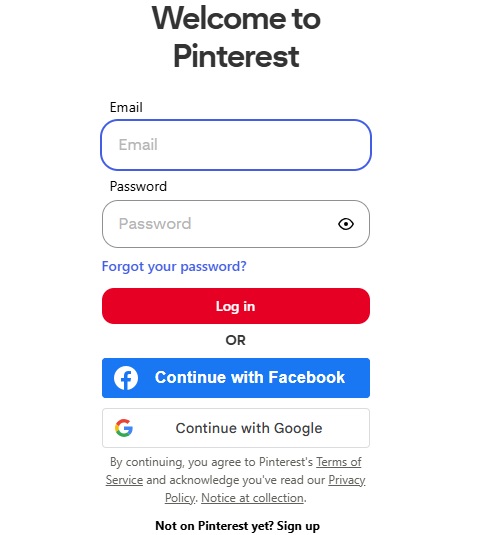
Log Into Your Account:
Enter your email and password to access your Pinterest profile.
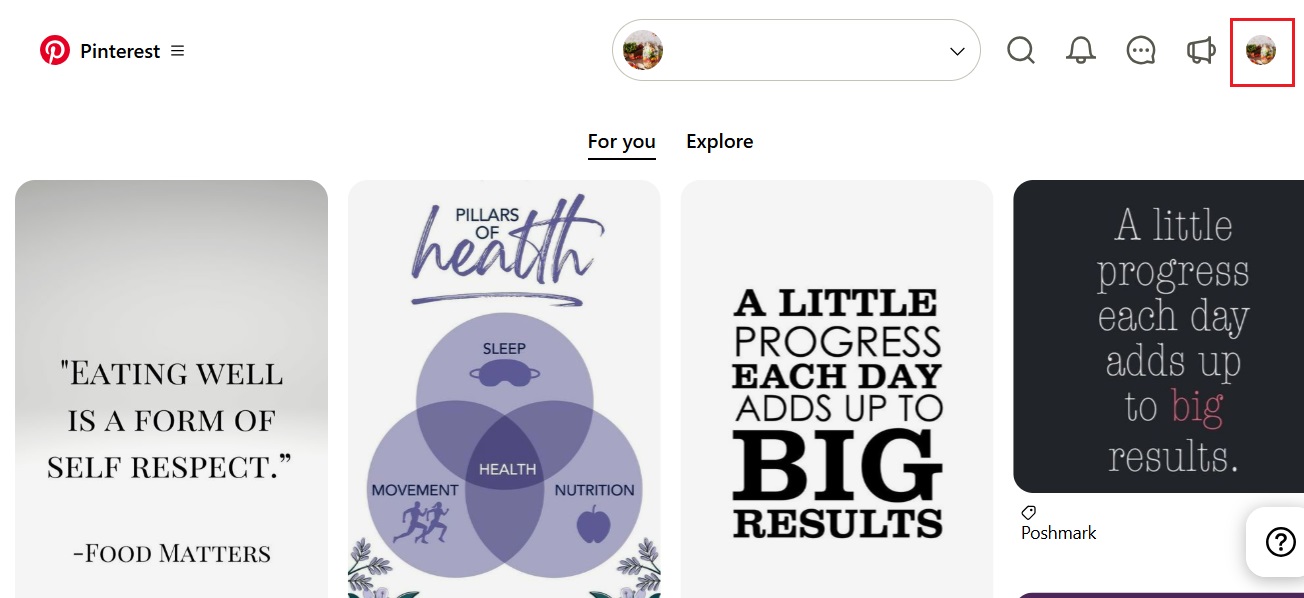
Click Your Profile Icon:
It’s at the top-right corner. Click it to open your list of boards.
Choose the Right Board:
Click the board that contains the pin you want to delete.
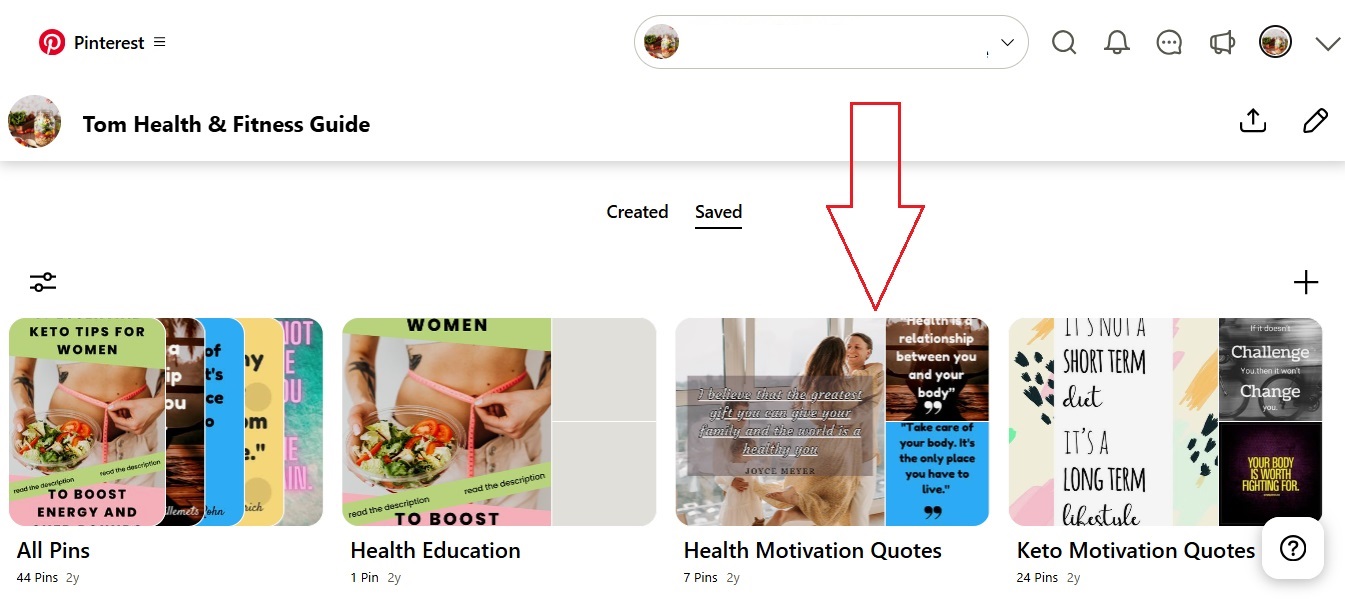
Hover Over the Pin:
Move your mouse pointer over the pin thumbnail until you see icons appear.
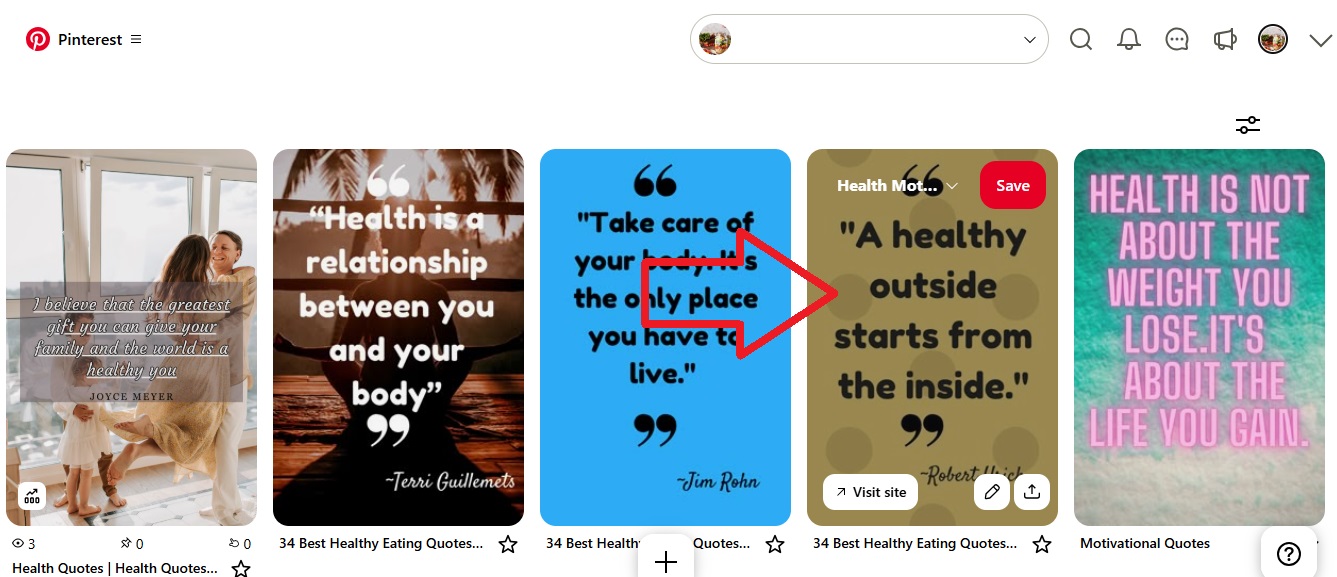
Click the Pencil/Edit Icon:
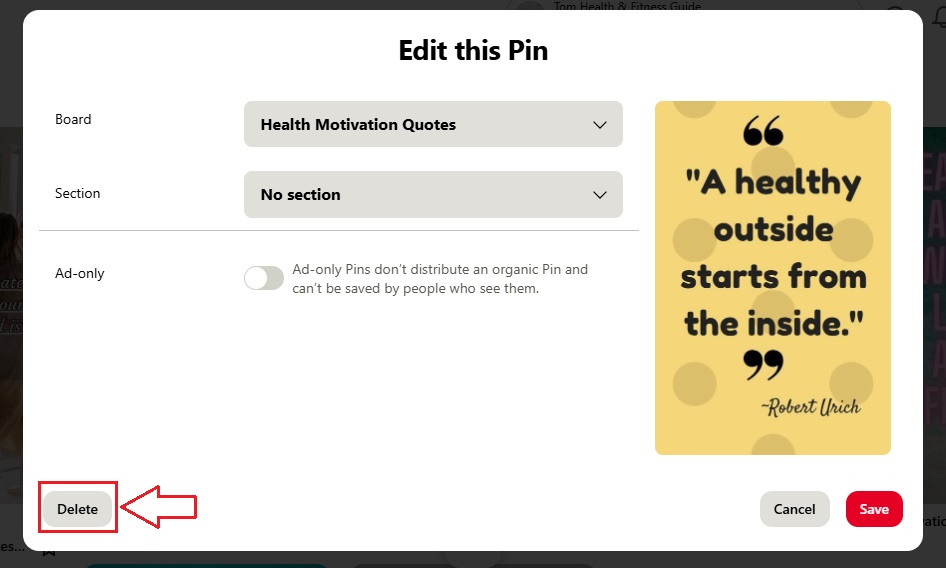
A small pencil icon will show up in the corner of the pin—click it to open the editing window.

Select “Delete”:
At the bottom of the edit window, click “Delete”.
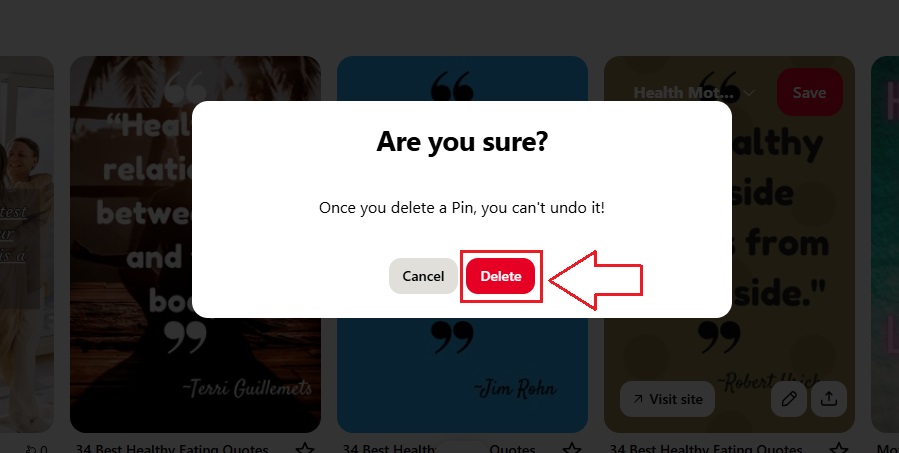
Confirm the Action:
Pinterest will ask you to confirm. Click “Delete Pin” again to finalize.
This is the easiest way for desktop users to manage pins. If you’re wondering how do you remove a pin on Pinterest on your computer, this is it.
Part 3: Remove Multiple Pins at Once (Bulk Delete)
Pinterest makes it possible to delete many or even all saved pins at once through its built-in Organize tool. Here’s how to spring-clean your boards quickly:
Step-by-Step Guide:
Open Pinterest and Go to Profile:
Log in at www.pinterest.com and click your profile icon.
Choose the Board:
Select the board that contains the pins you want to delete.
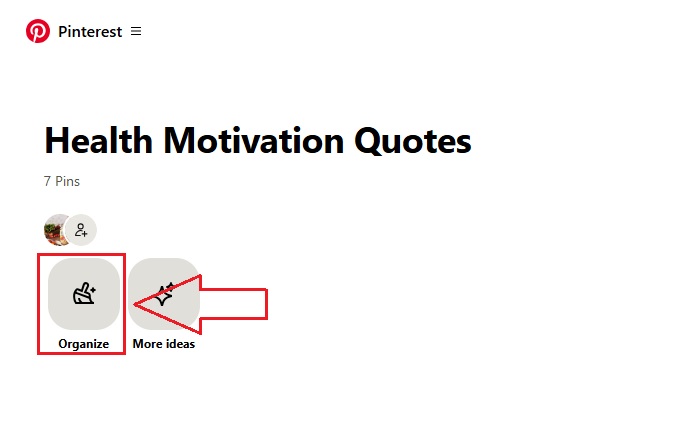
Click “Organize”:
At the top-right of the board page, find and click the “Organize” button. This will activate selection mode.
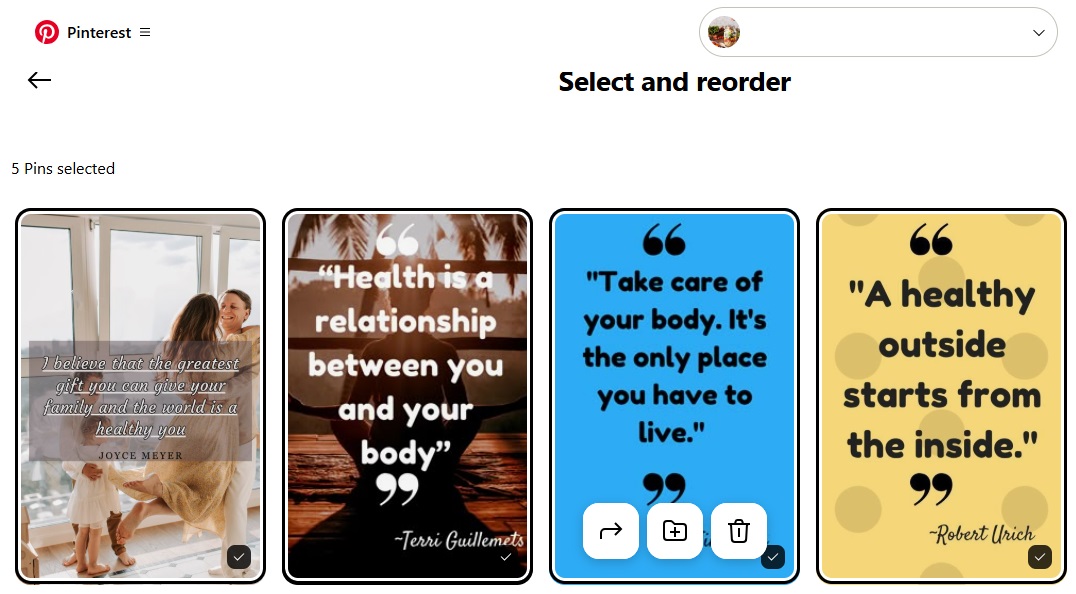
Select Multiple Pins:
Now, click on each pin you want to remove. Selected pins will show a checkmark.
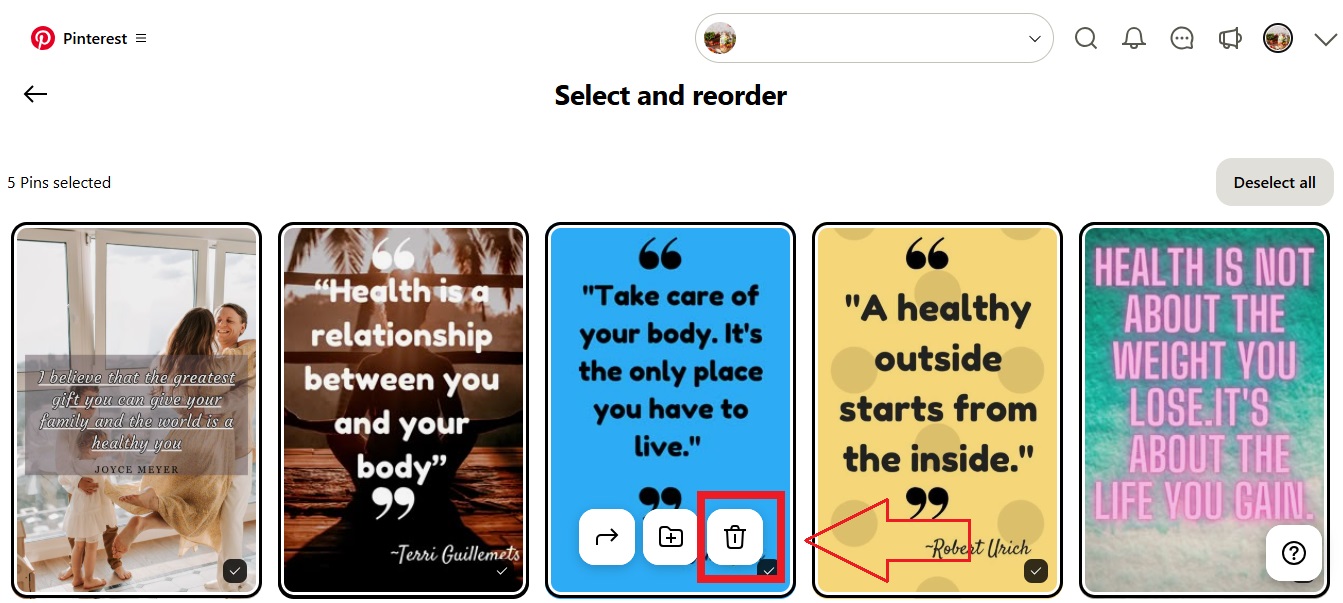
Tap the Trash Icon:
Once you’ve selected all the pins to remove, click the trash/delete icon that appears at the bottom.
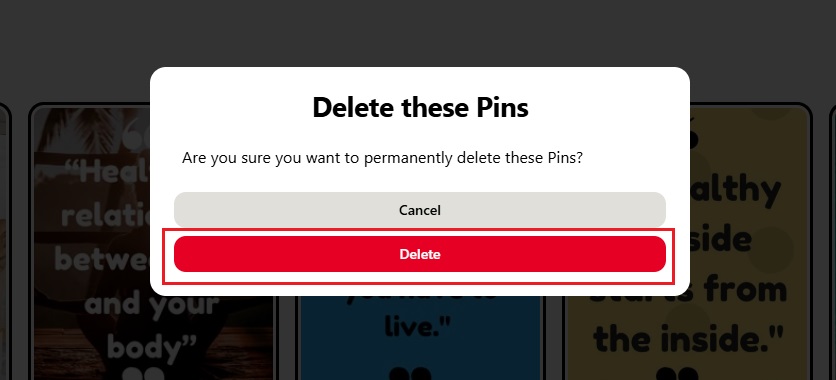
Confirm Bulk Deletion:
A pop-up will ask if you’re sure. Click “Delete” to confirm the mass deletion.
This is the best method when managing themed boards or cleaning up after a campaign. If you're asking how do you remove a pin on Pinterest in bulk, this is your go-to.
Part 4: Toolsmart’s Pinterest Video Downloader – Download Pinterest Videos Easily
Consider saving your video pin without deleting it, especially if you might need it again later. However, Pinterest doesn’t offer a download button, which is inconvenient if you want to reuse the content.
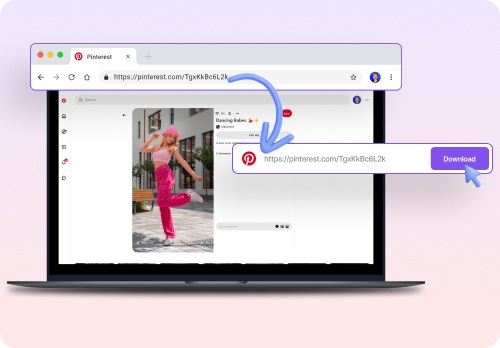
That’s why Toolsmart’s Pinterest Video Downloader is helpful. Just paste the video pin link, and Toolsmart will download it, no sign-up, no software, totally free.
Pros:
Free and easy to use
No installation required
Works on mobile and desktop
No login needed
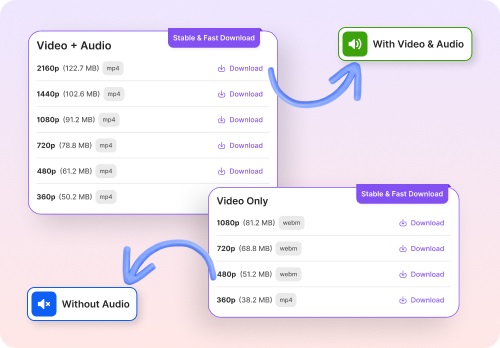
Cons:
Only works with video pins
Doesn’t support image or Story Pins
How to Use Toolsmart:
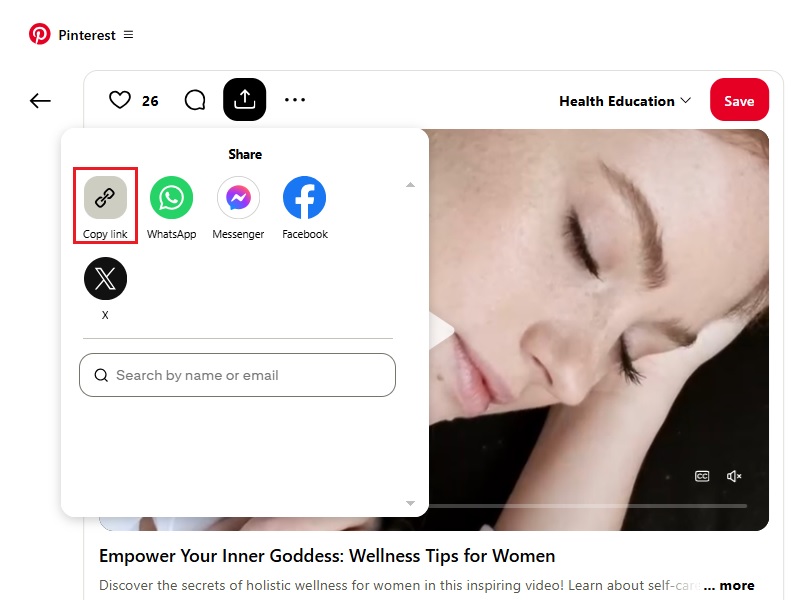
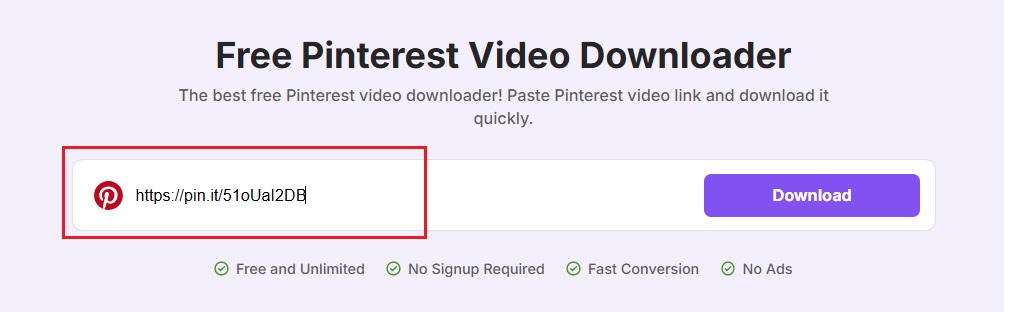
Copy the Pinterest video pin link.
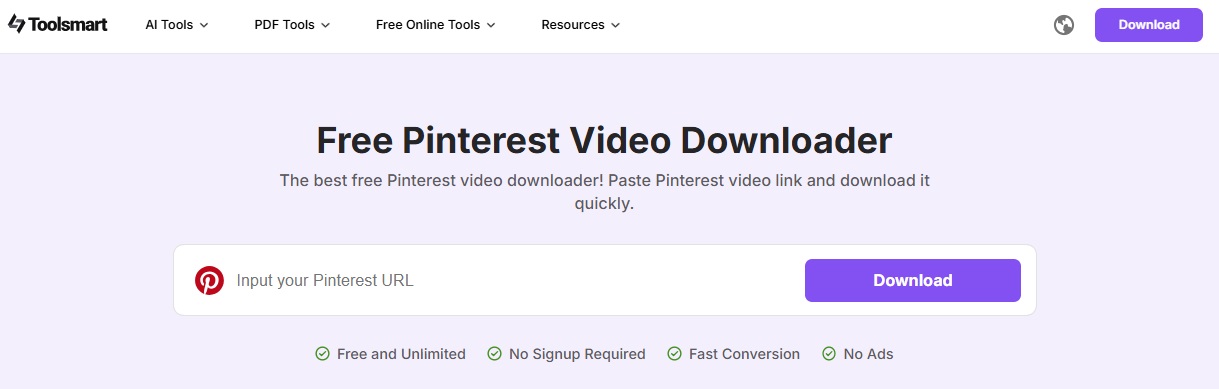
Paste the link into the tool.
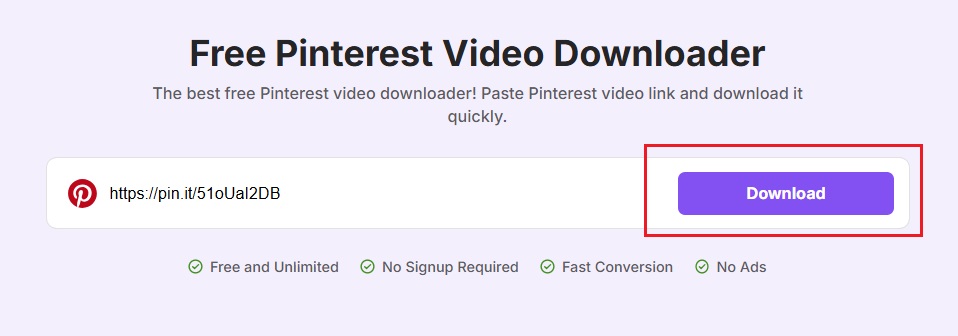
Click “Download” and save the video.
FAQs
Q1: How do I delete a Pin on Pinterest using a
computer?
Go to your profile, click the board, hover over the Pin, click
the pencil icon, then choose “Delete.”
Q2: Why don’t I see the delete option on Pinterest?
You may be using an outdated app or don’t have permission if
it’s a group board. Update your app or check your board rights.
Q3: Is there a way to delete Pins on the Pinterest mobile
app?
Yes. Tap the pin, tap the three-dot icon, and choose “Edit” or
“Delete.”
Q4: Can I download all types of Pinterest content with
Toolsmart’s Pinterest Video Downloader?
No. It only supports video pins, not static images or
stories.
Q5: Is Toolsmart’s Pinterest Video Downloader free to
use?
Yes, it’s 100% free, with no need for registration or
downloads.
Q6: How do you remove a pin on Pinterest if the delete button isn’t visible?
Try updating your app, clearing cache, or switching to the desktop version for full options.
Q7: how do I remove a pin from Pinterest on both mobile and desktop?
On mobile, tap the pin, then the three dots, and select "Delete." On desktop, hover over the pin, click the pencil icon, and then click "Delete."
Plagiarism Check