
'%3e%3cpath%20fill-rule='evenodd'%20clip-rule='evenodd'%20d='M19%208.5C24.799%208.5%2029.5%2013.201%2029.5%2019C29.5%2024.6782%2024.9928%2029.3036%2019.361%2029.4939L19%2029.5C18.8794%2029.5%2018.7592%2029.498%2018.6396%2029.4939L18.2811%2029.4758C12.8174%2029.1063%208.5%2024.5574%208.5%2019C8.5%2013.201%2013.201%208.5%2019%208.5ZM22.3063%2010.6267L22.2342%2010.6539C21.3423%2011.0061%2020.5541%2011.6368%2020.5606%2012.4987C20.5631%2012.8302%2020.869%2014.8871%2020.2141%2014.8486C19.5589%2014.8102%2019.413%2013.8753%2018.7116%2013.616C17.5944%2013.2026%2016.9819%2014.3401%2017.0939%2015.3106C17.1695%2015.9655%2018.9289%2018.3871%2017.9028%2019C17.292%2019.3651%2015.7279%2017.5692%2015.1007%2017.1842C14.4805%2016.8034%2013.2758%2017.3333%2012.4974%2016.7029C11.9874%2016.2899%2012.3881%2014.4098%2012.2786%2013.8372C12.2271%2013.5698%2012.1155%2013.3689%2011.9794%2013.2166L12.0402%2013.2934C10.7653%2014.8464%2010%2016.8339%2010%2019C10%2023.8465%2013.8307%2027.7982%2018.6295%2027.9925L18.6769%2027.9747C18.8597%2027.8677%2019.0394%2027.7557%2019.216%2027.6387C19.4137%2027.4534%2019.5436%2027.2072%2019.5849%2026.9394C19.8806%2025.1222%2018.3616%2025.4302%2017.9367%2024.5622C17.5489%2023.7695%2018.5712%2023.7684%2018.5524%2021.7923C18.4607%2021.1774%2018.5279%2020.547%2018.7211%2020.0315C19.1834%2018.7987%2020.7077%2017.2643%2022.5889%2018.0081C23.5567%2018.3906%2023.1524%2019.9831%2023.4737%2020.3394C24.251%2021.2018%2025.3228%2020.6863%2026.2856%2021.2253C26.7816%2021.5032%2026.9797%2022.41%2027.056%2023.2248L27.038%2023.0528C27.6534%2021.8348%2028%2020.4579%2028%2019C28%2015.1968%2025.6409%2011.9445%2022.3063%2010.6267Z'%20fill='%23757575'/%3e%3ccircle%20cx='19'%20cy='19'%20r='10.125'%20stroke='%23757575'%20stroke-width='2.25'/%3e%3c/g%3e%3cdefs%3e%3cclipPath%20id='clip0_1827_14613'%3e%3crect%20width='24'%20height='24'%20fill='white'%20transform='translate(7%207)'/%3e%3c/clipPath%3e%3c/defs%3e%3c/svg%3e)


Video editors are always looking for reliable ways to get audio into DaVinci Resolve. But you've probably faced the frustration of a WAV file that just won't import, or ends up greyed out with no sound. Many forums suggest complex workarounds that don't even work, which is a major issue when you're on a deadline. This guide will explain exactly why is Davinci Resolve not importing my WAV files. We'll show you how to fix the most common causes, like sample-rate mismatches, in just a few minutes.
The Most Common Reasons for WAV Import Failure
It’s extremely frustrating when, despite trying everything, you can't upload a WAV file in Davinci Resolve. This isn't because you’ve made a mistake somewhere while importing the file, but simply a mismatch that the Resolves mediaparser doesn't know how to handle. Before trying any complicated fixes, you must understand why Davinci Resolve might be facing problems with importing your file.
Here are the most common reasonswhy is Davinci Resolve not importing my WAV files
Corrupted File: The file header might be damaged, even if it plays fine elsewhere. Resolve is very strict and will reject a file with even minor header corruption.
Incompatible Sample Rate: Your WAV file might be 96 kHz or 32-bit. Resolve's Fairlight page is built for 16-bit or 24-bit audio at 44.1 kHz or 48 kHz.
Special Characters in Filename: Your file name might contain an emoji, an accent (é), or another non-ASCII character. Resolve's parser often skips these files entirely.
Cache Conflict: Resolve’s internal media cache can get confused. It might "remember" a file as broken, even after you've fixed it.
Permission or Long Path Issues: The file might be on a network drive that Resolve doesn't have read/write access to, or the file path is too long for Windows to handle.
Once you’ve identified the likely cause, you can apply a specific, simple solution so that you don't waste time going over every solution one by one.
How To Open WAV Files In DaVinci Resolve
Although it’s annoying, the good news is that it’s fixable. Now that you have a better understanding of why these issues could be happening, let’s look at several effective solutions to resolve this issue. Below are some methods that you can use to import WAV files into your projectswithout any disruptions andresolve WAV fail issues.
Solution 1. Clear Your Cache or Delete Render Files
This is the first thing you should always try. Resolve sometimes holds onto a broken version of your file, and you need to force it to re-scan.
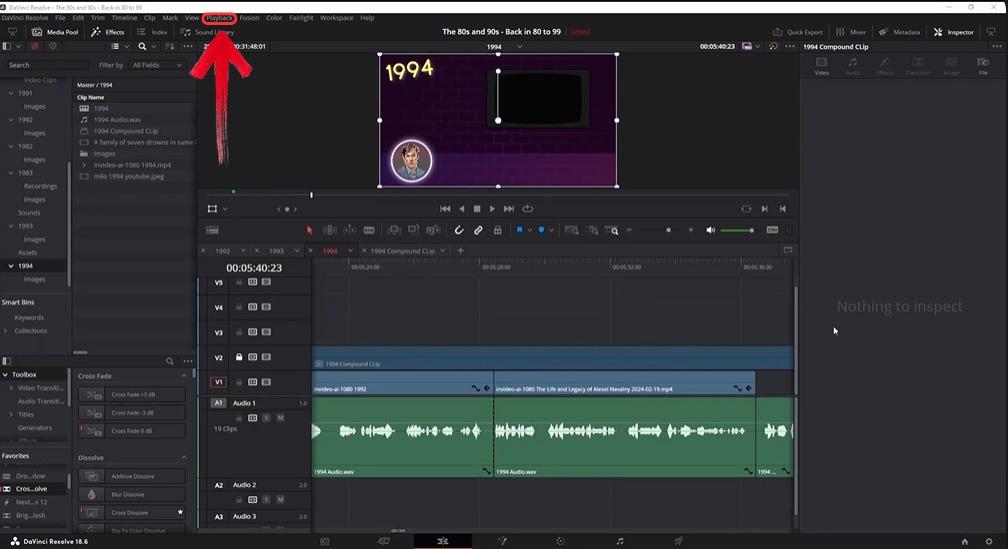
Step 1: In DaVinci Resolve, go to the top menu and click on ‘Playback'.
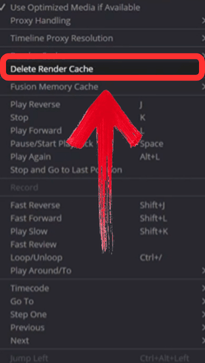
Step 2: In the dropdown menu, select 'Delete Render Cache'.
Step 3: Try re-importing your WAV file. This simple Clear Cache Import often solves the problem instantly.
Solution 2. Drag the Audio Clip under the Video Track
You've probably tried dragging your WAV file into the Media Pool, and it fails. This next fix bypasses the Media Pool entirely. Sometimes, Resolve is particular about where an audio clip is placed, and forcing it to create a new track from the timeline can solve the import logic.
Step 1: Instead of dragging the WAV file into the Media Pool, go directly to the Edit page.
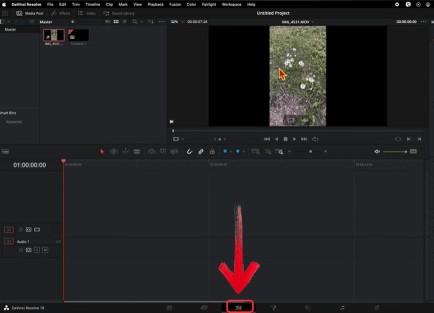
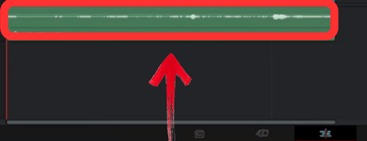
Step 2: Drag the WAV file from your computer's folder and drop it onto the timeline in the empty space belowyour video tracks.
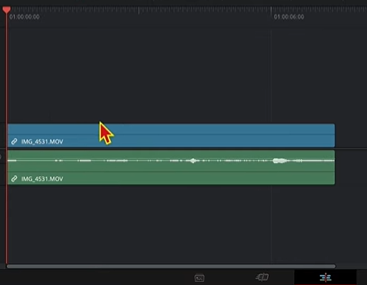
Step 3: This will often force Resolve to create a new audio track (like "Audio 2") with your clip in it.
Solution 3. Go to Edit Page
If the file imports into the Media Pool but still won't play on your main timeline, then your timeline itself is likely the issue. This is a common Corrupted Timeline Bug. The solution is to create a clean, new timeline just for that audio clip, and then copy/paste it back into your main edit.
Step 1: In the Media Pool, right-click your problematic WAV file.
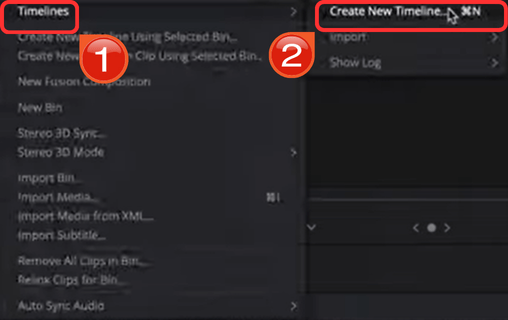
Step 2: Select ‘Timelines’, and then click ‘Create New Timeline’.
Step 3: A new timeline will open with your audio. Select and copy the audio clip (Ctrl+C or Cmd+C).
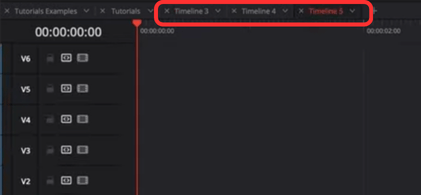
Step 4: Go back to your original, main timeline and paste the clip (Ctrl+V or Cmd+V).
Solution 4. Go to Cut Page
This is another great workaround that uses a different part of the program. The "Cut" page has a simpler media import process than the "Edit" page. I've found that it can often bypass whatever bug is causing the file to be rejected on the main edit timeline.
Step 1: Click on the Cut tab icon at the bottom of the screen.
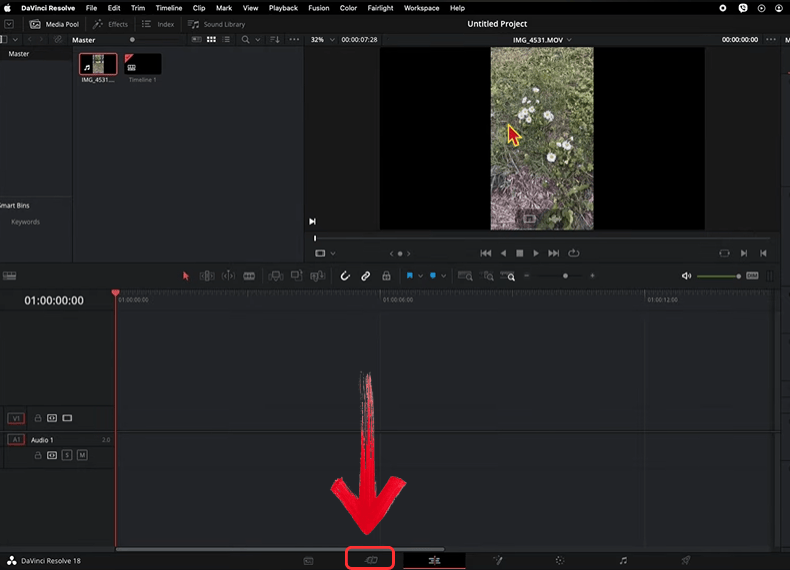
Step 2: Drag your WAV file from your folder and drop it directly onto the timeline. This often forces it to create a new, usable audio track.
Solution 5. Re-record MP3 as WAV Format
If none of the above fixes work, the problem is almost certainly the file's format. Resolve is extremely strict about audio specifications. Your file may be 32-bit or 96 kHz, and Resolve wants 16-bit or 24-bit at 48 kHz. The only solution is to convert WAV 48 kHz using a free audio editor.
Step 1: Open the WAV file in a free audio editor like Audacity.
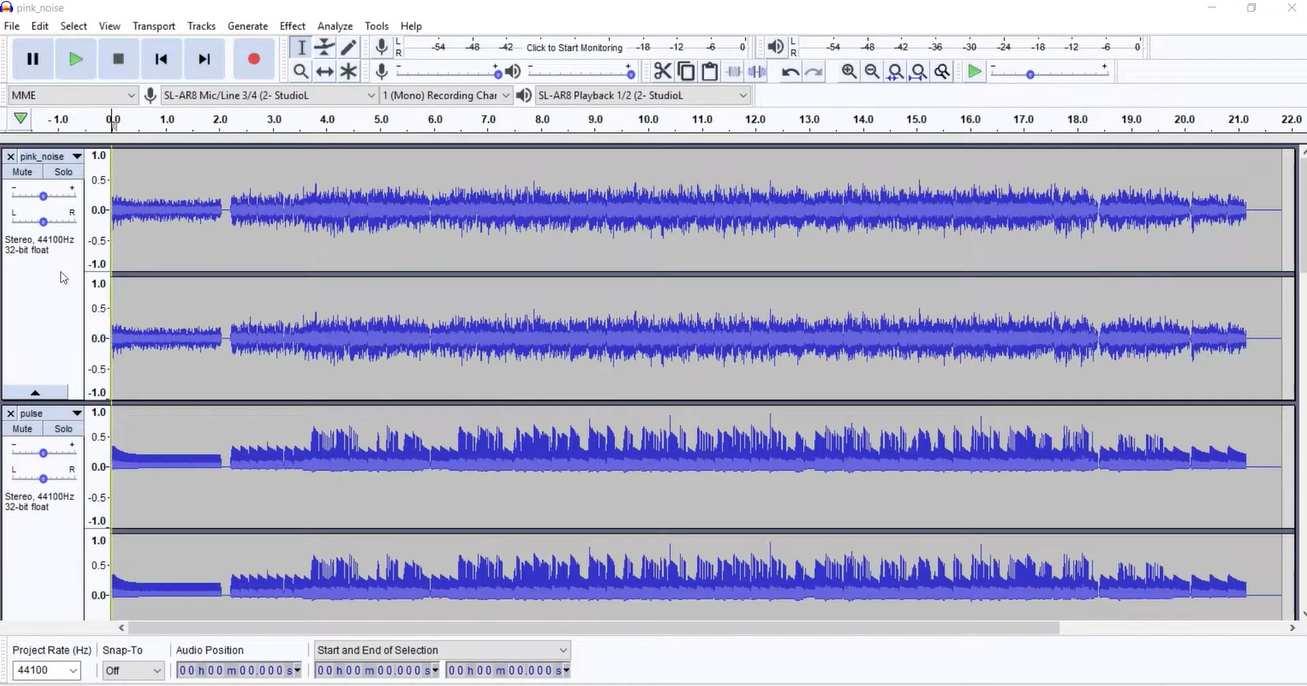
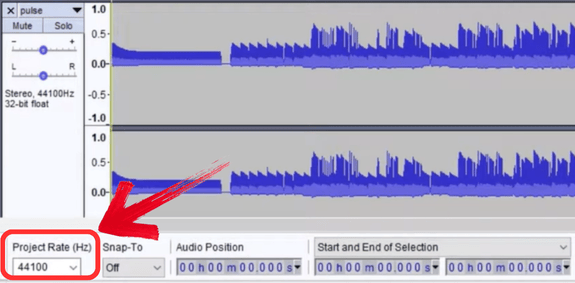
Step 2: In the bottom-left corner, 'change the Project Rate (Hz)' to '48000'.
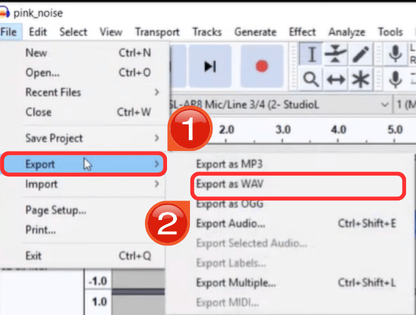
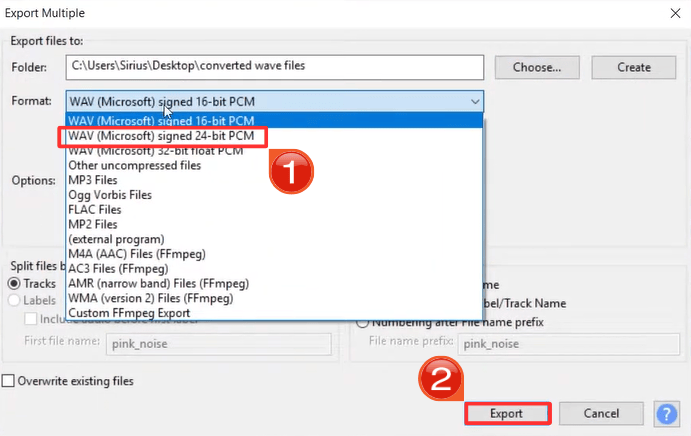
Step 3: Go to 'File', then'Export', and 'Export as WAV'.
Step 4: In the save options, make sure to select'24-bit PCM' as the encoding and click‘Export’.
Solution 6. Re-name MP3 File
This may sound too simple to be true, but it's a very common fix. Resolve's media parser is surprisingly fragile. If your filename hasany special characters like an emoji, an accent (é), or even a (™), the program may fail to read it. The fix is to simply rename the file to something basic.
Bonus Tool: The Best Toolsmart Free YouTube to MP3 Converter
A lot of great sound effects, music, and audio clips are found on YouTube. If you're a video creator or podcaster, you might want to grab that audioto use in your projects. For this, a tool like Toolsmart's Free YouTube to MP3 Converter is incredibly useful.
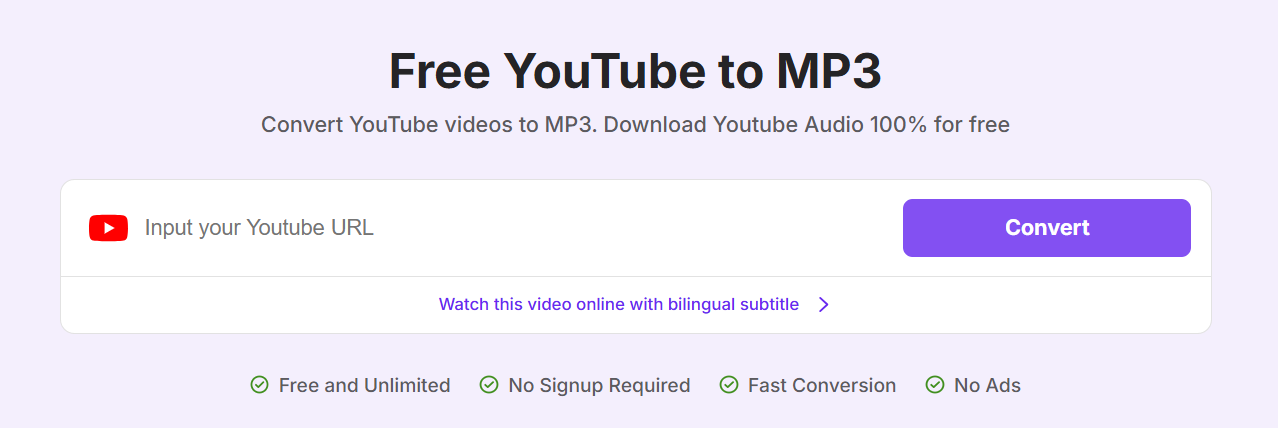
Toolsmart's Free YouTube to MP3 Converter is a fast, 100% free online tool, not a complex piece of software you need to install. It’s simple and safe, as you don't need to create an account or register, which is a common requirement on other sites. Unlike other online tools that are slow and cluttered with ads, Toolsmart has a clean, ad-free interface. You only need to provide the URL, and its engine processes the video. The best part is that it delivers a high-quality MP3 file in seconds, which is perfect for grabbing audio for your next video edit.
Features:
Clean, Ad-free Interface: Convert videos without navigating confusing pop-ups or ads.
Fast and High-Quality: Download MP3s in seconds with high-quality audio output.
Zero Registration: Use the tool instantly with no sign-ups, installations, or watermarks.
How to Use:
Here’s a step-by-step guide on how you can get started with Toolsmart’s easy-to-use YouTube downloader, without any need to sign up or download anything.
Step 1: First things first, open your browser and head over to the Toolsmart YouTube to MP3 website.
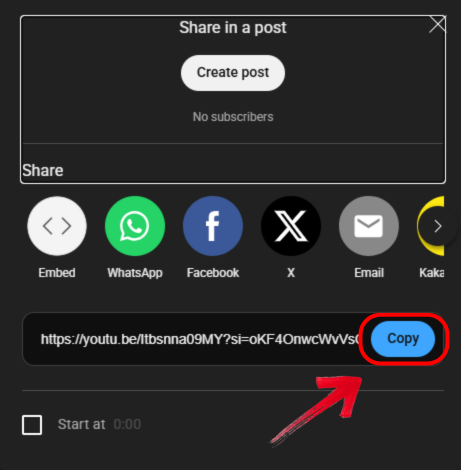
Step 2: Now, go to the YouTube video you want to download and copy its URL from the address bar.
Step 3: Back on the Toolsmart site, just paste that link into the input box on the page.
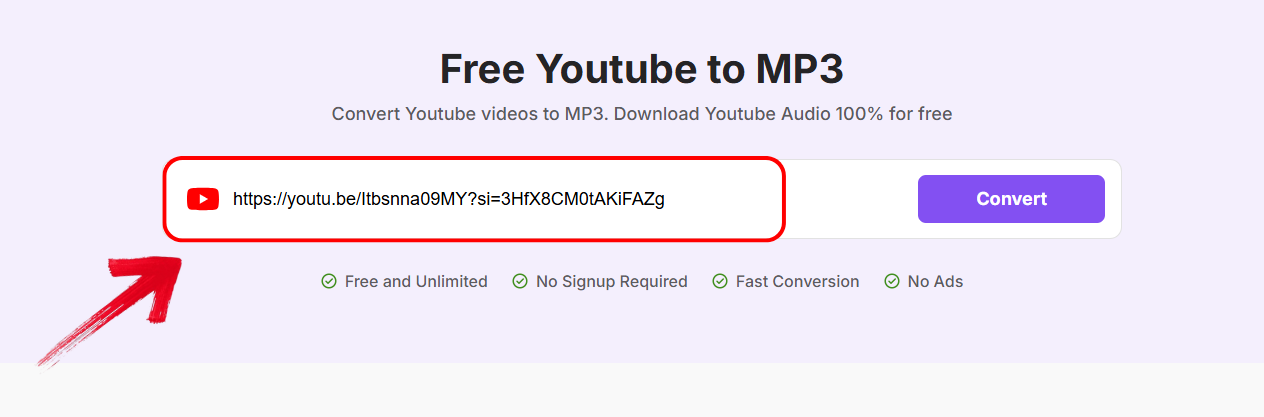
Step 4: Next, click the “Convert” button and allow the tool to process the video.
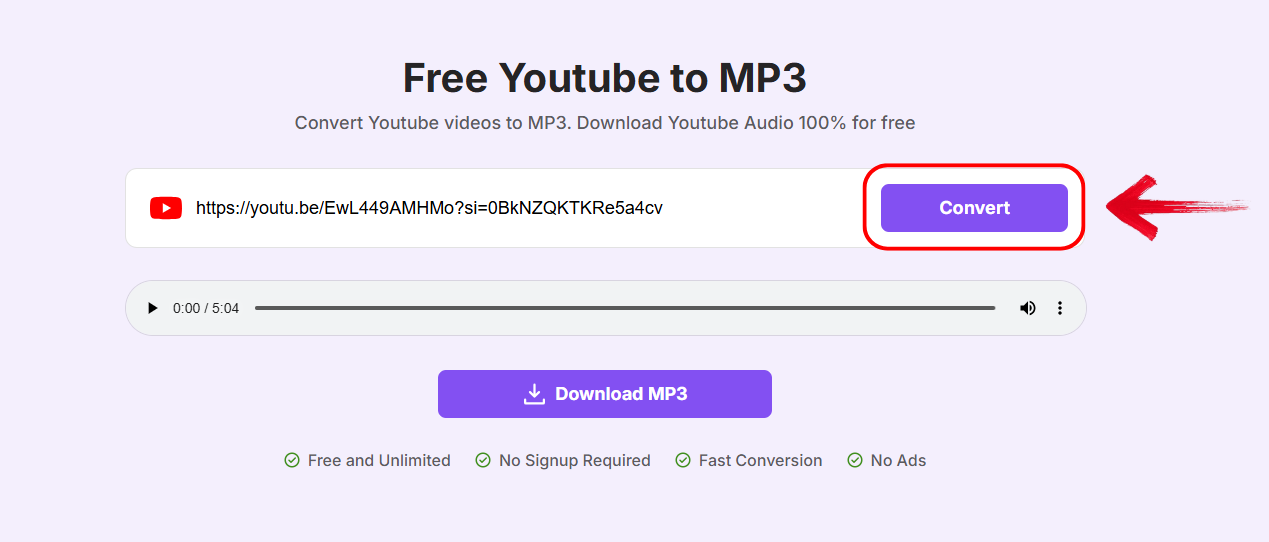
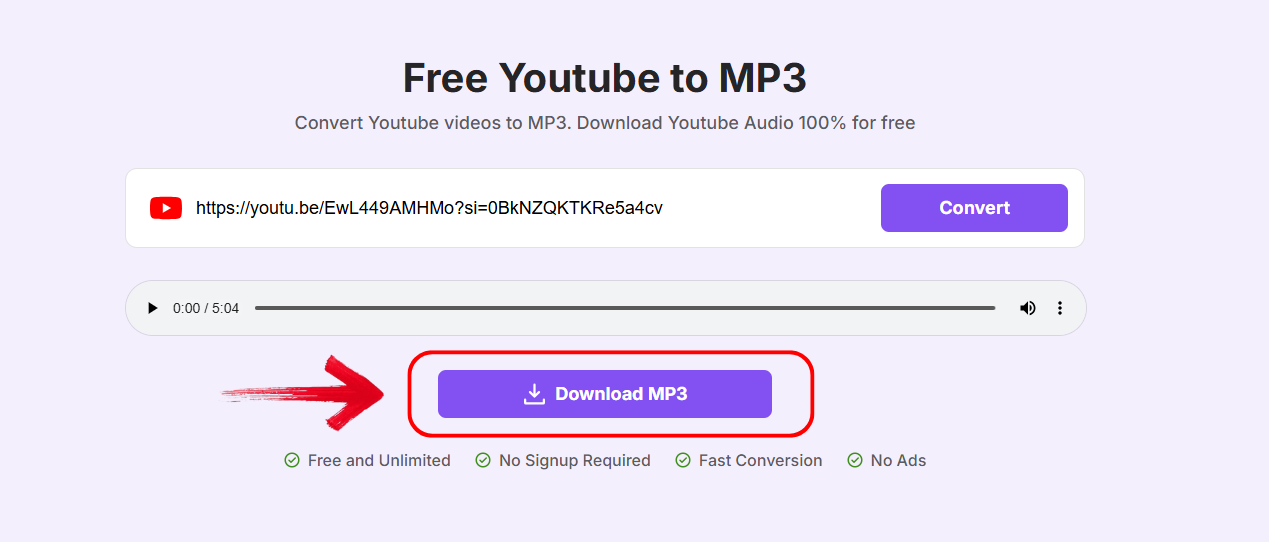
Step 5: Click the “Download MP3” button and give Toolsmart a few seconds to process the video. After that, just save the file to your device.
This tool is fast and doesn’t require any installation. It’s excellent for those who want a simple and clean process. No ads, no pop-ups, and no hidden tricks.
FAQs
Q1: My brand-new 32-bit 96 kHz WAV file drags into the Media Pool but shows a red “Media Offline” stripe—what’s going on?
DaVinci Resolve’s Fairlight page only officially supports 16-bit or 24-bit PCM at 44.1 kHz or 48 kHz. You'll need to re-export the file to 24-bit 48 kHz in a tool like Audacity. Once the header matches the spec, Resolve will link immediately.
Q2: I’ve converted the sample rate, yet the clip still refuses to import, and the filename has an emoji in it—could that tiny icon really break everything?
Yes, absolutely. Resolve’s media parser often treats non-ASCII characters as invalid and silently skips the file. Rename it to “sfx_impact_01.wav”, relaunch the project, and drag it straight onto the timeline.
Q3: After a marathon session, I suddenly can’t drop any WAVs—even ones that worked yesterday—into the timeline. Is my entire sound library corrupted?
It's almost certainly not. The timeline itself is the culprit. Just right-click and Duplicate on your timeline, open the fresh copy, and you should regain full drag-and-drop import of those broken WAVs.
Q4: The WAV imports fine on my MacBook, but on the studio PC, the same file is greyed out. Could it be a permission or path-length issue?
Exactly. Windows networks or synced drives sometimes lock files, and paths over 260 characters can be a problem. Move the WAV to a local folder like “C:\Audio\” and ensure your account has full read/write privileges.
Q5: Do I need to register or pay for using Toolsmart's YouTube to MP3 Converter?
No, Toolsmart's YouTube to MP3 Converter is completely free to use without any registration or payment required.
Q6: Is it safe for me to use this Toolsmart' YouTube to MP3 Converter?
Yes, it is safe. Toolsmart's YouTube to MP3 Converter does not store your data or share it with third parties.
Quick Ways to Get Your Sound Back on Track
That frustrating Media Offline error is a common problem, but it's almost always fixable. As we've seen, the issue is rarely the audio itself, but a simple mismatch in format, file name, or a buggy timeline. Understanding why is Davinci Resolve not importing my WAV files is the first step to solving it quickly. And for those times you need to source new audio, a fast tool like Toolsmart’s YouTube to MP3 Converter fits perfectly into that professional workflow.


