
'%3e%3cpath%20fill-rule='evenodd'%20clip-rule='evenodd'%20d='M19%208.5C24.799%208.5%2029.5%2013.201%2029.5%2019C29.5%2024.6782%2024.9928%2029.3036%2019.361%2029.4939L19%2029.5C18.8794%2029.5%2018.7592%2029.498%2018.6396%2029.4939L18.2811%2029.4758C12.8174%2029.1063%208.5%2024.5574%208.5%2019C8.5%2013.201%2013.201%208.5%2019%208.5ZM22.3063%2010.6267L22.2342%2010.6539C21.3423%2011.0061%2020.5541%2011.6368%2020.5606%2012.4987C20.5631%2012.8302%2020.869%2014.8871%2020.2141%2014.8486C19.5589%2014.8102%2019.413%2013.8753%2018.7116%2013.616C17.5944%2013.2026%2016.9819%2014.3401%2017.0939%2015.3106C17.1695%2015.9655%2018.9289%2018.3871%2017.9028%2019C17.292%2019.3651%2015.7279%2017.5692%2015.1007%2017.1842C14.4805%2016.8034%2013.2758%2017.3333%2012.4974%2016.7029C11.9874%2016.2899%2012.3881%2014.4098%2012.2786%2013.8372C12.2271%2013.5698%2012.1155%2013.3689%2011.9794%2013.2166L12.0402%2013.2934C10.7653%2014.8464%2010%2016.8339%2010%2019C10%2023.8465%2013.8307%2027.7982%2018.6295%2027.9925L18.6769%2027.9747C18.8597%2027.8677%2019.0394%2027.7557%2019.216%2027.6387C19.4137%2027.4534%2019.5436%2027.2072%2019.5849%2026.9394C19.8806%2025.1222%2018.3616%2025.4302%2017.9367%2024.5622C17.5489%2023.7695%2018.5712%2023.7684%2018.5524%2021.7923C18.4607%2021.1774%2018.5279%2020.547%2018.7211%2020.0315C19.1834%2018.7987%2020.7077%2017.2643%2022.5889%2018.0081C23.5567%2018.3906%2023.1524%2019.9831%2023.4737%2020.3394C24.251%2021.2018%2025.3228%2020.6863%2026.2856%2021.2253C26.7816%2021.5032%2026.9797%2022.41%2027.056%2023.2248L27.038%2023.0528C27.6534%2021.8348%2028%2020.4579%2028%2019C28%2015.1968%2025.6409%2011.9445%2022.3063%2010.6267Z'%20fill='%23757575'/%3e%3ccircle%20cx='19'%20cy='19'%20r='10.125'%20stroke='%23757575'%20stroke-width='2.25'/%3e%3c/g%3e%3cdefs%3e%3cclipPath%20id='clip0_1827_14613'%3e%3crect%20width='24'%20height='24'%20fill='white'%20transform='translate(7%207)'/%3e%3c/clipPath%3e%3c/defs%3e%3c/svg%3e)


Watermarking your photos is like putting a “Mine!” sticker on them, keeping your work safe and boosting your brand. Whether you’re a photographer, blogger, or Instagram star, watermarks rule. But sometimes, you need to remove one from your own pics for a clean look. Photoshop’s a pain, and free tools often add ads or their own marks. How do you add or zap watermarks fast and free? This guide covers four awesome tools—Canva, Watermarkly, Picsart, and Pi7—for adding watermarks, plus Toolsmart’s Free Photo Watermark Remover for erasing them. Let’s keep your photos safe and sharp!
Part 1: Why Add Watermarks to Your Photos?
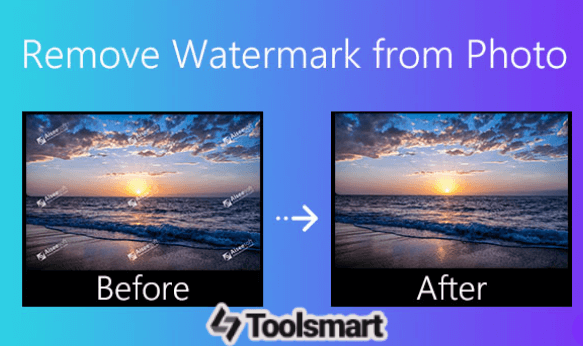
Watermarks are like your photo’s personal bodyguard, shouting your name to protect your work from theft and boosting your brand so folks know who snapped that epic shot. They’re a must for photographers, content creators, or anyone sharing images online, stopping sneaky reuse while making your work look pro. A watermark can be your name, logo, or a cool design, adding flair without stealing the show, according to Luke Collins Photography. I’ve had my photos shared without credit before, and adding a watermark saved me from that mess—it’s like a “Keep Off” sign that still looks dope.
Part 2: 4 Easy-to-Use Tools to Watermark Your Photos Online
Canva

Canva’s a super-friendly design app that makes watermarking photos a snap, perfect for anyone wanting pro-looking results without sweating over complicated tools. It’s great for adding text or logos with tons of customization to match your vibe.
Features: Drag-and-drop watermark tool, 1000+ fonts, logo uploads, tweakable opacity and rotation, cloud saving, mobile app support.
Pros:
Free and crazy easy to use, no design skills needed.
Mobile app lets you edit on the go.
Save watermarks as templates for quick reuse.
Cons:
Some cool fonts or graphics need Canva Pro ($12.99/month).
No batch watermarking in the free plan.
App Rating: 4.7/5 (App Store).
How to Use:
Step 1: Hop onto www.canva.com or open the Canva app and sign in (free account needed).

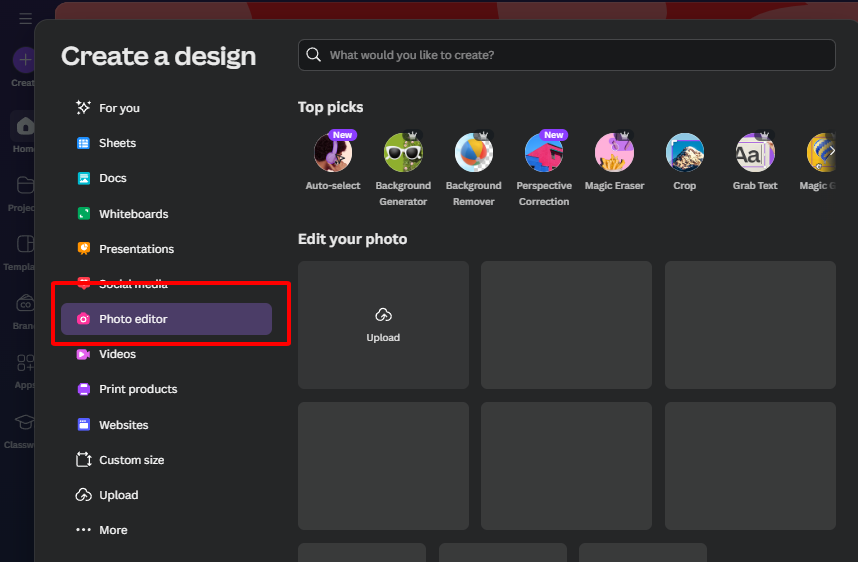
Step 2: Click “Create a Design” > “Photo” and upload your image.
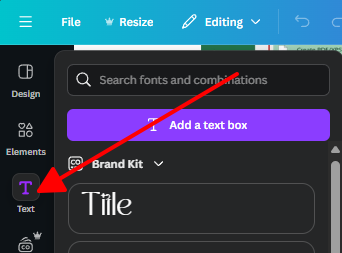
Step 3: Add text (like “© YourName”) or a logo, then tweak size, position, and opacity using the toolbar.
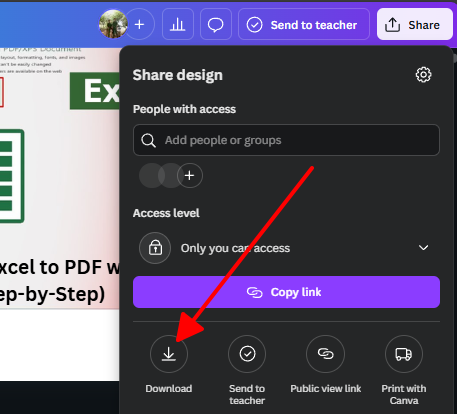
Step 4: Hit “Share” > “Download” as PNG or JPG.
I slapped a logo on a travel photo with Canva on my phone, and it was so easy—drag, drop, adjust, done in a minute! It’s perfect for beginners, but I wished the free version let me watermark multiple pics at once.
Watermarkly
Watermarkly is a web-based tool that lets you add text or logo watermarks crazy fast, with batch processing to handle tons of photos at once. It’s a go-to for creators needing to protect a bunch of images in a hurry.
Features: Batch watermarking for up to 50 images,
500+ fonts, logo uploads, adjustable opacity and effects, supports
JPG/PNG, integrates with Google Drive and Dropbox.
Pros:
Free and handles up to 50 photos at once.
No signup needed for basic use.
Quick, browser-based editing.
Cons:
Free version adds “Protected with Watermarkly” text, which is annoying.
Limited effects unless you go premium.
App Rating: 4.5/5 (Capterra).
How to Use:
Step 1: Visit watermarkly.com.
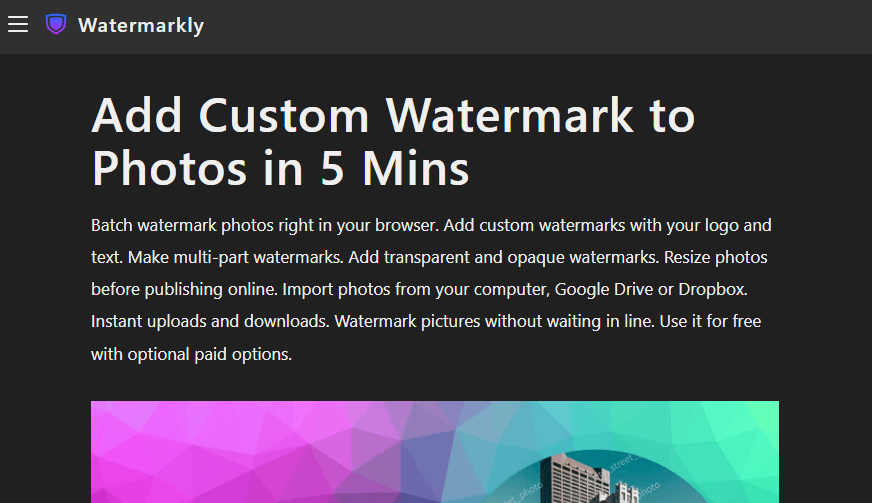
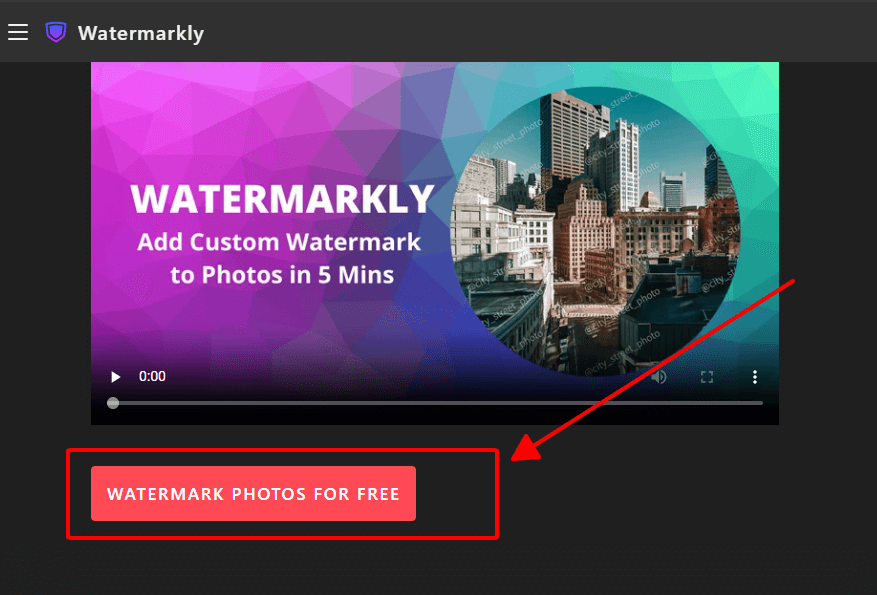
Step 2: Click “Add Images” to upload up to 50 photos.
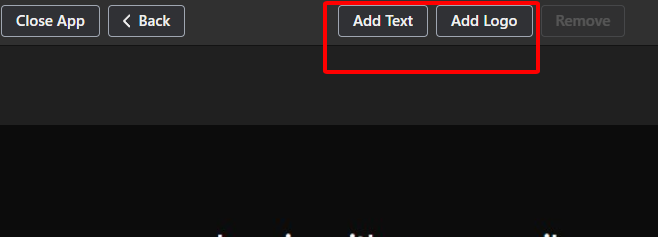
Step 3: Pick “Text” or “Logo,” customize font, size, opacity, and position.
Step 4: Click “Watermark Images” and download as JPG/PNG.
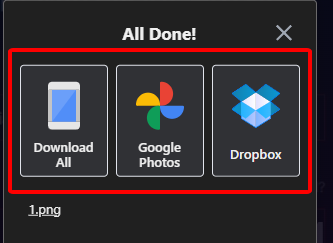
I used Watermarkly to watermark 20 event photos with my name, and the batch feature saved me so much time. But that “Protected with Watermarkly” text bugged me—had to pay to remove it.
Picsart

Picsart is a fun photo editor with a watermarking tool, perfect for social media buffs or designers who want stylized text or logo watermarks with cool effects.
Features: Text and logo watermarks, 1000+ fonts, background removal, photo effects like neon or glow, supports JPG/PNG, mobile app available.
Pros:
Free with creative, eye-catching watermark styles.
Mobile app makes editing super handy.
Drag-and-drop interface is a breeze.
Cons:
Ads in the free version can get in the way.
Batch watermarking is limited without premium.
App Rating: 4.6/5 (Google Play).
How to Use:
Step 1: Visit Picsart or open the Picsart app.

Step 2: Upload your photo with “Add Photo.”

Step 3: Add text or a logo watermark, tweak size, opacity, and effects like neon.

Step 4: Save as JPG/PNG.
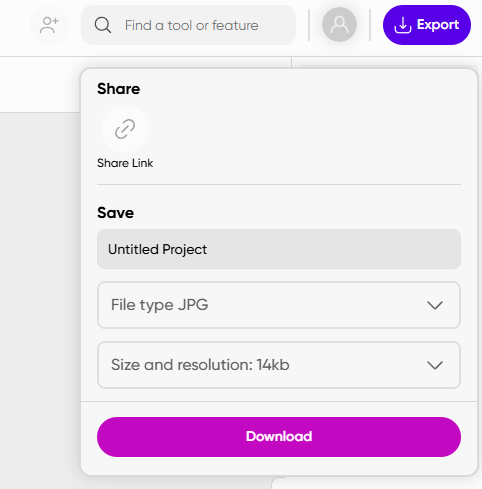
I watermarked a product photo with Picsart’s neon text effect for Instagram, and it looked awesome. The app’s fun to play with, but the ads kept popping up, and batch editing wasn’t free.
Pi7 Image Tool
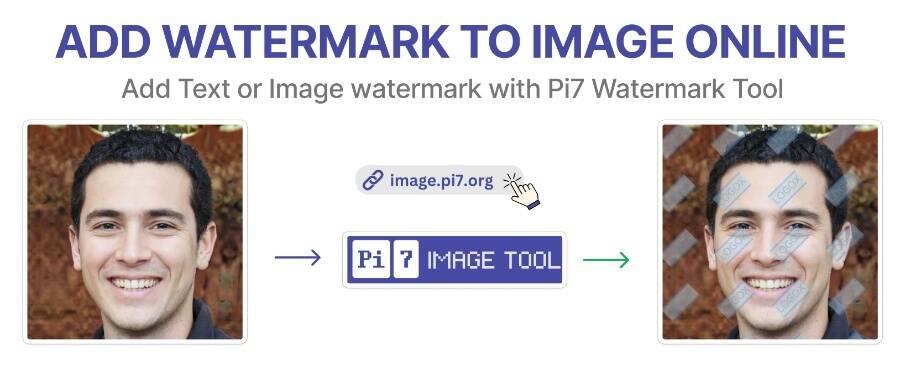
Pi7 Image Tool is a no-fuss, browser-based watermarking app that adds text or logos without uploading your images to a server, keeping things private and fast.
Features: Browser-based watermarking with no uploads, text/logo support, customizable font, color, opacity, supports JPG/PNG.
Pros:
Free, no signup, and totally private.
Simple and quick for single images.
Works in your browser, no downloads.
Cons:
No batch processing, so it’s one photo at a time.
Limited font and effect options compared to Canva or Picsart.
App Rating: 4.3/5 (user reviews).
How to Use:
Step 1: Visit Pi7 Image Tool - Compress, Resize & Covert Images
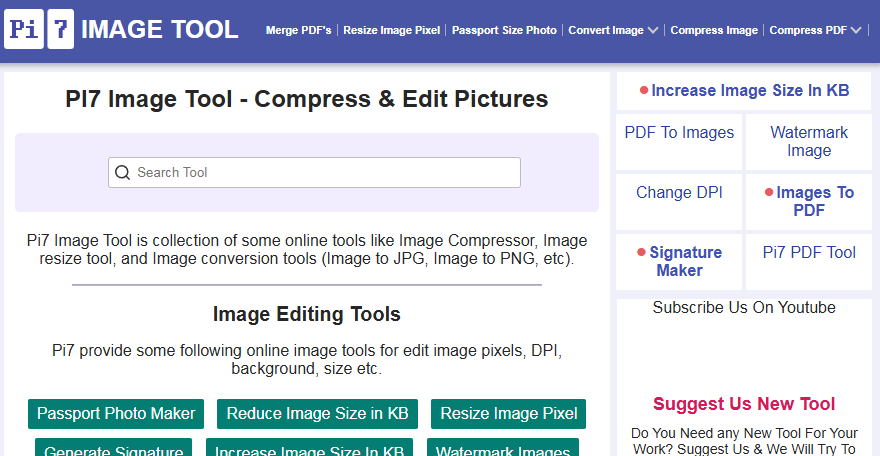
Step 2: Drag and drop your photo into the canvas.
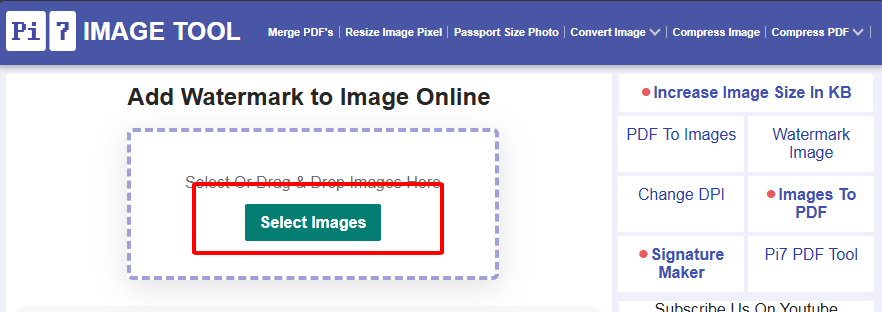
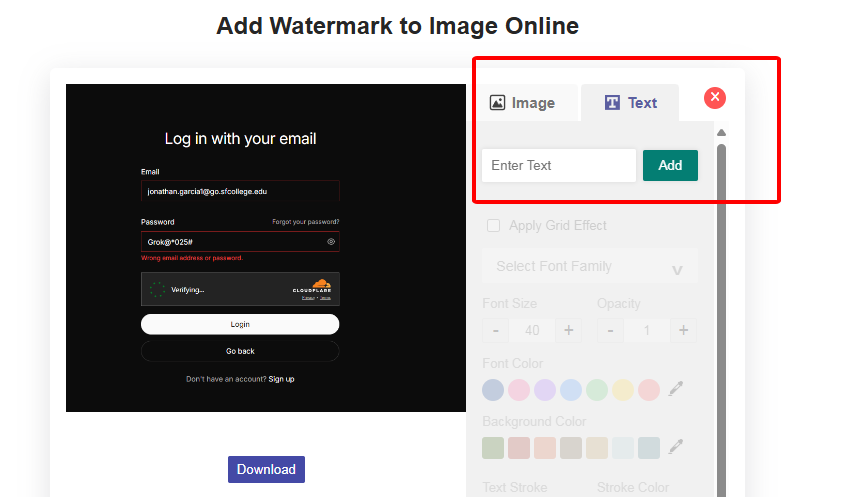
Step 3: Add text or a logo, tweak font, color, and opacity.
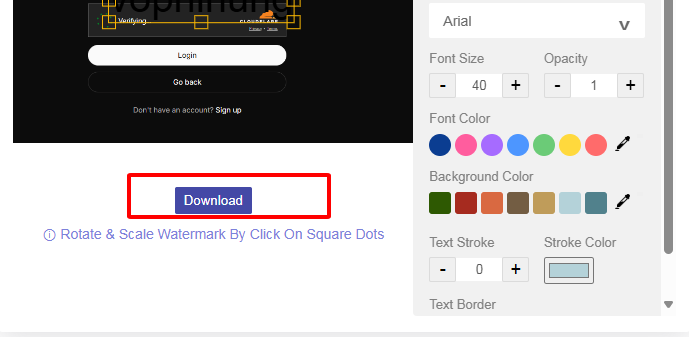
Step 4: Click “Download” to save as JPG/PNG.
I used Pi7 to watermark a single photo with my initials, and it was fast and private—no uploads needed. But doing multiple images one by one got old quick, and the font choices were pretty basic.
Part 3: Comparison Table – Best Watermarking Tools
| Tool | Free? | Ease of Use | Batch Support | Unique Feature | Login Required | Mobile Support | Watermark Styles |
| Canva | Yes | Super easy | No (Pro only) | Template saving | Yes | Yes | Text, logo, effects |
| Watermarkly | Yes | Easy | Yes (50 images) | Cloud integration | No | Yes (browser) | Text, logo, effects |
| Picsart | Yes | Easy | Limited | Creative effects | Yes | Yes | Text, logo, neon |
| Pi7 Image Tool | Yes | Very easy | No | No-upload privacy | No | Yes (browser) | Text, logo |
Canva’s perfect for beginners but lacks free batch editing. Watermarkly’s batch feature rocks but adds its own watermark. Picsart’s creative but ad-heavy. Pi7’s private and simple but one-photo-only. Toolsmart’s Free Photo Watermark Remover is a killer add-on for clean removal.
Part 4: Toolsmart Free Photo Watermark Remover – For Easy Watermark Removal
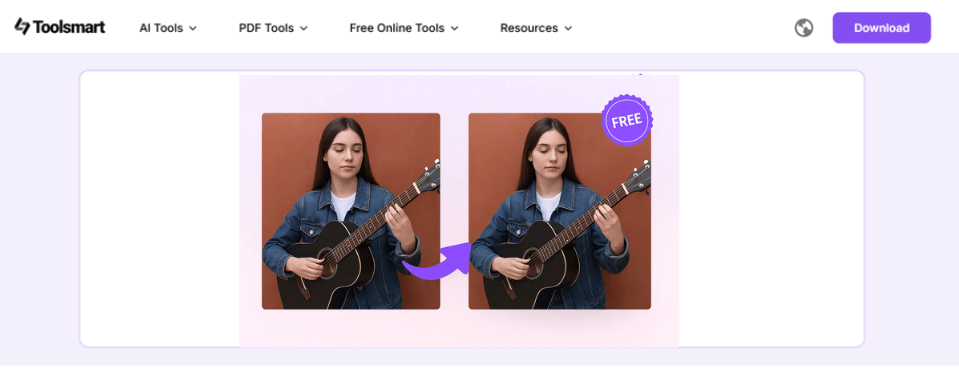
Need to wipe a watermark from your own photo for a fresh look? Toolsmart’s Free Photo Watermark Remover uses AI to zap text, logos, or stamps in seconds without ruining your image’s quality. It’s ideal for personal or licensed photos, runs in your browser, and needs no signup, making it a breeze for quick fixes.
AI-powered tool to remove watermarks from JPG/PNG images with a simple, high-quality interface.
Features: Removes text, logos, stamps, supports JPG/PNG, browser-based, no signup, AI auto-detection for seamless removal.
Pros:
Free with no signup or limits.
Private, in-browser processing.
Keeps image quality intact.
Perfect for personal or licensed images.
Cons:
No batch removal in free version.
Limited to JPG/PNG formats.
How to Use:
Step 1: Visit toolsmart.ai/feature-free-watermark-remover.
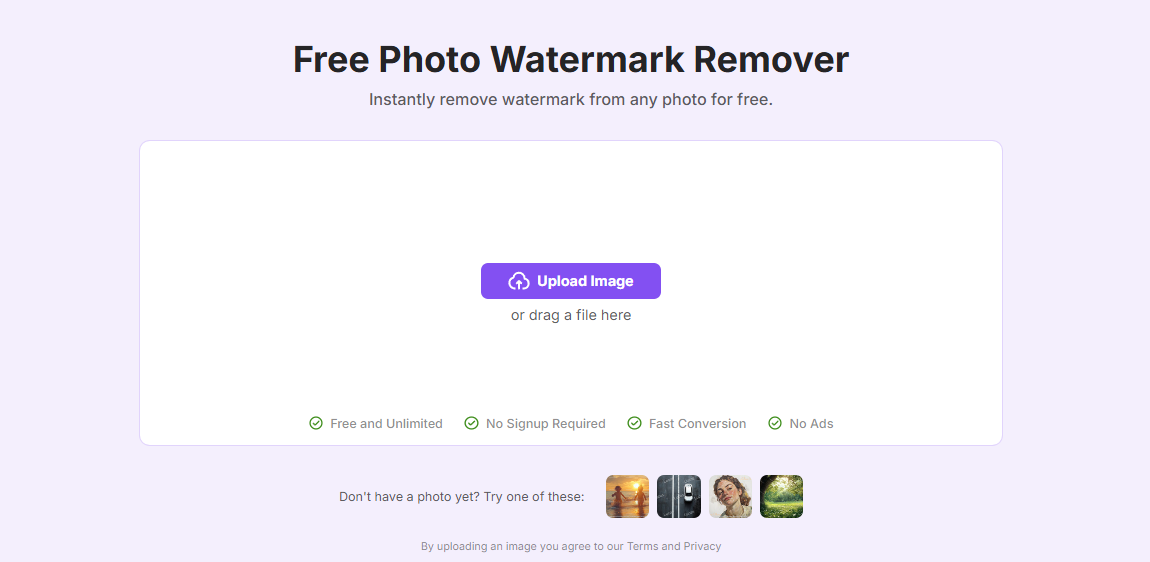
Step 2: Upload your photo (JPG/PNG).
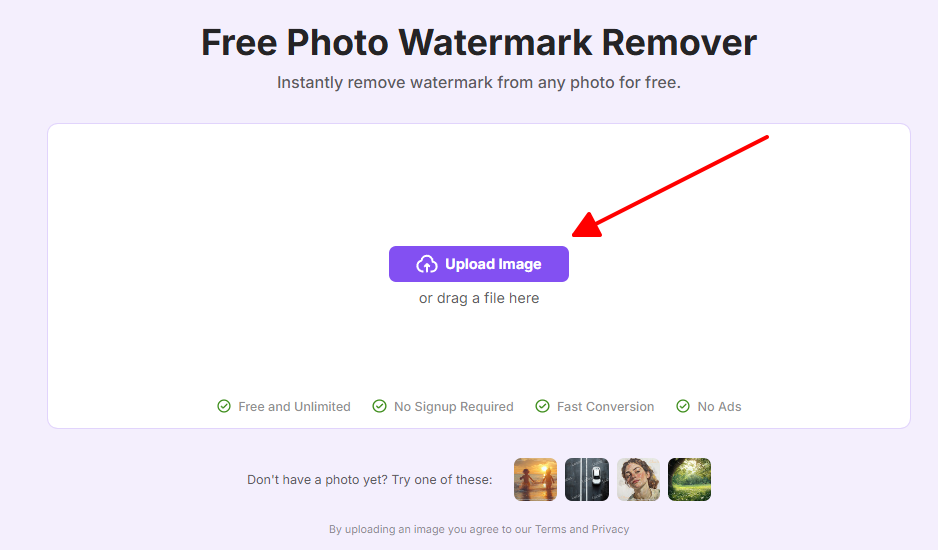
Step 3: Brush over the watermark or let AI auto-detect it.
Step 4: Click “Remove” and download the clean image.
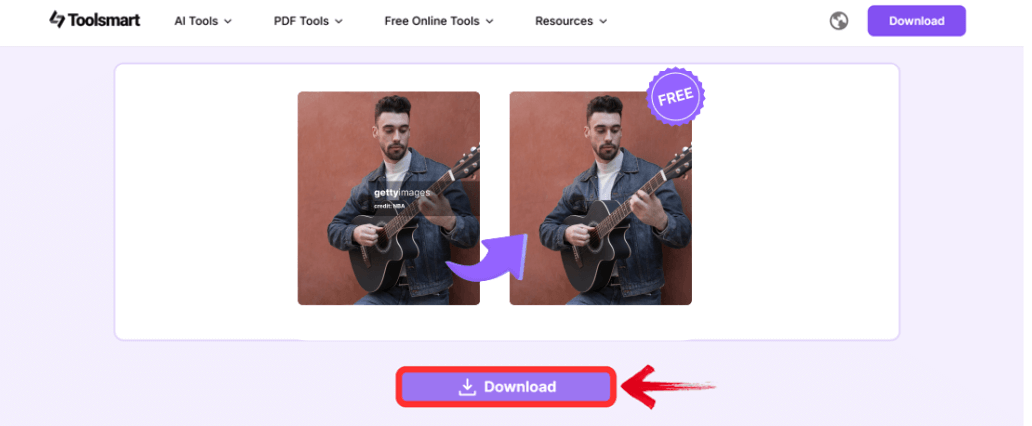
I tried Toolsmart to wipe a stock watermark off a photo for a personal project, and the AI zapped it in seconds—clean as a whistle, no blurry patches or odd marks. It’s awesome for quick fixes, but doing one photo at a time was a bit of a drag when I had a bunch to edit.
Part 5: FAQs
Q1: Should I always watermark my photos before posting online?
Yup, watermarking’s a smart way to protect your work and boost your brand, especially for photographers or creators on social media.
Q2: Can I remove someone else’s watermark with Toolsmart?
Nope, only use Toolsmart for images you own or have permission to edit—messing with others’ watermarks isn’t cool or legal.
Q3: Does Watermarkly let me use my own logo?
Totally! Watermarkly supports custom logos, signatures, or text for watermarks, giving you tons of flexibility.
Q4: Is Canva’s watermark feature free?
Yes, basic watermarking is free, but some fonts or graphics need Canva Pro ($12.99/month).
Q5: What file types does Toolsmart support for removal?
It handles JPG and PNG in the browser, covering most photos you’ll work with.
Summary
Water stamp photos are a snap with free tools like Canva, Watermarkly, Picsart, and Pi7 Image Tool, perfect for adding watermarks to protect your work or boost your brand. Canva’s easy for beginners, Watermarkly’s great for batch jobs, Picsart’s got fun effects, and Pi7’s super private. For removing watermarks from your own images, Toolsmart’s Free Photo Watermark Remover is a game-changer, zapping text or logos in seconds with AI magic, no signup needed. Whether you’re watermarking Instagram shots or cleaning up personal photos, these tools make it easy to keep your images safe and looking sharp.


