
'%3e%3cpath%20fill-rule='evenodd'%20clip-rule='evenodd'%20d='M19%208.5C24.799%208.5%2029.5%2013.201%2029.5%2019C29.5%2024.6782%2024.9928%2029.3036%2019.361%2029.4939L19%2029.5C18.8794%2029.5%2018.7592%2029.498%2018.6396%2029.4939L18.2811%2029.4758C12.8174%2029.1063%208.5%2024.5574%208.5%2019C8.5%2013.201%2013.201%208.5%2019%208.5ZM22.3063%2010.6267L22.2342%2010.6539C21.3423%2011.0061%2020.5541%2011.6368%2020.5606%2012.4987C20.5631%2012.8302%2020.869%2014.8871%2020.2141%2014.8486C19.5589%2014.8102%2019.413%2013.8753%2018.7116%2013.616C17.5944%2013.2026%2016.9819%2014.3401%2017.0939%2015.3106C17.1695%2015.9655%2018.9289%2018.3871%2017.9028%2019C17.292%2019.3651%2015.7279%2017.5692%2015.1007%2017.1842C14.4805%2016.8034%2013.2758%2017.3333%2012.4974%2016.7029C11.9874%2016.2899%2012.3881%2014.4098%2012.2786%2013.8372C12.2271%2013.5698%2012.1155%2013.3689%2011.9794%2013.2166L12.0402%2013.2934C10.7653%2014.8464%2010%2016.8339%2010%2019C10%2023.8465%2013.8307%2027.7982%2018.6295%2027.9925L18.6769%2027.9747C18.8597%2027.8677%2019.0394%2027.7557%2019.216%2027.6387C19.4137%2027.4534%2019.5436%2027.2072%2019.5849%2026.9394C19.8806%2025.1222%2018.3616%2025.4302%2017.9367%2024.5622C17.5489%2023.7695%2018.5712%2023.7684%2018.5524%2021.7923C18.4607%2021.1774%2018.5279%2020.547%2018.7211%2020.0315C19.1834%2018.7987%2020.7077%2017.2643%2022.5889%2018.0081C23.5567%2018.3906%2023.1524%2019.9831%2023.4737%2020.3394C24.251%2021.2018%2025.3228%2020.6863%2026.2856%2021.2253C26.7816%2021.5032%2026.9797%2022.41%2027.056%2023.2248L27.038%2023.0528C27.6534%2021.8348%2028%2020.4579%2028%2019C28%2015.1968%2025.6409%2011.9445%2022.3063%2010.6267Z'%20fill='%23757575'/%3e%3ccircle%20cx='19'%20cy='19'%20r='10.125'%20stroke='%23757575'%20stroke-width='2.25'/%3e%3c/g%3e%3cdefs%3e%3cclipPath%20id='clip0_1827_14613'%3e%3crect%20width='24'%20height='24'%20fill='white'%20transform='translate(7%207)'/%3e%3c/clipPath%3e%3c/defs%3e%3c/svg%3e)


I remember trying to collect a bunch of old Facebook photos for a college project. I thought I could just open the album and save everything in one go, but it was way more complicated than I expected. Facebook doesn’t make it simple to download photos, especially when you want to grab multiple at once. After wasting time on screenshots and clunky methods, I started searching for a proper Facebook photo downloader that actually worked. This guide walks you through the ones that did the job cleanly, quickly, and without any fuss.



Best Facebook Photo Downloader Tools
If you’ve ever tried saving Facebook photos for a project, a gift, or just to keep memories safe, you already know it’s not as easy as it should be. That’s where using a proper Facebook photo downloader comes in handy. I’ve tested a bunch of tools to see which ones actually work without flooding your screen with ads or asking for weird logins. These are the ones that made the cut for being fast, simple, and reliable.
1. Album Downloader (Chrome Extension)
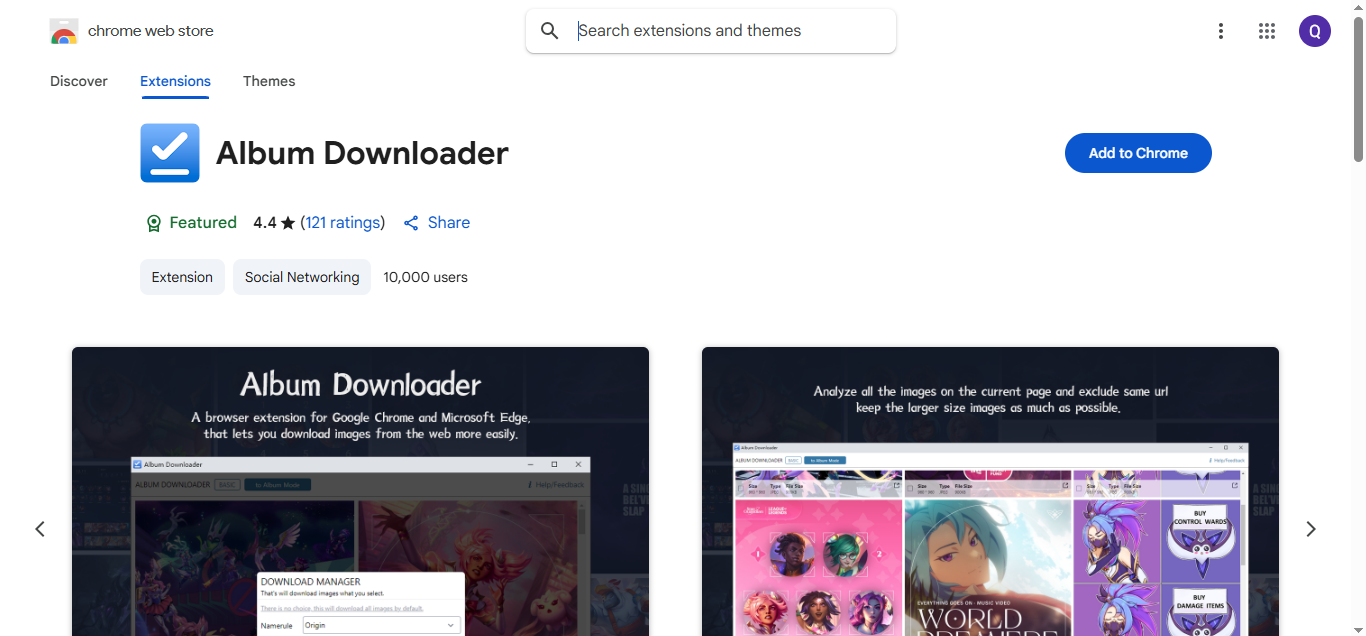
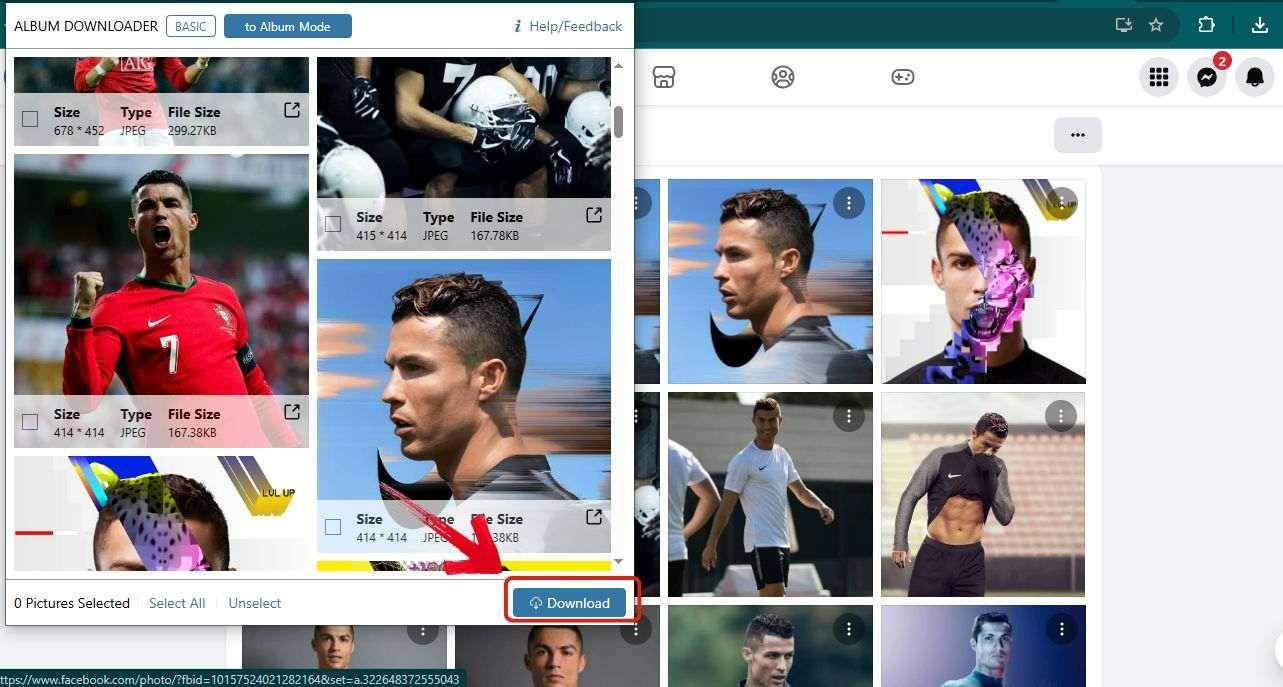
Album Downloader is a handy Chrome extension I came across while trying to grab an entire Facebook album without downloading images one by one. I was surprised at how quick and effortless it made the process. You don’t need to mess with links or open any extra websites. It works right from your browser. Just head to the Facebook album, click the extension, and it gets to work. It doesn’t support private albums or videos, but for public photo collections it’s one of the fastest no fuss options I’ve used.
How to Use Album Downloader:
If you’re looking for an easy way to bulk download Facebook albums without messing with online tools or copy-pasting links, this Chrome extension does the trick. It works right from your browser and is especially useful if you need to save a lot of photos at once.
Step 1: Open your browser and install the Album Downloader extension from the Chrome Web Store
Step 2: Log in to Facebook and open the album you want to download.
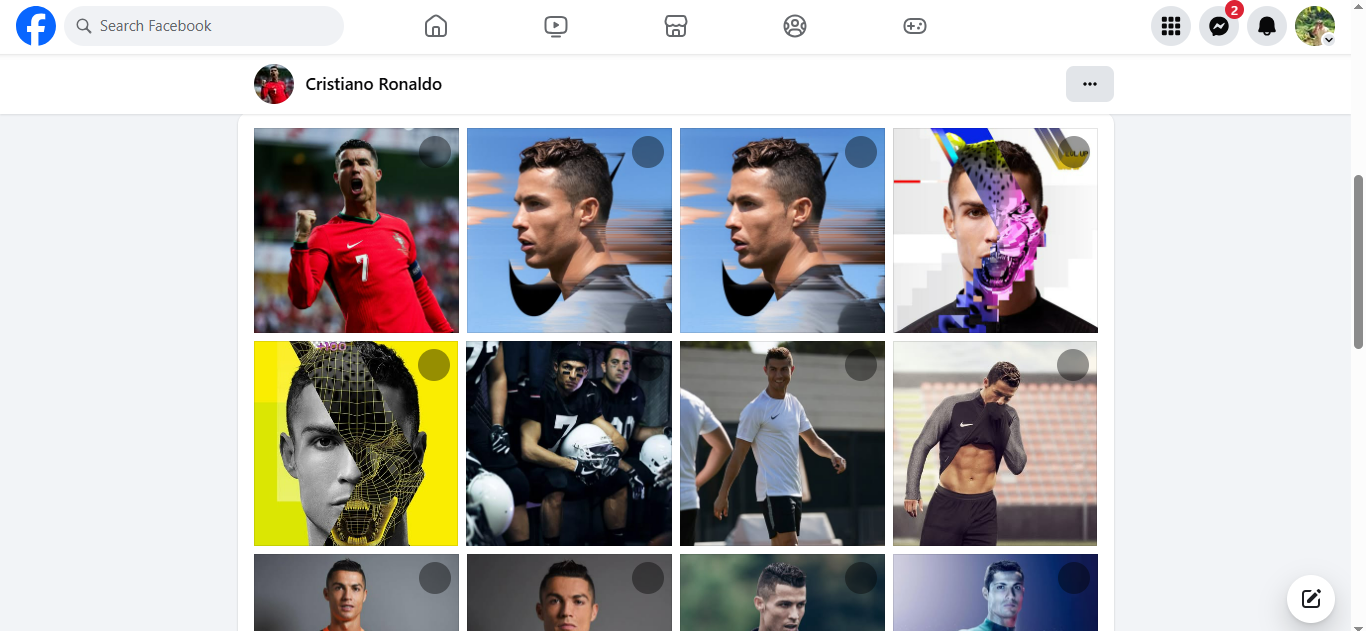
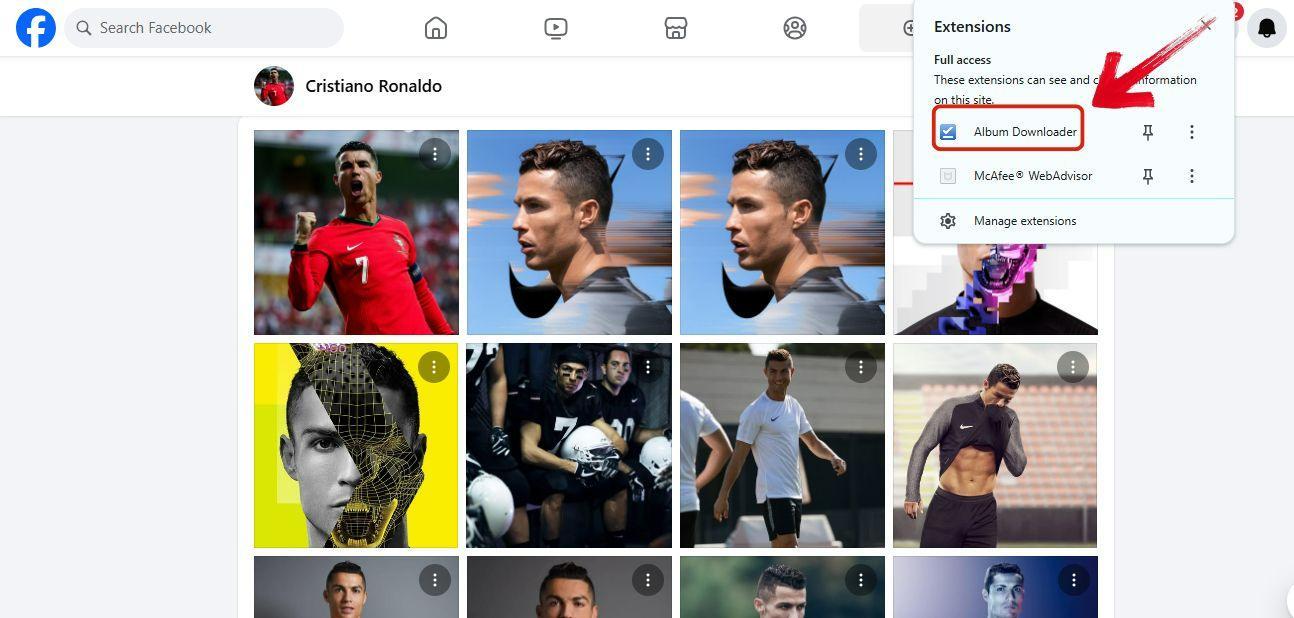
Step 3: Click the Album Downloader icon on your browser toolbar.
Step 4: After clicking on Album Downloader, an interface will open where you’ll see a "Start" button. Click that to continue.
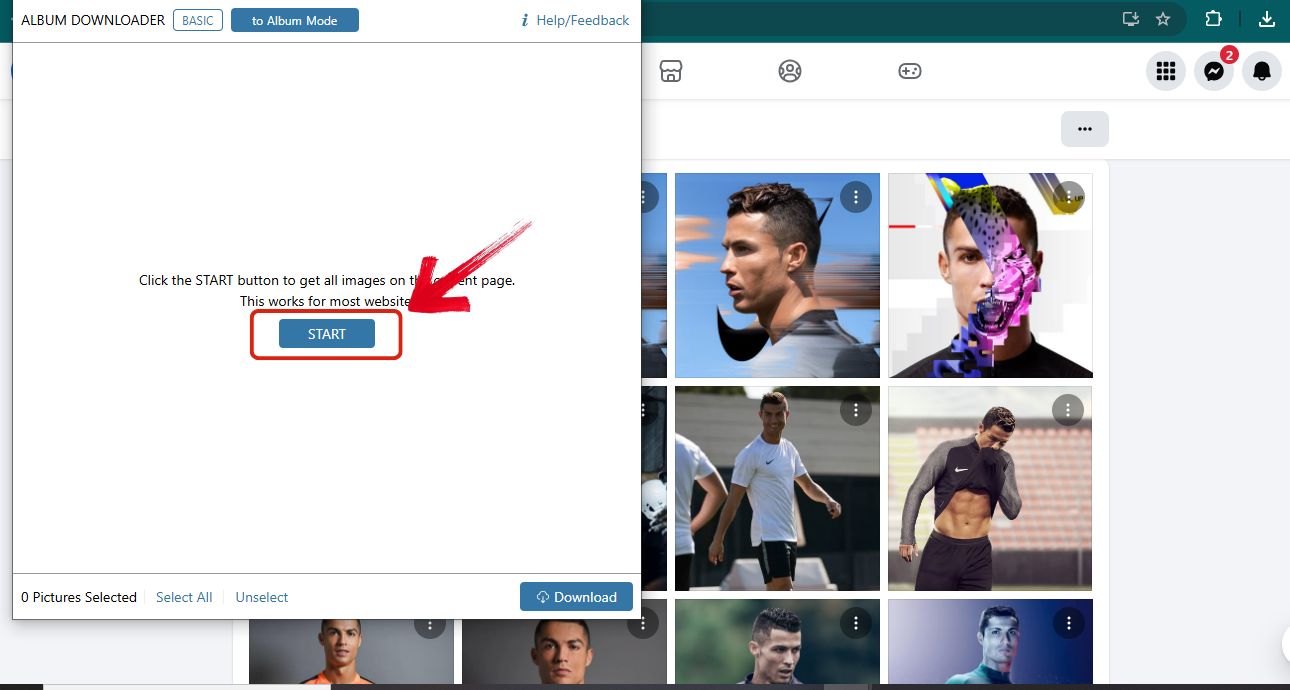
Step 5: Now select the pictures you want to download from that album and simply click the "Download" button on the bottom right.
2. Publer
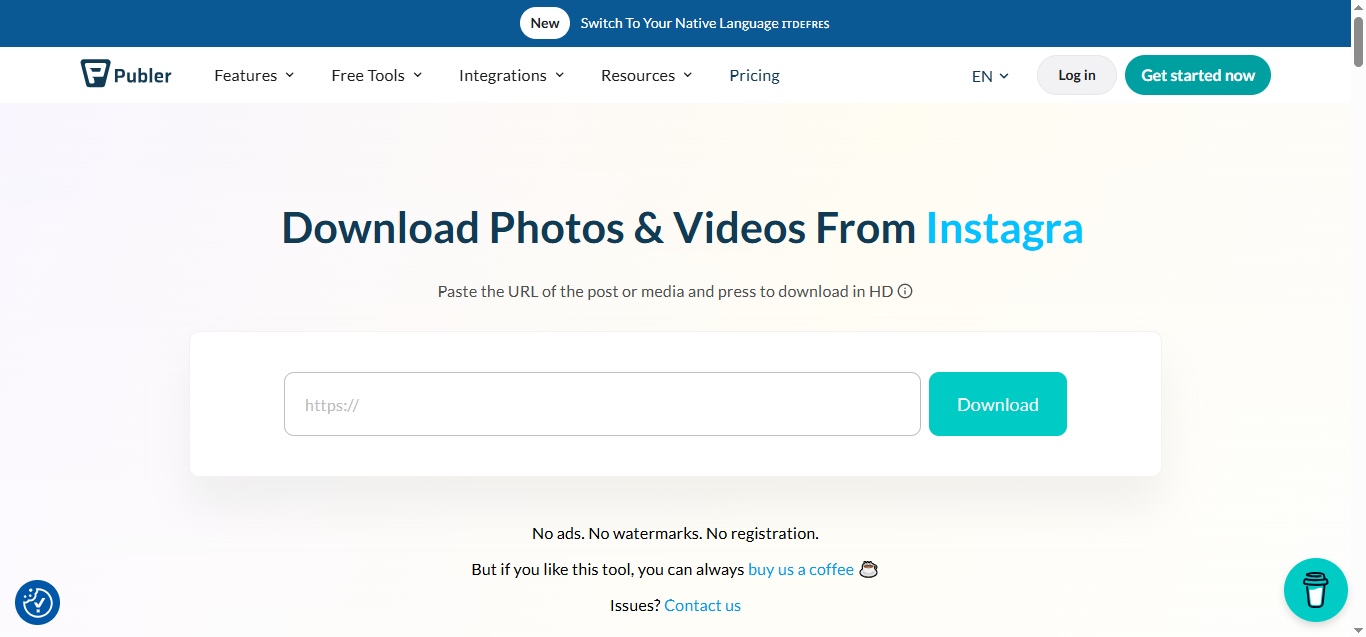
I initially used Publer to schedule social media posts but then I found out they had a Media Downloader tool too and it was actually pretty solid. If you've ever found a post full of great photos or a short reel you wanted to save, this tool makes it easy. Just paste the Facebook post link and Publer pulls up all the media in a clean interface where you can choose what you want. It works great on both desktop and mobile and while there’s a daily limit unless you register it's been a reliable go-to when I want to quickly save images or reels without digging through settings.
How to Use Publer:
These are the steps I followed to save Reels from Facebook using Publer.
Step 1: Open Publer on your browser.
Step 2: Paste the link of the photo you want to download into the white box that appears beside the download button.
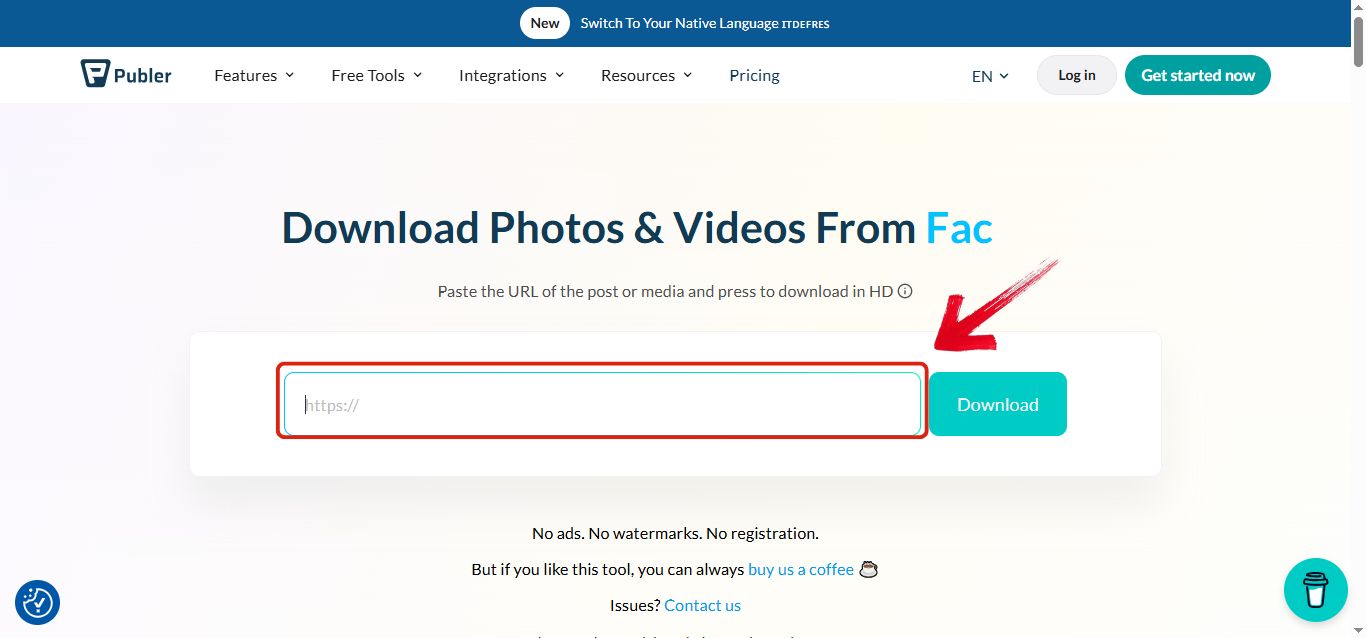
Step 3: Click the Download button right next to the bar. Publer will take a moment to process the link.

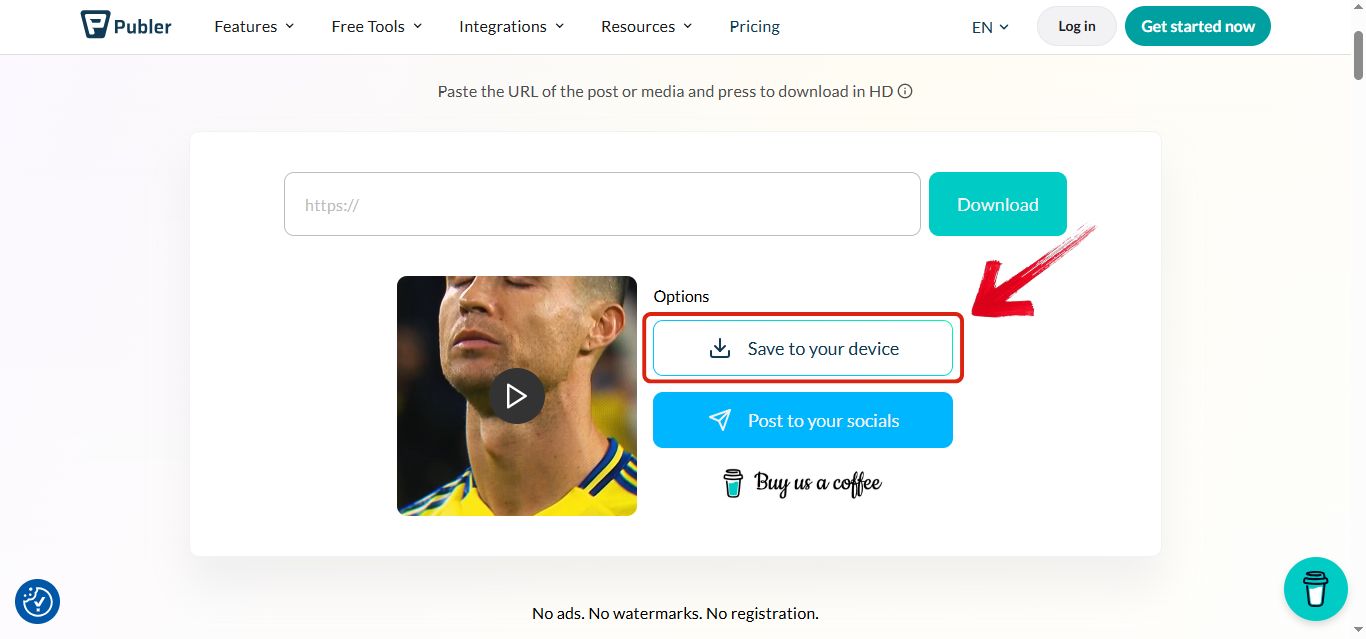
Step 4: Once it’s ready, the video will appear with a “Save to your device” button. Click it, and the photo will be saved directly to your device.
3. Hitube
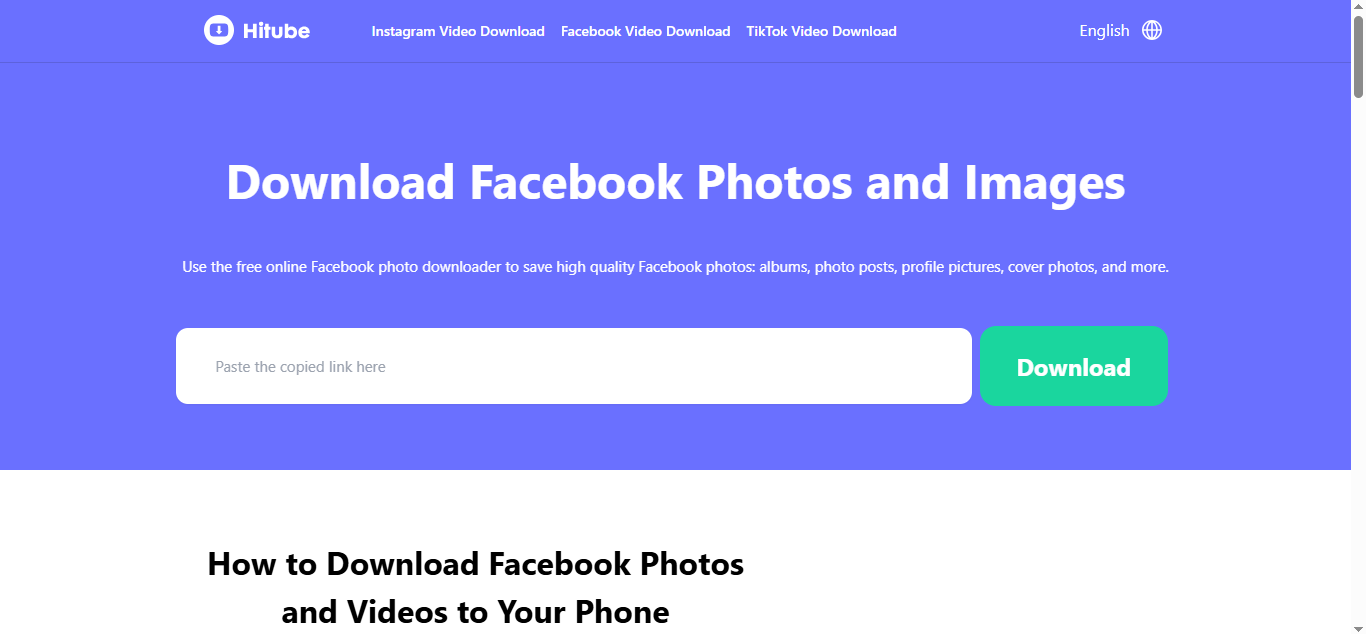
HiTube feels like one of those tools that just does what it says and that’s exactly why I like it. You paste a Facebook link into their downloader and almost instantly it gives you the image at full quality. No sign up, no download limit, no pop ups. It doesn’t offer advanced features like batch downloads or album support but for pulling single images cleanly and quickly it’s a solid tool I keep bookmarked. It’s especially helpful when you're on mobile and just need one image without juggling apps.
How to Use Hitube:
Hitube is one of the simplest tools out there for downloading Facebook photos and videos. It’s quick, clean, and doesn’t ask you to log in or download anything. If you're in a hurry, this one’s for you.
Step 1: Open HiTube on your browser.
Step 2: Paste the link of the photo you want to download into the white box that appears right next to the download button.

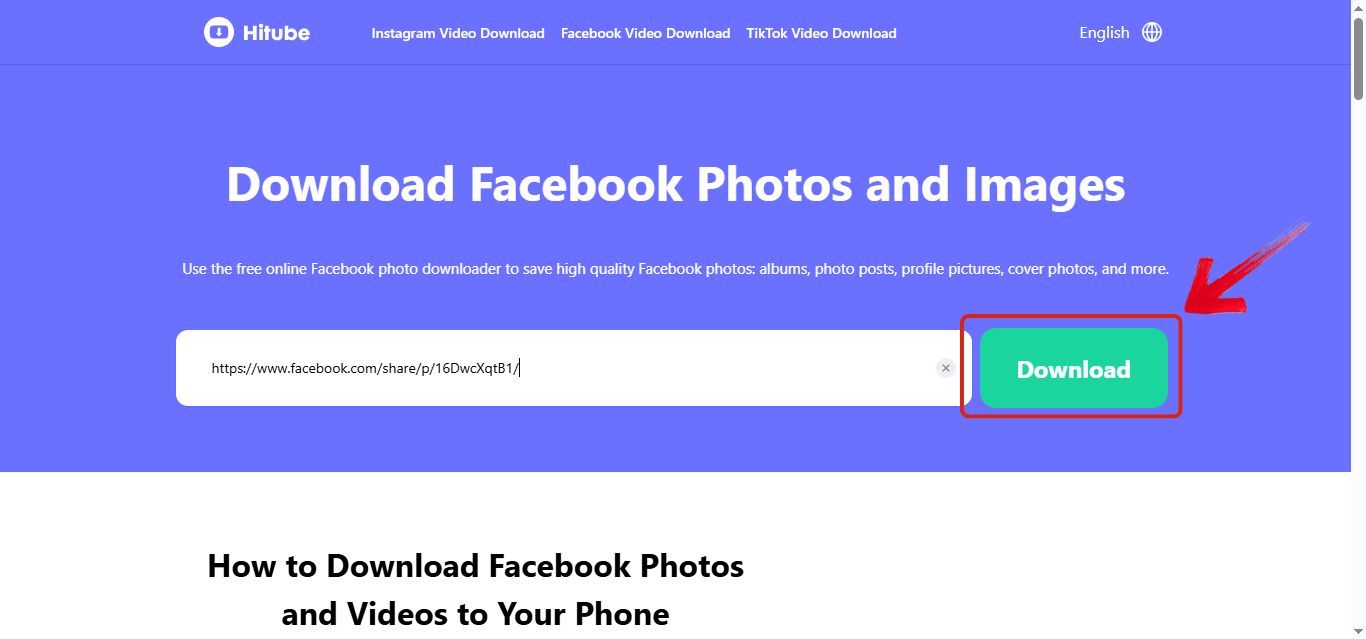
Step 3: Once you have pasted the link, click the "Download" button right next to the box.
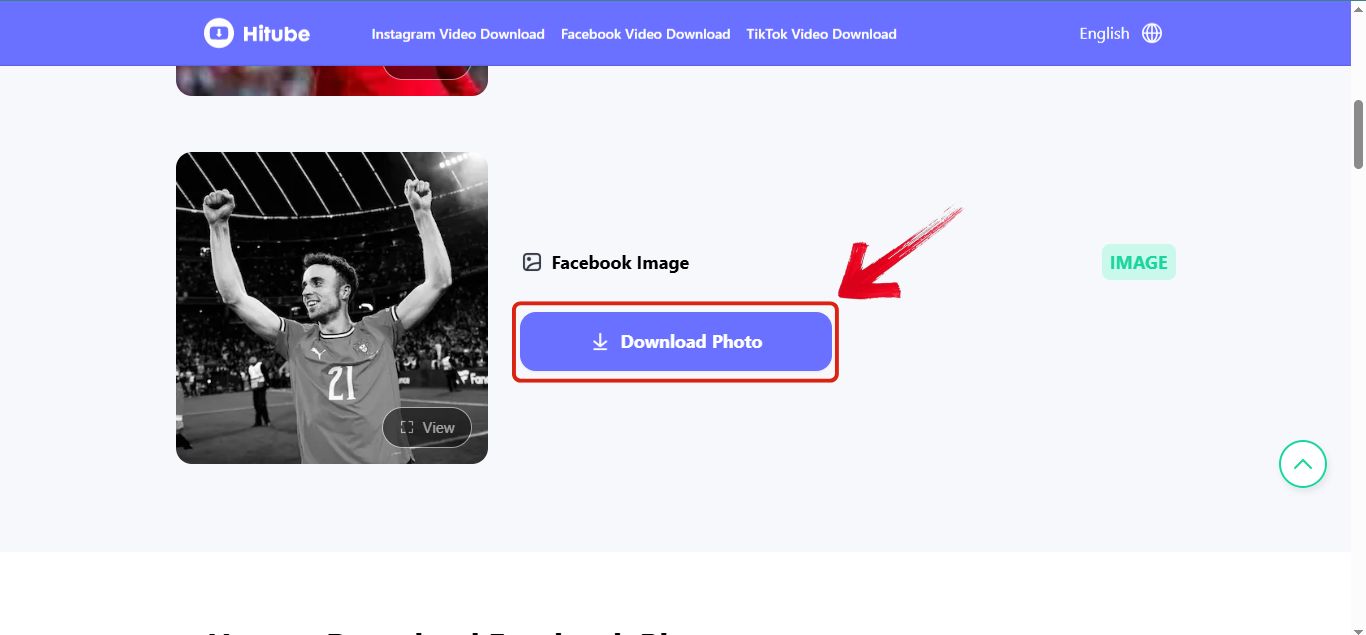
Step 4: Now you’ll see the preview of the image that you were downloading, so then simply click the "Download Photo" button right next to the image to start downloading.
Comparison of 3 platforms
When I was testing different tools for saving Facebook photos, I realized each one has its own strengths depending on what you're looking for. Some are better for downloading a few high-quality pictures, while others let you grab entire albums without clicking forever. To save you from trial and error, I’ve broken down the key differences between Album Downloader, Publer, and HiTube based on features like bulk download, login requirements, and overall ease of use.
| Features | Toolsmart’s YouTube to MP3 Converter | Freemake Video Converter | Any Video Converter Free |
|---|---|---|---|
| Bulk Download | Yes | No | No |
| Best For | Downloading full albums quickly | Downloading from post links | Downloading individual photos easily |
| Ease of Use | Requires Chrome setup | Clean interface | Super simple |
| Automated | Fully automated after extension setup | Yes | Yes |
| Ads | No | Some promotional banners | A few pop-ups |
| Facebook Login Needed | Yes (because it works inside Facebook) | No | No |
| Pricing | Free | Freemium (no login for basic use) | Free |
Each tool has its place depending on what you're trying to do. If you want to grab entire albums without downloading each image manually, Album Downloader is a lifesaver. For saving from random posts or reels, Publer works well and doesn’t require login. And when you just need a quick download of a single photo without the fuss, HiTube is the easiest option I’ve used. Mix and match based on your needs because no one tool does it all, but together they cover all the bases.
Why Toolsmart Video Downloader Is Still Worth Considering
Even though this guide is focused on saving Facebook photos, I couldn’t leave out a tool I personally use all the time for video downloads. One time I needed to save a friend’s birthday video that was posted on their timeline. I didn’t want to screen record it and lose the quality. I tried a few tools but got stuck with slow speeds, sketchy redirects, and popups that just wouldn’t stop. That’s when I discovered Toolsmart’s Facebook Video Downloader, and it honestly felt like a relief. It worked instantly, didn’t require any logins, and the video came out crisp and clean.
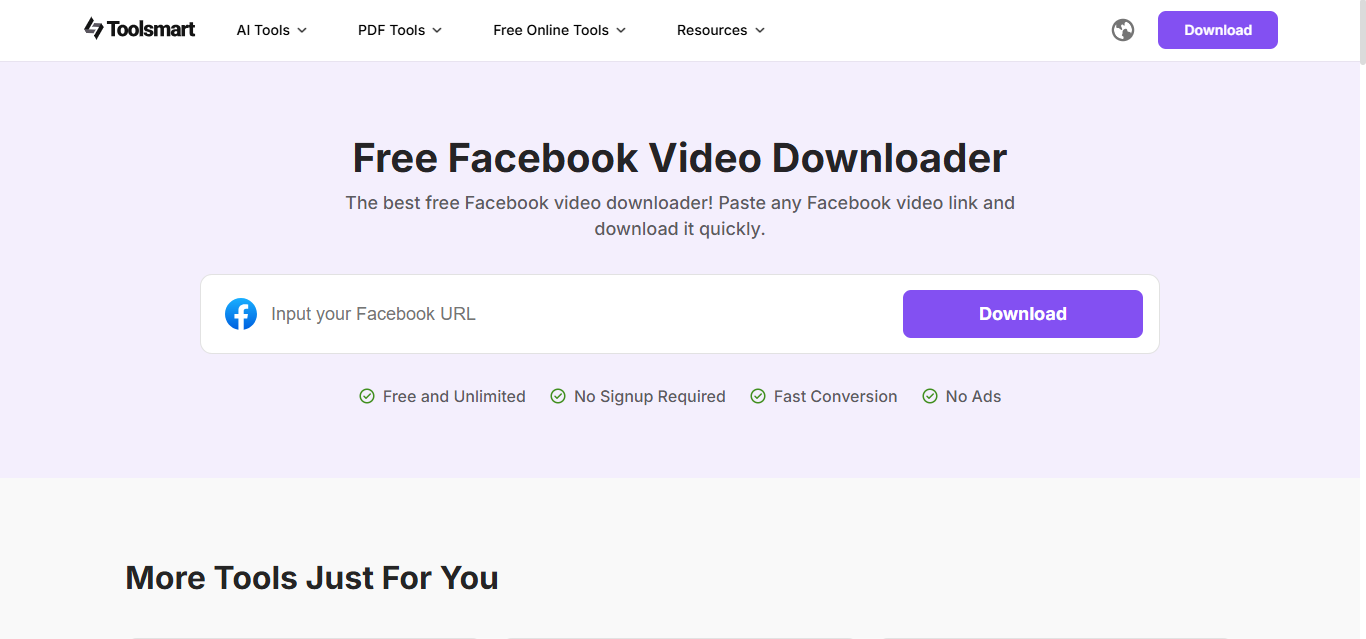
What makes Toolsmart stand out is how simple and reliable it is. You don’t need to install anything or deal with complicated steps. Just paste the video link and download it right from your browser. It supports HD and SD quality, lets you choose whether to download with or without sound, and even works on both public and private videos (as long as you have access). Best of all, the entire process is completely ad-free, fast, and mobile-friendly.
FAQs
1. Is MultCloud a Safe Tool for Backing Up Facebook Photos?
Yes, it is. MultCloud uses official OAuth authorization which means your Facebook password isn’t saved anywhere. It simply connects your account securely and transfers your photos to cloud storage like Google Drive or Dropbox. Just make sure you’re on the official MultCloud website to avoid phishing sites. And of course, never share your login info.
2. Can I use Toolsmart Facebook Video Downloader without logging in?
Absolutely. You can hop on the site and start using it without any account at all. If you do decide to create a free account though, you’ll unlock some pretty useful extras like bulk downloads, project history, and access to AI-based editing tools. So you’re good either way, but logging in has its perks if you want more control.
3. What’s the best all-in-one option for photo and video downloading?
From my experience, Toolsmart.ai is the one that checks all the boxes. It doesn’t just help with downloading Facebook photos and videos; it also offers built-in features for rewriting text, organizing media, and even light editing. Whether you’re a casual user or someone handling content regularly for social media or marketing, it makes everything a lot simpler.
4. Can I download Facebook photos or videos on my phone?
Yes, and it’s super easy. Tools like Toolsmart.ai are mobile-friendly, so you can just copy the Facebook link on your phone and paste it directly into the browser to download. No apps, no installs, just open the site and get your file. If you’re on Android and want something app-based, you could try “Downloader for Facebook” too.


