
'%3e%3cpath%20fill-rule='evenodd'%20clip-rule='evenodd'%20d='M19%208.5C24.799%208.5%2029.5%2013.201%2029.5%2019C29.5%2024.6782%2024.9928%2029.3036%2019.361%2029.4939L19%2029.5C18.8794%2029.5%2018.7592%2029.498%2018.6396%2029.4939L18.2811%2029.4758C12.8174%2029.1063%208.5%2024.5574%208.5%2019C8.5%2013.201%2013.201%208.5%2019%208.5ZM22.3063%2010.6267L22.2342%2010.6539C21.3423%2011.0061%2020.5541%2011.6368%2020.5606%2012.4987C20.5631%2012.8302%2020.869%2014.8871%2020.2141%2014.8486C19.5589%2014.8102%2019.413%2013.8753%2018.7116%2013.616C17.5944%2013.2026%2016.9819%2014.3401%2017.0939%2015.3106C17.1695%2015.9655%2018.9289%2018.3871%2017.9028%2019C17.292%2019.3651%2015.7279%2017.5692%2015.1007%2017.1842C14.4805%2016.8034%2013.2758%2017.3333%2012.4974%2016.7029C11.9874%2016.2899%2012.3881%2014.4098%2012.2786%2013.8372C12.2271%2013.5698%2012.1155%2013.3689%2011.9794%2013.2166L12.0402%2013.2934C10.7653%2014.8464%2010%2016.8339%2010%2019C10%2023.8465%2013.8307%2027.7982%2018.6295%2027.9925L18.6769%2027.9747C18.8597%2027.8677%2019.0394%2027.7557%2019.216%2027.6387C19.4137%2027.4534%2019.5436%2027.2072%2019.5849%2026.9394C19.8806%2025.1222%2018.3616%2025.4302%2017.9367%2024.5622C17.5489%2023.7695%2018.5712%2023.7684%2018.5524%2021.7923C18.4607%2021.1774%2018.5279%2020.547%2018.7211%2020.0315C19.1834%2018.7987%2020.7077%2017.2643%2022.5889%2018.0081C23.5567%2018.3906%2023.1524%2019.9831%2023.4737%2020.3394C24.251%2021.2018%2025.3228%2020.6863%2026.2856%2021.2253C26.7816%2021.5032%2026.9797%2022.41%2027.056%2023.2248L27.038%2023.0528C27.6534%2021.8348%2028%2020.4579%2028%2019C28%2015.1968%2025.6409%2011.9445%2022.3063%2010.6267Z'%20fill='%23757575'/%3e%3ccircle%20cx='19'%20cy='19'%20r='10.125'%20stroke='%23757575'%20stroke-width='2.25'/%3e%3c/g%3e%3cdefs%3e%3cclipPath%20id='clip0_1827_14613'%3e%3crect%20width='24'%20height='24'%20fill='white'%20transform='translate(7%207)'/%3e%3c/clipPath%3e%3c/defs%3e%3c/svg%3e)


If you’ve ever tried to download subtitles from YouTube videos, you would understand how exhausting it can be to download them through third-party tools, as there is no built-in feature to download subtitles on YouTube. YouTube subtitles are a goldmine for learning or using them for your future videos. But most tools are paid or require downloads. Along with their inability to handle auto-generated captions and multiple video types. So I’ve put together this article to download YouTube subtitles in multiple formats so that you don’t have to deal with future headaches.


Top 5 Tools to Download Subtitles from YouTube
To make the best of the YouTube videos and to retain the information from them, you must have a written form of the video you’re watching. In fact, you will get through the information much faster if you’re reading it. So to make sure you make the best use of your time, I’ve listed out the features after much research and put together a comprehensive review of the 5 tools I’ve found to be the best to download subtitles from YouTube.
DownSub
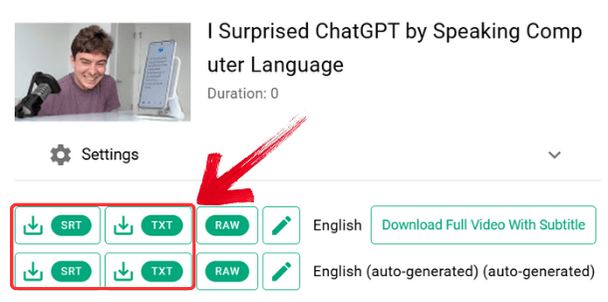
Now, first up is DownSub. This is a free web-based tool that makes downloading from YouTube, VIU, Viki, Vlive, and other platforms simple. Now, there might be a question in a lot of people's minds: Is there some hidden catch? Not at all, there's no download involved, and neither do you need to have an extension on your browser. Just paste the URL of the video you like, and you'll have your subtitles within seconds in multiple formats like SRT, TXT, or VTT.

But disclaimer alert, there are a lot of ads on this website. You'll get redirected on almost every second click. Despite this, DownSub lets you extract subtitles from YouTube videos quickly. If you're in a hurry and don't mind ads, then it's a great choice to get captions for personal use or repurposing content.
DownSub was one of the first tools I tried. The Interface is simple, and the method to generate captions is as plain as cake. But it has its flaws. DownSub can sometimes give missing or inaccurate subtitles. Yet even with this, I've found this excellent for casual uses.
How to use:
Downsub takes a few seconds to work, but it’s very easy to use. Just paste your link into the URL bar, and your subtitles will be ready in a matter of seconds. Here’s how you use Downsub to download YouTube captions.
Step 1: First, head on over to the Downsub website.
Step 2: Paste the link to the video you want to download subtitles for.

Step 3: Then, click the “Download” button to begin extracting subtitles.

Step 4: Select the subtitles format and language you want to download, then click the “Download icon” beside the format.
SaveSubs
Our second tool is SaveSubs. I found its interface, honestly, a bit similar to DownSub. I can download subtitles from Facebook, YouTube, Viki, and Dailymotion. With a few additional features, it serves as a great alternative to DownSub. Additionally, SaveSubs provides a clean, ad-free experience, unlike some other tools. If you want to download YouTube videos, SaveSubs also supports that feature.
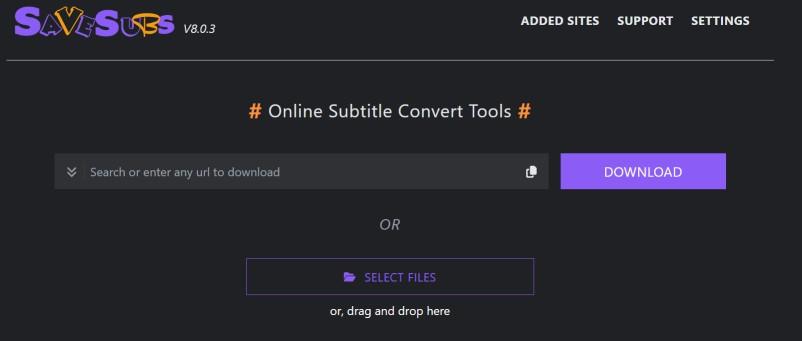
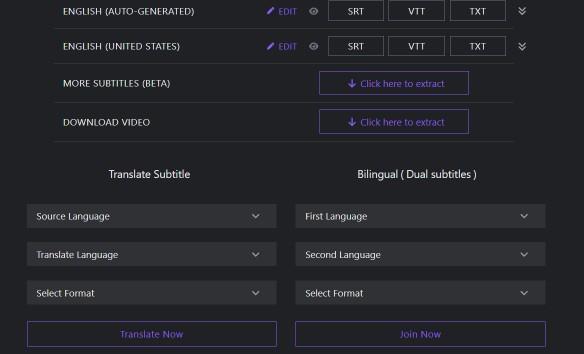
The user interface is basic as well so that you don't get confused with using this tool. The process to extract subtitles is also the same as before. You are also able to remove any brackets or notes from the subtitles before saving them in the format you want, which includes SRT, VTT, TXT, and ASS. And the best part is you can translate the subtitles into other languages as well.
You can also use it on mobile devices so that you don't have to open up your laptop or pc every time you like a video. Works without an account and won't even ask you to log in. Unlike DownSub, it's ad-free so you won't get redirected every time you click on the page.
Personally, I found SaveSubs to be better than Downsub. Its interface is easier on the eyes, and on every click, I don't get redirected to an ad. It’s often my first tool to go to when I want to download subtitles, however, it has limited capability as it can’t extract captions from all types of videos.
How to use:
Downloading subtitles through SaveSubs is extremely simple and almost identical to Downsub. It’s the same interface but slightly more intuitive and with a more modern look, with zero ads.
Step 1: First, head on over to the SaveSubs website.
Step 2: Paste the link to the video you want to download subtitles for.

Step 3: Then, click the “Download” button to begin extracting subtitles.

Step 4: Select the subtitles format and language you want to download, then click whichever format you want to download your subtitles in.
Download YouTube Subtitles
DownloadYoutubeSubtitles.com is also another fast and easy YouTube subtitle downloader. I've found it to be as easy as the previous two tools we looked at, without needing to log in to your YouTube account. I've found it works perfectly even if you're using Android or Apple.
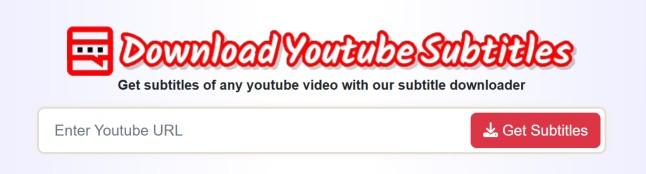
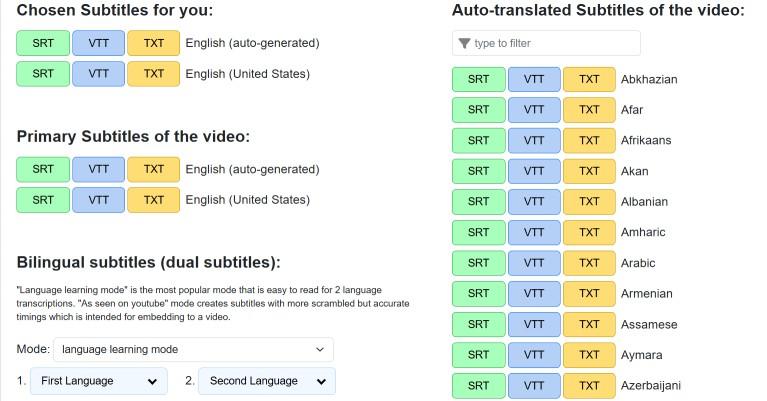
The additional feature I love about it is that there are over a hundred languages, making it excellent if you're learning a language. After you're done, you can export it in formats like SRT, VTT, or TXT. And because it's completely free and has no paid plan either, there's no limit to how many subtitles you can generate from this tool.
Just like SaveSubs, this tool is also ad-free, which means you won't get any random interruptions. But I feel like the interface is old and can sometimes slow down. Unlike SaveSub, it does lack a few advanced features. Yet I've found it to be one of the top options because of how many languages it offers.
I’ve used DownloadYouTubesubtitles many times, especially when I was learning a 2nd language. Exactly because of how many languages it offers, it's an excellent choice for anyone who wants to download captions in a specific language.
How to use:
Again, this tool is basic, and by now it should be pretty clear how to use them as they are all pretty similar. Just follow these steps to download subtitles for any YouTube video you want.
Step 1: First, head on over to the DownloadYouTubeSubtitles official website.
Step 2: Paste the link to the video you want to download subtitles for.

Step 3: Then, click the “Get Subtitles” button to begin extracting subtitles.

Step 4: Select the subtitles format and language you want to download, then click whichever format you want to download your subtitles in.
EasySub
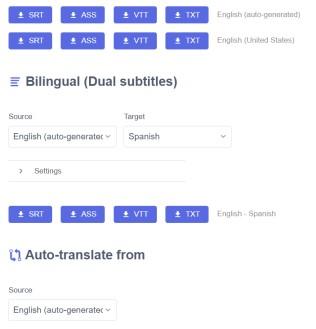
EasySub is probably the most accurate tool out of the 5. Powered by AI, this tool ensures the precision of transcriptions, making sure that your video is converted into captions with high accuracy. If you later on want to use these captions in another video, it lets you add them directly to the video without leaving the app, which doesn't give you the headache of switching between multiple tabs.

What makes it special is that it doesn't require any installation or extension added to your browser, despite having an AI in it. You can pull captions from YouTube, VIU, Viki, Vlive, and more. After you extract the captions, you can then export them in VTT, SRT, ASS, and TXT. It also has the ability to download your subtitles in about 150 languages, surpassing even our previous tool.
But there is one drawback I found in this tool, which I couldn't find in others. The tool will need you to log in first and ask you to give access to your personal information. You could use a separate account to log in, but it sounded odd to me that it needed my login. but if you don't mind logging in, then this is a great solution for someone who wants quick, reliable subtitles in multiple languages, powered by AI for greater accuracy.
How to use:
Let’s see how we can generate subtitles from the EasySub website in easy-to-follow steps.
Step 1: First, head on over to the EasySub official website.
Step 2: Paste the link to the video you want to download subtitles for.

Step 3: Then, click the “Download” button to begin extracting subtitles.

Step 4: Select the subtitles format and language you want to download, then click whichever format you want to download your subtitles in.
Fireflies.ai
Now we're finally onto our last tool, Fireflies. It's an AI-based notetaker for online and even offline meetings. With its high accuracy, it analyzes conversations and generates summaries and transcriptions. And not just that, with this tool you can transcribe YouTube videos and other media files as well, along with a summary which no other tool can do.
As soon as you're done, you can then export these subtitles in formats like DOCX, PDF, CSV, JSON, and SRT, common in most platforms. So not only does it handle YouTube subtitles, but also other media files, which makes it a complete package.
Fireflies boasts a 95% accuracy, so I put it to the test, and I found it true to its promise as it barely missed any words. Even with multiple speakers, it was able to accurately transcribe in 100 different languages. The best part, among all these features, is the auto language feature, which lets this tool create smooth transitions of videos that have multiple languages. This makes it perfect for someone like me who watches videos with multilingual speakers.
Fireflies is a more versatile tool. Generally it might be good for people who have more than one use and can spend money on the tool as it is paid.
How to use:
Here’s a simple guide on how to extract subtitles using Fireflies.
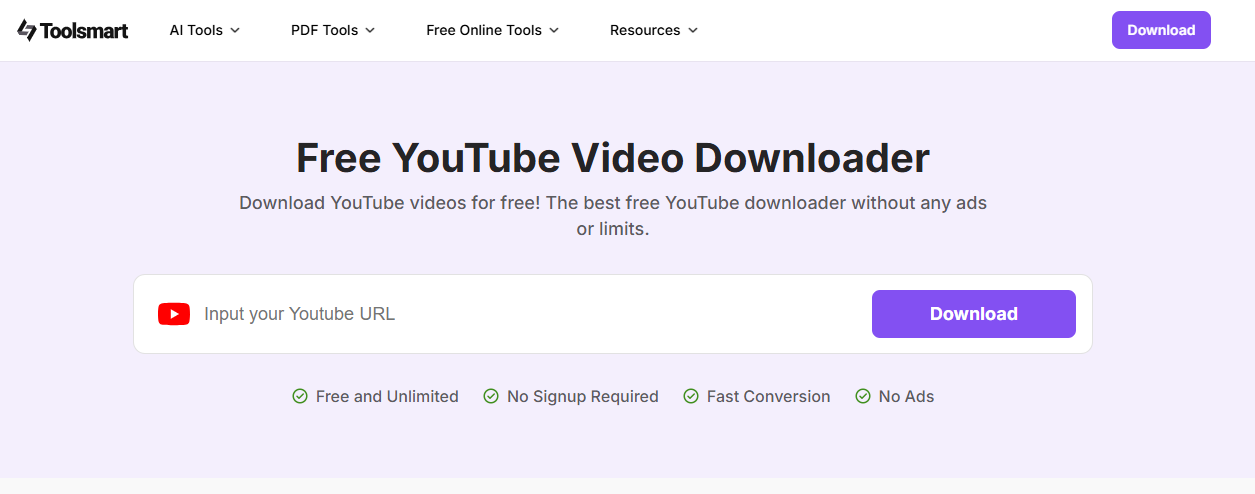
Step 1: First, download your YouTube video. You can use the Toolsmart YouTube video downloader to download it.
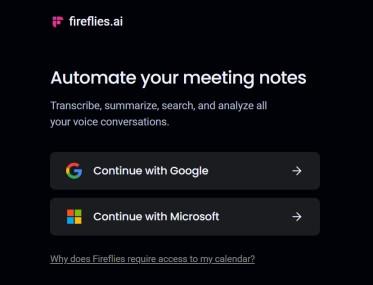
Step 2: Go to the Fireflies web app and log in using your Google or Microsoft account.
Step 3: After logging in, click Uploads in the navigation bar.

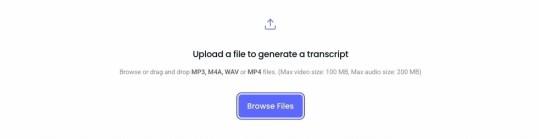
Step 4: In the uploads, drag and drop the file you downloaded.
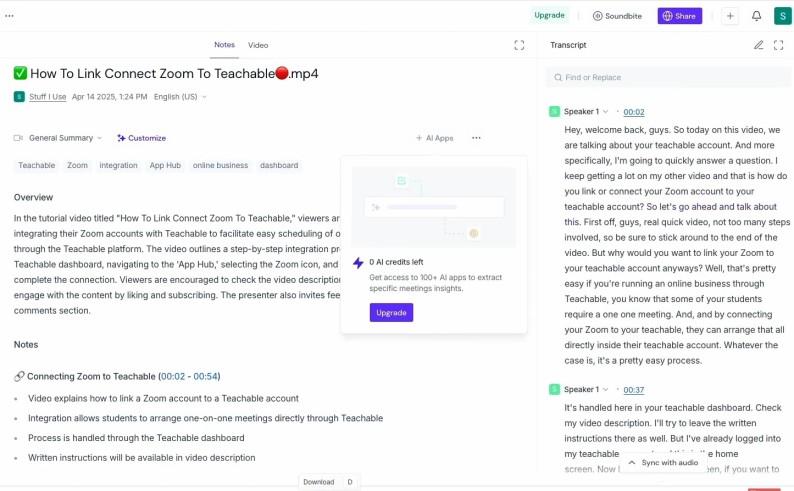
Step 5: When the processing is done, you will get both the transcript with timelines and the summary of the entire video.
Comparison of the Above 5 Tools
It can still be confusing selecting the right tool, so I’ve put together this table comparing different features of the tools so that you can make the right decision.
| Feature | Downsub | SaveSubs | DownloadYoouTubeSubtitles | EasySub | Fireflies.ai |
|---|---|---|---|---|---|
| Download Formats | SRT, TXT, VTT | SRT, TXT, VTT | SRT, TXT, VTT | SRT, VTT, TXT, ASS | DOCX, PDF, CSV, JSON, SRT |
| Translation | No | Yes | Yes | Yes | Yes |
| Mobile Friendly | Yes | Yes | Yes | Yes | Yes |
| Login Required | No | No | No | Yes | Yes |
| Custom Timecodes | No | No | No | No | Yes |
| Editing After Download | No | No | No | No | Yes |
| Ad-Free Experience | No | Yes | Yes | Yes | Yes |
Bonus: Use Toolsmart Free YouTube Video Downloader for Subtitle-Based Content Creation
By now, it should be clear to you how to download subtitles from YouTube. Each of the tools I mentioned above has its own uses and faults. From DownSub getting bombarded with ads to Fireflies requiring a paid plan for some features, it's essential to choose the right one based on your needs.
Toolsmart Free YouTube Video Downloader is another valuable tool to consider. While it doesn't directly export subtitles, it’s fantastic for downloading YouTube videos that include embedded captions. Once you've downloaded the video, you can pair it with a separate subtitle extraction tool for a more tailored experience. It’s especially useful if you're looking to work with videos that already have captions embedded, giving you flexibility in how you handle your media files. Additionally, it’s great for content creation, as you can use the downloaded videos with subtitles for your own projects, without worrying about complex subtitle extraction processes.
I usually find myself using Fireflies and Toolsmart YouTube video downloaders together. Toolsmart YouTube video downloader downloads whichever video I want in high quality, and then Fireflies generates a comprehensive summary and transcript with accurate timestamps, which really helps me out if I'm studying or making my next YouTube video.
How to use:
Here’s a simple guide to get started with Toolsmart’s YouTube downloader. You don’t need to sign up or download anything.
Step 1: Open your browser and head over to the Toolsmart YouTube Downloader site.
Step 2: Now, go to the YouTube video you want to download and copy its URL from the address bar.
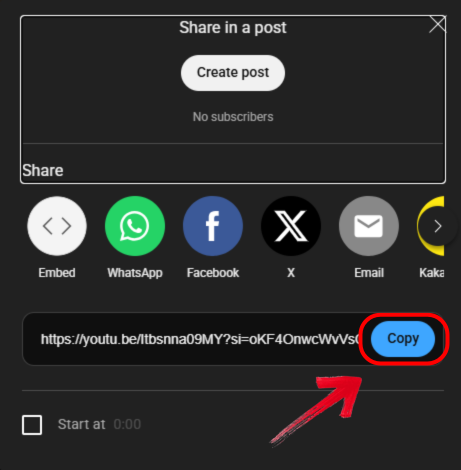
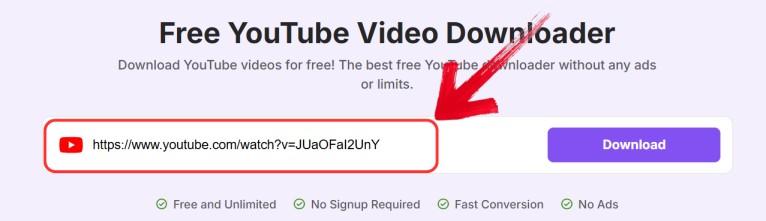
Step 3: Back on the Toolsmart site, just paste that link into the input box on the page.
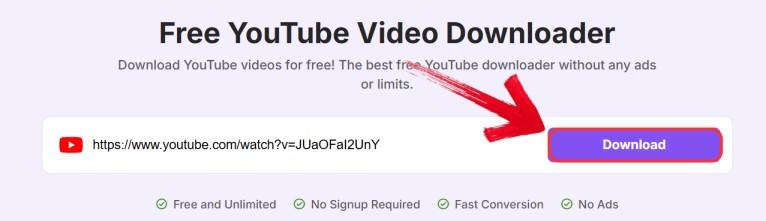
Step 4: Click the “Download” button and give Toolsmart a few seconds to process the video. After that, just save the file to your device.
FAQs
Q1: Can DownSub extract auto-generated YouTube subtitles?
Yes, DownSub can extract auto-generated subtitles as long as the video has captions available.
Q2: Can I use these tools on mobile?
Yes, all the tools mentioned are browser-based and work well on mobile devices. You can use them on both Android and iOS without any issues.
Q3: What if subtitles don’t appear in DownSub?
If subtitles don’t appear, make sure the video has captions enabled. If it still doesn’t work, you can try using a different tool like SaveSubs or SubtitleCat.
Q4: Does Toolsmart Free YouTube Video Downloader download subtitles?
No, Toolsmart doesn’t directly download subtitles, but it’s great for downloading videos that have embedded captions. You can then use another tool to extract the subtitles.
Q5: Can I translate subtitles with SaveSubs?
Yes, SaveSubs allows you to translate subtitles into different languages, which can be really helpful for reaching a wider audience.


