
'%3e%3cpath%20fill-rule='evenodd'%20clip-rule='evenodd'%20d='M19%208.5C24.799%208.5%2029.5%2013.201%2029.5%2019C29.5%2024.6782%2024.9928%2029.3036%2019.361%2029.4939L19%2029.5C18.8794%2029.5%2018.7592%2029.498%2018.6396%2029.4939L18.2811%2029.4758C12.8174%2029.1063%208.5%2024.5574%208.5%2019C8.5%2013.201%2013.201%208.5%2019%208.5ZM22.3063%2010.6267L22.2342%2010.6539C21.3423%2011.0061%2020.5541%2011.6368%2020.5606%2012.4987C20.5631%2012.8302%2020.869%2014.8871%2020.2141%2014.8486C19.5589%2014.8102%2019.413%2013.8753%2018.7116%2013.616C17.5944%2013.2026%2016.9819%2014.3401%2017.0939%2015.3106C17.1695%2015.9655%2018.9289%2018.3871%2017.9028%2019C17.292%2019.3651%2015.7279%2017.5692%2015.1007%2017.1842C14.4805%2016.8034%2013.2758%2017.3333%2012.4974%2016.7029C11.9874%2016.2899%2012.3881%2014.4098%2012.2786%2013.8372C12.2271%2013.5698%2012.1155%2013.3689%2011.9794%2013.2166L12.0402%2013.2934C10.7653%2014.8464%2010%2016.8339%2010%2019C10%2023.8465%2013.8307%2027.7982%2018.6295%2027.9925L18.6769%2027.9747C18.8597%2027.8677%2019.0394%2027.7557%2019.216%2027.6387C19.4137%2027.4534%2019.5436%2027.2072%2019.5849%2026.9394C19.8806%2025.1222%2018.3616%2025.4302%2017.9367%2024.5622C17.5489%2023.7695%2018.5712%2023.7684%2018.5524%2021.7923C18.4607%2021.1774%2018.5279%2020.547%2018.7211%2020.0315C19.1834%2018.7987%2020.7077%2017.2643%2022.5889%2018.0081C23.5567%2018.3906%2023.1524%2019.9831%2023.4737%2020.3394C24.251%2021.2018%2025.3228%2020.6863%2026.2856%2021.2253C26.7816%2021.5032%2026.9797%2022.41%2027.056%2023.2248L27.038%2023.0528C27.6534%2021.8348%2028%2020.4579%2028%2019C28%2015.1968%2025.6409%2011.9445%2022.3063%2010.6267Z'%20fill='%23757575'/%3e%3ccircle%20cx='19'%20cy='19'%20r='10.125'%20stroke='%23757575'%20stroke-width='2.25'/%3e%3c/g%3e%3cdefs%3e%3cclipPath%20id='clip0_1827_14613'%3e%3crect%20width='24'%20height='24'%20fill='white'%20transform='translate(7%207)'/%3e%3c/clipPath%3e%3c/defs%3e%3c/svg%3e)


I remember the first time I had to record a video explaining my design process to my boss. It was supposed to be simple, I mean, how difficult could it be? But I soon found out how challenging it was to find a truly free online video recorder. One that is without hidden paywalls, limits, or watermarks smashed onto the final low-quality video. I spent more time researching video recorder online tools than I spent explaining. So I've put together this guide. This should help you avoid making the same mistakes I made.
5 Best Free Video Recorders
Choosing a videorecorder online doesn’t need to be so difficult. But, I understand there are too many options out there, you go out to search different blogs or reviews, and there's someone pushing their own video recorder as the best one available. This would make anyone confused and frustrated. So if your goal is to record your video online without the chaos, then this comprehensive review should help you out.
Speakflow
This was one tool recommended by some colleagues when I asked for their recommendations. It quickly became clear why Speakflowstood out, although it’s regarded as just a teleprompter, it’s a full-fledged scriptorganizer and video recorder, all rolled into one.
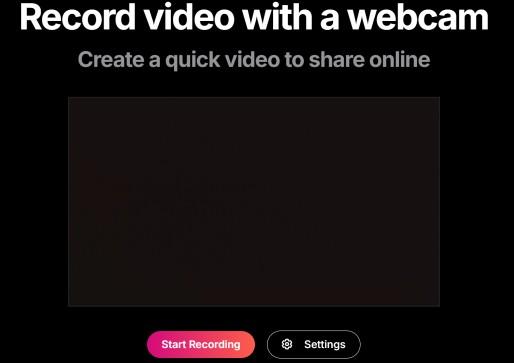
For those who’ve ever struggled with flipping through pages of notes while trying to speak naturally on camera, you know how disruptive it can be. Speakflow solves this problem effortlessly. As you speak, the online teleprompter scrolls automatically without you needing to keep an eye out for the script as well. The beauty of this tool is in how simple it is. You can open it directly on your browser, it doesn’t matter if it’s Chrome or Safari. Plus, the best part is it syncs across all your devices.
Speakflow also shines in its ease of use. It has features like auto-saving, revision history, and the ability to organize scripts with labels, so that you don't get confused the next time you start recording a video. And when you're done recording, you can then download the video in HD in MP4 format, which is usually the most common format.
Pros:
Zero-install, as it is a web-based tool
100% free
HD webcam and screen capture
Voice-activated scrolling
Cross-device syncing
Auto-saving with revision history
Customizable teleprompter and script layout
Focused delivery with smooth scrolling
Cons:
No advanced post-editing tools
No 4K recording
Requires browser permissions for camera and microphone
Not ideal for long-form videos
Features:
Record & share in your web browser: Write scripts and use the teleprompter to quickly shoot video takes without the need for downloads.
Use Overlay: Integrate Speakflow as a virtual teleprompter with platforms like Zoom, Webex, and more, enhancing your live presentations.
Mirror and Remote modes: Use Speakflow with a physical teleprompter, creating a seamless experience for professional video shoots.
Collaborate with your team: Invite team members to work together on scripts and share access, streamlining the content creation process.
How to Use it:
Speakflow does allow you to record a video without the need for a sign-in however, the functionality is quite limited. Let’s look at how you can use Speakflow to record your video.
Step 1: First, head over to the official Speakflowwebsite.
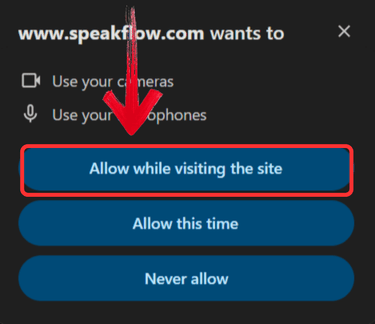
Step 2: Then make sure that you have given the website permission to access your camera and microphone.
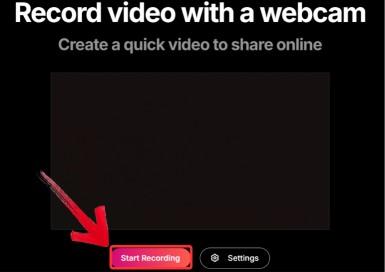
Step 3: Click on the “Start Recording” option, and your video will start recording quickly.
Step 4: When you’re done, just click“Stop” and your video will stop recording.

Step 5: Your video will automatically download onto your pc, but remember, if you want to download the MP4 version, you will need to sign up.
Note: To access the teleprompter feature as well, you will need to log in.
Canva
Now, onto one of the most popular design apps, there’s a good chance this has been recommended to you. Canvais perfect for making stunning visualsand creatives, but there's also a screen recorder ability that can make tutorials, presentations, and demos. And because Canva has other features besides its screen recording feature, it's perfect if you want to edit your video after recording it.
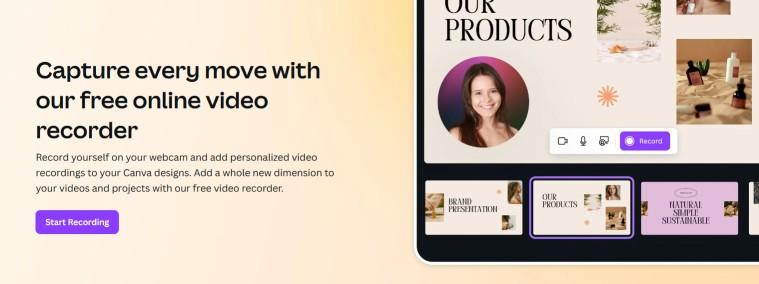
Canva's video recorder ensures that your video and audio are not mismatched because it records both of them in real time. And once you're done recording, the free version allows you to export videos in MP4 format, which is used everywhere.
As compared to Speakflow, which focuses on teleprompting, Canva is designed more for those who want both their design and video in the same place, instead of switching tabs all the time. Since Canva has more tools integrated into it to incorporate any visuals you want later on, this makes it perfect for anyone who needs flexibility in their recording software.
Although a lot of advanced features that you might want to use are locked behind a paid subscription, the free version should still be enough for most people who are only looking for basic videos.
Pros:
Built directly into Canva.
Free screen and webcam recording for all users.
Easy incorporation of recorded videos into Canva designs.
Direct sharing and downloading of videos in MP4 format.
Cons:
No computer audio capture, only microphone.
Limited editing features compared to professional software.
Available only on the desktop version of Canva.
Potential performance issues with longer videos or complex edits.
Limited download formats.
No playback speed controls.
Features:
Integrated video recorder: Record both screen and webcam directly in Canva, making the process simple and efficient.
Free recording: Capture your screen and webcam for free, regardless of your account type, providing accessibility to all users.
Design tool integration: Easily incorporate recorded videos into Canva designs, streamlining your workflow for creating presentations and social media posts.
MP4 download: Export recordings in MP4 format, allowing for easy sharing and embedding across different platforms.
Basic editing tools: Trim, add transitions, and overlay text to enhance your videos without needing additional software.
How to Use it:
Canva is very easy to use, and it doesn’t take a long time to get used to it. You just need to follow the prompts that Canva gives you within their interface.
Step 1: Same as before, first head over to the Canva free online video recorder website.
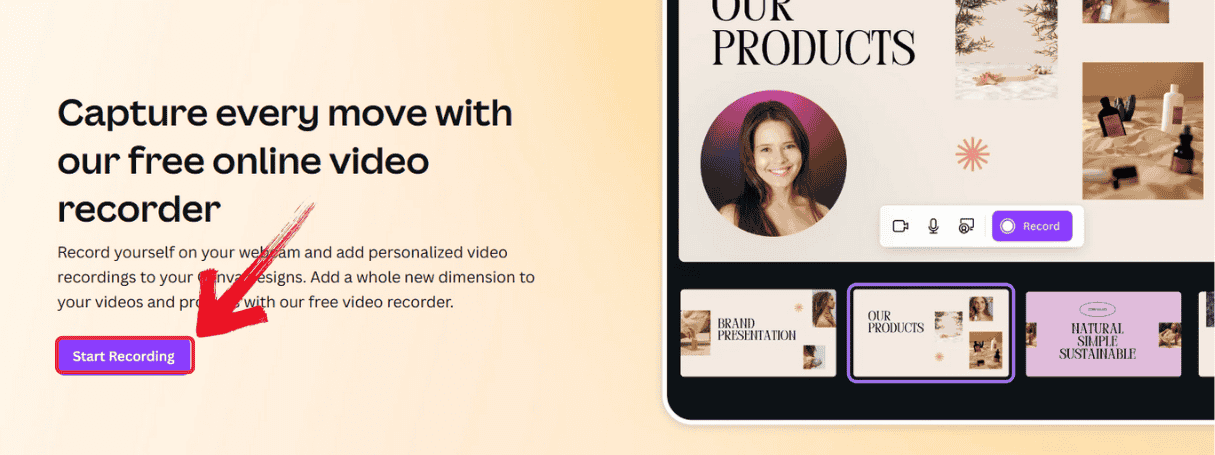
Step 2: On the website, click on the “Start Recording” button.
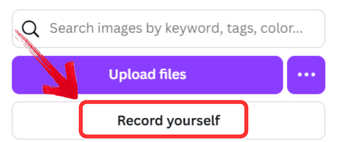
Step 2: You will then be redirected, where you will find two options. Click “Record Yourself” to start a new recording.
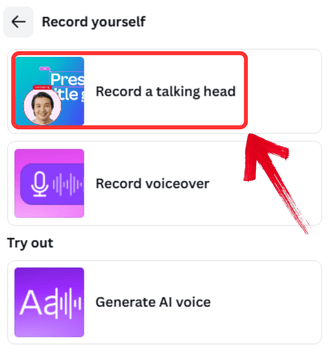
Step 3: After completing the login process, it asks you for click on “Record a talking head”.
Step 4: After you are done, click“Share” and download the video you recorded
Veed
Onto our third tool, VEED Webcam Recorder. It's an intuitive AI-poweredrecorder and editor for anyone who doesn't want to spend hours editing a video or has struggled with complex software.
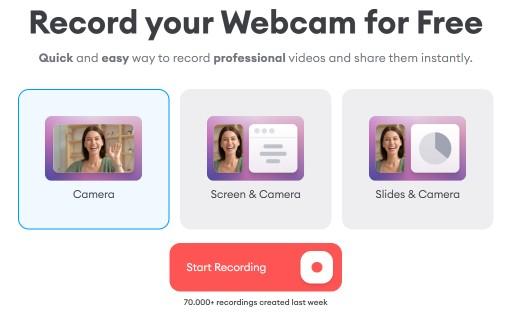
What stands out about VEED is its AI video generator. This tool can create a video for you just from your written instructions. Even if you're not a professional editor, making this tool work shouldn't be difficult. I was able to generate videos with it in just half an hour, which were well edited and ready to post
Compared to Canva, VEED excels in AI-related features. VEED's AI capabilities are far more advanced than Canva's. It helps beginners to begin from a starting point because of their Automatic video creation.
Not only that, VEED goes a step above and provides users with pre-made templates, and stock images so that you don't get stuck at any stage of your recording or editing stage. With a simple drag and drop interface, it's perfect for anyone who doesn't want to go through a hectic editing process.
Pros:
It’s a web-based tool.
Features a range of user-friendly AI editing tools
Cost-effective pricing plans per user
Cons:
Free users are limited to videos no longer than 10 minutes
Video uploads can occasionally experience glitches
AI editing tools are only available on the Pro and Enterprise plans
Features:
Eye contact correction tool: Automatically redirects subtle eye movements to the camera, improving your video’s professionalism.
High-quality download: Ensure seamless communication across platforms with high-resolution video recordings.
Flexible screen recording options: Capture any window, tab, or your entire screen, giving you full control over your content.
Easy recording setup: Simply click on record, wait for the countdown, and start capturing your video on PC or Mac.
Background noise removal: Eliminate unwanted noise for crystal-clear audio in your recordings.
Video editing tools: Enhance your videos with built-in editing features for a polished final product.
How to Use it:
Veed is one of the easiest ones to use. As soon as you enter the website, you’ll be able to figure it out almost instantly, but if it still doesn’t make sense, then no problem. Here’s how to use Veed to record video.
Step 1: First, head on over to the Veed Webcam Recorder website.
Step 2: Then choose what type of video you want to make from the 3 options and click “Start Recording”.
Note: Just like before, you’ll need to give the website access.
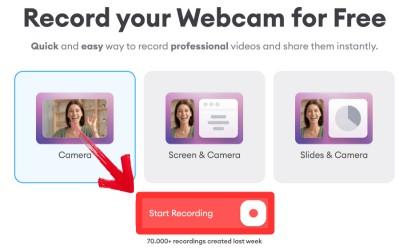
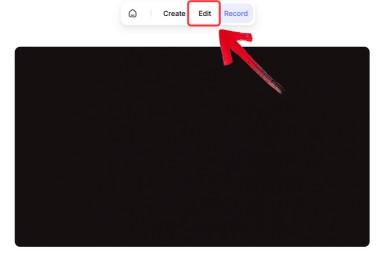
Step 3: You can then start recording yourself, and after you feel like you are done, click on edit
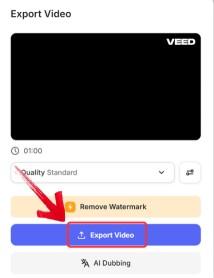
Step 4: After you are satisfied with the editing, just click “Export Video” to download your video.
Clideo
Clideo Video Recorder is another tool that allows you to record videos in both webcam and picture-in-picture as well. It has many more features in its audio settings as compared to the other tools. This means that you are able to record a personal voice over, import system sound, or even both for a better experience. Once you're done, you can edit the video you recorded in its video editor.
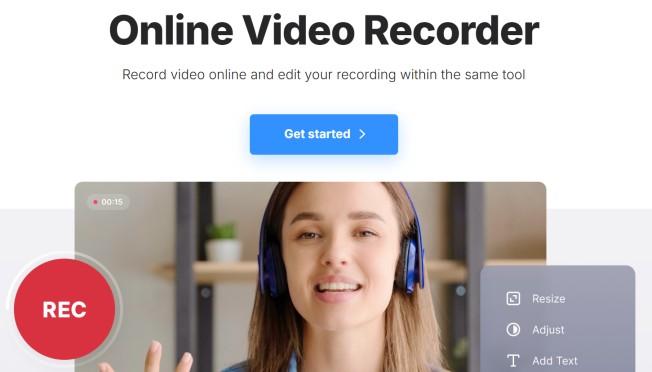
But there's a limitation that comes with the free account. You can't export any file that is above 500MB. Moreover, all your exported videos will have a watermark on them, which will make your video look unprofessional. Oh, and the biggest flaw is that your videos are not stored for more than 24 hours, making it poor for anyone who has a longer video. So if the video you need to record is for a quick project and you don't mind a watermark, it’s probably the best.
Pros:
Simplified subscriptions for easier access to features
Easy to use interface
Cons:
Uploading your files and media is difficult
Editing software is not advanced
Slow rendering times, even for simple tasks
Large download sizes and slow download speeds
Features:
User-friendly design: No prior screen recording skills required, making it intuitive and easy to use.
Instant editing: Record and edit your screen videos right away, customizing them to fit your needs.
High-level security: Your recorded screen videos are securely protected, ensuring only you have access.
Unlimited recordings: There’s no limit to the number of screen recordings you can make, allowing for as many retakes as needed.
How to Use it:
Clideo is very simple as well. Just follow these steps to record yourself step by step.
Step 1: First thing, go over to the official Clideo Video Recorder website.
Step 2: On the bottom left, find and click the“Record” button.
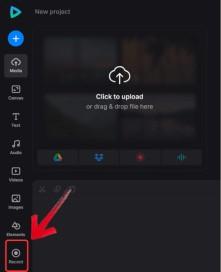
Step 3: Then choose which recording option to pick from the 4.
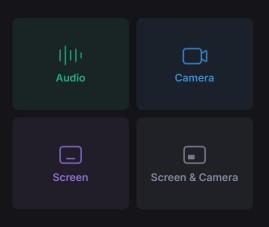
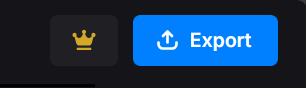
Step 4: After you are done, just click on“Export” in the top right.
FlexClip
Finally, we’re at our last tool. With Flexclip, there’s no need for installations or extensions. You can start recording your screen or webcam instantly. It doesn’t matter if it’s a demo, tutorial, or presentation.
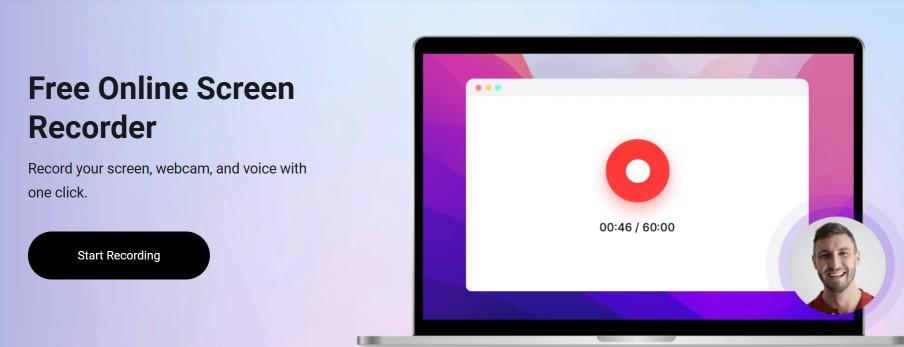
FlexClip gives you complete control over your recordings. You can choose to record both your screen and webcam simultaneously or separately. You can also capture the entire screen, specific application windows, or just a browser tab. This flexibility ensures you're always capturing exactly what you need.
Once you’ve recorded your content, FlexClip lets you edit your video right away. You don’t need any extra software. The built-in tools allow you to add subtitles, annotations, highlights, and overlays, making it easy to enhance your video without the extra work. Privacy is also a top priority with FlexClip. Your files are secure, and the platform has no access to your uploaded content. You can focus on creating and editing without worrying about security.
Pros:
Free online screen recording and editing
Simple, intuitive interface
Extensive template and media library
Built-in video editing features
Video quality up to 4K
Cons:
No custom area selection for screen recordings
Free version limits video length to 10 minutes
No option to choose video export formats
No countdown or screen drawing tools
No direct social media sharing
Limited functionality for free users
No branding tools or text animations for non-subscribers
Features:
Free online screen recording and editing: Record and edit videos without any downloads or installations, making it quick and easy to use.
User-friendly interface: The intuitive design allows users of all experience levels to navigate the tool with ease.
Extensive template and media library: Access a variety of pre-made templates and media options to enhance your videos.
Built-in video editing features: Edit your recordings directly within the platform, saving time and effort.
Up to 4K video quality: Export high-resolution videos for a professional finish.
Flexible recording options: Capture your screen, webcam, or both simultaneously for customized video content.
How to Use it:
Finally, we’re onto our last tool, FlexClip, using this is not difficult as well. Let’s see how you can use this to record your videos within seconds.
Step 1: Go over to the official FlexClipwebsite.
Step 2: Then, after choosing your recording mode, click “Start Recording”.
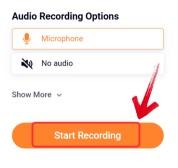
Step 3: Finally, as soon as you’re done, click anywhere and download your video.
Comparison of the Above 5 Tools
I understand that you still might be confused about figuring out which video recorder online tool to use. So I’ve put together a table tocomparethe 5 side by side with key features.
| Features | Speakflow | Canva | Veed | Clideo | FlexClip |
|---|---|---|---|---|---|
| Ease of Use | User-friendly, intuitive | Very simple and easy to use | Easy-to-use, especially for beginners | Simple to use | Very simple and user-friendly |
| Editing Features | Limited editing tools | Basic editing (text, trim) | Advanced editing (AI tools, annotations) | Basic editing (trim, merge, text) | Advanced editing (subtitles, overlays) |
| Video Quality | HD | HD | 4K/60 fps | 4K/60 fps | HD |
| Free Version Limitations | Limited post-editing tools | No 4K, limited features for free users | 5-minute limit on free tier | Watermark, 500MB file size limit | Free users have limited features |
| AI Features | Voice-activated scrolling | None | AI video generator | None | None |
| Customizability | Limited | Limited customization for free users | High (AI features, editing tools) | Limited customization for free users | High (editing, overlays, subtitles) |
Free YouTube Video Downloader: Elevate Your Viewing Pleasure
We’ve just covered some great tools to help you edit and enhance your videos, but sometimes, the process doesn’t end there. When browsing YouTube, I’ve often found myself wanting to download videos for later use or to incorporate them into my projects. It can be frustrating trying to find a reliable tool that doesn’t require too much effort or sign-ups.
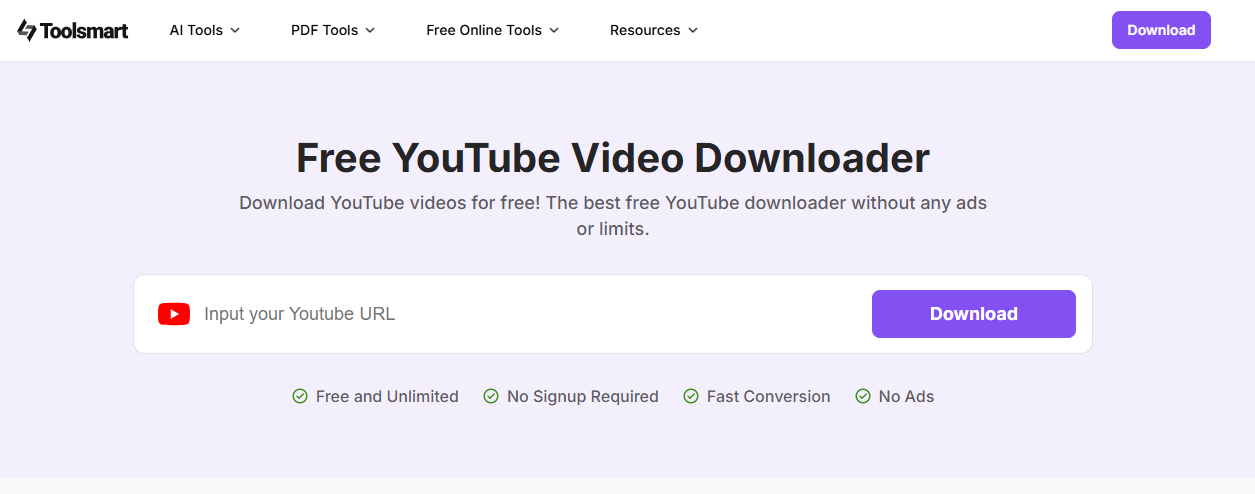
That’s when I found Toolsmart’s Free YouTube Video Downloader through a friend of mine. It’s simple to use, and doesn't need any sign-ups either. Plus, it maintains the video quality, so you won’t lose any resolution during the process. I was surprised how fast the video was downloaded without anything required. It’s been a real time-saver for me whenever I need to grab a video quickly without all the extra steps.
Toolsmart’s Free YouTube Video Downloader is a simple, web-based tool. It helps users download YouTube videos easily. It simplifies the process. You can gather content for education, personal use, or professional projects. No installations or registrations are needed.
Features:
4K HD Downloads: Download videos in high-definition resolutions, including 4K, ensuring top-notch quality for your projects.
Free and Unlimited Downloads: Access unlimited downloads without any hidden charges or restrictions.
Download with or without Audio: You can choose to download videos with both audio and video. Or, you can download the video or audio, depending on your needs.
No Installation Required: Operate entirely from your web browser—no software installation needed.
Supports Multiple Formats: Download videos in various formats, including MP4 and MP3, compatible with most devices.
Pros:
Simple and intuitive design makes it accessible for all users.
Experience quick downloads without long waiting times.
Enjoy an uninterrupted and clean browsing experience.
Works seamlessly across different devices and operating systems.
Cons:
Currently, the tool supports downloading one video at a time.
Only public YouTube videos can be downloaded.
Does not support downloading from other video platforms.
How to Use Toolsmart’s Free YouTube Video Downloader:
Here’s a simple guide to get started with Toolsmart’s YouTube downloader. You don’t need to sign up or download anything.
Step 1: Open your browser and head over to the Toolsmart YouTube Downloader site.
Step 2: Now, go to the YouTube video you want to download and copy its URL from the address bar.
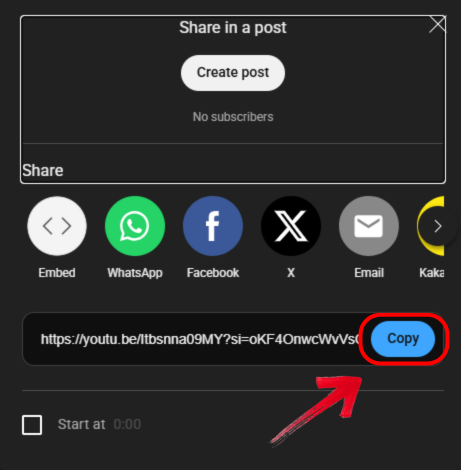
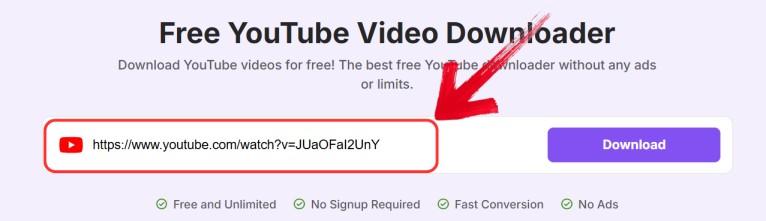
Step 3: Back on the Toolsmart site, just paste that link into the input box on the page.
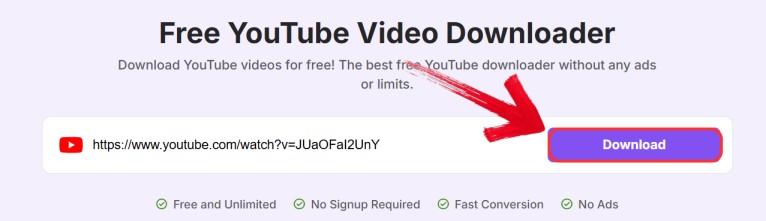
Step 4: Click the “Download” button and give Toolsmart a few seconds to process the video. After that, just save the file to your device.
FAQs
Q1: Which of the 5 recommended software is 100% free and open-source?
OBS Studio is completely free and open-source, offering a range of features without any hidden costs.
Q2: What kind of recorder is built into Windows 10/11?
Windows 10/11 includes the Xbox Game Bar, a built-in tool for screen recording, ideal for basic captures.
Q3: Among the five recommended software, which tool limits free exports to 720p?
RecMaster limits free exports to 720p resolution.
Q4: Which program does not have a watermark even in the free version?
OBS Studio, RecMaster, VideoProc, Xbox Game Bar, and Flashback Express all provide watermark-free exports on their free plans.
Q5: How fast is the download speed of Toolsmart's Free YouTube Video Downloader?
The download speed is very fast, typically completing in just a few seconds, making it super convenient for quick downloads.
Final Thoughts
If you’re looking for a video recorder online, these tools offer solid options for recording your screen or webcam in high quality. Plus, with Toolsmart’s Free YouTube Video Downloader, you can easily download your favorite videos for offline viewing. Whether you need a quick webcam recording or a full-screen tutorial, there’s a free tool that fits your needs.


