
'%3e%3cpath%20fill-rule='evenodd'%20clip-rule='evenodd'%20d='M19%208.5C24.799%208.5%2029.5%2013.201%2029.5%2019C29.5%2024.6782%2024.9928%2029.3036%2019.361%2029.4939L19%2029.5C18.8794%2029.5%2018.7592%2029.498%2018.6396%2029.4939L18.2811%2029.4758C12.8174%2029.1063%208.5%2024.5574%208.5%2019C8.5%2013.201%2013.201%208.5%2019%208.5ZM22.3063%2010.6267L22.2342%2010.6539C21.3423%2011.0061%2020.5541%2011.6368%2020.5606%2012.4987C20.5631%2012.8302%2020.869%2014.8871%2020.2141%2014.8486C19.5589%2014.8102%2019.413%2013.8753%2018.7116%2013.616C17.5944%2013.2026%2016.9819%2014.3401%2017.0939%2015.3106C17.1695%2015.9655%2018.9289%2018.3871%2017.9028%2019C17.292%2019.3651%2015.7279%2017.5692%2015.1007%2017.1842C14.4805%2016.8034%2013.2758%2017.3333%2012.4974%2016.7029C11.9874%2016.2899%2012.3881%2014.4098%2012.2786%2013.8372C12.2271%2013.5698%2012.1155%2013.3689%2011.9794%2013.2166L12.0402%2013.2934C10.7653%2014.8464%2010%2016.8339%2010%2019C10%2023.8465%2013.8307%2027.7982%2018.6295%2027.9925L18.6769%2027.9747C18.8597%2027.8677%2019.0394%2027.7557%2019.216%2027.6387C19.4137%2027.4534%2019.5436%2027.2072%2019.5849%2026.9394C19.8806%2025.1222%2018.3616%2025.4302%2017.9367%2024.5622C17.5489%2023.7695%2018.5712%2023.7684%2018.5524%2021.7923C18.4607%2021.1774%2018.5279%2020.547%2018.7211%2020.0315C19.1834%2018.7987%2020.7077%2017.2643%2022.5889%2018.0081C23.5567%2018.3906%2023.1524%2019.9831%2023.4737%2020.3394C24.251%2021.2018%2025.3228%2020.6863%2026.2856%2021.2253C26.7816%2021.5032%2026.9797%2022.41%2027.056%2023.2248L27.038%2023.0528C27.6534%2021.8348%2028%2020.4579%2028%2019C28%2015.1968%2025.6409%2011.9445%2022.3063%2010.6267Z'%20fill='%23757575'/%3e%3ccircle%20cx='19'%20cy='19'%20r='10.125'%20stroke='%23757575'%20stroke-width='2.25'/%3e%3c/g%3e%3cdefs%3e%3cclipPath%20id='clip0_1827_14613'%3e%3crect%20width='24'%20height='24'%20fill='white'%20transform='translate(7%207)'/%3e%3c/clipPath%3e%3c/defs%3e%3c/svg%3e)


Live streaming is a reliable way to directly connect with your audience, especially if you’re a content creator or a brand. However, many users doubt its reliability and wonder whether StreamYard is a reliable live streaming solution or not. So, is StreamYard worth the price for streaming on YouTube? In this StreamYard review, I’ll be reviewing its features, pricing, and walk you through how to download streams using Toolsmart.
Overview of StreamYard
StreamYard is a browser-based platform that streams directly to multiple social platforms like Facebook, YouTube, and Twitch. Since it lets me manage everything in one place, it’s become a useful part of my workflow. I often use it to share my screen, add guests, and host live sessions in just a few steps. And because it runs in the browser, there’s no hassle of installation. In this section, I’ll cover its key features, pros, and cons so you can decide if it’s worth the money.
Features
Multi-platform Support: Multistreaming capabilities which allow you to stream on many different platforms at the same time.
Participant Management: You can invite and manage multiple guests on your screen easily with its straightforward interface.
Screen Sharing & Layout Control: Offers screen-sharing support along with customization features for the on-screen layout during live meetings.
Pros
Clean and beginner-friendly interface that provides cloud-based simplicity
Reliable performance with minimal latency
Simple link sharing and guest invitations
Integrated recording functionality to store and reuse your live streams
Cons
Too many restrictions on the free plan
Limited customization features
StreamYard Pricing and Free Plan Limits
Regardless of the type of user you are, StreamYard has a subscription plan for you. It offers three pricing plans for different use-cases: Free, Basic, and Pro. Each plan has its perks and restrictions, and deciding on the right plan comes down to your workflow and personal preferences. In this section, I’ll highlight the key points for each StreamYard pricing plan so you can figure out the right plan for your YouTube live streaming journey.
| Plan | Monthly Price | Key Features |
|---|---|---|
| Free | $0 | Stream with watermark, 1 destination |
| Basic | $20 | No watermark, multistream to 3 platforms |
| Pro | $39 | Full HD streaming, up to 8 platforms |
How to Use StreamYard – Login and Setup Guide
If you decide on getting StreamYard for your live streaming workflow, getting it set up doesn’t take that long. You can either make an account using your emailor just directly sign up using your Google account, which is much easier. In this section, I’ll walk you through how to use StreamYard and provide you with a detailed StreamYard login and setupguide.
Email Login
Step 1: Open your web browser and visit StreamYard’sofficial website.
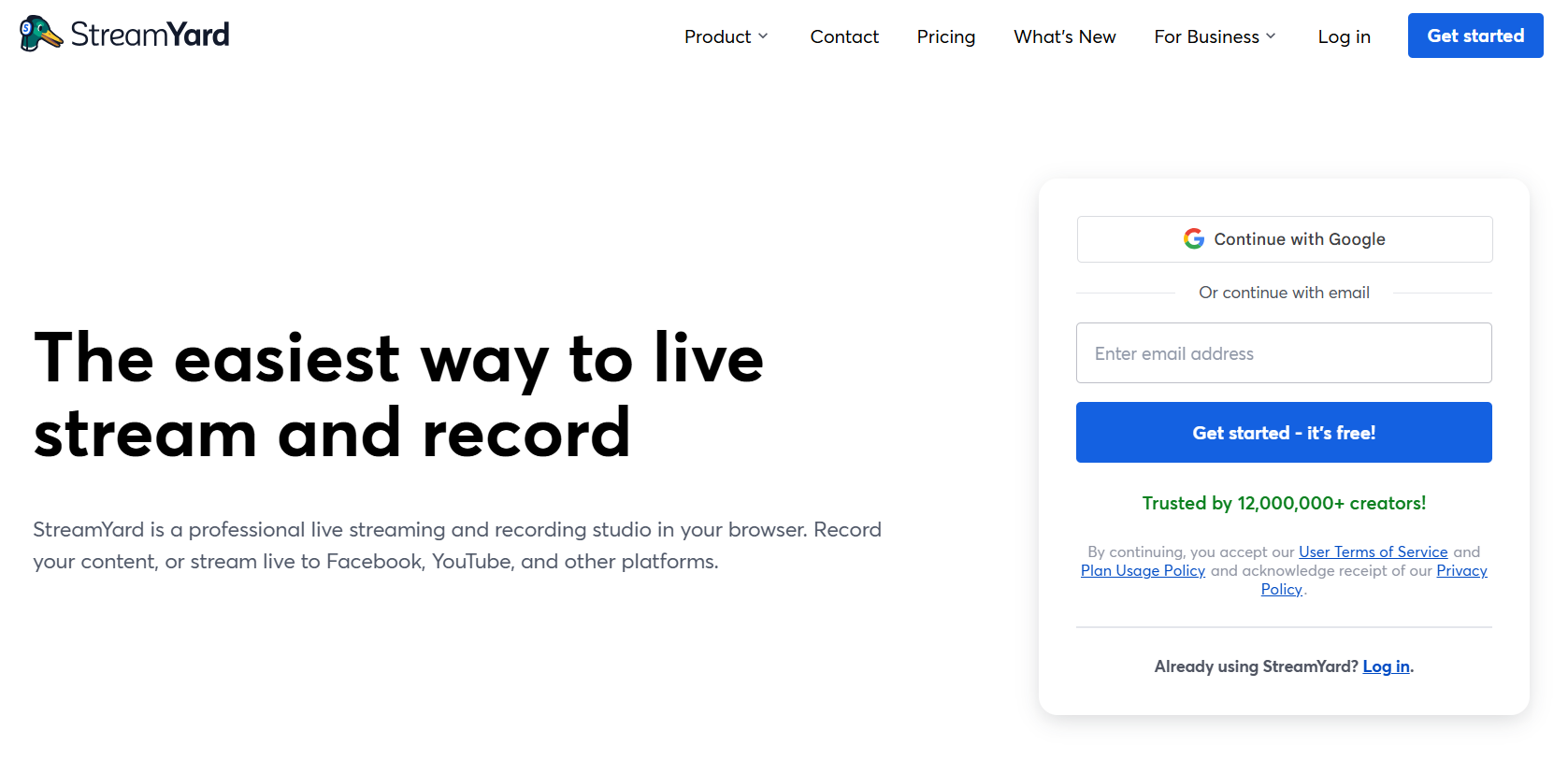
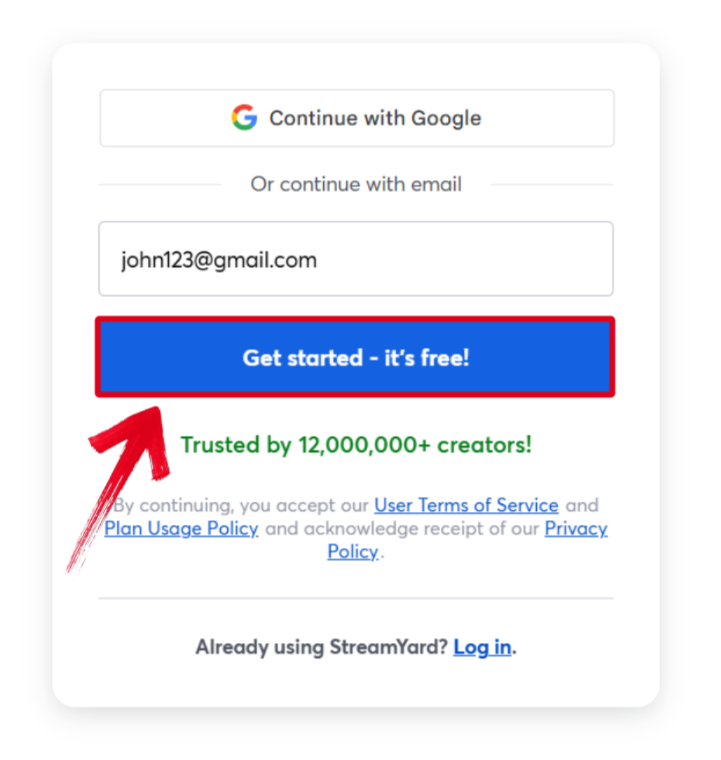
Step 2: Type in your email address and pressGet started to continue.
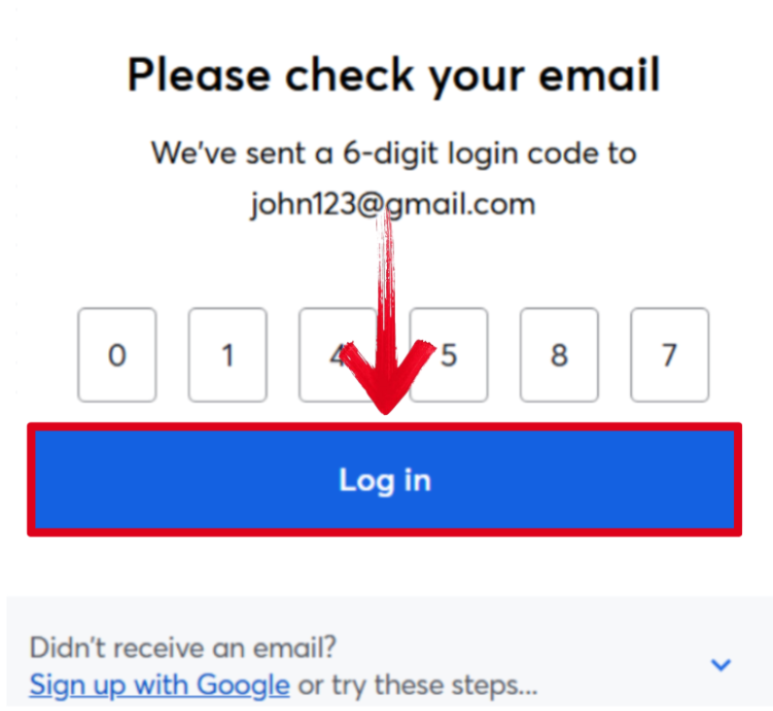
Step 3: Check your email for the 6-digit login verification code and then type it in. To complete the process, click Log in.
Google Login
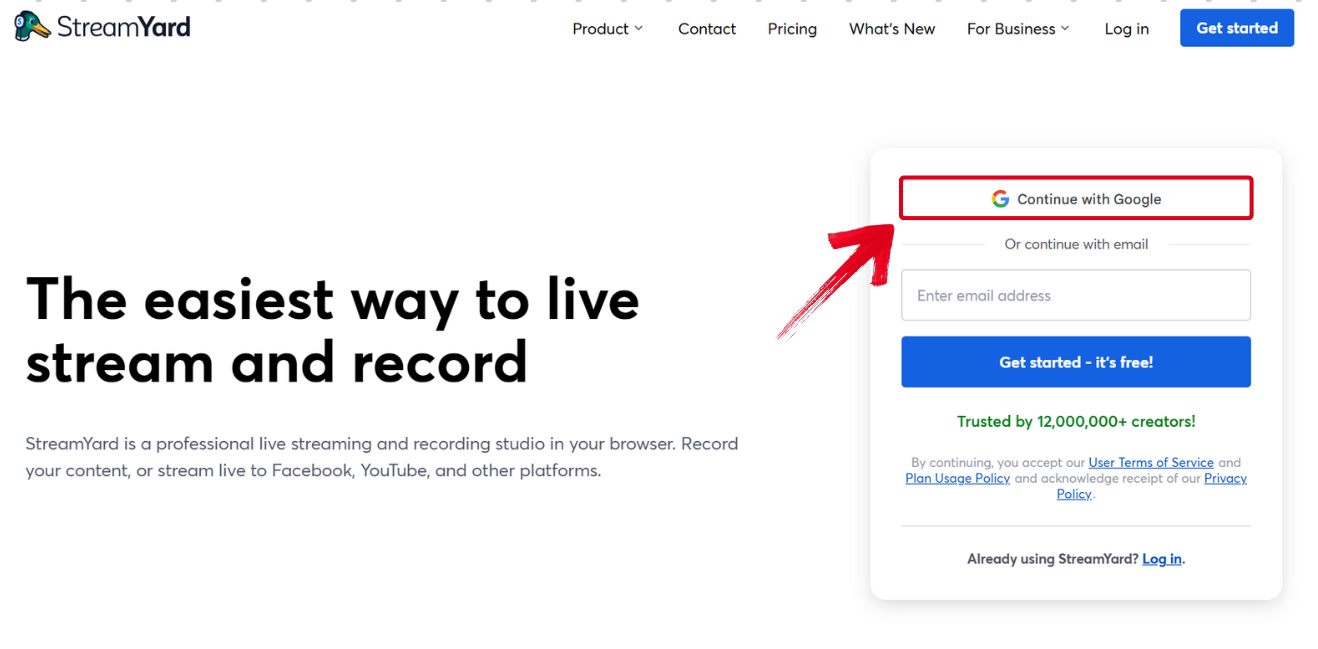
Step 1: Open StreamYard’s official website and pressContinue with Google.
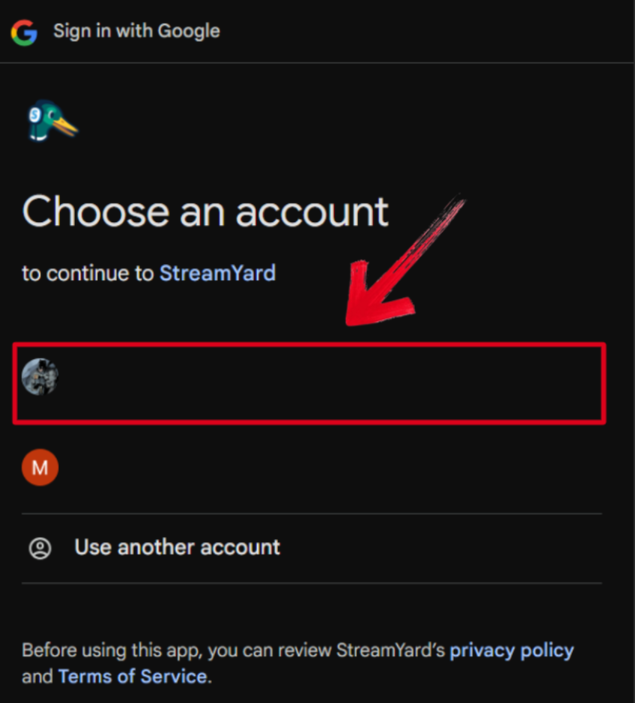
Step 2: Select your Google account to finish the login process.
Live Streaming to YouTube Using Streamyard
I know how confusing integrating your YouTube channel to StreamYard can feel, as I went through the same thing myself. But once I slowly got the hang of it, I realized it was pretty straightforward. Integrating YouTube to my StreamYard account allows me to directly go live and manage my stream without any slowdowns, which is a big plus. In this section, I’ll walk you through the entire YouTube integrationprocess and how you can set up your first livestream.
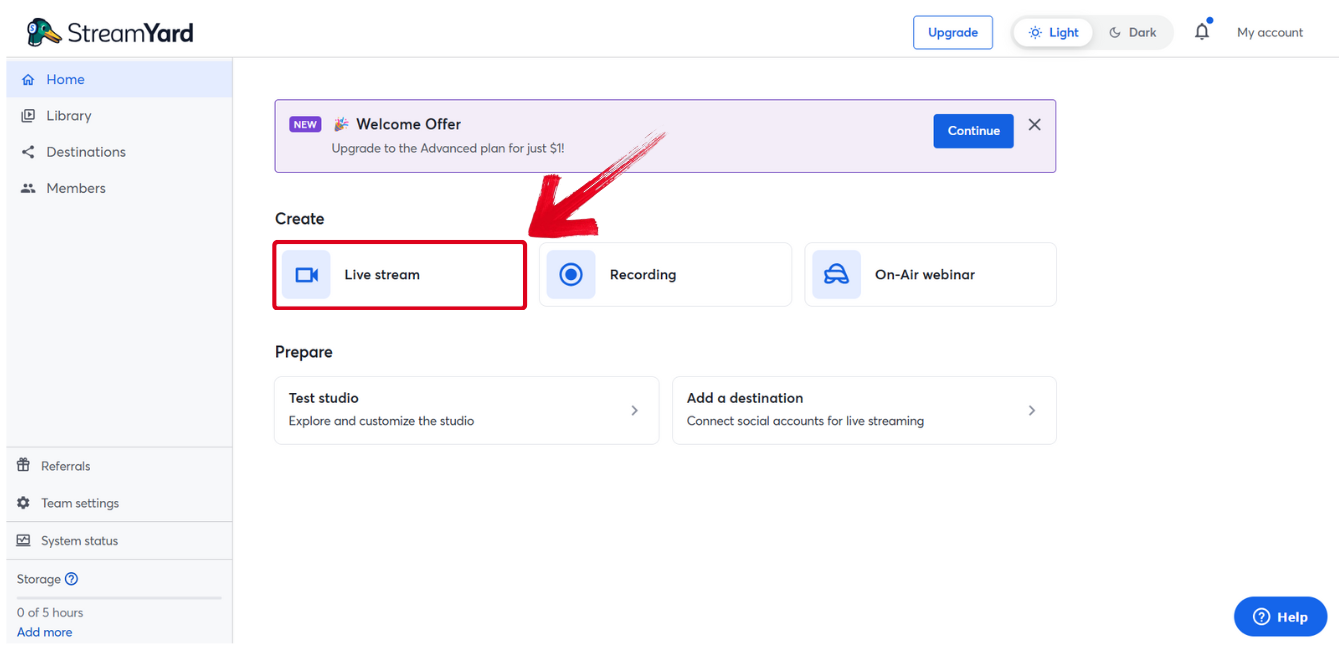
Step 1: Open your StreamYard account’s home page and select Live stream.
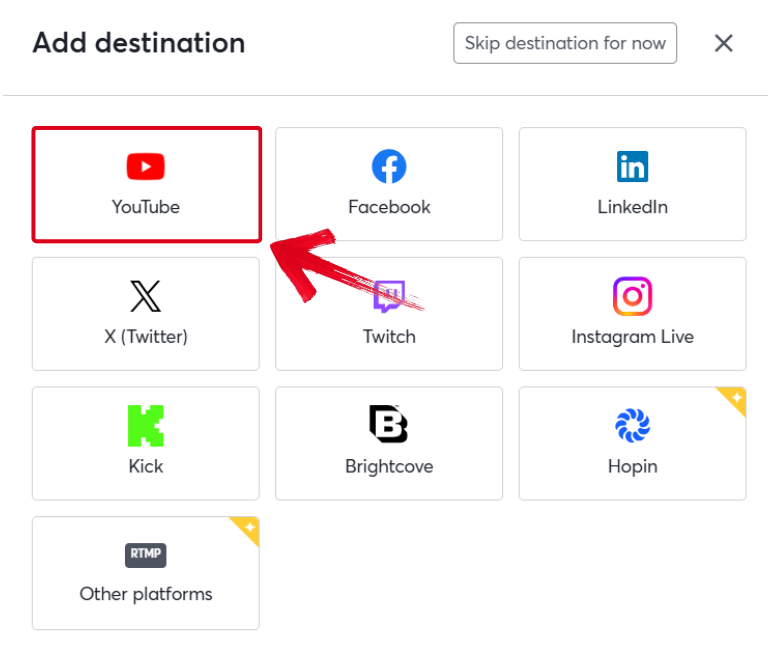
Step 2: Once the Add destinationwindow pops up, select YouTube to continue.
Step 3: On the account selection screen, select the account where you made your channel.
Step 4: Your StreamYard account has now been connected to your YouTube channel. To go live, simply enter your stream's information and click Create live stream.
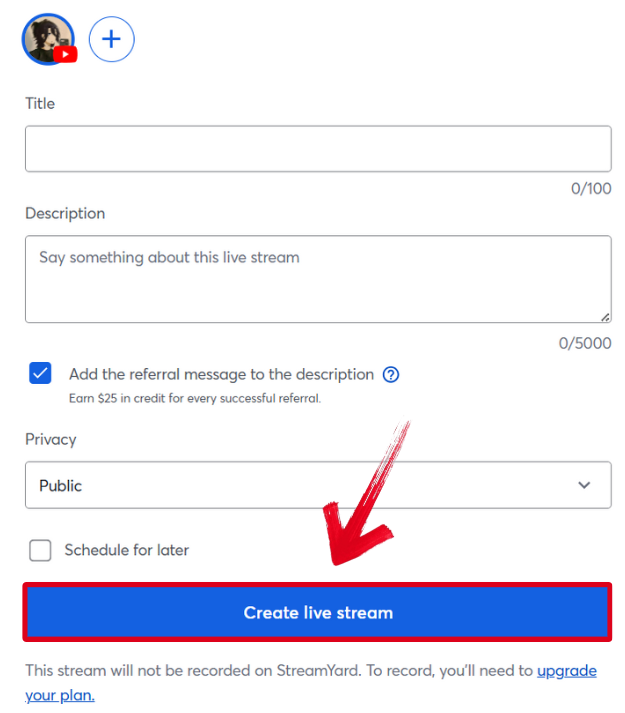
Tip: You can also schedule your stream for a later selected time.
You can use this method to connect any social media platform to your StreamYard account and stream at the same time. StreamYard also allows me to interact with my viewers directly through live chat and read their messages at the same time, which also boosts my engagement.
Download Streamyard Replays with Toolsmart’s YouTube Downloader
Once my YouTube live stream ends, it’s automatically archived on my channel as a regular video. However, since YouTube doesn’t officially support downloading these stream archives, it can be a big downside for many users. This is why I use reliable third-party solutions like Toolsmart’s YouTube Downloader. It lets me save my streams as compact video files directly to my PC. This way, I can repurpose clips into highlight compilations or simply export the full videofor offline access. In this section, I’ll walk you through how to download any YouTube video easily through Toolsmart.
Step 1: Open your browser and go to Toolsmart’s Free YouTube Video Downloader.
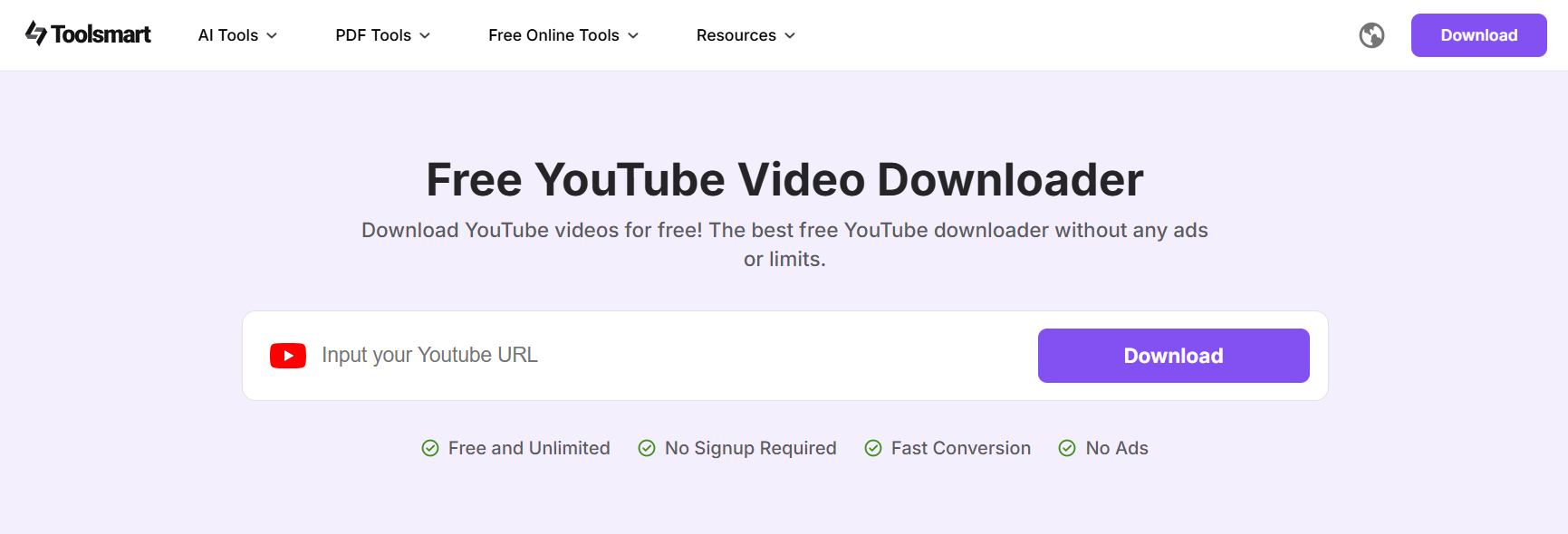
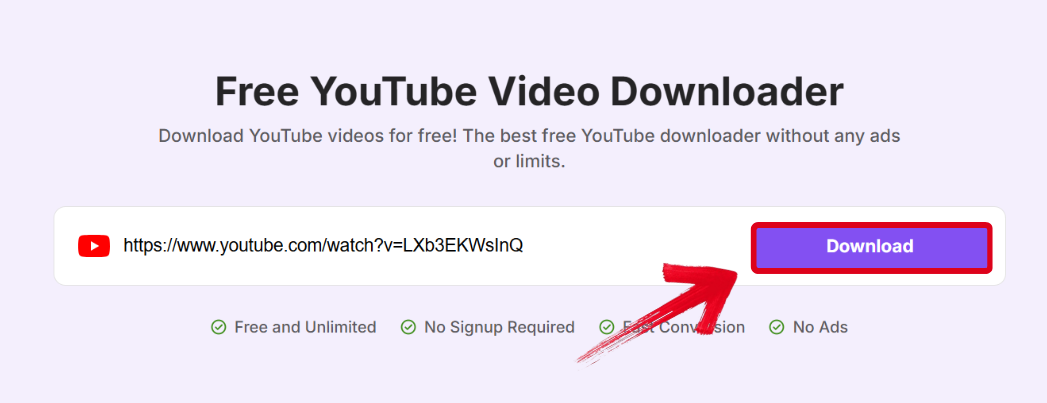
Step 2: Then, just paste your YouTube video’s URL in the textbox and hit Download.
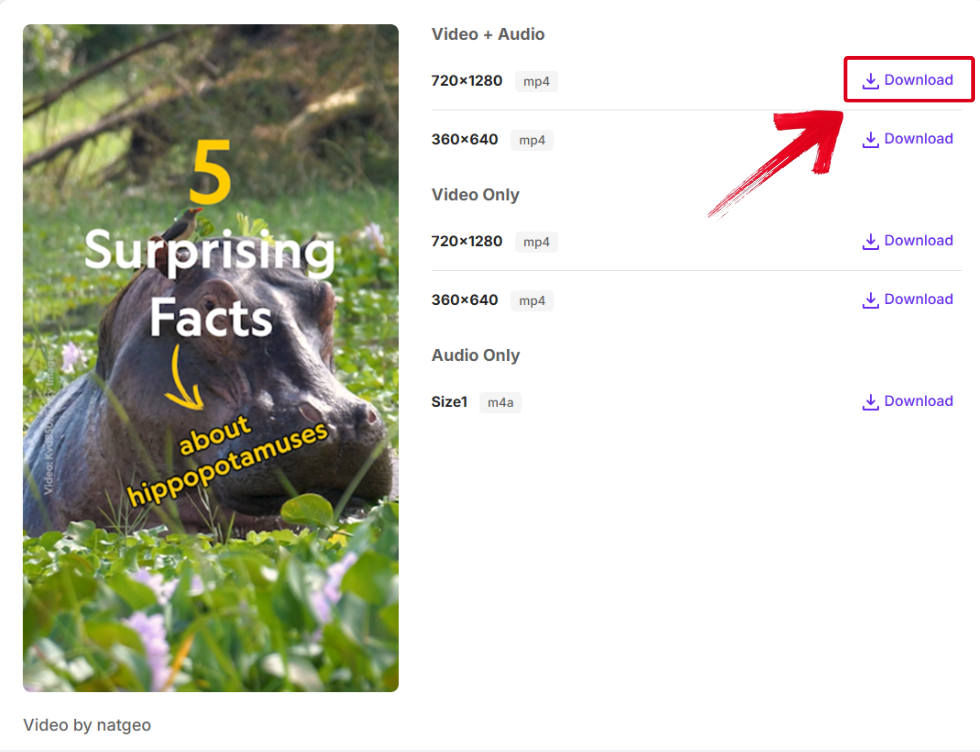
Step 3: After the processing is completed, choose the video quality and press Download.
Step 4: The last step is to select your installation folder and press Save to start downloading.
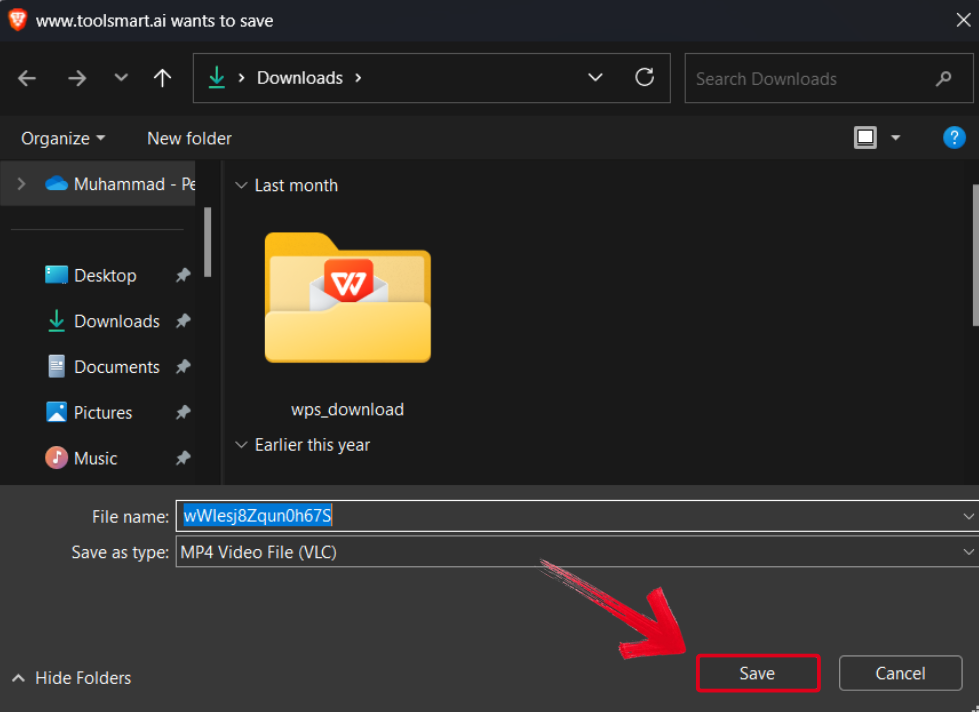
Toolsmart has quickly become my go-to companion when it comes to downloading YouTube videos and old live streams. Even though Toolsmart doesn’t support real-time livestream downloads, it is surprisingly effective for streams that have ended already.
FAQs
Q1: Is Streamyard free to use?
Yes, Streamyard offers a free plan with basic features, but it includes a watermark and limited streaming hours.
Q2: Does Streamyard support recording my live streams?
Yes, Streamyard records your streams, and you can access them in your dashboard or retrieve the YouTube version after publishing.
Q3: Can Toolsmart’s YouTube Downloader load live streams in real time?
No, Toolsmart’s YouTube Downloader only downloads published videos. These include live stream replays once they're processed and visible on your YouTube channel.
Q4: How many destinations can I stream to with Streamyard?
The free plan allows streaming to only one destination. Paid plans support multistreaming to several platforms at once.
Q5: Is Toolsmart YouTube Video Downloader free to use?
Yes, Toolsmart’s YouTube Video Downloader is 100% free and doesn’t require a signup or installation.
Engaging YouTube Streams With StreamYard
Having regular live streams can be a really fun yet effective way to connect with your audience. I regularly stream to talk to my viewers and interact with my chat to build a stronger connection with them. This helps me keep my audience engaged and coming back. In this detailed StreamYard review, I’ve covered everything you need to know about it and its pricing plans so you can get started.
Once I’m done streaming, I simply download it to my computer using Toolsmart’s YouTube Video Downloader. It offers me a wide range of formats and quality options so I can save my favourite content in whatever version I like. If you’re looking for an efficient way to archive your YouTube streams, Toolsmart is the way to go.


