
'%3e%3cpath%20fill-rule='evenodd'%20clip-rule='evenodd'%20d='M19%208.5C24.799%208.5%2029.5%2013.201%2029.5%2019C29.5%2024.6782%2024.9928%2029.3036%2019.361%2029.4939L19%2029.5C18.8794%2029.5%2018.7592%2029.498%2018.6396%2029.4939L18.2811%2029.4758C12.8174%2029.1063%208.5%2024.5574%208.5%2019C8.5%2013.201%2013.201%208.5%2019%208.5ZM22.3063%2010.6267L22.2342%2010.6539C21.3423%2011.0061%2020.5541%2011.6368%2020.5606%2012.4987C20.5631%2012.8302%2020.869%2014.8871%2020.2141%2014.8486C19.5589%2014.8102%2019.413%2013.8753%2018.7116%2013.616C17.5944%2013.2026%2016.9819%2014.3401%2017.0939%2015.3106C17.1695%2015.9655%2018.9289%2018.3871%2017.9028%2019C17.292%2019.3651%2015.7279%2017.5692%2015.1007%2017.1842C14.4805%2016.8034%2013.2758%2017.3333%2012.4974%2016.7029C11.9874%2016.2899%2012.3881%2014.4098%2012.2786%2013.8372C12.2271%2013.5698%2012.1155%2013.3689%2011.9794%2013.2166L12.0402%2013.2934C10.7653%2014.8464%2010%2016.8339%2010%2019C10%2023.8465%2013.8307%2027.7982%2018.6295%2027.9925L18.6769%2027.9747C18.8597%2027.8677%2019.0394%2027.7557%2019.216%2027.6387C19.4137%2027.4534%2019.5436%2027.2072%2019.5849%2026.9394C19.8806%2025.1222%2018.3616%2025.4302%2017.9367%2024.5622C17.5489%2023.7695%2018.5712%2023.7684%2018.5524%2021.7923C18.4607%2021.1774%2018.5279%2020.547%2018.7211%2020.0315C19.1834%2018.7987%2020.7077%2017.2643%2022.5889%2018.0081C23.5567%2018.3906%2023.1524%2019.9831%2023.4737%2020.3394C24.251%2021.2018%2025.3228%2020.6863%2026.2856%2021.2253C26.7816%2021.5032%2026.9797%2022.41%2027.056%2023.2248L27.038%2023.0528C27.6534%2021.8348%2028%2020.4579%2028%2019C28%2015.1968%2025.6409%2011.9445%2022.3063%2010.6267Z'%20fill='%23757575'/%3e%3ccircle%20cx='19'%20cy='19'%20r='10.125'%20stroke='%23757575'%20stroke-width='2.25'/%3e%3c/g%3e%3cdefs%3e%3cclipPath%20id='clip0_1827_14613'%3e%3crect%20width='24'%20height='24'%20fill='white'%20transform='translate(7%207)'/%3e%3c/clipPath%3e%3c/defs%3e%3c/svg%3e)


Shadows in photos can turn an otherwise perfect shot into a frustrating experience. You might spend time capturing the ideal product image, portrait, or landscape, only to notice harsh shadows or dark patches that distract from the main subject. Removing shadows from photos is crucial to make your images look polished, professional, and ready for sharing or selling. In this guide, discover the top tools that remove shadow from photo efficiently, along with tips to further enhance your images for crisp, vibrant results.
6 Best Tools to Remove Shadows from Photos
Before exploring the tools, it is important to understand that removing shadows requires precision to maintain image quality. Some tools may alter colors or leave visible artifacts, while others prioritize speedover accuracy. The following six tools provide a balance of efficiency, control, and accessibility, making it easier to remove shadow from photo effectively.
1. PhotoAid Shadow Remover
PhotoAid Shadow Remover is designed for users who want a fast and simple solution to remove shadows from their images. It uses AI to detect shadow areas automatically, so you don’t have to spend time manually selecting them. The interface is beginner-friendly, allowing you to remove shadows with just a few clicks. While it’s powerful for quick edits, the free version adds a watermark, so for extensive projects or batch processing, the paid plan might be necessary.
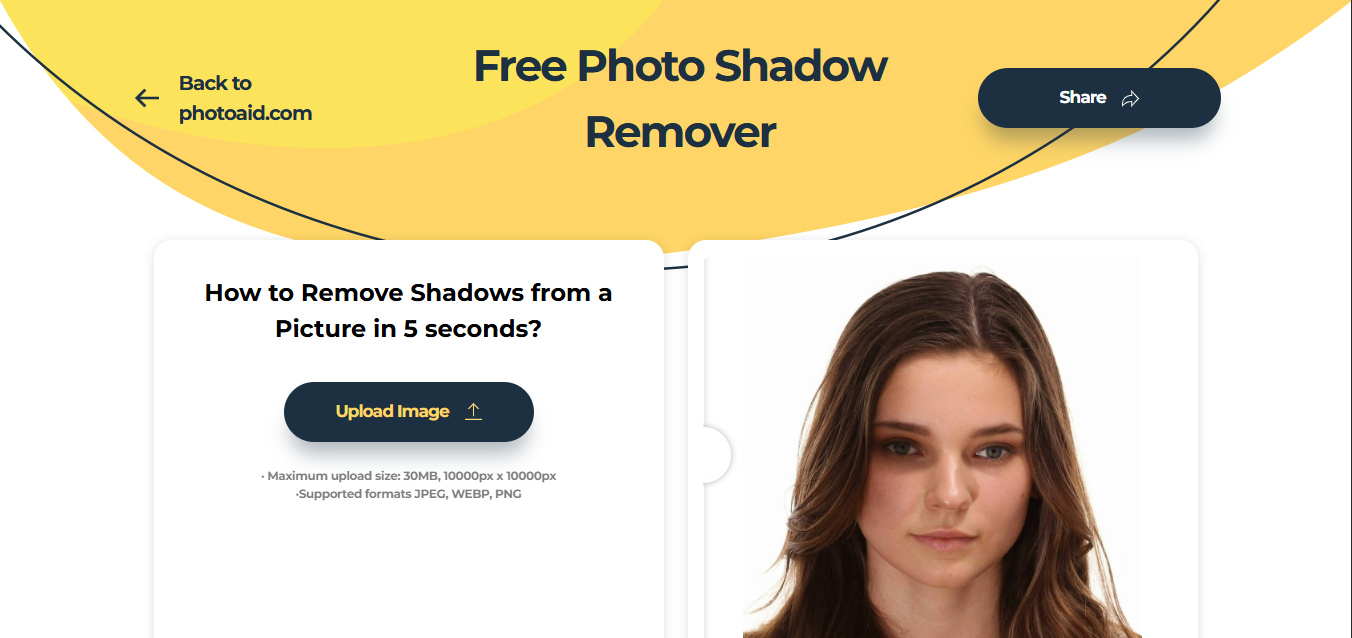
Features:
AI-powered automatic shadow detection and removal.
Batch processing support.
Simple, user-friendly interface.
How to remove:
Step 1: Go to the official website of PhotoAid Shadow Remover and upload the photo with shadows.
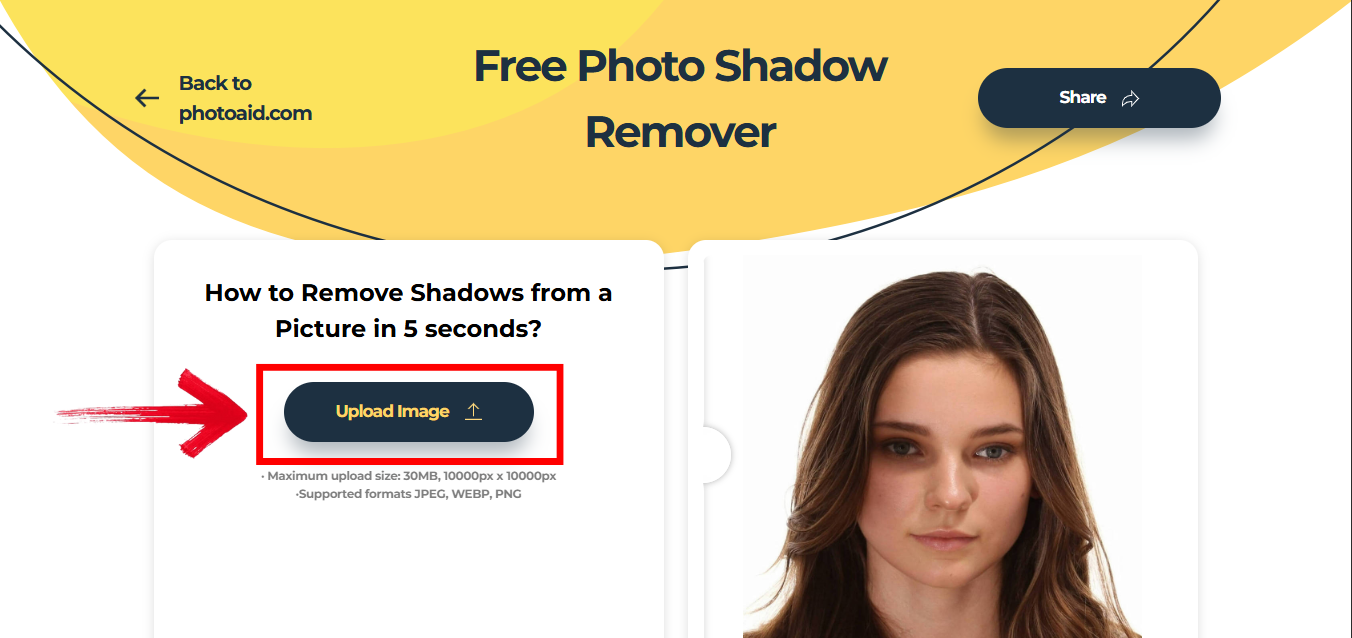
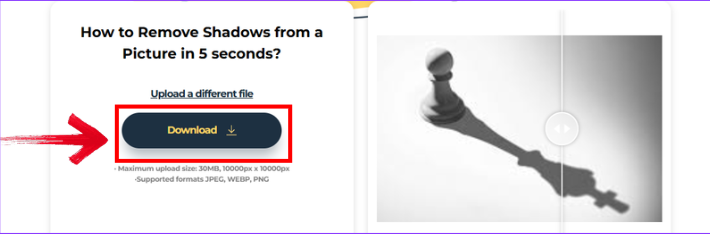
Step 2: Let the AI analyze and remove shadows automatically. Then you can easily download your photo (paid version for watermark-free).
Pros:
Fast and efficient.
Great for batch edits.
Easy to use.
Cons:
Free version adds watermark.
Limited advanced editing.
Some complex shadows may need manual touch-ups.
I found PhotoAid incredibly fast for social media images. It saved time but for professional e-commerce photos, the watermark was limiting.
2. Fotor AI Shadow Remover
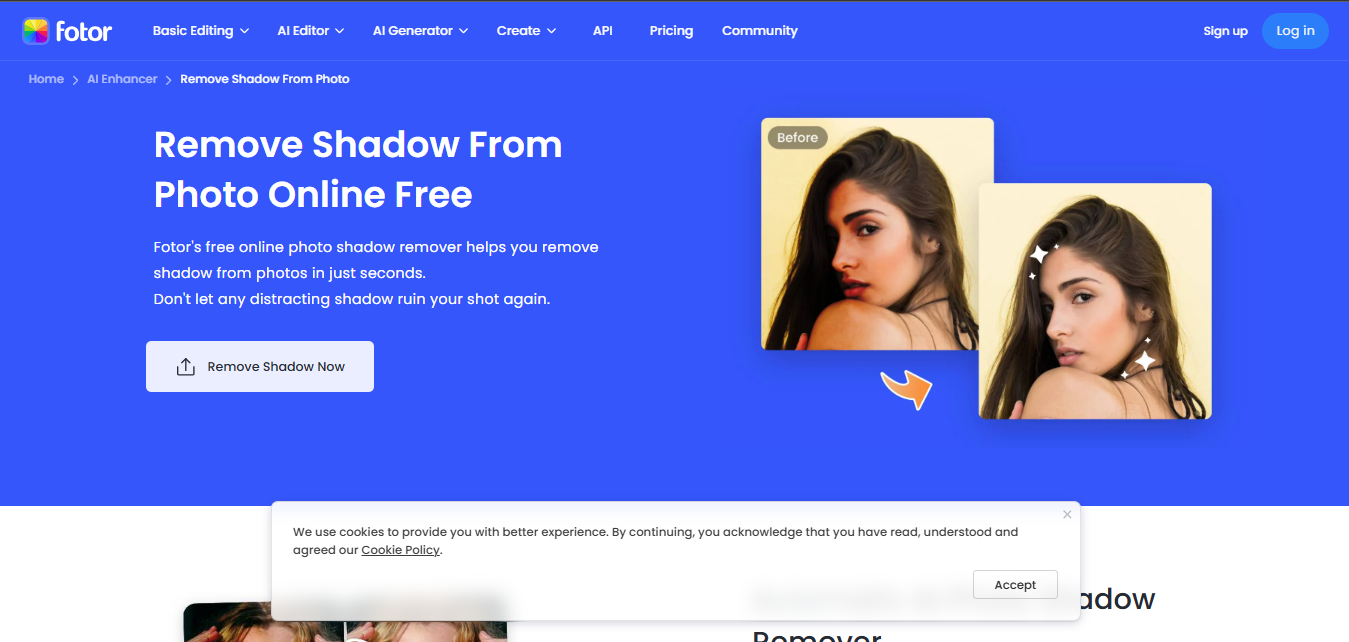
Fotor AI Shadow Remover is a cloud-based solution ideal for casual users. It combines AI technology with manual adjustment options, giving you control over the intensity of shadow removal. You can use it directly in your browser, which is great if you don’t want to install software. While basic edits are free, a subscription unlocks more advanced features.
Features:
AI-driven shadow removal with manual adjustment.
Cloud-based, no installation required.
Easy-to-use interface.
How to remove:
Step 1: Open the official website of Fotor AI Shadow Remover and upload your image.
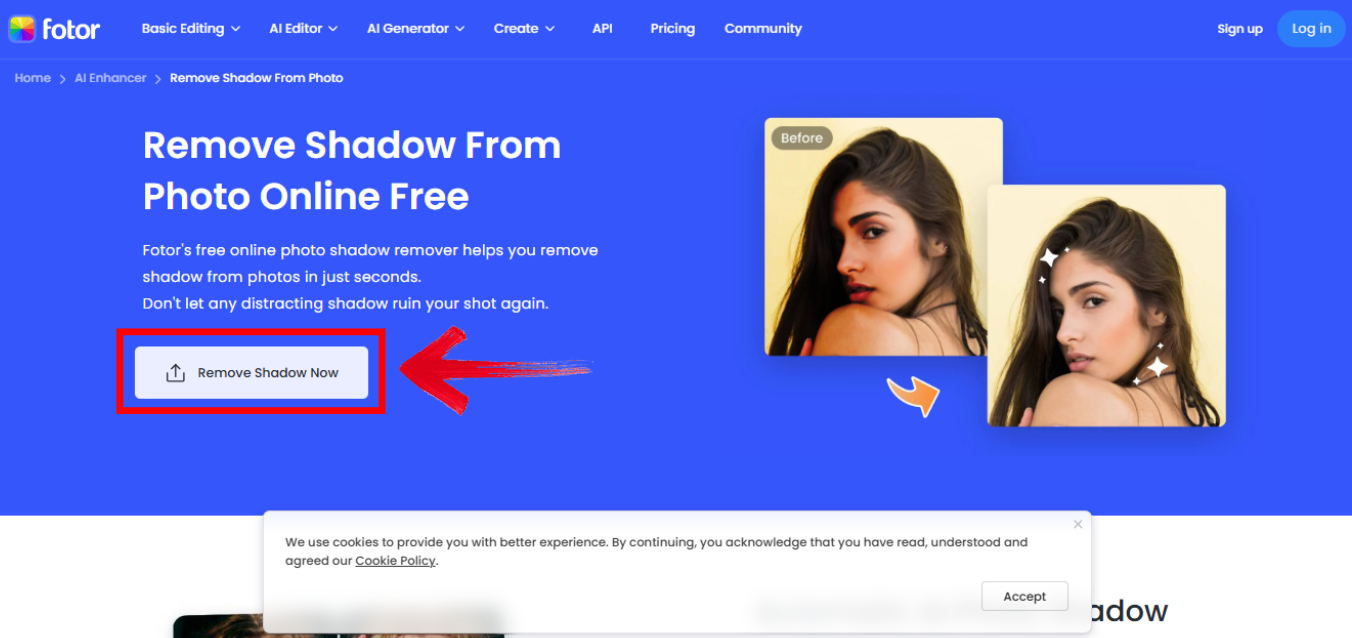
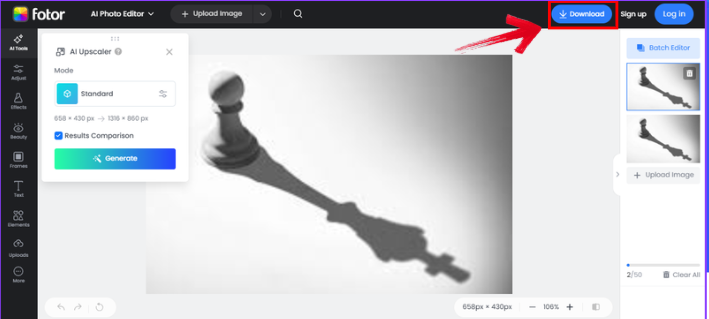
Step 2: Use the AI removal tool and adjust manually if needed and then simply download the final image.
Pros:
Very user-friendly.
Quick light edits.
Accessible from any device.
Cons:
Subscription needed for advanced tools.
Manual control is limited.
Not ideal for complex shadows.
Fotor worked well for casual edits. The manual control allowed fine-tuning, making it a solid option for quick fixes.
3. Adobe Photoshop (Content-Aware Fill & Healing Brush)
Adobe Photoshop is the ultimate tool for professional shadow removal. With tools like Content-Aware Fill, Healing Brush, and Clone Stamp, you can remove shadows with precision. Photoshop is perfect for photographers and designers who need full control over edits. It requires some learning, but the results are unmatched.

Features:
Professional-grade tools for precise shadow removal.
Full control over edits.
Compatible with advanced workflows.
How to remove:
Step 1: First of all, open your image in Adobe Photoshop.
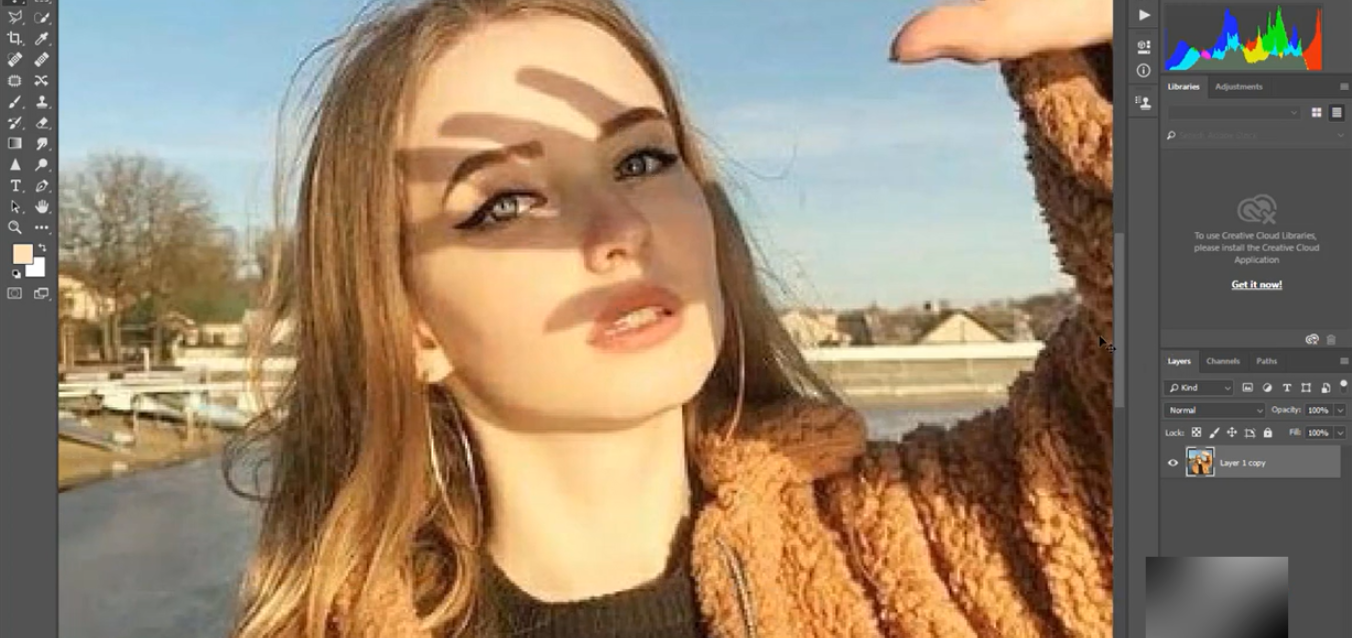
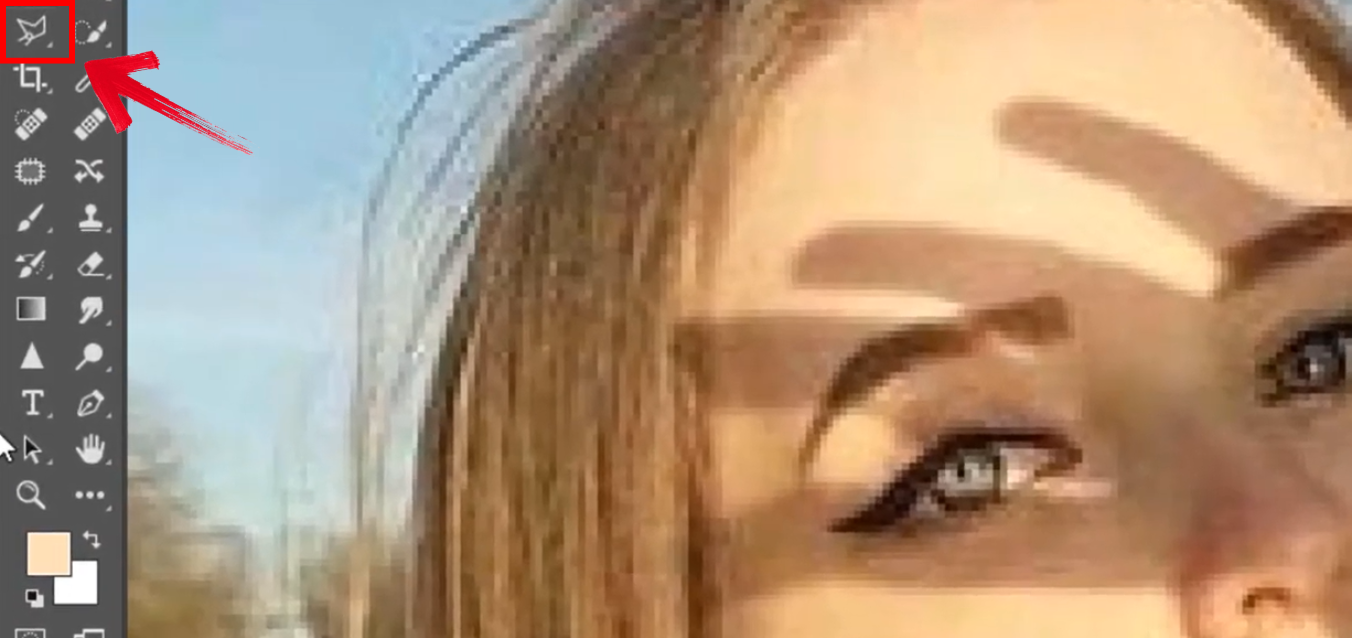
Step 2: Now from the top left of your screen, click the selection pen and select the shadow area of your picture.
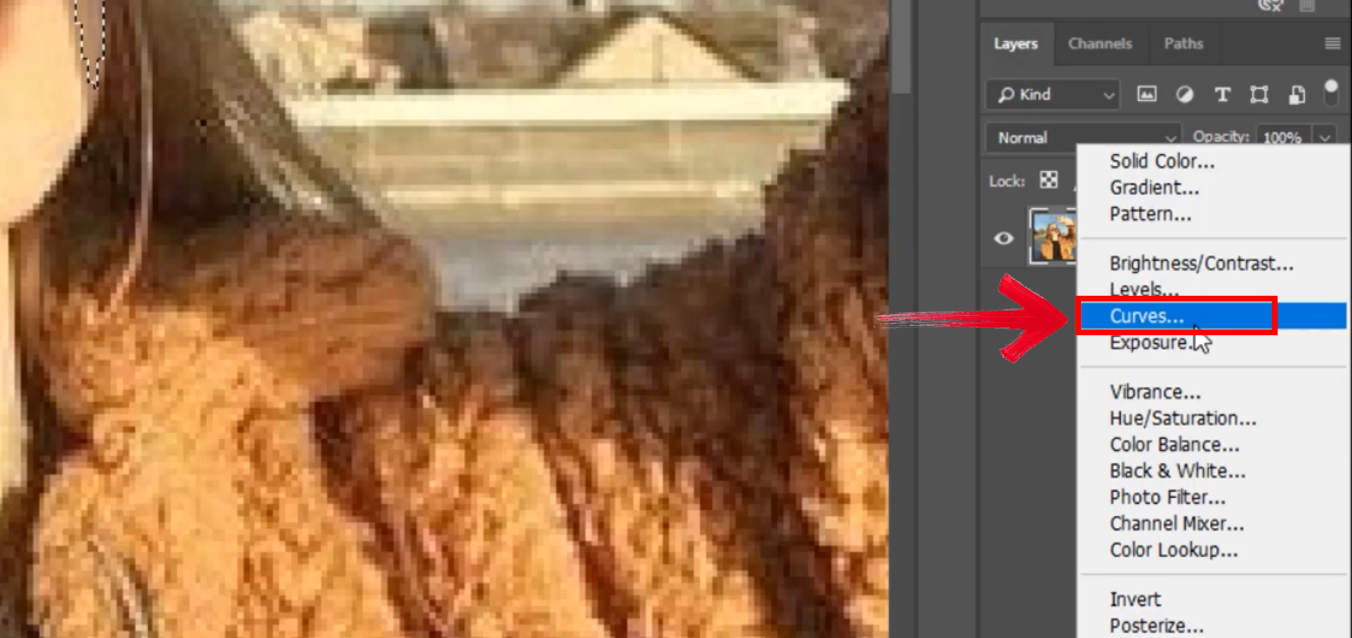
Step 3: Now from the bottom right of your screen, in the color balance option, click curves to adjust shadow.
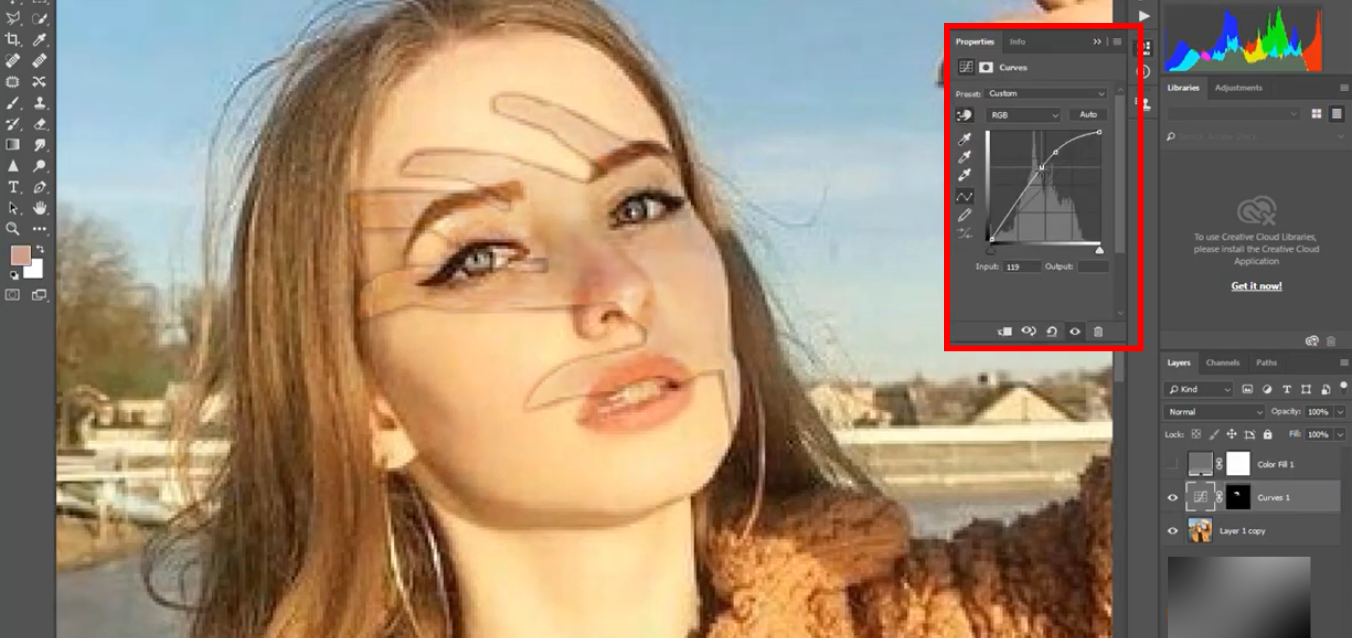
Step 4: Make the curve go upwards and the shadows from your image will be removed.
Pros:
Extremely precise.
Handles complex shadows.
Professional-grade results.
Cons:
Steep learning curve.
Subscription required.
Time-consuming for beginners.
Photoshop delivers flawless results if you take the time to learn its tools. Perfect for high-stakes professional work.
4. InSMind AI-Powered Shadow Remover
InSMindoffers a powerful, free, and online solution to remove shadows from photos. Its AI automatically detects shadows and preserves the main subject naturally. This tool ensures clean edges and blends shadows seamlessly, making it ideal for e-commerce or product photography.

Features:
Accurate shadow detection.
Eliminates uneven patches caused by lighting.
High-resolution downloads without watermarks.
How to remove:
Step 1: Visit the official website of InSMind AI Shadow Remover and upload your image.

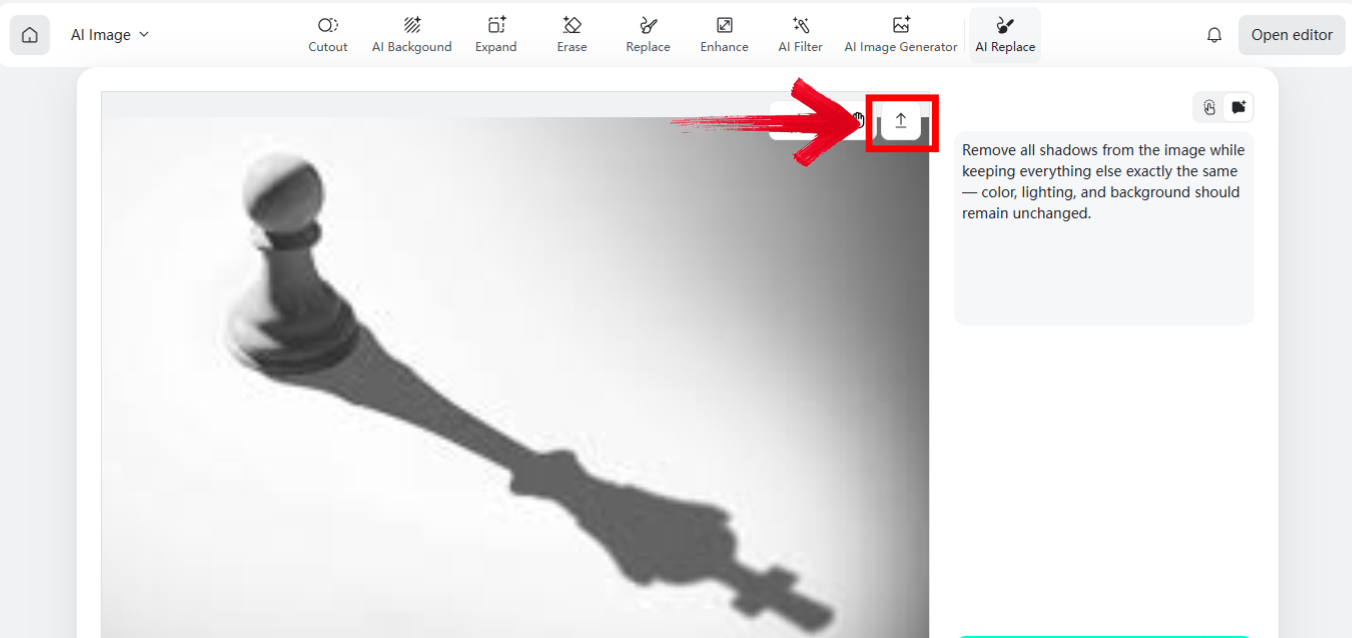
Step 2: AI automatically removes shadows, previews and fine-tunes if necessary and then you may click the download icon to download the final image.
Pros:
Free and easy to use.
Browser-based, no installation.
Preserves the main subject naturally.
Cons:
Requires login for downloads.
Manual adjustments may be needed for complex shadows.
AI may occasionally miss subtle shadow areas.
InSMind quickly became my go-to for e-commerce shots. No watermark and clean edges made it a standout free option.
5. Inpaint (Online Shadow Remover)
Inpaint is perfect for quick edits and users looking for an intuitive drag-and-drop interface. Its AI-driven removal process handles shadows effectively, though the free version adds a watermark. It’s ideal for casual background shadow removal. Inpaint also allows users to make quick adjustments without navigating complex menus, making the process straightforward. Additionally, it supports multiple image formats, ensuring compatibility with most photos.
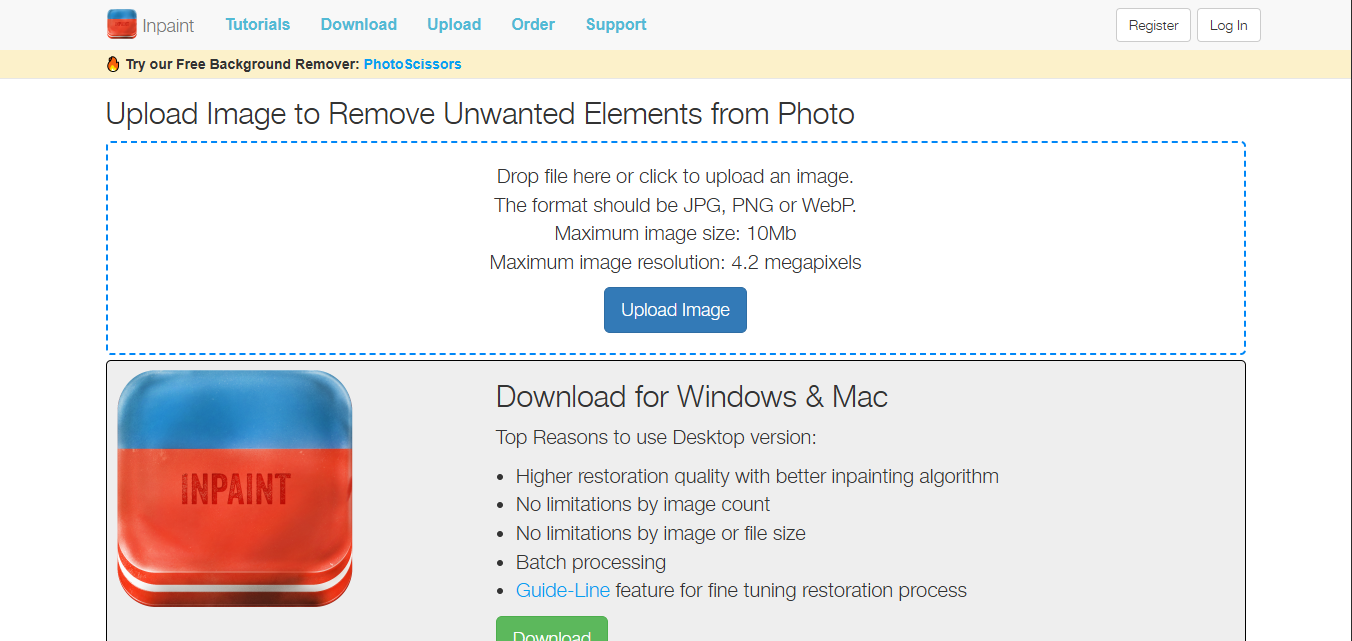
Features:
Automatic shadow removal.
Drag-and-drop interface.
No registration required for basic edits.
How to remove:
Step 1: Open the official website of Inpaint online and upload your image.
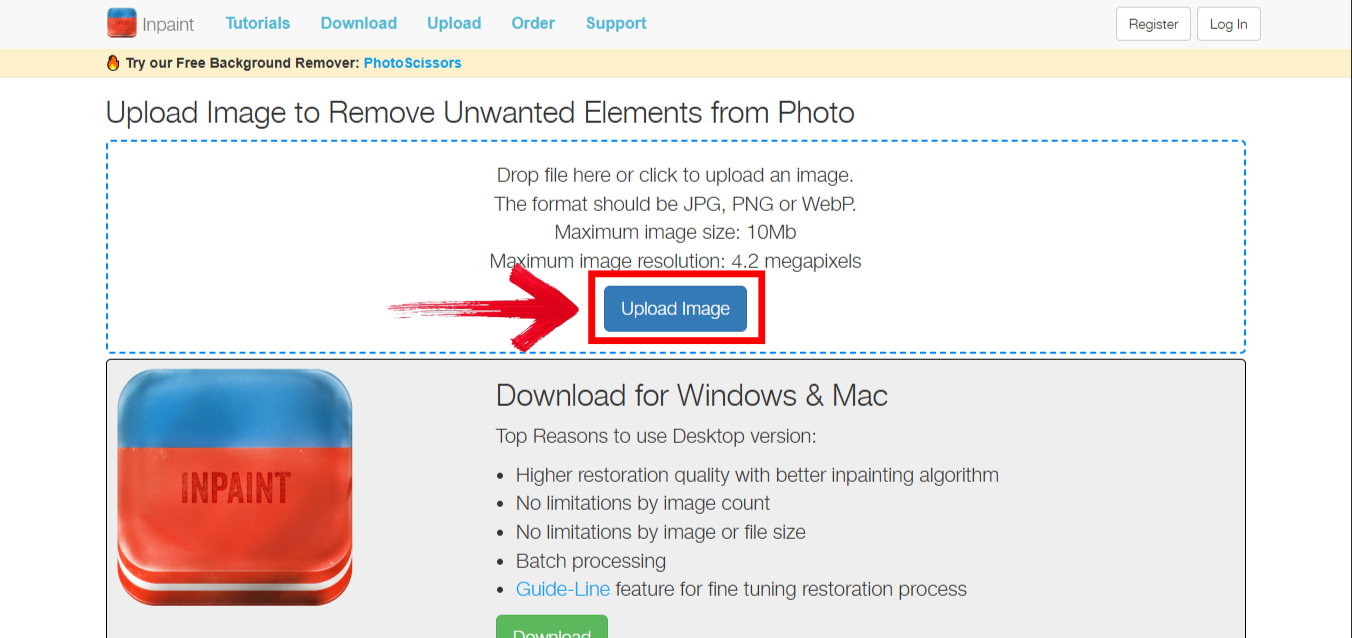
Step 2: Highlight shadow areas and let AI remove shadows Once done, download the image.
Pros:
Very simple to use.
Fast results.
No login required.
Cons:
Free version adds watermark.
Limited control over edits.
Not suitable for professional-grade photos.
Inpaint is great for quick edits. The simplicity is appealing, but I wouldn’t rely on it for professional photos.
6. AIEase (AI Shadow Removal Tool)
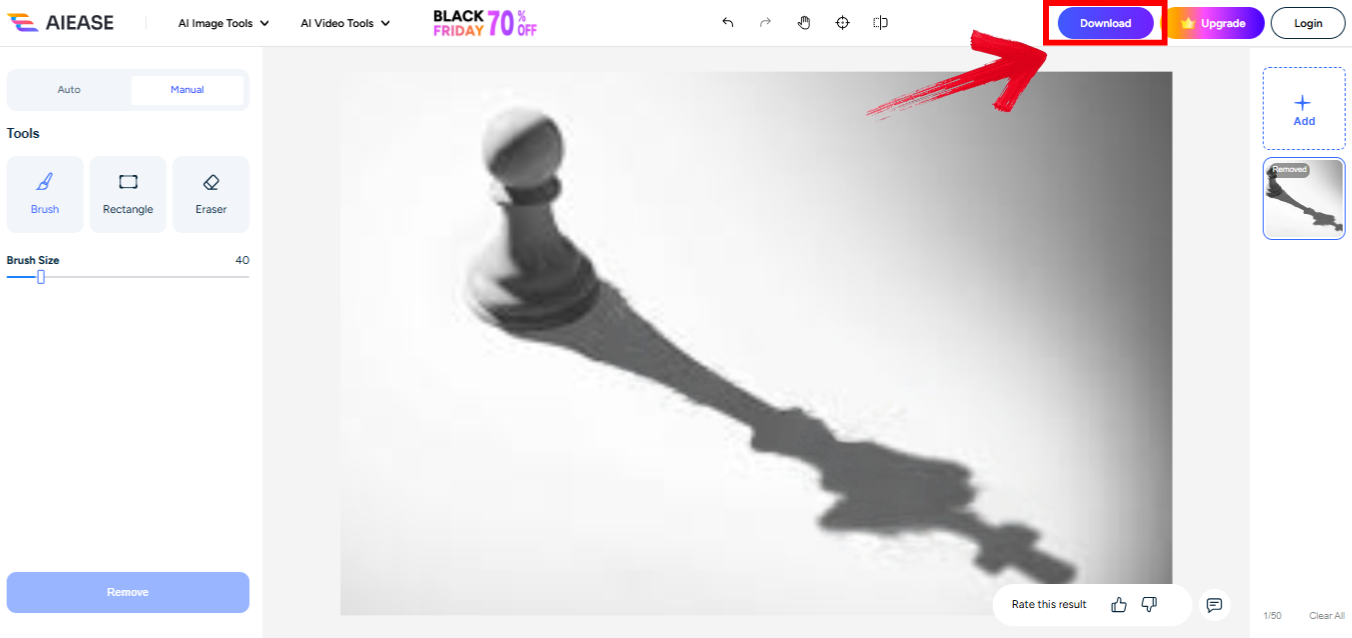
AIEaseis a web-based tool designed for one-click shadow elimination. It preserves image quality and allows occasional free attempts without installation. Perfect for users who need quick results without installing software. AIEase also provides a clean and simple interface, making it accessible for beginners and non-technical users. Its AI efficiently identifies shadow areas, delivering consistent results with minimal effort.
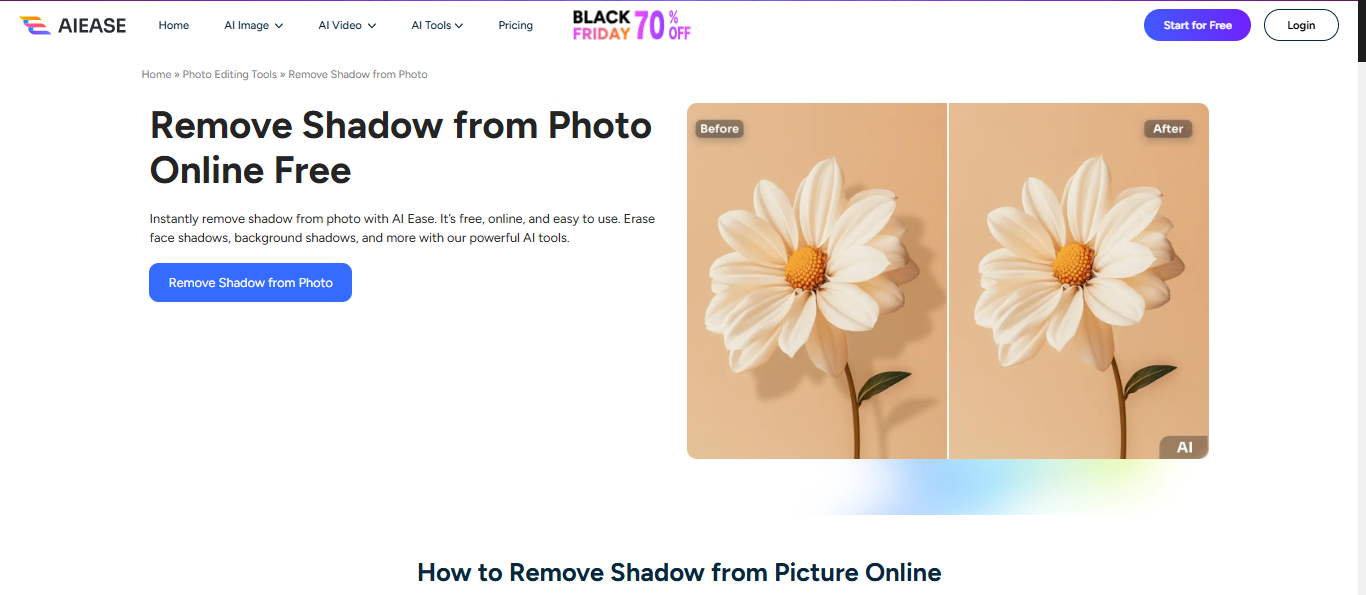
Features:
One-click shadow removal.
Preserves original quality.
Web-based, no installation.
How to remove:
Step 1: Visit the official website ofAIEase and upload your image.
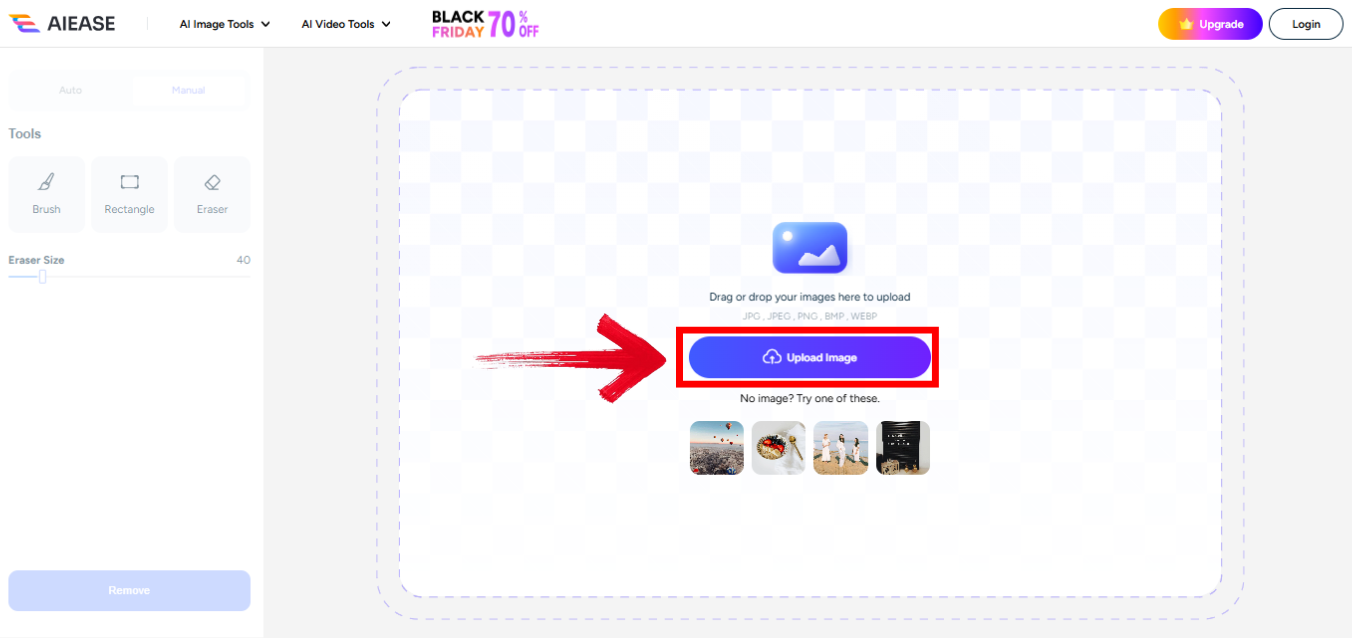
Step 2: Click the shadow removal button and download the image.
Pros:
Very easy to use.
No software installation.
Preserves quality.
Cons:
Limited free attempts.
May struggle with complex shadows.
Manual adjustments are minimal.
AIEase is ideal for casual users who need a quick fix. It’s simple and preserves quality effectively.
Comparison Table for Shadow Removal Tools
Choosing the right shadow removal tool depends on the type of photo, desired level of control, and whether a free or paid option is preferred. Each tool offers unique strengths, from professional-grade precision to fast, one-click solutions. A comparison helps highlight key differences in features, ease of use, and ideal applications. The table below provides a clear overview to guide selection for removing shadow from photo efficiently.
| Tool Name | Price / Watermark | Key Strength | Ease of Use | Platform | Ideal For |
|---|---|---|---|---|---|
| InSMind | Free (No watermark) | High-quality results, clean edges, preserves subject | Very Easy | Web (Win/Mac) | E-commerce, photo retouching, graphic design |
| PhotoAid | Free (Watermark) / Paid | Batch processing, speed | Easy | Web | Social media images, small projects |
| Fotor | Free / Subscription | Manual adjustment options, good for light edits | Easy | Web | Casual users, quick fixes |
| Adobe Photoshop | Subscription only | Professional precision, full control | Hard | Desktop App | Professionals, photographers, complex edits |
| Inpaint | Free (Watermark) | Speed, no registration required | Very Easy | Web | Quick background shadow removal |
| AIEase | Free (Limited attempts) | Preserves original image quality | Easy | Web | Users with occasional needs |
I’ve found this table helpful when deciding which tool to pick based on the type of photo and the level of control I want.
Enhance Your Photo Further with Image Enhancer
After removing shadows, it’s important to make sure your image looks bright and crisp. Image Enhancer is an excellent tool that allows you to improve brightness, contrast, and clarity with just one click. It works perfectly as a follow-up tool to any shadow removal process.
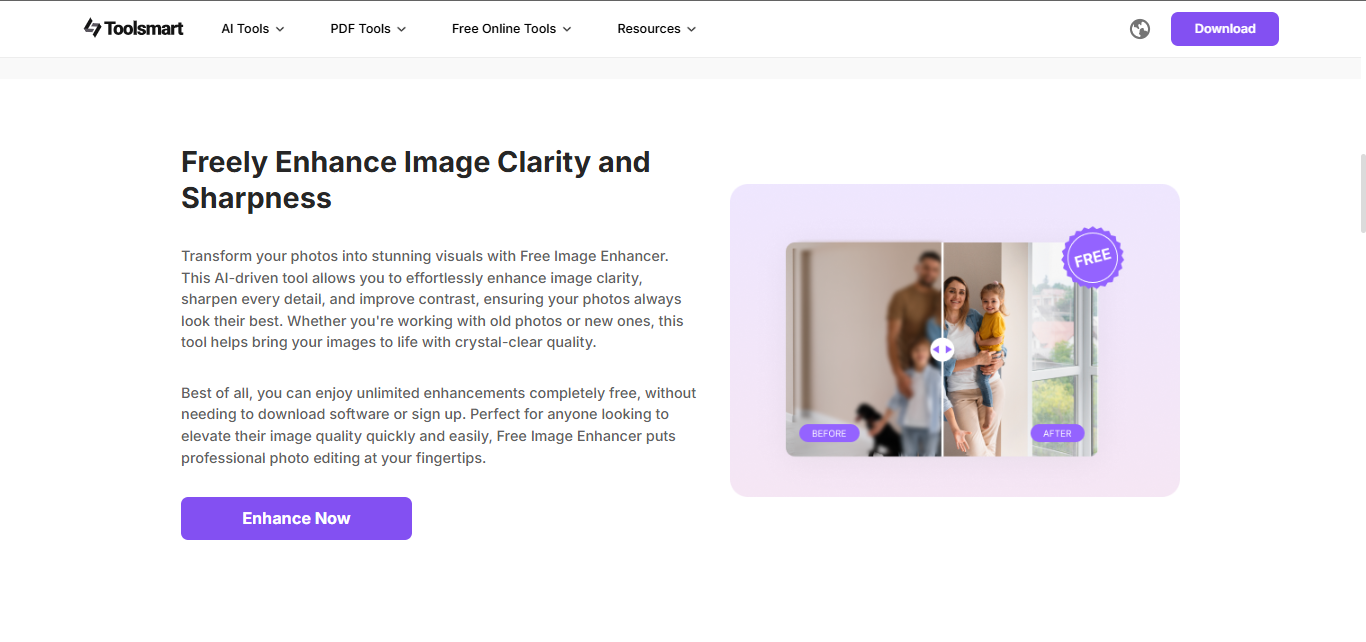
Using Image Enhancer ensures that colors appear more vibrantand details are sharper, giving the photo a professional finish. It also helps correct any minor imperfections left after shadow removal. The tool is entirely web-based, making it accessible from any device without installation. Overall, it complements shadow removal by refining the image and enhancing visual appeal effortlessly.
Why Image Enhancer Makes a Great Add-On:
Improves overall photo quality.
Adjusts lighting and colors for a balanced look.
Simple, one-click enhancement.
100% free, no login required.
How to Use Image Enhancer:
Step 1: First of all, visit the official website ofToolsmart Free Image Enhancer on your browser.
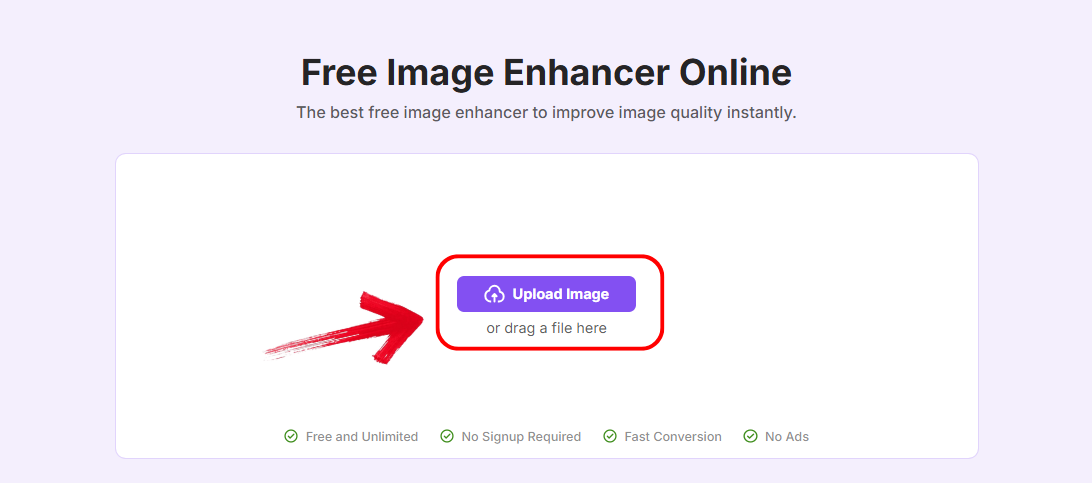
Step 2: Select the “Upload Image”option and choose the photo that was recently edited.
Step 3: Give it a few moments while the AI automatically improves the image’s sharpness and color balance. A side-by-side preview will display the enhancements.
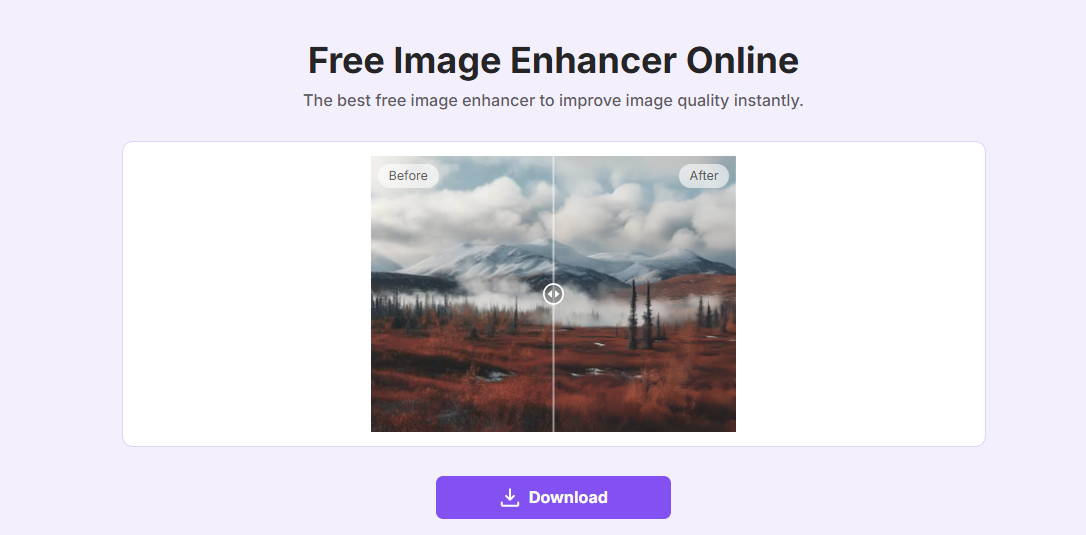
Step 4: Click “Download” to save your enhanced photo without any watermark.
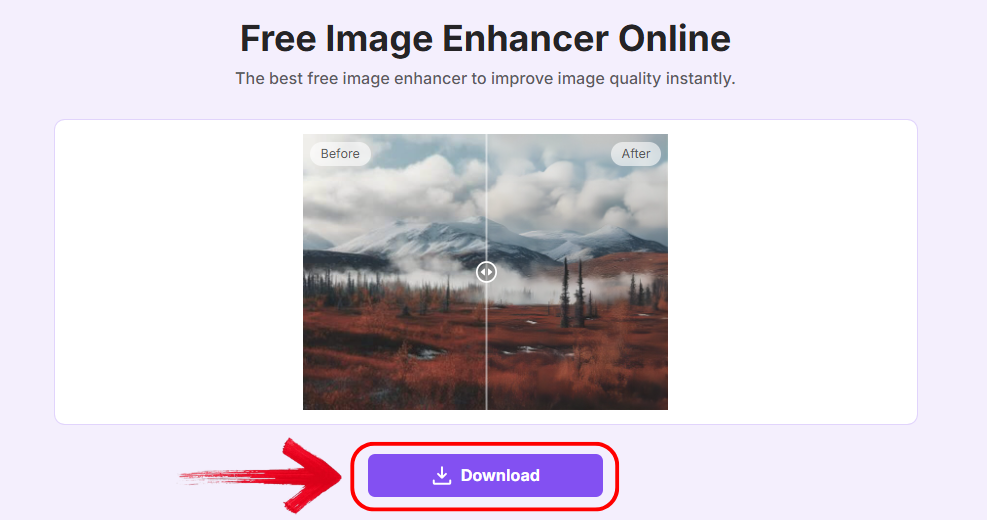
Using Image Enhancer after removing shadows transformed my photos. Shadows gone, colors balanced, and the image looked professional in minutes.
FAQs
Q1: Can PhotoAid Shadow Remover handle complex shadows?
Yes, it can, though the free version has limitations. For heavy shadows, upgrading to the paid plan is recommended.
Q2: Is InSMind Shadow Remover suitable for professional editing?
It’s excellent for free, high-resolution edits and e-commerce work, but Photoshop remains superior for professional-level precision.
Q3: Does AIEase work on mobile devices?
Yes, it is web-based and accessible from any device with a browser.
Q4: Can Image Enhancer fix other issues besides shadows?
Absolutely. It enhances brightness, sharpness, and overall photo quality, making your images pop.
Polished Final Touch: Bringing Your Shadow-Free Images to Life
To Remove shadow from photos is key to achieving clean, professional visuals. Among the tools tested, InSMind stands out as the best free option for high-quality, watermark-free results, especially for e-commerce or design projects. Professionals who need full control can rely on Adobe Photoshop, while casual users may prefer Fotor or Inpaint for quick edits. For batch processing, PhotoAid offers speed and efficiency. Pairing any of these tools with Image Enhancer further improves brightness, color, and overall image quality, delivering polished, professional results effortlessly.


