
'%3e%3cpath%20fill-rule='evenodd'%20clip-rule='evenodd'%20d='M19%208.5C24.799%208.5%2029.5%2013.201%2029.5%2019C29.5%2024.6782%2024.9928%2029.3036%2019.361%2029.4939L19%2029.5C18.8794%2029.5%2018.7592%2029.498%2018.6396%2029.4939L18.2811%2029.4758C12.8174%2029.1063%208.5%2024.5574%208.5%2019C8.5%2013.201%2013.201%208.5%2019%208.5ZM22.3063%2010.6267L22.2342%2010.6539C21.3423%2011.0061%2020.5541%2011.6368%2020.5606%2012.4987C20.5631%2012.8302%2020.869%2014.8871%2020.2141%2014.8486C19.5589%2014.8102%2019.413%2013.8753%2018.7116%2013.616C17.5944%2013.2026%2016.9819%2014.3401%2017.0939%2015.3106C17.1695%2015.9655%2018.9289%2018.3871%2017.9028%2019C17.292%2019.3651%2015.7279%2017.5692%2015.1007%2017.1842C14.4805%2016.8034%2013.2758%2017.3333%2012.4974%2016.7029C11.9874%2016.2899%2012.3881%2014.4098%2012.2786%2013.8372C12.2271%2013.5698%2012.1155%2013.3689%2011.9794%2013.2166L12.0402%2013.2934C10.7653%2014.8464%2010%2016.8339%2010%2019C10%2023.8465%2013.8307%2027.7982%2018.6295%2027.9925L18.6769%2027.9747C18.8597%2027.8677%2019.0394%2027.7557%2019.216%2027.6387C19.4137%2027.4534%2019.5436%2027.2072%2019.5849%2026.9394C19.8806%2025.1222%2018.3616%2025.4302%2017.9367%2024.5622C17.5489%2023.7695%2018.5712%2023.7684%2018.5524%2021.7923C18.4607%2021.1774%2018.5279%2020.547%2018.7211%2020.0315C19.1834%2018.7987%2020.7077%2017.2643%2022.5889%2018.0081C23.5567%2018.3906%2023.1524%2019.9831%2023.4737%2020.3394C24.251%2021.2018%2025.3228%2020.6863%2026.2856%2021.2253C26.7816%2021.5032%2026.9797%2022.41%2027.056%2023.2248L27.038%2023.0528C27.6534%2021.8348%2028%2020.4579%2028%2019C28%2015.1968%2025.6409%2011.9445%2022.3063%2010.6267Z'%20fill='%23757575'/%3e%3ccircle%20cx='19'%20cy='19'%20r='10.125'%20stroke='%23757575'%20stroke-width='2.25'/%3e%3c/g%3e%3cdefs%3e%3cclipPath%20id='clip0_1827_14613'%3e%3crect%20width='24'%20height='24'%20fill='white'%20transform='translate(7%207)'/%3e%3c/clipPath%3e%3c/defs%3e%3c/svg%3e)


I’m sure most iPhone users have tried uploading a photo to a website or emailing it, only to realize the file isn’t supported. Since iOS 11, Apple started saving images in HEIC format which is great for saving space, but not so great when you’re sharing beyond the Apple ecosystem. So how to convert HEIC to JPG on iPhone without complicated software or third-party apps? In this quick guide, I'll take you through the settings, steps, and even a bonus AI tool to polish your images once they’re converted.
HEIC to JPG — What You Need to Know Before Converting
When I first noticed my iPhone photos showing up with a .heic extension instead of the usual .jpg, I had no idea what that meant. Turns out, HEIC stands for High Efficiency Image Container, and it's Apple’s way of saving high-quality images without eating up tons of storage. It was introduced with iOS 11, and while it’s great for keeping file sizes small, the downside is that not every device or app supports it.
While HEIC is efficient, it’s not always compatible with every device, platform, or application. Here's why converting might be essential:
Compatibility: Many Windows PCs, Android phones, and older software don’t support HEIC files natively.
Easy Sharing: JPG is universally supported. You might be uploading photos to a job portal, attaching images to an email, or posting them on a blog, JPG works seamlessly across all of them.
Editing Flexibility: Editing tools like Adobe Photoshop or GIMP might not handle HEIC files well, especially older versions.
HEIC files can quickly become inconvenient when you're trying to use your photos outside the Apple ecosystem. Learning how to convert HEIC to JPG on iPhone makes everyday tasks smoother and helps you avoid those annoying compatibility issues. Here are some typical scenarios where a quick conversion becomes essential:
Uploading photos to a Windows PC for editing in apps that don’t support HEIC.
Posting images to websites that only accept JPG or have strict file format requirements.
Sending pictures to friends who can’t open HEIC files on their devices.
Submitting documents or forms that require attachments in JPG format.
How to Convert HEIC to JPG Directly on iPhone
I didn’t think much about file formats until I tried using one of my iPhone photos outside the Apple ecosystem and ran into problems. That’s when I learned that converting HEIC to JPG on an iPhone doesn’t require extra apps or a computer. iOS already offers a few simple ways to handle the conversion directly, and after trying them out myself, these turned out to be the most reliable options.
Change Your iPhone Settings to Save Photos as JPG
If you want to avoid dealing with HEIC files in the future, the easiest fix is to adjust your camera settings. That way, you won’t have to search “how to convert HEIC to JPG iPhone” every time, your photos will be saved as JPG by default, making them much easier to share and upload anywhere.
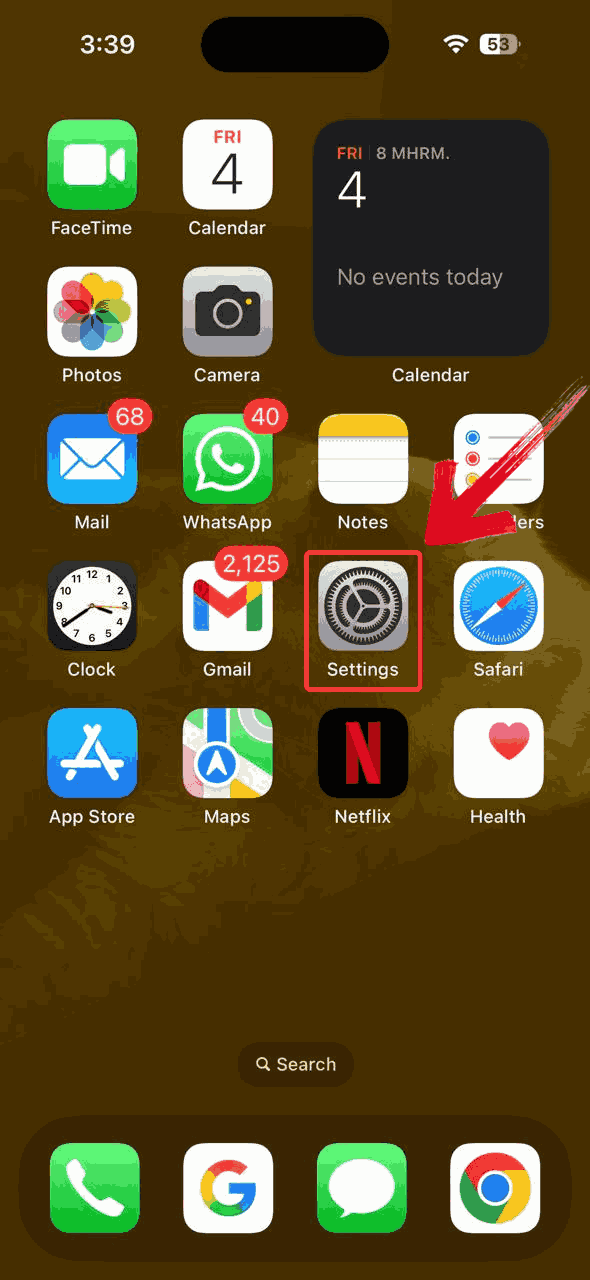
Step 1: Find and tap the “Settings"icon on your home screen, it’s the one that looks like a grey gear.
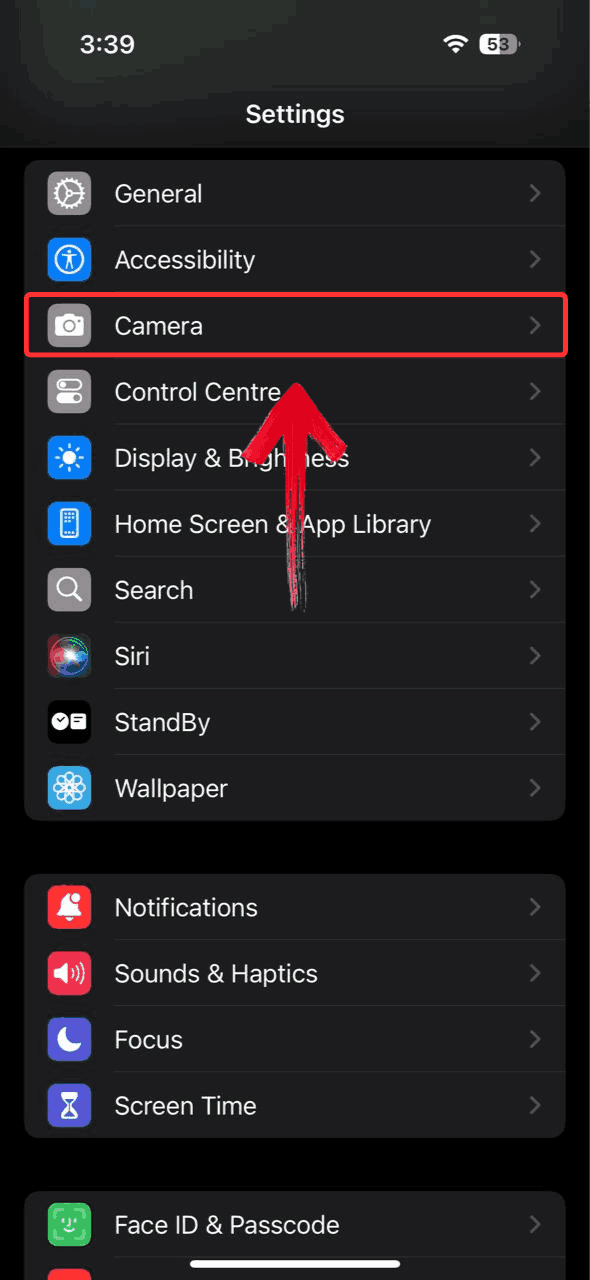
Step 2: Once you're in Settings, scroll until you see the “Camera” option. Tap it to open the camera settings.
Step 3: In the Camera menu, tap“Formats” to access how your iPhone handles image and video file types.
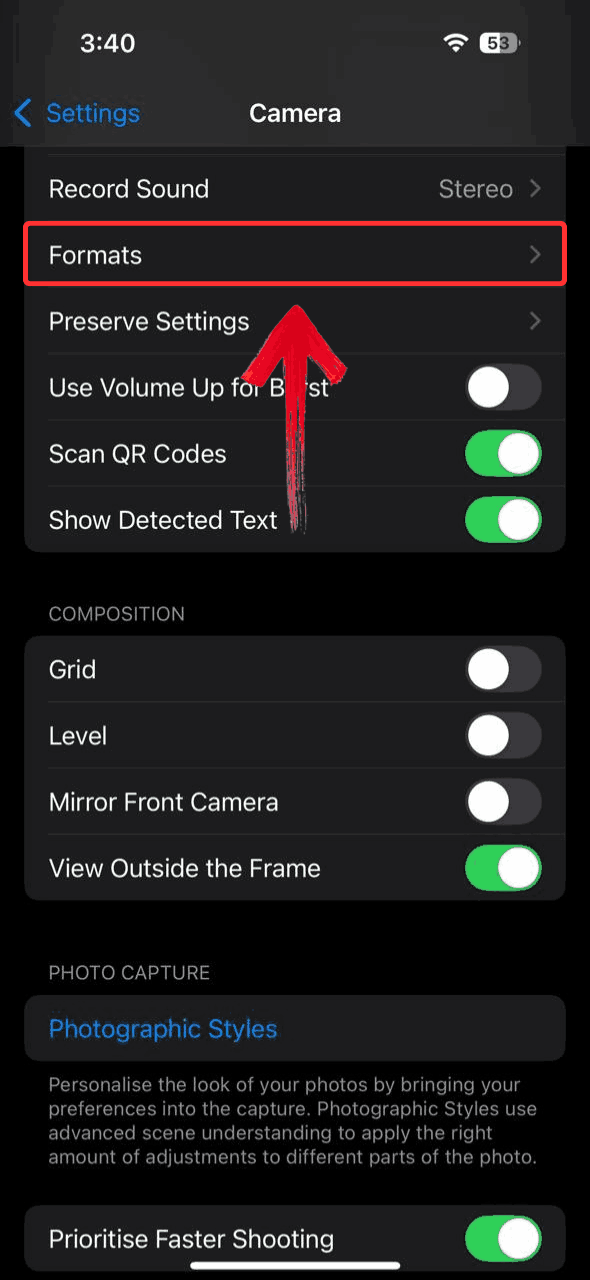
Step 4: Under the “Camera Capture” section, select“Most Compatible”. This will make your iPhone save new photos in JPG format instead of HEIC.
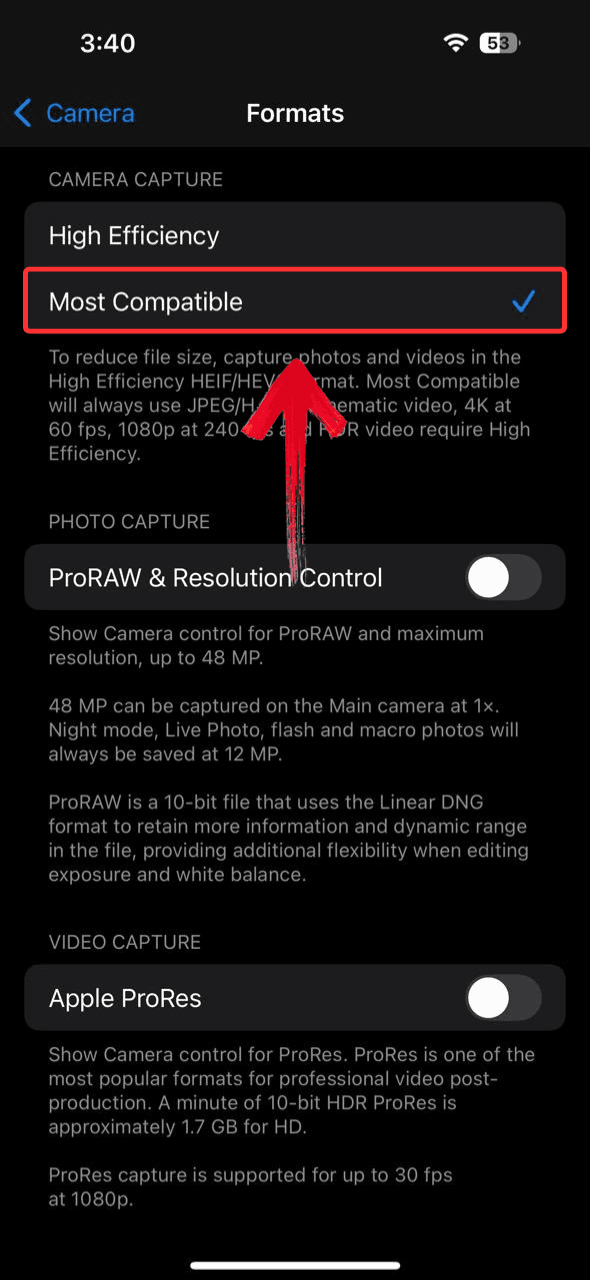
Note: Videos may be saved in a slightly larger file size, but this setting ensures maximum compatibility.
Convert Existing HEIC Photos by Sending via Mail
If you’ve already taken photos in HEIC format, there’s a simple way to convert them without needing extra tools. Just sending the image through the Mailapp automatically changes it to JPG, making it one of the easiest workarounds built right into your iPhone.
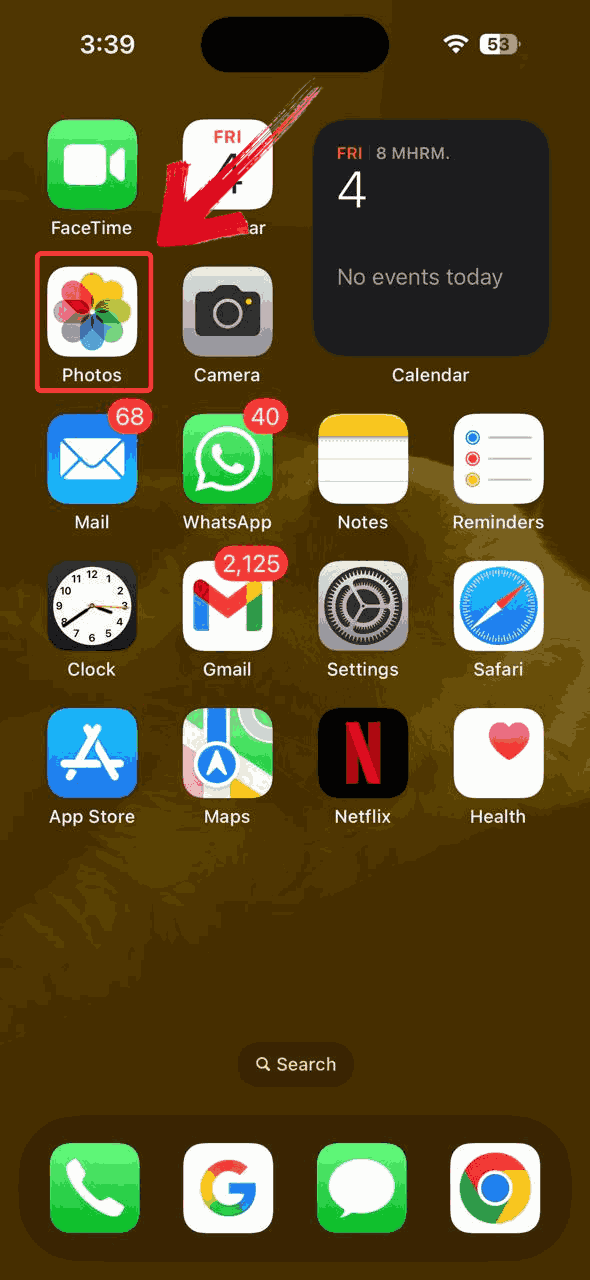
Step 1: Locate and tap the “Photos”app on your iPhone’s home screen to access your image library.
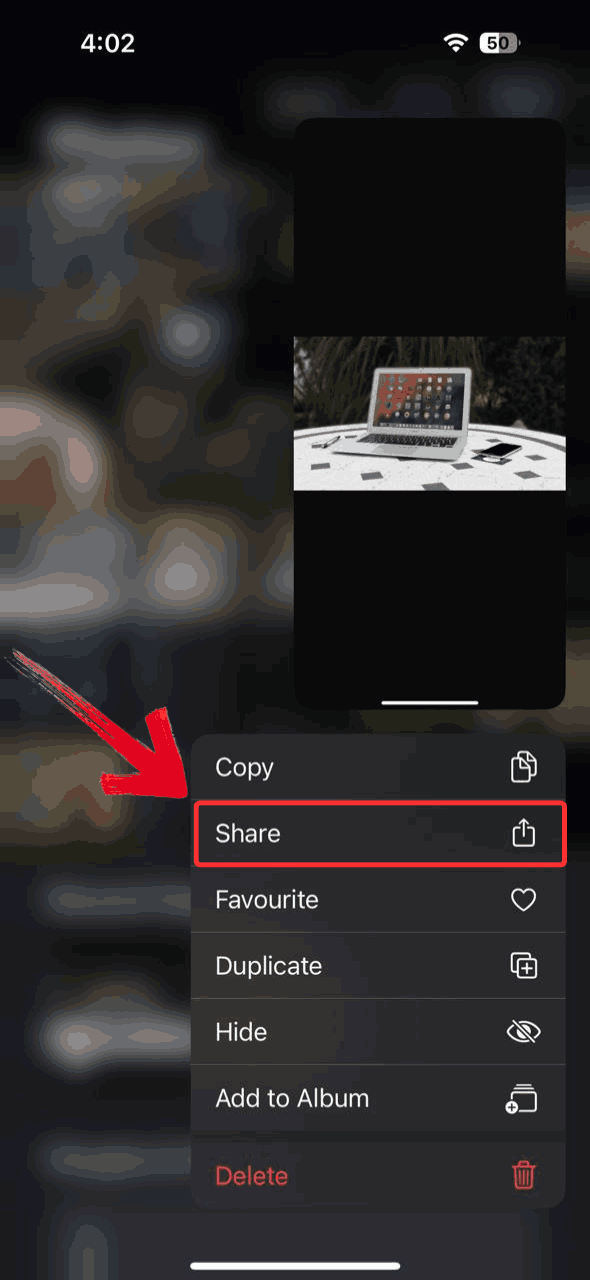
Step 2: Hold the image you want to convert, then select the “Share” button in the bottom-left corner to bring up sharing options.
Step 3: In the Share menu, tapMail. If it doesn’t appear right away, scroll through the app list or tap “More” to find it.
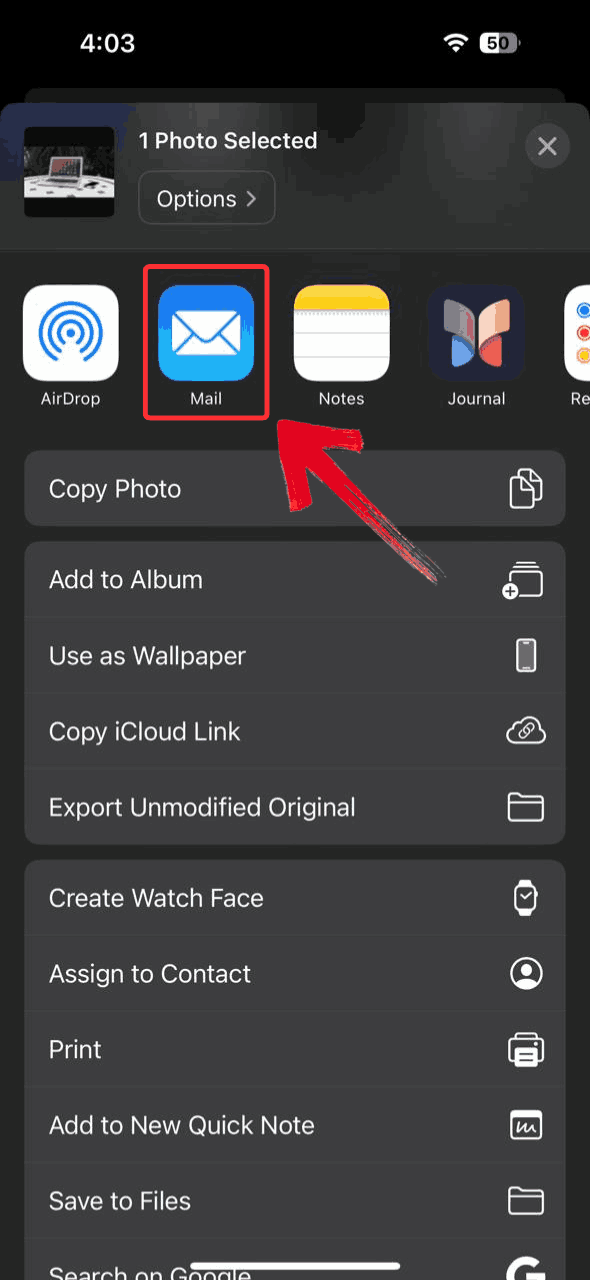
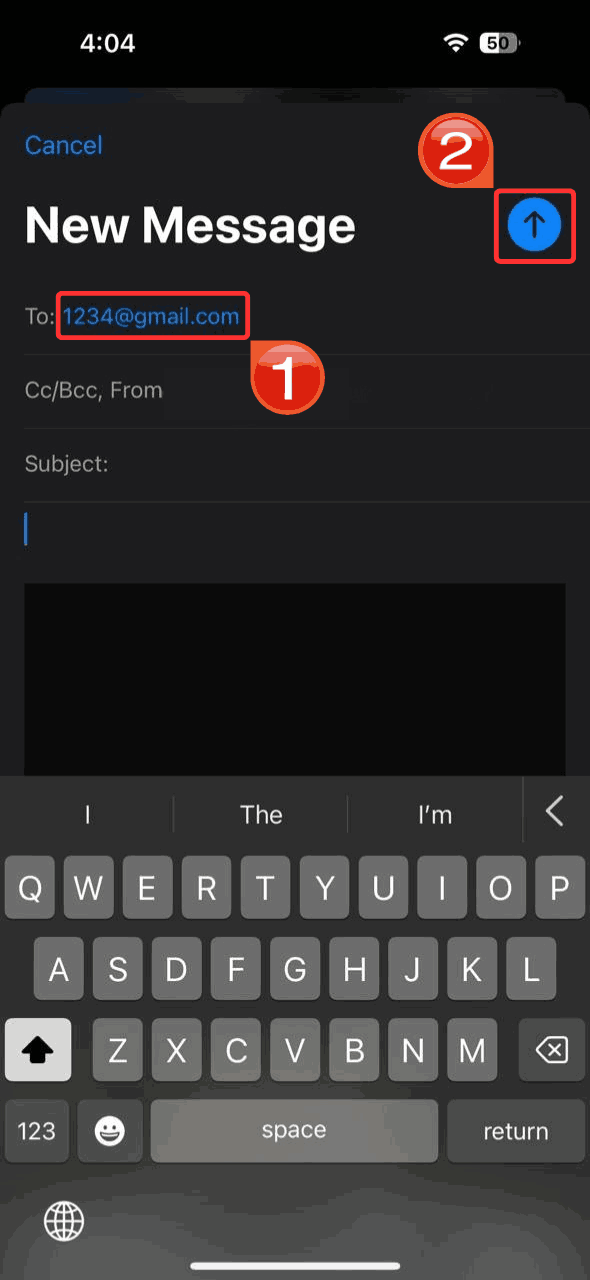
Step 4: Add your email in the "To"field, then tap the “Send” in the top-right corner. Your iPhone will automatically convert the photo to JPG when sending.
Use the Files App to Manually Export as JPG
If you’re looking for a quick way to convert a single HEIC photo to JPG without emailing it or changing your camera settings, the Files app offers a simple solution. By copying and pasting the photo into a folder within the Files app, your iPhone automatically saves it as a JPEG with no extra tools or apps needed.
Step 1: Click the “Photos” app on your iPhone’s home screen to access your image library.
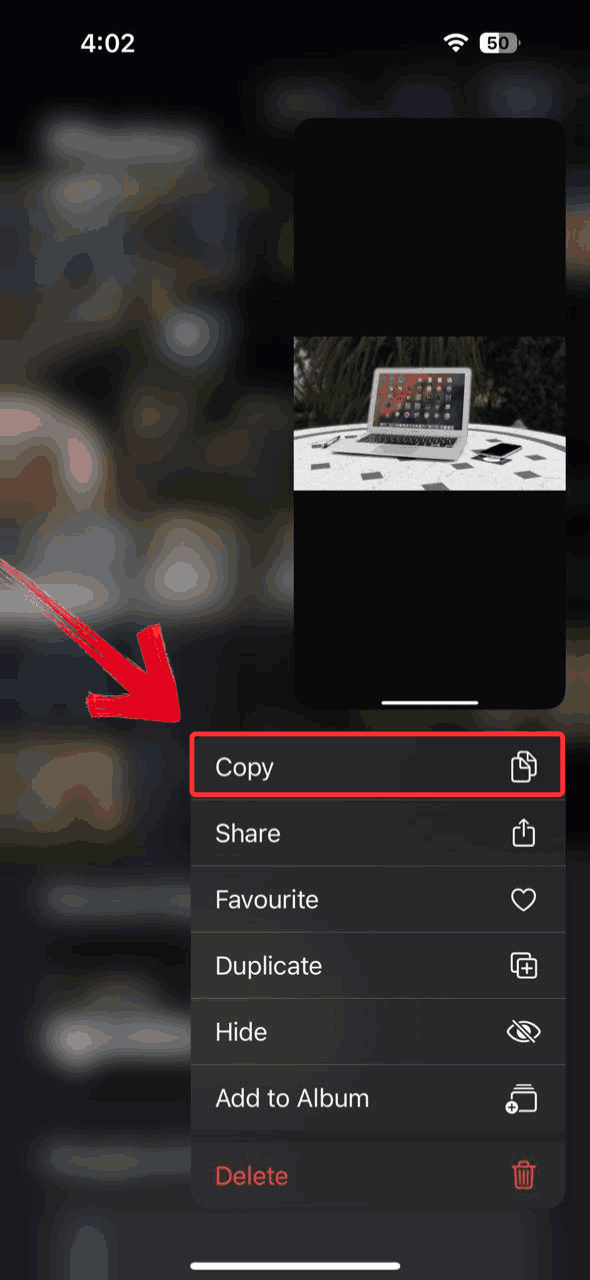
Step 2: Hold the picture you want to convert, then choose the “Copy” button to copy it to your clipboard.
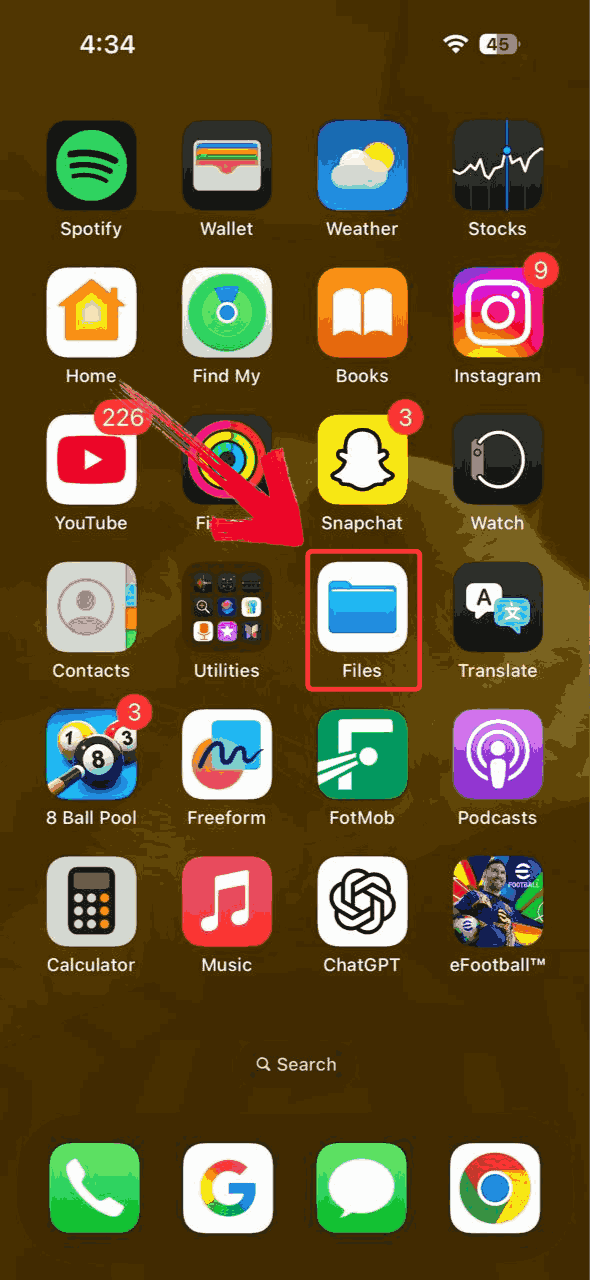
Step 3: Return to your home screen and tap on the“Files” app to launch it.
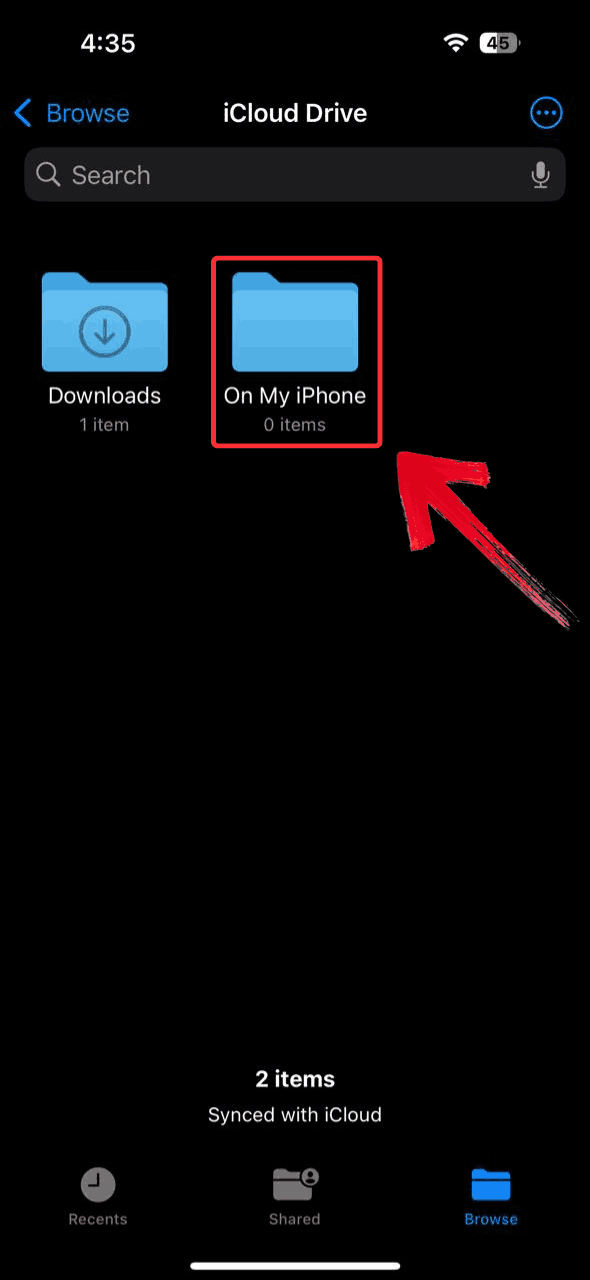
Step 4: Inside the Files app, tap “On My iPhone” or choose another location or folder where you’d like to paste and save the converted image.
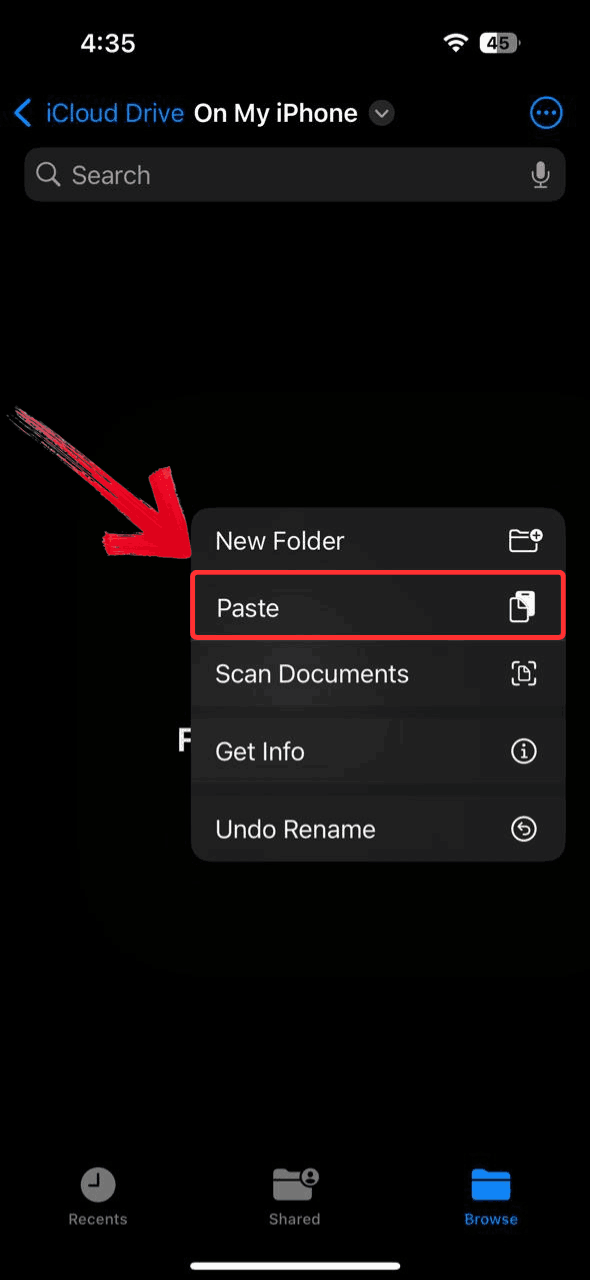
Step 5: Inside your chosen folder, long-press on a blank area until a menu pops up. Tap “Paste” to insert the copied photo.
Boost Image Format Handling with Toolsmart AI
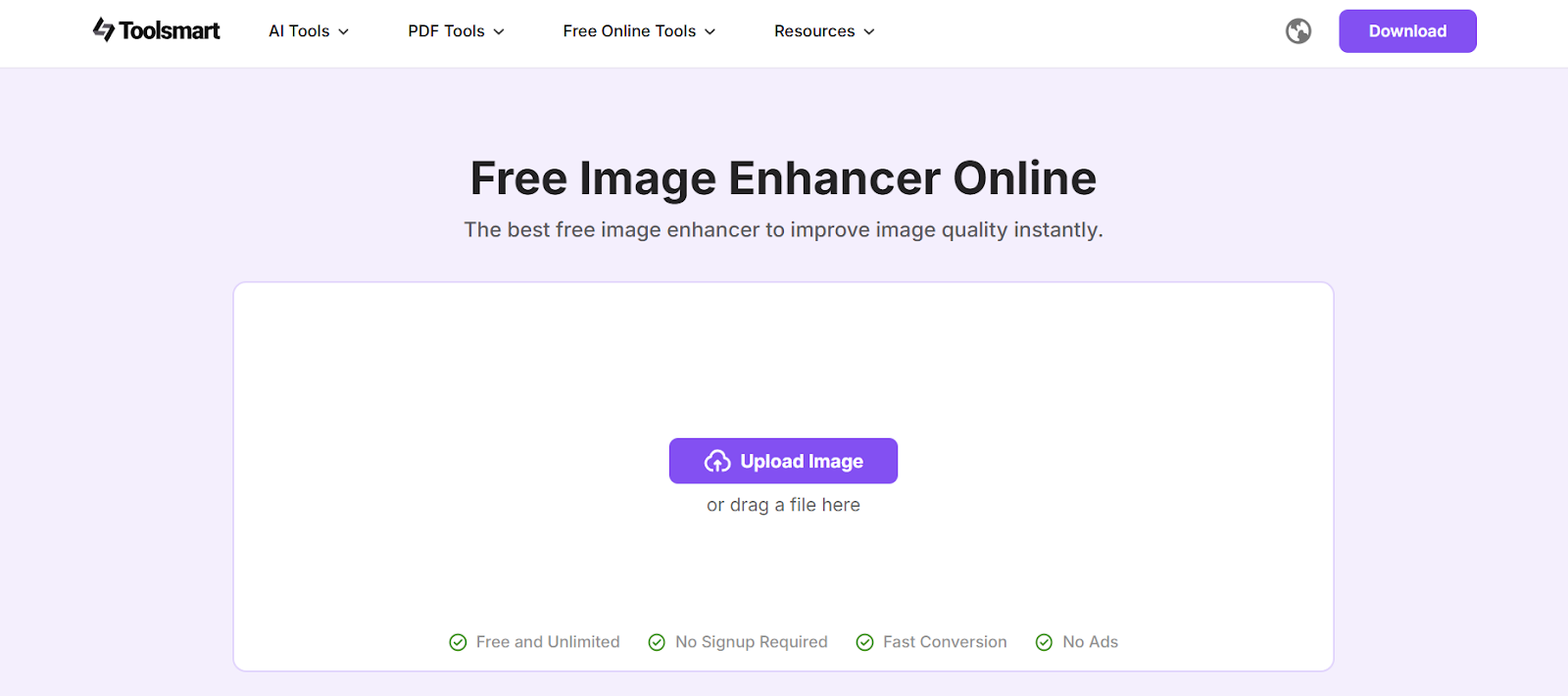
After converting my photos to JPG, I noticed some of them didn’t look quite how I remembered: slightly dull colors, a bit of blur, or just not as sharp as I'd hoped. I didn’t want to open a full editing app for each one, especially when I had a bunch to go through. I started looking for a faster way to refine things and discovered a lightweight tool I could use right in my browser. Toolsmart’s AI Image Enhancer turned out to be a helpful addition letting me enhance photo quality, fix small imperfections, and prepare images for sharing, all without needing to install anything. It wasn’t part of the conversion process, but it made the final results a lot more usable.
Advantages:
Supports Multiple Formats: Convert and enhance HEIC, JPG, PNG, and more
AI-Powered Optimization: Improve brightness, clarity, and remove blur automatically
No App Installation: Completely web-based and beginner-friendly
Fast & Free: Great results in seconds, perfect for casual and professional use
If you genuinely care about photo quality particularly after format conversion, Toolsmart helps ensure your images look their best.
How to Use Toolsmart AI Image Enhancer (Step-by-Step)
Once your images are converted to JPG, Toolsmart can help improve their quality with just a few clicks. It’s a web-based enhancer that uses AI to sharpen details, adjust lighting, and clean up compressionissues, all without needing advanced editing skills. It doesn't matter if you’re preparing photos for social media, a presentation, or personal use, this tool makes your images look more polished in seconds. Here's how to use it.
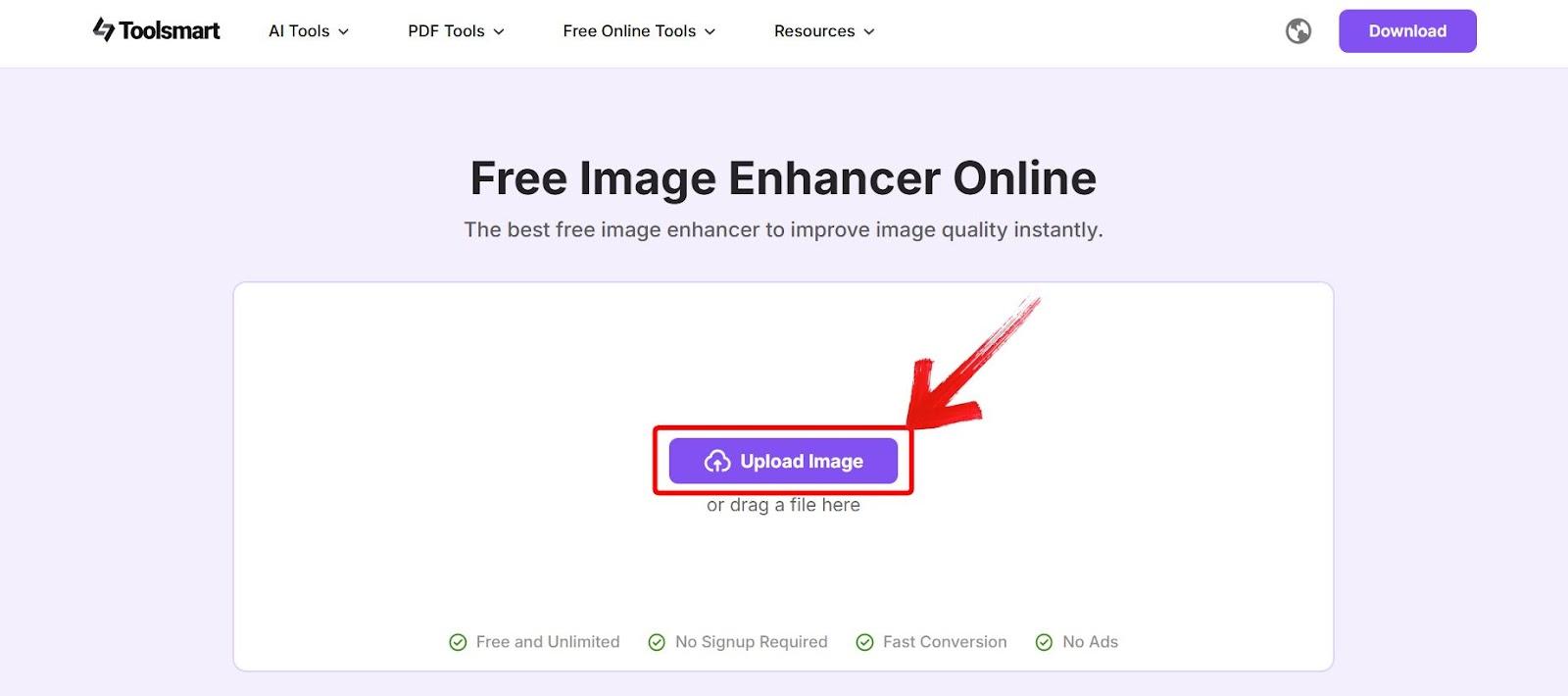
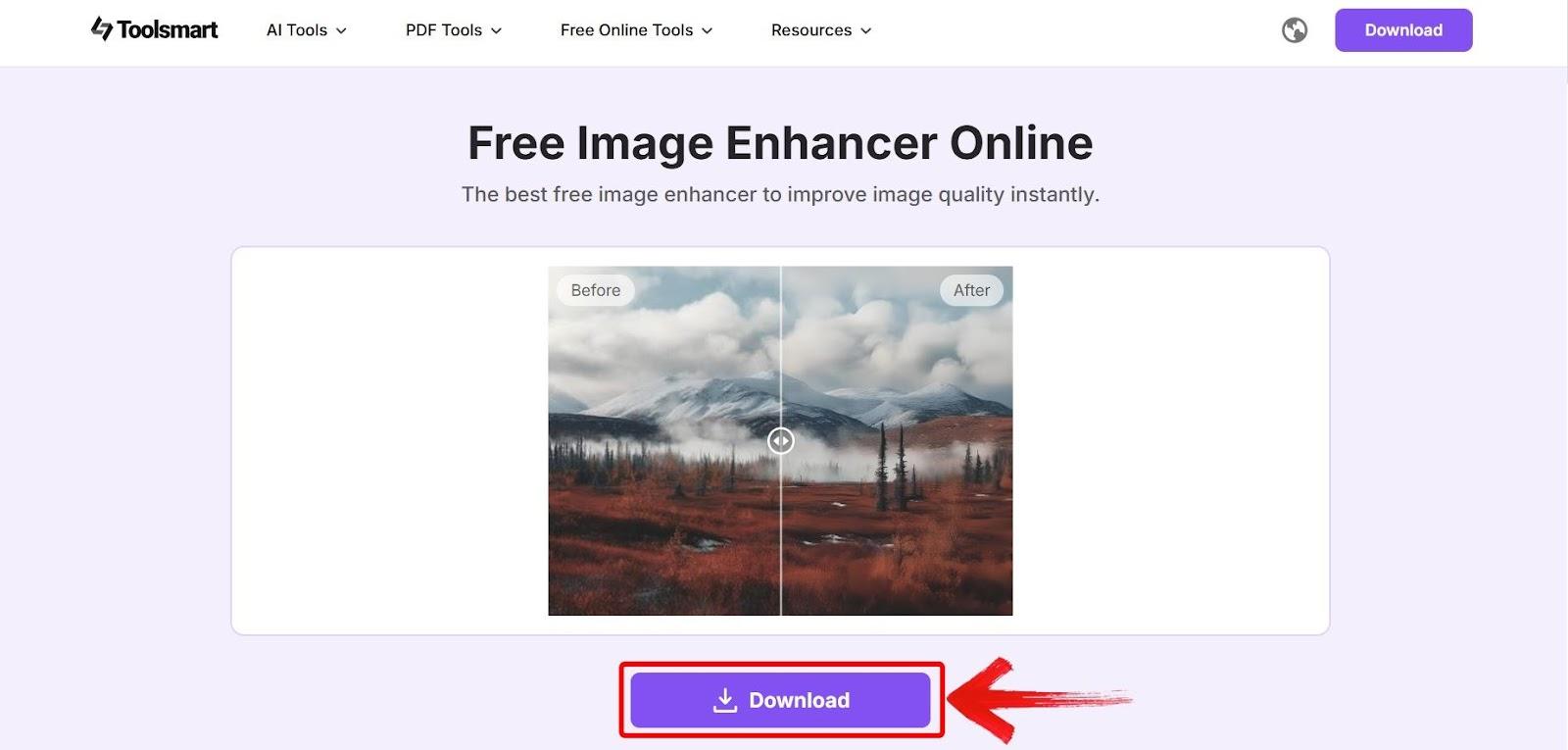
Step 1: Go to Toolsmart’s Image Enhancer website and click on “Upload Image” to select your blurry photo.
Step 2: After the tool takes some time to enhance your image, preview the clearer version and click on“Download” to save it.
FAQs
1. Why does my iPhone save photos in HEIC instead of JPG?
HEIC provides better compression while preserving photo quality, saving you storage space without sacrificing clarity.
2. Will converting HEIC to JPG reduce image quality?
Usually, the difference is negligible for everyday use. But to retain sharpness and improve overall quality, tools like Toolsmart AI are incredibly helpful.
3. How can I stop my iPhone from saving images in HEIC format?
Go to Settings > Camera > Formats, then choose "Most Compatible" to save new photos in JPG format.
4. Can I convert multiple HEIC photos to JPG at once on iPhone?
Not natively. For batch conversions, it's easier to use an online converter or third-party apps on your Mac or PC. Then enhance them using Toolsmart AI if needed.
5. Do messaging apps like WhatsApp convert HEIC to JPG automatically?
Yes. Most apps compress and convert HEIC to JPG when sending images, which can be handy but may reduce quality.
Shot, Saved, Sorted
No one wants to deal with file compatibility issues when they’re just trying to share a photo. While figuring out how to convert HEIC to JPG on iPhone, I tested different methods without relying on confusing third-party apps. Using the iPhone’s built-in settings, sharing tools, and the Files app turned out to be the simplest and most reliable options. Each one worked well depending on the situation.
What really leveled things up was cleaning up the converted images with Toolsmart’s AI Image Enhancer. It helped me enhance clarity, fix minor compression issues, and even batch process images when I had a whole gallery to go through. While Toolsmart doesn’t convert HEIC to JPG directly, it was the perfect tool for polishing my photos afterward, saving time and making sure every image looked clean, sharp, and platform-ready.


