
'%3e%3cpath%20fill-rule='evenodd'%20clip-rule='evenodd'%20d='M19%208.5C24.799%208.5%2029.5%2013.201%2029.5%2019C29.5%2024.6782%2024.9928%2029.3036%2019.361%2029.4939L19%2029.5C18.8794%2029.5%2018.7592%2029.498%2018.6396%2029.4939L18.2811%2029.4758C12.8174%2029.1063%208.5%2024.5574%208.5%2019C8.5%2013.201%2013.201%208.5%2019%208.5ZM22.3063%2010.6267L22.2342%2010.6539C21.3423%2011.0061%2020.5541%2011.6368%2020.5606%2012.4987C20.5631%2012.8302%2020.869%2014.8871%2020.2141%2014.8486C19.5589%2014.8102%2019.413%2013.8753%2018.7116%2013.616C17.5944%2013.2026%2016.9819%2014.3401%2017.0939%2015.3106C17.1695%2015.9655%2018.9289%2018.3871%2017.9028%2019C17.292%2019.3651%2015.7279%2017.5692%2015.1007%2017.1842C14.4805%2016.8034%2013.2758%2017.3333%2012.4974%2016.7029C11.9874%2016.2899%2012.3881%2014.4098%2012.2786%2013.8372C12.2271%2013.5698%2012.1155%2013.3689%2011.9794%2013.2166L12.0402%2013.2934C10.7653%2014.8464%2010%2016.8339%2010%2019C10%2023.8465%2013.8307%2027.7982%2018.6295%2027.9925L18.6769%2027.9747C18.8597%2027.8677%2019.0394%2027.7557%2019.216%2027.6387C19.4137%2027.4534%2019.5436%2027.2072%2019.5849%2026.9394C19.8806%2025.1222%2018.3616%2025.4302%2017.9367%2024.5622C17.5489%2023.7695%2018.5712%2023.7684%2018.5524%2021.7923C18.4607%2021.1774%2018.5279%2020.547%2018.7211%2020.0315C19.1834%2018.7987%2020.7077%2017.2643%2022.5889%2018.0081C23.5567%2018.3906%2023.1524%2019.9831%2023.4737%2020.3394C24.251%2021.2018%2025.3228%2020.6863%2026.2856%2021.2253C26.7816%2021.5032%2026.9797%2022.41%2027.056%2023.2248L27.038%2023.0528C27.6534%2021.8348%2028%2020.4579%2028%2019C28%2015.1968%2025.6409%2011.9445%2022.3063%2010.6267Z'%20fill='%23757575'/%3e%3ccircle%20cx='19'%20cy='19'%20r='10.125'%20stroke='%23757575'%20stroke-width='2.25'/%3e%3c/g%3e%3cdefs%3e%3cclipPath%20id='clip0_1827_14613'%3e%3crect%20width='24'%20height='24'%20fill='white'%20transform='translate(7%207)'/%3e%3c/clipPath%3e%3c/defs%3e%3c/svg%3e)


Clothing brands often rely on Photoshop for creating realistic mockups before officially adding it to their collection. However, if you’re starting from scratch with no experience, it may be difficult to figure out how to put brand logo on pants. Fortunately, there are a few reliable and effective ways you can simplify the process for yourself. In this Photoshop how to have logo on pants guide, I’ll be covering 3 ways to help you simplify the process effectively.
3 Methods to Add a Logo on Pants in Photoshop
Starting a new apparel brand can seem incredibly stressful at the start, especially if you’re a beginner with no prior design experience. In my years of experience, I’ve learnt a lot about overlay logo on clothes Photoshop, and it’s not that difficult if you know what you’re doing. In this section, I’ll be highlighting 3 easy and hassle-free methods, helping you design your pants easily.
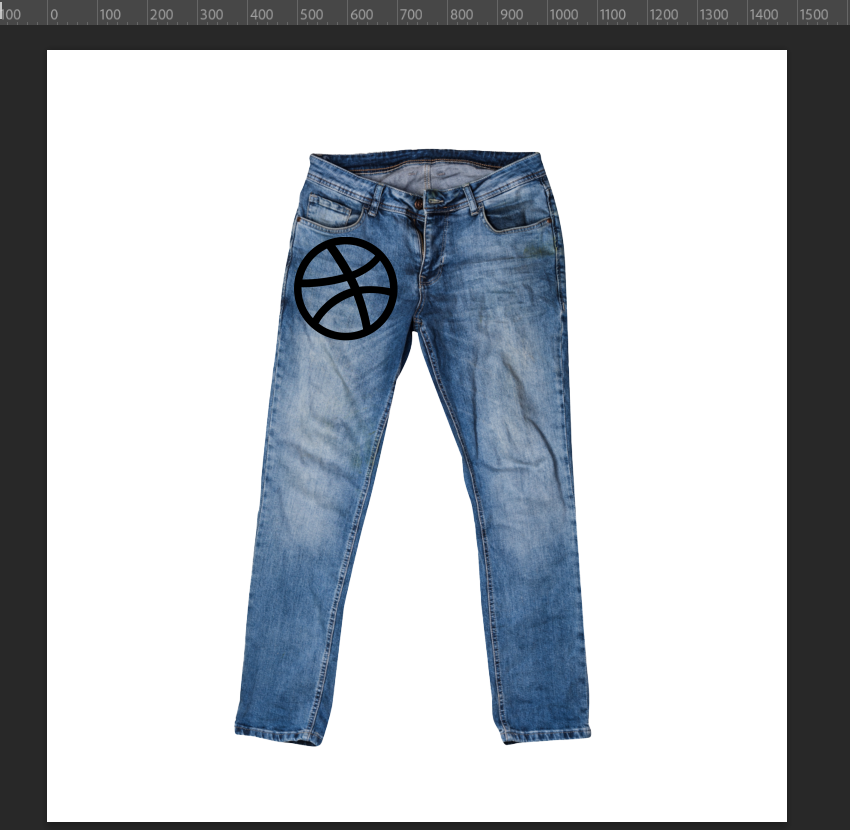
Manual Placement Using Smart Objects
If you’re looking for a method that gives you full control over your elements and provides all the flexibility you need for designs, you can use the Manual Placement Using Smart Objects. Even though it requires a lot more manual adjustments for high, it makes up for it with its reliability in custom designs.
Pros
Flexibility
Professional-Level Control
Cons
Requires Manual Adjustments
I’ll now be highlighting the steps you need to follow to manually place your logo using smart objects.
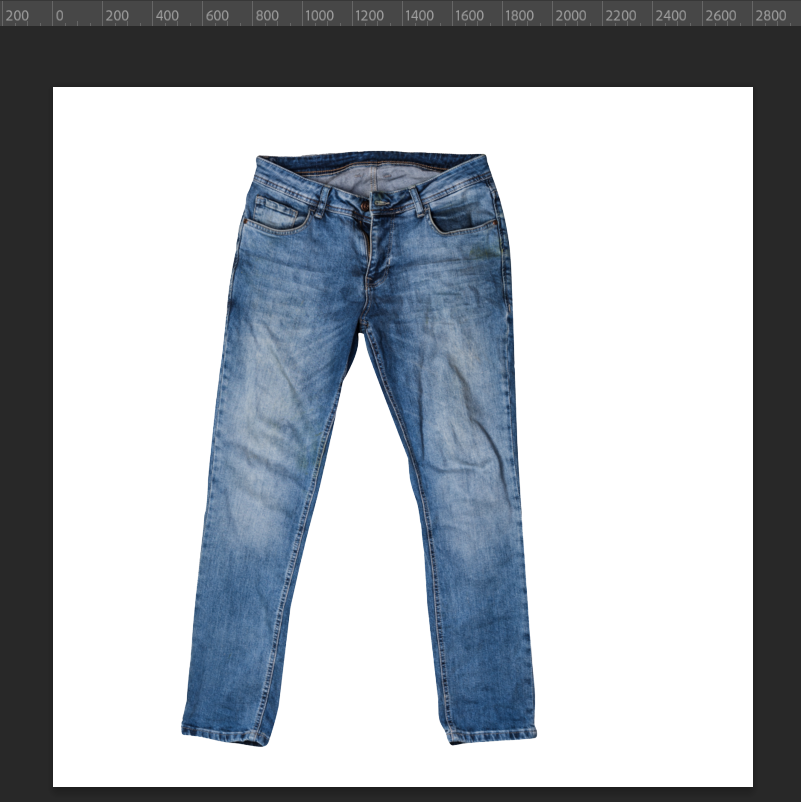
Step 1: Open the pants image you want to add your logo to in Photoshop.
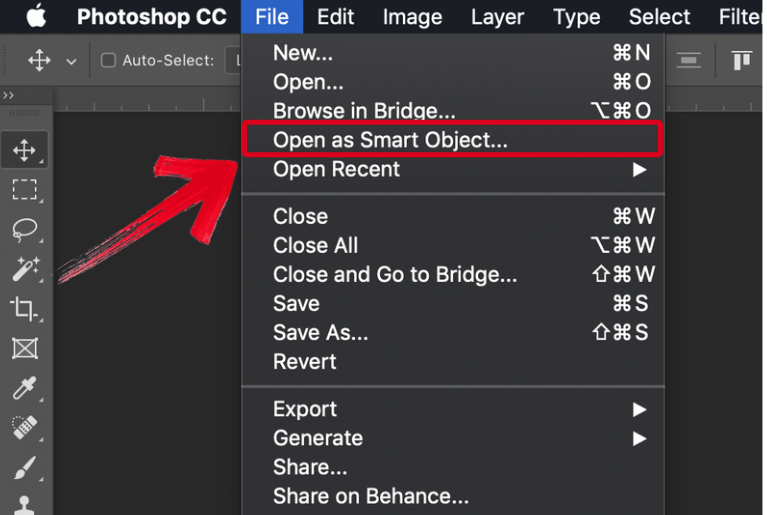
Step 2: In the File Tab, selectOpen as Smart Object to import the logo as a smart object.
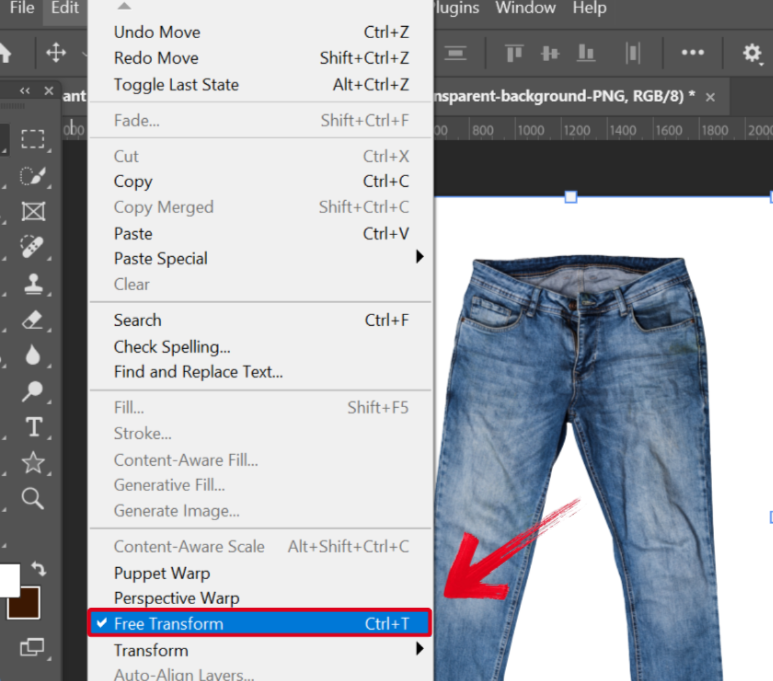
Step 3: In the Edit Tab, navigate and locate the Free Transform tool to open.
Step 4: Move the logo wherever you want on the pants to finalize your design.
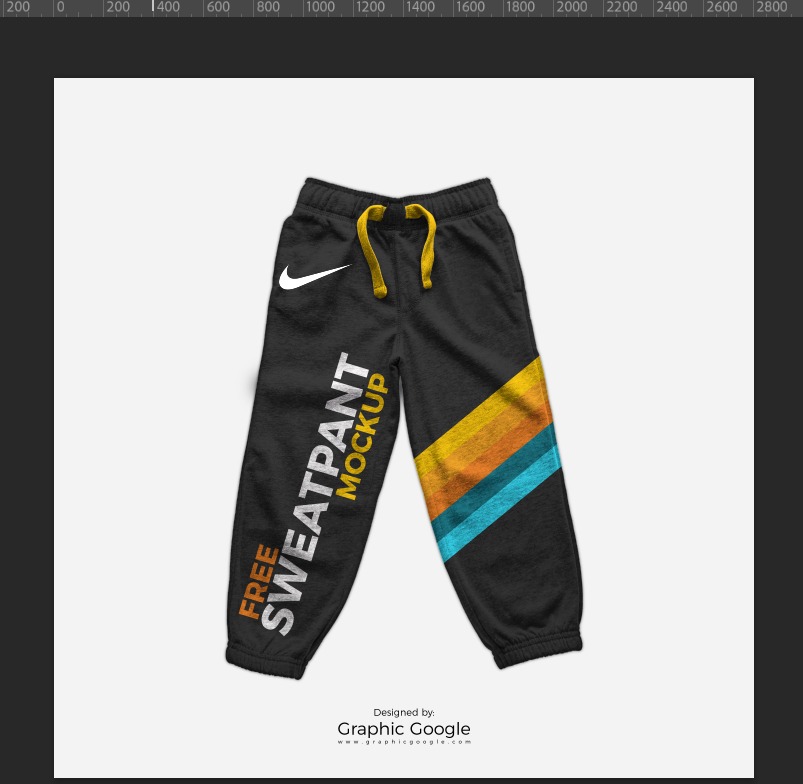
Using PSD Mockup Templates
Using Photoshop clothing mockup tutorials can be a reliable and quick way to add logos to your designs, helping you give your graphics a polished and clean look with minimal effort. Unfortunately, the quality of your results will ultimately depend on the templates you use, so make sure to choose a suitable one.
Pros
Quick Usage
Gives a Professional Look
Cons
Template Quality Varies
I’ll be highlighting the steps you need to follow to use PSD Mockup Templates for your logo placement.
Step 1: Download any third-party PSD mockup template of a pants with a logo on it.
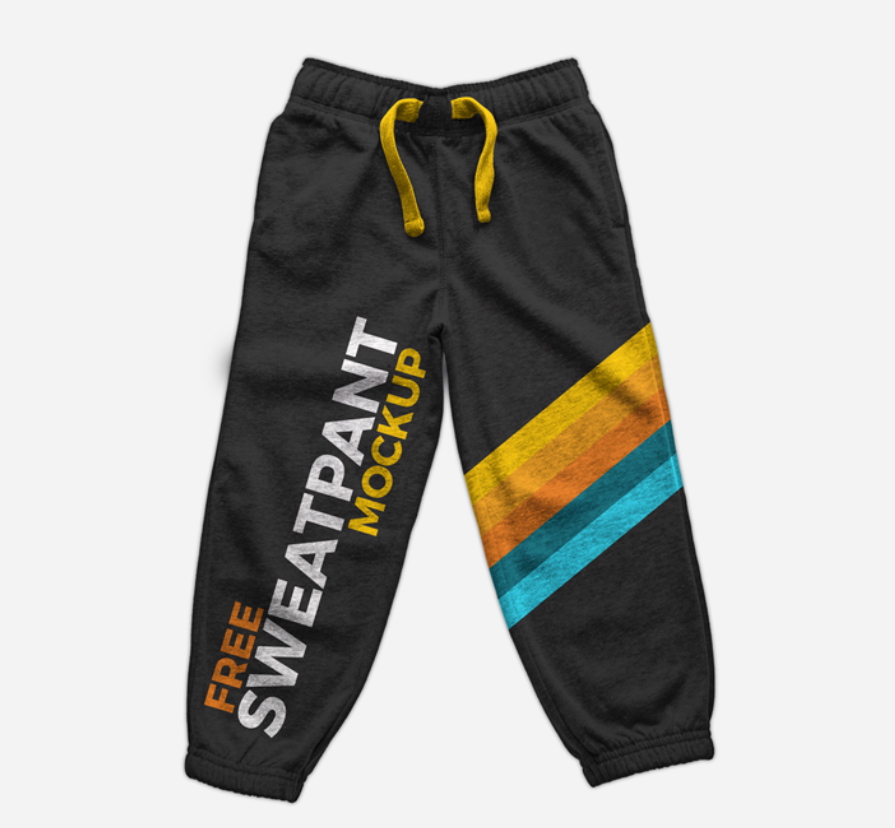
Step 2: Open the template in Photoshop and replace the placeholder logo with your own.
Using Warp & Perspective Tools for Realism
If you’re looking for a way to create realistic designs for your custom pants, using Warp and Perspective tools for realism is one of the most effective options you can go for. It allows you to adjustyour logo to blend with the folds of your fabric to give your images. While it does take a lot of practice to get good at it, it’s one of the best ways to create realistic designs.
Pros
Makes Mockups Realistic
Cons
Requires Practice to Learn
Below, I’ll be walking you through the steps you need to follow to use the Warp and Perspective tools to make your logos more realistic.
Step 1: Open the pants image you want to add your logo to in Photoshop.
Step 2: Import the logo you want to use into your graphic to start applying it to your design.
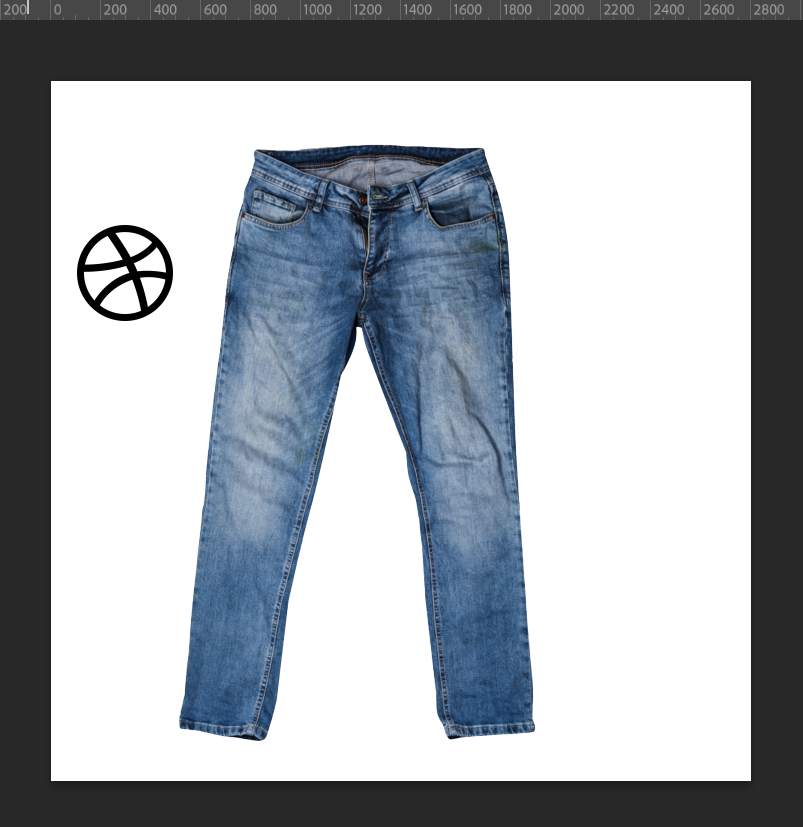
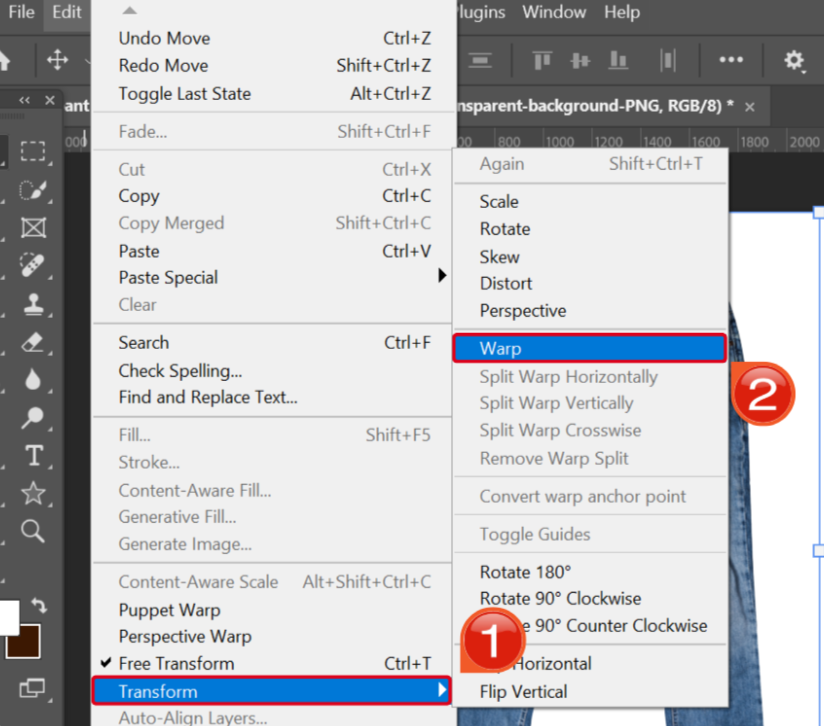
Step 3: In the Edit Tab, look for the Warp tool in the options given in theTransform menu.
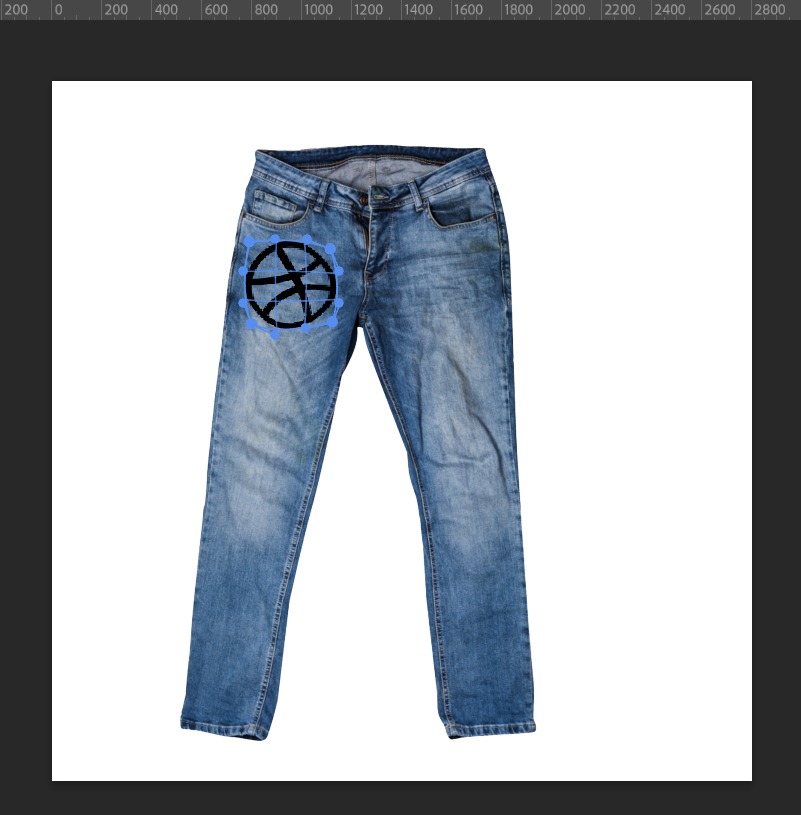
Step 4: Adjust your logo to match the folds and layers of the fabric to make them look more realistic.
Common Problems After Adding Logos
If you’re a new Photoshop user, you'll likely encounter numerous problems and issues, particularly when adding logos to pants. But if you understand what causes those issues and how to fix them, they get incredibly simple to deal with. In this section, I’ll be highlighting some of the most common problemsI’ve noticed people face when you add logo to pants Photoshop to help you understand them better.
Issues
Blurry or pixelated logos after resizing/export
Loss of sharpness when zoomedin or printed
Inconsistent clarity across devices
These issues make your graphics appear much less professional and rough, giving the wrong impression to your audience. This is why you need to find a way to fix them before finalizing your designs and uploading the images.
Fix Blurry Logos with Unblur Image
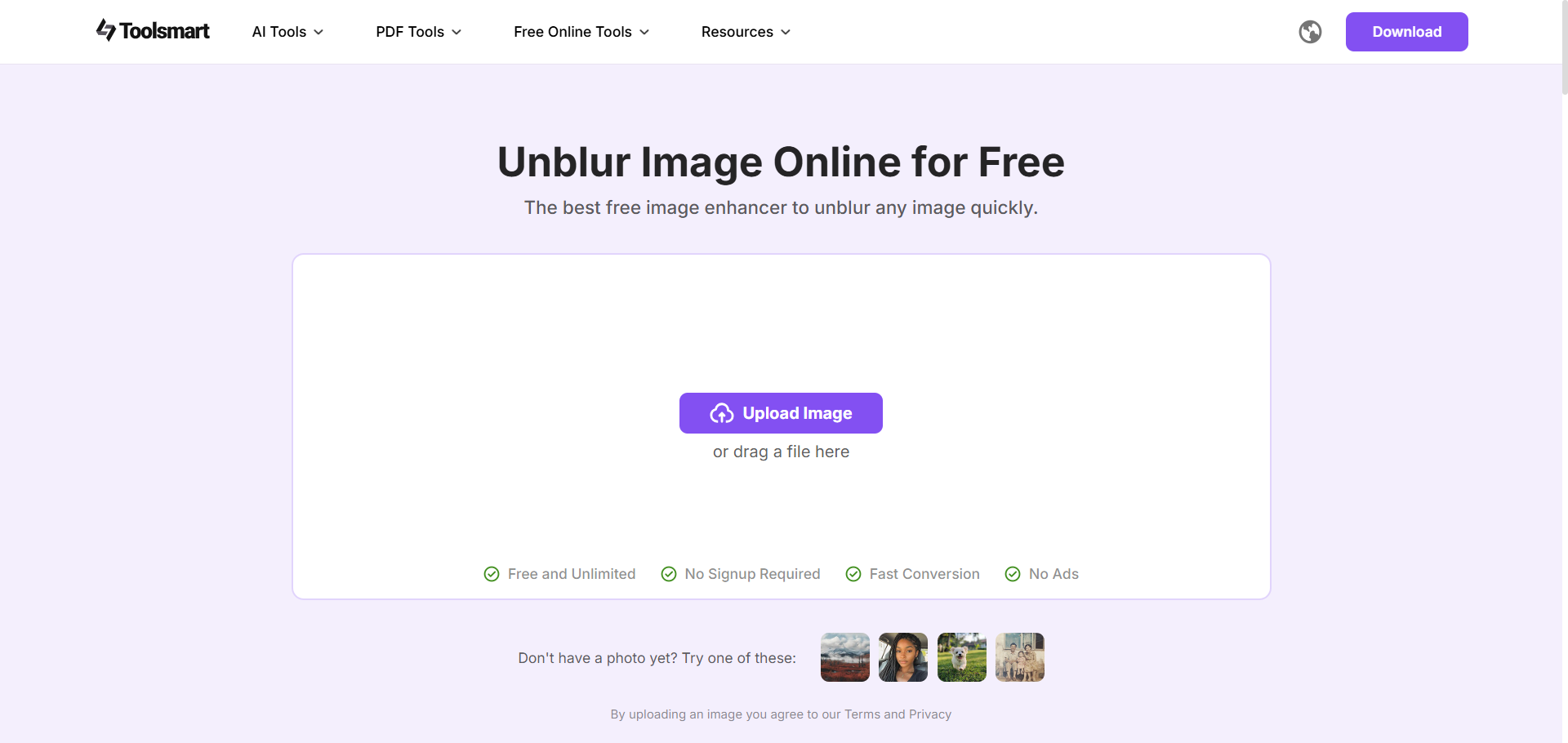
Once you’re done figuring out how to design apparel in Photoshop and adding your logos, the next step is to enhance your images by fixing the blurry logos. There are many tools you can go for to deal with this, but I personally rely on Toolsmart’s Unblur Image to ensure a smooth and seamless process. It’s completely free and helps me boost my image quality in just a few simple and easy steps, making it an ideal companion to my photo editing workflow.
How It Helps
Removes blur from logos and apparel textures
Ensures crisp and realistic mockups for presentations or e-commerce designs
Works instantly online, ensuring that no software installation is needed
Why It’s the Best Choice:
Completely Free
Fully Web-Based Functionality
Improves Text and Logo Clarity
Perfect Companion to Photoshop Users
Once you’re done editing your images in Photoshop, simply upload them to Toolsmart and instantly enhance them to boost their clarity and sharpness to ensure polished and high-res outputs every single time.
FAQs
Q1: Can I add logos in Photoshop without templates?
Yes, by manually placing and transforming logos with Smart Objects.
Q2: Why does my logo look blurry after export?
Export compression and scaling can reduce clarity. Simply use Unblur Image to fix it.
Q3: Does Unblur Image only work for text?
No, it sharpens both images and logos.
Q4: Is Unblur Image free?
Yes, 100% free, online, and requires no login.
Simplifying Apparel Design
Figuring out how to make your own clothing designs can often be a challenge, especially if you’re a beginner with no design experience. There are many different ways to figure out Photoshop how to have logo on pants issue; manual placement, online mockups, or simply using the built-in warp tools. But if you’re looking for the best possible results, you can use Toolsmart’s Unblur Image tool to ensure your logos stay clean and professional. It’s completely free and gives your images the boost they need to appear more professional.


