
'%3e%3cpath%20fill-rule='evenodd'%20clip-rule='evenodd'%20d='M19%208.5C24.799%208.5%2029.5%2013.201%2029.5%2019C29.5%2024.6782%2024.9928%2029.3036%2019.361%2029.4939L19%2029.5C18.8794%2029.5%2018.7592%2029.498%2018.6396%2029.4939L18.2811%2029.4758C12.8174%2029.1063%208.5%2024.5574%208.5%2019C8.5%2013.201%2013.201%208.5%2019%208.5ZM22.3063%2010.6267L22.2342%2010.6539C21.3423%2011.0061%2020.5541%2011.6368%2020.5606%2012.4987C20.5631%2012.8302%2020.869%2014.8871%2020.2141%2014.8486C19.5589%2014.8102%2019.413%2013.8753%2018.7116%2013.616C17.5944%2013.2026%2016.9819%2014.3401%2017.0939%2015.3106C17.1695%2015.9655%2018.9289%2018.3871%2017.9028%2019C17.292%2019.3651%2015.7279%2017.5692%2015.1007%2017.1842C14.4805%2016.8034%2013.2758%2017.3333%2012.4974%2016.7029C11.9874%2016.2899%2012.3881%2014.4098%2012.2786%2013.8372C12.2271%2013.5698%2012.1155%2013.3689%2011.9794%2013.2166L12.0402%2013.2934C10.7653%2014.8464%2010%2016.8339%2010%2019C10%2023.8465%2013.8307%2027.7982%2018.6295%2027.9925L18.6769%2027.9747C18.8597%2027.8677%2019.0394%2027.7557%2019.216%2027.6387C19.4137%2027.4534%2019.5436%2027.2072%2019.5849%2026.9394C19.8806%2025.1222%2018.3616%2025.4302%2017.9367%2024.5622C17.5489%2023.7695%2018.5712%2023.7684%2018.5524%2021.7923C18.4607%2021.1774%2018.5279%2020.547%2018.7211%2020.0315C19.1834%2018.7987%2020.7077%2017.2643%2022.5889%2018.0081C23.5567%2018.3906%2023.1524%2019.9831%2023.4737%2020.3394C24.251%2021.2018%2025.3228%2020.6863%2026.2856%2021.2253C26.7816%2021.5032%2026.9797%2022.41%2027.056%2023.2248L27.038%2023.0528C27.6534%2021.8348%2028%2020.4579%2028%2019C28%2015.1968%2025.6409%2011.9445%2022.3063%2010.6267Z'%20fill='%23757575'/%3e%3ccircle%20cx='19'%20cy='19'%20r='10.125'%20stroke='%23757575'%20stroke-width='2.25'/%3e%3c/g%3e%3cdefs%3e%3cclipPath%20id='clip0_1827_14613'%3e%3crect%20width='24'%20height='24'%20fill='white'%20transform='translate(7%207)'/%3e%3c/clipPath%3e%3c/defs%3e%3c/svg%3e)


When the live streaming industry took off around 2020, me and my friends decided to join in and start streaming too. But when we realized we had to choose a software for it, we had no clue where to start. There were so many options available and each one claimed to be the best. After a lot of back and forth, we ended up going with OBS. If you're in the same boat and looking for an OBS review or exploring other alternatives, this guide will break things down clearly so you can make the right call for your setup.
What Is OBS? Review & How to use
OBS Studio is a free streaming and screen recording tool. It’s available for Windows, Mac, and even Linux, which a lot of other streaming tools tend to skip. If you’re wonderingwhat OBS is, it’s basically the go-to platform for anyone who wants pro level features without paying a dime. OBS streaming is popular because it’s open source, so there are tons of plugins out there that can upgrade your experience like setting up multistreaming, adding clean transitions, or customizing your stream layout.
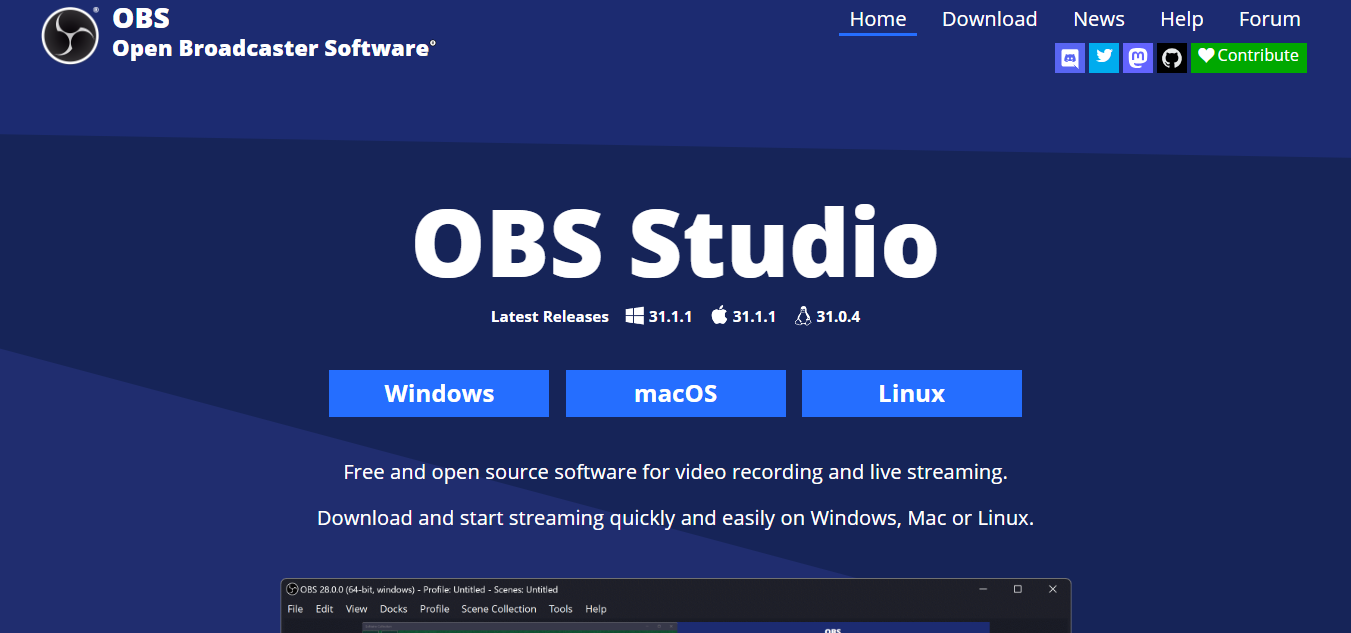
The only catch with OBS is that it’s not super beginner-friendly. You might have to spend some time figuring things out and downloading a few plugins just to get things running the way you like.
Features:
Works on all major systems: Whether you’re on Windows, Mac, or even Linux, OBS has you covered.
Totally free and open-source: You get all the pro-level streaming tools without paying a cent. No hidden costs or upgrade nags.
Plugin support: There are tons of plugins available that let you do things like multistreaming, animated overlays, stream automation, and more.
Custom scenes and transitions: Create multiple scenes and switch between them during your stream with custom transitions.
Real-time audio and video mixing: You can mix and tweak your audio and video sources live with filters, noise gates, and more.
High-performance screen recording: OBS lets you record in high quality without needing a powerful system.
Studio Mode: Preview your scenes before pushing them live so you don’t mess anything up midstream.
Modular UI layout: You can rearrange the workspace to fit your own flow which is great once you get used to it.
Pros:
Totally free to use with zero licensing fees
Open-source so new features and plugins are constantly being developed
Supports high-quality video and audio output
Works well even on mid-range systems
Perfect for advanced streamers who want full control over their setup
Cons:
Not very beginner-friendly and has a learning curve
You need to install separate plugins for certain features like multistreaming
Some features may require third-party setup or extra configuration
Interface can feel outdated or overwhelming to new users
Top 4 Free OBS Alternatives
Now that you’ve gone through the detailed OBS review, let’s check out some other free tools you might want to consider. OBS is great, but if you’re looking for something that’s easier to use, has a cleaner interface, or just works better with your system, these alternatives are worth a shot. Whether you’re just starting out or looking to switch things up with your Twitch streaming software, here are four solid options you can try without spending a dime.
1. Prism Live Studio
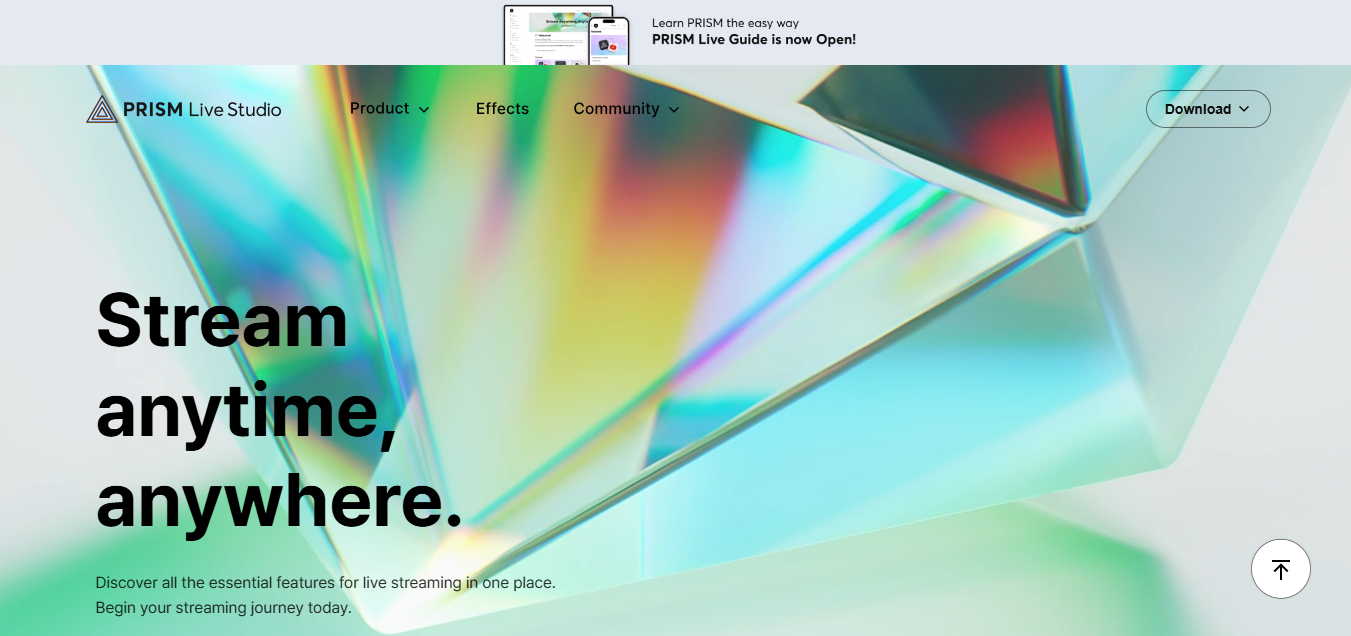
PRISM Live Studio is a free streaming tool that works on Windows, macOS, Android, and iOS. Unlike other tools that mainly stick to desktop, PRISM works across all your devices. You can use it on your browser or through its mobile app without dealing with complicated setups. It comes packed with built-in features like multistreaming to Twitch and YouTube, animated overlays, screen sharing, and even VTuber-style avatars.These are things you don’t get by default on tools like OBS. You can think of it as something similar to OBS but with a simpler interface and some of the extras already built in.
Features:
Cross-Platform Access: Works on Windows, macOS, Android, and iOS so you can stream from your laptop or phone without switching tools.
Browser and App Support: No need for heavy setups. You can use PRISM directly through your browser or the mobile app.
Built-in Multistreaming: Stream to Twitch, YouTube, and more at the same time without third-party services.
Animated Overlays and Effects: Add cool visuals, text, and transitions that make your stream look way more professional.
VTuber Avatar Mode: Use animated avatars if you don’t want to show your face on stream. This is already built into the tool.
Screen Sharing and Chat Management: Easily share your screen and manage live chat while streaming, even from your phone.
Pros:
Super beginner friendly with no complicated setup
Multistreaming built right in
Available on both desktop and mobile
Comes with cool effects and overlay options
VTuber-style avatar support included
Cons:
Limited customization compared to OBS
Some features like scene transitions are a bit basic
You need a decent device for smooth performance on mobile
Can feel a bit laggy if too many effects are active at once
After using OBS Studio for a while, switching to PRISM Live Studio didn’t feel like a huge shift. Most of the basics, like setting up your screen, worked the same way. What really made PRISM stand out for me was its built-in features. One that I found super useful was the PRISM Camera tool. It lets you remove your background and swap it with anything that matches your stream’s vibe or topic.
2. Streamlabs Desktop
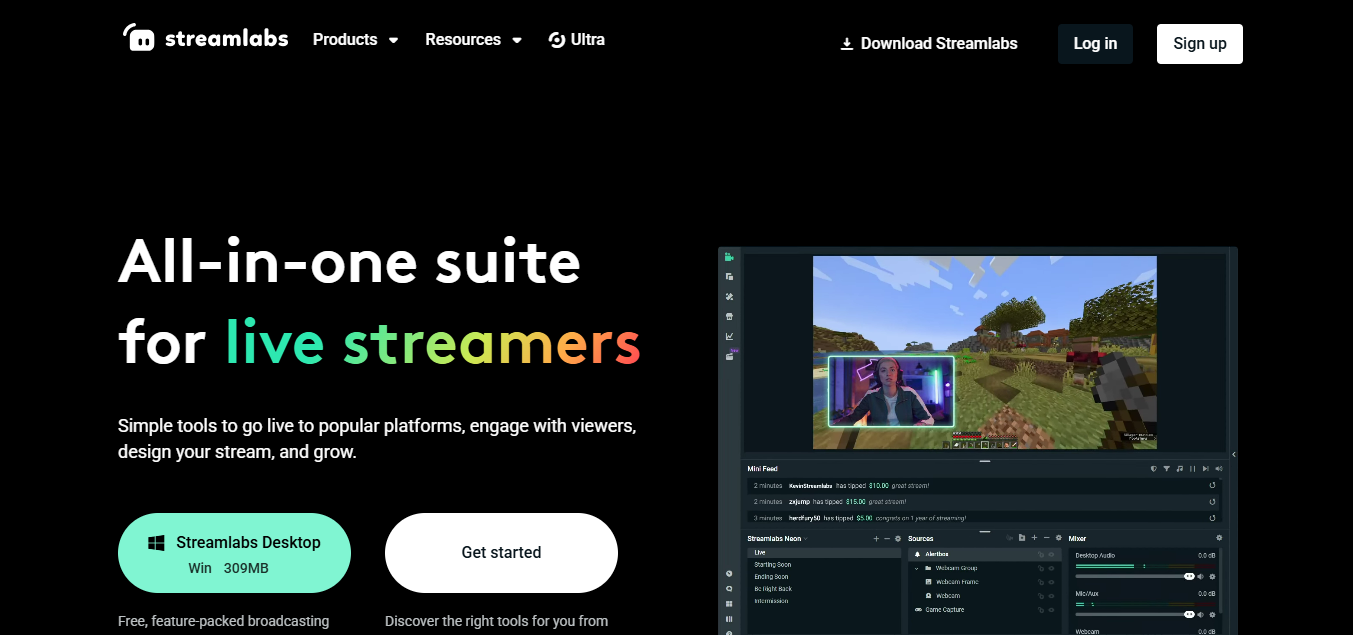
Streamlabs Desktop is a free live streaming and recording tool. Unlike OBS Studio, it only works on Windows and Mac. It comes with built-in tools like alerts, overlays, widgets, chat support, and multistreaming. You even get a mobile app to help manage your stream while you're on the move. But it’s not completely free. Streamlabs also has a premium plan called Streamlabs Ultra. It unlocks extras like the ability to stream directly from your console and even lets you multistream using the mobile app.
Everything in One Place: You get alerts, overlays, chat tools, and more already built in. No need to hunt for extra plugins just to set up your stream.
Stream to Multiple Platforms: You can go live on Twitch, YouTube, and Facebook all at once without jumping through hoops.
Layout Backup: It automatically saves your stream setup and settings, so even if you switch devices, you won’t lose your layout.
Extra Tools and Widgets: Their app store has a bunch of helpful add-ons you can try out. Some are free, others come with the Ultra plan.
Mobile App Control: You can run your stream from your phone, switch scenes, and keep an eye on chat while you're away from your PC.
Easy Donations: It comes with its own donation system where you can link PayPal or other services so viewers can support you directly.
Pros:
Beginner-friendly layout with everything in one place
Tons of free themes and widgets available
Built-in chat and alert management
Works well for Twitch streaming
Mobile app adds flexibility for remote control
Cons:
No support for Linux
Some features are locked behind the Ultra subscription
Uses more system resources compared to OBS Studio
Limited customization compared to open-source platforms
You need to sign up to access most tools
After using Streamlabs Desktop for a while, I actually started enjoying it, especially once I tried their Streamlabs Ultra plan. That upgrade really made a difference. I could multistream directly from my phone, and their built-in video editor made it super easy to clip highlights and upload them to YouTube. One thing I found super helpful was that they actually offer sponsorships to streamers. So if you’re just starting out and looking to grow your channel, this could be a great opportunity to explore.
3. Meld Studio
Meld Studio is a free desktop streaming tool for Windows and macOS. It was built after seeing all the struggles streamers were facing with OBS Studio, so it’s basically OBS but with improved and smarter features. The bestpart is that the interface is way more beginner-friendly. You can set up your stream in just a few minutes without digging through a bunch of confusing menus. It supports high-performance multistreaming, real-time visual effects, layered scenes, virtual audio mixing, and more. While it packs some pretty solid pro-level tools right out of the box, just keep in mind that it’s still in beta.
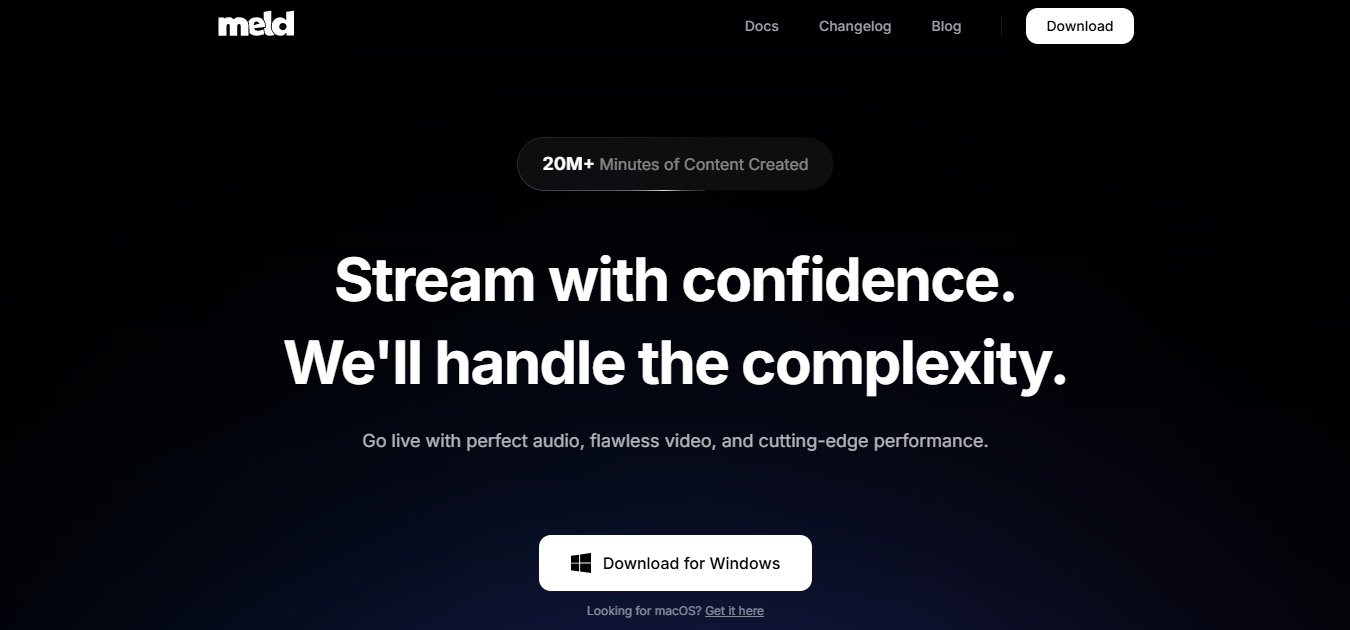
Features:
Beginner-Friendly Setup: Meld Studio is built to make things easy. You don’t have to dig through a bunch of settings, just a few clicks and you’re live.
Multistreaming Without the Hassle: You can go live on YouTube, Twitch, Kick, and a few others all at once. No extra tools or tricky setups needed.
Simple Scene Customization: You can create clean, professional-looking scenes using layers, transitions, and effects. It’s all built in and super easy to tweak even if you’re just starting out.
All-in-One Audio Control: You can manage your mic, game audio, and background music from one place. No need for extra software or plugins.
Runs Smooth Even on Mid-Range PCs: You don’t need a high-end setup. Meld Studio is designed to run well even if your PC isn’t the most powerful.
Save Your Streams: It also lets you record your stream in high quality directly to your system while you’re live, so you’ve got a backup or content to edit later
Integrated Alerts and Chat Widgets: Easily add alerts and live chat from your platforms directly into the stream layout.
Pros:
Super easy to use, even for first-time streamers
No need to install plugins for most core features
Clean interface with drag-and-drop layout controls
Multistreaming support without upgrading to a paid plan
Built-in tools for audio, video, and layout design
Cons:
Still in beta, so there might be occasional bugs or updates missing
Limited advanced customization compared to OBS with plugins
Not available for Linux
Smaller user base means fewer online tutorials or community mods
Trying out Meld Studio was honestly a pretty surprising experience for me. Something as simple as rounding the corners of the screen, which felt like a whole task in OBS, needed extra software just to pull it off. But with Meld Studio, I got it done in seconds thanks to their built-in feature. Same goes for stream transitions. In OBS I had to look for plugins and mess around just to make a basic one. In Meld I created smooth transitions in just a few minutes and it was way easier than I expected.
4. Splitcam
SplitCam is a free desktop streaming and webcam tool available for both Windows and macOS. It’s designed to help you stream your screen, face cam, or gameplay to platforms like Twitch, YouTube, and Facebook all at once. What makes it stand out is that it doesn’t overload your CPU like some other tools. It even offers features like audio mixing, camera effects, and multistreaming. Just a heads up though, some of the HD effects and audio tools might lag a little if you’re not on a decent setup.
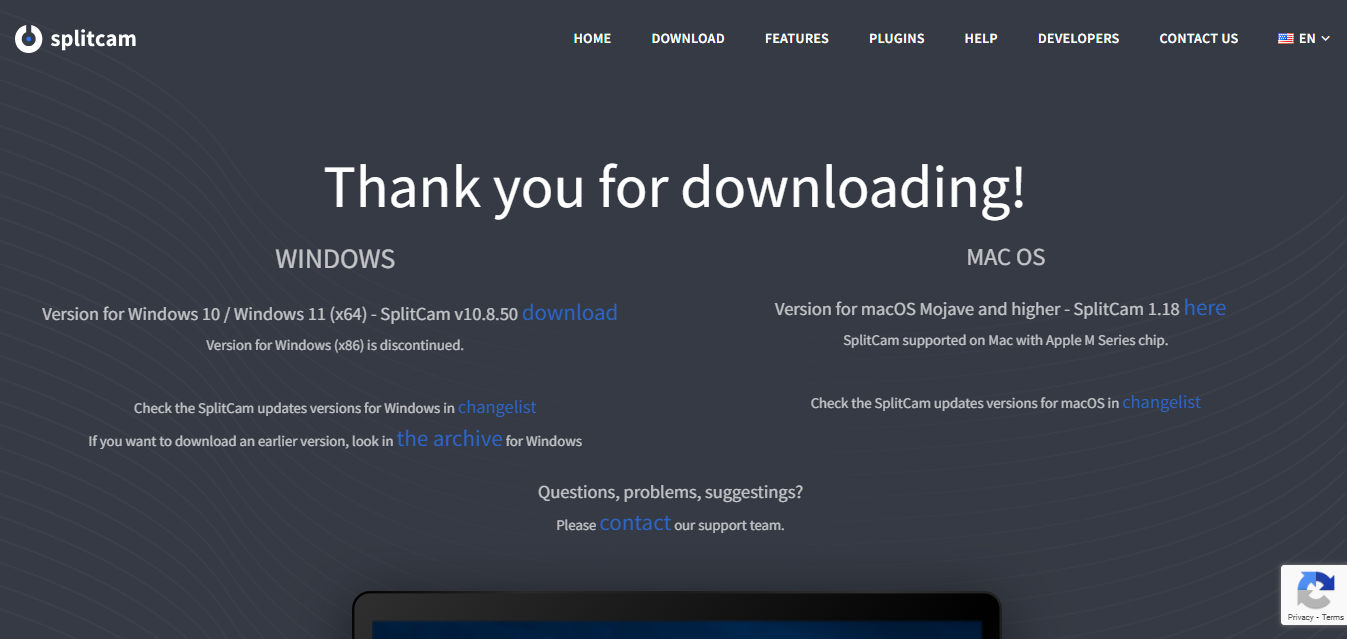
Features:
Multistream Without the Headache: You can go live on YouTube, Twitch, Facebook, and a few others all at once. No need for extra plugins or settings. Just pick your platforms and hit go.
Use It as a Virtual Webcam: If you’re hopping on Zoom or Skype, SplitCam lets you use your stream or screen as your webcam source. Handy for online meetings or collabs.
Add Camera Effects Easily: You get some fun camera effects and filters built right in. They’re not over the top but enough to give your webcam feed a little extra personality.
Share Gameplay or Your Screen: Whether you’re streaming a game or doing a tutorial, sharing your screen is super simple. Just a couple of clicks and you’re good.
Built-in Chat Viewer: You don’t have to keep switching tabs. SplitCam shows your chat right inside the app so you can keep up with viewers while streaming.
Runs Smooth Even on Older PCs: If your computer isn’t the most powerful, no worries. SplitCam is pretty lightweight, so it doesn’t eat up your CPU like some other tools do.
Pros:
Super simple to use even if you’ve never streamed before
Great for multistreaming to multiple platforms
Built-in support for video calls and screen sharing
Doesn’t slow down your computer too much
Works well with Zoom, Skype, and other platforms too
Cons:
Advanced effects and mixing tools can lag on low-end PCs
Some features may feel basic compared to tools like OBS or PRISM
Interface design feels a bit outdated
Mac version is slightly more limited in features
SplitCam is just like OBS Studio but with a modern twist to it. It comes packed with a bunch of features that make streaming easier, especially for beginners. One thing I liked is the screen blur option which is super handy if you want to hidesensitive info while streaming. Plus, it has built-in LUTs (color filters) that can instantly make your stream look more polished and visually appealing without needing any extra setup.
Bonus Tool – Toolsmart Free YouTube Video Downloader
If you’re new to streaming or trying to level up your content, one of the smartest things you can do is learn from others. Back when I was getting started, I spent hours watching how experienced streamers handled overlays, transitions, and even how they engaged with their chat. Toolsmart’s YouTube Video Downloader made that whole process easier. It lets you save videos in high quality and watch them offline, so you can break things down at your own pace without any messy setups or pop-upsgetting in the way. Just paste the link, hit download, and you’re set.
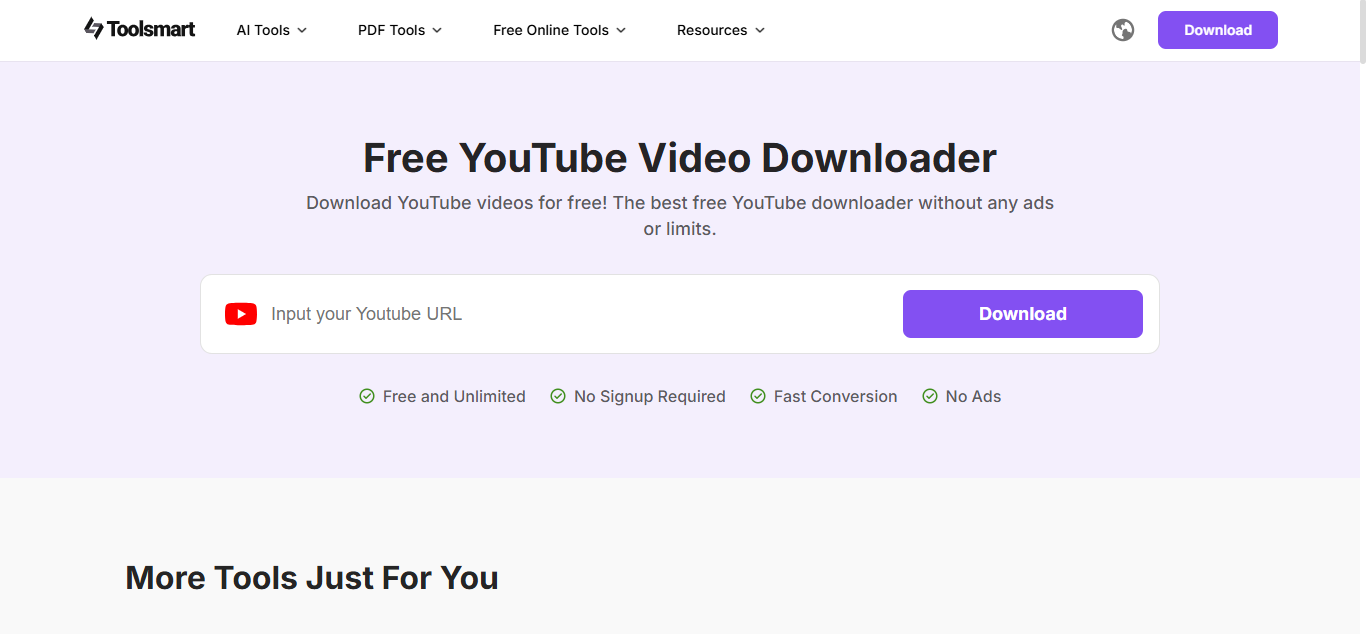
You can even download videos of pro gamers to study their tactics and gameplay more closely. It’s a great way to pick up tips and improve your own skills. And if you’re planning to stream esports content, that kind of insight can make your gameplay more entertaining and worth tuning into.
Toolsmart YouTube Video Downloader is a free and super easy tool that lets you download any video from YouTube without any hassle. In just a few seconds, you can save the video in your preferred quality. The interface is beginner friendly. You just paste the link of the YouTube video you want, click a button, and your video is ready to go. No extra steps or confusing settings.
Features:
Free and browser-based: No need to install anything or create an account
Supports HD quality: Download videos in your preferred resolution, even full HD
Simple interface: Just paste the YouTube link and hit download
Fast downloads: No complicated steps, just quick and clean results
No watermarks: Your saved videos come as-is, no branding slapped on top
Pros:
Works smoothly on both desktop and mobile
Great for saving tutorials, gameplay, or pro-level streams
Beginner-friendly and easy to use
Helps you study transitions and strategies offline
Totally free with no hidden catch
Cons:
Only works for YouTube, not other platforms
Doesn’t let you trim or edit videos while downloading
Sometimes takes a few seconds extra for longer videos
How to Use Toolsmart YouTube Downloader (Step-by-Step)
If you’ve never used a YouTube downloader before, don’t worry. This one is super easy. You don’t need to install anything or go through a bunch of steps. Just follow this quick walkthrough and you’ll have your video ready to watch offline in no time.
Step 1: Open your browser and go to Toolsmart’s YouTube to MP3 Converter.
Step 2: Copy the link of the YouTube video you want to download and paste it into the input box labeled “Input your YouTube URL”.
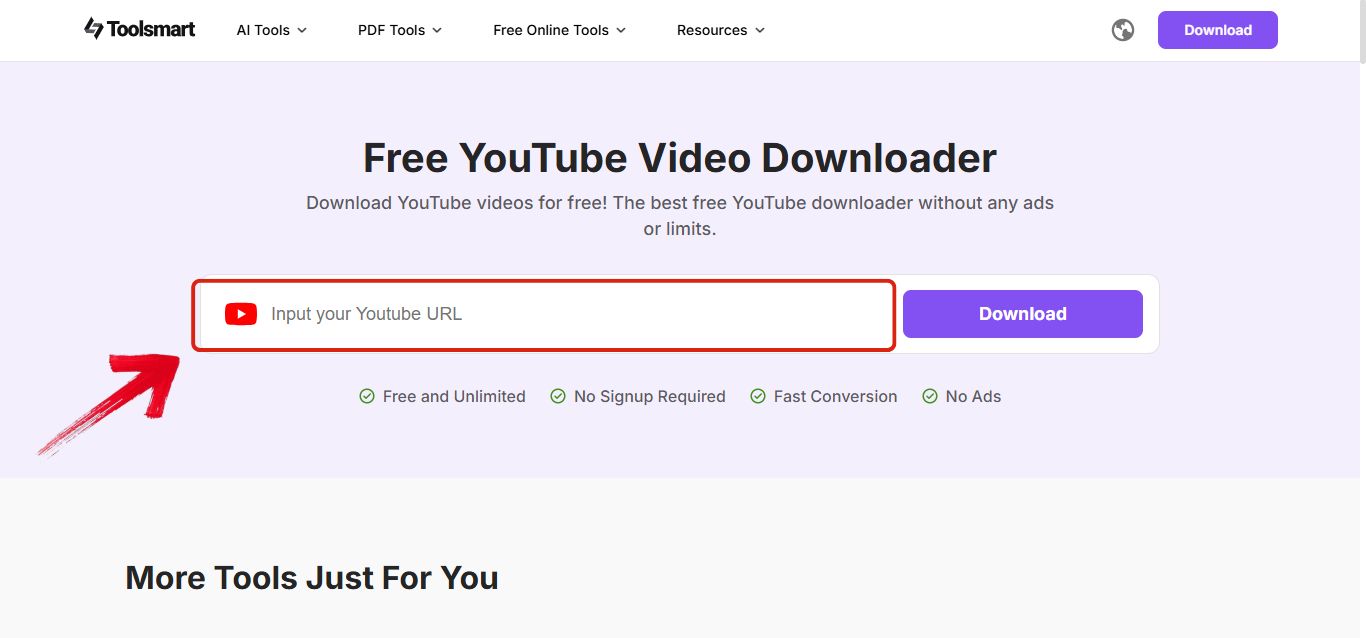
Step 3: Click the “Download”button, which is right next to the input box. This will start processing the video.
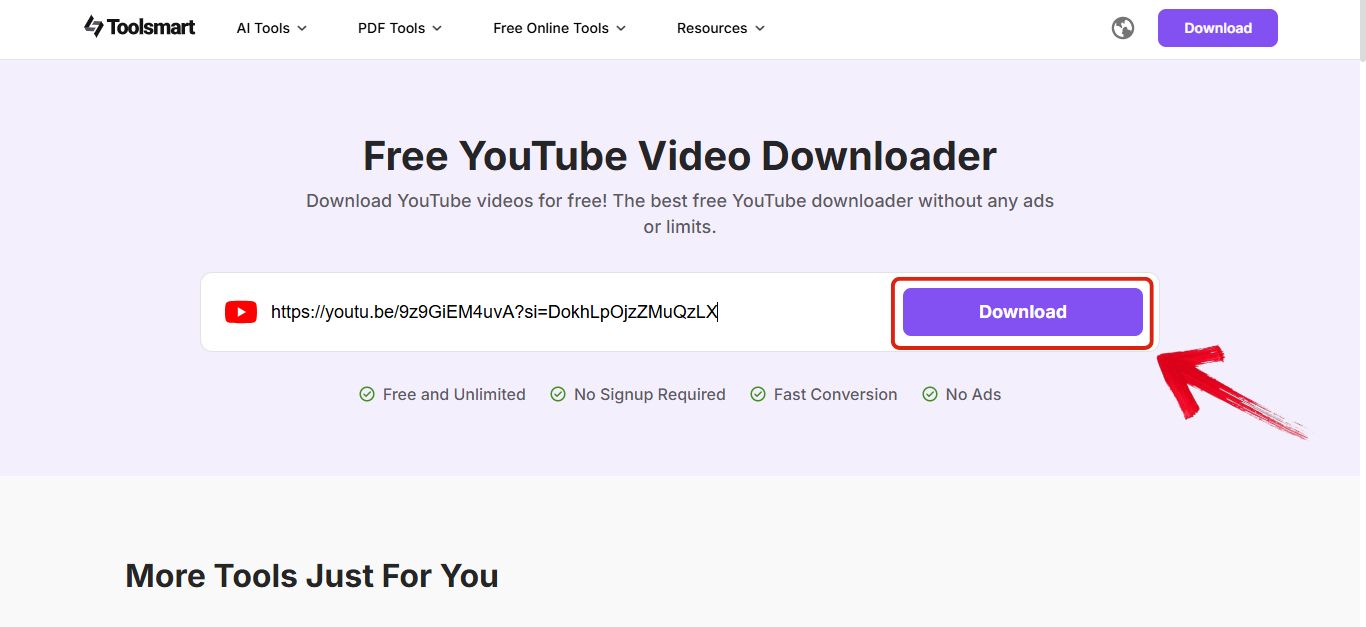
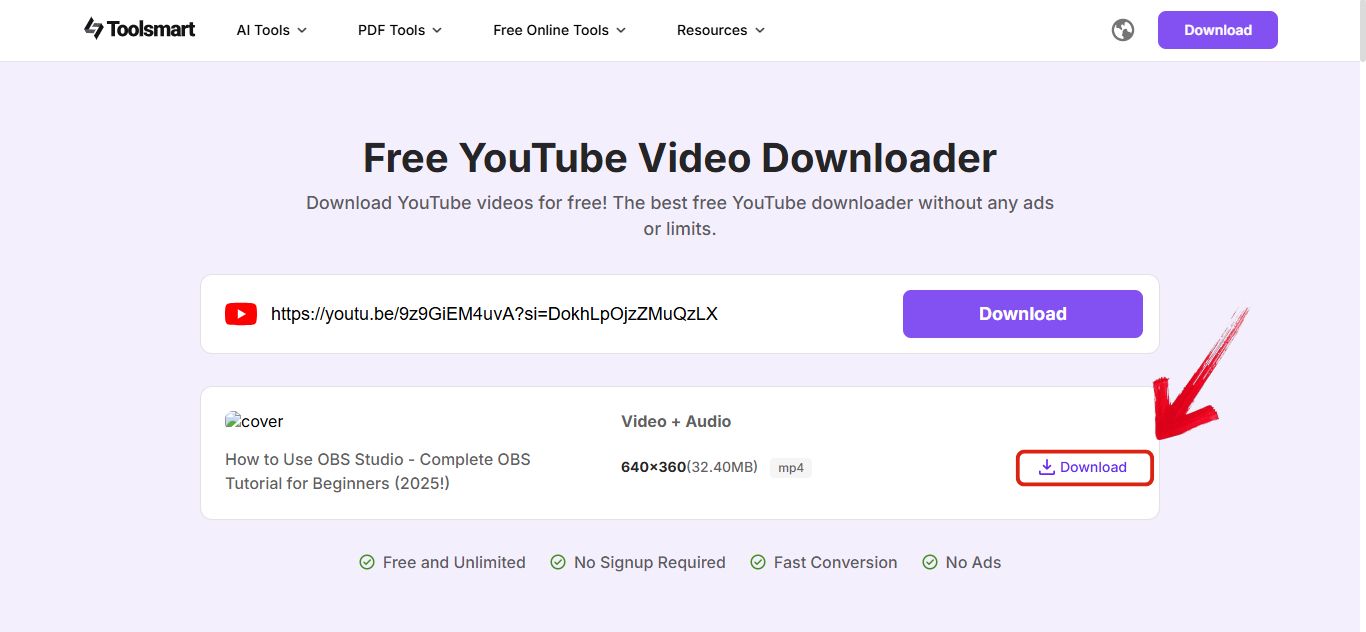
Step 4: Now you’ll see the title and the cover of the video, and right next to it you’ll see a “Download”button. Click on that to start the download.
FAQs
1. Is OBS Studio still good in 2025?
Yes it’s still one of the top free tools out there. It gives you a lot of control over your stream and works great if you’re comfortable tweaking settings and adding plugins. But if you’re just starting out it might feel a bit overwhelming at first.
2. Which OBS alternative is best for beginners?
If you want something easier to use without digging into too many technical details then Prism Live Studio or Streamlabs Desktop are great picks. They come with a cleaner interface and built-in features that make setup smoother.
3. Can I record and stream at the same time with OBS?
Yes OBS lets you do both at once. So if you’re live on Twitch and also want to save a high quality version of your stream for YouTube later it’s totally possible with just a few clicks.
4. Does Toolsmart work for other platforms like Twitch or Vimeo?
Right now Toolsmart mainly works with YouTube but if you’re using YouTube for your clips or content it does the job really well. Hopefully support for other platforms gets added soon.
5. Is Toolsmart downloader free and legal?
Yes it’s completely free and totally fine to use for personal stuff like studying gameplay or saving your favorite content. Just don’t use it for anything shady or commercial without permission.
So, Is OBS Still Worth It in 2025? Here’s the Takeaway
If you’re getting into streaming or just thinking about upgrading your setup, this OBS review walks you through everything you need to know. It covers what OBS Studio is, how it works, and whether it’s still a good option in 2025. I’ve also shared a few solid free alternatives like Prism Live Studio, Streamlabs Desktop, Meld Studio, and SplitCam. These tools offer simpler interfaces and built-in features that can make your streaming experience a lot smoother.
And if you’re serious about growing your stream, don’t sleep on Toolsmart’s Free YouTube Video Downloader. Whether you’re trying to study top gamers, improve your own gameplay, or save content to watch offline, it’s honestly one of the handiest tools out there. No ads, no confusion, just paste the link and download in seconds. For content creators, esports streamers, or even casual gamers, Toolsmart can quietly level up your entire process behind the scenes.


