
'%3e%3cpath%20fill-rule='evenodd'%20clip-rule='evenodd'%20d='M19%208.5C24.799%208.5%2029.5%2013.201%2029.5%2019C29.5%2024.6782%2024.9928%2029.3036%2019.361%2029.4939L19%2029.5C18.8794%2029.5%2018.7592%2029.498%2018.6396%2029.4939L18.2811%2029.4758C12.8174%2029.1063%208.5%2024.5574%208.5%2019C8.5%2013.201%2013.201%208.5%2019%208.5ZM22.3063%2010.6267L22.2342%2010.6539C21.3423%2011.0061%2020.5541%2011.6368%2020.5606%2012.4987C20.5631%2012.8302%2020.869%2014.8871%2020.2141%2014.8486C19.5589%2014.8102%2019.413%2013.8753%2018.7116%2013.616C17.5944%2013.2026%2016.9819%2014.3401%2017.0939%2015.3106C17.1695%2015.9655%2018.9289%2018.3871%2017.9028%2019C17.292%2019.3651%2015.7279%2017.5692%2015.1007%2017.1842C14.4805%2016.8034%2013.2758%2017.3333%2012.4974%2016.7029C11.9874%2016.2899%2012.3881%2014.4098%2012.2786%2013.8372C12.2271%2013.5698%2012.1155%2013.3689%2011.9794%2013.2166L12.0402%2013.2934C10.7653%2014.8464%2010%2016.8339%2010%2019C10%2023.8465%2013.8307%2027.7982%2018.6295%2027.9925L18.6769%2027.9747C18.8597%2027.8677%2019.0394%2027.7557%2019.216%2027.6387C19.4137%2027.4534%2019.5436%2027.2072%2019.5849%2026.9394C19.8806%2025.1222%2018.3616%2025.4302%2017.9367%2024.5622C17.5489%2023.7695%2018.5712%2023.7684%2018.5524%2021.7923C18.4607%2021.1774%2018.5279%2020.547%2018.7211%2020.0315C19.1834%2018.7987%2020.7077%2017.2643%2022.5889%2018.0081C23.5567%2018.3906%2023.1524%2019.9831%2023.4737%2020.3394C24.251%2021.2018%2025.3228%2020.6863%2026.2856%2021.2253C26.7816%2021.5032%2026.9797%2022.41%2027.056%2023.2248L27.038%2023.0528C27.6534%2021.8348%2028%2020.4579%2028%2019C28%2015.1968%2025.6409%2011.9445%2022.3063%2010.6267Z'%20fill='%23757575'/%3e%3ccircle%20cx='19'%20cy='19'%20r='10.125'%20stroke='%23757575'%20stroke-width='2.25'/%3e%3c/g%3e%3cdefs%3e%3cclipPath%20id='clip0_1827_14613'%3e%3crect%20width='24'%20height='24'%20fill='white'%20transform='translate(7%207)'/%3e%3c/clipPath%3e%3c/defs%3e%3c/svg%3e)


MP4 is an extremely versatile video format because of its high compression, good quality, and broad compatibility. It is most people's first choice. But when I needed to join MP4 files together for a project, I ran into a few issues, and just like me, you must have run into issues like low-quality videos, large file sizes, and all sorts of problems that could leave you frustrated and confused more than you had set out to be. So, after trying over 50 different tools to solve this, I finally found a few that really worked for me. In this article, I’ll share the best ones I discovered to help you merge MP4 files with ease.
Top 5 MP4 Files Joiner
Understanding how to join MP4files together can be tricky, with issues like file size, quality loss, and compatibility. Now, after testing many tools, I’ve narrowed it down to the top 5 MP4 joiners that offer smooth merging. Whether it’s paid or free, here’s how to merge MP4 files.
Adobe Express:
Adobe Express is an all-round, web-based tool that makes editing and merging videos a piece of cake. As it’s a cloud-based platform, it gets rid of the need for downloading it, saving your precious time and device space. Suppose you have an older device or just need a quick edit without needing to worry about any sign-ins or paywalls, making Adobe Express perfect for it.
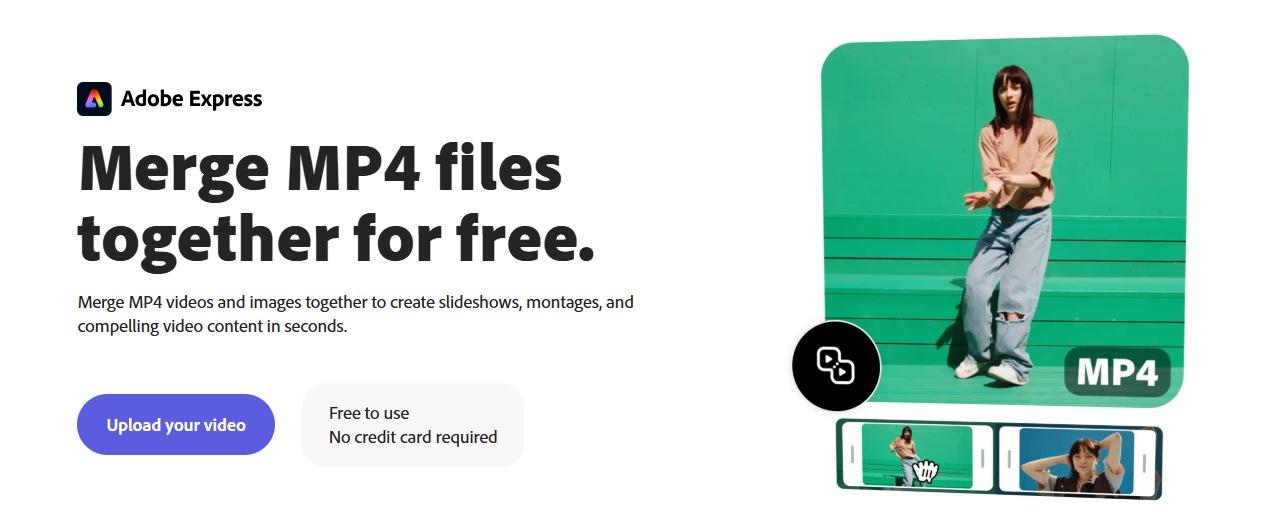
Getting started is easy as well. You need to drag and drop your files and get started with editing. You can access it anywhere without worrying about someone tracking your activity. While there are no long download times or complicated installation processes. There are some limitations on the free version, especially exportoptions. However, for basic edits, it is quite handy and serves its purpose.
Features:
Cloud-based platform: No need to install software or worry about storage, so you can access it anywhere with an internet connection. Perfect for users who want an interruption-free experience.
Drag-and-drop functionality: Upload and merge MP4 files, making the tool easy to use, especially for beginners.
Free for basic use: Ideal for users who don’t need advanced features but want a quick, simple solution for merging MP4 files.
Price:
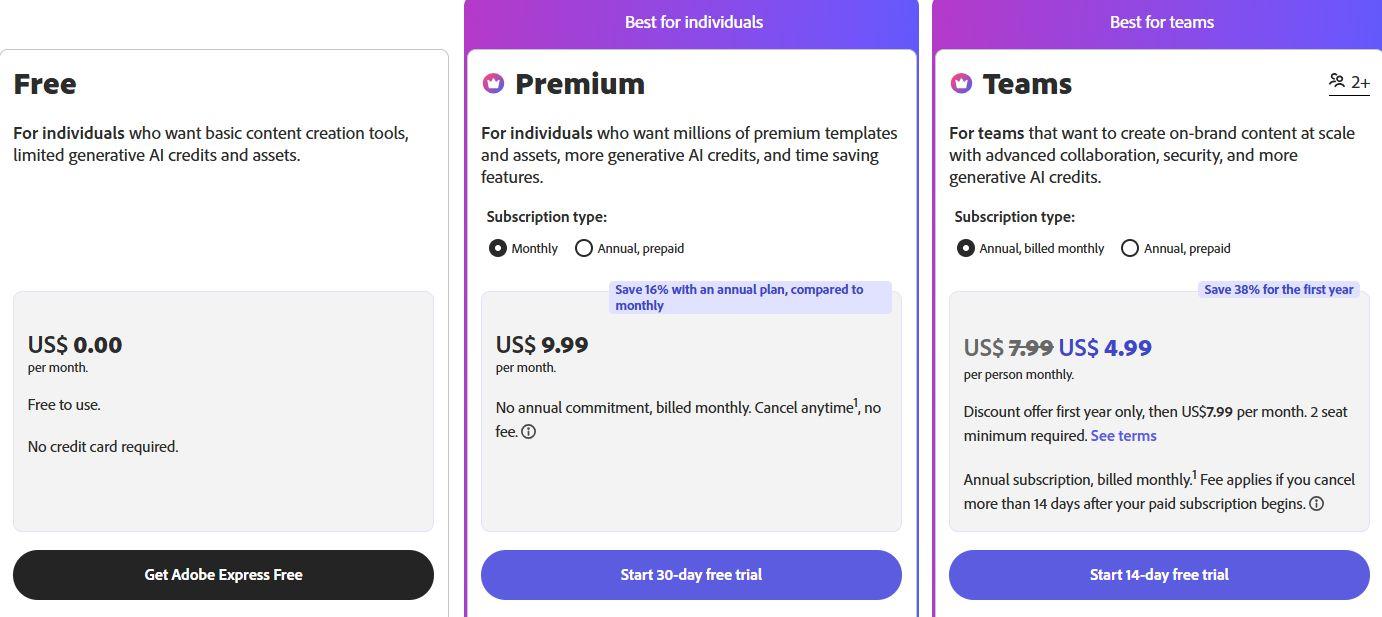
Adobe Express offers a free plan for basic functionality. But if you need advanced features, you can upgrade to the premium plan. It costs $9.99 per month for individuals or $7.99 per month for teams.
Pros:
Empowers beginners with its simple design and easy-to-use features.
No installation required, as it’s completely web-based
Free for basic functionality with cloud storage
Cons:
Advanced features like higher resolution exports are locked behind a paid plan
Export options in the free version are somewhat limited
Processing can be slower for larger video files
Best For:
Adobe Express is perfect if you need to append two videos. It requires no setup or installation. It’s great for casual users or beginners who want something simple. You don’t need advanced features, and it’s easy to use from the cloud.
Clideo:
Clideo is a great web-based tool for quickly merging MP4 files. It’s similar to Adobe Express, but its interface is more modern and flashy.
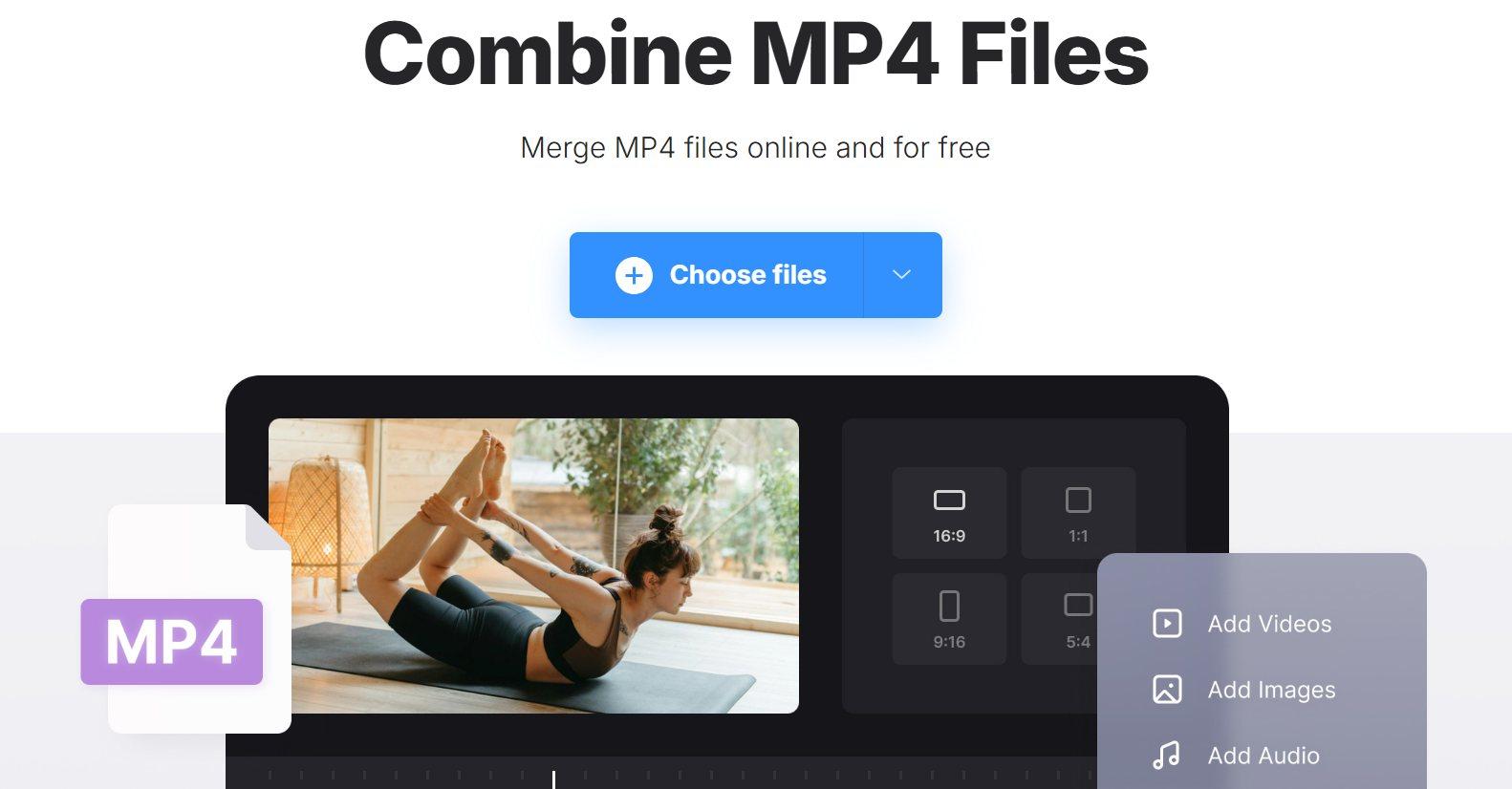
It’s simpler than the other tools we’ll discuss below. The free version works well for small tasks, but it has limits on video length and export quality. What stood out to me, yet, was its speed, it handled the merging process incredibly well for smaller files. Also, you don't need to register, which is always a plus when you're looking for a quick solution.
Features:
Web-based tool: No need for a software download, making it a quick solution for users who want to avoid installations.
Supports multiple formats: It merges MP4 files and other formats, giving you flexibility for various projects.
No watermark on free version: Great for users who want a quick solution without the distraction of watermarks.
Price:
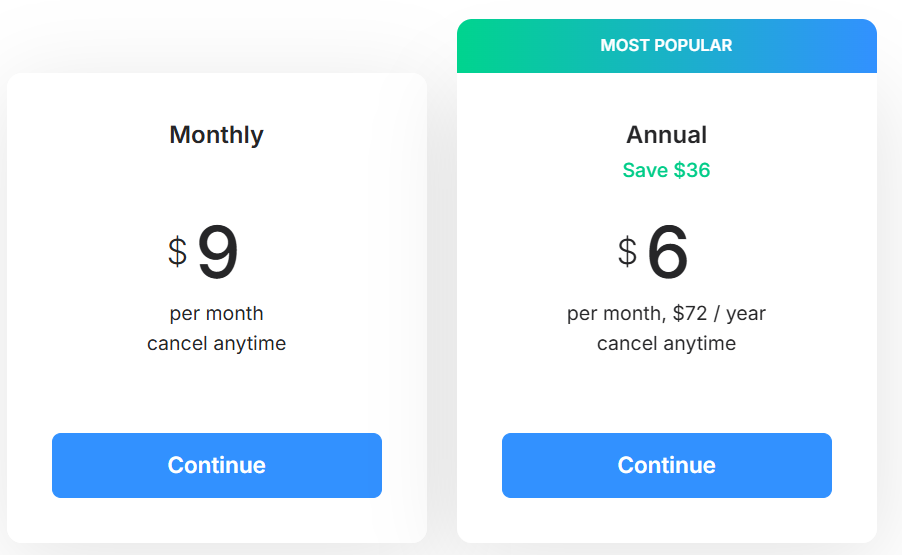
Clideo offers a free plan with some limitations, such as video length restrictions. You can upgrade to the Pro plan to unlock extra features and remove limitations. It costs $9/month or $6/month when billed annually.
Pros:
Simple interface that’s easy to use, even for beginners
Fast processing times for smaller files
No watermark on the final video in the free version
Cons:
Limited video length for free users
The free version offers fewer export options
Can be slow with larger video files
Best For:
Clideo is best for users who need a quick and free solution to merge MP4 files. It’s great for people with short video clips or anyone who wants an easy, online tool with no watermark.
Video Candy:
Video Candy is an easy-to-use online tool that caters to basic video editing and merging needs. I used it when I wanted to join a few MP4 clips into a single video. Its clean and simple interface made the process easy, even for someone like me with minimal video editing experience.
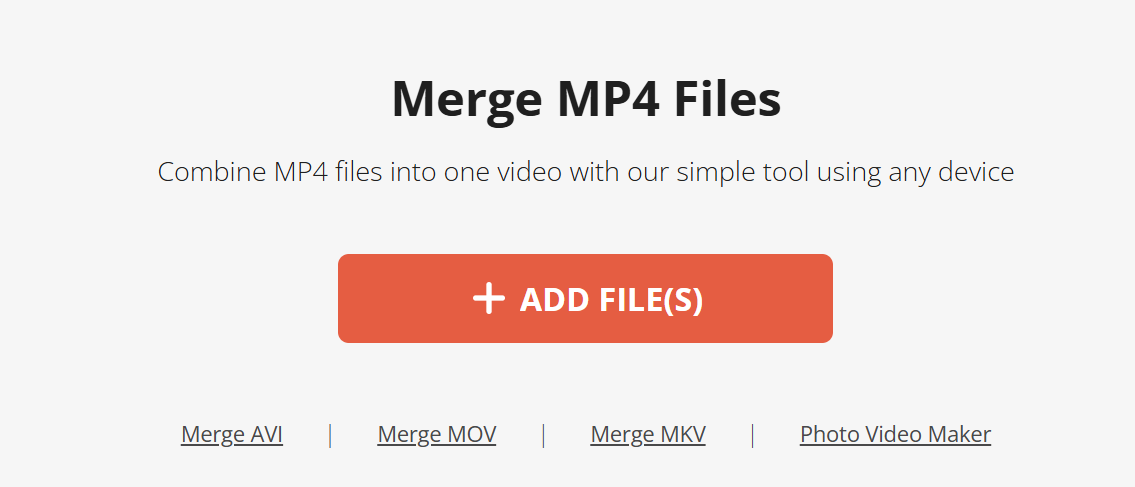
The video merging feature worked well for short clips. But, like Clideo, it would slow down when I tried merging larger files. Despite this, I liked how fast the whole experience was. Best of all, it’s free and doesn’t slap a watermark on the final product, which was a big bonus.
Features:
Web-based editor: No installation needed, making it perfect for those who want a quick, online-only tool.
Free with no watermark: Great for users who want to edit and merge videos without paying and avoid watermarks on the final output.
Supports various video formats: Enables you to merge not only MP4 files but also other formats, which adds flexibility.
Price:
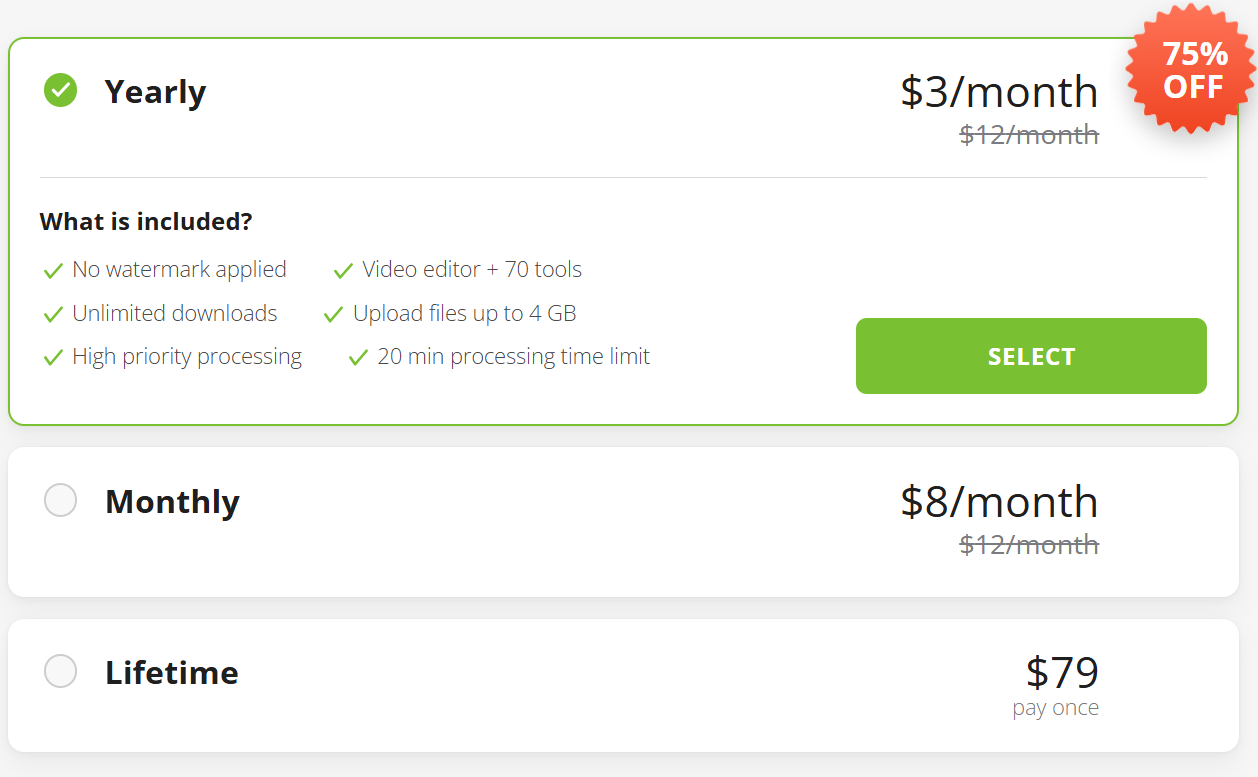
Video Candy offers a free plan for basic video merging. But, if you need more advanced features, the premium plan costs $8/month or a one-time payment of$79.
Pros:
Simple and clean interface that’s user-friendly
Free to use with no watermark
Doesn’t require software installation
Cons:
Slower processing for larger videos
Limited features compared to premium video editors
No advanced editing tools
Best For:
Video Candy is superb for users who want an easy way to merge MP4 files without installing software. It’s ideal for casual editing with small clips giving you a free tool without watermarks on the final video.
Joyoshare:
Joyoshare is a professional-grade video editor that also excels at MP4 file merging. It stood out for its fast processing speed and high-quality output, even with 4K videos. Also, it isn't restricted to just small files, it can merge larger files as quickly as it does the smaller files.
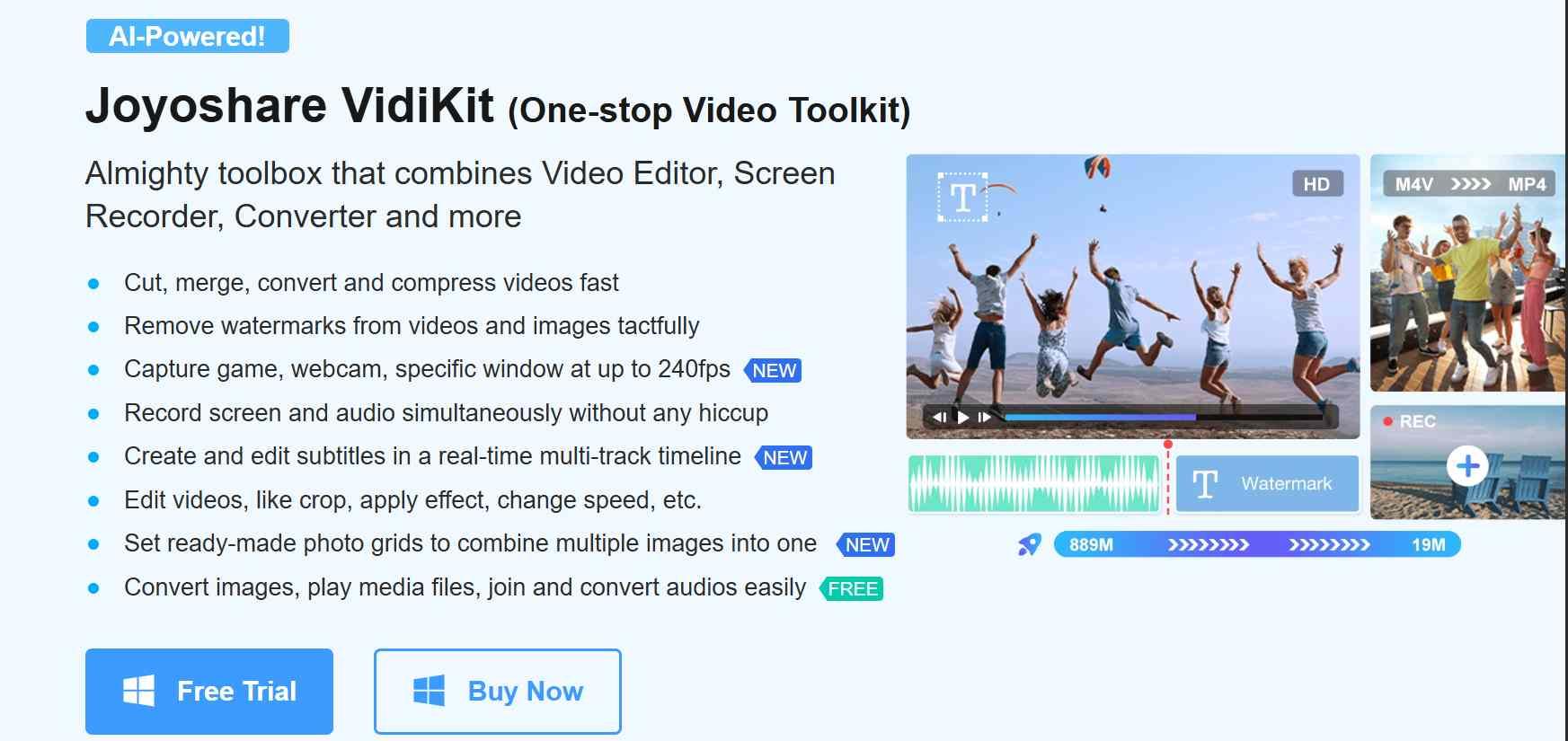
Joyoshare gives the best quality results, but it’s a paid tool. It might not be right for those who want to edit quickly. Yet, it’s worth the cost for serious projects. The interface can be tough for beginners, but it merges videos in high quality. This makes it a solid choice for professionals who need reliable performance.
Features:
High-quality output: Merges videos without compromising quality, including up to 4K resolution for professional projects.
Fast processing: Merges MP4 files quickly, even for larger files, without causing any noticeable lag.
Multiple format support: Supports various video formats beyond MP4, providing flexibility for different types of projects.
Price:
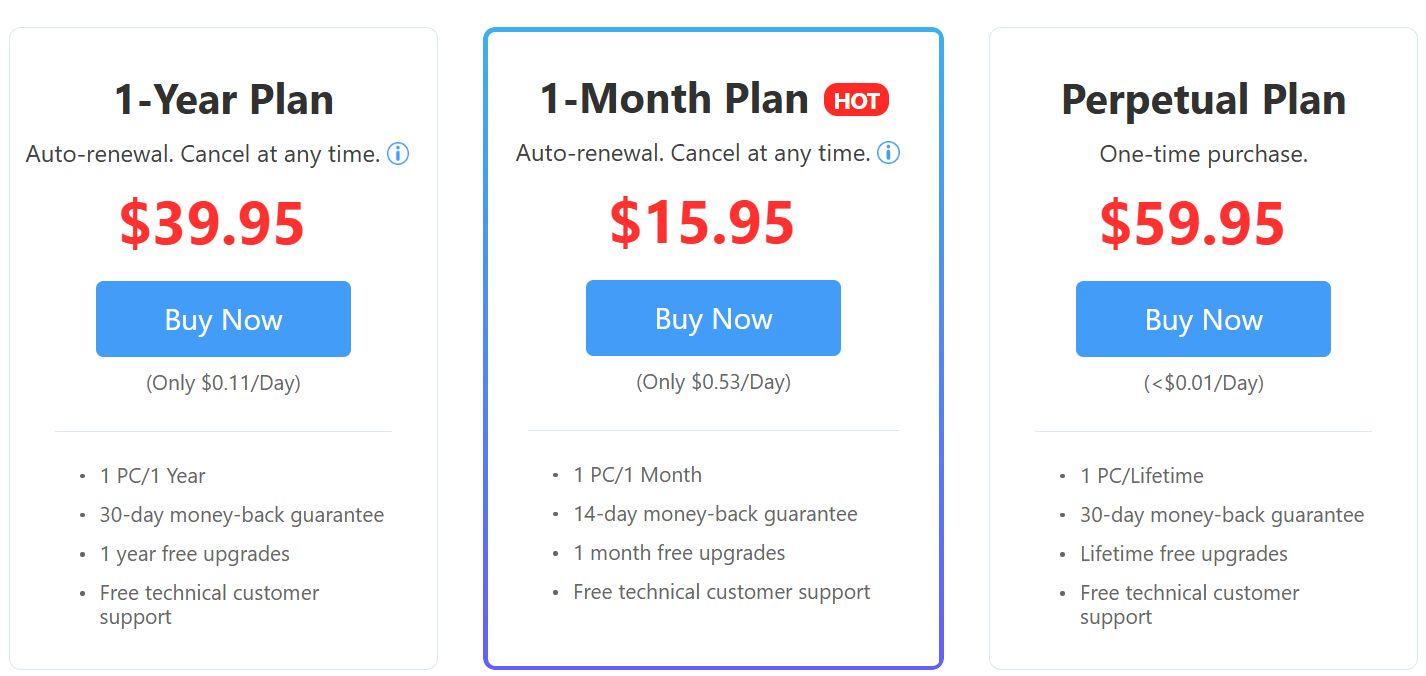
Joyoshare is a paid tool. It offers a subscription at$15.95/month, $39.95/year, or a one-time payment of $59.95.
Pros:
Excellent output quality with no watermark
Fast merging of large files
Supports high-definition and 4K videos
Cons:
Paid tool with no free version for advanced features
The interface may be overwhelming for beginners
Lacks a free version for advanced users
Best For:
Joyoshare is best for professionals or serious video editors. It offers high-quality results and fast processing for large files. It’s ideal for users who are willing to pay for superior video merging and output quality.
Movavi:
Movavi is a comprehensive video editor that offers powerful tools for merging MP4 files and much more. I’ve used Movavi on several occasions for personal and professional projects, and it has never let me down. It provides an intuitive interface along with a full suite of editing tools.
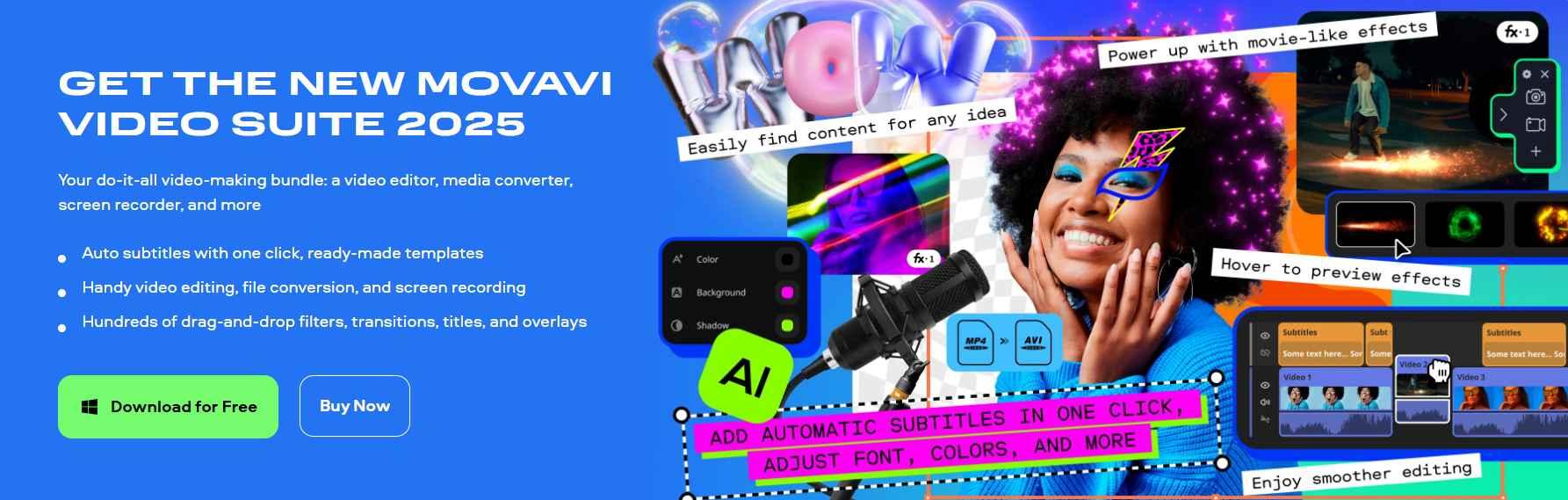
You can merge videos and add transitions and effects to make the final product look polished. The downside is that the full version is a bit pricey, but it’s worth the investment for serious video editors.
Features:
Full video editing suite: Offers advanced video editing features like transitions, effects, and more. This makes it great for those looking to do more than merge videos.
Supports multiple formats: Easily merges MP4 files along with many other video formats.
High-quality output: Produces professional-grade video quality without watermarks.
Price:
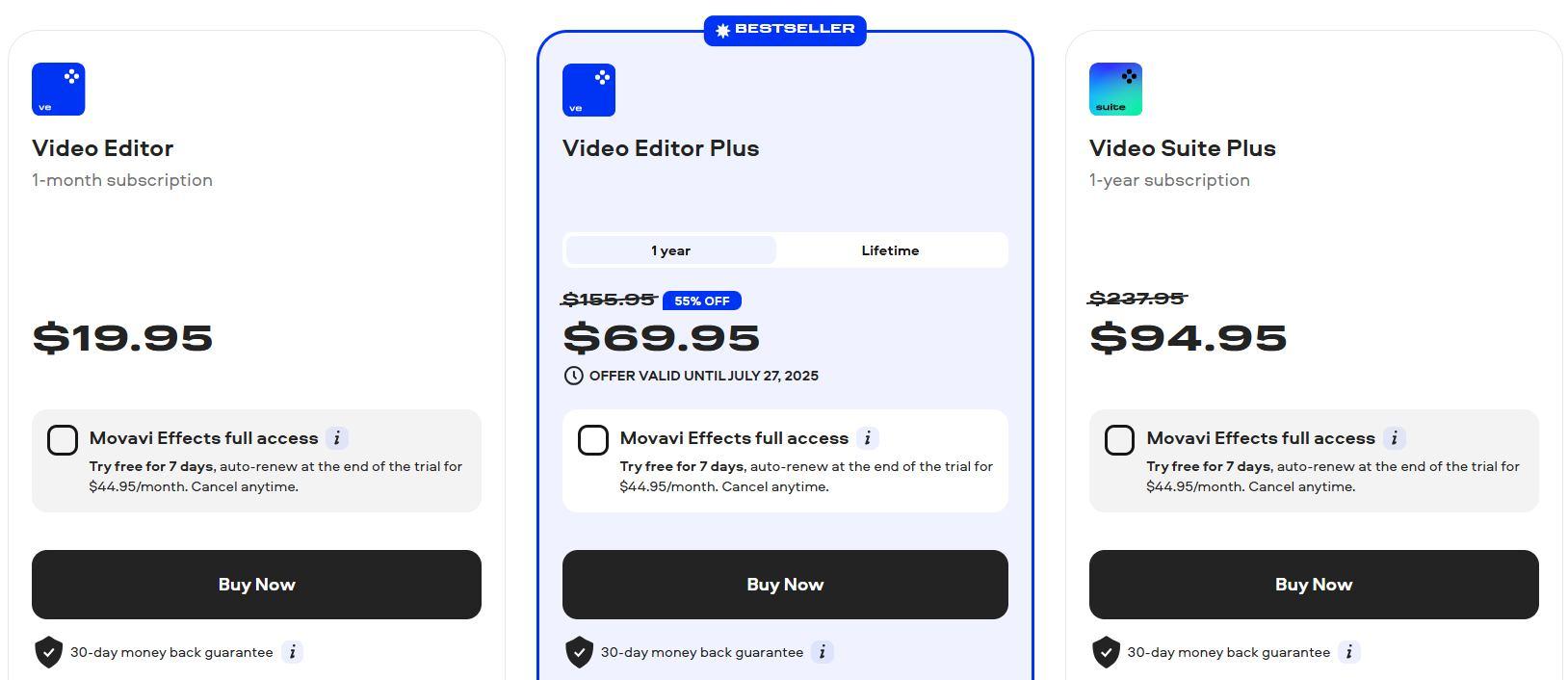
Movavi’s Video Editor Plus is priced at $19.95/monthor $69.95/year. The full suite (Movavi Video Suite) is
available for $94.95 as a one-time payment.
Pros:
Powerful editing tools, in addition to video merging
Supports high-definition video formats
Fast processing of large files
Cons:
Premium tool with a relatively high price tag
The free version has limited functionality
Can be overwhelming for beginners
Best For:
Movavi is perfect for professional users or serious video editors. It’s great for those who need more than just merging videos. It offers high-quality results, editing tools, and advanced features to improve the final product.
Comparison of the Five Tools
After exploring the top 5 MP4 joiner tools, you may still be unsure which one to choose. I’ve summarizedthe key features, pros, cons, and pricing of each tool below. This will help you find the one that best suits your needs.
| Tools | Features | Pros | Cons | Price |
|---|---|---|---|---|
| Adobe Express | Cloud-based, drag-and-drop merging | Easy to use, fast processing | Limited export options on the free version | Free |
| Clideo | Web-based, supports various formats | No watermark, easy to use | Limited video length on the free version | Free |
| Video Candy | Web-based, supports different formats | No need to install, quick edits | Slow for large files | Free |
| Joyoshare | High-quality output, fast processing | No watermark, 4K support | Overwhelming interface for beginners | Paid |
| Movavi | Full video editor, multiple export options | Professional quality, great for editing | Expensive premium version | Paid |
Complementary Tool: Toolsmart’s Free YouTube Video Downloader
Merging MP4 files is key to creating great videos. It’s essential for professional use, social media, and personal projects. But, what happens when these MP4 files come from different platforms? Especially YouTube, one of the largest video content providers today. In such cases, we need a tool to download and prepare those videos before merging them. That’s where Toolsmart’s Free YouTube Video Downloader comes in.
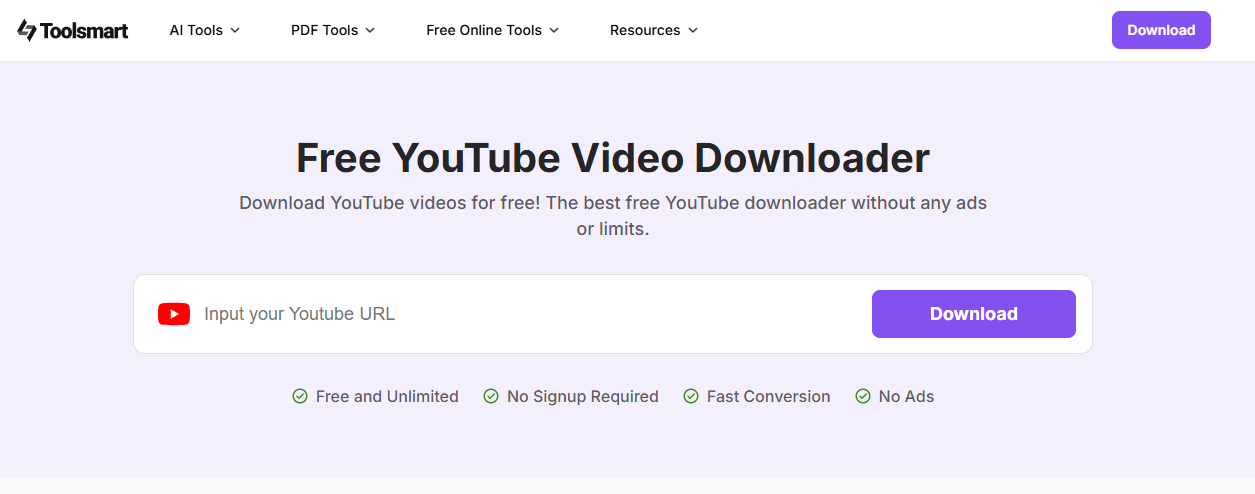
When we talk about video merging, the videos often come from platforms like YouTube. Toolsmart’s Free YouTube Video Downloader lets us download these videos. It also prepares them in the best format (MP4) for merging. Now let’s look at some notable features of Toolsmart’s Free YouTube Video Downloader.
Features:
4K HD Downloads: You can download videos in stunning 4K resolution. This ensures that the quality of your merged video is top-notch.
Free and Unlimited YouTube Video Downloads: No restrictions, download as many videos as you need, without worrying about limits.
Download with or without Audio: You can choose whether to download videos with audio or just the video. This gives you flexibility based on your project needs.
Supports Multiple Formats: This tool supports MP4, FLV, and other formats. It’s perfect for merging video content later.
Fast and Efficient: Download videos quickly. This saves you time and lets you move on to the merging process right away.
It’s ideal for users who want to gather video content from YouTube before merging it. It acts as a "download + prep" tool, letting you download videos in the best format for merging. You can choose high-quality 4K or just the audio-free video. It works flawlessly with the merging tools I discussed. This creates an efficient “download to merge” workflow.
What is Toolsmart’s Free YouTube Video Downloader:
Toolsmart’s Free YouTube Video Downloader is a simple, web-based tool. It helps users download YouTube videos easily. It simplifies the process. You can gather content for education, personal use, or professional projects. No installations or registrations are needed.
Features:
4K HD Downloads: Download videos in high-definition resolutions, including 4K, ensuring top-notch quality for your projects.
Free and Unlimited Downloads: Access unlimited downloads without any hidden charges or restrictions.
Download with or without Audio: You can choose to download videos with both audio and video. Or, you can download the video or audio, depending on your needs.
No Installation Required: Operate entirely from your web browser—no software installation needed.
Supports Multiple Formats: Download videos in various formats, including MP4 and MP3, compatible with most devices.
Pros:
Simple and intuitive design makes it accessible for all users.
Experience quick downloads without long waiting times.
Enjoy an uninterrupted and clean browsing experience.
Works seamlessly across different devices and operating systems.
Cons:
Currently, the tool supports downloading one video at a time.
Only public YouTube videos can be downloaded.
Does not support downloading from other video platforms.
How to use Toolsmart’s Free YouTube Video Downloader:
Here’s a simple guide to get started with Toolsmart’s YouTube downloader. You don’t need to sign up or download anything.
Step 1: Open your browser and head over to the Toolsmart YouTube Downloader site.
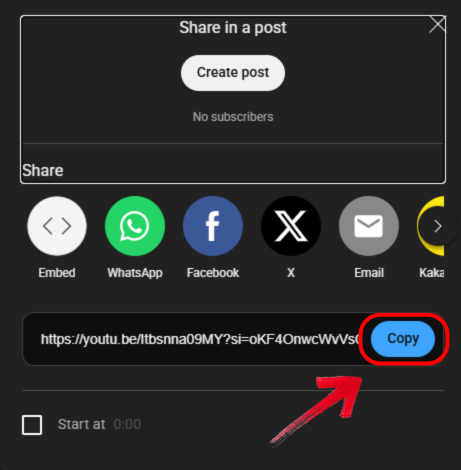
Step 2: Now, go to the YouTube video you want to download and copy its URL from the address bar.
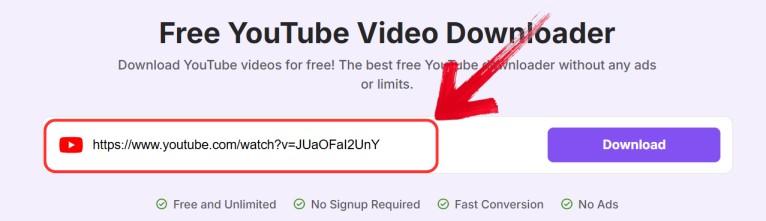
Step 3: Back on the Toolsmart site, just paste that link into the input box on the page.
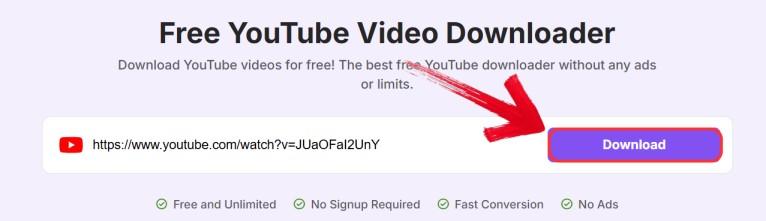
Step 4: Click the “Download” button and give Toolsmart a few seconds to process the video. After that, just save the file to your device.
FAQs
Q1: Do I need to install any software to download YouTube videos?
No, Toolsmart’s YouTube Video Downloader is a web-based tool, so you don’t need to install anything. Just use it through your browser.
Q2: Is there a maximum length for Toolsmart’s YouTube video downloads?
There is no specific length limit. But very long videos may take longer to download, depending on your internet speed.
Q3: Can I download videos from platforms other than YouTube?
Currently, Toolsmart’s YouTube Video Downloader only supports video downloads from YouTube. It doesn't support other platforms like Vimeo or Dailymotion.
Q4: Can I download YouTube videos in different formats?
Yes, Toolsmart lets you download videos in several formats. You can choose from MP4, MP3, and more, depending on your preferences.
Choosing the Right Tool for Seamless MP4 Merging and Preparation
Choosing the right tool to join MP4 files together depends on ease of use, video quality, and speed. Free tools like Clideo and Video Candy work well for small projects. Joyoshare and Movavi are better for professionals who need high-quality outputs. Toolsmart’s YouTube Video Downloader prepares your videos for merging. It offers high-definition downloads in various formats. Using these tools together creates an efficient and smooth video editing workflow.


