
'%3e%3cpath%20fill-rule='evenodd'%20clip-rule='evenodd'%20d='M19%208.5C24.799%208.5%2029.5%2013.201%2029.5%2019C29.5%2024.6782%2024.9928%2029.3036%2019.361%2029.4939L19%2029.5C18.8794%2029.5%2018.7592%2029.498%2018.6396%2029.4939L18.2811%2029.4758C12.8174%2029.1063%208.5%2024.5574%208.5%2019C8.5%2013.201%2013.201%208.5%2019%208.5ZM22.3063%2010.6267L22.2342%2010.6539C21.3423%2011.0061%2020.5541%2011.6368%2020.5606%2012.4987C20.5631%2012.8302%2020.869%2014.8871%2020.2141%2014.8486C19.5589%2014.8102%2019.413%2013.8753%2018.7116%2013.616C17.5944%2013.2026%2016.9819%2014.3401%2017.0939%2015.3106C17.1695%2015.9655%2018.9289%2018.3871%2017.9028%2019C17.292%2019.3651%2015.7279%2017.5692%2015.1007%2017.1842C14.4805%2016.8034%2013.2758%2017.3333%2012.4974%2016.7029C11.9874%2016.2899%2012.3881%2014.4098%2012.2786%2013.8372C12.2271%2013.5698%2012.1155%2013.3689%2011.9794%2013.2166L12.0402%2013.2934C10.7653%2014.8464%2010%2016.8339%2010%2019C10%2023.8465%2013.8307%2027.7982%2018.6295%2027.9925L18.6769%2027.9747C18.8597%2027.8677%2019.0394%2027.7557%2019.216%2027.6387C19.4137%2027.4534%2019.5436%2027.2072%2019.5849%2026.9394C19.8806%2025.1222%2018.3616%2025.4302%2017.9367%2024.5622C17.5489%2023.7695%2018.5712%2023.7684%2018.5524%2021.7923C18.4607%2021.1774%2018.5279%2020.547%2018.7211%2020.0315C19.1834%2018.7987%2020.7077%2017.2643%2022.5889%2018.0081C23.5567%2018.3906%2023.1524%2019.9831%2023.4737%2020.3394C24.251%2021.2018%2025.3228%2020.6863%2026.2856%2021.2253C26.7816%2021.5032%2026.9797%2022.41%2027.056%2023.2248L27.038%2023.0528C27.6534%2021.8348%2028%2020.4579%2028%2019C28%2015.1968%2025.6409%2011.9445%2022.3063%2010.6267Z'%20fill='%23757575'/%3e%3ccircle%20cx='19'%20cy='19'%20r='10.125'%20stroke='%23757575'%20stroke-width='2.25'/%3e%3c/g%3e%3cdefs%3e%3cclipPath%20id='clip0_1827_14613'%3e%3crect%20width='24'%20height='24'%20fill='white'%20transform='translate(7%207)'/%3e%3c/clipPath%3e%3c/defs%3e%3c/svg%3e)


Streaming platforms are everywhere now, but not all of them offer a seamless, enjoyable experience. On Streams is one of the newer names making waves as a free-to-use online streaming platform.
However, with so many streaming options, it's natural to wonder: Is the Onstream application actually worth your time?
In this detailed On Streams review, I'll share firsthand impressions, explore key features, and highlight real pros and cons.
Part 1: Breaking Down On Streams – Features That Shine and Where It Falls Short
When I first downloaded the Onstream application, I was curious: could this lesser-known app really deliver on its promises? I've tested dozens of platforms over the years, so I came in with both high expectations and healthy skepticism. But surprisingly, On Streams didn't take long to make an impression.
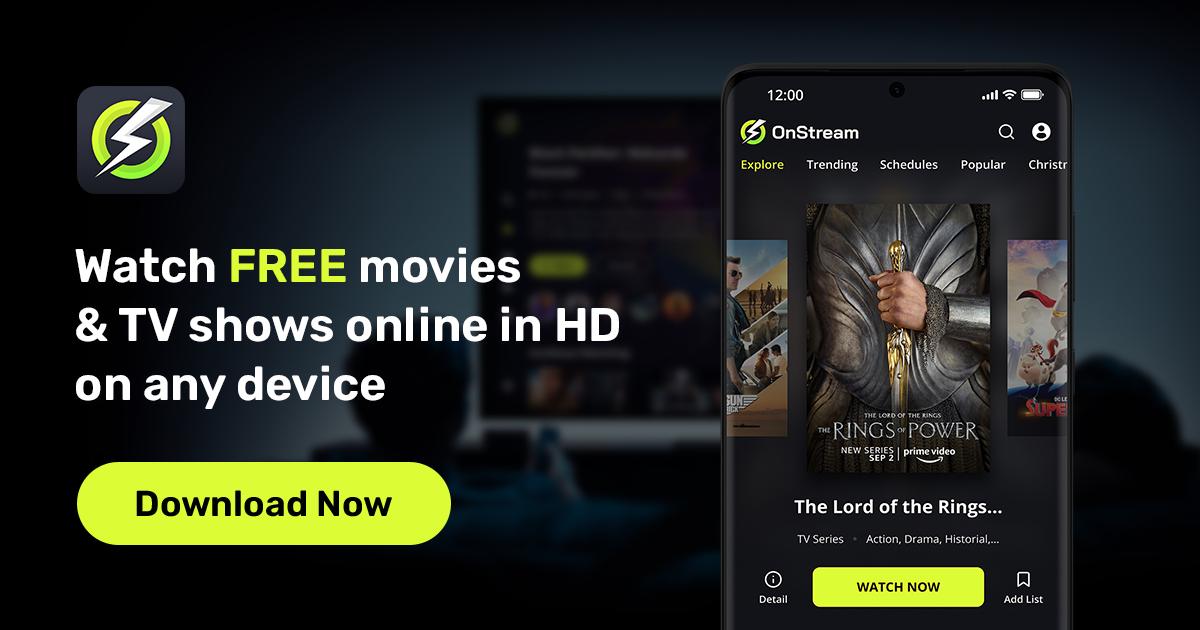
Key Features of On Streams:
Live streaming and on-demand content – You'll find movies, shows, and even some live TV depending on the day. It's not Netflix-level variety, but it gets the job done for casual viewing.
User-friendly interface – Navigation is refreshingly simple. Whether you're tech-savvy or not, browsing categories and starting a stream feels intuitive.
Supports multiple devices – I tested it on an Android phone, a tablet, and a smart TV. The app scaled well across all devices.
Free to download – No up-front cost is a big plus. The base version is entirely usable, though some limitations apply.
Regular updates and bug fixes – The app has been updated twice in the past two months. That's a sign the developers are still active.
Pros of Using On Stream:
Quick setup – Installing and launching the app took less than five minutes.
Lightweight and smooth performance – Compared to other online streaming platforms, On Stream felt faster, with fewer crashes or lag.
No forced subscriptions – You're not cornered into creating an account just to watch content.
Good range of genres – From documentaries to anime, it covers more than you'd expect from a free service.
Cons to Be Aware Of:
Limited content catalog – Premium platforms like Roku or Hulu offer far more variety. Don't expect the latest blockbusters here.
Buffering during peak hours – Streaming a live sports event at 9 PM had a few hiccups. Not unbearable, but noticeable.
Ads in the free version – They're not overwhelming, but they do interrupt occasionally.
Premium upgrade required for certain features – Want HD quality or to remove ads completely? That's behind a paywall.
I used On Streams during a weekend movie night and again for catching a live cricket match. The movie streaming was mostly smooth, with decent resolution even without upgrading. However, during the match, I did notice a couple of buffering issues, which might have been due to server load.
Still, the ease of setup, no login requirement, and quick access to content were clear strengths. It's not trying to be a Netflix or Disney+, but for a free app, it delivers more than I expected.
If you're someone who occasionally watches content and doesn't want to commit to a paid platform, On Streams is worth exploring. Just know its limits.
Part 2: Getting the Most Out of On Streams – A User's Guide
Installing and using the Onstream application was surprisingly easy, even for someone who's tested dozens of apps. Whether you're looking to binge movies, stream live sports, or just explore different genres, On Stream makes getting started simple.
Here's how to set it up and start watching:
Step-by-Step Guide
Step 1: Download On Streams APK
Visit the official website onstreamapk.to or theonstream.com to find the latest version of the APK. Since it's not always available on mainstream app stores, it's best to download directly from these trusted sources.
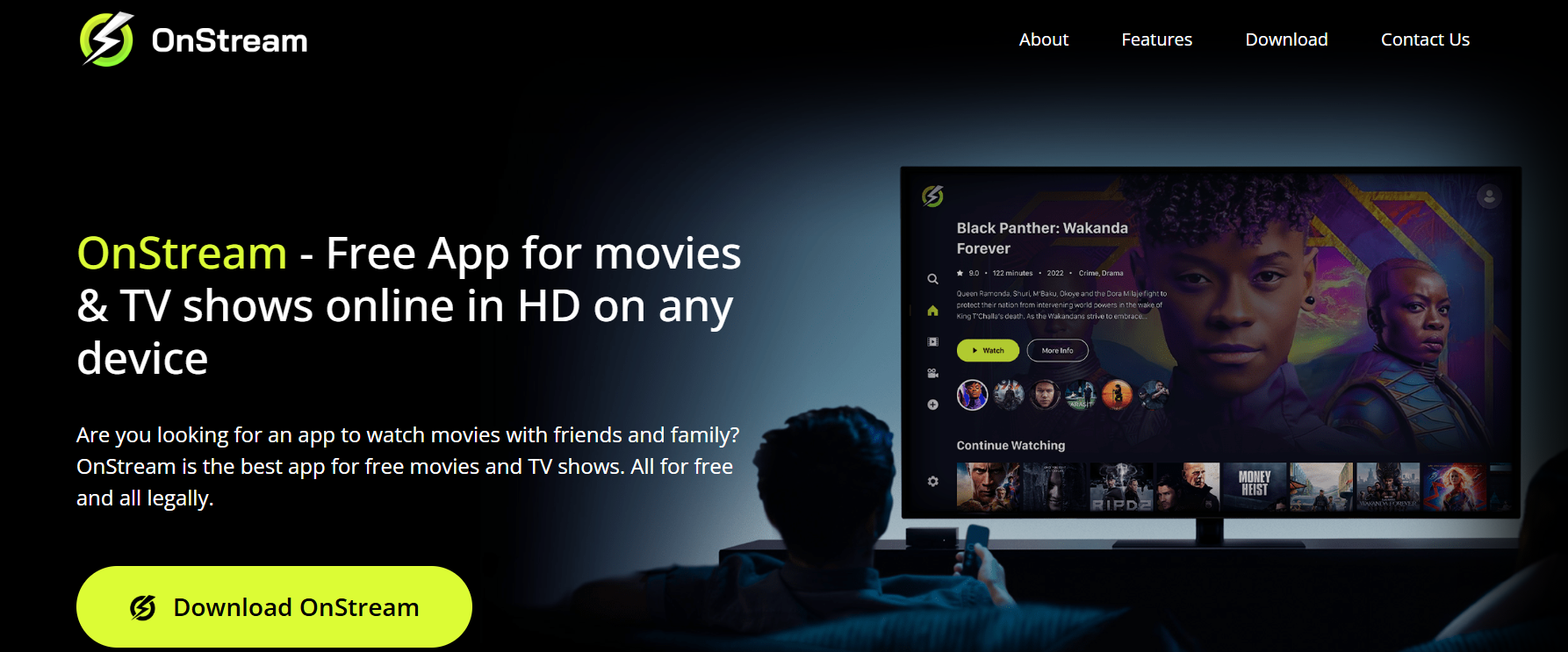
Step 2: Enable Unknown Sources
Before installing, make sure your device allows third-party apps. On Android, go to Settings > Security > Install unknown apps, then allow permission for your browser or file manager.
Step 3: Install and Open the Application
Once the APK file is downloaded, open it to begin installation. It usually takes under a minute. After that, launch the On Stream app from your home screen.
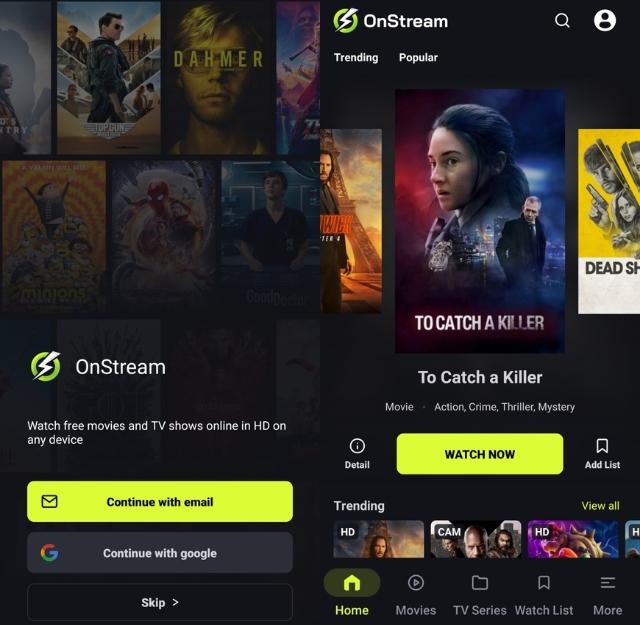
Step 4: Browse Categories or Use Search
The interface is clean. I found it easy to explore genres like Action, Comedy, Documentary, and more. If you already know what you're looking for, the search bar works well, even for niche titles.
Step 5: Start Streaming and Customize Settings
Pick a video and hit play. You can toggle resolution settings, turn on subtitles, and even change playback speed in some cases. Premium features like full HD and ad-free streaming are available, but not essential for basic use.
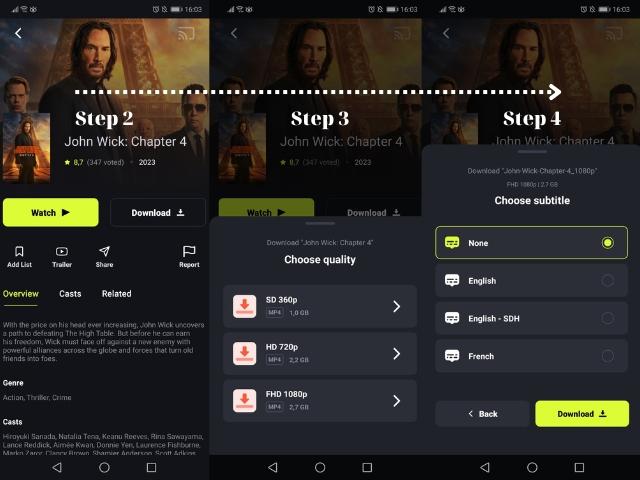
How I Use On Stream in My Routine
I mainly use On Streams to stream classic movies and indie documentaries that are hard to find elsewhere. One tip I'd recommend: watch during non-peak hours. When I stream around lunchtime or early morning, the experience is much smoother with less buffering.
Also, if you're using it on a smart TV or through a casting device, remember to update the app frequently. One of the recent updates improved streaming stability for me quite a bit.
Overall, the app fits well into a low-cost entertainment routine. It's especially useful if you're exploring free streaming options that don't require signing up or logging in.
Part 3: Enhance Your Streaming with YouTube Video Downloader
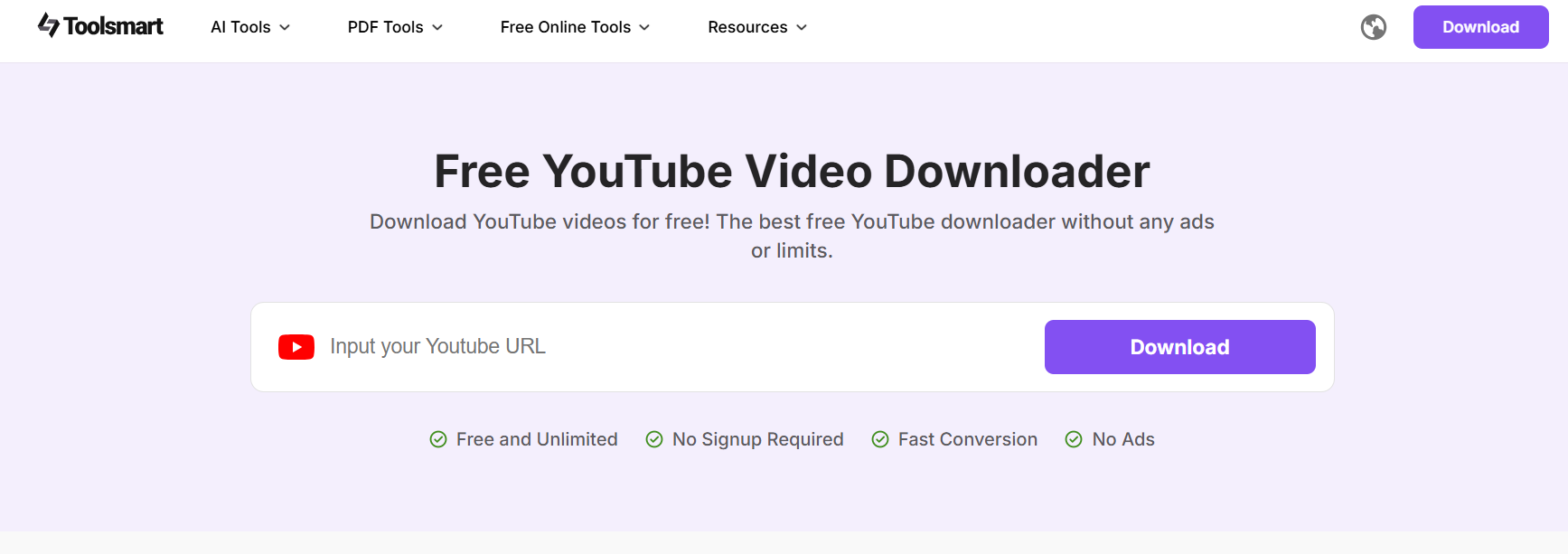
While On Stream is great for live content and on-demand viewing, there are times when I want to save a video to watch offline, especially tutorials, podcasts, or music videos that aren't always easy to re-find. That's when I turn to YouTube Video Downloader, a tool I've come to rely on regularly.
Why I Use It Alongside On Streams
Streaming is fantastic when you have a solid internet connection. But when I'm traveling or just want to save data, downloading content in advance is a lifesaver. I've used YouTube Video Downloader to save interviews, learning videos, and even a few live-recorded shows that pair well with what I watch on On Streams.
Here's what stood out during my experience:
High-quality downloads up to 4K – Ideal when I want to maintain good resolution for rewatching content later.
Fast and secure – No login or registration needed, which keeps things hassle-free.
Audio and video preservation – I often save just the audio for music or spoken-word content.
Works well with On Stream-style content – I can quickly build a library of downloads that complement what I'm currently watching.
I've especially appreciated how quick and responsive the tool is. Within seconds, a video is ready to be saved, and I can switch back to On Streams without delay.
If you're someone who splits time between streaming and offline viewing, adding YouTube Video Downloader to your routine really balances things out. It's the missing piece that makes streaming more flexible, especially in unpredictable network conditions.
FAQs
Q1: What devices support On Streams?
The Onstream application is compatible with Android devices, iOS (with workarounds for APK installation), and some smart TVs. I've tested it on both mobile and tablet, and it worked seamlessly.
Q2: Is there a completely free version?
Yes, On Stream offers a fully functional free version, though it includes ads. To unlock higher video quality and remove ads, you'll need to upgrade to premium.
Q3: How does it compare to Roku or Fire Stick?
While not as robust or content-rich as Roku or Fire Stick, On Streams serves as a solid free alternative. If you're seeking lightweight, no-signup streaming, it holds its ground reasonably well against bigger platforms.
Q4: Can I download 4K videos with YouTube Video Downloader?
Absolutely. If the source video supports 4K, YouTube Video Downloader allows you to download in that resolution, making it a great companion to your online streaming platform routine.
Summary
If you're hunting for a cost-effective online streaming platform, On Streams is worth a try. While it may not rival the polish of Roku or premium apps, it offers a user-friendly, ad-supported experience that covers the essentials: live content, on-demand videos, and cross-device compatibility.
For those who want more control, especially the ability to save content for offline viewing, YouTube Video Downloader makes a perfect pairing. It fills in the gaps left by live streaming, giving you a flexible, well-rounded entertainment setup.
After using both tools side by side, I've found that On Streams delivers more than expected, especially for something that's free to use. It's not perfect, but with a bit of patience and the right tools, it can be a reliable part of your streaming lineup.


