
'%3e%3cpath%20fill-rule='evenodd'%20clip-rule='evenodd'%20d='M19%208.5C24.799%208.5%2029.5%2013.201%2029.5%2019C29.5%2024.6782%2024.9928%2029.3036%2019.361%2029.4939L19%2029.5C18.8794%2029.5%2018.7592%2029.498%2018.6396%2029.4939L18.2811%2029.4758C12.8174%2029.1063%208.5%2024.5574%208.5%2019C8.5%2013.201%2013.201%208.5%2019%208.5ZM22.3063%2010.6267L22.2342%2010.6539C21.3423%2011.0061%2020.5541%2011.6368%2020.5606%2012.4987C20.5631%2012.8302%2020.869%2014.8871%2020.2141%2014.8486C19.5589%2014.8102%2019.413%2013.8753%2018.7116%2013.616C17.5944%2013.2026%2016.9819%2014.3401%2017.0939%2015.3106C17.1695%2015.9655%2018.9289%2018.3871%2017.9028%2019C17.292%2019.3651%2015.7279%2017.5692%2015.1007%2017.1842C14.4805%2016.8034%2013.2758%2017.3333%2012.4974%2016.7029C11.9874%2016.2899%2012.3881%2014.4098%2012.2786%2013.8372C12.2271%2013.5698%2012.1155%2013.3689%2011.9794%2013.2166L12.0402%2013.2934C10.7653%2014.8464%2010%2016.8339%2010%2019C10%2023.8465%2013.8307%2027.7982%2018.6295%2027.9925L18.6769%2027.9747C18.8597%2027.8677%2019.0394%2027.7557%2019.216%2027.6387C19.4137%2027.4534%2019.5436%2027.2072%2019.5849%2026.9394C19.8806%2025.1222%2018.3616%2025.4302%2017.9367%2024.5622C17.5489%2023.7695%2018.5712%2023.7684%2018.5524%2021.7923C18.4607%2021.1774%2018.5279%2020.547%2018.7211%2020.0315C19.1834%2018.7987%2020.7077%2017.2643%2022.5889%2018.0081C23.5567%2018.3906%2023.1524%2019.9831%2023.4737%2020.3394C24.251%2021.2018%2025.3228%2020.6863%2026.2856%2021.2253C26.7816%2021.5032%2026.9797%2022.41%2027.056%2023.2248L27.038%2023.0528C27.6534%2021.8348%2028%2020.4579%2028%2019C28%2015.1968%2025.6409%2011.9445%2022.3063%2010.6267Z'%20fill='%23757575'/%3e%3ccircle%20cx='19'%20cy='19'%20r='10.125'%20stroke='%23757575'%20stroke-width='2.25'/%3e%3c/g%3e%3cdefs%3e%3cclipPath%20id='clip0_1827_14613'%3e%3crect%20width='24'%20height='24'%20fill='white'%20transform='translate(7%207)'/%3e%3c/clipPath%3e%3c/defs%3e%3c/svg%3e)


An image might look perfect in the gallery but once it’s live, you’re hit with a cropped head or stretched logo. Instagram keeps changing how things display more often than it actually announces. One wrong crop, and your text disappears. A slightly off-frame, and your product shot loses impact. It won’t give you a warning, it will just fit your content however it wants. In 2025, when visuals do most of the talking, the Instagram aspect ratio you choose decides how your work presents itself. In this guide, I’ll lay out the exact dimensions to help your posts show up the way you intended.
Instagram Aspect Ratios for Different Post Types (2025)
There’s no such thing as a ‘perfect’ Instagram aspect ratio. I would create something that looked great in my editor, only to see it cropped weirdly in the feed or cut off in the grid. After too many do-overs, I finally started paying attention to aspect ratios from the start. Square posts are the safest bet, but if I want my post to take up more vertical space, I go for 1080×1350 px. And when I’m aiming for that clean, cinematiclook, I use a landscape layout at 1080×608 px. Knowing which size to use upfront saves me time and keeps the final post looking exactly how I want it.
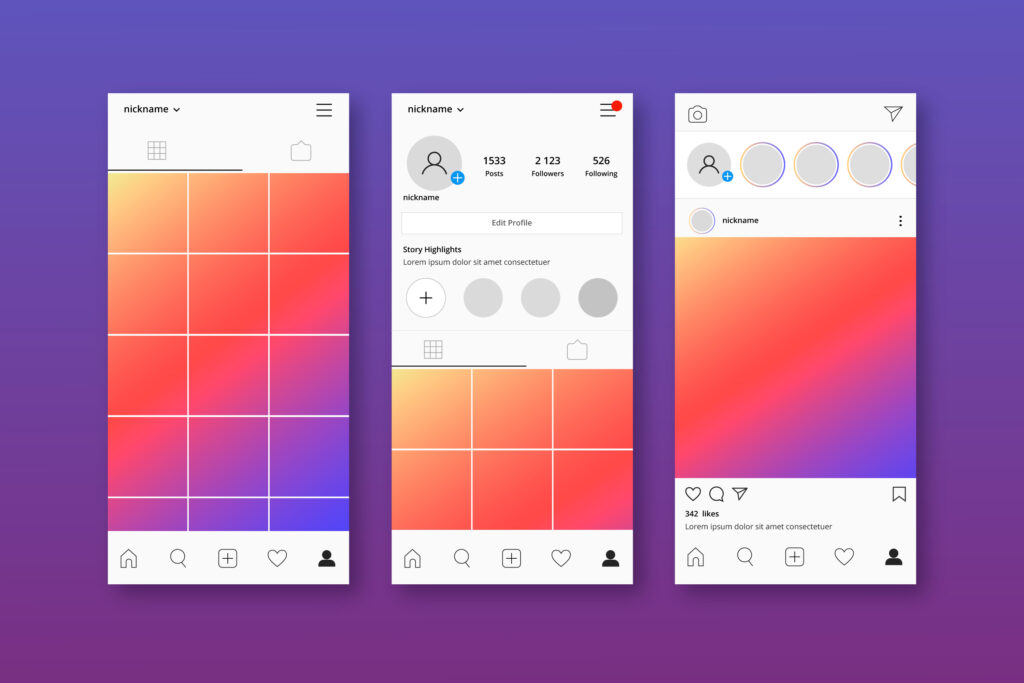
Instagram Feed Posts
I used to think the content mattered more than the layout until I started seeing my posts croppedweirdly or losing impact in the feed. That’s when it hit me: the aspect ratio actually decides how your post feels at first glance. Now, before I even start editing, I decide how I want the post to show up: square for balance, portrait to dominate the screen, or landscape when I’m going for that wide, cinematic frame. It’s made the whole process more intentional and the results way better. Here’s how I break it down:
Square (1:1): 1080×1080 px, the safest format; clean, classic, and grid-friendly
Portrait (4:5): 1080×1350 px, grabs more vertical space, stands out in the feed
Landscape (1.91:1): 1080×608 px, works well for wide shots and horizontal visuals
Each feed post format has its strengths and drawbacks depending on the content and how it appears in the feed. Understanding these pros and cons helps you choose the best aspect ratio for your goals and avoid unexpected cropping or distortion:
Pros:
Flexible format making it great for both photo and video
Perfect for carousel posts when consistent
Cons:
Non-square formats might get cropped in preview thumbnails
After experimenting with different feed post formats, here’s how I make sure my posts look great and avoid common pitfalls:
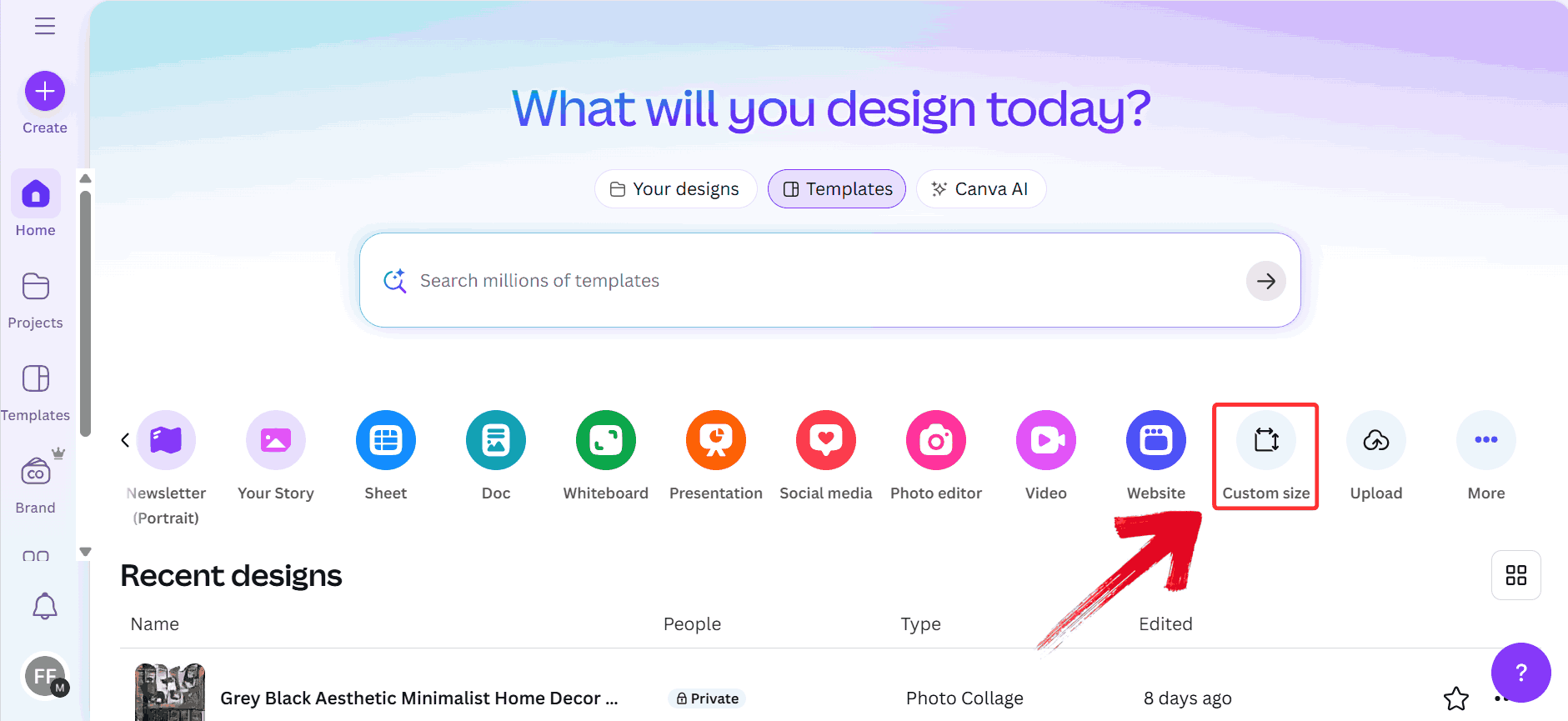
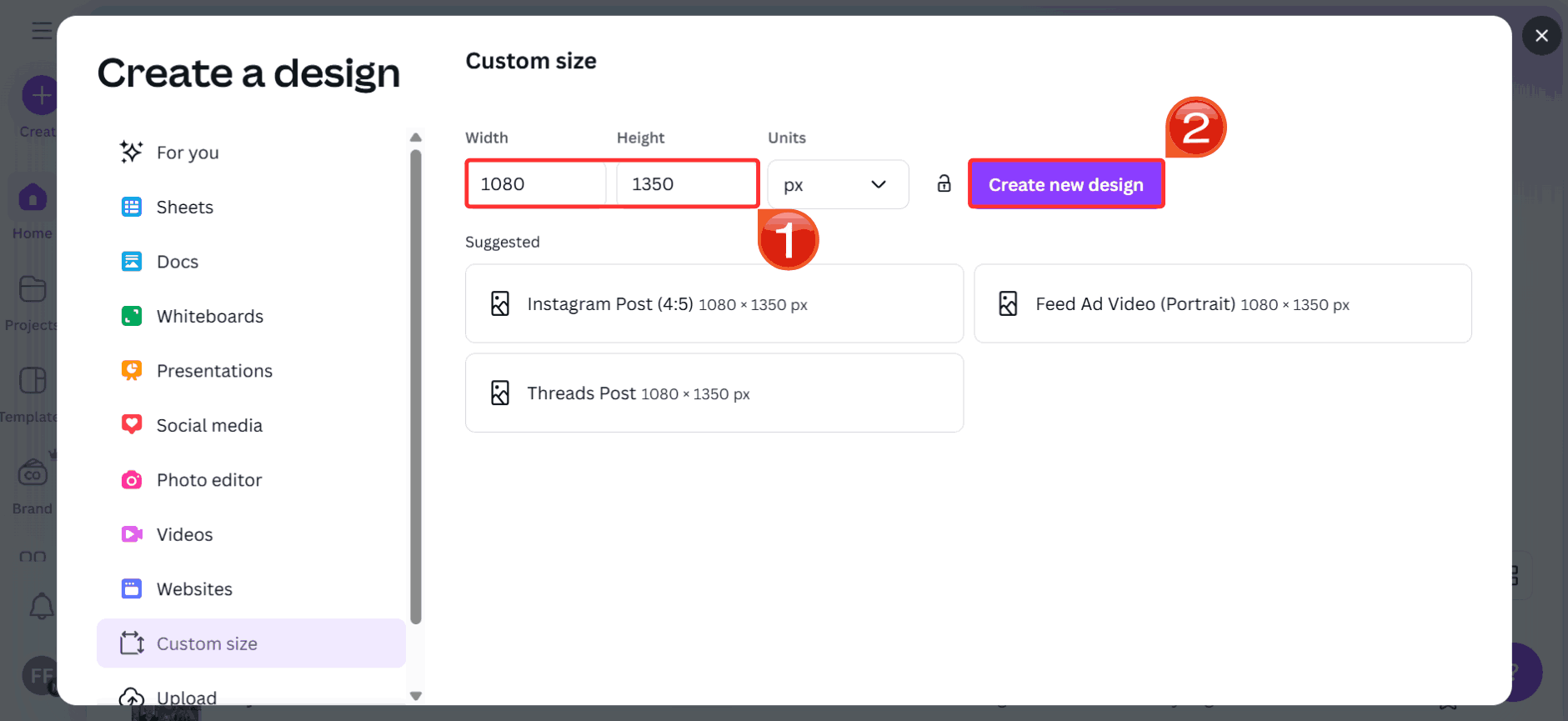
Step 1: Head over to Canva and click on the“Custom size” button on the homepage.
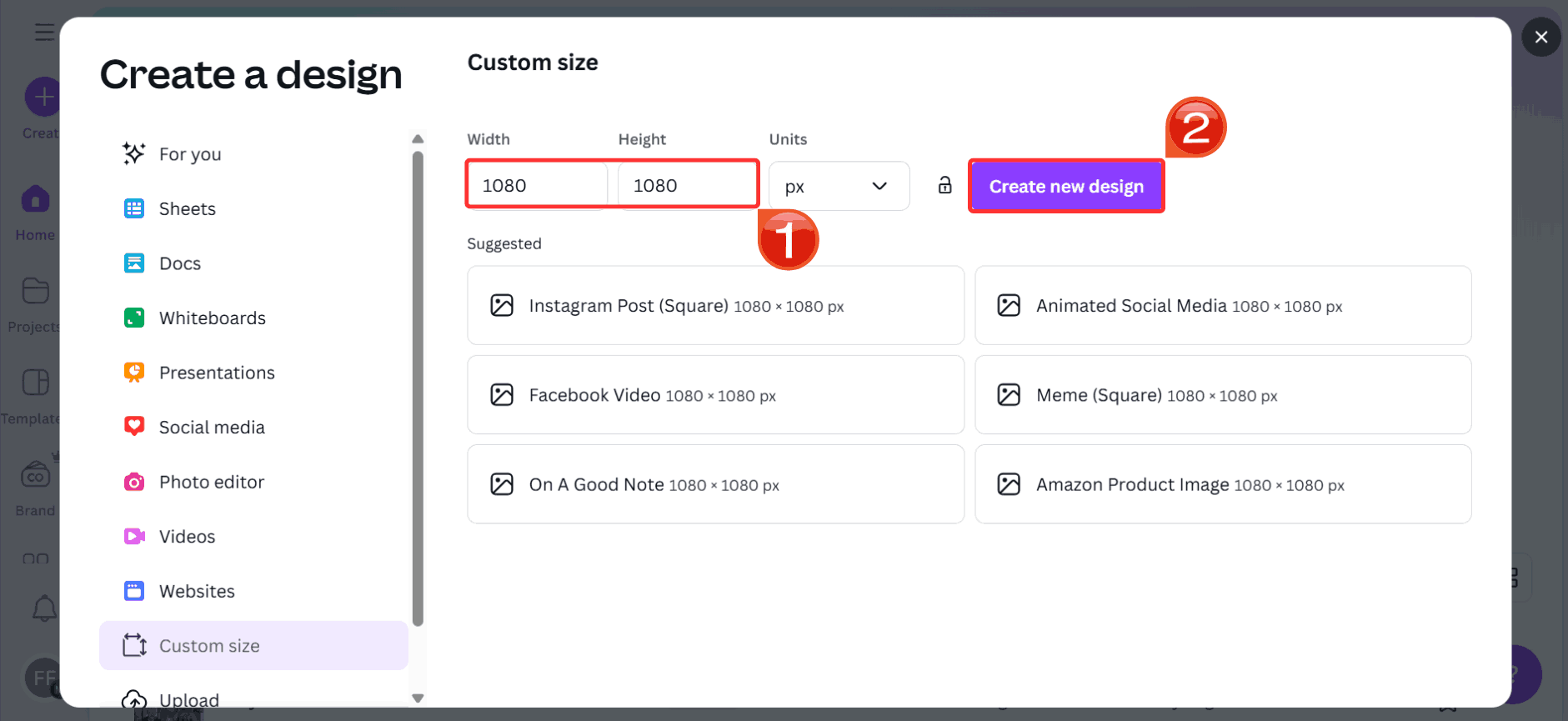
Step 2: For a square post, enter “1080 × 1080” and click “Create new design”. This standard size works best across your grid and followers’ feeds without getting cropped.
Step 3: Choose any template from the left panel or start with a blank canvas.
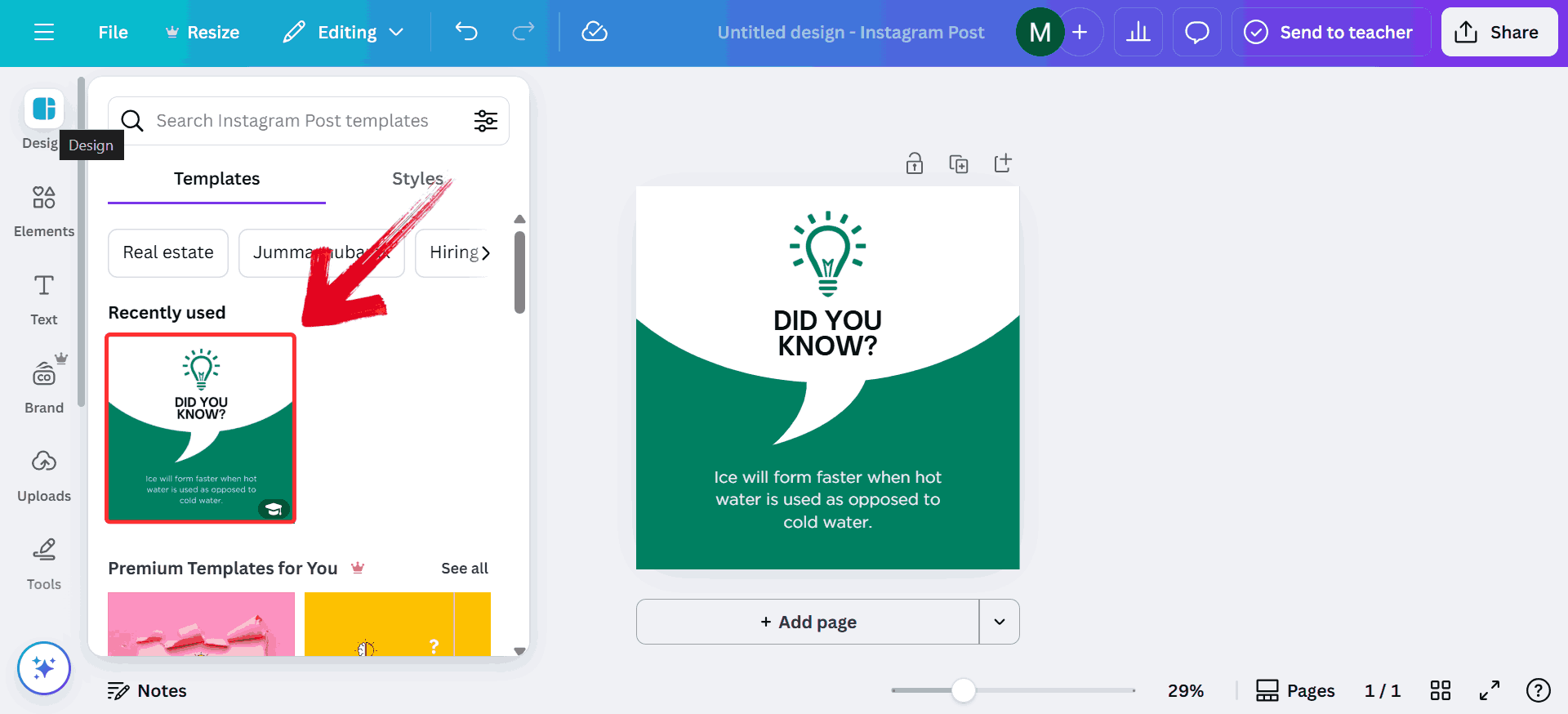
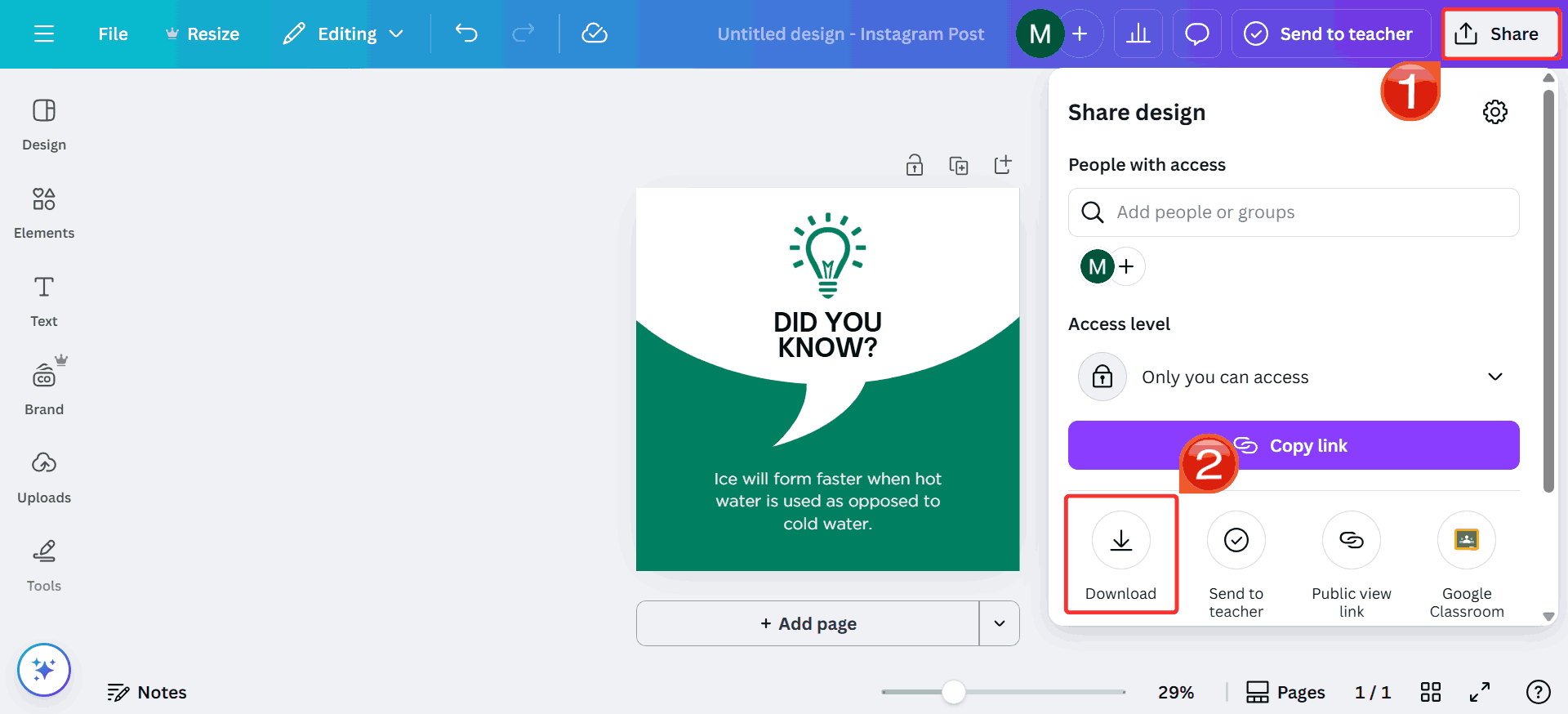
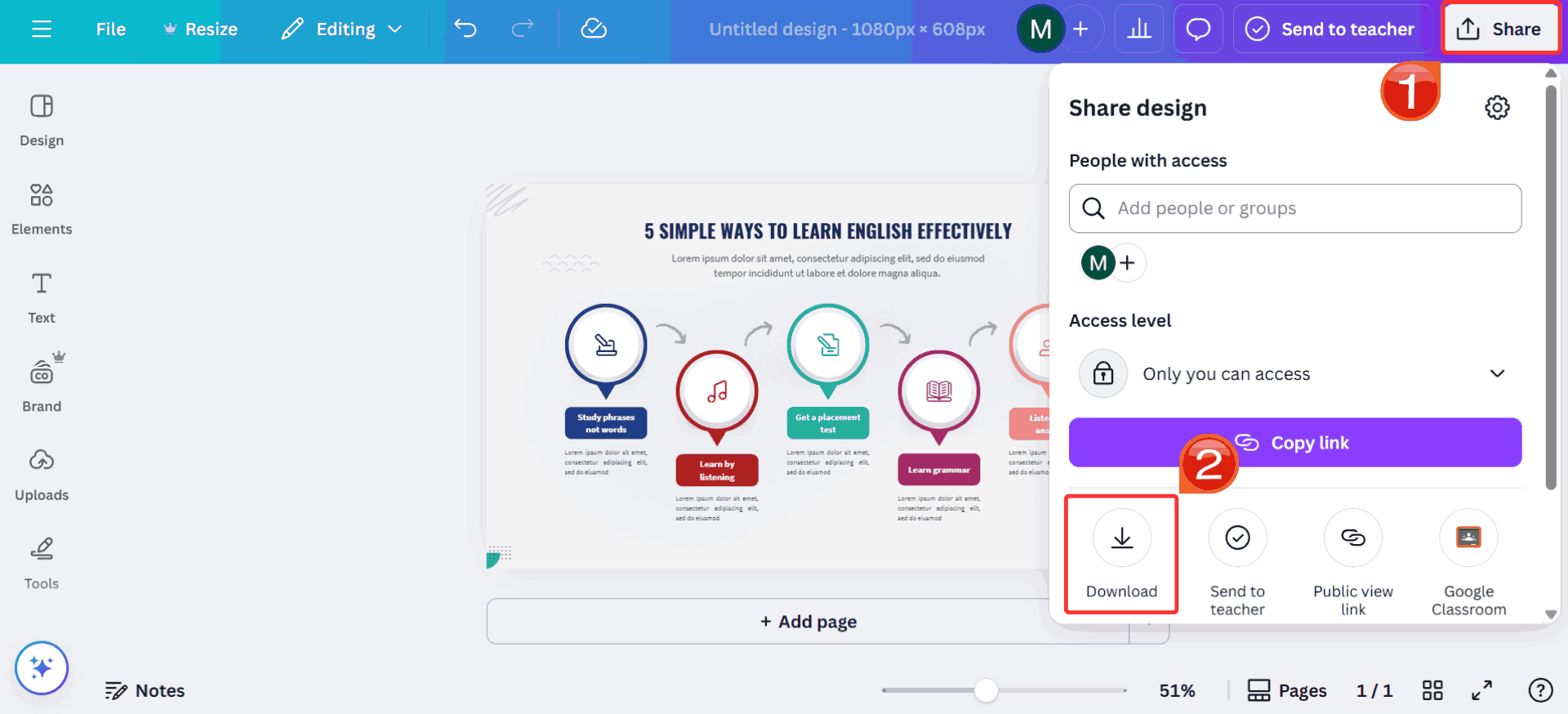
Step 4: Once your design is ready, click on the“Share” button at the top right and select“Download” to save the post.
Step 5: For a portrait post, use “1080 × 1350” and click “Create new design”. It occupies more vertical space, helping your post stand out while staying within Instagram’s limits.
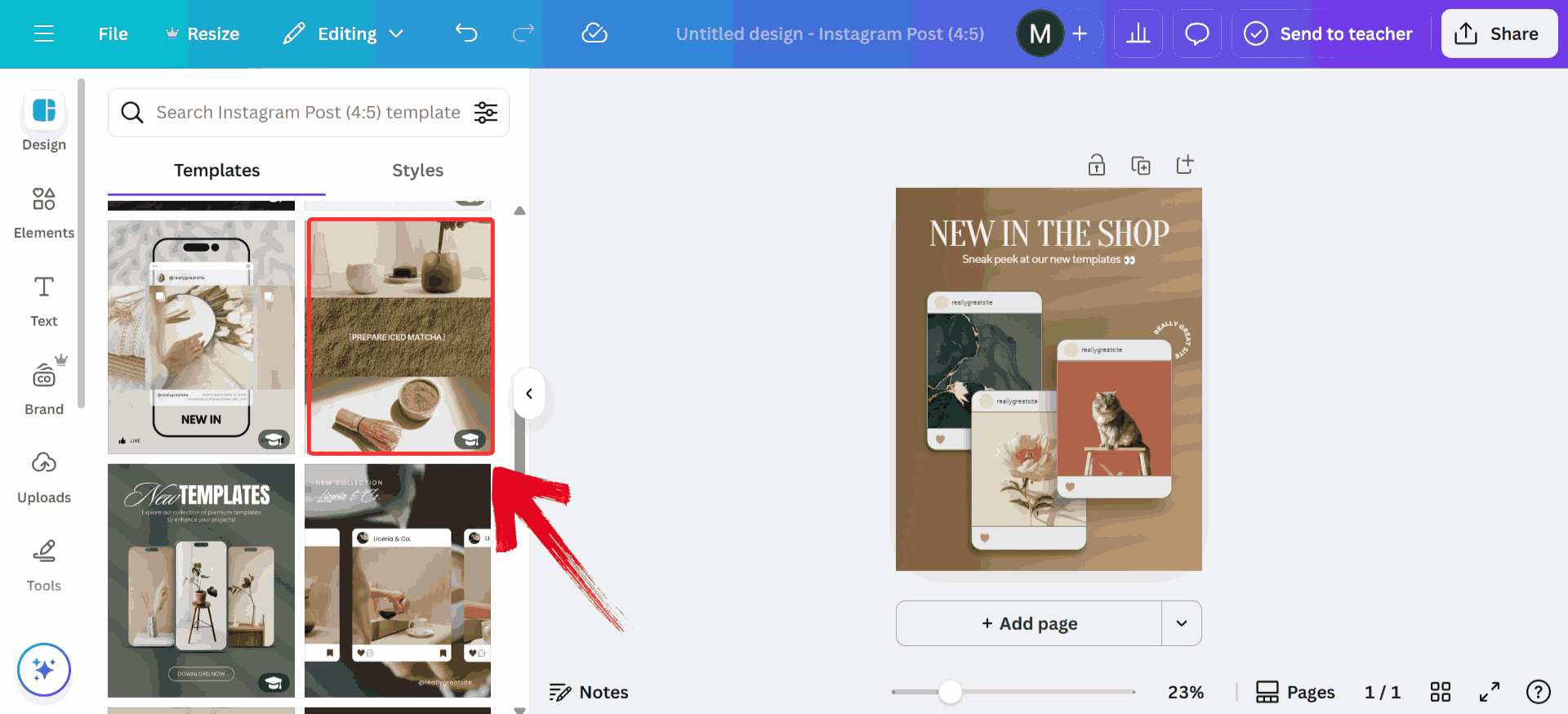
Step 6: Choose any template from the left panel or start with a blank canvas. Customize your portrait post.
Step 7: Once your design is ready, click on the“Share” button at the top right and select“Download”.
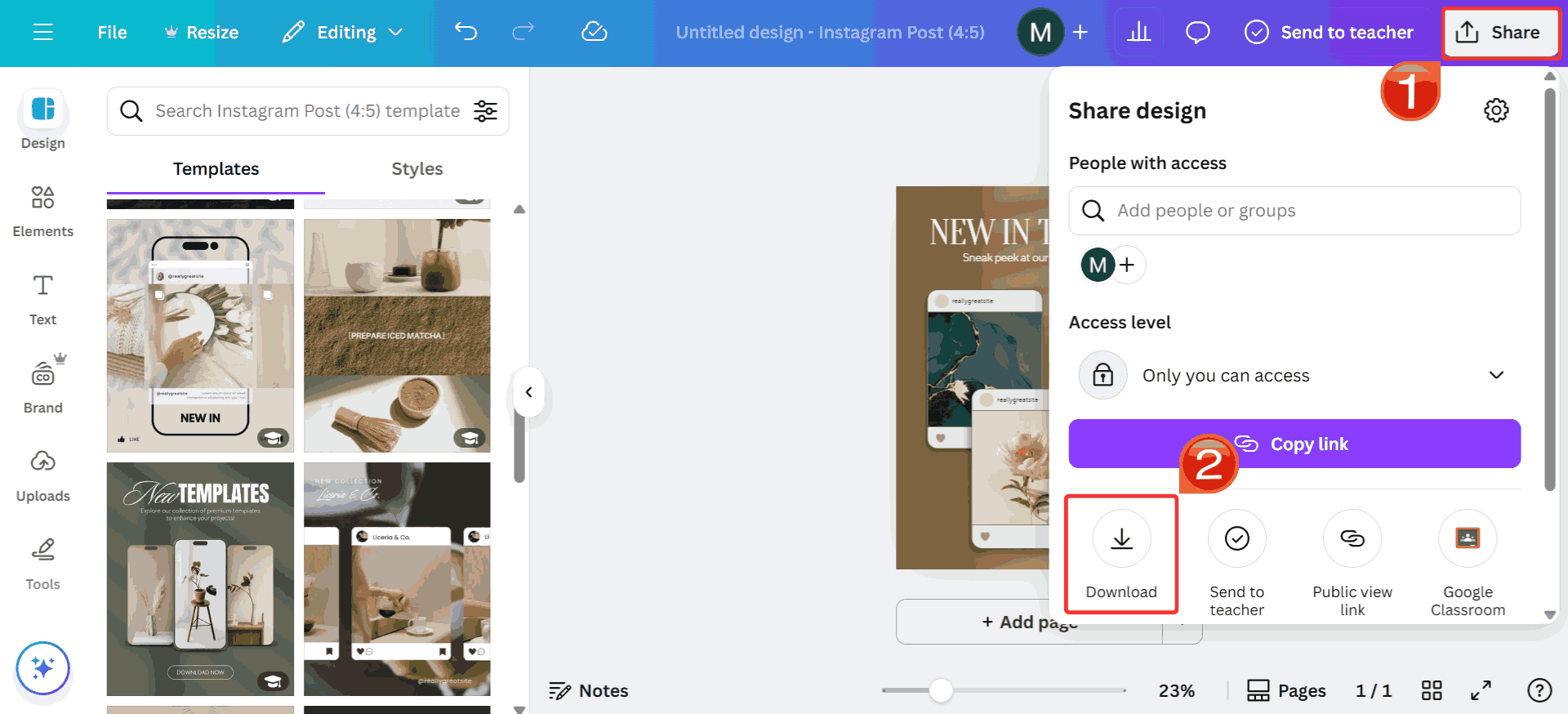
Step 8: For a landscape post, choose “1080 × 566” and click “Create new design”. This wider layout works well for cinematic content, though it may appear cropped in the grid view.
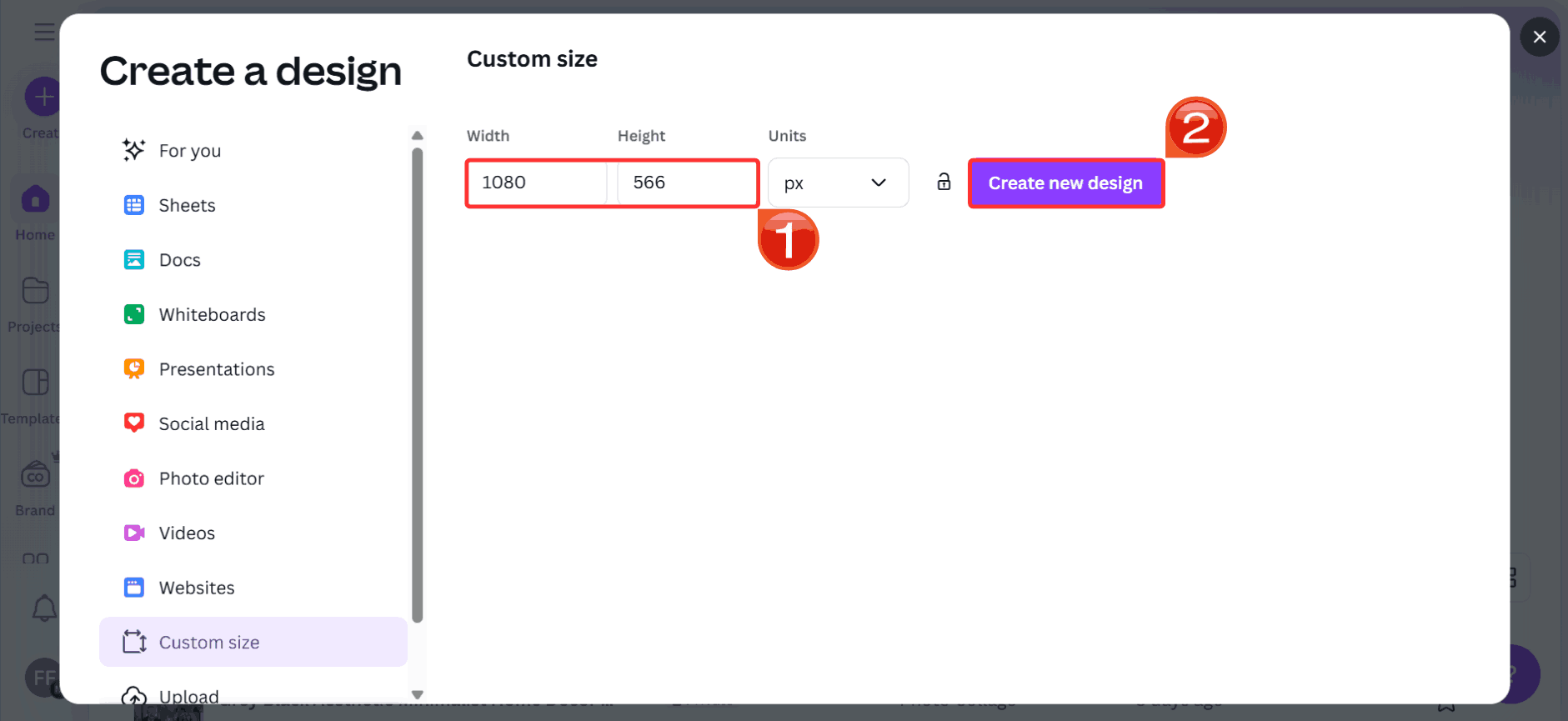
Step 9: Select a landscape-style template or start blank. Use wide visuals and align key elements toward the center.
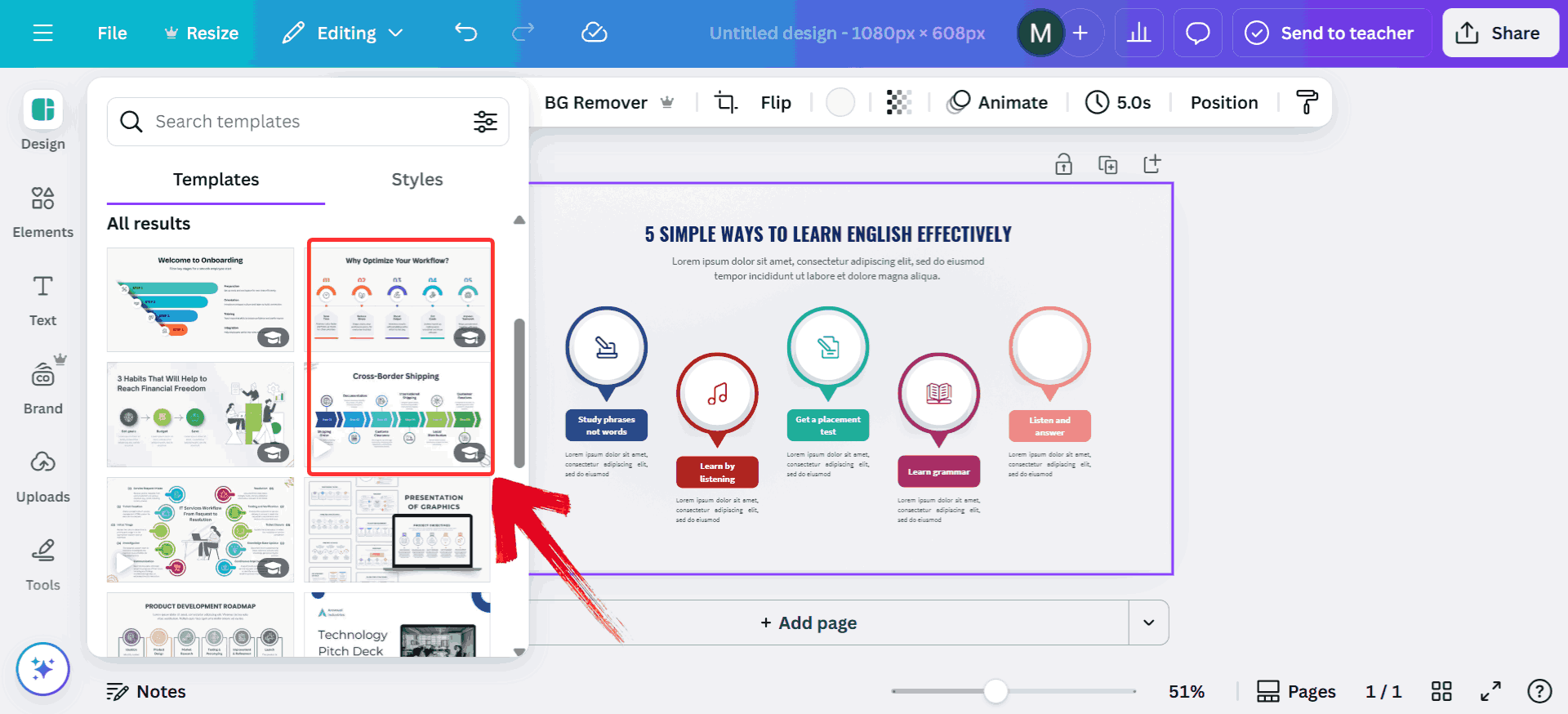
Step 10: Click on the “Share”button and select “Download” to save your image.
Instagram Stories
At first, Stories felt like a throwaway, something quick which I could shoot and upload. But once I started using them more strategically, I noticed how much of a difference sizing made. If your content doesn’t fill the screen properly, it looks off. If your text is too close to the edge, it gets cut. Now I design for Stories like I would for any other format, and it’s made everything look a lot more polished and professional.
Recommended Aspect Ratio: 9:16
Resolution: 1080×1920 px which is perfect for vertical, full-screen display
Stories are designed for quick, immersive viewing, but that doesn’t mean every format works equally well. Understanding IG ratios, especially how they apply to Stories can help your content stay sharp, properly framed, and fully visible on every screen.
Pros:
Full-screen vertical format
Ideal for real-time sharing, behind-the-scenes, or announcements
Cons:
Content that extends beyond the safe zone might get cut off
With the pros and cons in mind, here’s how to design and upload Stories that fit perfectly and keep your audience engaged.
Step 1: Head over to Canva and click on the“Custom size” button on the homepage.
Step 2: Enter the dimensions “1080 × 1920” which is the ideal size for Instagram Stories and click“Create new design”.
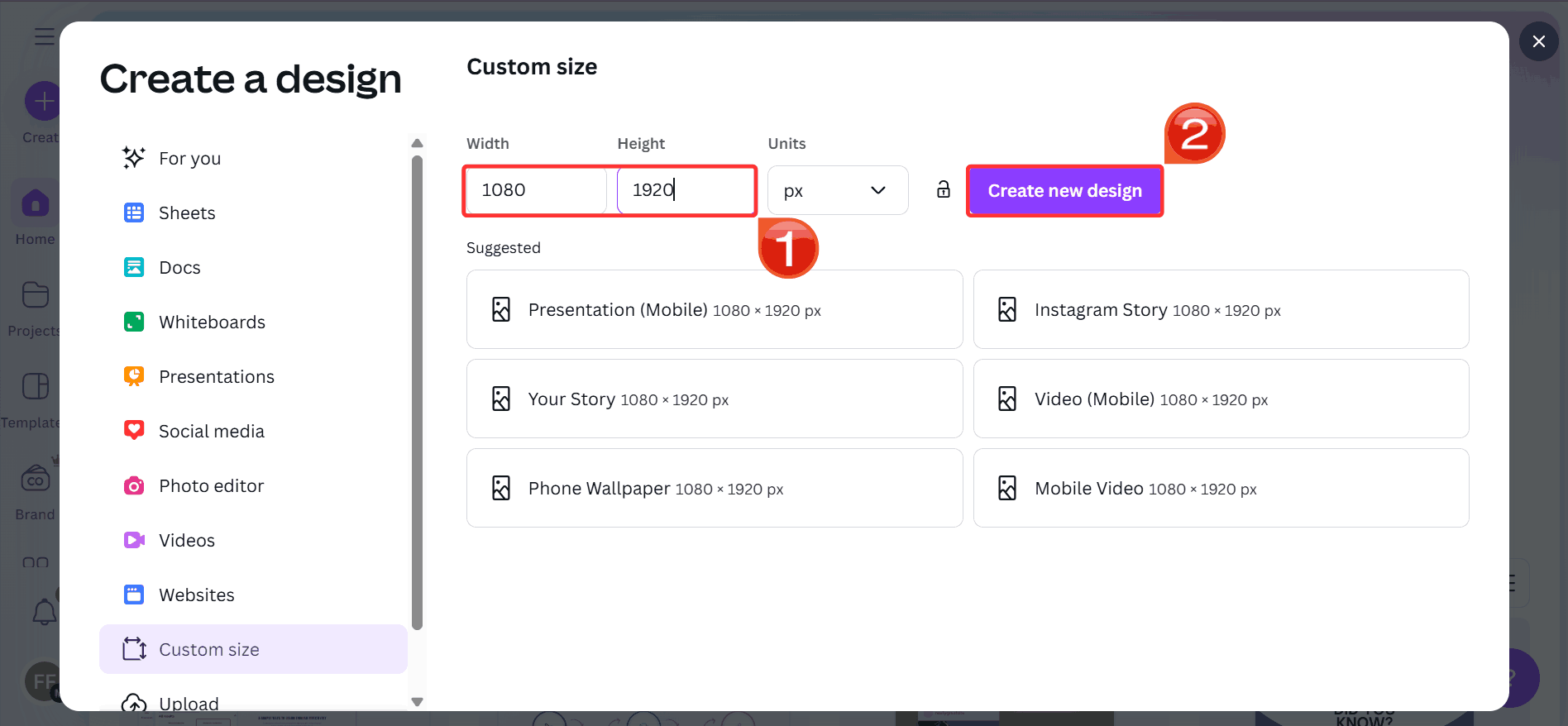
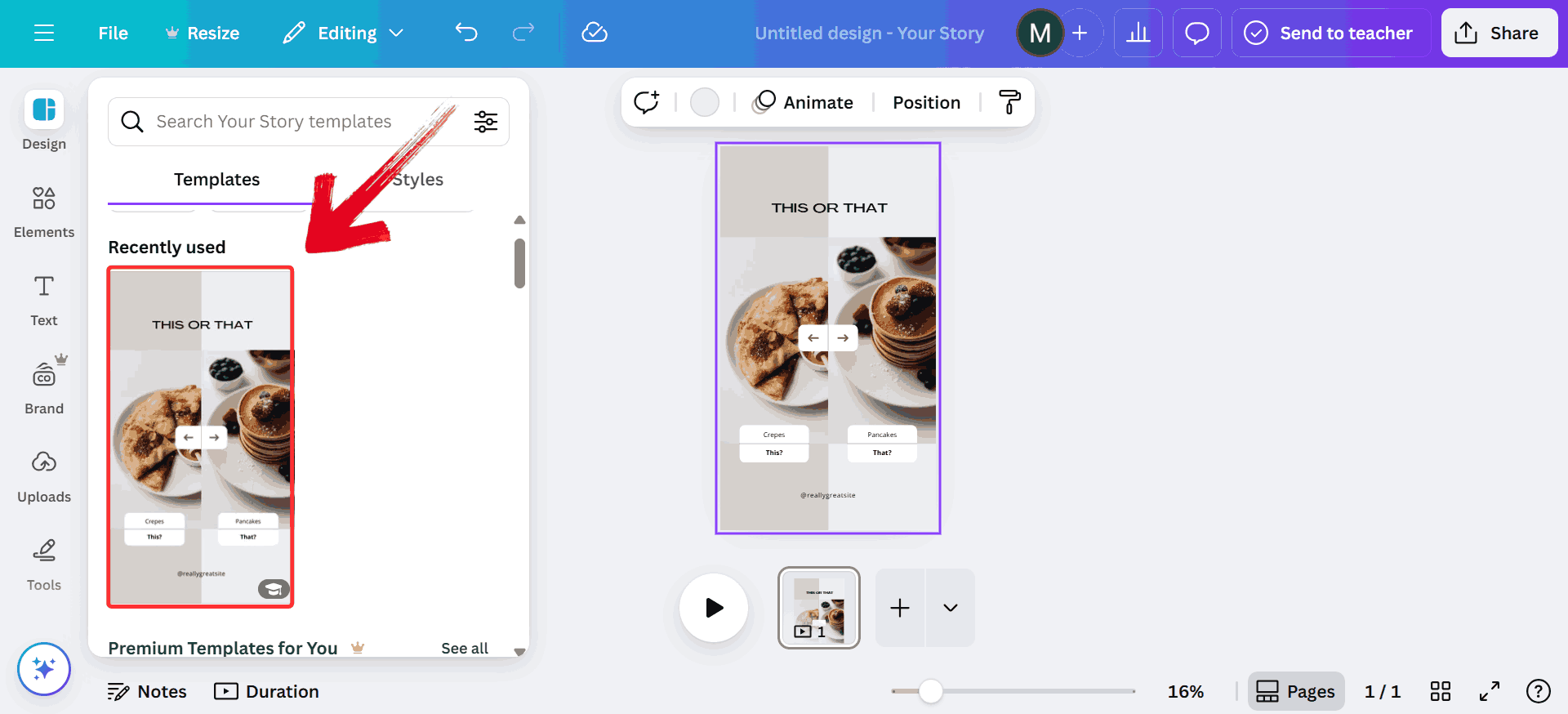
Step 3: Choose a vertical template from the left panel or start with a blank canvas.
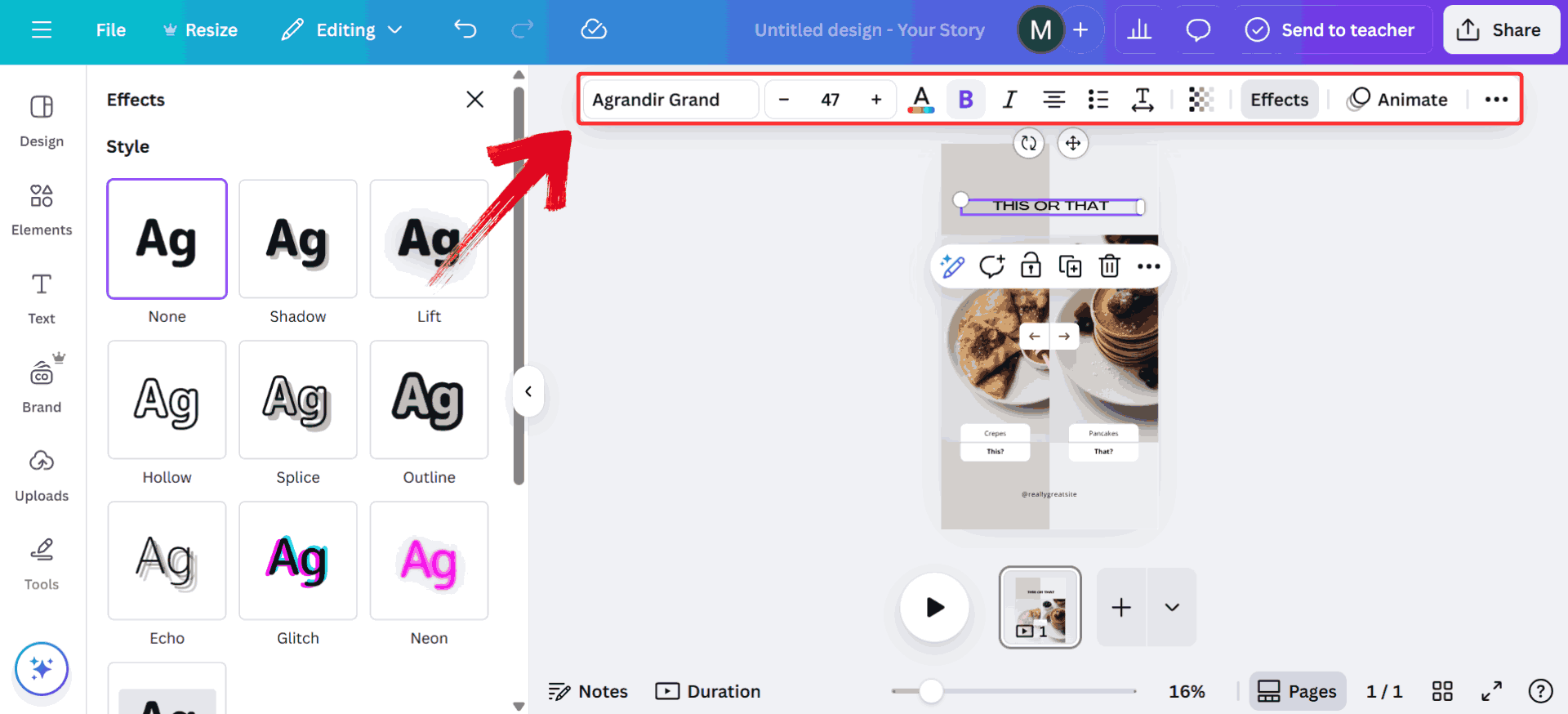
Step 4: To edit any text, simply select it and use the toolbar at the top to change fonts, adjust size, alignment, or colors as needed.
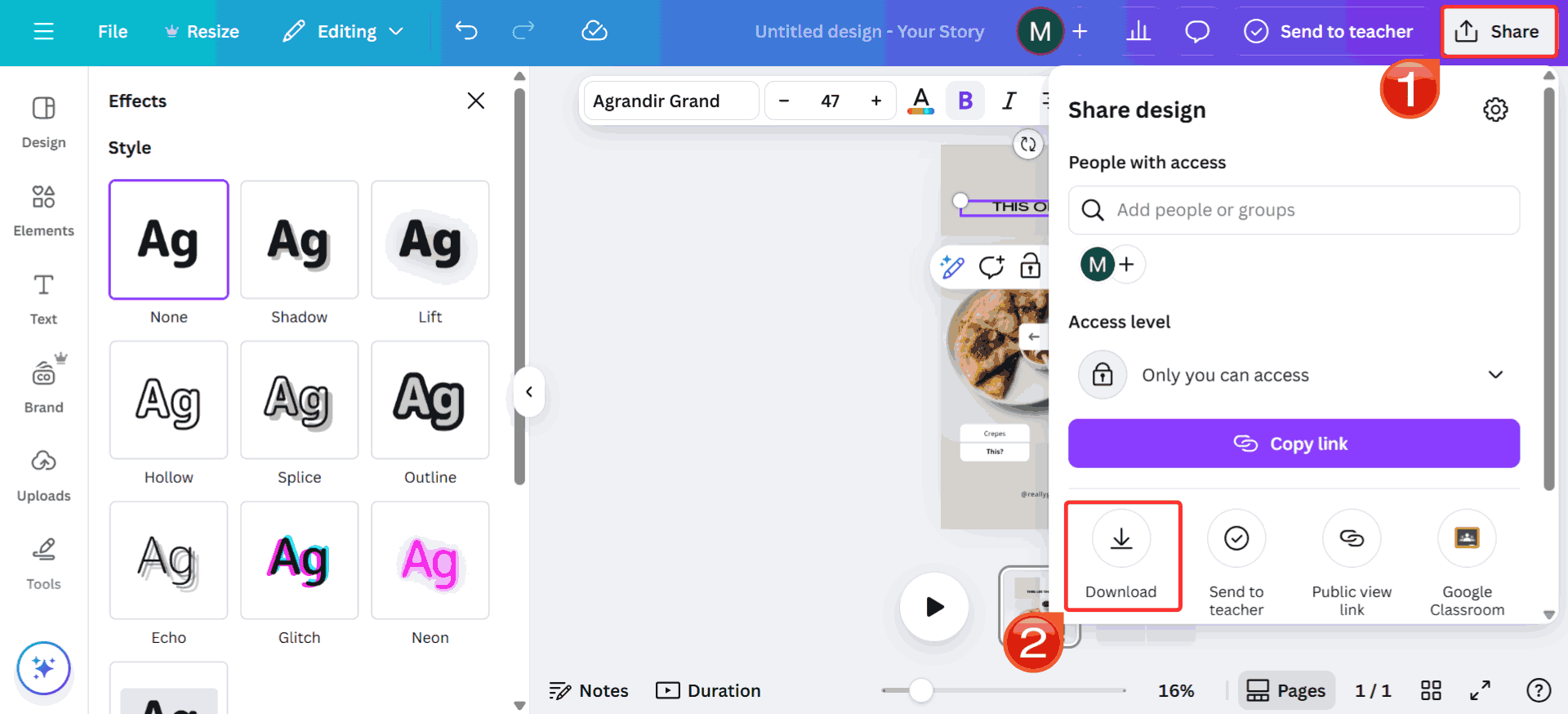
Step 5: Once your Story is ready, click“Share” at the top right, then select“Download” to save the Instagram Story to your device.
Instagram Reels
When Reels took off, I jumped in headfirst, but half my early videos either got framed weirdly or didn’t show up how I wanted. Reels are meant to be immersive, and using the wrong dimensions breaks that effect. Once I started sticking to the proper aspect ratio for Instagram, not only did the content look much more refined, but it also performed better. It’s one of those small things that makes a big difference.
Recommended Aspect Ratio: 9:16
Resolution: 1080×1920 px, fills the screen, loads fast, and keeps everything in frame
Reels demand vertical, full-screen video to maximize engagement, yet there are trade-offs in filming and editing. Reviewing the pros and cons of Reels’ aspect ratio ensures your videos look polished and perform at their best.
Pros:
Designed for full-screen mobile viewing
Prioritized by Instagram’s algorithm
Cons:
Requires vertical filming or editing
Understanding the benefits and challenges of Reels is just the start; next, I’ll take you through how I plan and format my Reels to make sure they’re actually built for the platform.
Step 1: Head over to Canva and click on the“Custom size” button on the homepage.
Step 2: Enter the dimensions “1080 × 1920” which is the ideal size for Instagram Stories and click“Create new design”.
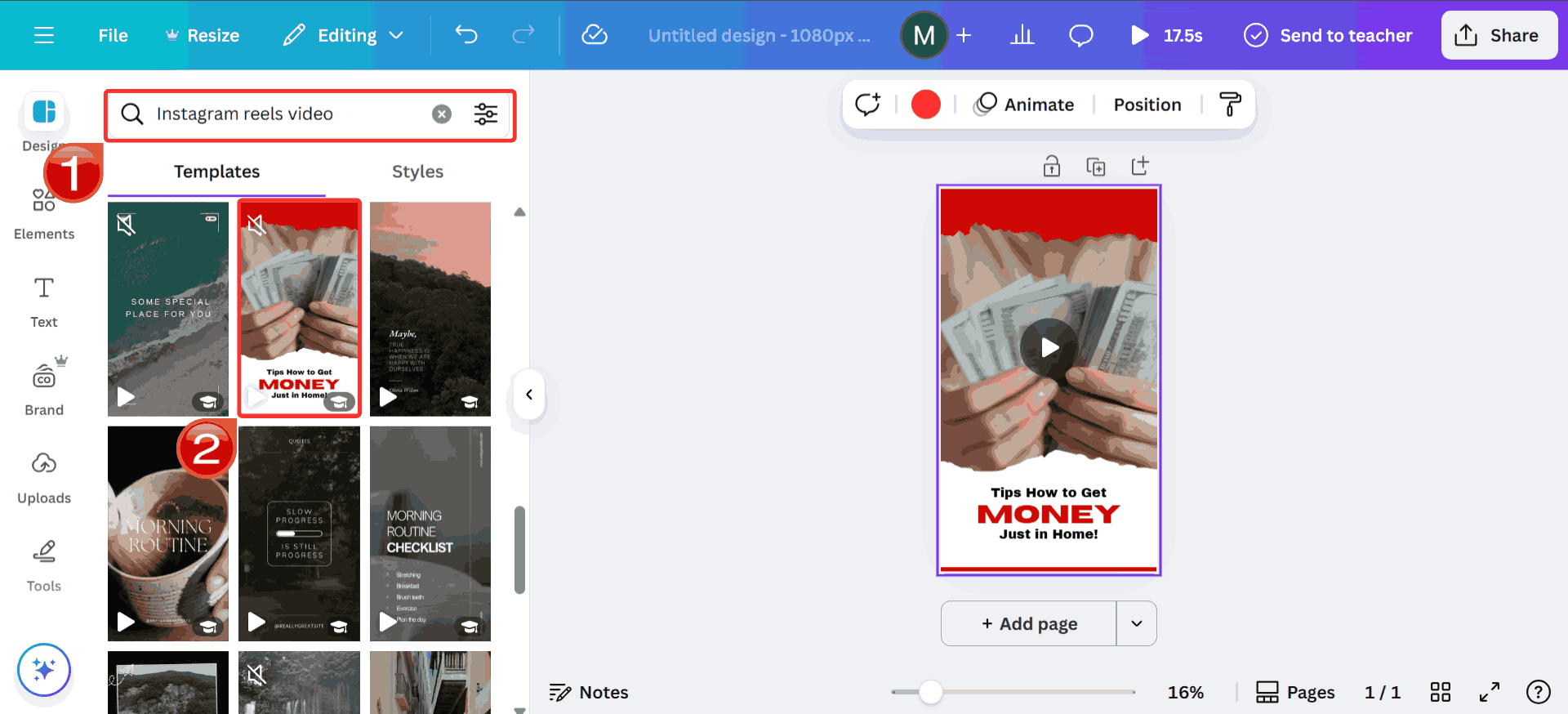
Step 3: In the search bar, type “Instagram Reels Video” and choose a template from the left sidebar to customize.
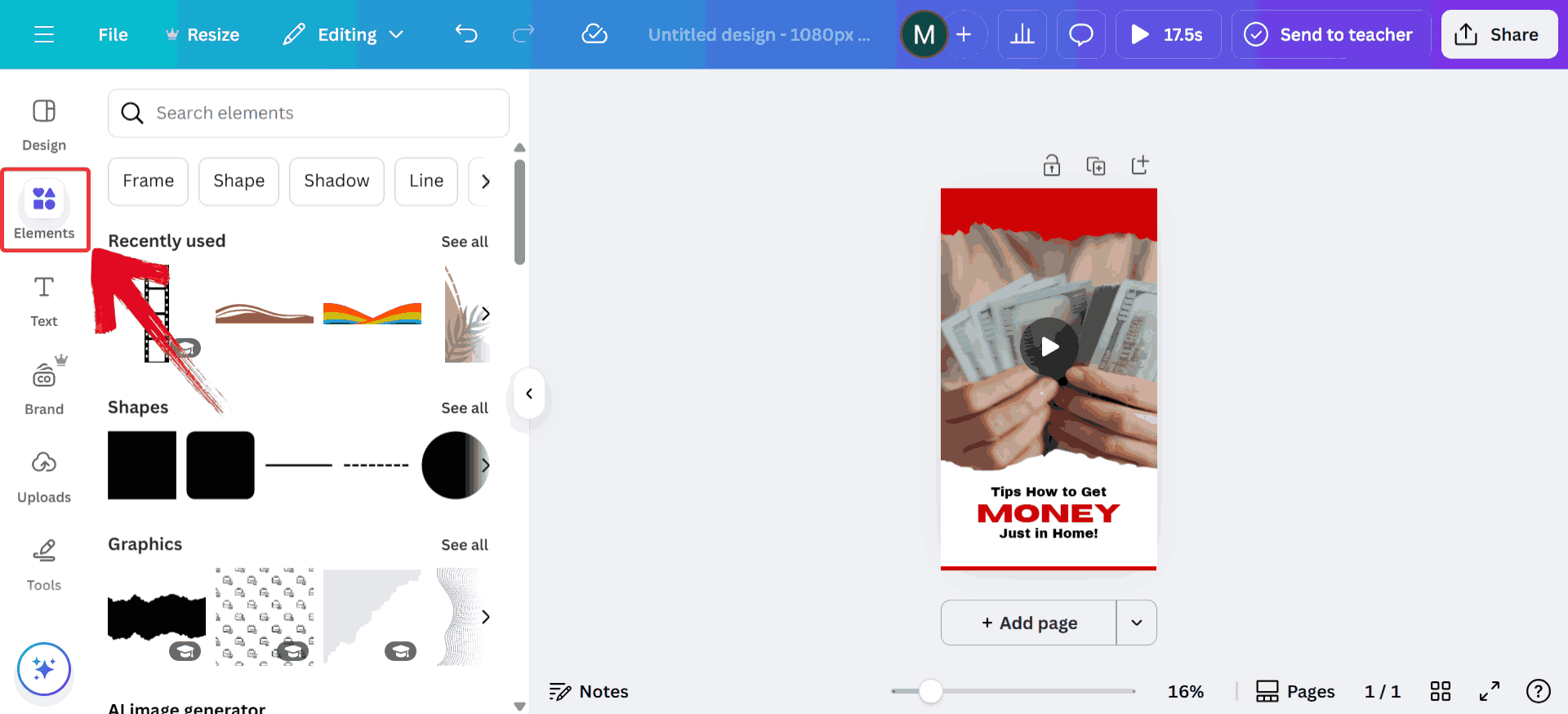
Step 4: Add animations, music, or video clips if needed by using the “Elements” tab on the left.
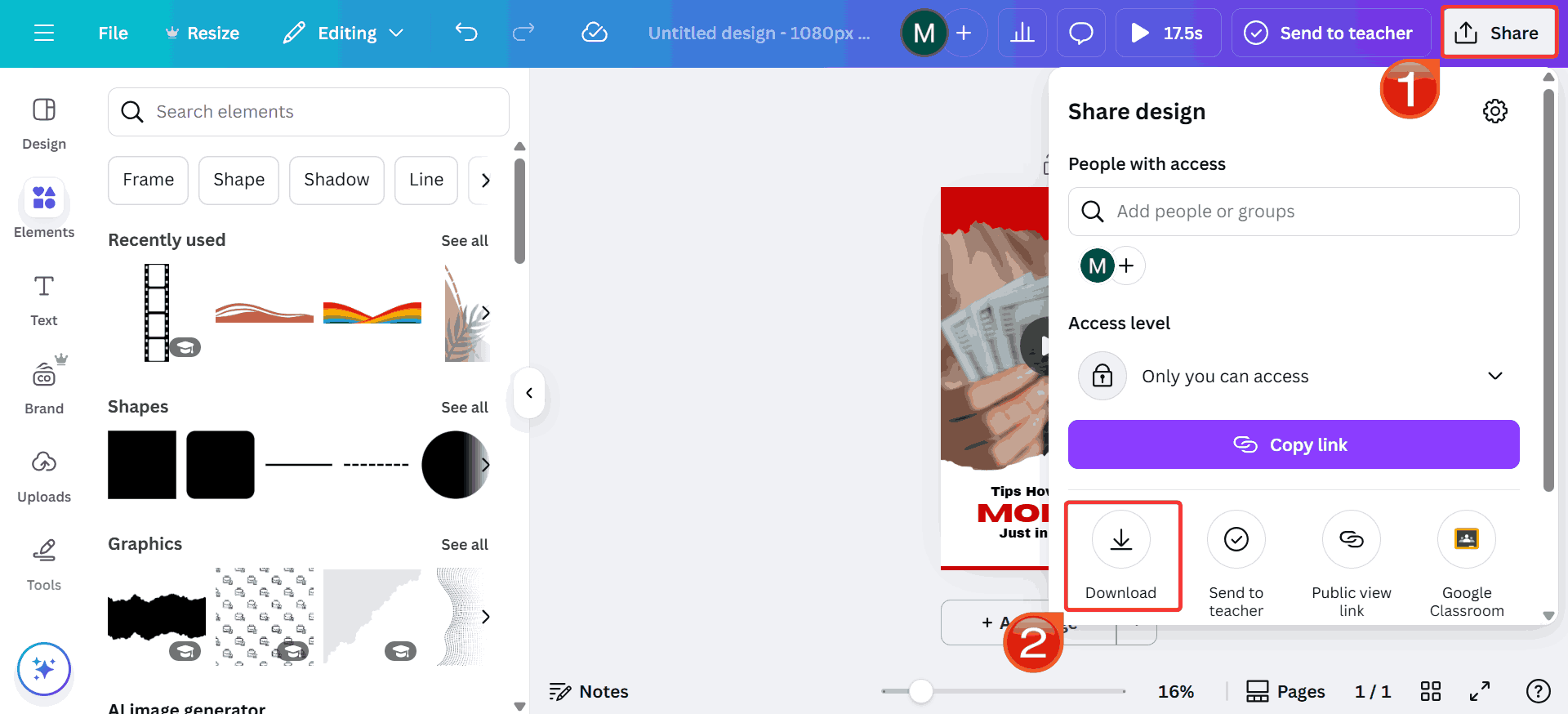
Step 5: Once your Reel is complete, click“Share” and click “Download” to save the video.
Comparison Table
Before you pick a designformat and hit download, it’s important to think about where your content will live. Not all Instagram visuals serve the same purpose as a square post might sit neatly in your feed, but it won’t stop a scroll in Stories. A reel might capture attention fast, but it needs entirely different planning than a carousel or static image. Here’s when and why each format makes sense to ensure your design shows up exactly how your audience sees and interacts with it.
| Post Type | Aspect Ratio | Resolution (px) | Common Issues | Best Use Case |
|---|---|---|---|---|
| Feed (Square) | 1:1 | 1080 × 1080 | None | Carousel posts, product highlights |
| Feed (Portrait) | 4:5 | 1080 × 1350 | Cropping in previews | Personal portraits, storytelling |
| Feed (Landscape) | 1.91:1 | 1080 × 608 | May appear small | Cinematic visuals, landscape shots |
| Stories | 9:16 | 1080 × 1920 | Edge elements cut off | Announcements, polls, behind-the-scenes |
| Reels | 9:16 | 1080 × 1920 | UI overlap, text cutoff | Viral content, how-tos, entertainment |
Keeping track of all these dimensionsand knowing which format to use can be overwhelming, particularly when you're managing multiple posts, reels, and stories in one sitting. It’s easy to get lost in the tabs when you're constantly Googling things like ‘what aspect ratio is Instagram’ just to double-check.
Why Toolsmart Instagram Video Downloader Is Worth Considering
There have been many occasions where I’d finally get the dimensions right in Canva, say, a Reel in 9:16 only to find out that I couldn’t preview how it’d actually look on Instagram without uploading it somewhere first. And sometimes, I'd just need a downloaded version to test it across different accounts or reuse it in edits without opening Canva again. I remembered using Toolsmart ages ago to grab a lecture video from YouTube for a group project. So I tried Toolsmart’s Instagram Video Downloader, expecting it wouldn’t work but weirdly, it did. It wasn’t perfect, but it gave me the file exactly how I had posted it, which was all I really needed.
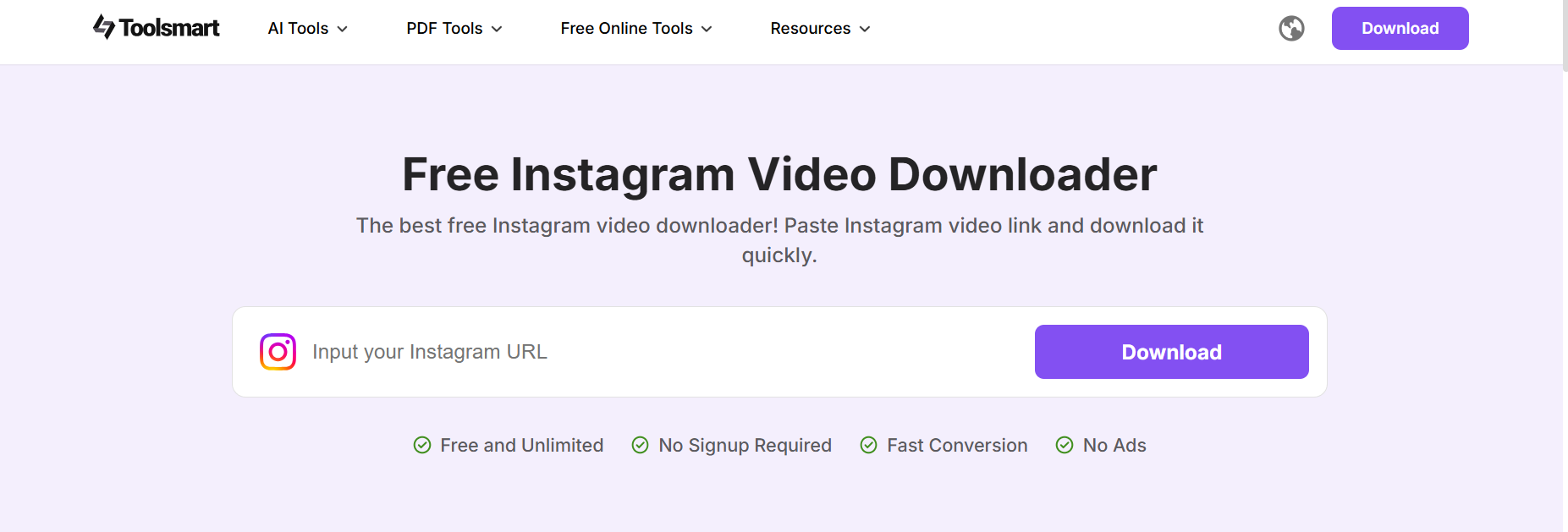
Once I realized Toolsmart worked for Instagram, I started using it anytime I needed a quick download: posting across different accounts or just archiving old content. It’s not packed with features, but it gets the small things right, which, in my opinion, is exactly what makes it so useful.
Download videos in their original quality:Toolsmart keeps the resolution and aspect ratio intact, so the file you get looks exactly like the one you uploaded.
No watermarks or ads: You won’t have to deal with logos slapped onto your content or irritating pop-ups during the process.
Works on all devices: Just copy the Instagram link and paste it into Toolsmart without needing an app.
FAQs About Instagram Aspect Ratio
1. What Happens If I Use the Wrong Aspect Ratio on Instagram?
Your post might get cropped or stretched. This can mess with composition and make your content look unprofessional.
2. Can I Use the Same Aspect Ratio for Stories and Reels?
Yes, both formats use a 9:16 aspect ratio, perfect for vertical viewing.
3. What’s the Best Aspect Ratio for Carousel Posts?
Stick with 1:1 or 4:5 to maintain consistency between slides and avoid awkward cropping.
4. Is There a Tool to Download Instagram Videos Without Losing Quality?
Yes! Toolsmart Instagram Video Downloader keeps your videos sharp and watermark-free.
Toolsmart Making it Fit
Instagram doesn’t always make it easy to get the framing right, made worse by how often its layout changes. Posts, stories, and reels all have their quirks, and getting things to look right across them took way more time than I expected. I tested the built-in cropping tools, third-party editors, and layout guides to see which ones actually helped maintain the correct Instagram aspect ratio in real-world use.
Somewhere between drafts and re-records, Toolsmart’s Instagram Video Downloader became part of the process for refining the videos I’d already saved. While it doesn’t crop or post for you, it does help polish content: fixing odd framing, trimming excess footage, and converting files into the right format for each Instagram section. Being able to quickly export a video for stories or reels without redoing everything saved me time and made my content look cleaner and more intentional.


