
'%3e%3cpath%20fill-rule='evenodd'%20clip-rule='evenodd'%20d='M19%208.5C24.799%208.5%2029.5%2013.201%2029.5%2019C29.5%2024.6782%2024.9928%2029.3036%2019.361%2029.4939L19%2029.5C18.8794%2029.5%2018.7592%2029.498%2018.6396%2029.4939L18.2811%2029.4758C12.8174%2029.1063%208.5%2024.5574%208.5%2019C8.5%2013.201%2013.201%208.5%2019%208.5ZM22.3063%2010.6267L22.2342%2010.6539C21.3423%2011.0061%2020.5541%2011.6368%2020.5606%2012.4987C20.5631%2012.8302%2020.869%2014.8871%2020.2141%2014.8486C19.5589%2014.8102%2019.413%2013.8753%2018.7116%2013.616C17.5944%2013.2026%2016.9819%2014.3401%2017.0939%2015.3106C17.1695%2015.9655%2018.9289%2018.3871%2017.9028%2019C17.292%2019.3651%2015.7279%2017.5692%2015.1007%2017.1842C14.4805%2016.8034%2013.2758%2017.3333%2012.4974%2016.7029C11.9874%2016.2899%2012.3881%2014.4098%2012.2786%2013.8372C12.2271%2013.5698%2012.1155%2013.3689%2011.9794%2013.2166L12.0402%2013.2934C10.7653%2014.8464%2010%2016.8339%2010%2019C10%2023.8465%2013.8307%2027.7982%2018.6295%2027.9925L18.6769%2027.9747C18.8597%2027.8677%2019.0394%2027.7557%2019.216%2027.6387C19.4137%2027.4534%2019.5436%2027.2072%2019.5849%2026.9394C19.8806%2025.1222%2018.3616%2025.4302%2017.9367%2024.5622C17.5489%2023.7695%2018.5712%2023.7684%2018.5524%2021.7923C18.4607%2021.1774%2018.5279%2020.547%2018.7211%2020.0315C19.1834%2018.7987%2020.7077%2017.2643%2022.5889%2018.0081C23.5567%2018.3906%2023.1524%2019.9831%2023.4737%2020.3394C24.251%2021.2018%2025.3228%2020.6863%2026.2856%2021.2253C26.7816%2021.5032%2026.9797%2022.41%2027.056%2023.2248L27.038%2023.0528C27.6534%2021.8348%2028%2020.4579%2028%2019C28%2015.1968%2025.6409%2011.9445%2022.3063%2010.6267Z'%20fill='%23757575'/%3e%3ccircle%20cx='19'%20cy='19'%20r='10.125'%20stroke='%23757575'%20stroke-width='2.25'/%3e%3c/g%3e%3cdefs%3e%3cclipPath%20id='clip0_1827_14613'%3e%3crect%20width='24'%20height='24'%20fill='white'%20transform='translate(7%207)'/%3e%3c/clipPath%3e%3c/defs%3e%3c/svg%3e)


Google Docs has evolved into one of the most widely used online word processing tools, offering many features that can enhance productivity. One of its standout features is voice typing, allowing users to directly dictate text into a document instead of manually typing each word. This feature is handy for improving writing speed, accessibility, or efficiency in transcribing audio content.
Despite its benefits, many users are unaware of this feature or find it challenging to enable or use effectively. This comprehensive guide will provide step-by-step instructions on usinge typing in Google Docs and introduce a paraphrasing tool to refine and improve your transcribed text. Whether you're new to voice typing or a seasoned user looking for tips, you’ll find this guide helpful in maximizing the potential of this valuable tool.
Part 1: Why Use Voice Typing in Google Docs
Voice typing offers several compelling benefits, making it a go-to tool for many users. Here’s why it’s a feature worth utilizing:
Saves Time and Improves Productivity
Voice typing significantly speeds up the process of creating documents. Instead of typing every word, you can simply dictate your ideas, and Google Docs transcribes them in real time. This can be especially useful when writing long pieces, transcribing meetings, lectures, or interviews, and it saves you time in the long run.
Enhances Accessibility for Users with Typing Difficulties
Voice typing offers an excellent solution for people who have physical disabilities or find typing challenging. Whether due to conditions like arthritis or carpal tunnel syndrome, dictating text allows users to compose documents without the strain of typing, improving accessibility for all users.
Useful for Transcribing Interviews, Lectures, or Meetings
Voice typing is an excellent tool for transcribing spoken content. Suppose you're working with audio recordings, such as interviews or lectures. In that case, Google Docs’ voice typing feature allows you to transcribe them quickly and accurately, eliminating the need for time-consuming manual transcription.
For more information on how voice typing can help, check out this official Google support page and Shake Up Learning's blog.
Part 2: How to Use Voice Typing in Google Docs
Using voice typing in Google Docs is incredibly easy. Here’s a step-by-step guide to help you get started:
Requirements for Voice Typing:
Before you begin, ensure that you meet the following criteria:
A working microphone (either internal or external).
Google Chrome browser (voice typing works best on Chrome).
A stable internet connection is required, as voice typing relies on Google’s cloud-based services.
Steps to Enable Voice Typing in Google Docs:
Open Google Docs
Start by opening a new or existing Google Docs document.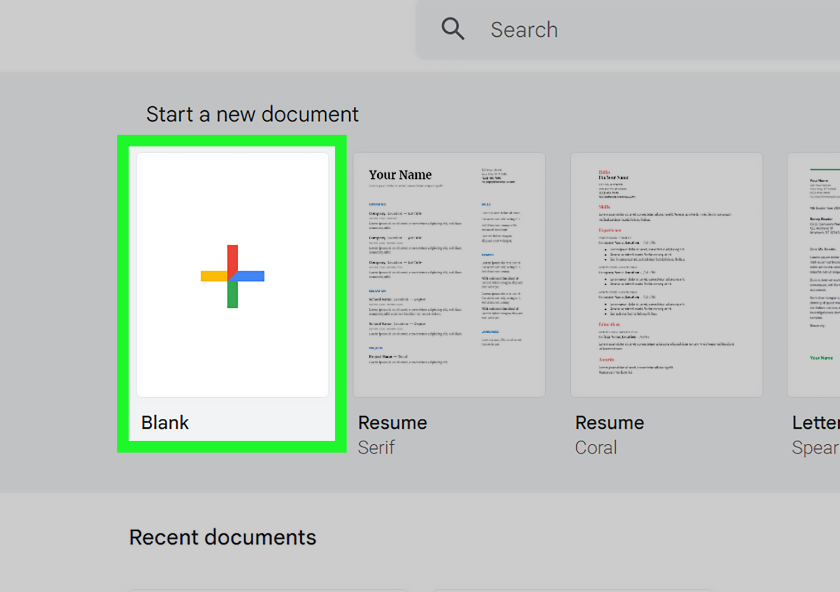
Click on the "Tools" Menu
In the top navigation bar, click on Tools.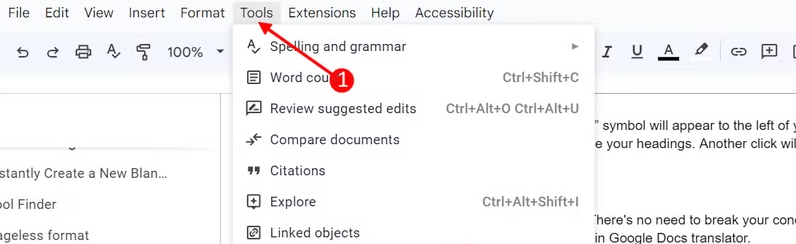
Select "Voice typing."
From the dropdown menu, select Voice typing. Alternatively, you can use the shortcut Ctrl+Shift+S (Windows) or Cmd+Shift+S (Mac) to activate voice typing quickly.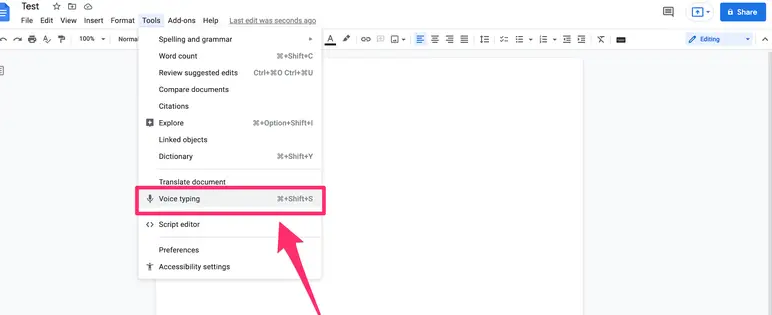
Click the Microphone Icon
Once enabled, a microphone icon will appear on the left side of the document. Click the icon to begin dictating.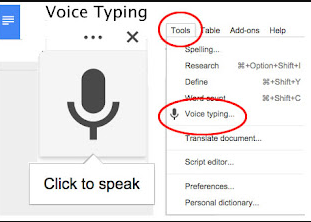
Start Speaking
When the microphone turns red, start speaking clearly into your microphone. Google Docs will transcribe your words in real time.Stop Dictating
When you’re finished, click the microphone icon again to stop dictating. You can always click it again to resume dictation.
Part 3: Tips for Effective Voice Typing
To maximize the effectiveness of voice typing in Google Docs, follow these pro tips:
Tip 1: Speak Clearly
To ensure the best accuracy, speak clearly and at a moderate pace. The clearer your speech, the more accurately Google Docs will transcribe your words.
Tip 2: Use Punctuation Commands
You can dictate punctuation marks using voice commands. Here are some essential ones:
Say "period" to add a complete stop.
Say "comma" when inserting a comma.
Say "new line" to start a new line.
Say "new paragraph" to begin a new paragraph.
Using these commands while dictating ensures your text is formatted correctly.
Tip 3: Edit and Proofread
While voice typing is generally accurate, proofreading your document is always a good idea. Review the transcribed text for errors or misinterpretations and make any necessary edits.
Tip 4: Minimize Background Noise
For optimal accuracy, try to minimize background noise. A quiet environment helps Google Docs better understand your speech and improves the transcription quality.
Part 4: Use Paraphrasing Tool to Refine Transcribed Text
After voice typing, your document may need refinement to enhance clarity and readability. This is where a paraphrasing tool comes in. A paraphrasing tool helps reword sentences, improve structure, and ensure originality.
Overview of the Paraphrasing Tool:
A paraphrasing tool makes your raw transcribed content more precise and concise. This is particularly useful for refining rough drafts generated through voice typing.
Why Use the Paraphrasing Tool?
Improves clarity: The tool can simplify complex sentences, making them easier to understand.
Ensures originality: It helps rephrase sentences to avoid repetitive language and potential plagiarism.
Free and easy to use: Most paraphrasing tools are free and don’t require a login or sign-up.
How to Use the Paraphrasing Tool:
Copy the Transcribed Text
After using voice typing, select and copy the transcribed text (Ctrl+C).Visit a Paraphrasing Tool
Go to a trusted paraphrasing tool such as Toolsmart’s Free Paraphrasing Tool.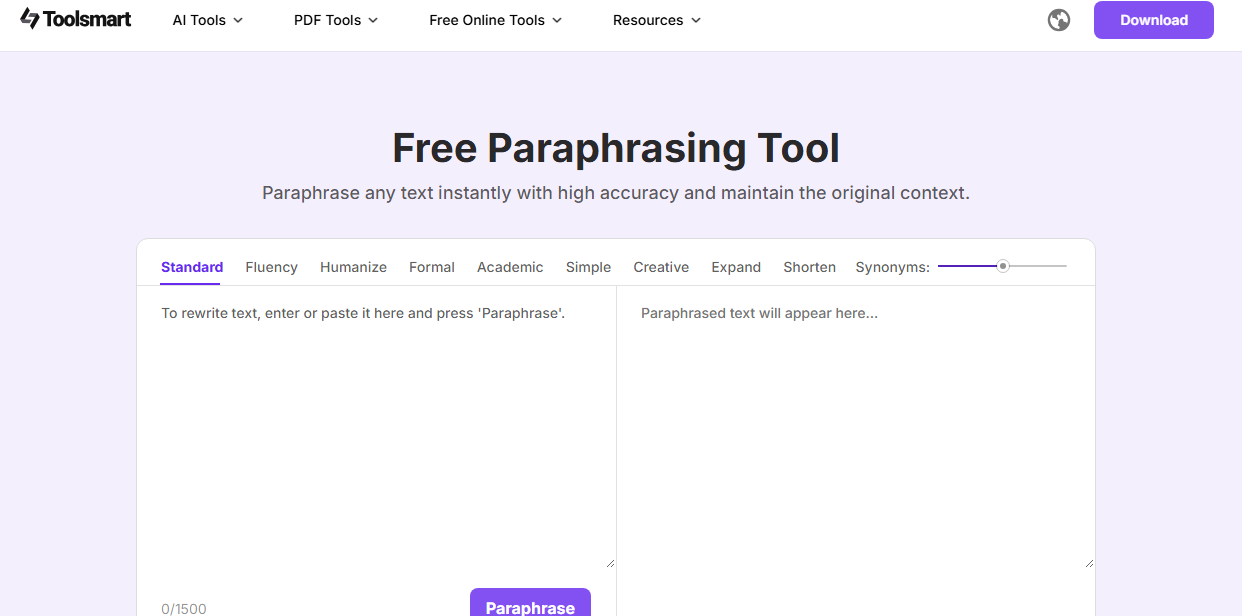
Paste the Text
Paste the copied text into the input box (Ctrl+V).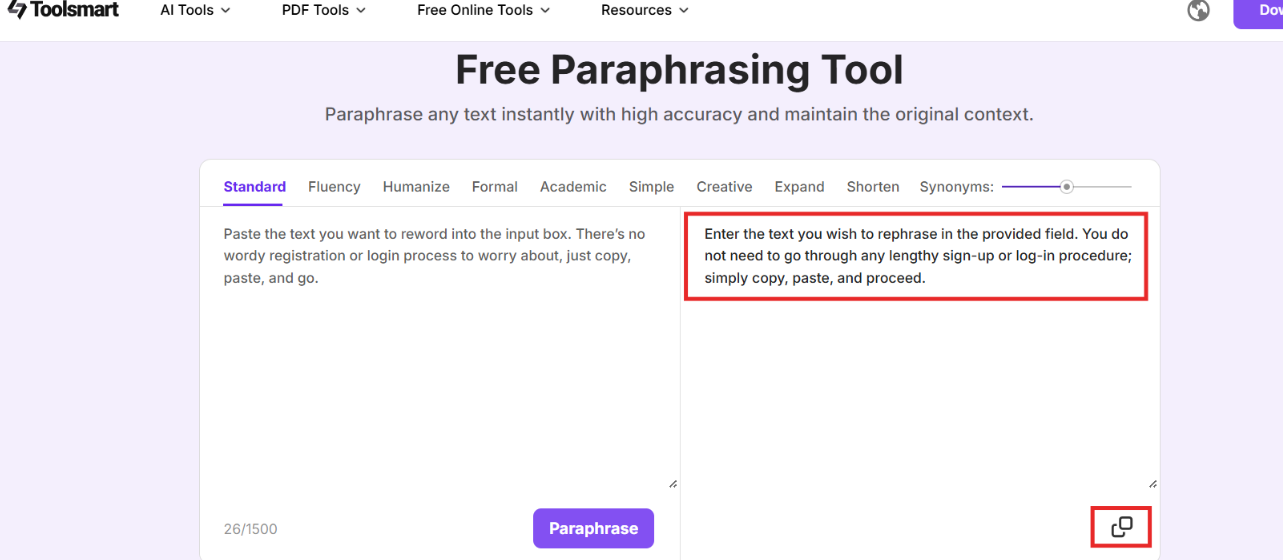
Click “Paraphrase.”
Press the “Paraphrase” button, and the tool will automatically generate a refined version of your text.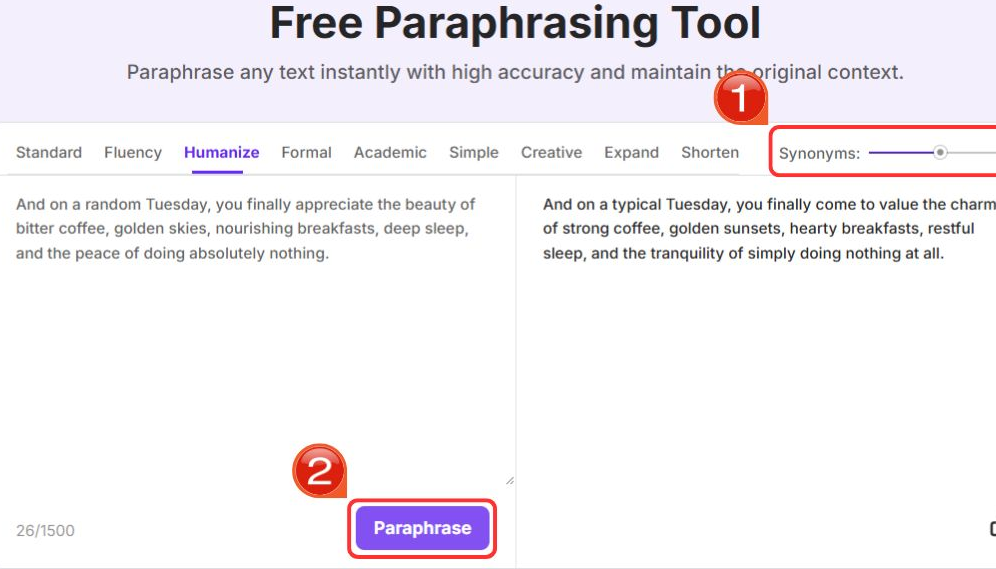
Copy the Refined Text
Once the paraphrasing tool is done, copy the updated text and paste it back into your Google Docs document.
Using a paraphrasing tool efficiently polishes your transcribed content and ensures it is clear and professional.
FAQs
Q1: Is voice typing in Google Docs accurate?
Voice typing is generally accurate, but its accuracy depends
on factors such as the quality of your microphone, speech clarity, and
background noise. Editing and proofreading are recommended to ensure the
best results.
Q2: Can I use voice typing offline?
No, voice typing requires an internet connection as it relies
on Google’s cloud services for transcription.
Q3: Does Google Docs support voice typing in all
languages?
Google Docs supports voice typing in several languages. You
can check the available languages in your Google Docs settings.
Q4: How can I improve the quality of transcribed text?
You can use a paraphrasing tool to refine and
polish the transcribed content, improving its clarity, structure, and
readability.
Summary
Voice typing in Google Docs is a powerful tool that can significantly boost productivity, enhance accessibility, and simplify transcribing spoken content. You can efficiently create documents using only your voice by following the steps to enable voice typing, speaking clearly, and using punctuation commands. Additionally, using a paraphrasing tool helps refine and improve the transcribed content, ensuring that the final document is clear, polished, and free from errors.
Implementing these steps and tools will streamline your writing process and allow you to create high-quality documents in less time.


