
'%3e%3cpath%20fill-rule='evenodd'%20clip-rule='evenodd'%20d='M19%208.5C24.799%208.5%2029.5%2013.201%2029.5%2019C29.5%2024.6782%2024.9928%2029.3036%2019.361%2029.4939L19%2029.5C18.8794%2029.5%2018.7592%2029.498%2018.6396%2029.4939L18.2811%2029.4758C12.8174%2029.1063%208.5%2024.5574%208.5%2019C8.5%2013.201%2013.201%208.5%2019%208.5ZM22.3063%2010.6267L22.2342%2010.6539C21.3423%2011.0061%2020.5541%2011.6368%2020.5606%2012.4987C20.5631%2012.8302%2020.869%2014.8871%2020.2141%2014.8486C19.5589%2014.8102%2019.413%2013.8753%2018.7116%2013.616C17.5944%2013.2026%2016.9819%2014.3401%2017.0939%2015.3106C17.1695%2015.9655%2018.9289%2018.3871%2017.9028%2019C17.292%2019.3651%2015.7279%2017.5692%2015.1007%2017.1842C14.4805%2016.8034%2013.2758%2017.3333%2012.4974%2016.7029C11.9874%2016.2899%2012.3881%2014.4098%2012.2786%2013.8372C12.2271%2013.5698%2012.1155%2013.3689%2011.9794%2013.2166L12.0402%2013.2934C10.7653%2014.8464%2010%2016.8339%2010%2019C10%2023.8465%2013.8307%2027.7982%2018.6295%2027.9925L18.6769%2027.9747C18.8597%2027.8677%2019.0394%2027.7557%2019.216%2027.6387C19.4137%2027.4534%2019.5436%2027.2072%2019.5849%2026.9394C19.8806%2025.1222%2018.3616%2025.4302%2017.9367%2024.5622C17.5489%2023.7695%2018.5712%2023.7684%2018.5524%2021.7923C18.4607%2021.1774%2018.5279%2020.547%2018.7211%2020.0315C19.1834%2018.7987%2020.7077%2017.2643%2022.5889%2018.0081C23.5567%2018.3906%2023.1524%2019.9831%2023.4737%2020.3394C24.251%2021.2018%2025.3228%2020.6863%2026.2856%2021.2253C26.7816%2021.5032%2026.9797%2022.41%2027.056%2023.2248L27.038%2023.0528C27.6534%2021.8348%2028%2020.4579%2028%2019C28%2015.1968%2025.6409%2011.9445%2022.3063%2010.6267Z'%20fill='%23757575'/%3e%3ccircle%20cx='19'%20cy='19'%20r='10.125'%20stroke='%23757575'%20stroke-width='2.25'/%3e%3c/g%3e%3cdefs%3e%3cclipPath%20id='clip0_1827_14613'%3e%3crect%20width='24'%20height='24'%20fill='white'%20transform='translate(7%207)'/%3e%3c/clipPath%3e%3c/defs%3e%3c/svg%3e)


Photoshop has now started integrating AI into its software to simplify complex tasks. In 2025, if you’re not using these AI features, then you’re falling behind. This is because tasks that took hours before now take seconds with its AI. This guide will help you learn how to use AI in Photoshop, along with advanced strategies, so that you can focus on the actual creative part.
Why Using AI in Photoshop Matters
Photoshop generative AI cuts out so much of the boring work that designers used to handle manually. Tasks that once required careful cloning, pixel matching, and adjusting shadows or perspective are now handled automaticallythrough Generative Fill. Instead of spending hours fine-tuning small corrections, you can make clean edits in seconds, freeing up more time for the creative decisions that actually move a project forward.

What makes these AItools even more valuable is how far they’ve come. Early versions felt experimental, but the improvements since Photoshop’s full release of AI features in 2023 have been impressive. Generated elements blend naturally with surrounding lighting and textures, often looking as polished as premium stock imagery. For many designers, this means AI replaces expensive assets and opens the door to new creative possibilities.
Built-in AI Features in Photoshop
The moment you start using AI, you realize it changes everything about digital art. I consider it crucial because it drastically cuts the time spent on the most boring, repetitive tasks. Tasks that once took an hour, like selecting complex hair or removing difficult backgrounds, are now instant. Generative tools enhance creativity, allowing you to instantly mock up variations or fill in missing scene elements, which ultimately improves your precision and saves you countless hours for true creative decisions. Here are a few ways you can learn how to use AI in Photoshop.
Neural Filters
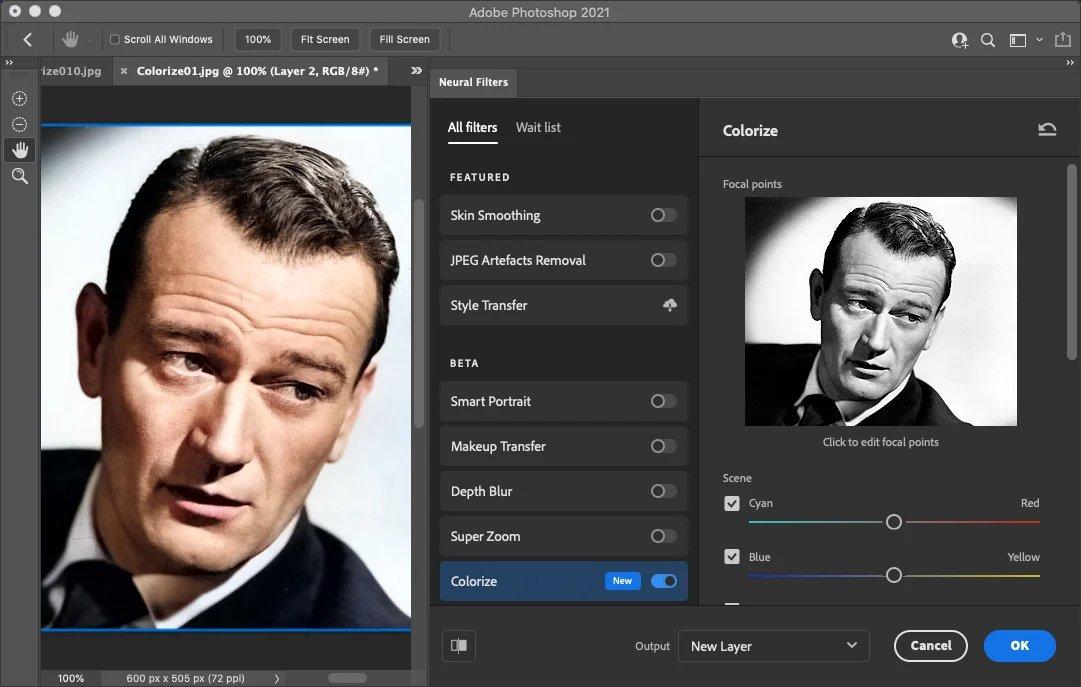
I believe the Neural Filters have become even better and faster. They use AI to handle portrait edits that used to take professionals hours of manual tweaking. You can instantly smooth skin, dramatically change a portrait's style, or bring old black-and-white photos back to life with realistic color. This feature alone drastically cuts down the time you spend on boring retouching.
Select Subject & Sky Replacement
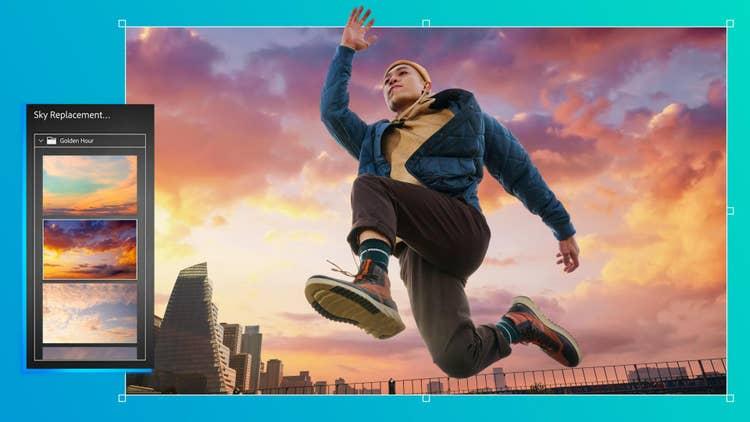
These two tools are designed to solve the biggest time wasters in editing. Select Subject instantly identifies the main figure in your image, which is a lifesaver when dealing with difficult selections like hair or fur. Sky Replacement is even better. The tool not only swaps the sky but intelligently adjusts the ambient light and color of the entire scene, allowing you to turn a dull landscape into something dramatic and cohesive.
Content-Aware Fill
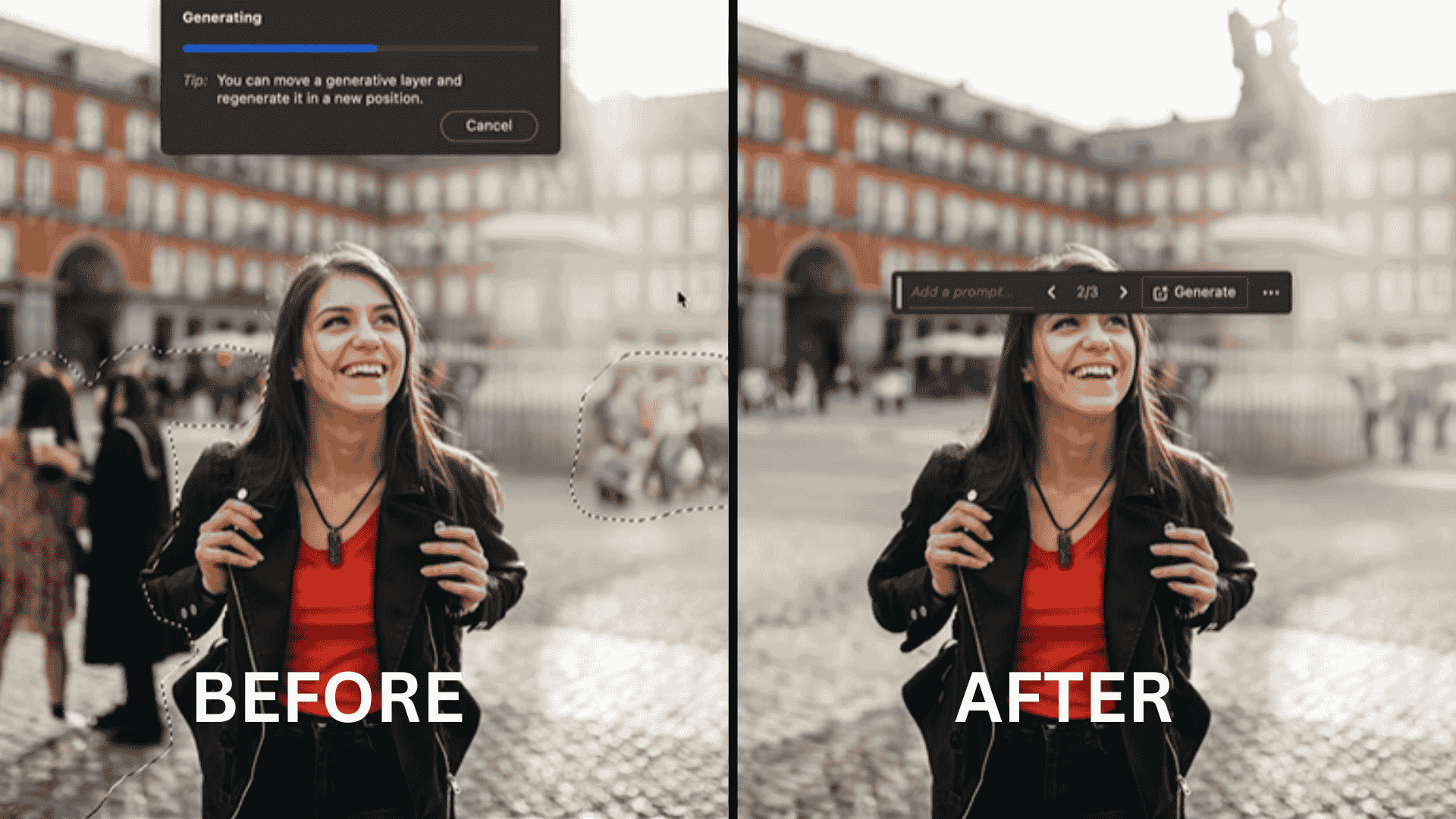
Content-Aware Fill is easily one of Photoshop’s most practical AI features for cleaning up images. Instead of manually cloning pixels, the New content-aware fill AI analyzes surrounding textures, lighting, and patterns to rebuild the missing area. It handles everything from removing unwanted objects to filling an empty space after you've repositioned elements. I find this tool invaluable because of the natural results it produces, even on complex surfaces, are a massive boost to efficiency
Third-Party AI Plugins for Photoshop
Knowing how to use Photoshop AI makes your projects faster and efficient, but third-party plugins can take workflows to the next level. These tools often provide features that aren’t available natively, fromadvancedbatch processing to creative effects, helping users save time and explore new creative possibilities. For many, the right plugin can make a huge difference in efficiency and output quality.
Toolsmart AI Plugin
Toolsmart AI brings a suite of AI-powered tools directly into Photoshop. Users can automate repetitive tasks, enhance images in bulk, or apply creative effects with just a few clicks. Its interface is intuitive, making it easy to experiment without disrupting existing workflows. It’s completely free, allowing users to utilise its features fully without paying for the hefty subscription fees.

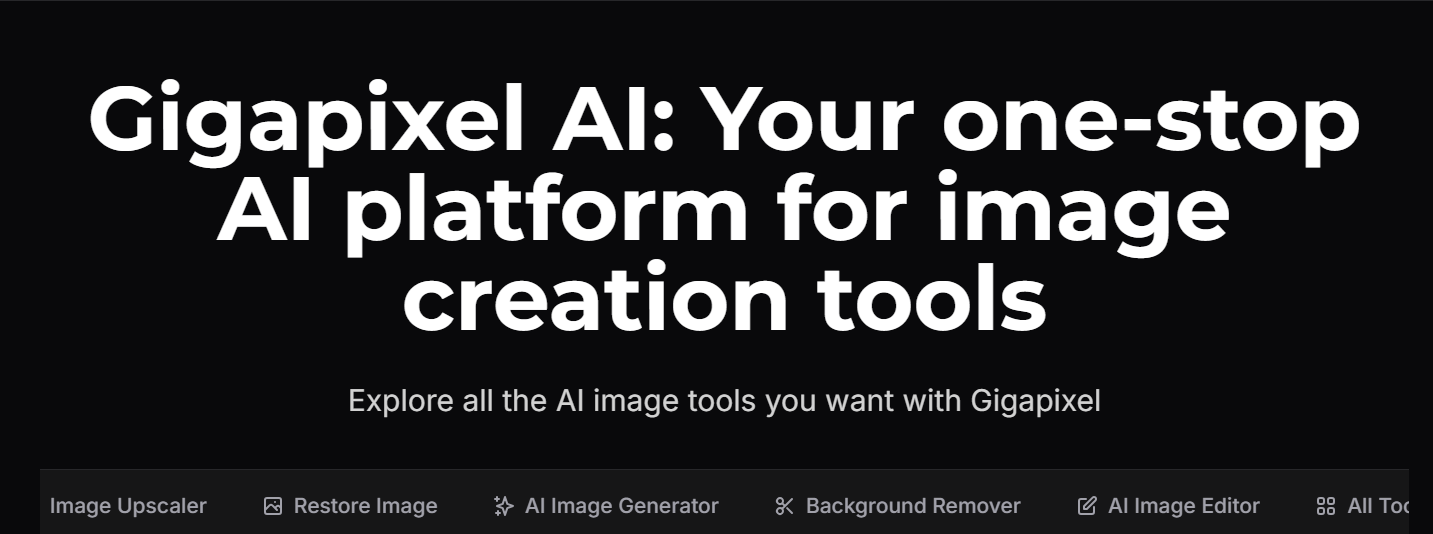
Topaz Gigapixel AI
Topaz Gigapixel AIfocuses on enhancing image resolution without losing quality. It’s particularly useful for photographers and designers who need to upscale images while maintaining sharpness and detail. The plugin uses AI to analyze and reconstruct details, producing results that often exceed traditional resizing methods.
These plugins complement Photoshop’s native AI tools by extending capabilities and providing more control, letting users achieve polished results faster and with less effort.
Advanced AI Workflows
Once the basics of Photoshop AI are mastered, it’s easy to see how these tools can transform entire workflows. Advanced AI workflowslet users tackle large projects more efficiently, experiment with creative concepts, and apply consistent edits across multiple images without losing quality. For professionals and hobbyists alike, combining AI with thoughtful workflow planning can save hours and open up new creative possibilities.
Automated Batch Editing
AI makes it possible to apply the same edits across dozens or even hundreds of images instantly. Adjust lighting, colors, or remove unwanted objects across multiple files at once, instead of repeating the process manually. This is a game-changer for photographers, content creators, or anyone managing large image libraries.
Generative AI Art
Beyond practical edits, AI can also inspire creativity. By combining Photoshop with AI art generators, users can create unique compositions, explore new styles, or even generate backgrounds and textures that would take hours to produce manually. These tools make experimentation fast and low-risk, allowing for bold creative decisions without worrying about wasted time.
Use Toolsmart to Enhance Your Photoshop Workflow
Once advanced AI workflows are in place, adding tools that expand those capabilities can take your projects even further. You often need an automatedassistant to deal with high-volume projects. That’s where Toolsmart AI naturally fits in. It acts as the perfect, simple bridge between your external assets and the Photoshop ecosystem.
Toolsmart AI is a reliable, free, and user-friendly plugin that helps expand Photoshop's capabilities. There is no installation or login required, so you can instantly automate tasks and experiment with AI-driven creativity. It offers AI-powered batch processing and creative effects that integrate smoothly with the program.
Why Recommend Toolsmart:
Free and Instant Access: No installation or login is required, making it instantly available for use.
Batch Processing Power: Use AI to apply edits and creative effects across multiple files automatically.
Seamless Integration: The plugin works directly inside Photoshop, complementing the native workflow without friction.
How to Use:
Here’s how you can use Toolsmarts AI plugin to further help you manage your creative process with Photoshop’s generative fill.
Step 1: First, visit the Toolsmart website.
Step 2: Click the “Download” button in the top right to install the plugin onto your device.
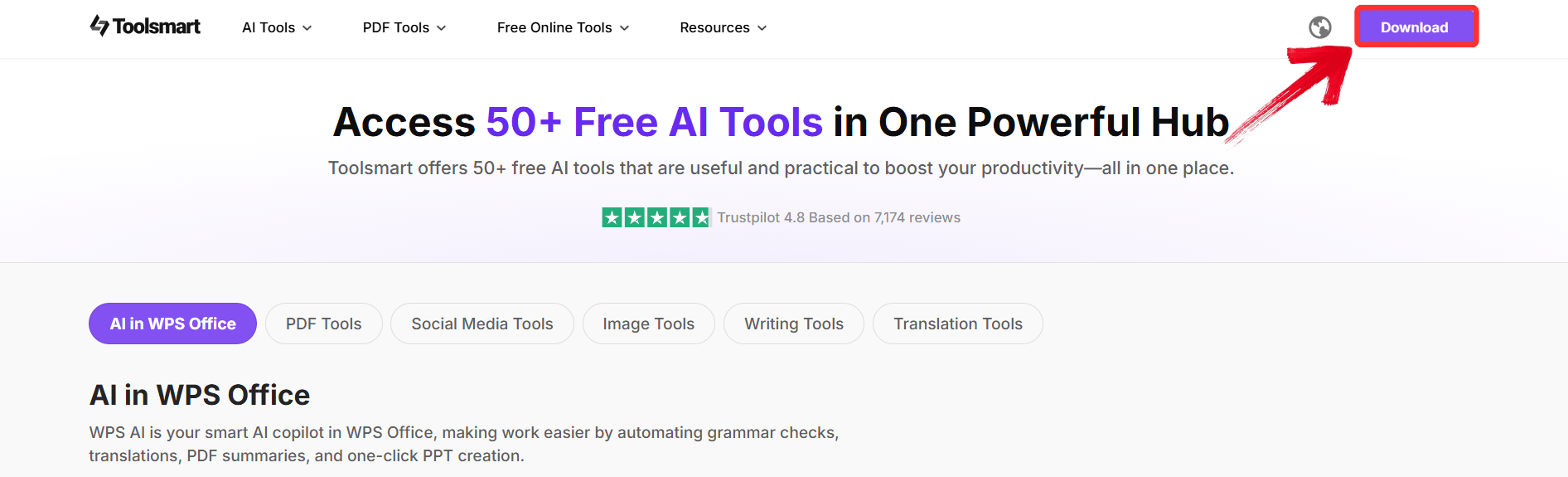
Step 3: Click on the install file and follow the setup instructions to install the plugin and then launch it within Photoshop from the Plugins menu.

Step 4: Open an image and explore the AI tools in the Toolsmart panel, such as auto-enhancement or style transfer.
FAQs
Q1: What are the best built-in AI features in Photoshop?
The best native tools are definitely the Neural Filters, Select Subject, and Content-Aware Fill. They handle the most tedious tasks instantly.
Q2: Are third-party AI plugins safe to use?
They are safe, but I always advise caution. You should only download plugins from reputable sources like ToolSmart or Topaz.
Q3: Can AI replace manual editing in Photoshop?
No, AI won't replace your expertise. It drastically speeds up repetitive tasks, but the important creative decisions still require a human touch.
Q4: How do I install ToolSmart for Photoshop?
Just visit the ToolSmart website to download the plugin, and then follow the simple setup instructions that launch it within Photoshop.
Bringing AI and Photoshop Together for a Faster Creative Workflow
Learning how to use AI in Photoshop feels a lot easier now because the tools have grown smarter and faster. Most of the heavy lifting happens when you mix Photoshop’s own features like Neural Filters with external helpers that cut down your manual work. Toolsmart fits nicely into that routine since it offers AI tools for both writing automation and quick photo edits. That combination lets you handle the creative parts with more focus while the repetitive steps get handled in the background.


