
'%3e%3cpath%20fill-rule='evenodd'%20clip-rule='evenodd'%20d='M19%208.5C24.799%208.5%2029.5%2013.201%2029.5%2019C29.5%2024.6782%2024.9928%2029.3036%2019.361%2029.4939L19%2029.5C18.8794%2029.5%2018.7592%2029.498%2018.6396%2029.4939L18.2811%2029.4758C12.8174%2029.1063%208.5%2024.5574%208.5%2019C8.5%2013.201%2013.201%208.5%2019%208.5ZM22.3063%2010.6267L22.2342%2010.6539C21.3423%2011.0061%2020.5541%2011.6368%2020.5606%2012.4987C20.5631%2012.8302%2020.869%2014.8871%2020.2141%2014.8486C19.5589%2014.8102%2019.413%2013.8753%2018.7116%2013.616C17.5944%2013.2026%2016.9819%2014.3401%2017.0939%2015.3106C17.1695%2015.9655%2018.9289%2018.3871%2017.9028%2019C17.292%2019.3651%2015.7279%2017.5692%2015.1007%2017.1842C14.4805%2016.8034%2013.2758%2017.3333%2012.4974%2016.7029C11.9874%2016.2899%2012.3881%2014.4098%2012.2786%2013.8372C12.2271%2013.5698%2012.1155%2013.3689%2011.9794%2013.2166L12.0402%2013.2934C10.7653%2014.8464%2010%2016.8339%2010%2019C10%2023.8465%2013.8307%2027.7982%2018.6295%2027.9925L18.6769%2027.9747C18.8597%2027.8677%2019.0394%2027.7557%2019.216%2027.6387C19.4137%2027.4534%2019.5436%2027.2072%2019.5849%2026.9394C19.8806%2025.1222%2018.3616%2025.4302%2017.9367%2024.5622C17.5489%2023.7695%2018.5712%2023.7684%2018.5524%2021.7923C18.4607%2021.1774%2018.5279%2020.547%2018.7211%2020.0315C19.1834%2018.7987%2020.7077%2017.2643%2022.5889%2018.0081C23.5567%2018.3906%2023.1524%2019.9831%2023.4737%2020.3394C24.251%2021.2018%2025.3228%2020.6863%2026.2856%2021.2253C26.7816%2021.5032%2026.9797%2022.41%2027.056%2023.2248L27.038%2023.0528C27.6534%2021.8348%2028%2020.4579%2028%2019C28%2015.1968%2025.6409%2011.9445%2022.3063%2010.6267Z'%20fill='%23757575'/%3e%3ccircle%20cx='19'%20cy='19'%20r='10.125'%20stroke='%23757575'%20stroke-width='2.25'/%3e%3c/g%3e%3cdefs%3e%3cclipPath%20id='clip0_1827_14613'%3e%3crect%20width='24'%20height='24'%20fill='white'%20transform='translate(7%207)'/%3e%3c/clipPath%3e%3c/defs%3e%3c/svg%3e)


Numerous times, I've used Google Image Search to find a higher-resolution version of a low-quality screenshot, identify a product, or track down the source of a photo. I had to reverse-search dozens of photos for a client's reference board for one project, and entering keywords wasn't working. At that point, I learned that uploading a picture directly could produce faster and more accurate results. I'll take you through the process to upload picture Google image search on any device in this tutorial.

How to Upload a Picture to Google Image Search
Reverse image search can be incredibly useful in everyday tasks, from verifying a photo’s origin to finding similar products or spotting fake listings. I once tried to identify an old product using keywords, but the results were off. That’s when I discovered you could upload a picture directly to Google Image Search, and the results instantly improved. It’s now a go-to method whenever I need more accurate visual matches. Just keep in mind, the cleareryour image, the better the results, so knowing how to prepare your photo matters just as much as knowing how to upload it. Here’s how you can upload picture to Google Image Search across platforms:
On a Computer (Windows/Mac)
This is still the method I rely on the most, especially when I’m doing research, sourcing design references, or reviewing assets for a client project. Having a larger screen makes it easier to compare visual search results side by side, and uploading files directly from my folders is fast and convenient. Whether it’s a product image, a logo, or a UI screenshot, using upload picture google image search on desktop gives me the flexibility to quickly trace origins, check usage, or find high-resolution alternatives without breaking my workflow. Here’s how to upload photo to Google Image Search:
Step 1: Go to images.google.com.

Step 2: Click the“Camera” icon inside the search bar.

Step 3: Choose "Upload a file" or"Drag an image", pick the picture from your PC. Wait for the results to load after you upload the file because Google will automatically search the internet using the uploaded picture.
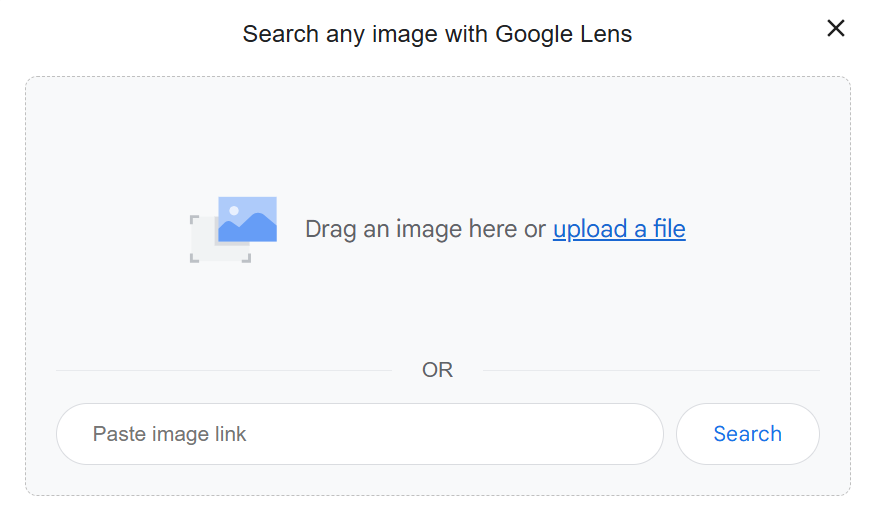
You’ll now see a list of visually similar images, websites using the photo, and sometimes detailed descriptions of what’s in the image. It’s incredibly useful for spotting duplicates, finding origin sources, or shopping for similar items. This method has helped me locate everything from unknown artworks to old client logos we had lost the source files for.
On Android
Reverse image search on Android is surprisingly seamless when you're out and about or not near your computer. It is useful when an image appears in a chat or while browsing social media and more information is needed, such as identifying a product or confirming the source of a photo. Open Chrome and upload the image immediately rather than waiting to return to a desktop. Even with screenshotsor saved files, the process feels simple and the results load quickly. This approach is easy to incorporate into daily life for mobile users who depend on prompt responses. Here’s how to reverse image search on Google:
Step 1: Open Chrome and go to images.google.com.

Step 2: Tap the camera icon, this will open Google Lens.
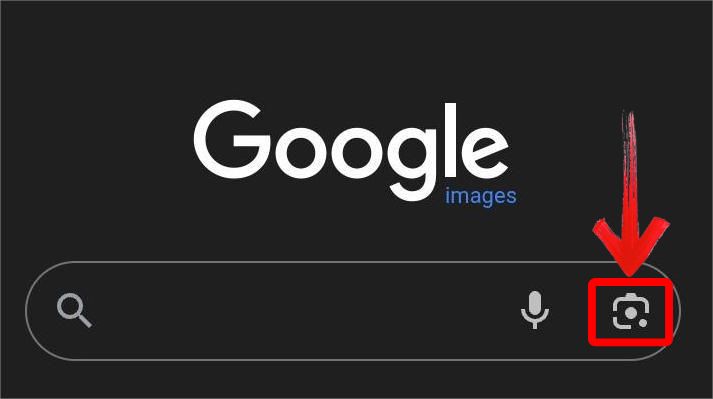
Step 3: Click the circle to the right of the search bar, this will allow upload picture to Google from your gallery. After choosing the image, wait for the search results to show up.
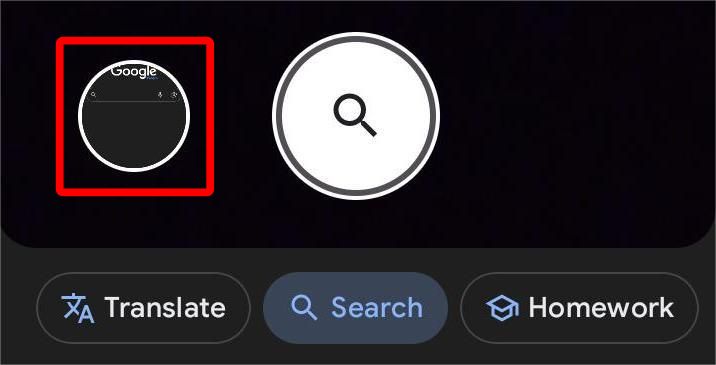
It’s a clean interface and surprisingly quick. I’ve used this to verify photo authenticity during travel planning and once even to trace a restaurant’s dish back to its origin.
On iPhone or iPad
In many cases, an image that has been saved from Safari, AirDropped, or emailed into the Photo Library needs to be verified or tracked down. Using Safari or Chrome on iOS to upload a picture to Google Image Search is just as effective as using a desktop computer. Images from Files or Photos can be easily accessed through the interface, and the results are equally accurate. When a high-resolutionmatch or quick context is needed, this method is particularly helpful for travel or casual browsing. For anyone who needs search capabilities without a computer close by, it's a good choice. Here’s how to image search by photo on Google:
Step 1: Open Safari or Chrome, then go to images.google.com.
Step 2: Tap the camera icon, this will load up Google Lens.
Step 3: Click the gallery icon to the right of the search bar, like in the android method, this will allow you to pick an image from your gallery. After picking the image, watch for the search results to show up.
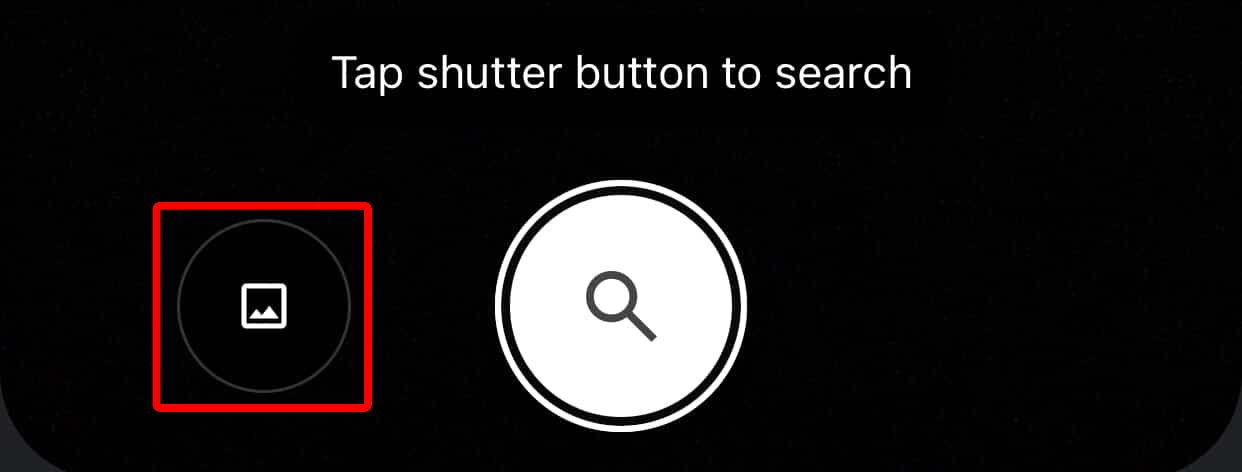
The results load the same way as on the desktop. I’ve reverse-searched images of furniture, logos, and even blurry event posters, all from my iPhone.
Bonus Tool – Toolsmart Free Image Enhancer Online
There have been times when I had a screenshot or photo I needed to reverse search, but it was blurry, low resolution, or cropped. The search results were either off-target or incomplete. That’s when I started running my images through Toolsmart’s Free Image Enhancer before uploading to Google. It made a huge difference in how accurate the search results were.
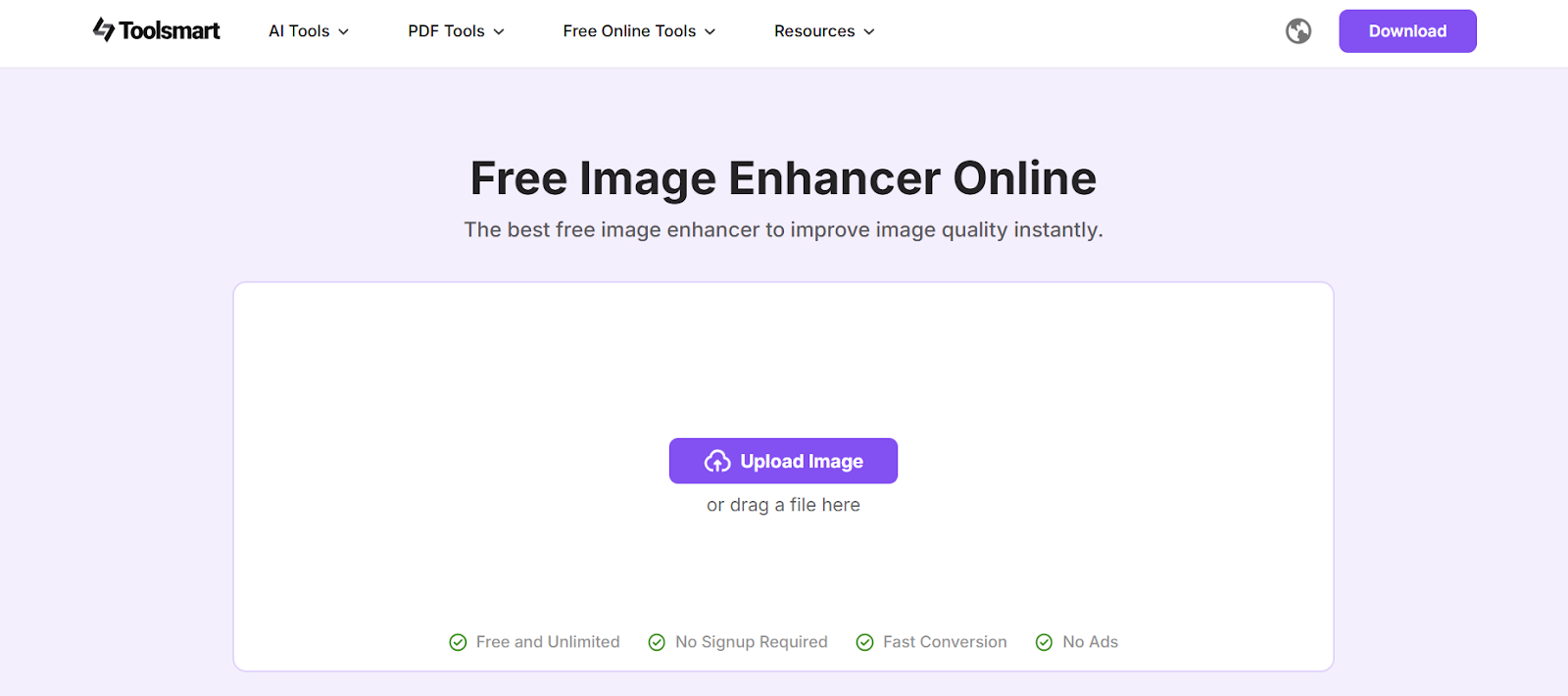
I use Toolsmart regularly now, especially when prepping assets for visual search or documentation. It sharpens blurry images, balances brightness, and generally gives the image a more defined look. Since it works right from the browser, there’s no need to install anything or sign up.
Features:
AI-enhanced detail and sharpness: Great for improving edges and fixing compression issues.
No login or account needed: You can upload and download instantly without creating a profile.
Fixes blurry or low-resolution photos: Helps boost clarity before uploading to search engines.
Browser-based and free: Works on both desktop and mobile platforms without installations.
Pros:
Very fast and lightweight
No watermarkor sign-up required
Easy drag-and-drop interface
Cons:
Doesn’t support batch uploads
Editing features are limited to enhancement only
The clarity it adds has helped me retrieve better image matches and also makes screenshots more usable for presentations or documentation.
How to Use Toolsmart Free Image Enhancer Online
The simplicity of Toolsmart is one of its best features; there are no downloads or registrations needed, and everything operates directly in the browser. Using this tool before uploading a photo to Google has become a dependable step in the process. The results speak for themselves, and the steps are short. Here’s how you can enhance images using Toolsmart’s Image Enhancer:
Step 1: Visit Toolsmart Image Enhancer on your browser.
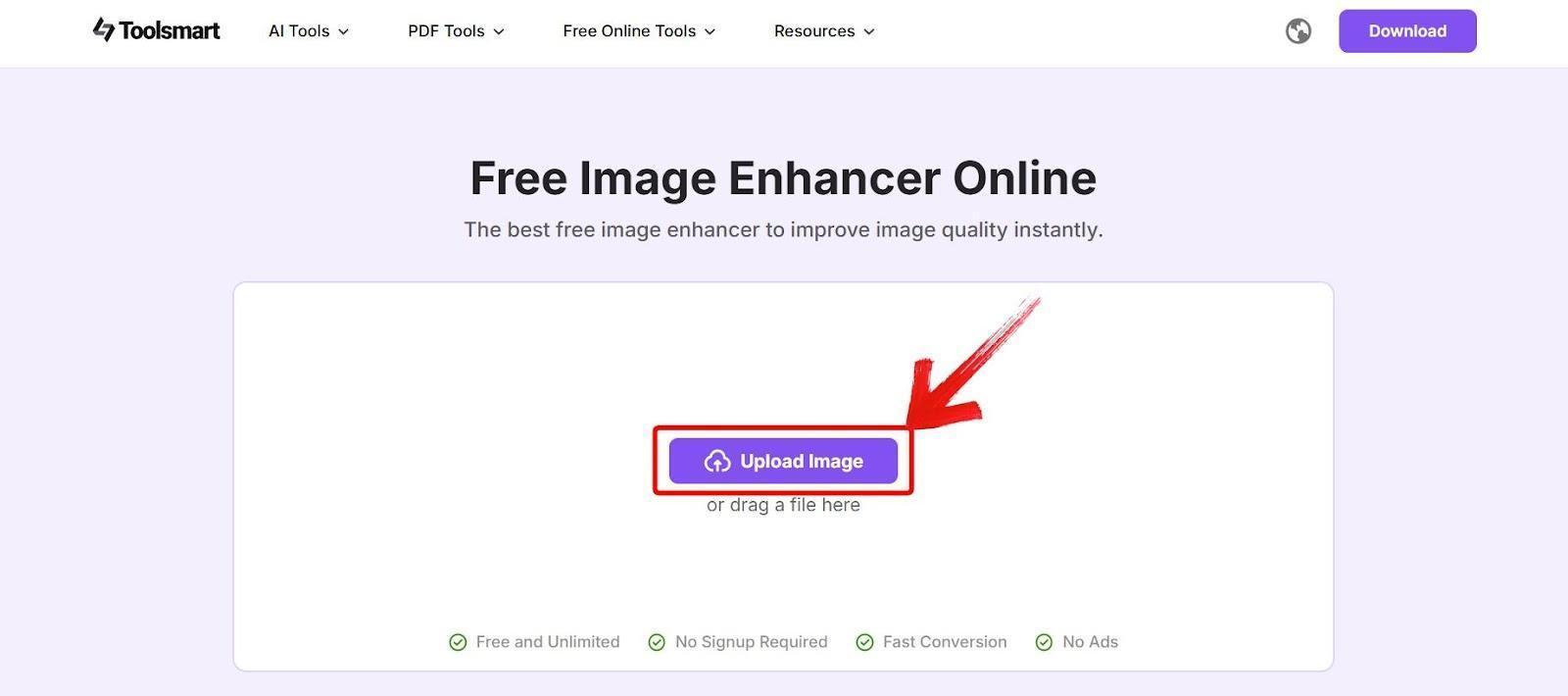
Step 2: Click on “Upload Image” and select the picture you want to enhance.
Step 3: Wait 5 to 10 seconds while the tool enhances your image, then preview the clearer version andclick on “Download” to save it.
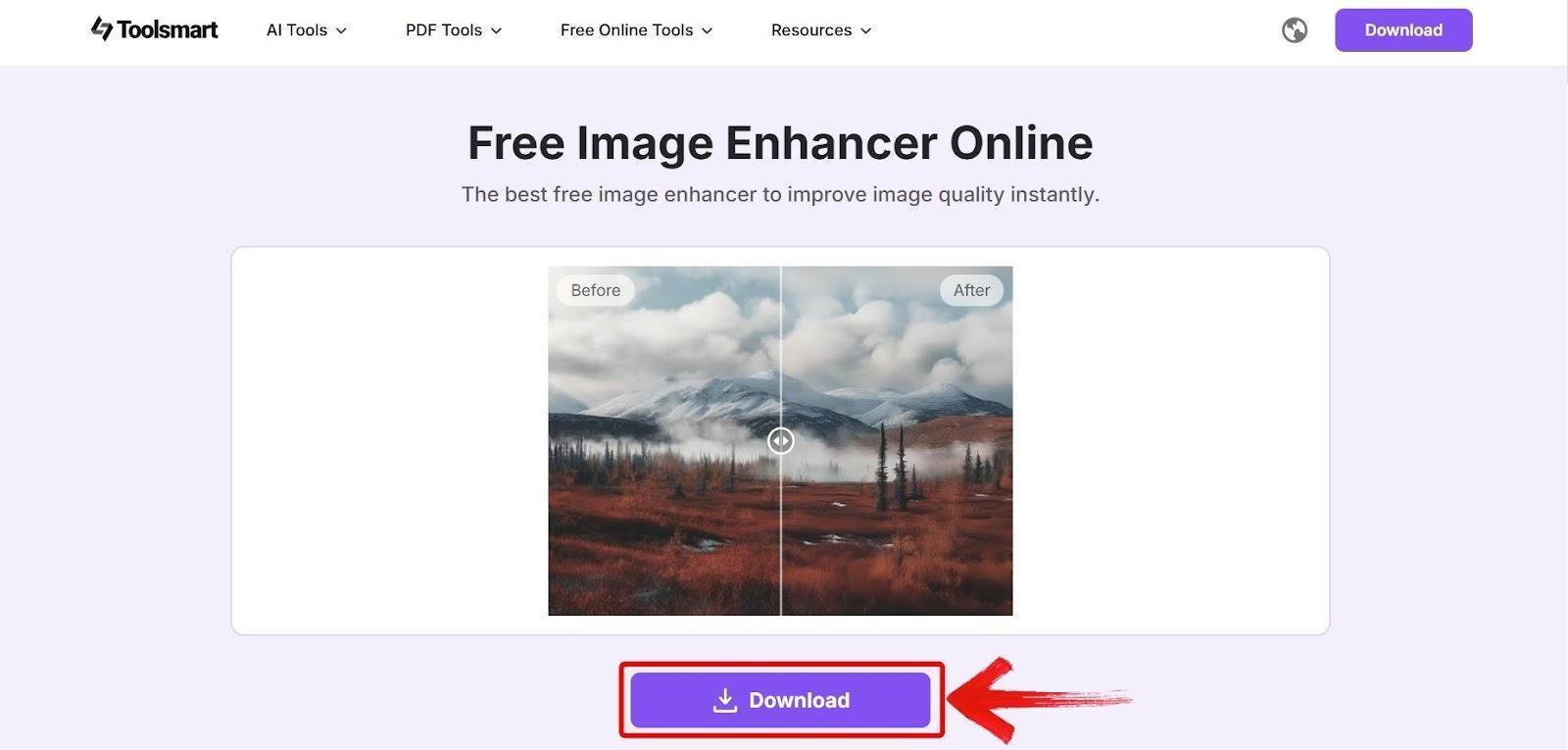
I’ve used this on old blog images, pixelated client screenshots, and even grainy camera shots. The results aren’t just clearer, they often help Google “read” the image better.
FAQs
Q1: Do I need a Google account to upload an image to Google Search?
No, you can use the search bar and upload without signing in.
Q2: Can I do this on my phone?
Yes! Both Android and iOS support image uploads using Chrome or Safari.
Q3: Will higher-quality images give better results?
Absolutely. Clearer images yield more accurate matches, which is why using tools like Toolsmart can help.
Q4: Is Toolsmart really free?
Yes, there’s no charge, registration, or watermark.
Q5: Can I search using screenshots or cropped images?
Yes, but if they're blurry or heavily cropped, enhancing them beforehand improves your chances of getting relevant results.
Choosing the Best Way to Upload Picture to Google Image Search
Learning how to upload picture Google Image Search has completely changed how I verify photos, source original content, and dig deeper into visual data. Once I paired this method with the habit of enhancing images beforehand, the accuracy of my results noticeably improved. Now, whenever I get an image with unclear details or low resolution, I run it through Toolsmart’s Image Enhancer first. Then I upload it to Google. It’s a fast, effective workflow that helps me get sharper insights, whether for personal curiosity or client projects. If you’re regularly working with visual content, doing reverse image lookups, or just want to fact-check what you see online, knowing how to upload a picture to Google Image Search (and polish it first) is a digital skill worth mastering.


