
'%3e%3cpath%20fill-rule='evenodd'%20clip-rule='evenodd'%20d='M19%208.5C24.799%208.5%2029.5%2013.201%2029.5%2019C29.5%2024.6782%2024.9928%2029.3036%2019.361%2029.4939L19%2029.5C18.8794%2029.5%2018.7592%2029.498%2018.6396%2029.4939L18.2811%2029.4758C12.8174%2029.1063%208.5%2024.5574%208.5%2019C8.5%2013.201%2013.201%208.5%2019%208.5ZM22.3063%2010.6267L22.2342%2010.6539C21.3423%2011.0061%2020.5541%2011.6368%2020.5606%2012.4987C20.5631%2012.8302%2020.869%2014.8871%2020.2141%2014.8486C19.5589%2014.8102%2019.413%2013.8753%2018.7116%2013.616C17.5944%2013.2026%2016.9819%2014.3401%2017.0939%2015.3106C17.1695%2015.9655%2018.9289%2018.3871%2017.9028%2019C17.292%2019.3651%2015.7279%2017.5692%2015.1007%2017.1842C14.4805%2016.8034%2013.2758%2017.3333%2012.4974%2016.7029C11.9874%2016.2899%2012.3881%2014.4098%2012.2786%2013.8372C12.2271%2013.5698%2012.1155%2013.3689%2011.9794%2013.2166L12.0402%2013.2934C10.7653%2014.8464%2010%2016.8339%2010%2019C10%2023.8465%2013.8307%2027.7982%2018.6295%2027.9925L18.6769%2027.9747C18.8597%2027.8677%2019.0394%2027.7557%2019.216%2027.6387C19.4137%2027.4534%2019.5436%2027.2072%2019.5849%2026.9394C19.8806%2025.1222%2018.3616%2025.4302%2017.9367%2024.5622C17.5489%2023.7695%2018.5712%2023.7684%2018.5524%2021.7923C18.4607%2021.1774%2018.5279%2020.547%2018.7211%2020.0315C19.1834%2018.7987%2020.7077%2017.2643%2022.5889%2018.0081C23.5567%2018.3906%2023.1524%2019.9831%2023.4737%2020.3394C24.251%2021.2018%2025.3228%2020.6863%2026.2856%2021.2253C26.7816%2021.5032%2026.9797%2022.41%2027.056%2023.2248L27.038%2023.0528C27.6534%2021.8348%2028%2020.4579%2028%2019C28%2015.1968%2025.6409%2011.9445%2022.3063%2010.6267Z'%20fill='%23757575'/%3e%3ccircle%20cx='19'%20cy='19'%20r='10.125'%20stroke='%23757575'%20stroke-width='2.25'/%3e%3c/g%3e%3cdefs%3e%3cclipPath%20id='clip0_1827_14613'%3e%3crect%20width='24'%20height='24'%20fill='white'%20transform='translate(7%207)'/%3e%3c/clipPath%3e%3c/defs%3e%3c/svg%3e)


Twitch is the dopest spot to live stream, letting you share your passion for gaming, art, music, or just chilling with a worldwide crew. It’s a blast as a hobby, side hustle, or full-on career, but starting out can feel like a tech maze. How do you stream on Twitch without tripping over setup headaches or chasing viewers? This guide’s got you with super easy steps to kick off your stream, plus a slick trick with Toolsmart’s Free YouTube Video Downloader to learn from top creators. Gamer, artist, or chatter, let’s make your Twitch debut pop off!
Part 1: Why Stream on Twitch?
Streaming on Twitch is a total vibe for connecting with fans live, building a super tight community around what you love. You can make bank with ads, subscriptions, or sponsorships—some top streamers are pulling six figures! It’s chill, letting you stream games, art, or just chats, with crazy growth potential.
Twitch’s all about keeping it real, letting you own a niche that’s so you, like speedrunning games or live sketching. Chatting with viewers feels like throwing a fun hangout, and the cash perks can turn your passion into profit. I saw a small streamer hit 500 followers in months—super inspiring!
The platform’s massive audience, with millions of daily viewers, gives your channel serious growth potential. A strong community boosts your cred, and brand collabs can open exciting doors. My friend’s cooking stream went from 10 to 1,000 viewers by chatting with fans consistently, making connections feel real and rewarding.
Twitch also lets you tap into niche communities, from retro gamers to ASMR fans. The real-time chat builds bonds that keep viewers coming back. I joined a small art stream’s chat and felt like part of the crew instantly. It’s a platform where your unique spark can truly shine.
Part 2: How to Stream on Twitch
Kicking off your Twitch journey is way easier than it looks, whether you’re streaming from a PC, console, or phone. These steps guide you through setup and going live with newbie-friendly tools like OBS or Streamlabs. From creating your account to hitting “Go Live,” you’ll be streaming like a pro in no time!
Step 1: Set Up Your Twitch Account
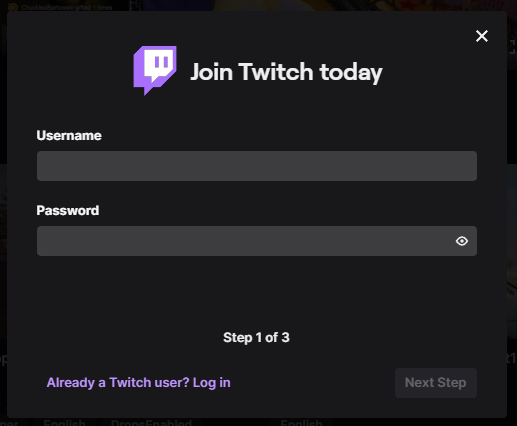
Hop over to twitch.tv and sign up with your email or social login. Choose a fun username like “PixelNinja” that matches your vibe. Turn on Two-Factor Authentication in Settings under Security to keep your account safe. I got mine set up in five minutes, and it felt rock-solid secure!
Step 2: Choose Your Streaming Software
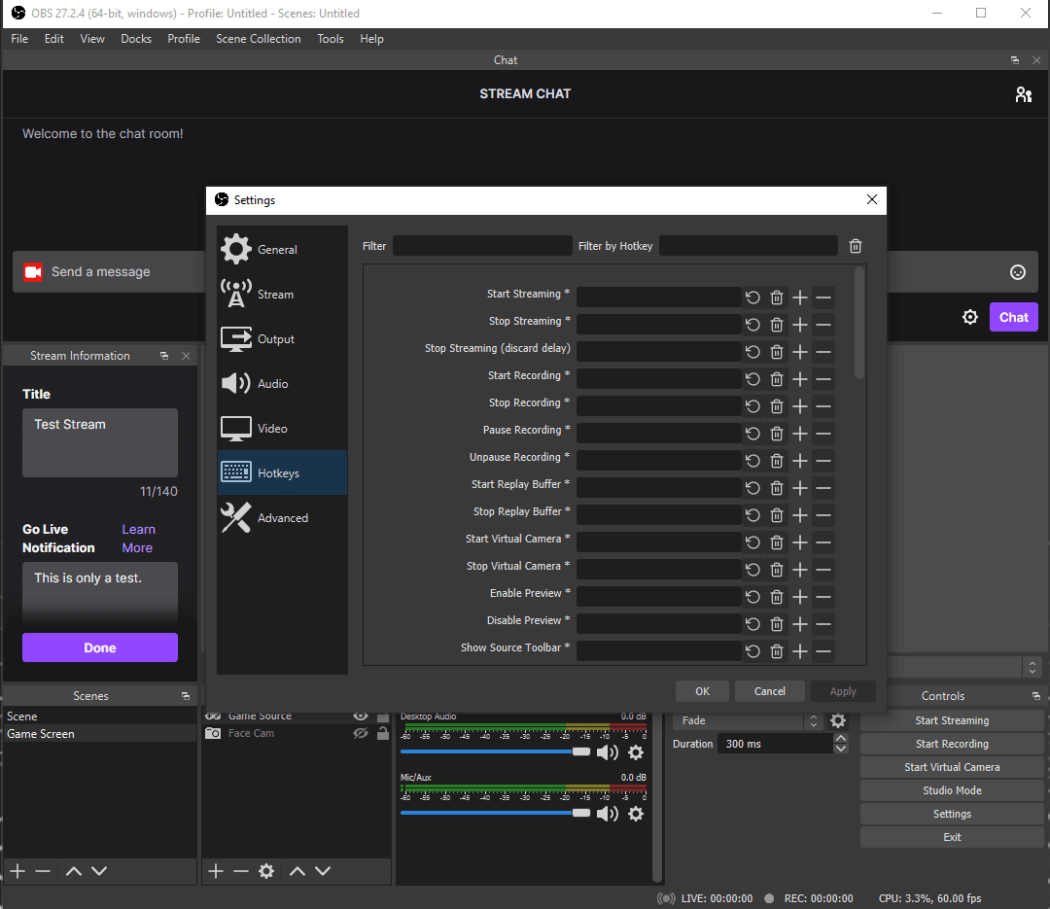
OBS Studio is free and customizable for PC or Mac, but it’s got a bit of a learning curve. Streamlabs is beginner-friendly with built-in alerts, though it’s Windows-only. Twitch Studio, Twitch’s own tool, is simple but less flexible. I started with Streamlabs, and its chat widget made my first stream a breeze.
Step 3: Configure Stream Settings
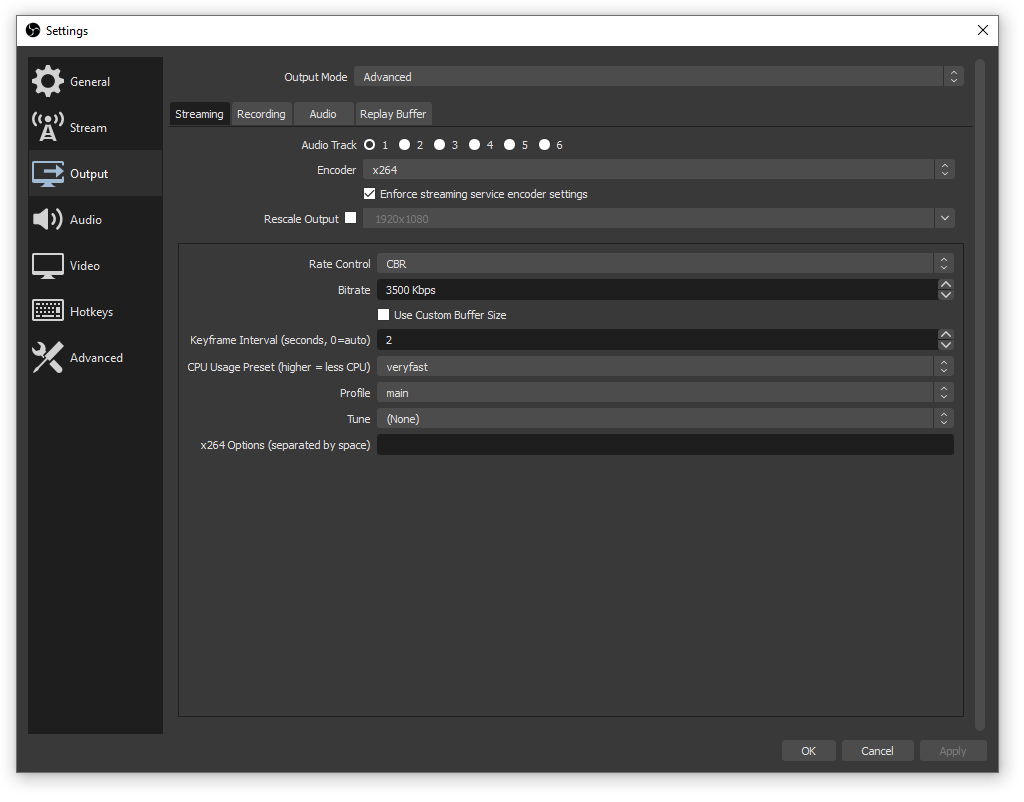
Set your bitrate to 4500–6000 Kbps for 1080p at 60fps to balance quality and smoothness. Use NVIDIA NVENC if you’ve got an Nvidia GPU like GTX 1660, or x264 for CPU. Go for 1080p resolution, or 720p for slower internet. My first stream lagged until I dropped to 4000 Kbps, so test first!
Step 4: Gear Up for Streaming
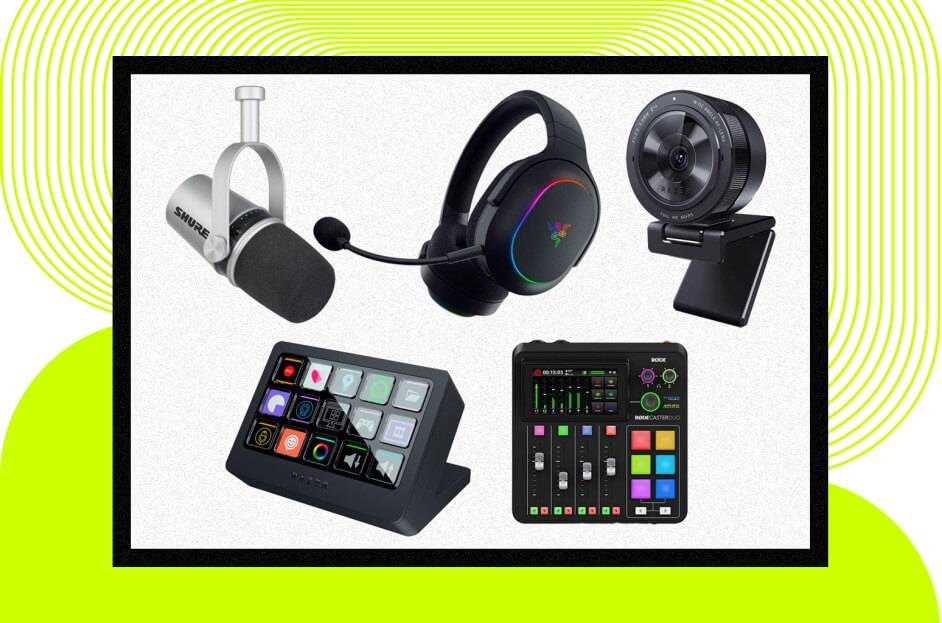
Grab a 1080p webcam like Logitech C922 and a USB mic like Blue Yeti for a pro look and sound. Ensure 6–10 Mbps upload speed for 1080p streaming. Add overlays or alerts for a polished vibe. I snagged a cheap ring light, and it made my face cam pop big time!
Step 5: Connect and Go Live
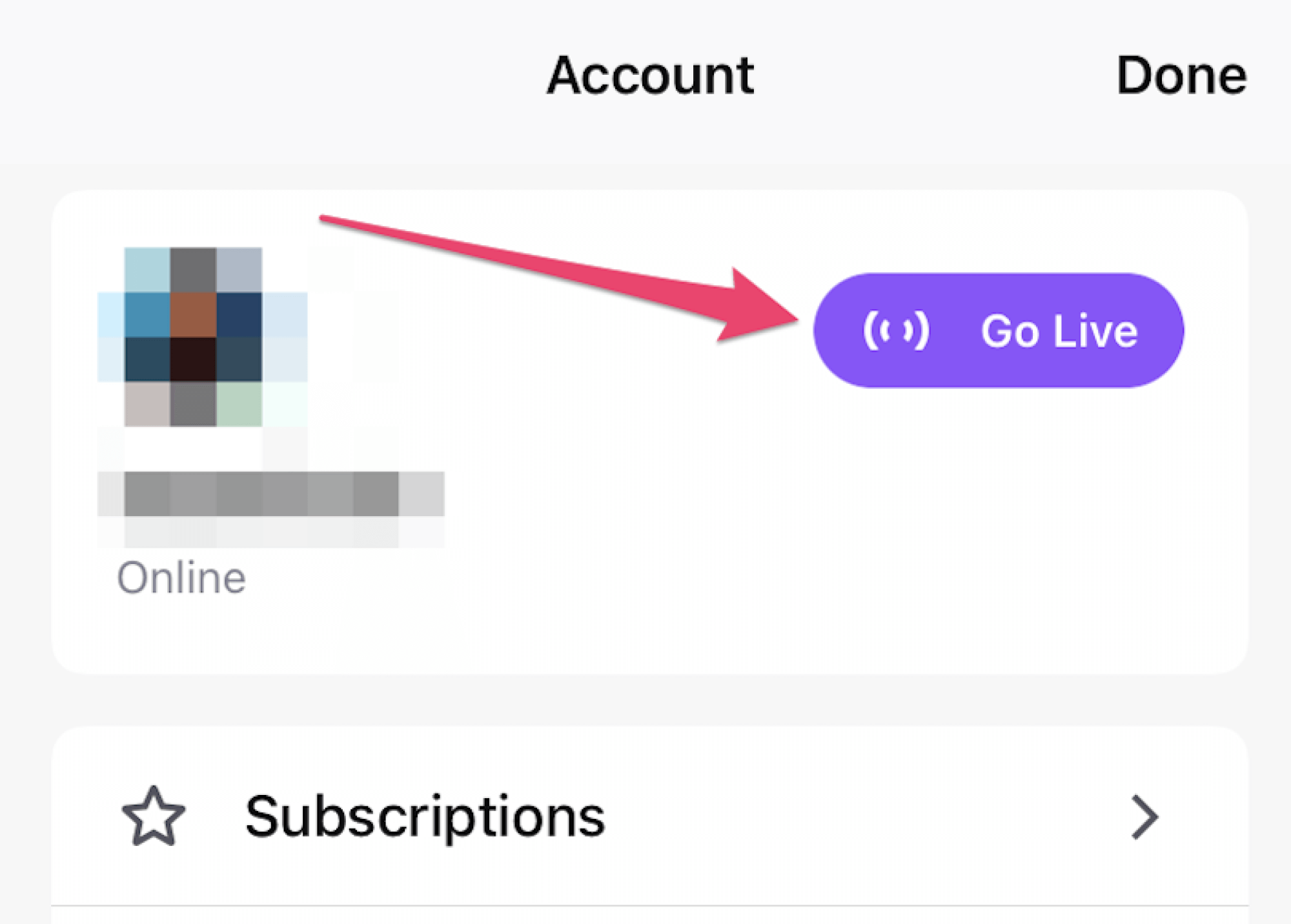
In OBS or Streamlabs, go to Settings, pick Twitch, and paste your Stream Key from Twitch Dashboard under Settings then Stream. Add sources like Game Capture for gameplay or Webcam for face cam. Click “Start Streaming,” set a title and category, and go live. Shout out viewers to keep them hooked!
Step 6: Optimize Your Stream Setup
Test audio levels to avoid sounding too quiet or distorted. Use a stable internet connection, Wi-Fi or Ethernet, to prevent lag. Customize with fun overlays or alerts for follows. I added a “new follower” alert in Streamlabs, and it got my viewers hyped every time someone joined the stream!
Step 7: Engage Your Audience
Chat with viewers in real-time, thank new followers, and ask questions to spark interaction. Use Twitch’s chat moderation tools to keep things friendly. I shouted out my first viewer, and they stuck around for every stream after! Engaging makes your stream feel like a hangout, not just a broadcast.
Step 8: Test and Tweak Your Stream
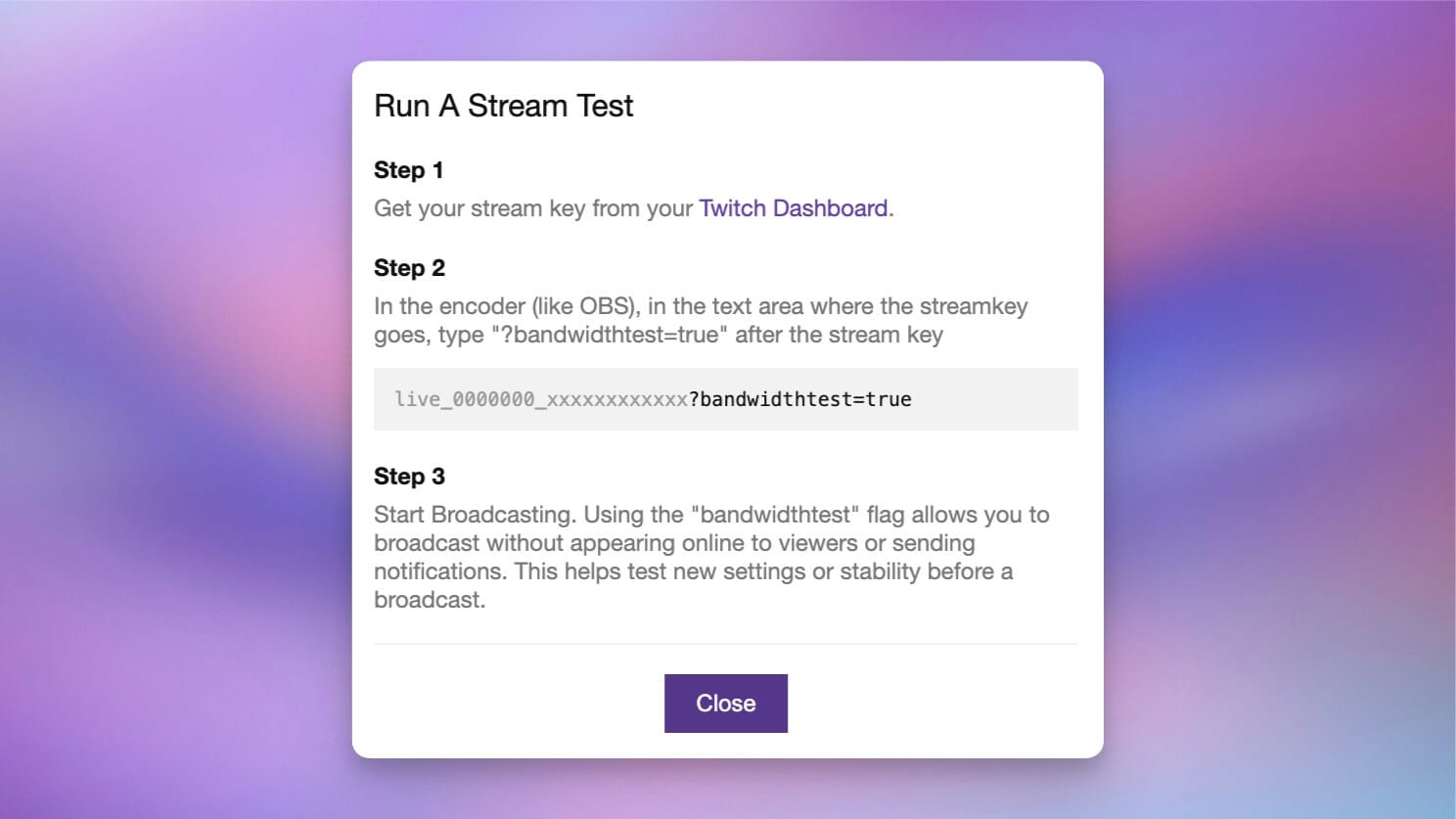
Run a private test stream to check for glitches like lag or audio issues. Adjust settings like bitrate or resolution if needed. I did a test stream and caught a mic issue before going live, saving me from a total flop. Testing ensures your viewers get a smooth experience.
My first stream was chaotic until I nailed the settings. I used OBS, added a webcam, and streamed a cozy game. Five viewers showed up, and chatting with them felt like a party! Do a private test stream first to dodge glitches, it saved me from a buffering disaster on my debut.
Part 3: Bonus Tool – Toolsmart Free YouTube Video Downloader
To make your streams stand out, study top Twitch creators by downloading their YouTube clips for inspiration. Toolsmart’s Free YouTube Video Downloader is a total gem, letting you grab videos in HD to analyze their style, transitions, or engagement tricks. It’s free, needs no signup, and works on any device.
Toolsmart’s downloader is perfect for learning what makes big streamers pop, like their editing flair or chat interaction. Save highlight reels or tutorials to inspire your streams without watermarks. I downloaded a top gamer’s clip and mimicked their pacing, my viewers stayed longer, like a free masterclass!
You can also use Toolsmart to grab setup tutorials or stream highlight compilations from YouTube to refine your own channel. It’s a quick way to see how pros handle overlays or engage their audience. I saved a streamer’s tutorial and copied their alert style, it leveled up my stream’s vibe.
Toolsmart’s simplicity makes it a creator’s dream for studying pros without hassle. The clean interface downloads in HD super fast, and I love that it works on my phone or laptop. I grabbed a streamer’s highlight reel to study their transitions, and it made my streams feel pro.
Part 4: How to Use Toolsmart Free YouTube Video Downloader
Here’s how to use Toolsmart to snag YouTube videos for streaming
inspo:
Step 1: Find a public YouTube video from a top Twitch
streamer, like their highlights or setup guide.
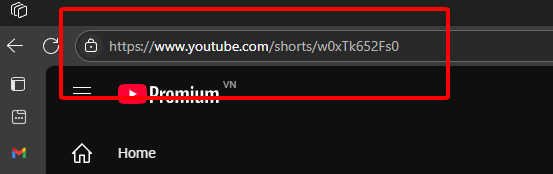
Step 2: Copy the URL from YouTube’s “Share” button.
Step 3: Visit Toolsmart’s YouTube Video Downloader website.
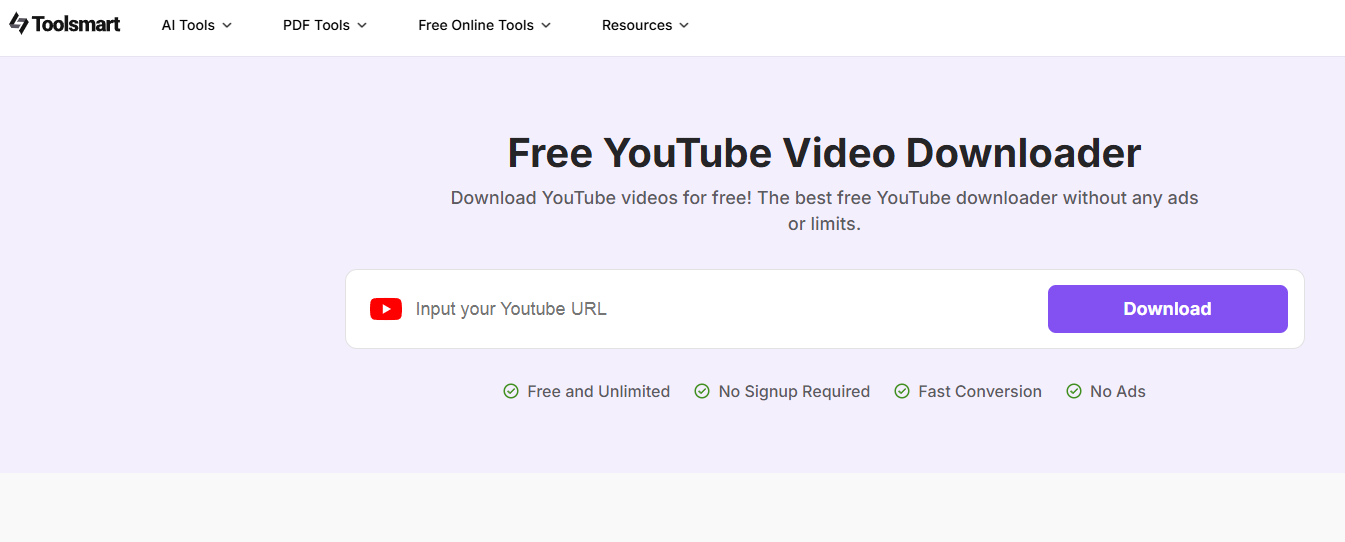
Step 4: Paste the URL, pick 720p or 1080p, and click “Download.”
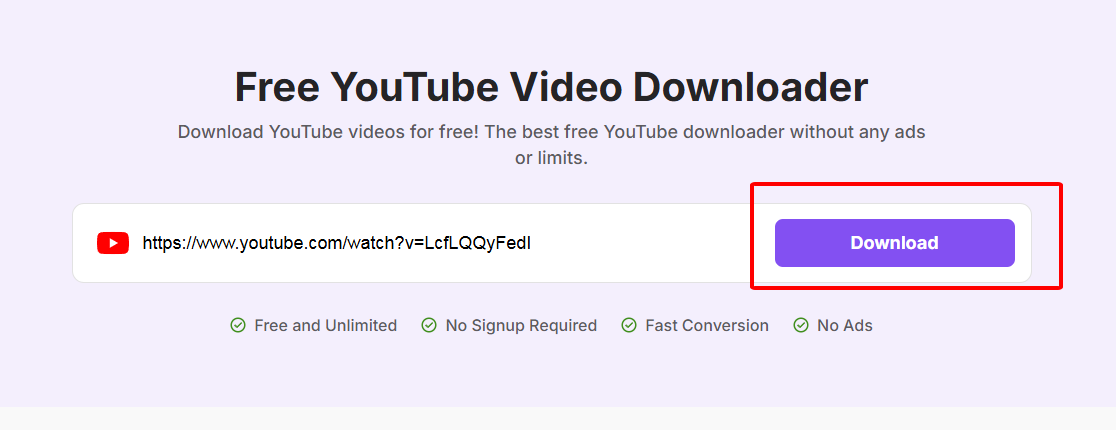
Step 5: Save the video to your device for analysis or inspiration.
Toolsmart’s interface is so clean, no ads or sketchy vibes. It downloads in HD super fast, and I love that it works on my phone or laptop. I grabbed a Ninja highlight reel, studied his chat engagement, and used similar vibes in my stream, my viewers loved it!
Only download public videos for personal learning, and don’t reupload without permission to stay legit. I saved a streamer’s tutorial to learn better overlays, and it upped my stream game big time. Toolsmart’s ease makes it a must for any streamer looking to level up their content.
Part 5: FAQs
Q1: Do I need a powerful PC to stream?
You’ll want an Intel i5 or Ryzen 5 CPU and an NVIDIA GTX 1660+ GPU for smooth 1080p streaming. A decent laptop works if it meets those specs. I used a mid-range PC, and it handled 720p like a champ with the right settings.
Q2: How do I get viewers on Twitch?
Stream on a set schedule, chat with viewers, and network with other streamers via collabs or raids. I posted my stream clips on Twitter, and it brought in my first 10 viewers! Engaging with your chat builds a loyal crew that keeps coming back.
Q3: Can I stream from a console?
Yup, PS5 and Xbox have built-in Twitch apps. Link your account via twitch.tv/activate, pick a game, and go live, no extra gear needed. I streamed from my PS5, and it was so easy, though adding a webcam needed a capture card.
Q4: Is Toolsmart’s YouTube Video Downloader legal?
It’s legal for personal use, like studying videos to improve your streams. Don’t reupload or share others’ content without permission to avoid trouble. I used Toolsmart to save a tutorial for my setup, and it was a legal, hassle-free way to learn.
Summary
Streaming on Twitch is a blast for sharing games, art, or chats with a global audience. Set up a Twitch account, use OBS or Streamlabs with 4500–6000 Kbps for 1080p, and go live with a webcam for a pro vibe. Toolsmart’s Free YouTube Video Downloader is a lifesaver, grabbing HD videos from top streamers for inspiration, no watermarks or signup needed. Whether you’re on PC, PS5, or phone, these tips will make your Twitch streams shine and grow your audience!


