
'%3e%3cpath%20fill-rule='evenodd'%20clip-rule='evenodd'%20d='M19%208.5C24.799%208.5%2029.5%2013.201%2029.5%2019C29.5%2024.6782%2024.9928%2029.3036%2019.361%2029.4939L19%2029.5C18.8794%2029.5%2018.7592%2029.498%2018.6396%2029.4939L18.2811%2029.4758C12.8174%2029.1063%208.5%2024.5574%208.5%2019C8.5%2013.201%2013.201%208.5%2019%208.5ZM22.3063%2010.6267L22.2342%2010.6539C21.3423%2011.0061%2020.5541%2011.6368%2020.5606%2012.4987C20.5631%2012.8302%2020.869%2014.8871%2020.2141%2014.8486C19.5589%2014.8102%2019.413%2013.8753%2018.7116%2013.616C17.5944%2013.2026%2016.9819%2014.3401%2017.0939%2015.3106C17.1695%2015.9655%2018.9289%2018.3871%2017.9028%2019C17.292%2019.3651%2015.7279%2017.5692%2015.1007%2017.1842C14.4805%2016.8034%2013.2758%2017.3333%2012.4974%2016.7029C11.9874%2016.2899%2012.3881%2014.4098%2012.2786%2013.8372C12.2271%2013.5698%2012.1155%2013.3689%2011.9794%2013.2166L12.0402%2013.2934C10.7653%2014.8464%2010%2016.8339%2010%2019C10%2023.8465%2013.8307%2027.7982%2018.6295%2027.9925L18.6769%2027.9747C18.8597%2027.8677%2019.0394%2027.7557%2019.216%2027.6387C19.4137%2027.4534%2019.5436%2027.2072%2019.5849%2026.9394C19.8806%2025.1222%2018.3616%2025.4302%2017.9367%2024.5622C17.5489%2023.7695%2018.5712%2023.7684%2018.5524%2021.7923C18.4607%2021.1774%2018.5279%2020.547%2018.7211%2020.0315C19.1834%2018.7987%2020.7077%2017.2643%2022.5889%2018.0081C23.5567%2018.3906%2023.1524%2019.9831%2023.4737%2020.3394C24.251%2021.2018%2025.3228%2020.6863%2026.2856%2021.2253C26.7816%2021.5032%2026.9797%2022.41%2027.056%2023.2248L27.038%2023.0528C27.6534%2021.8348%2028%2020.4579%2028%2019C28%2015.1968%2025.6409%2011.9445%2022.3063%2010.6267Z'%20fill='%23757575'/%3e%3ccircle%20cx='19'%20cy='19'%20r='10.125'%20stroke='%23757575'%20stroke-width='2.25'/%3e%3c/g%3e%3cdefs%3e%3cclipPath%20id='clip0_1827_14613'%3e%3crect%20width='24'%20height='24'%20fill='white'%20transform='translate(7%207)'/%3e%3c/clipPath%3e%3c/defs%3e%3c/svg%3e)


In today's digital world, videos are the dominant way we capture memories, explain ideas, or even run businesses. But anyone who has tried to send a long, high-resolution video, especially from a smartphone, knows the struggle. Whether you're dealing with email size limits or WhatsApp compression, it can be frustrating.
This article will help you find clear, fast, and free ways to send large video files from both Android and iPhone, without sacrificing quality.
Part 1: Why is It Difficult to Send Large Video Files?
Videos recorded in high resolution, especially in 1080p, 4K, or with high frame rates, can easily exceed hundreds of megabytes or even gigabytes. Most popular messaging and email platforms have size limits.

For instance:
Email: Gmail and Outlook limit attachments to around 25 MB.
WhatsApp: The max file size is 16 MB.
Bluetooth: Often unstable or too slow for large files.
Cloud uploads: Sometimes complicated or restricted by free account limits.
Additionally, many services compress video files, which can significantly reduce the quality, something you may want to avoid when sharing professional, creative, or important video content.
These limitations lead many users to ask:
How to share large video files without compression?
How to send large video files for free or fast?
What is the best way to send long videos on iPhone or Android?
Let's explore practical step-by-step solutions.
Part 2: How to Send Large Video Files – Step-by-Step Guide
Method 1: Upload to the Cloud
One of the most reliable ways to send large video files, without compression or device compatibility issues, is by using cloud storage services like Google Drive or OneDrive. These platforms allow you to upload files of several gigabytes and then share them via a simple link.
Google Drive (Android & iPhone)
Step 1: Open Google Drive
Download and open the Google Drive app on your phone (Android or iPhone).
Sign in with your Google account.
Step 2: Upload the Video File
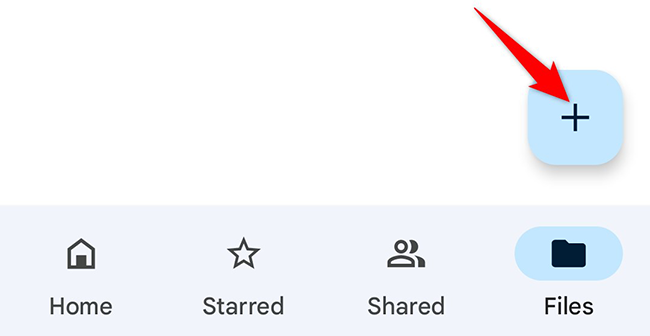
Tap the "+" icon at the bottom right corner.
Choose "Upload", then select the large video from your gallery.
Step 3: Wait for the Upload to Complete
Ensure you're connected to Wi-Fi for faster uploading.
Large video files may take a few minutes, depending on size and connection speed.
Step 4: Share the Video
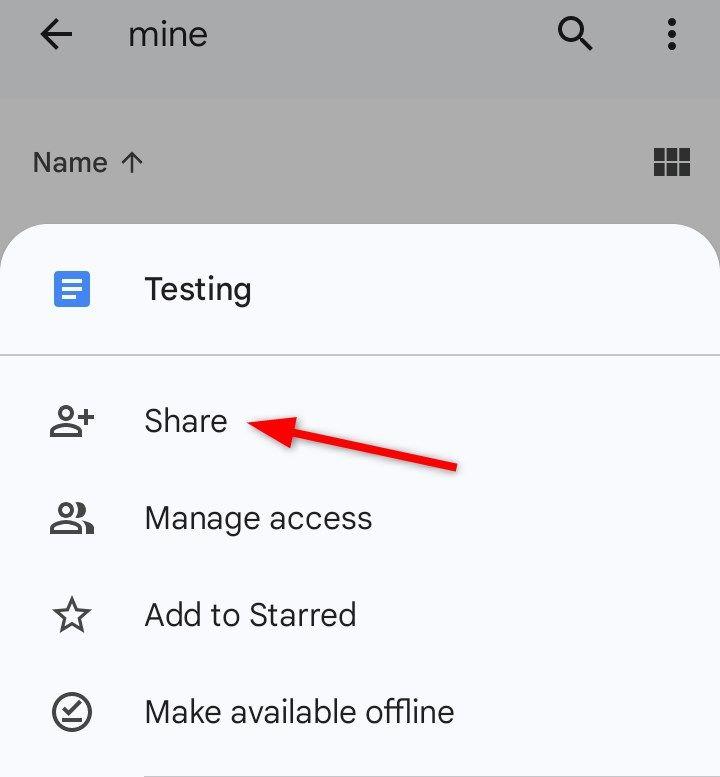
Once uploaded, tap the three dots beside the file.
Select "Share" → choose "Copy link".
Paste and send this link through email, WhatsApp, or any messaging app.
OneDrive (Android & iPhone)
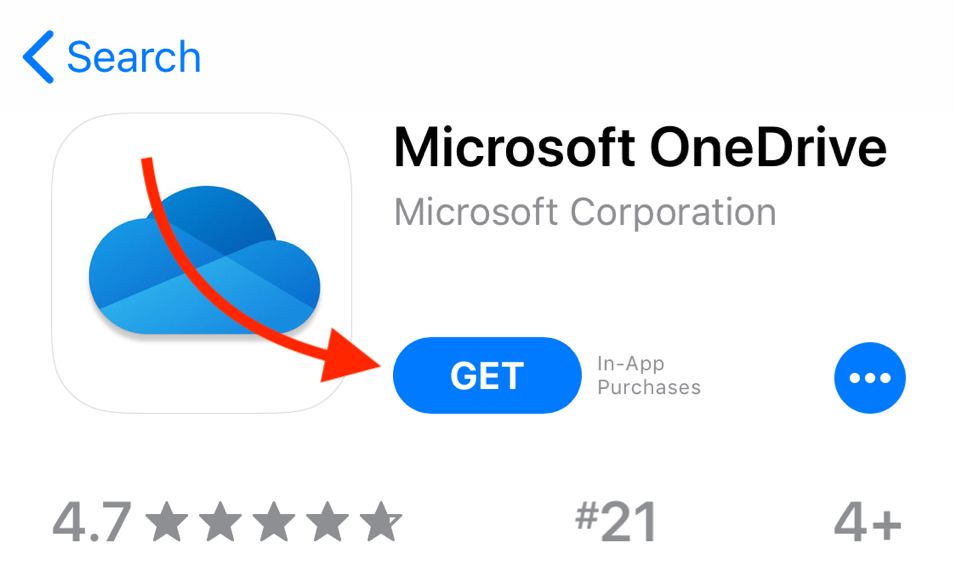
Step 1: Open the OneDrive App
Install and launch OneDrive from your app store.
Sign in with your Microsoft account.
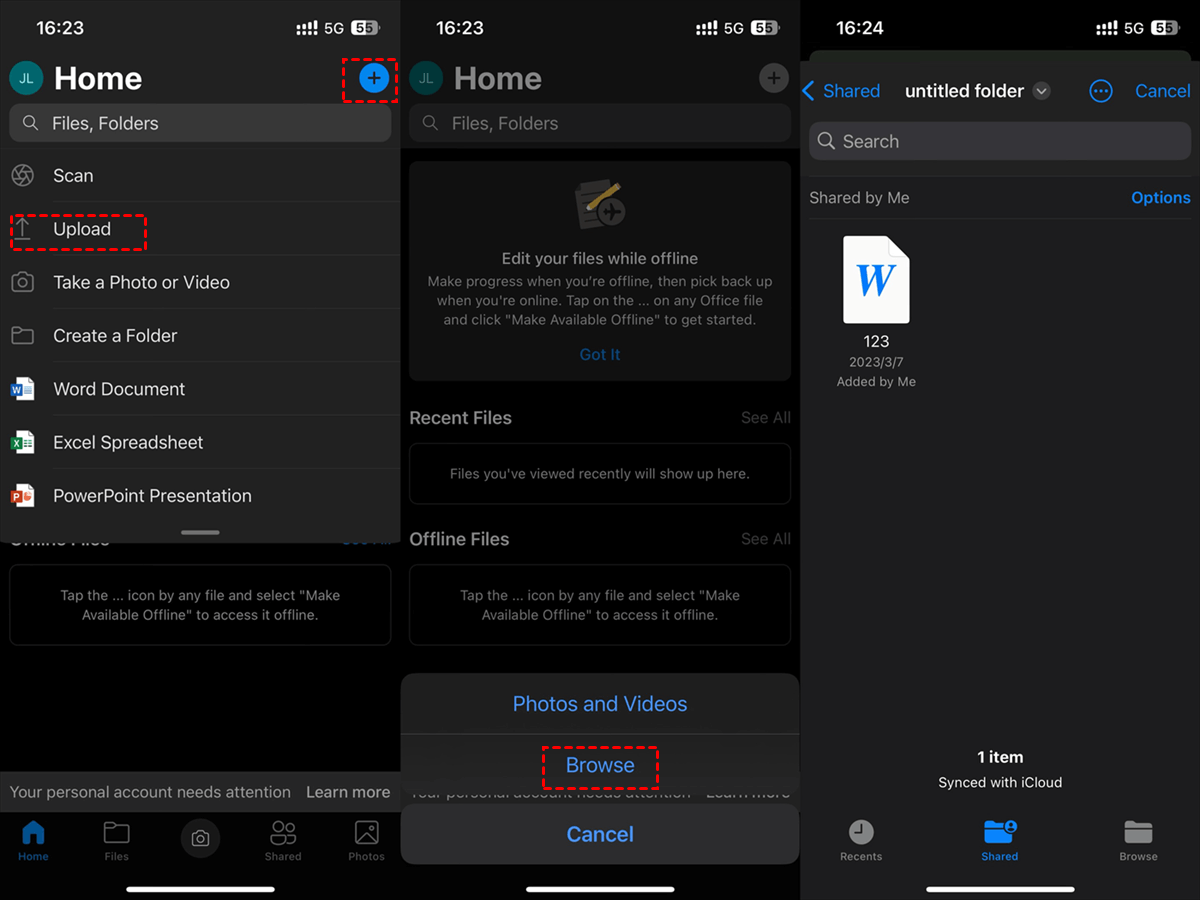
Step 2: Upload the Video
Tap the "+" icon → select"Upload" → choose your video file.
Step 3: Generate Share Link
After uploading, tap the video file → tap"Share".
Choose "Copy Link" and send it to your recipient.
Personally, I use Google Drive more often when I need to send big video files from my Android phone. It's quick, and most people already have a Google account, making it easy to access shared links. The best part? No quality loss during transfer. However, OneDrive integrates well with Windows and Office users, especially in work environments.
Method 2: Share Over Bluetooth (or AirDrop)
Bluetooth remains one of the most accessible options for sending large files between nearby devices, especially without internet access. While it's not the fastest method, it's free and built into nearly every phone.
Note: Bluetooth is best for videos under ~500MB. For very large files, cloud services or wired transfers are better.
On Android Devices
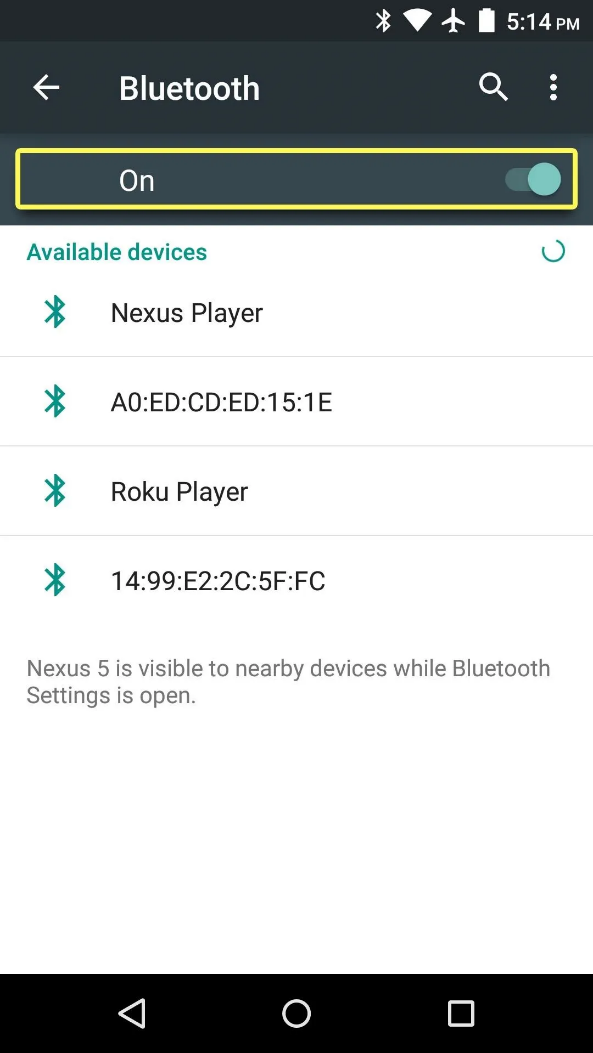
Step 1: Enable Bluetooth on Both Devices
Go to Settings > Connected Devices > Bluetooth.
Toggle it ON on both sender and receiver devices.
Step 2: Pair the Devices
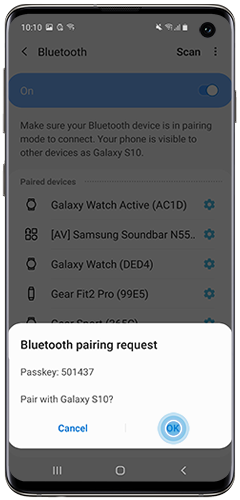
From the sender's phone, tap the receiver's device name.
Accept the pairing request on the receiving phone.
Step 3: Send the Video
Open your File Manager or Gallery.
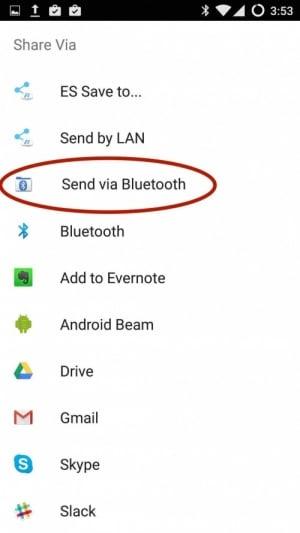
Long-press the large video file → tap Share → choose Bluetooth.
Select the paired device to start sending.
On iPhone: Use AirDrop Instead
AirDrop is Apple's superior alternative to Bluetooth for sending large files between iPhones, iPads, or Macs, without compromising quality.
Step 1: Turn on AirDrop
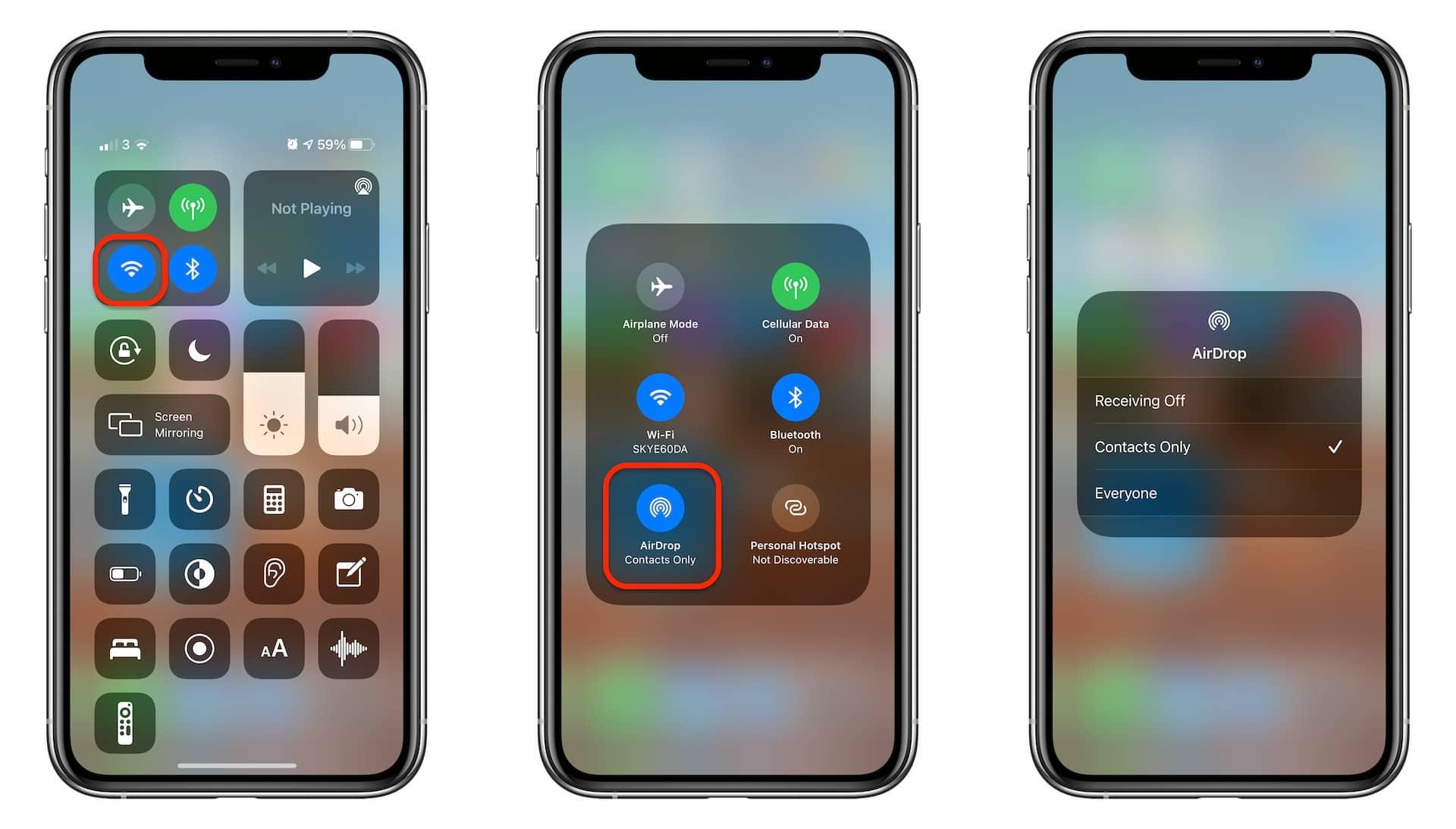
Open Control Center → tap and hold the network block → tap AirDrop → set to "Everyone" or "Contacts Only".
Step 2: Select and Send the Video
Open the Photos app → choose the long video → tap Share → tap the AirDrop icon and select the nearby Apple device.
Step 3: Accept the File
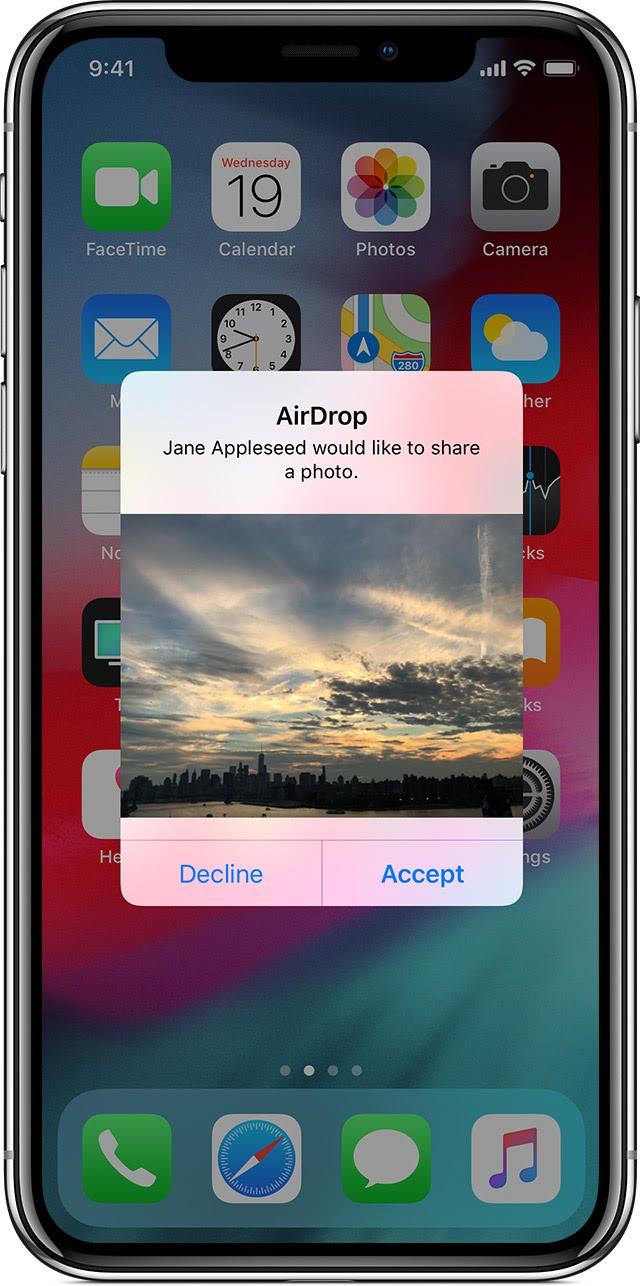
On the receiving device, tap Accept to receive the file in full resolution.
In my experience, Bluetooth works only when both phones are close together, and even then, it can take several minutes to transfer a file larger than 300MB. It's not ideal for HD or long videos. On the other hand, AirDrop on iPhone is incredibly fast and doesn't compress the video, making it one of the best options if you're inside the Apple ecosystem.
If you're wondering how to send large video files without losing quality between Apple devices, AirDrop is unbeatable.
Method 3: Compress into a ZIP File
Another effective way to send large video files, especially via email or file-sharing platforms, is by compressing them into a ZIP archive. While this won't drastically reduce the file size of already compressed video formats like MP4, it's still a practical way to bundle large files or folders and avoid compatibility issues.
On Windows
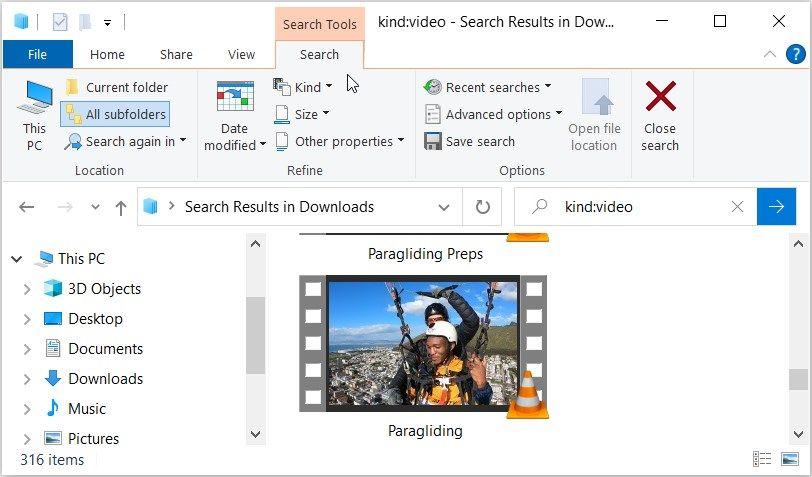
Step 1: Locate the Video File
Open the folder where your large video is stored.
Step 2: Select the File
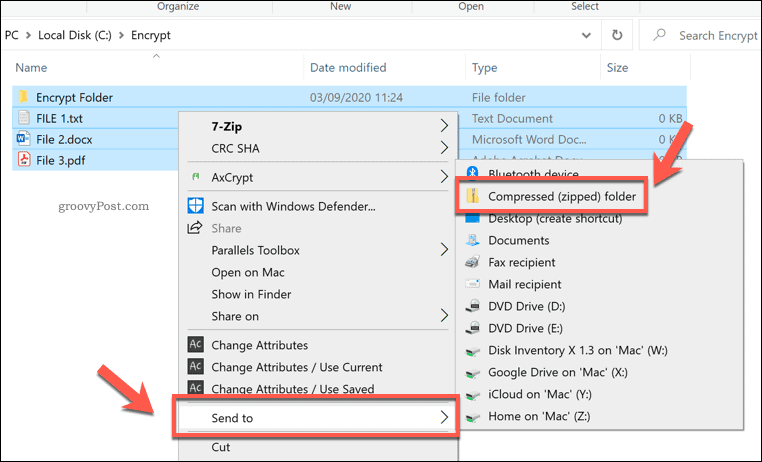
Right-click on the video or multiple files you want to compress.
Step 3: Create a ZIP Archive
Click Send to → Compressed (zipped) folder.
A ZIP file will be created in the same location.
Step 4: Rename (Optional)
Right-click the ZIP file → Rename it for clarity (e.g., "VacationVideo.zip").
On Android (Using File Manager or App)
Step 1: Install a File Manager App
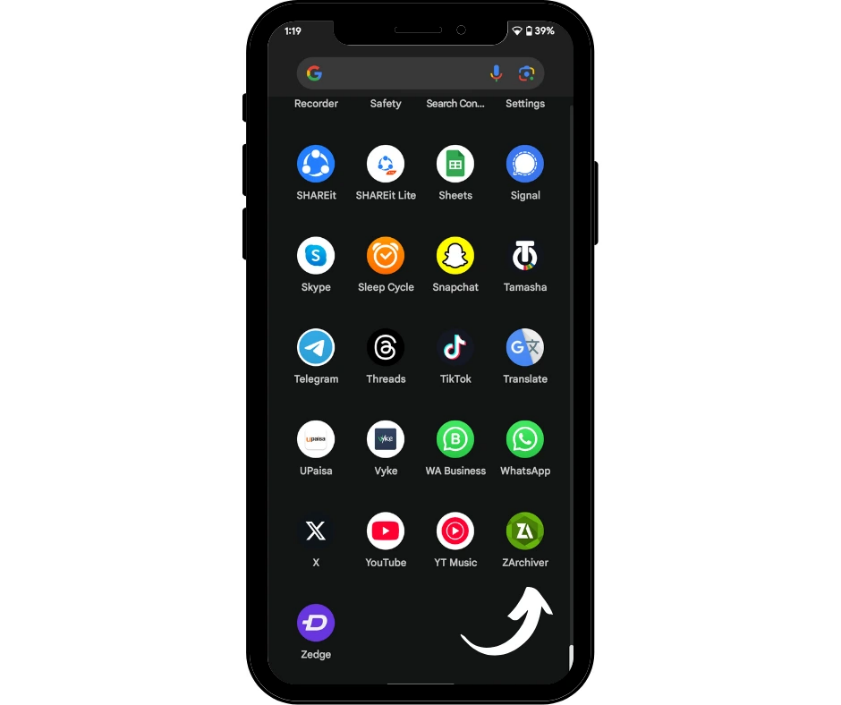
If your phone doesn't support ZIP compression natively, download a tool like ZArchiver from the Play Store.
Step 2: Compress the File
Open the app → locate your video → long-press → chooseCompress or Create archive.
On iPhone (Using Files App)
Step 1: Save the Video in Files
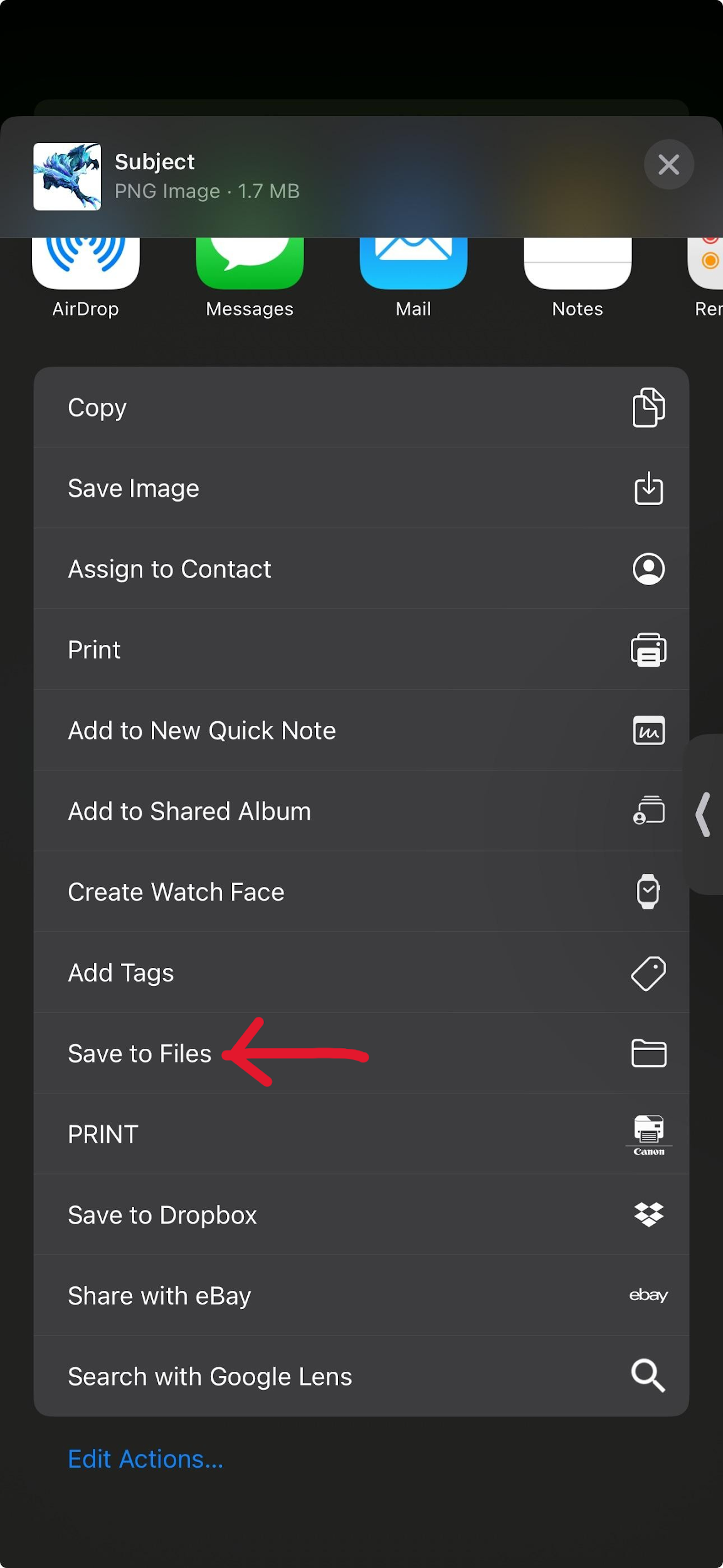
Share your video to the Files app from Photos.
Step 2: Compress the File
In Files, long-press the video file → tapCompress.
Step 3: Share the ZIP File
Now that the file is compressed, you can attach or upload it more easily, especially if you're wondering how to send large video files via email.
This method is especially useful when you're required to send large video files via email, but need to stay within file size limits or simply want to avoid file-type restrictions. While ZIP compression may not drastically shrink a video's size, it does make large transfers cleaner and more manageable, particularly when multiple files are involved.
Personally, I find this method reliable for archiving and sharing entire video folders, like event footage, without altering their quality.
Method 4: Use a Flash Drive
When internet upload speeds are limited or cloud storage is not an option, a flash drive offers a fast and offline way to send large video files, especially for 4K or long-form content. With the help of USB-C, Lightning adapters, or dual-interface drives, this method works seamlessly across Android, iPhone, Mac, and PC.
On Android (USB OTG Flash Drive)
Step 1: Connect the Flash Drive
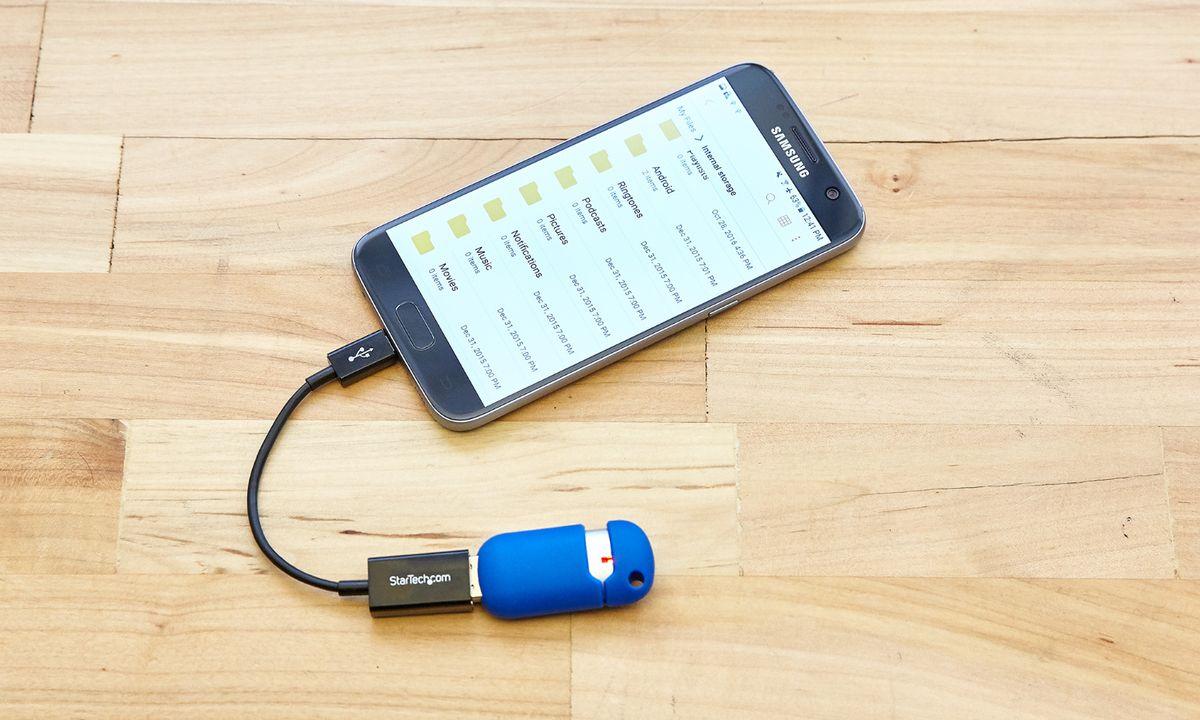
Plug a USB OTG-compatible flash drive (USB-C or micro-USB) into your Android device.
Step 2: Locate the Video File
Open the File Manager → navigate to yourDCIM or Videos folder.
Step 3: Copy the File
Long-press the video → tap Copy → navigate to the USB drive folder → tap Paste.
On iPhone (Lightning Flash Drive or Adapter)
Step 1: Use a Compatible Flash Drive
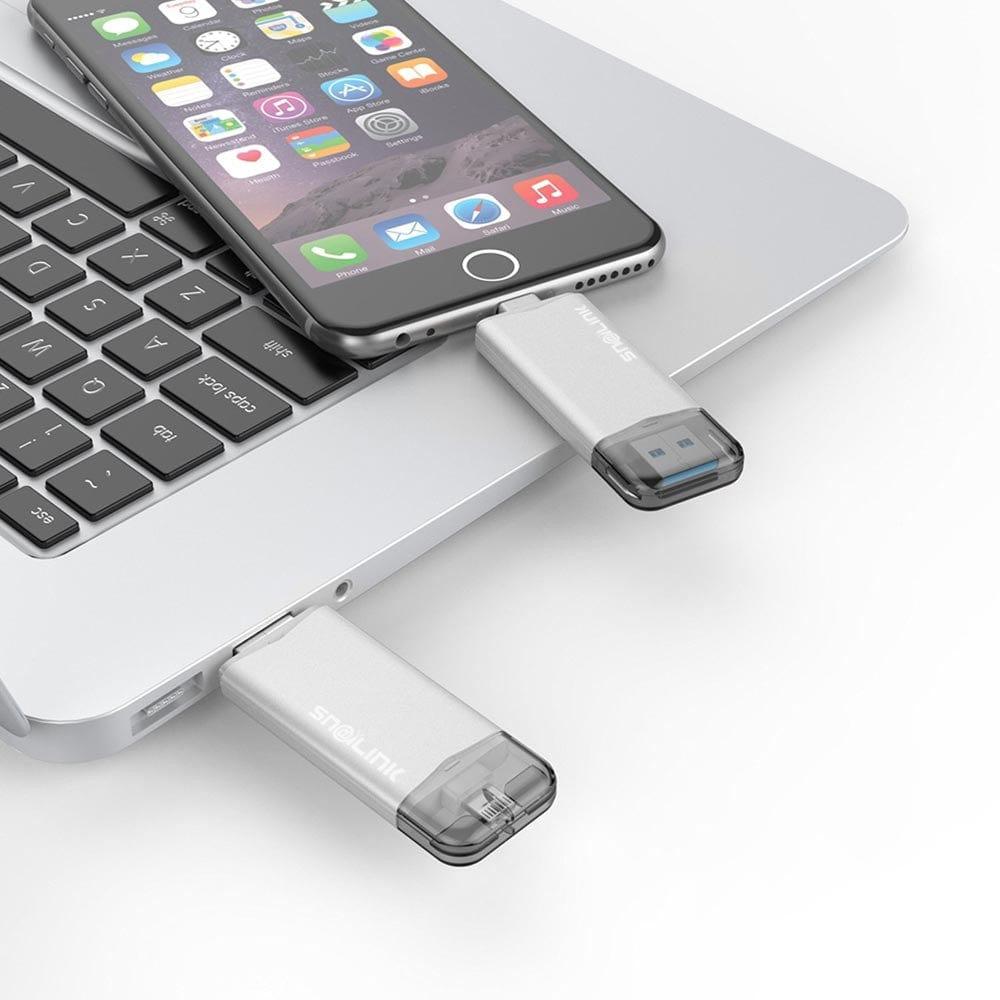
Insert a Lightning flash drive or use aLightning-to-USB adapter with a standard drive.
Step 2: Use the Drive's App
Most iPhone-compatible drives come with a companion app (e.g., SanDisk iXpand or LEEF).
Open the app → tap Add Files or Transfer from Photos.
Step 3: Select and Transfer Videos
Choose your large video files → transfer them to the drive → eject safely.
On Windows or Mac
Once the file is on the flash drive, you can:
Plug it into another device and copy the file.
Or physically hand it to the recipient, ideal when wondering how to send big video files securely or offline.
When I need to send large video files without losing quality, especially raw footage or event recordings, a USB drive is my go-to. It's fast, doesn't rely on an internet connection, and avoids any issues with compression. For iPhone, using a Lightning-compatible flash drive feels a bit clunky at first, but once set up, it's incredibly effective.
This method is especially useful in workplaces or creative teams that frequently exchange large video assets.
Method 5: Send via Email (With Limitations)
Email is often the first method people try when looking for how to send large video files, but most email providers cap file attachments at 20MB to 25MB, making it unsuitable for full-length HD or 4K videos.
That said, there are still ways to send big video files via email by combining direct attachments with cloud storage.
Option 1: Attach the Video (If Under 25MB)
Step 1: Open Your Email Client
Use Gmail, Outlook, Yahoo, or any email provider of your choice.
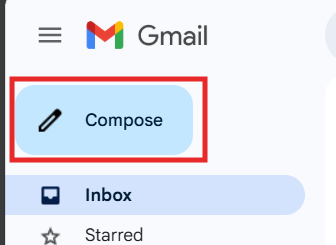
Step 2: Compose a New Email
Click Compose or New Message, then select the paperclip icon (Attach File).
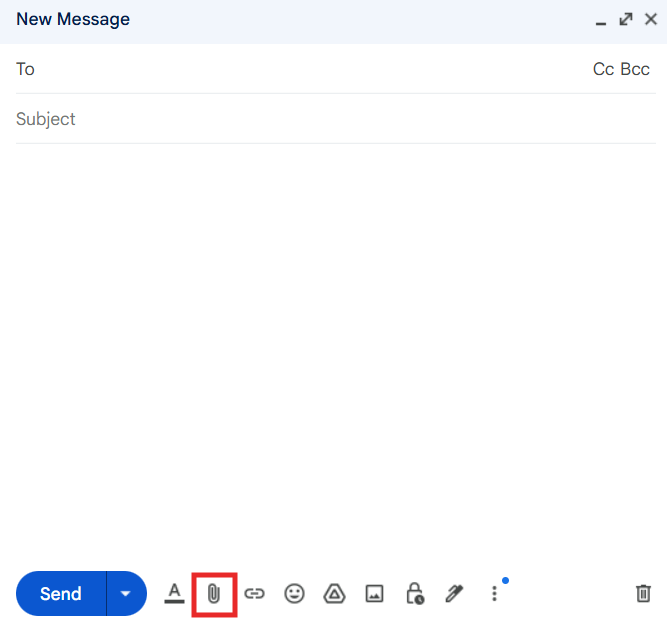
Step 3: Attach Your Video
Select a video file under 25MB. Larger files will likely get rejected or auto-uploaded to Google Drive (in Gmail).
Step 4: Send the Email
Enter recipient details, write a brief message, and hit Send.
Option 2: Insert a Cloud Link (For Large Files)
When your video is too large, you can upload it to a cloud platform (e.g., Google Drive, OneDrive) and paste the link in your email.
Step 1: Upload to Cloud Storage
Use the Google Drive or OneDrive method explained earlier.
Step 2: Get Shareable Link
Right-click the file → select "Get Link" → set permissions to "Anyone with the link can view".
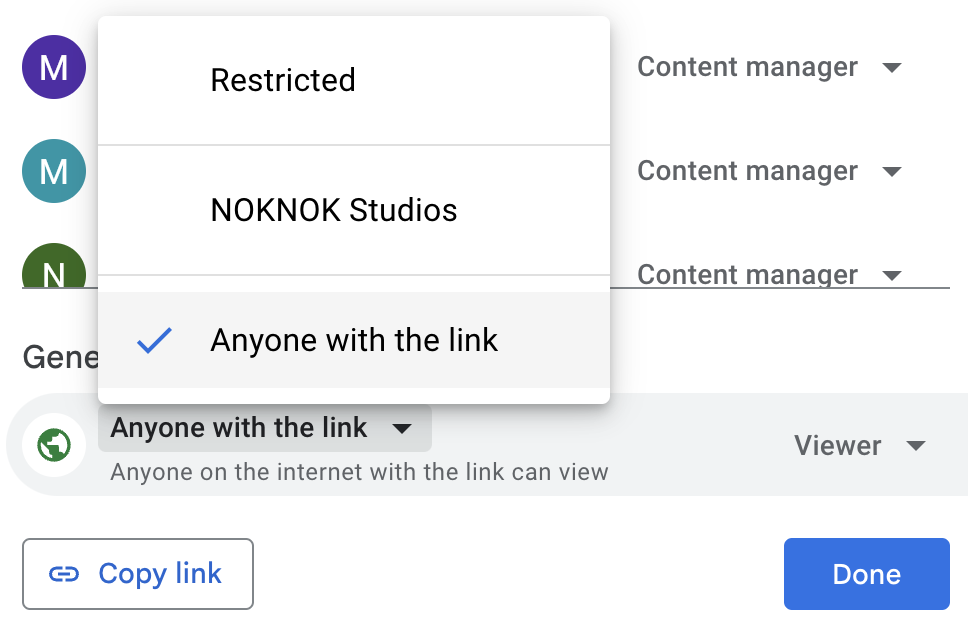
Step 3: Paste the Link in Your Email
Paste the link directly into your email body.
When clients ask me how to send large video files via email, I usually recommend skipping direct attachments entirely and going straight to a cloud link. Even if your video is slightly under 25MB, sending it as an attachment often results in delivery delays or compression by the email provider.
If you're concerned with how to send large video files without losing quality, cloud-linked emails offer the most reliable and professional experience, especially when collaborating with clients or teams.
Part 3: How to Send Large Video Files from Your Phone
Whether you're on vacation filming 4K videos, or recording long tutorials on your smartphone, knowing how to send large video files directly from your Android or iPhone is essential. Fortunately, modern phones offer several built-in and app-based options for transferring big videos quickly and easily.
Option 1: Use Messaging Apps with Cloud Support (iPhone & Android)
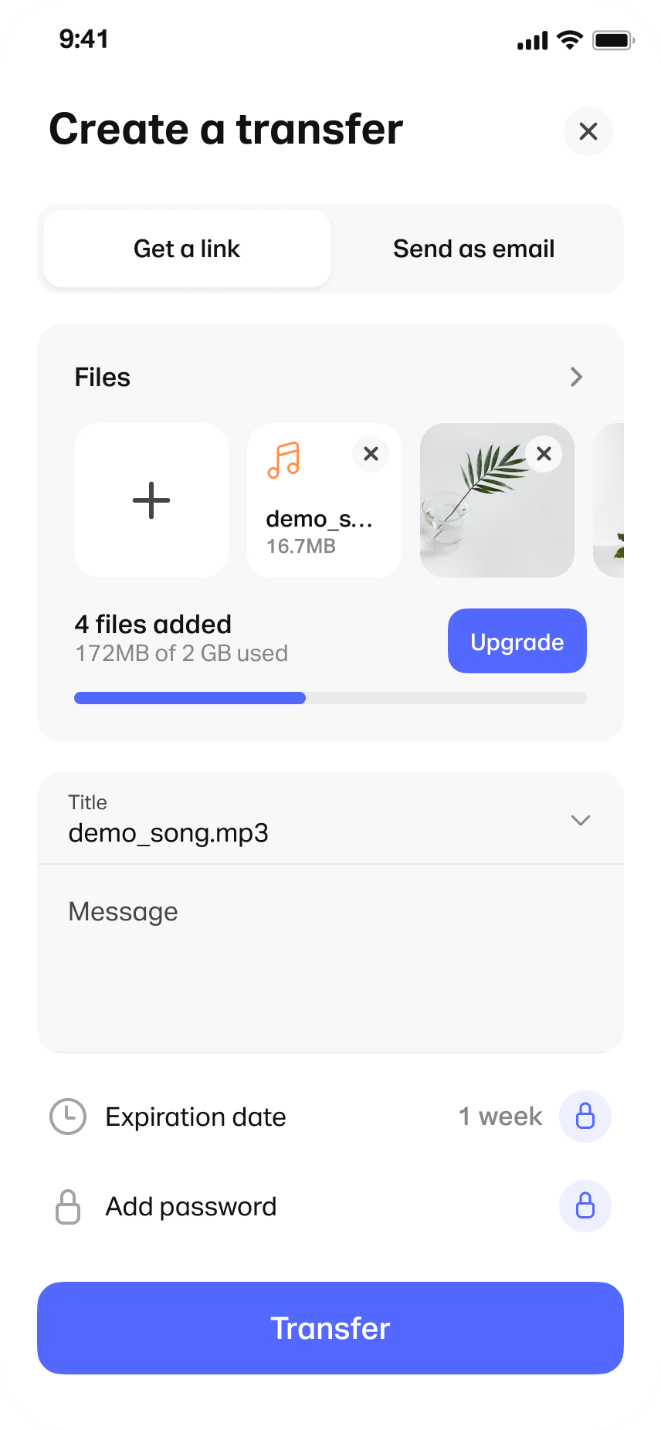
Some messaging platforms like Telegram and the WeTransfer mobile app allow sending large files (up to 2GB) without quality loss.
Step 1: Install Telegram or WeTransfer
Go to the App Store (iPhone) or Google Play (Android).
Download Telegram orWeTransfer.

Step 2: Upload and Share
In Telegram: Start a new message → tap the paperclip icon → choose the large video file.
In WeTransfer: Tap "Send file" → upload → enter recipient's email → send.
Why Use This?
These apps often support higher upload limits than email or WhatsApp.Telegram doesn't compress videos unless you choose to send them as media.
Option 2: Use AirDrop or Nearby Share (Device-Specific)
We already discussed this in Bluetooth sharing, but it's worth repeating:
AirDrop (iPhone) and Nearby Share (Android) are perfect when devices are nearby.
Transfer happens over local Wi-Fi/Bluetooth, no internet needed.
Option 3: Upload to Cloud from Phone
Already covered in Part 2 – Cloud storage apps like Google Drive, Dropbox, or OneDrivework perfectly from mobile too.
Open your cloud app.
Tap "+" → upload video from camera roll.
Share the link directly from your phone.
Option 4: Use a USB Flash Drive for Phones
Some flash drives come with dual connectors (Lightning + USB-C), making them plug-and-play for mobile transfers.
Insert the drive.
Use the file manager or companion app to move videos from your phone.
This is an excellent option if you're thinking about how to send large video files on iPhone without depending on the internet or cloud storage.
My Thoughts
When friends ask me how to send large video files from an iPhone or Android, I usually recommend Telegram or Google Drive for quick, no-hassle transfers. For local transfers, AirDrop on iPhone is unmatched. Meanwhile, Android's Nearby Share has improved significantly and works well for short-range transfers.
Also, never overlook flash drives, especially when you want to send large video files without losing quality and without relying on Wi-Fi.
Part 4: Other Methods – Edit the Video Itself
Sometimes the fastest solution to send large video files is to reduce their size, right at the source. This doesn't mean your content has to lose its impact. With simple edits, you can make long or high-resolution videos easier to share without completely compromising on quality.
Option 1: Reduce the Video Quality or Resolution
Lowering a video's resolution from 4K to 1080p or 720p can cut the file size dramatically. Most built-in editors and free apps allow this.
Step-by-step using iPhone/Android:
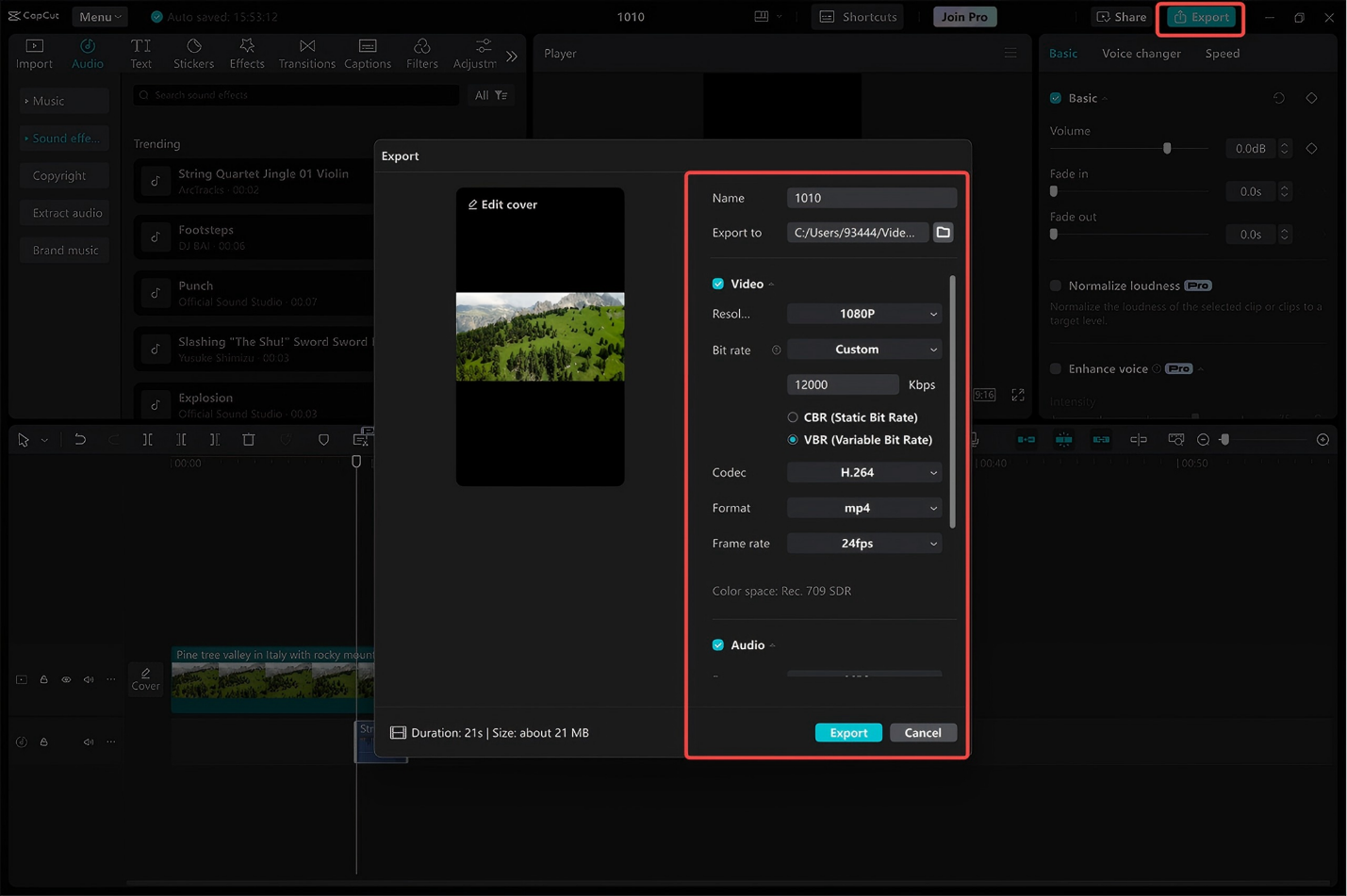
Open your video in iMovie (iPhone) orCapCut/InShot (Android).
Tap Export/Save → choose a lower resolution (720p or 480p).
Save the new, smaller version.
Option 2: Lower the Frame Rate
High frame rates like 60fps look smoother, but also increase file size. Reducing it to 30fps can make your video much easier to send.
In your editor: Go to Export → Frame Rate → Set to 30fps or 24fps.
Option 3: Trim the Video Length
You don't always need the entire clip. Cutting unnecessary parts saves space.
Open video → tap Edit → Trim beginning/end sections.
Save as a shorter version.
Option 4: Convert the Video Format
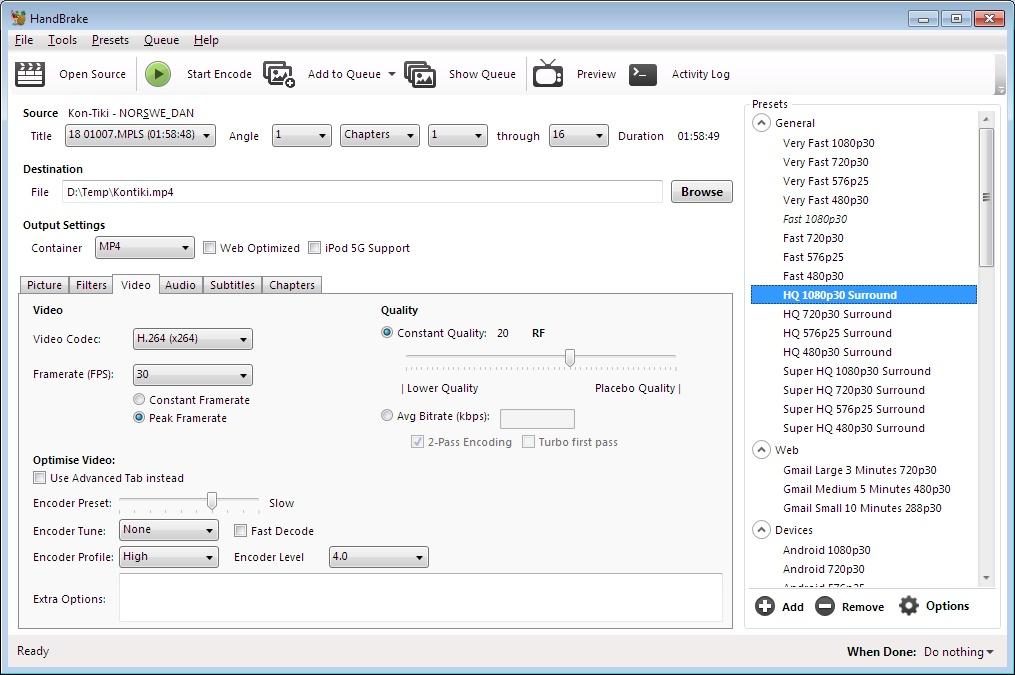
Some formats (like AVI or MOV) are bulky. Converting to MP4 or HEVC (H.265) reduces size with minimal quality loss.
Use tools like HandBrake (desktop) orVideo Compressor apps for phones.
Choose MP4 as output and enable compression.
When users ask me how to send large video files without losing quality, I often clarify that some quality trade-off is inevitable if you compress a video. That said, editing the video yourself puts you in control of what matters, resolution, length, or frame rate.
Personally, I recommend trimming unnecessary footage first. Often, the file becomes small enough to send via email or apps like WhatsApp, without the need for extra tools.
This method is also the answer for those searching for how to send large video files on WhatsApp, since the app's limit is 16MB. A trimmed or compressed version might fit that limit.
Part 6: How to Use Toolsmart's YouTube Video Downloader
If you've found a useful or long-form YouTube video and want tosend it as a large video file offline, without installing any software, Toolsmart's downloader is a simple, no-hassle solution. Here's how to do it in a few quick steps.
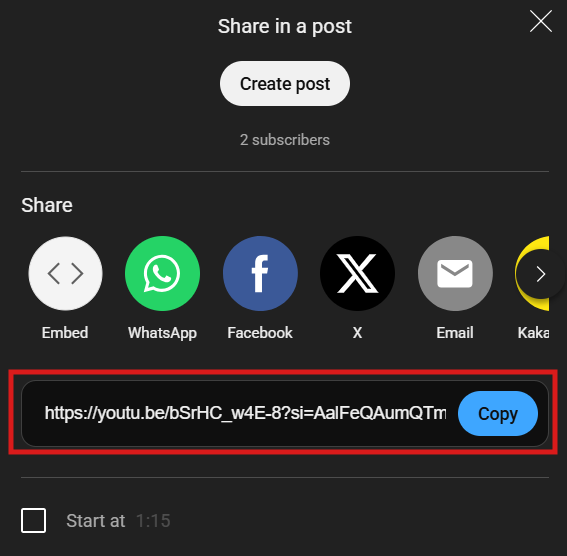
Step 1: Copy the YouTube Video Link
Open YouTube on your browser or app.
Navigate to the video you want to download.
Tap Share → Copy link.
Step 2: Visit Toolsmart's Downloader Website
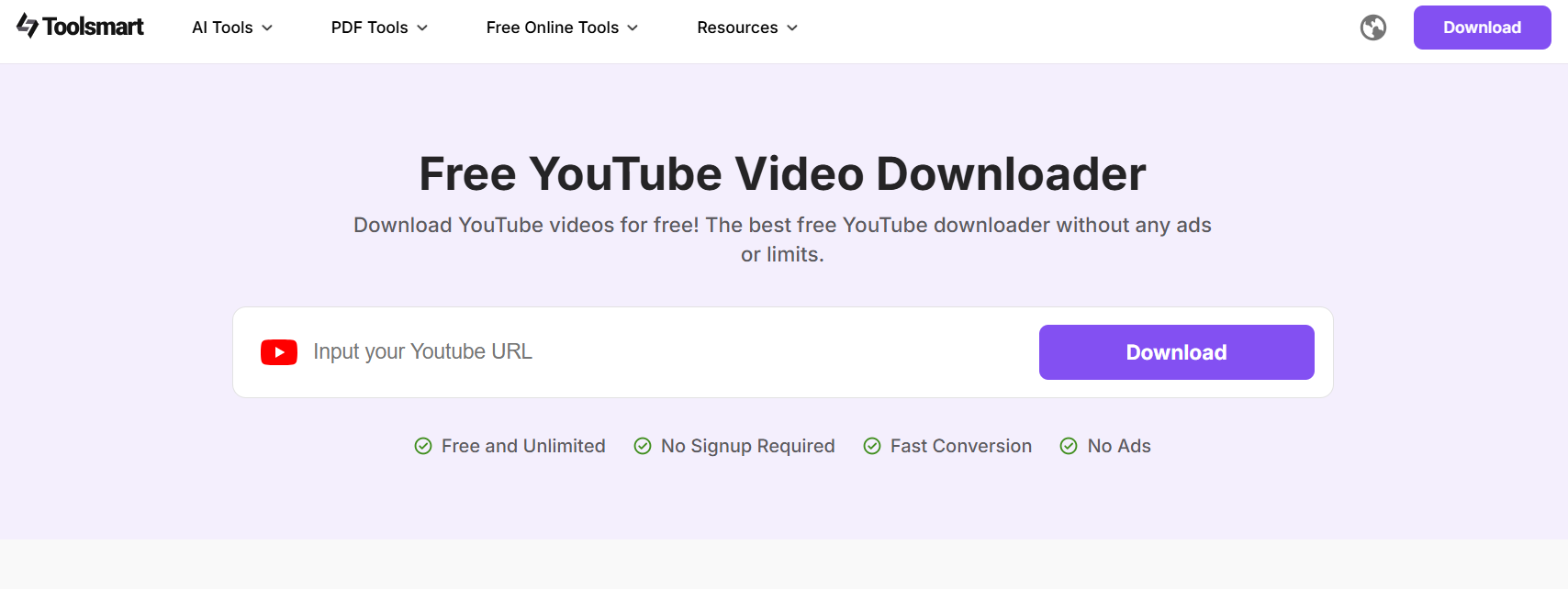
Go to: Toolsmart YouTube Video Downloader
No need to log in or install anything.
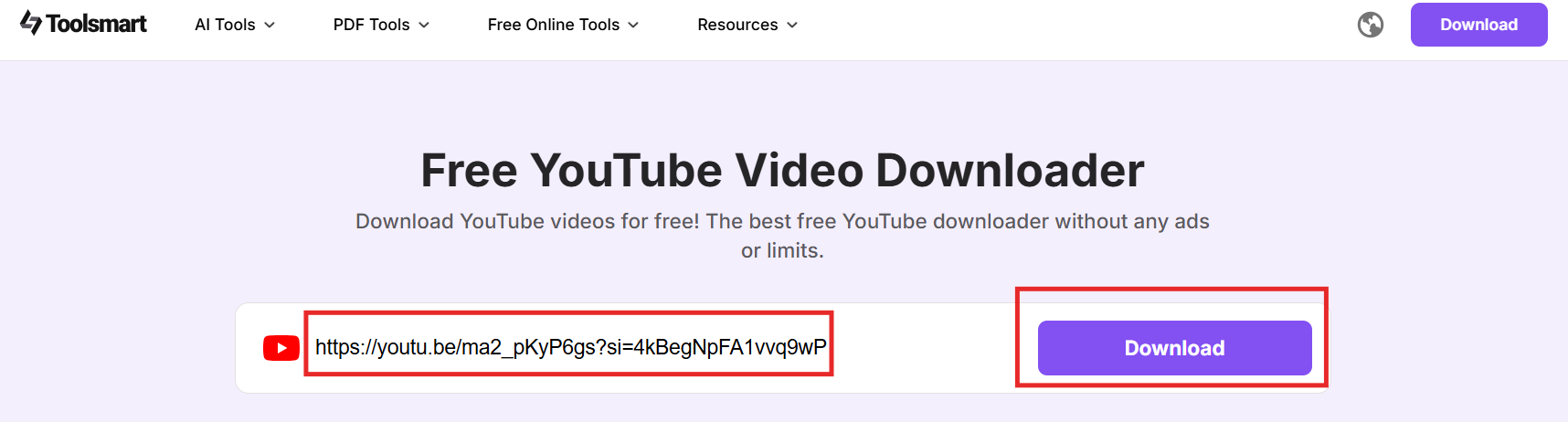
Step 3: Paste the Video Link
Click the input box on the page.
Paste your copied link into the field.
Step 4: Select Download Quality
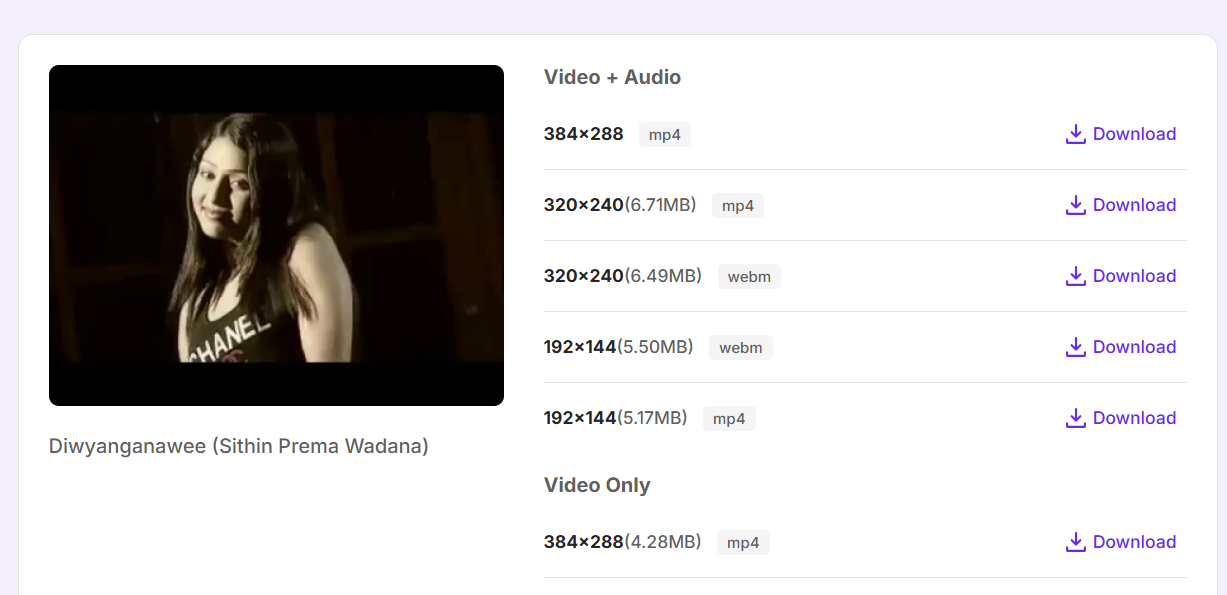
After pasting, the tool will fetch the video.
Choose your preferred resolution: 360p,720p, 1080p, or4K.
Tap Download.
Step 5: Save the File
The file will begin downloading automatically.
Once done, it will be stored in your Downloads folder on your desktop or mobile.
Step 6: Share the File
Now that you have the video saved:
Compress it into a ZIP (if needed)
Upload to Google Drive, email it, or use a flash drive
This tool is especially useful when users ask how to send large video files without losing quality from public sources like YouTube. It preserves clarity and bypasses the need to screen-record or settle for poor resolution.
My Thoughts
I've personally used Toolsmart's downloader to grab long educational videos I needed offline for editing and later sharing with collaborators. The download was smooth, and I didn't encounter ads or unwanted redirects, unlike many similar tools.
If you often work with YouTube content, this downloader should be a go-to option. It makes downloading and sharing large video files incredibly easy and fast, on both mobile and desktop.
FAQs
Q1: How do I compress video size?
There are several effective methods to reduce video file size:
Compress video with ZIP files – Right-click and send to a compressed (zipped) folder.
Convert video format – Use tools like HandBrake to switch to MP4 or HEVC.
Trim the video length – Cut unnecessary parts to reduce the total size.
Lower the resolution – Export at 720p instead of 1080p or 4K.
Reduce bitrate – Advanced video settings allow bitrate adjustments to shrink file size.
Use online tools – Free websites like Clideo or VEED offer drag-and-drop compression.
These methods are useful when you're trying to figure out how to send large video files by reducing them to fit platform limits.
Q2: How do I zip a file?
Detailed Steps (Windows):
Locate the files – Navigate to your video files in File Explorer.
Select them – Use Ctrl + click or highlight multiple files/folders.
Right-click – On any of the selected files.
Send To – Hover over the "Send to" option.
Compressed Folder – Click "Compressed (zipped) folder".
Rename (Optional) – Rename the new .zip file if needed.
Zipping is especially useful if you're sending multiple large files via email or want to bundle a full project.
Q3: Do I need to install any software to download YouTube videos?
No. The Toolsmart YouTube Video Downloader is abrowser-based tool, meaning:
No installation required
No extension needed
No login required
Simply paste the video link and download, making it ideal for users asking how to send large video files for free.
Q4: Is there a maximum length for YouTube video downloads with this tool?
There's no specific maximum, but very long videos (1 hour+) may take more time to process and download, especially if you select HD or 4K quality. Your internet speed will affect download time.
Even so, the Toolsmart downloader remains one of the most effective tools for sending large video files without losing quality.
Summary
Sending large video files doesn't have to be complicated. Whether you're transferring long videos from your iPhone or Android, or sending full-quality footage over email or cloud storage, there are multiple solutions that help you avoid file size limits and quality loss. From cloud uploads to USB drives and editing techniques, each method offers different strengths depending on your needs, speed, resolution, convenience, or offline access.
For users looking to download and share existing online content, theToolsmart YouTube Video Downloader is an essential companion. It's fast, free, web-based, and preserves original video quality, making it ideal for anyone who wants to send large video files with minimal friction. No installations, no ads, just efficient downloads and smooth sharing.


