
'%3e%3cpath%20fill-rule='evenodd'%20clip-rule='evenodd'%20d='M19%208.5C24.799%208.5%2029.5%2013.201%2029.5%2019C29.5%2024.6782%2024.9928%2029.3036%2019.361%2029.4939L19%2029.5C18.8794%2029.5%2018.7592%2029.498%2018.6396%2029.4939L18.2811%2029.4758C12.8174%2029.1063%208.5%2024.5574%208.5%2019C8.5%2013.201%2013.201%208.5%2019%208.5ZM22.3063%2010.6267L22.2342%2010.6539C21.3423%2011.0061%2020.5541%2011.6368%2020.5606%2012.4987C20.5631%2012.8302%2020.869%2014.8871%2020.2141%2014.8486C19.5589%2014.8102%2019.413%2013.8753%2018.7116%2013.616C17.5944%2013.2026%2016.9819%2014.3401%2017.0939%2015.3106C17.1695%2015.9655%2018.9289%2018.3871%2017.9028%2019C17.292%2019.3651%2015.7279%2017.5692%2015.1007%2017.1842C14.4805%2016.8034%2013.2758%2017.3333%2012.4974%2016.7029C11.9874%2016.2899%2012.3881%2014.4098%2012.2786%2013.8372C12.2271%2013.5698%2012.1155%2013.3689%2011.9794%2013.2166L12.0402%2013.2934C10.7653%2014.8464%2010%2016.8339%2010%2019C10%2023.8465%2013.8307%2027.7982%2018.6295%2027.9925L18.6769%2027.9747C18.8597%2027.8677%2019.0394%2027.7557%2019.216%2027.6387C19.4137%2027.4534%2019.5436%2027.2072%2019.5849%2026.9394C19.8806%2025.1222%2018.3616%2025.4302%2017.9367%2024.5622C17.5489%2023.7695%2018.5712%2023.7684%2018.5524%2021.7923C18.4607%2021.1774%2018.5279%2020.547%2018.7211%2020.0315C19.1834%2018.7987%2020.7077%2017.2643%2022.5889%2018.0081C23.5567%2018.3906%2023.1524%2019.9831%2023.4737%2020.3394C24.251%2021.2018%2025.3228%2020.6863%2026.2856%2021.2253C26.7816%2021.5032%2026.9797%2022.41%2027.056%2023.2248L27.038%2023.0528C27.6534%2021.8348%2028%2020.4579%2028%2019C28%2015.1968%2025.6409%2011.9445%2022.3063%2010.6267Z'%20fill='%23757575'/%3e%3ccircle%20cx='19'%20cy='19'%20r='10.125'%20stroke='%23757575'%20stroke-width='2.25'/%3e%3c/g%3e%3cdefs%3e%3cclipPath%20id='clip0_1827_14613'%3e%3crect%20width='24'%20height='24'%20fill='white'%20transform='translate(7%207)'/%3e%3c/clipPath%3e%3c/defs%3e%3c/svg%3e)


Sending an invoice is a crucial part of holding someone accountable for payment, especially if they’re late. Even though PayPal has a reliable and efficient invoice system, it can get a bit confusing for those who aren’t familiar with it. So, how do I send PayPal invoices without all the hassle? In this guide, I’ll be walking you through how to create an invoice on PayPal and introduce you to a free alternative for polished invoice-making.
Step-by-Step Guide to Sending a PayPal Invoice
Regardless of your profession or business, sending invoices plays a significant role in making sure you get your payments on time. If you just created a new PayPal account, figuring out how do I create an invoiceon PayPal can feel challenging. I’ve been there myself, and I know how frustrating this can get. This is why I’ll be covering the entire step-by-step process in this section, so you can get your payments without any further delay.
Method 1: Using PayPal Business Account
If you’re a business owner, PayPal has efficient tools that help streamline the process and add more details to your invoices. I’ll highlight each step below to help you understand it better.
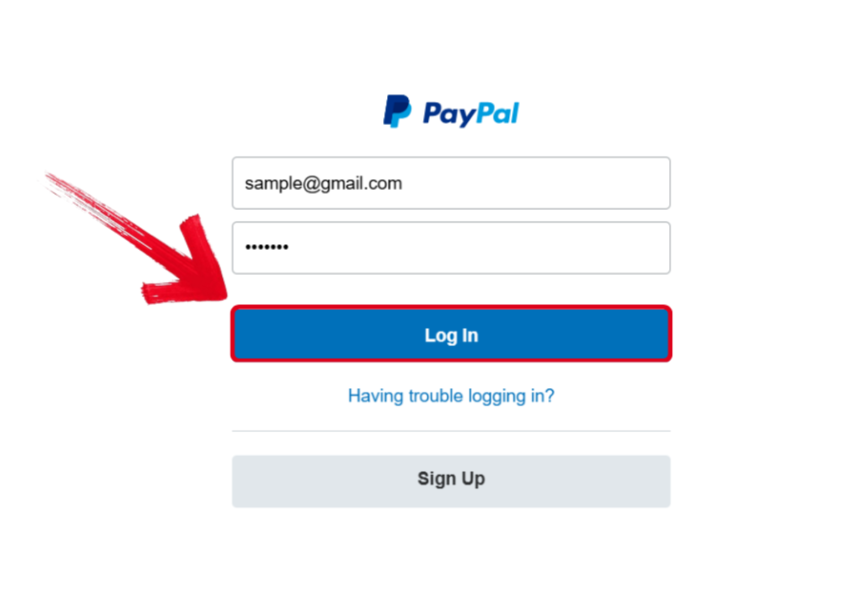
Step 1: Visit PayPal’s official website and type in your account details, then press Log in.
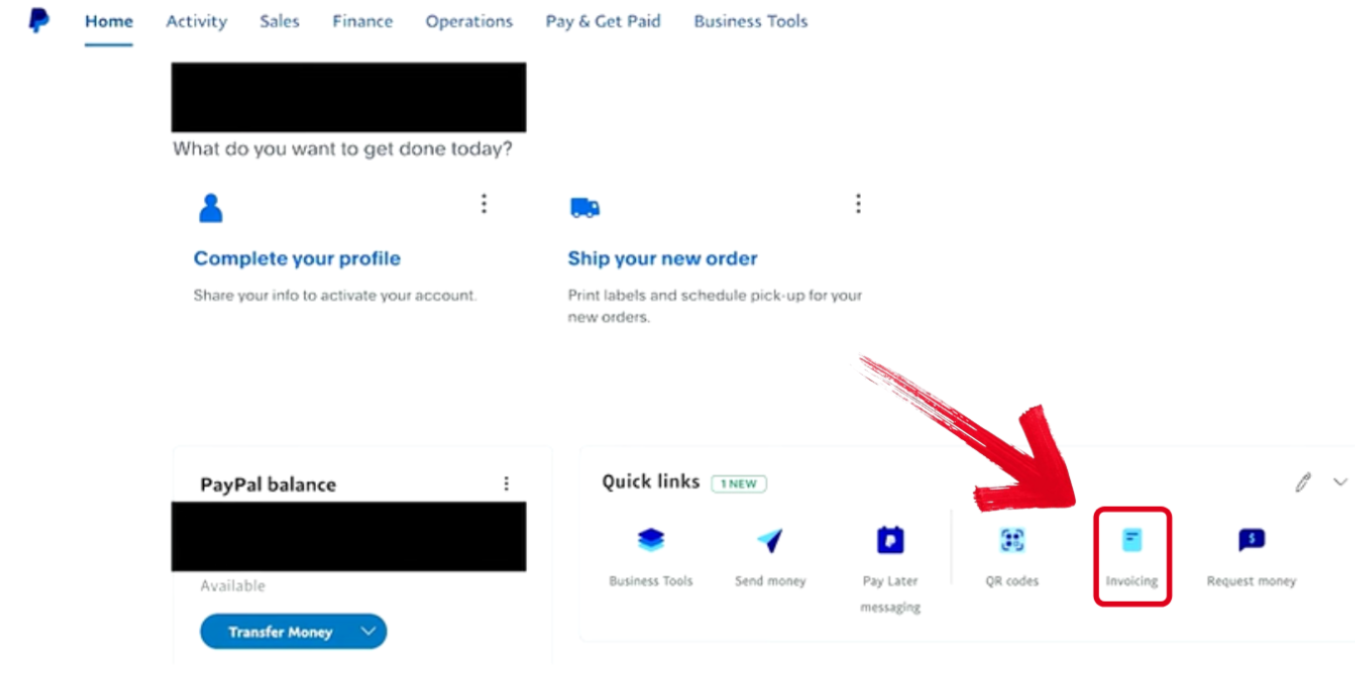
Step 2: Once you’re on the Home page, selectInvoicing under Quick links.
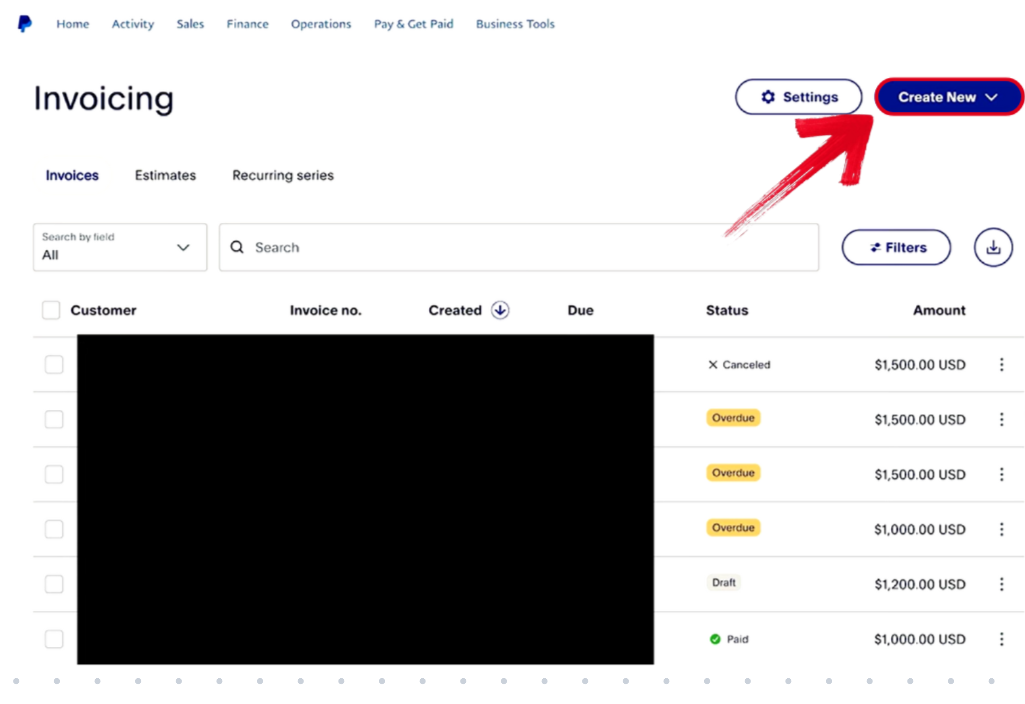
Step 3: In the Invoicing page, you’ll be shown all of your previous invoices. Press the Create New button and select Invoice from the given options.
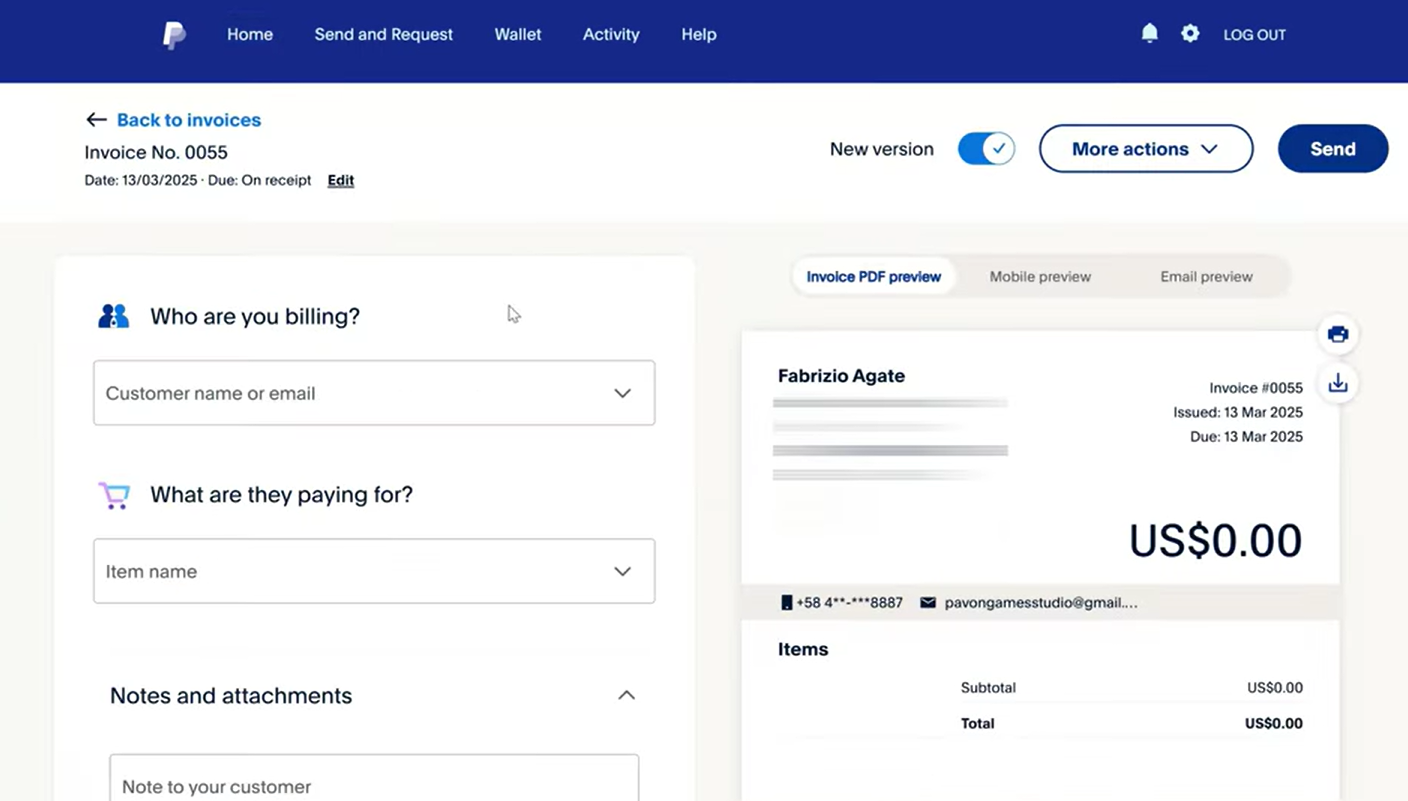
Step 4: Fill in your invoice details, including customer details, items, and any other additional notes you want to add.
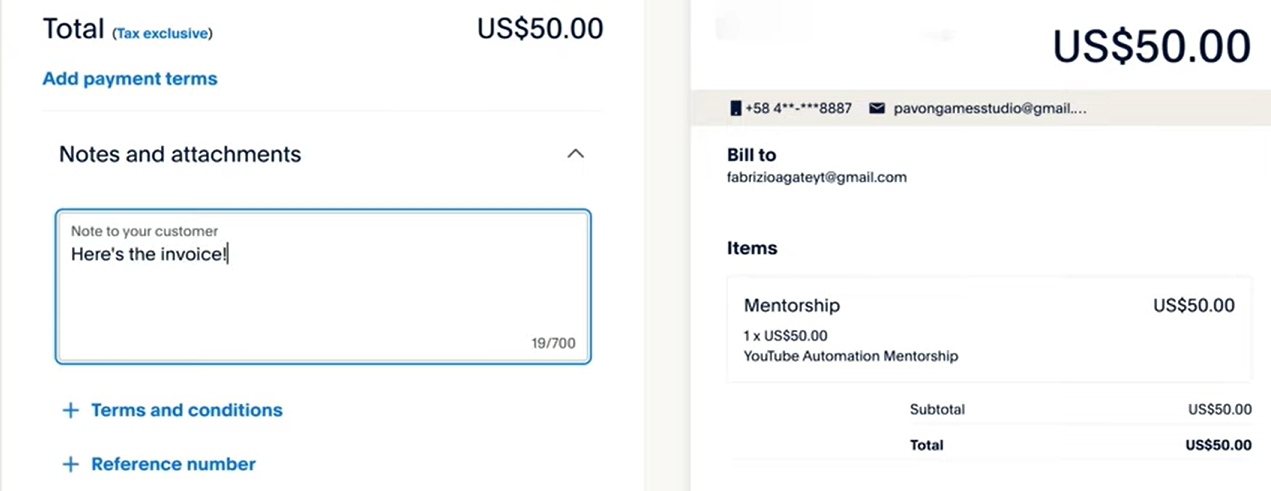
Step 5: Scroll down and add your payment terms, due date, and any other conditions you want to add.
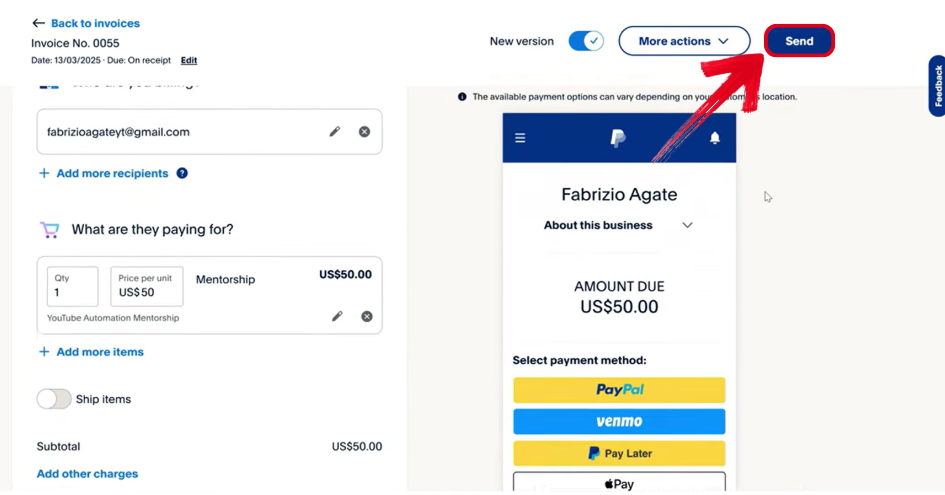
Step 6: Preview your invoice and check all the details to ensure they’re correct. Once done, pressSend to finish.
Method 2: Using PayPal Personal Account
If the invoice you’re trying to send is from a personal account, then the process is even simpler. I’ll provide a detailed walkthrough below so you can get rid of any confusion you might have.
Step 1: Visit PayPal’s official website and type in your sign-in details, then press Log in.
Step 2: Once you’re on the Home page, selectInvoicing under Quick links.
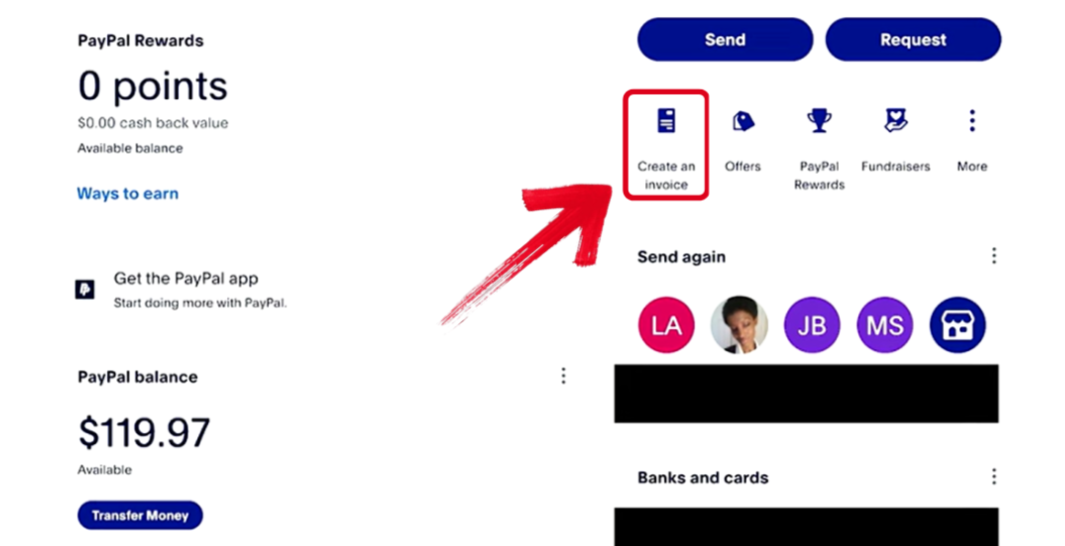
Step 3: On the invoicing page, look for theCreate an invoice button and select it.
Step 4: Type in the details of your invoice in the given fields. You can add customer details, items, and any other additional notes you want.
Step 5: Once done, you can scroll down and add any additional terms or conditions, and the due date.
Step 6: Preview your invoice to see how it would look to the receiver. Ensure all details are accurate, then pressSend.
Method 3: Mobile App
If you don’t have access to a PC and want to send an invoice quickly, you can use the PayPal mobile app. The steps are very simple, and I’ve highlighted each one below.
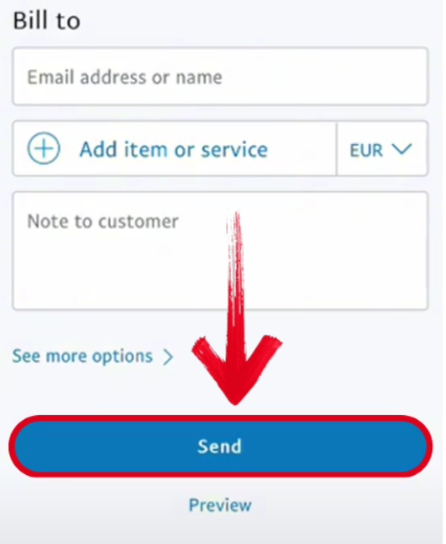
Step 1: Open the PayPal app on your phone and navigate to the Payments tab to get started.
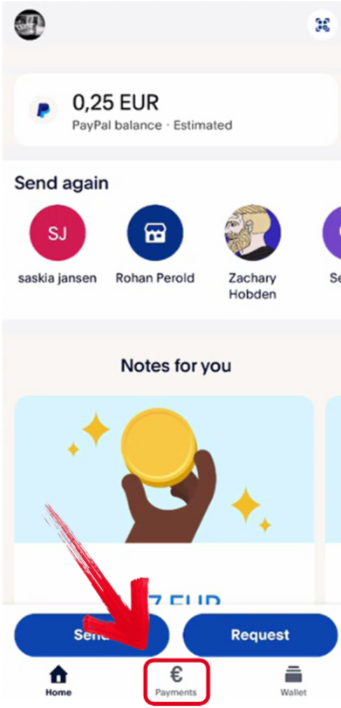
Step 2: Once you’re there, open theRequest page and then select Send invoice.
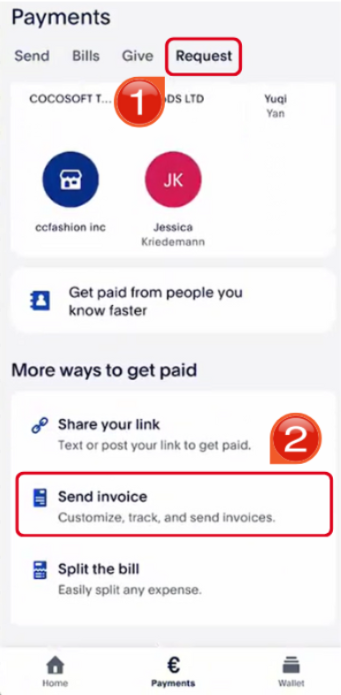
Step 3: In the invoices page, press thePlus icon to add a new invoice.
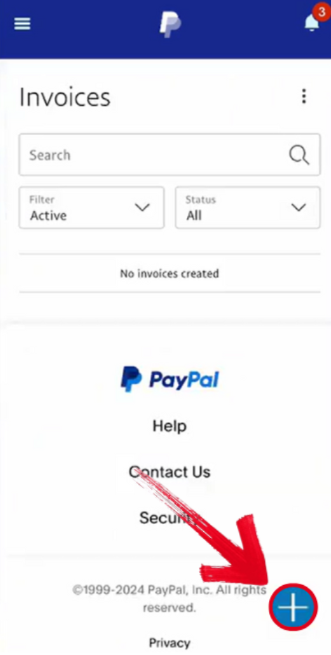
Step 4: You’ll be given different invoice options; select the one that is suitable for your needs.
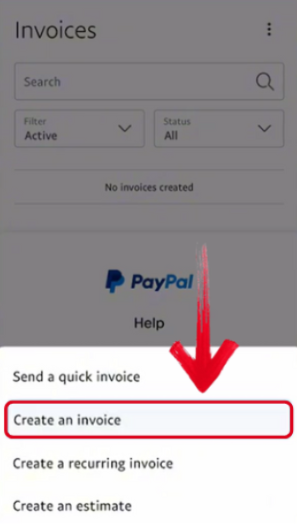
Step 5: Add in your invoice details and any other additional notes you want, then press Send to finish.
Common Mistakes & How to Fix Them
Creating invoices may get a bit stressful for some people, and it’s easy to overlook important details and make some mistakes. I made a lot of them myself when I first started my business, but I’ve learned a lot over the years. In this section, I’ll be covering some of the most common mistakesoverlooked by beginners and teaching you how to fix them easily.
Fixing Mistakes
Incorrect Client Email: Make sure you double-check the information you’re putting in, as PayPal will not let you edit the invoice after it’s sent.
Missing Payment Terms: Don’t forget to include the due date and any other payment details before you issue an invoice.
No Itemized List: Break down the service or product of the invoice in a clear and organized manner to polish your invoices and avoid confusion.
Forgotten Attachments: Utilize theAttach File feature given by PayPal if you need supporting documents for your invoice.
Using Personal Account for Business: Upgrade your account to a business account to get more invoice features and create polished invoices.
Pro Tip: Save invoice templates to avoid writing them from scratch again.
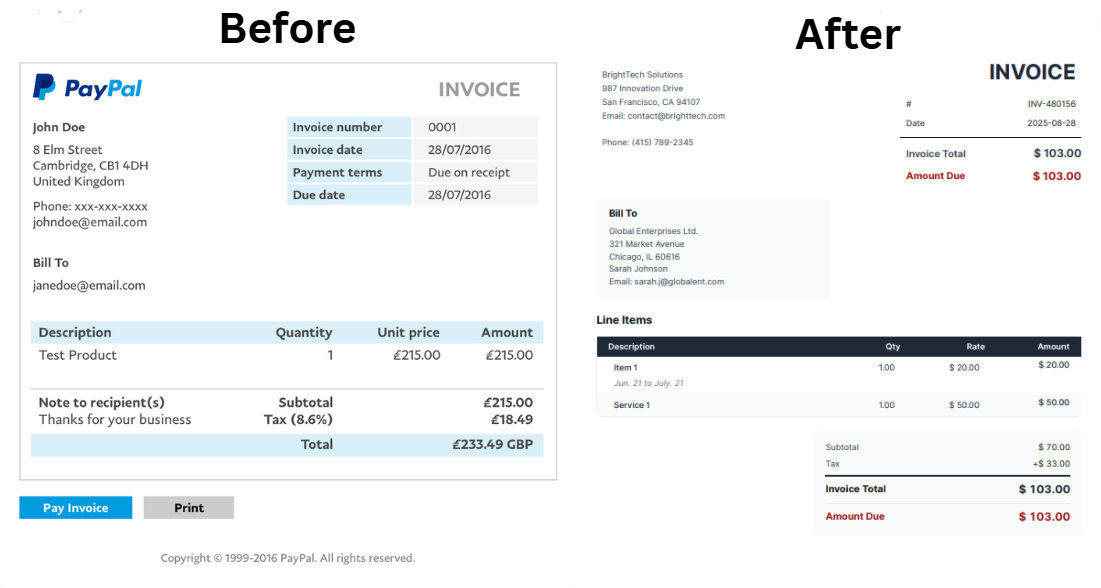
Creating Professional Invoices with Free Invoice Generator
If you’re new to creating invoices, all of this may seem a little overwhelming at first, especially if you’re managing a business and want to get your payments on time. I personally use Free Invoice Generator to simplify the entire process and save myself a lot of time. It allows me to create, customize, and even download a variety of polished invoice templates without any installation or sign-up. In this section, I’ll highlight some of the key features that make Free Invoice Generator an essential part of my workflow.
Features
Instant Usage: You don’t need to pay anything or make an account to start using its features.
Template Library: It offers a wide range of different styles and formats to choose from.
PDF Downloading: Download and send physical invoices directly to your customers.
Compatibility: Works seamlessly across all devices, even on smartphone devices.
If this Free Invoice Generator seems suitable for your work and invoicing needs, the process is really simple. I’ll walk you through each step myself so you don’t have to deal with any hassle.
Step 1: Visit the Free Invoice Generator on your web browser to get started.
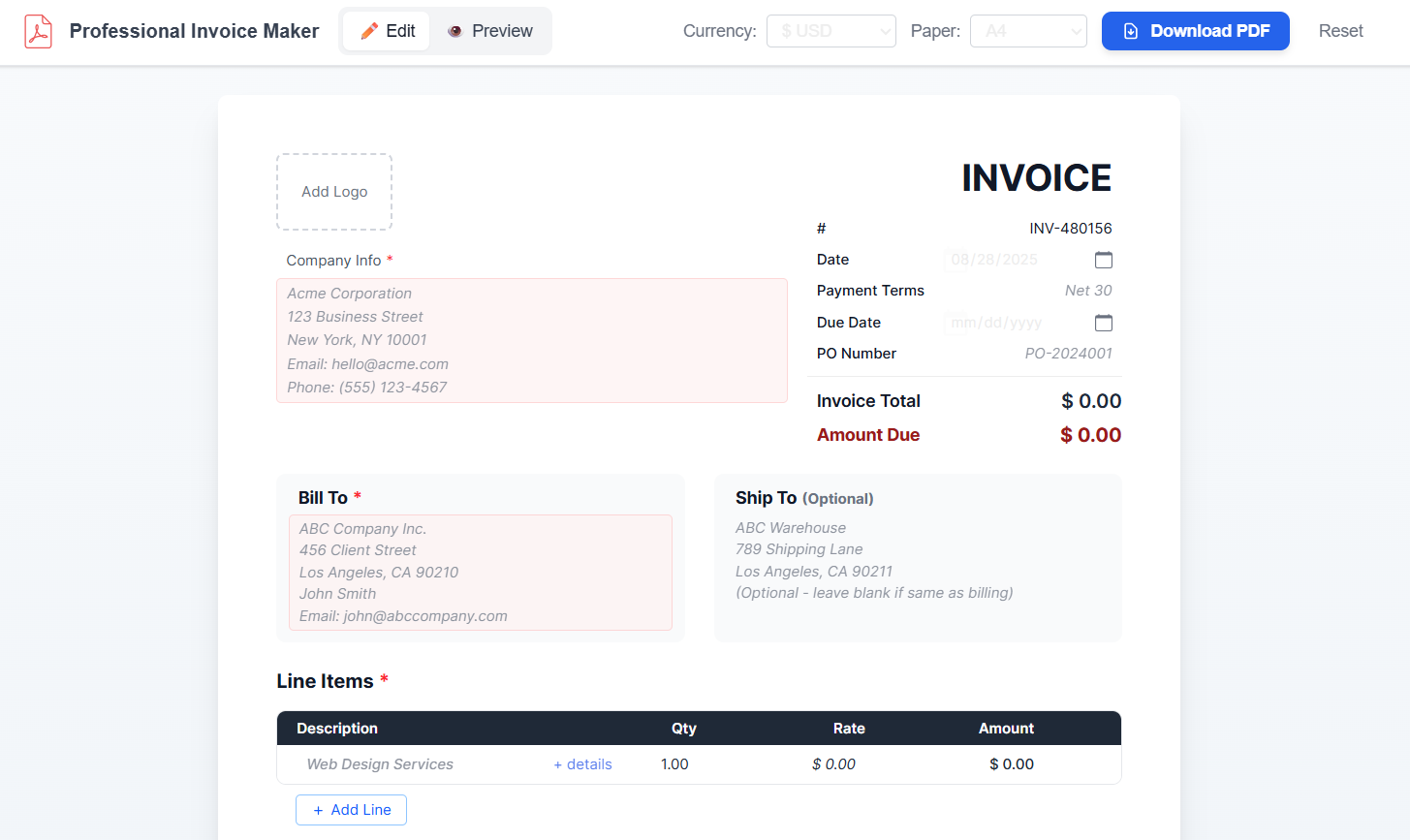
Step 2: Add in the details of your own business and the client in the given fields.

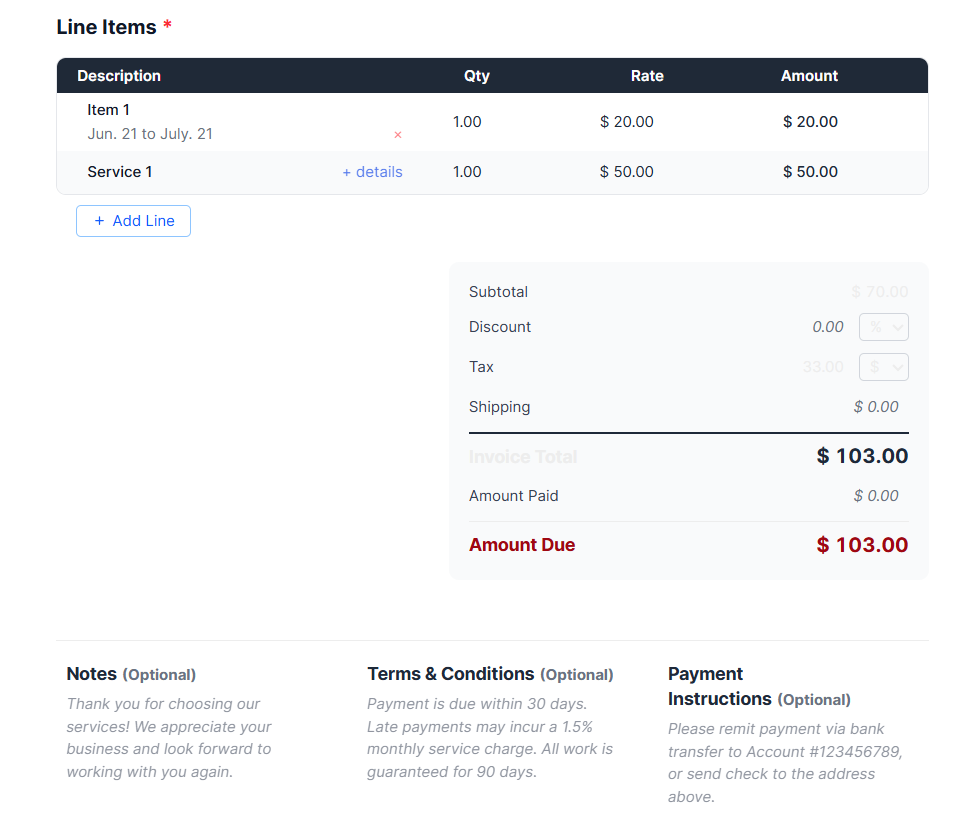
Step 3: Type your item details, taxes, and any other additional notes in your invoice.
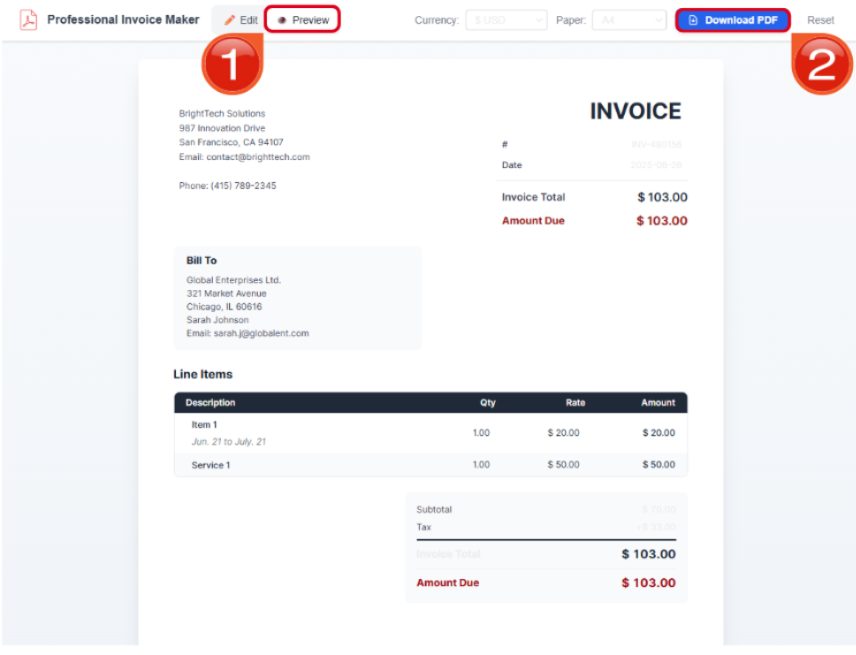
Step 4: Preview your invoice and ensure that all the details are correct. Once done, press Download PDF and send it to your.
FAQs
Q1: Can I send a PayPal invoice without a business account?
Yes, you can use the “Request Money” feature, but a business account offers more professional invoice templates and tools.
Q2: Are there fees for receiving payments via PayPal invoice?
Yes, PayPal charges a fee for receiving commercial payments. Check the latest fee structure on their website.
Q3: Is Free Invoice Generator really free?
Yes, it is completely free with no hidden fees or watermarks.
Q4: Can I edit a PayPal invoice after sending
it?
No, you cannot edit an invoice once it’s sent. You must cancel it and
create a new one.
Q5: Which tool is better for recurring
invoices?
PayPal supports recurring invoices for business accounts. Free Invoice
Generator is better for one-time, quick invoices.
Simplifying Invoice Creation
Invoices are an essential part of any business or general transactions, allowing you to manage your payments in an organized manner. But learning how do I send PayPal invoice can seem confusing. The process is incredibly simple and takes just a few simple steps. In this guide, I’ve covered everything you need to know about sending an invoice on PayPal, along with some common mistakes beginners make and how you can fix them.
Using Free Invoice Generator, I streamline the entire invoicing process and save myself from a lot of time and stress of manually formatting everything. It’s completely free and is incredibly reliable for all my invoicing needs, making it an ideal choice.


