How to Repost Instagram Videos on Instagram: A Comprehensive Guide [2026]
October 18, 2025650 views
0
Instagram is one of the top social media platforms, offering a space
for users to share their lives through posts, Stories, and Reels. While
Instagram didn’t initially have a “repost” feature, it has since
introduced several ways to share content across the platform. Whether
you’re looking to repost a funny video, a tutorial, or any content that
resonates with your followers, Instagram offers several options to do so
legally and without hassle.
In this guide, we’ll walk you through how to repost Instagram videos
to your feed, how to repost Instagram Reels, and share efficient tools
like Toolsmart’s Instagram Video Downloader to help you simplify the
process.
Part 1: Why Repost on
Instagram?
Before diving into how to repost Instagram videos, let’s first
understand why reposting is essential.
Share Interesting Content: Reposting allows you
to share content that resonates with both you and your audience. It's an
excellent way to showcase videos that are meaningful, motivational, or
entertaining.
Support Creators: By reposting videos from other
creators, you’re acknowledging their hard work. You also create a sense
of community by engaging with other content creators.
Boost Engagement: Reposting allows your
followers to discover new content, increasing engagement. It also gives
you the opportunity to provide your commentary, add value, and spark new
conversations around the content.
Reinforce Branding: For businesses and
influencers, reposting relevant content can strengthen your brand’s
voice, highlight collaborations, or showcase testimonials.
Extend Content’s Lifespan: Videos shared as
Stories last for 24 hours, but reposting them on your feed or as
highlights gives the content a longer lifespan and more
visibility.
Now that you understand the importance of reposting, let’s dive into
the various ways you can do so.
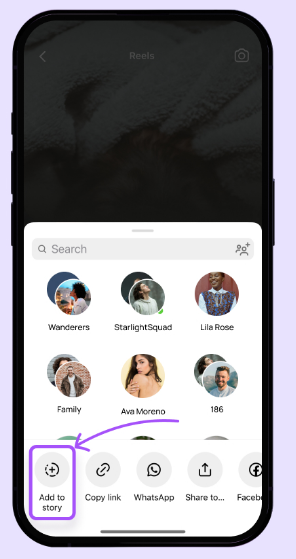
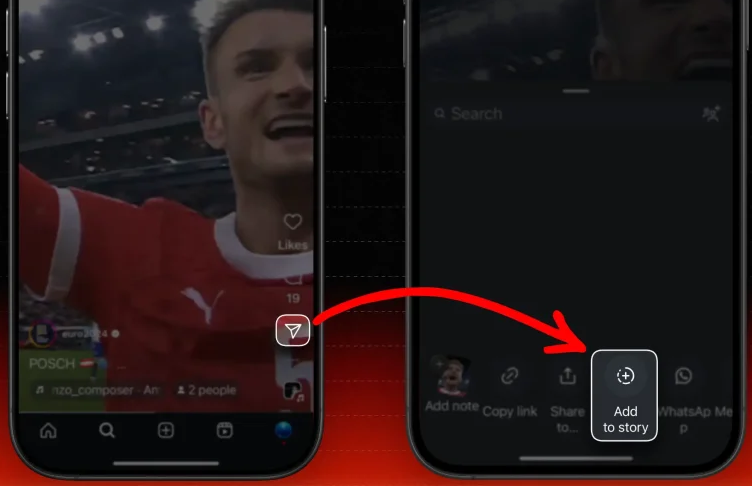
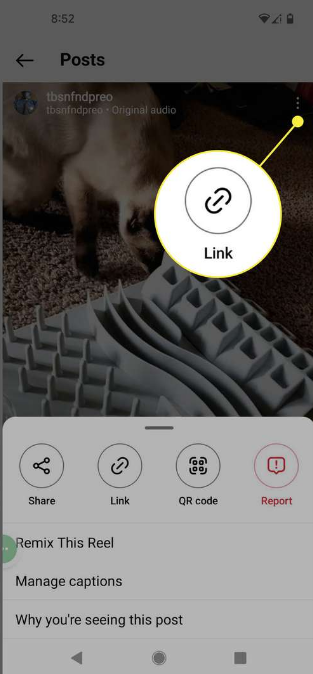
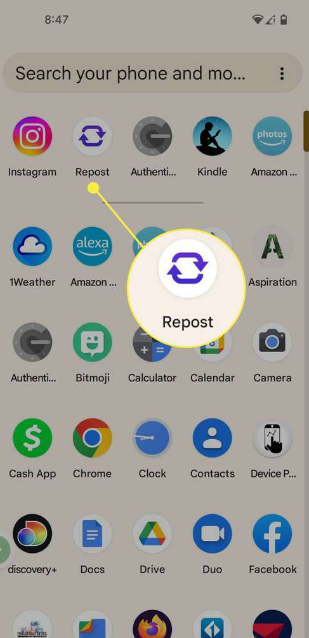
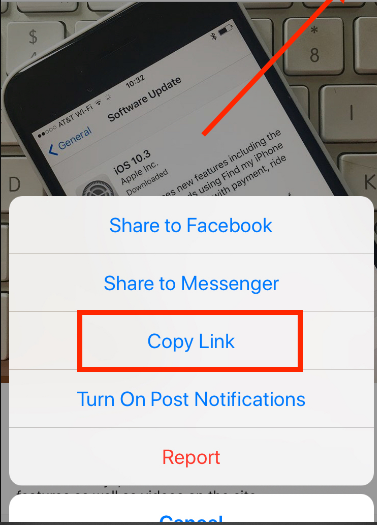
Image of Instagram Screenshots on how to repost Instagram Videos
Part 2:
How to Repost an Instagram Video on Instagram
Although Instagram doesn’t provide a native one-click repost button,
there are several methods you can use to repost videos on your feed and
stories.
Method 1: Using
Instagram’s Built-In Features
Instagram offers several built-in features for reposting content,
particularly through its Stories and Reels features.
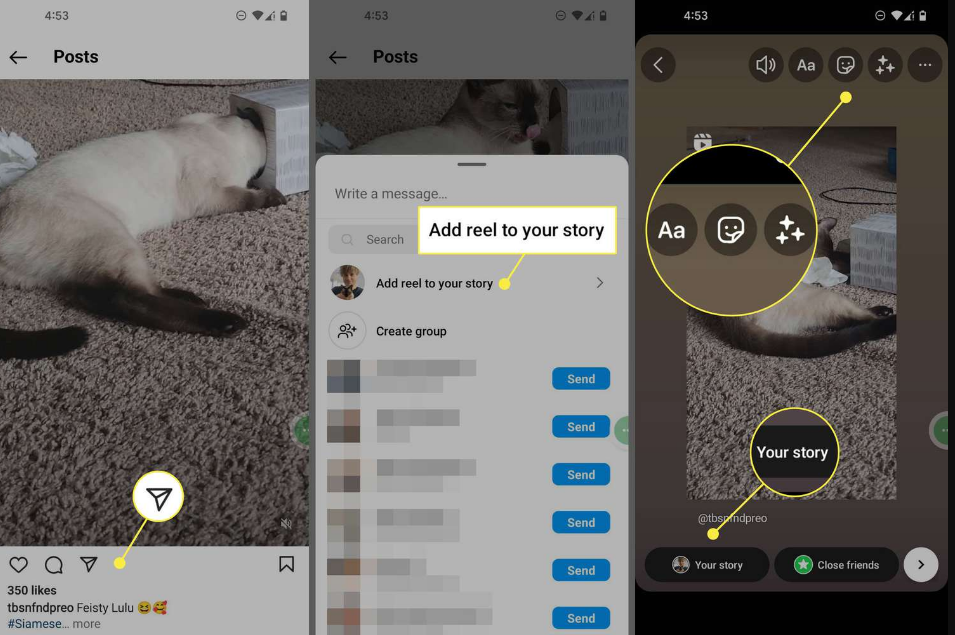
Reposting a Video to Your Story
Step 1: Find the video you want to repost on
Instagram.
Step 2: Press the paper airplane icon located
beneath the video.
Step 3: Choose "Add post to your
story."
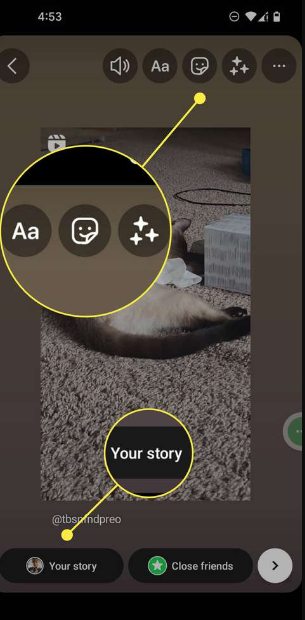
Step 4: Edit the story by adding text, stickers,
emojis, or tags. Be sure to mention the original creator by tagging them
in the post.
Step 5: Tap "Your
Story" to post it.
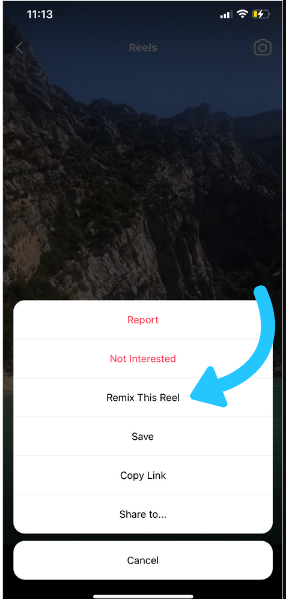
Reposting Instagram Reels
Step 1: Go to the Reels section and find the
video you want to repost.
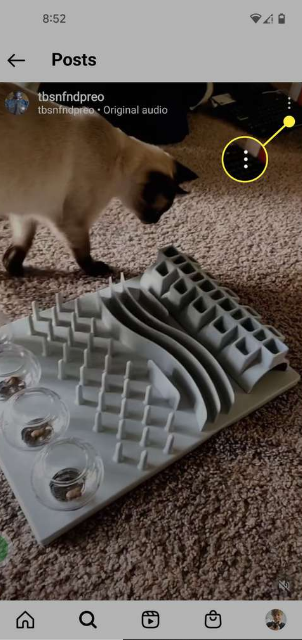
Step 2: Tap the “...” menu at
the bottom right of the video.
Step 3: Select “Remix this
Reel.”
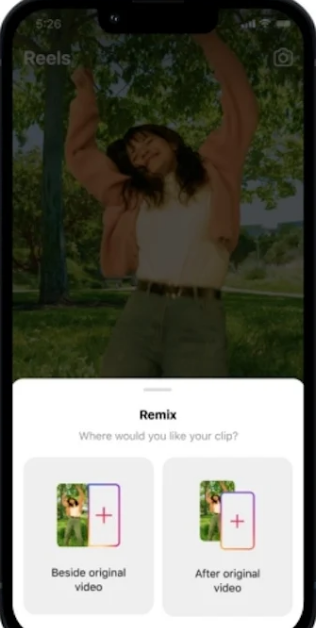
Step 4: Create your remix by adding your
personal touch, such as adding a video or reaction to the
original.
Step 5: Tap“Share” to publish the remix on your
feed.
Pros:
Easy to use with no third-party apps required.
Provides a way to credit the original creator.
Allows you to add your commentary or remix the content.
Cons:
Reposting can be limited to Stories and Reels.
There is no option to repost a video directly to your
feed.
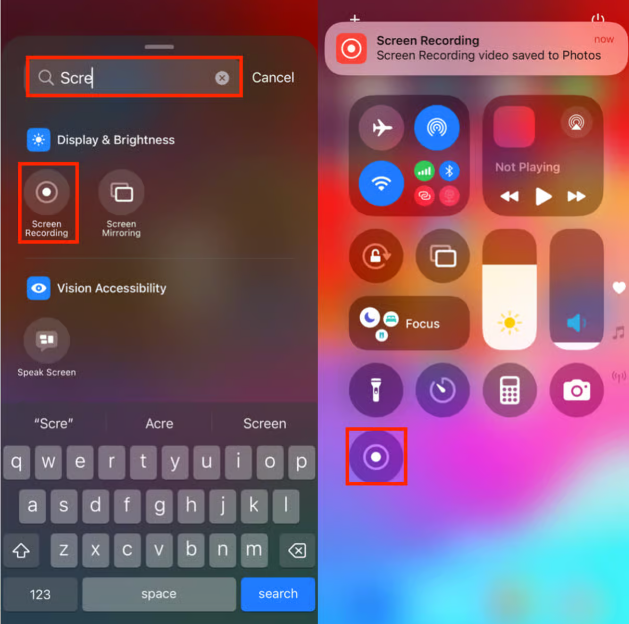
Another simple method for reposting videos on Instagram is screen
recording. While this approach requires a little more effort, it gives
you more control over the content.
How to Repost via Screen Recording:
Step 1: Find the video on Instagram you want to
repost.
Step 2: Open your phone's screen recording
feature
Step 3: Play the video and start
recording.
Step 4: After the recording is complete, stop
it, and edit the video by trimming unnecessary parts.
Step 5: Share the edited video on Instagram and
include a tag for the original creator in the caption.
Pros:
You can repost videos that aren’t available for remixing or
reposting through apps.
Gives you complete control over the video content.
Cons:
Quality may be lower than using a repost app.
Takes more time to edit the video for reposting.
Part
3: Best Instagram Video Download Helper: Toolsmart’s Instagram Video
Downloader
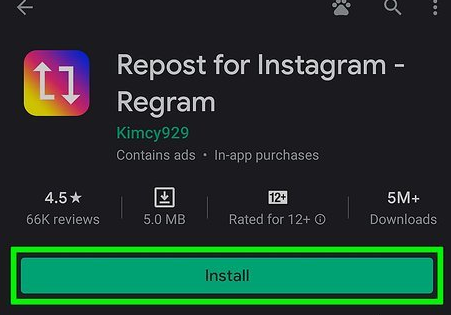
In the previous methods, we discussed how to repost Instagram videos
using both built-in features and third-party apps. But what if you could
streamline the process of reposting videos while maintaining
high-quality video? That’s where Toolsmart’s Instagram Video Downloader
comes into play.
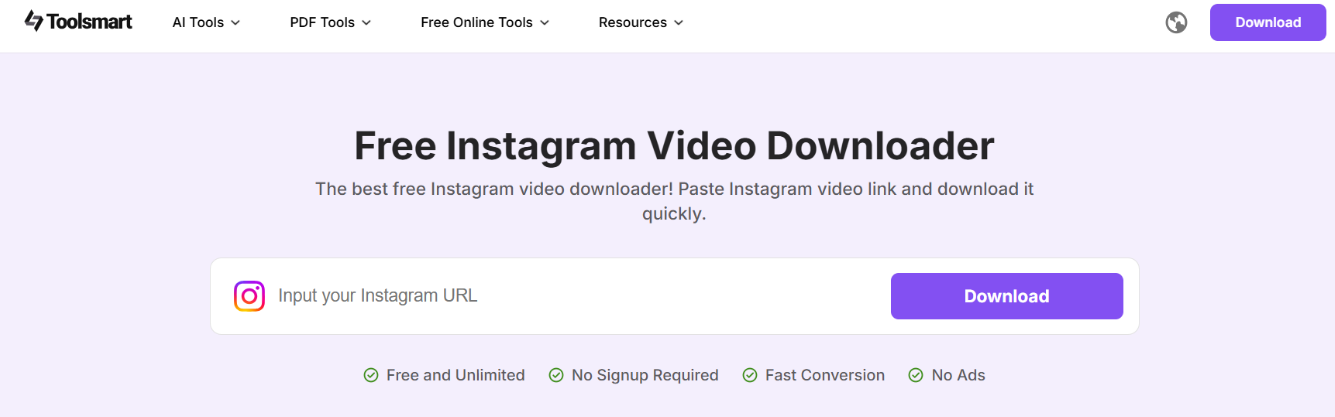
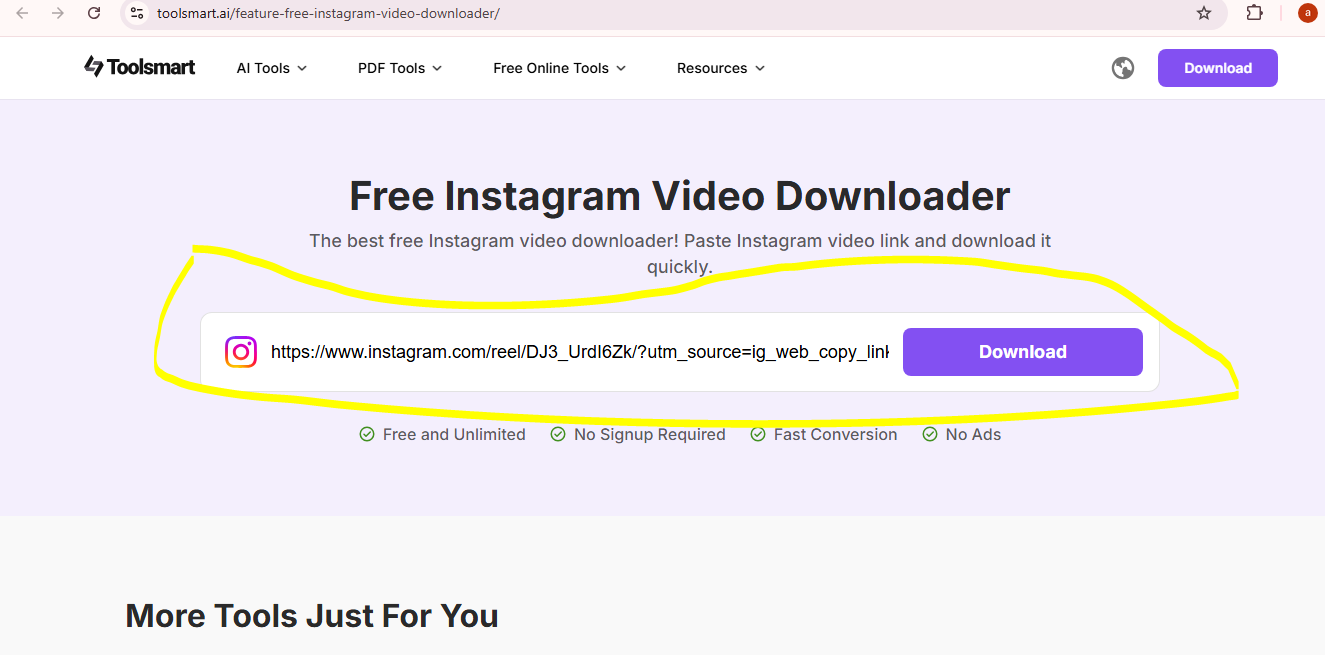
Image of Toolsmart Instagram Video Downloader
What is
Toolsmart’s Instagram Video Downloader?
Toolsmart’s Instagram Video Downloader is a user-friendly, web-based
tool that allows you to easily download and repost Instagram videos in
just a few steps.
Main Features:
Download Videos: Quickly download Instagram
videos to your device.
No Watermark: All downloaded content is
watermark-free.
High-Quality Downloads: Experience the highest
quality when reposting on your feed or story..
Easy to Use: Simply paste the video URL, and the
tool takes care of the rest.
Pros:
Fast and efficient video download process.
No need for other apps or complicated steps.
Download and repost videos with high quality.
Cons:
Limited to videos only, no photos supported.
How to Use Toolsmart’s Instagram Video
Downloader:
Visit Toolsmart’s Instagram Video Downloader page.
Copy the URL of the video you want to repost from
Instagram.
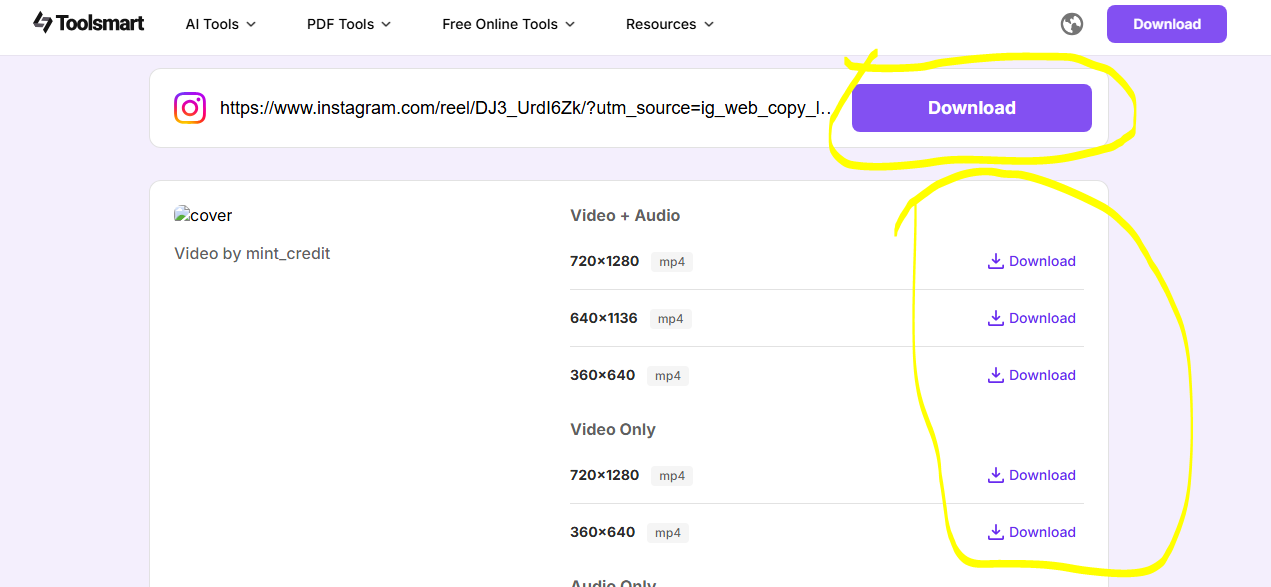
Paste the URL into the Toolsmart Downloader and press
Download.
Save the video to your device.
Open Instagram and upload the video as a new post.
Q1: How do I download videos using Toolsmart's Instagram
Video Downloader? No, all images downloaded with our tool are completely
watermark-free.
Q2: Is there any software I need to install when using
Toolsmart’s Instagram Video Downloader? No, the tool is web-based, which means you can use it directly
in your browser without the need to install any software.
Q3: Can I repost videos from private accounts? No, you need permission from the original creator to repost
content from private accounts.
Q4: Does Toolsmart support all video formats? Yes, Toolsmart supports various formats, ensuring the highest
quality for your downloads.
Summary
Reposting Instagram videos is an effective way to share engaging
content with your followers. Whether you use Instagram’s built-in
features, third-party apps, or screen recording, each method has its
benefits. Toolsmart’s Instagram Video Downloader is a great tool to
simplify the process and ensure high-quality reposting.
Start reposting today and take your Instagram engagement to the next
level!
I simplify tech—especially Office tools—so anyone can use it confidently. For 5+ years, I've created clear how-tos & guides to make tech feel easy, not overwhelming. Follow for practical tips!

'%3e%3cpath%20fill-rule='evenodd'%20clip-rule='evenodd'%20d='M19%208.5C24.799%208.5%2029.5%2013.201%2029.5%2019C29.5%2024.6782%2024.9928%2029.3036%2019.361%2029.4939L19%2029.5C18.8794%2029.5%2018.7592%2029.498%2018.6396%2029.4939L18.2811%2029.4758C12.8174%2029.1063%208.5%2024.5574%208.5%2019C8.5%2013.201%2013.201%208.5%2019%208.5ZM22.3063%2010.6267L22.2342%2010.6539C21.3423%2011.0061%2020.5541%2011.6368%2020.5606%2012.4987C20.5631%2012.8302%2020.869%2014.8871%2020.2141%2014.8486C19.5589%2014.8102%2019.413%2013.8753%2018.7116%2013.616C17.5944%2013.2026%2016.9819%2014.3401%2017.0939%2015.3106C17.1695%2015.9655%2018.9289%2018.3871%2017.9028%2019C17.292%2019.3651%2015.7279%2017.5692%2015.1007%2017.1842C14.4805%2016.8034%2013.2758%2017.3333%2012.4974%2016.7029C11.9874%2016.2899%2012.3881%2014.4098%2012.2786%2013.8372C12.2271%2013.5698%2012.1155%2013.3689%2011.9794%2013.2166L12.0402%2013.2934C10.7653%2014.8464%2010%2016.8339%2010%2019C10%2023.8465%2013.8307%2027.7982%2018.6295%2027.9925L18.6769%2027.9747C18.8597%2027.8677%2019.0394%2027.7557%2019.216%2027.6387C19.4137%2027.4534%2019.5436%2027.2072%2019.5849%2026.9394C19.8806%2025.1222%2018.3616%2025.4302%2017.9367%2024.5622C17.5489%2023.7695%2018.5712%2023.7684%2018.5524%2021.7923C18.4607%2021.1774%2018.5279%2020.547%2018.7211%2020.0315C19.1834%2018.7987%2020.7077%2017.2643%2022.5889%2018.0081C23.5567%2018.3906%2023.1524%2019.9831%2023.4737%2020.3394C24.251%2021.2018%2025.3228%2020.6863%2026.2856%2021.2253C26.7816%2021.5032%2026.9797%2022.41%2027.056%2023.2248L27.038%2023.0528C27.6534%2021.8348%2028%2020.4579%2028%2019C28%2015.1968%2025.6409%2011.9445%2022.3063%2010.6267Z'%20fill='%23757575'/%3e%3ccircle%20cx='19'%20cy='19'%20r='10.125'%20stroke='%23757575'%20stroke-width='2.25'/%3e%3c/g%3e%3cdefs%3e%3cclipPath%20id='clip0_1827_14613'%3e%3crect%20width='24'%20height='24'%20fill='white'%20transform='translate(7%207)'/%3e%3c/clipPath%3e%3c/defs%3e%3c/svg%3e)