
'%3e%3cpath%20fill-rule='evenodd'%20clip-rule='evenodd'%20d='M19%208.5C24.799%208.5%2029.5%2013.201%2029.5%2019C29.5%2024.6782%2024.9928%2029.3036%2019.361%2029.4939L19%2029.5C18.8794%2029.5%2018.7592%2029.498%2018.6396%2029.4939L18.2811%2029.4758C12.8174%2029.1063%208.5%2024.5574%208.5%2019C8.5%2013.201%2013.201%208.5%2019%208.5ZM22.3063%2010.6267L22.2342%2010.6539C21.3423%2011.0061%2020.5541%2011.6368%2020.5606%2012.4987C20.5631%2012.8302%2020.869%2014.8871%2020.2141%2014.8486C19.5589%2014.8102%2019.413%2013.8753%2018.7116%2013.616C17.5944%2013.2026%2016.9819%2014.3401%2017.0939%2015.3106C17.1695%2015.9655%2018.9289%2018.3871%2017.9028%2019C17.292%2019.3651%2015.7279%2017.5692%2015.1007%2017.1842C14.4805%2016.8034%2013.2758%2017.3333%2012.4974%2016.7029C11.9874%2016.2899%2012.3881%2014.4098%2012.2786%2013.8372C12.2271%2013.5698%2012.1155%2013.3689%2011.9794%2013.2166L12.0402%2013.2934C10.7653%2014.8464%2010%2016.8339%2010%2019C10%2023.8465%2013.8307%2027.7982%2018.6295%2027.9925L18.6769%2027.9747C18.8597%2027.8677%2019.0394%2027.7557%2019.216%2027.6387C19.4137%2027.4534%2019.5436%2027.2072%2019.5849%2026.9394C19.8806%2025.1222%2018.3616%2025.4302%2017.9367%2024.5622C17.5489%2023.7695%2018.5712%2023.7684%2018.5524%2021.7923C18.4607%2021.1774%2018.5279%2020.547%2018.7211%2020.0315C19.1834%2018.7987%2020.7077%2017.2643%2022.5889%2018.0081C23.5567%2018.3906%2023.1524%2019.9831%2023.4737%2020.3394C24.251%2021.2018%2025.3228%2020.6863%2026.2856%2021.2253C26.7816%2021.5032%2026.9797%2022.41%2027.056%2023.2248L27.038%2023.0528C27.6534%2021.8348%2028%2020.4579%2028%2019C28%2015.1968%2025.6409%2011.9445%2022.3063%2010.6267Z'%20fill='%23757575'/%3e%3ccircle%20cx='19'%20cy='19'%20r='10.125'%20stroke='%23757575'%20stroke-width='2.25'/%3e%3c/g%3e%3cdefs%3e%3cclipPath%20id='clip0_1827_14613'%3e%3crect%20width='24'%20height='24'%20fill='white'%20transform='translate(7%207)'/%3e%3c/clipPath%3e%3c/defs%3e%3c/svg%3e)


A floating chatbox can look awkward and make your Streamlabs stream look cluttered and unclean, which can be an annoying distraction for viewers trying to watch you. Dragging it to the corner shrinks the rest of your content, and deleting it kills all stream interaction. So, how can you hide the chat window without messing up the layout? In this guide, I’ll be showing you how to minimize chat in Streamlabs so you can keep your audience engaged.
Why Chat Management Matters in Streamlabs
The chat window is an essential part of every Streamlabs stream, serving as the core of audience interaction and connecting the viewers with the streamer. However, when the chat is too active, the screen can look cluttered, which greatly disrupts the layout of my streams.
This is why it’s essential to minimize your chat window and optimize your stream interface to provide an enjoyable viewing experience for your audience. In this guide, I’ll be providing you with detailed steps to help you figure out how to minimize chat in Streamlabs OBSwhile streaming.
Step-by-Step: How to Minimize Chat in Streamlabs
If you’re a new streamer trying to figure out how to hide chat box in Streamlabs without deleting it, everything may seem confusing at first, and I know how stressful it can get. However, the processis incredibly simple, and once you know the steps you need to follow, it’s incredibly straightforward. In this section, I’ll be providing you with a detailed walkthrough of the core operation guide to eliminate any confusion you might have.
Method 1: Collapse the Dock
Collapsing the dock is the most straightforward way to minimize your chat and save yourself on screen real estate. It’s the perfect option for those who want a simple, quick way to hide the chat and unhide it whenever they need it again. I’ll walk you through the steps to hide your chat by collapsing the entire dock.
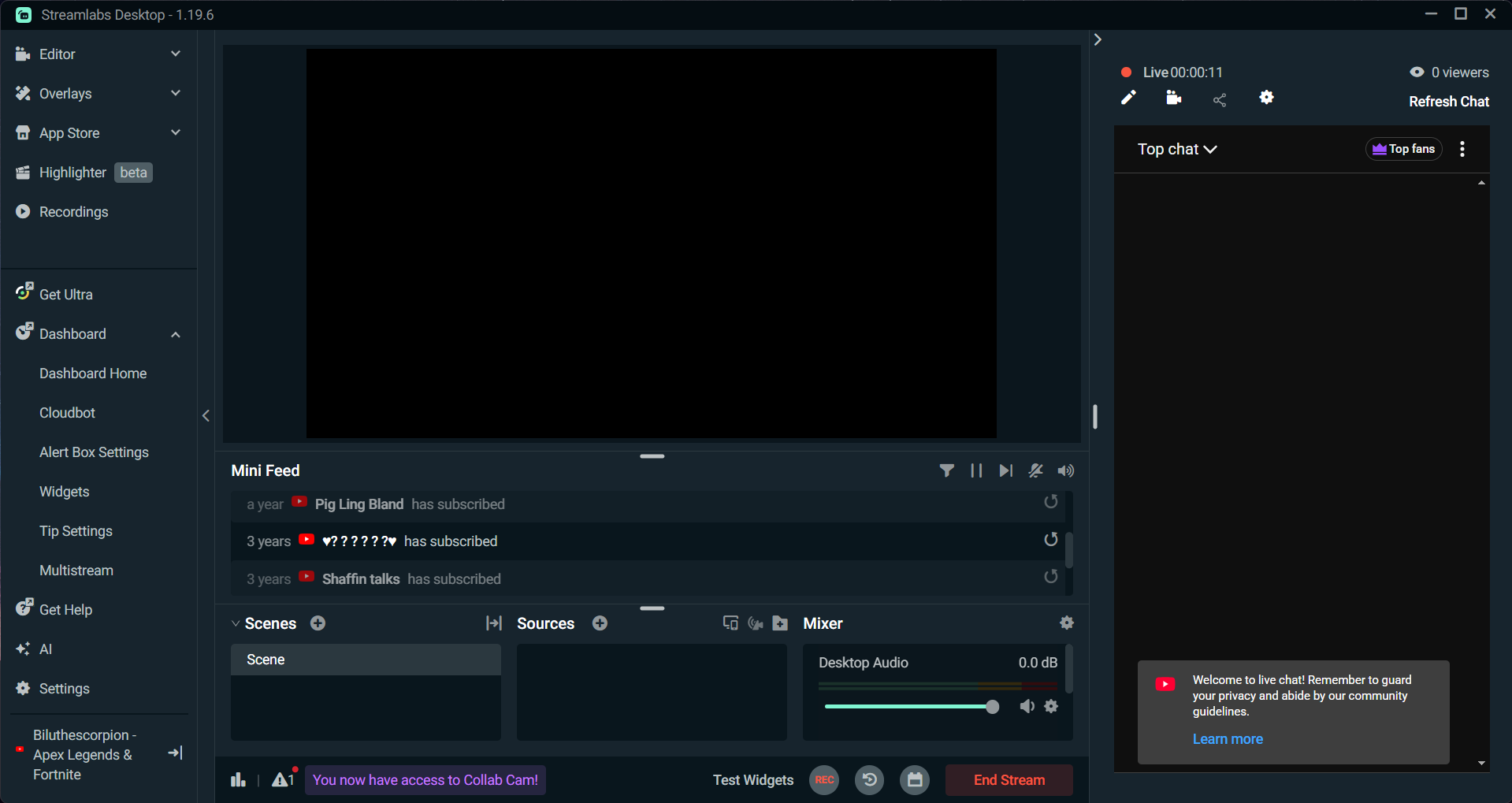
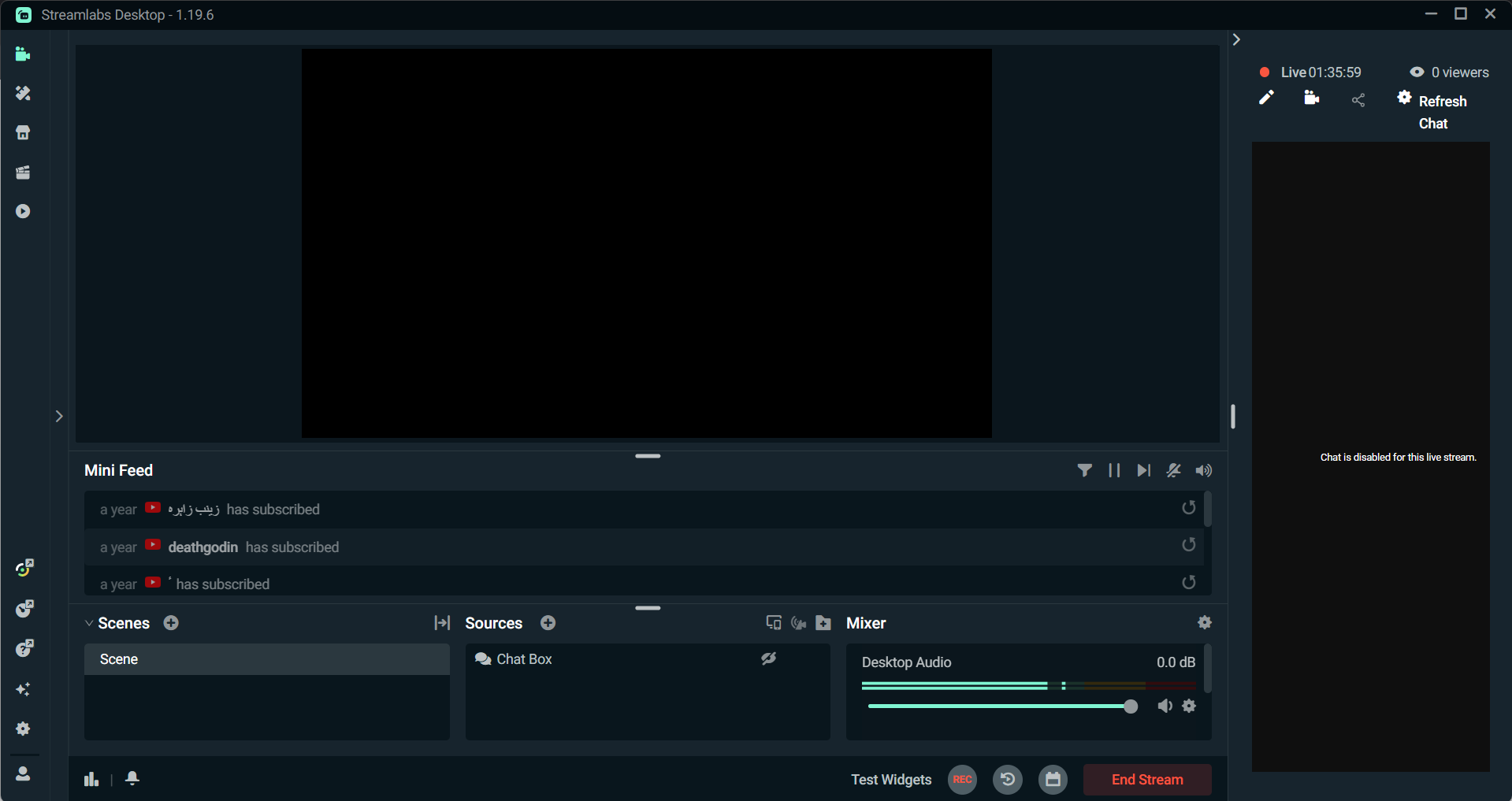
Step 1: Open Streamlabs Desktop and start streaming so the chat layout appears on the screen.
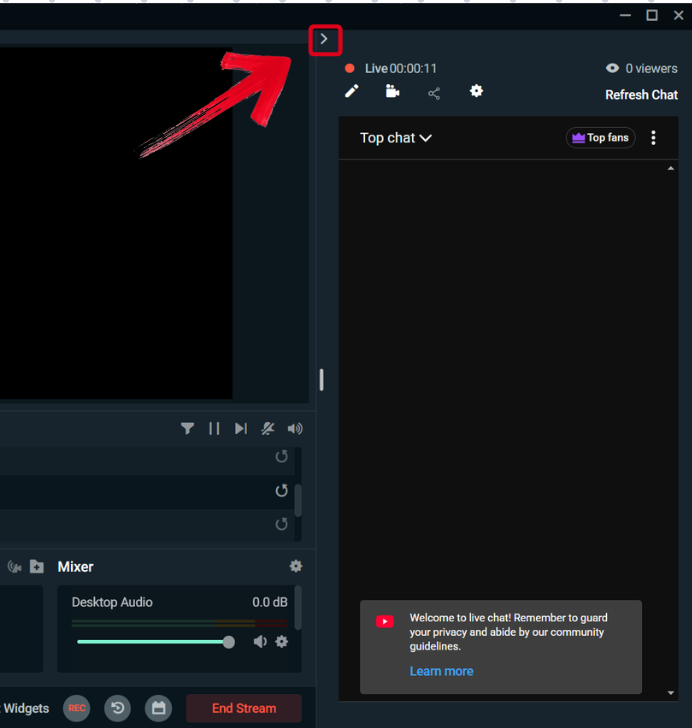
Step 2: Press the minimize arrow in the top-left corner of the chat window to remove it from your stream interface.
Method 2: Auto-hide on Hover
If you want more control over your chat window’s appearance, you can use the resizing feature to adjust it however you like. I’ll walk you through the entire steps, along with providing a quicker alternative you can use to save time.
Step 1: Hover your cursor to the dock’s edges until the resize icon appears.
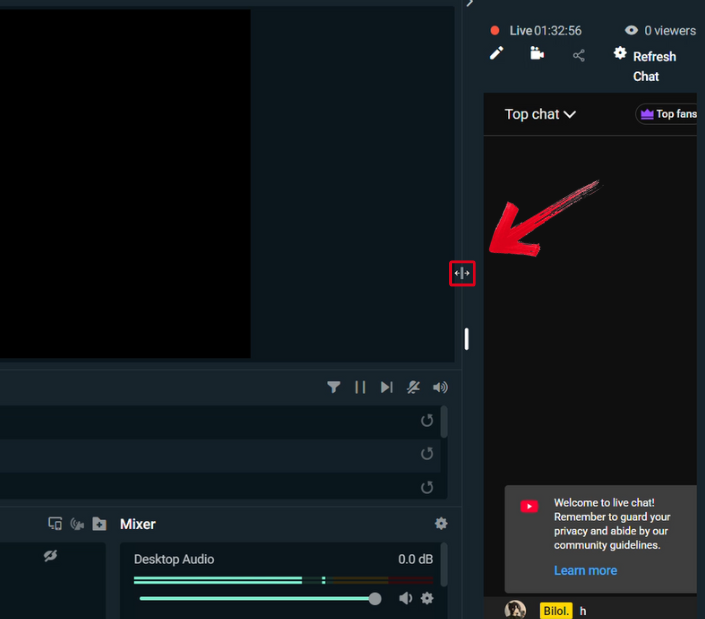
Step 2: Drag the dock’s edge until the chat window is minimized to the size you want.
Step 3: You can also go into the three-dot menu and select Dock to Sidebar so the window becomes a slim panel on one side of your screen.
Note: This step only works for certain Streamlabs versions and may not work for you.
Method 3: Global Hotkey
If you want to quickly minimize your chat dock without having to use your mouse to drag it or press the minimize button, you can use a global hotkey to simplify your interface with just a single keypress. I’ve highlighted each step you need to follow down below so you don’t have to worry about figuring anything out by yourself.
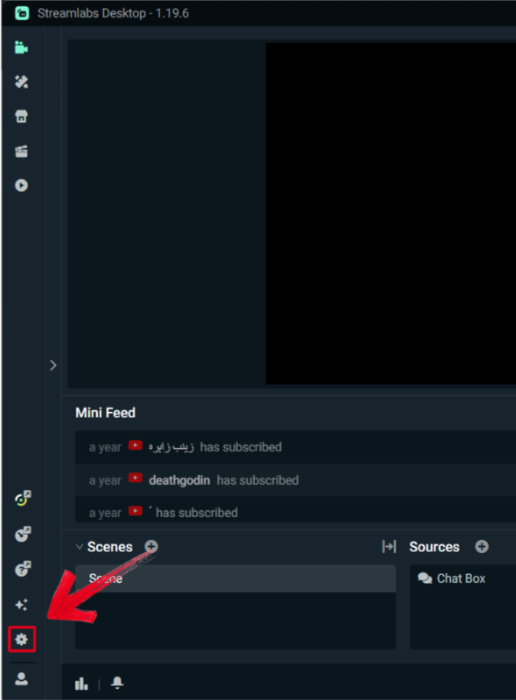
Step 1: Press the Settings icon located in the bottom-left corner of your screen.
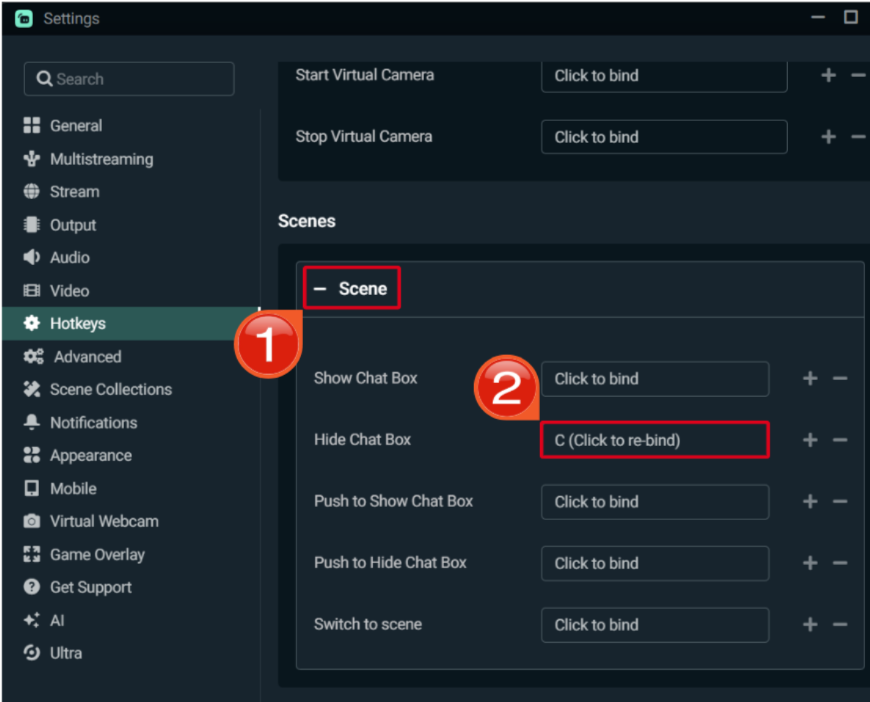
Step 2: In the Hotkeys tab, press the Scene dropdown and select Hide Chat Box. Press any key you want to bind your shortcut to.
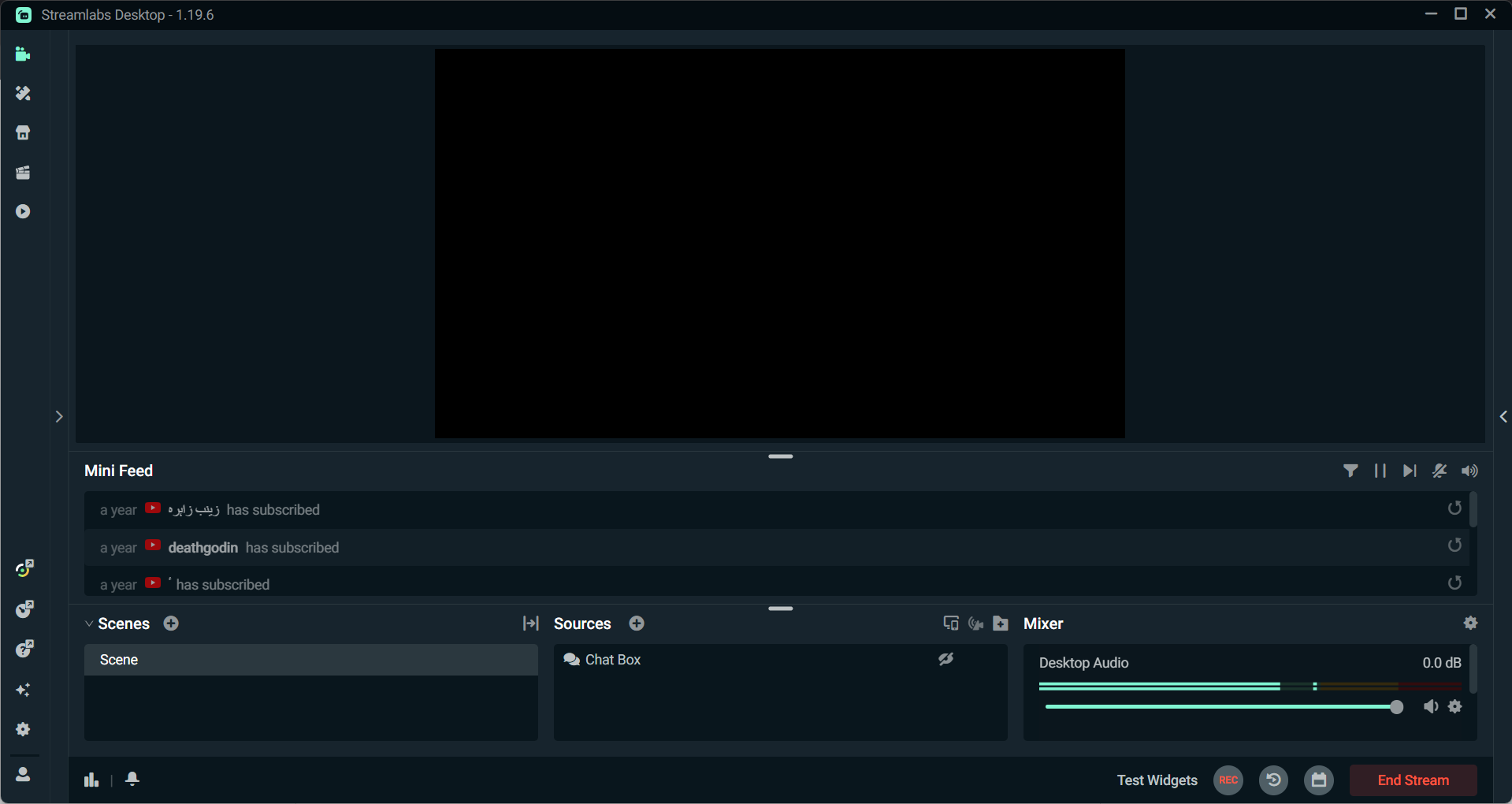
Step 3: Press your newly assigned keyboard shortcut to minimize your chat window.
Beyond Chat: Enhancing Stream Content with Pre-Recorded Clips
Once you’ve optimized your chat window, your live stream interface will immediately become cleaner and polished. Now you can further enhance your content creation by adding pre-recorded materials to your channel, such as highlight clips or even some background music. To add such content, you need to download media to your local device to ensure smooth and hassle-free accessduring your streams, making sure there are no disruptions caused by network issues. This is where a reliable video downloader becomes essential.
Choose the Best Video Downloader to Fit Your Streaming Workflow
If you’re a creator like me who needs to source content for your streams, it can be very stressful as sites like YouTube have no support for local exports for their content. This is where reliable tools likeToolsmart’s YouTube Video Downloader emerge as an ideal choice. It’s a highly efficient solution for downloading high-quality videos from YouTube in just a few simple and easy steps. Once you’ve downloaded them, you can simply import the videos into Streamlabs to add depth and variety to your content with ease.
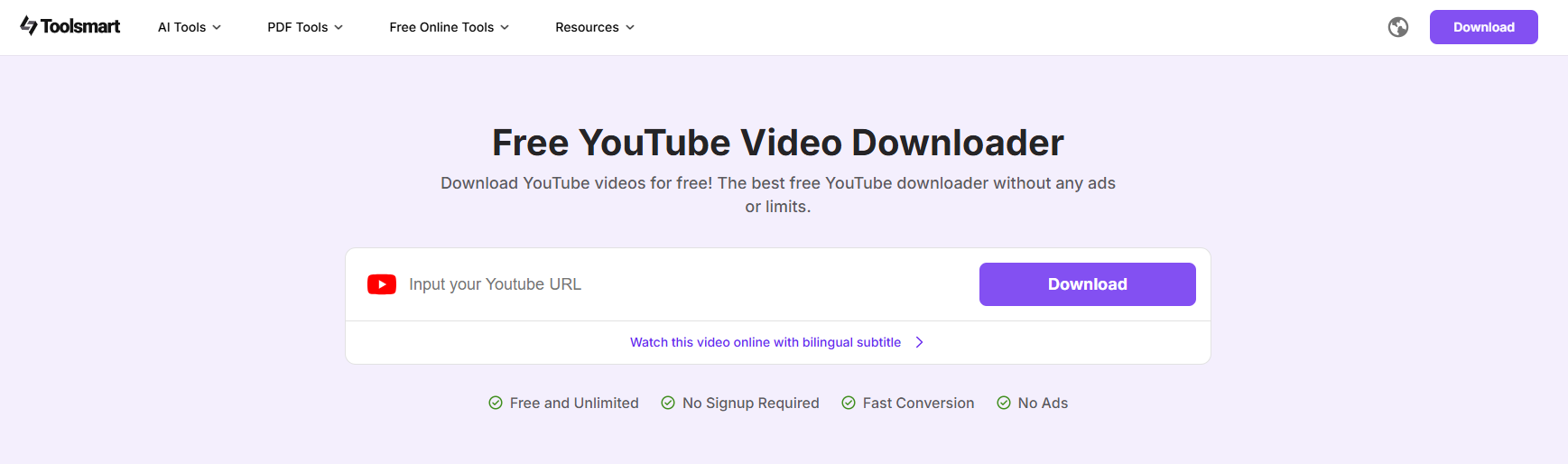
Features
100% Free - No watermarks, no hidden fees.
One-Click Download - Easy and quick to use.
High Resolution Support - Supports up to 4K resolution for detailed video downloads.
Multiple Format Options - Download videos in various formats, including MP4, MKV, and more.
Ad-Free Experience - No ads or pop-ups during the download process.
Bonus Tips: More AI Tools with Toolsmart
Whether you’re a professional looking for efficient and reliable AI-powered tools to elevate your workflow, or just a student trying to save time on your work with smart assistance, Toolsmart is my personal recommendation for all your productivity needs. Besides the highly efficient YouTube video downloader, it features a wide variety of tools to help you be more productive and efficient with your work. In this section, I’ll be highlighting just some of the countless tools offered by Toolsmart to help you decide if it’s the right addition to your workflow.
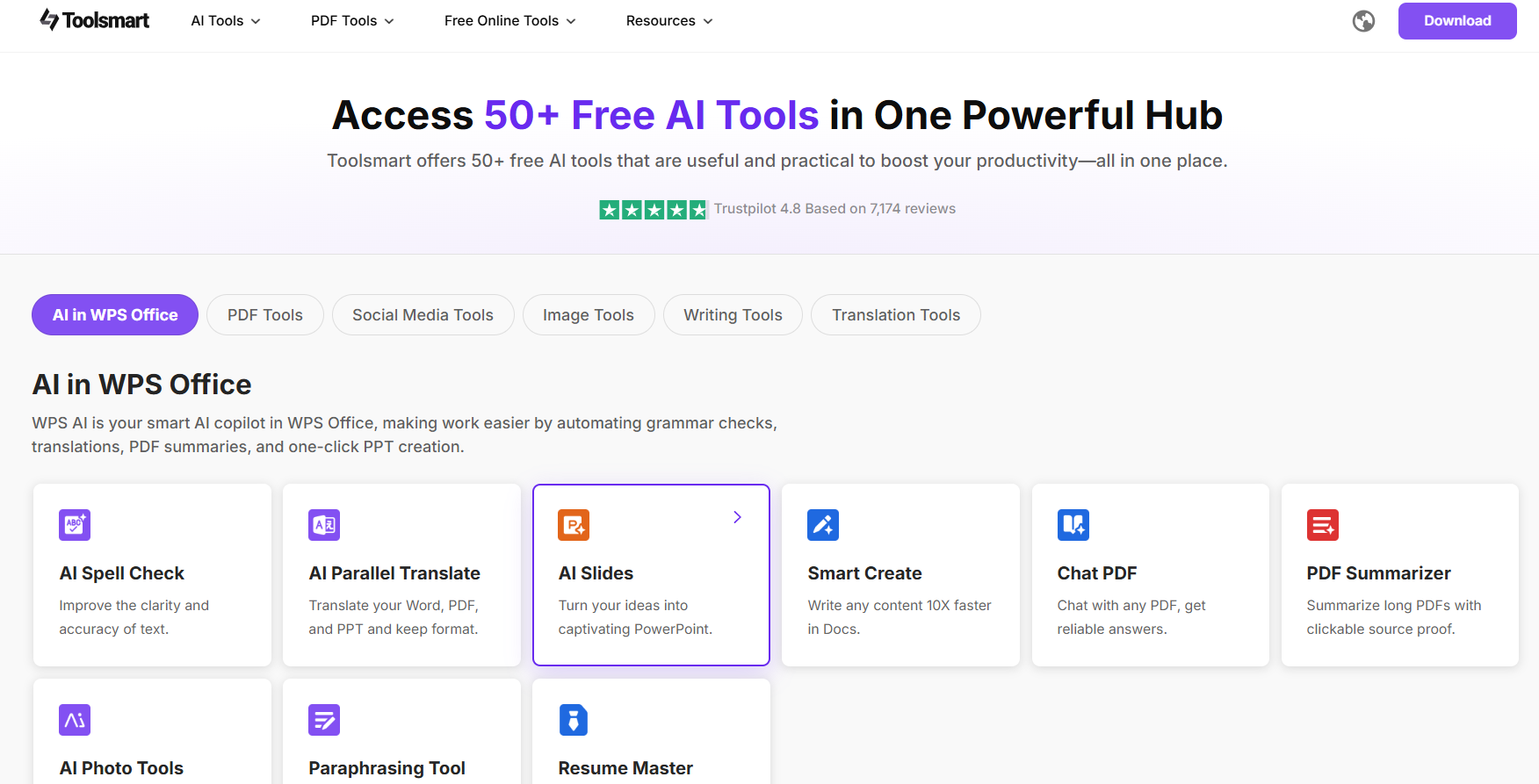
Tools
Free ImageEnhancer
Free Plot Generator tools
text style conversion
Output of text in nine different writing styles
Document format conversions (Word, Excel, PPT, PDF)
A rich collection of free, ad-free online services
FAQs
Q1. How can I still keep track of viewer interactions after minimizing the chat interface?
Even after minimizing, you can quickly bring up the full chat interface using a custom shortcut (e.g., Alt+C), so real-time interactions won’t be disrupted.
Q2. Is Toolsmart’s YouTube Video Downloader free to use?
Yes, the YouTube Video Downloader is completely free to use. You can download as many videos as you need without worrying about any hidden charges.
Q3. Is there a maximum length for YouTube video downloads with this tool?
There is no specific limit, but extremely long videos might take more time to download, depending on your internet speed.
Q4. Can YouTube Video Downloader extract audio?
It can extract audio from already-downloaded YouTube videos directly to MP3, AAC, and other formats, but this feature requires a WPS subscription and works only on local files; it cannot parse YouTube URLs directly.
Optimizing Your Stream Interface
Figuring out how to minimize chat in Streamlabs can feel very confusing to beginners, especially if you haven’t messed around with your chat window before. In this guide, I’ve covered all the steps you need to follow to optimize your stream window and make it look clean and polished for your viewers. You can further enhance your streams by exporting additional media using Toolsmart’s YouTube Video Downloader. It’s free and incredibly simple to use, making sure you can download any video you want in just a few simple steps.


