
'%3e%3cpath%20fill-rule='evenodd'%20clip-rule='evenodd'%20d='M19%208.5C24.799%208.5%2029.5%2013.201%2029.5%2019C29.5%2024.6782%2024.9928%2029.3036%2019.361%2029.4939L19%2029.5C18.8794%2029.5%2018.7592%2029.498%2018.6396%2029.4939L18.2811%2029.4758C12.8174%2029.1063%208.5%2024.5574%208.5%2019C8.5%2013.201%2013.201%208.5%2019%208.5ZM22.3063%2010.6267L22.2342%2010.6539C21.3423%2011.0061%2020.5541%2011.6368%2020.5606%2012.4987C20.5631%2012.8302%2020.869%2014.8871%2020.2141%2014.8486C19.5589%2014.8102%2019.413%2013.8753%2018.7116%2013.616C17.5944%2013.2026%2016.9819%2014.3401%2017.0939%2015.3106C17.1695%2015.9655%2018.9289%2018.3871%2017.9028%2019C17.292%2019.3651%2015.7279%2017.5692%2015.1007%2017.1842C14.4805%2016.8034%2013.2758%2017.3333%2012.4974%2016.7029C11.9874%2016.2899%2012.3881%2014.4098%2012.2786%2013.8372C12.2271%2013.5698%2012.1155%2013.3689%2011.9794%2013.2166L12.0402%2013.2934C10.7653%2014.8464%2010%2016.8339%2010%2019C10%2023.8465%2013.8307%2027.7982%2018.6295%2027.9925L18.6769%2027.9747C18.8597%2027.8677%2019.0394%2027.7557%2019.216%2027.6387C19.4137%2027.4534%2019.5436%2027.2072%2019.5849%2026.9394C19.8806%2025.1222%2018.3616%2025.4302%2017.9367%2024.5622C17.5489%2023.7695%2018.5712%2023.7684%2018.5524%2021.7923C18.4607%2021.1774%2018.5279%2020.547%2018.7211%2020.0315C19.1834%2018.7987%2020.7077%2017.2643%2022.5889%2018.0081C23.5567%2018.3906%2023.1524%2019.9831%2023.4737%2020.3394C24.251%2021.2018%2025.3228%2020.6863%2026.2856%2021.2253C26.7816%2021.5032%2026.9797%2022.41%2027.056%2023.2248L27.038%2023.0528C27.6534%2021.8348%2028%2020.4579%2028%2019C28%2015.1968%2025.6409%2011.9445%2022.3063%2010.6267Z'%20fill='%23757575'/%3e%3ccircle%20cx='19'%20cy='19'%20r='10.125'%20stroke='%23757575'%20stroke-width='2.25'/%3e%3c/g%3e%3cdefs%3e%3cclipPath%20id='clip0_1827_14613'%3e%3crect%20width='24'%20height='24'%20fill='white'%20transform='translate(7%207)'/%3e%3c/clipPath%3e%3c/defs%3e%3c/svg%3e)


Creating a new GIF can feel complicated. Most people end up with a blurry GIF that doesn't loop right, or worse, make a perfect one only to hit an upload limit. This is where a clear process to make a GIF on Giphy becomes essential. This guide walks you through every click, from uploading and trimming to captioning. We'll help you create and share your first loop-perfect GIF right now.
How to Make a GIF on Giphy
You’ve probably wondered how the high-quality GIFsthat everyone shares are actually created. Beginners usually get stuck right at the upload stage, but turning clips into these short animatedloops is easier than you'd think. The process is simple, whether you're starting with a video file, a YouTube link, or a photo on your phone.
How to Make a GIF on iPhone
Your iPhone has a built-in feature that's perfect for this, called Live Photos. You might not even realize it, but you've probably been capturing GIF-ready moments all along. This method is fantastic because it doesn't even require the Giphy app, because you can do it right from your cameraroll. Here’s how to create GIF on your iPhone.
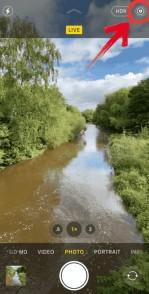
Step 1: First, open your Camera app and then tap the round circle icon in the top right corner to activate the live feature on your photos.
Step 2: Now, just take a live photo of the person, pet, or scene you want to turn into a GIF.
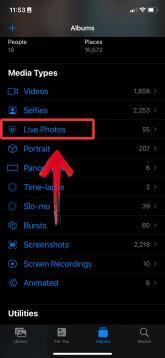
Step 3: Next, open your Photos app. To find your image, you can scroll down and tap on the Live Photos album.
Step 4: Select the photo that you want to turn into a GIF.
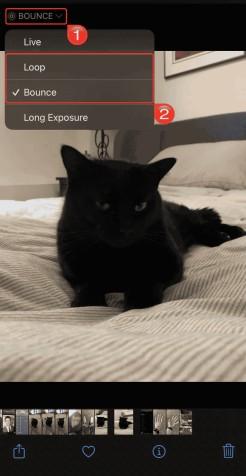
Step 5: Once the photo is open, tap the word Live in the top-left corner to see a drop-down. Then click Loop or Bounce to turn your live image into a GIF.
Note: On older versions, you just need to swipe up on the photo to reveal the same menu.
How To Make a GIF on Desktop
This is the most common and powerful method. Using the Giphy Upload website on your desktop gives you the most control over trimming your clip and adding complex captions. This is the best choice when you have a video file, like an MP4 or MOV, saved on your computer that you want to turn into a high-quality, precise GIF.
Step 1: First, head on over to the Giphy website.
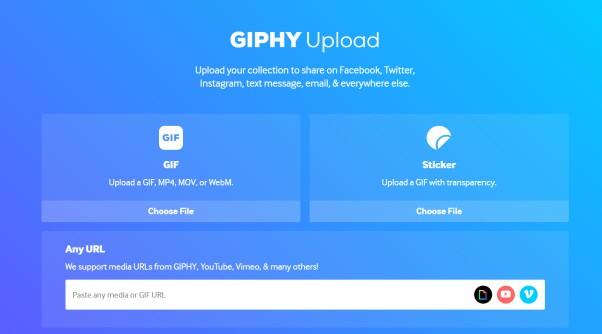
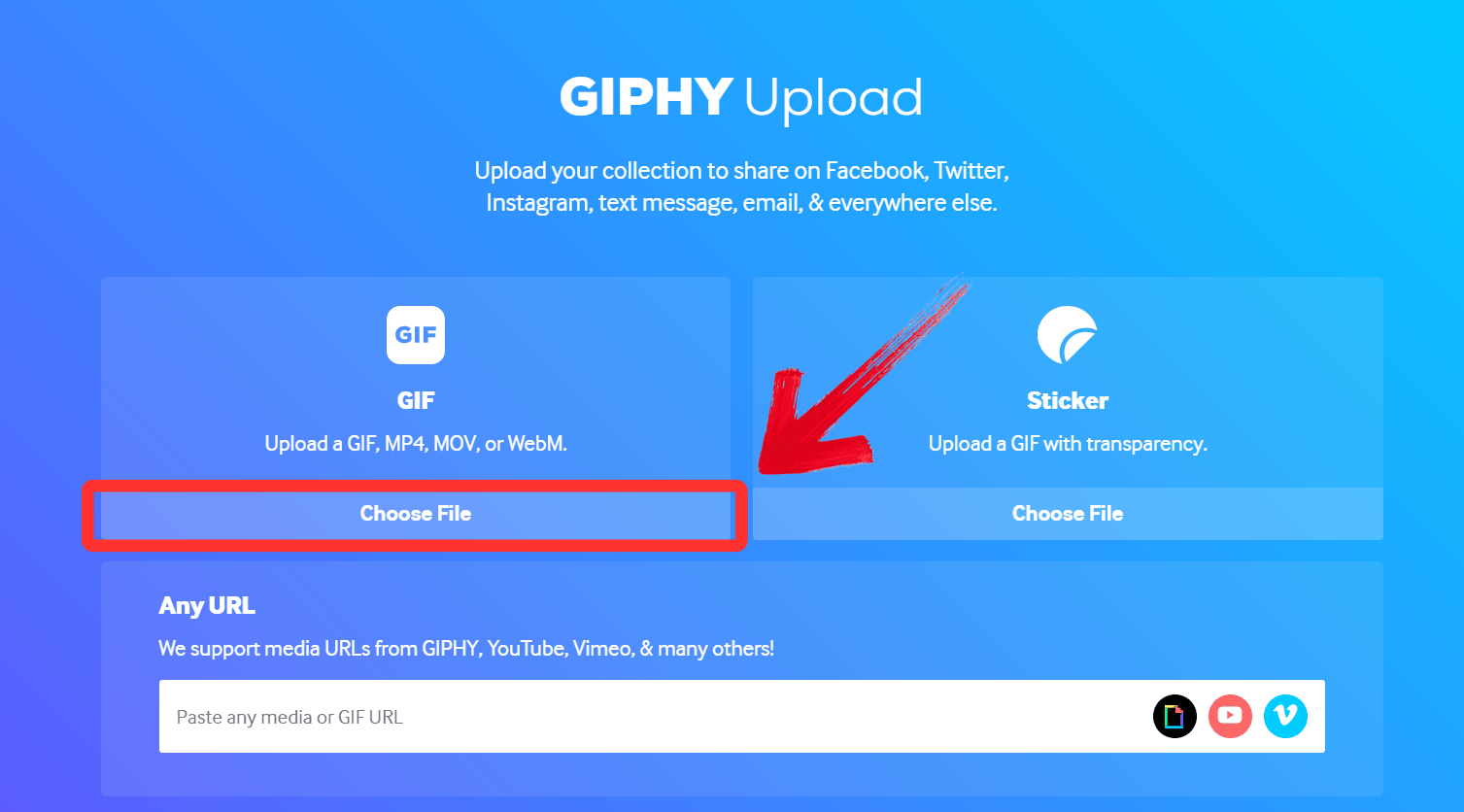
Step 2: Then, upload your file by dragging and dropping your file onto the screen or by clicking the ‘Choose File’ button.
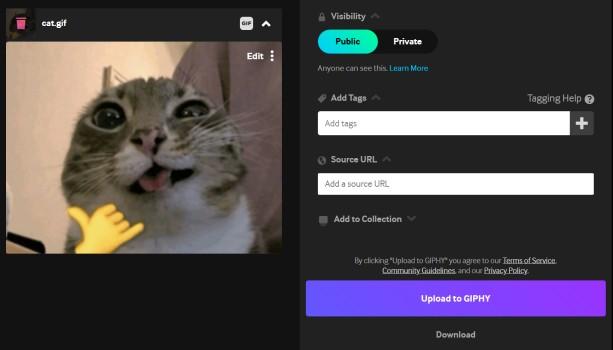
Step 3: Then, you’re presented with a screen that allows you to add tags to your GIF, make your GIF private, add a source URL, add your GIF to a collection, or evenshare on Giphy
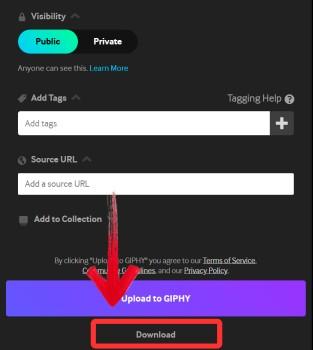
Step 4: Finally, click ‘Download'to export and use your GIF.
How to Make a GIF with a Video
This is the most common method and offers the most control to make your GIF. It’s ideal for trimming down a specific scene from a video you've already recorded or saved. The app's editor is simple, fast, and lets you add all the same fun text and stickers you see on the desktop.
Step 1: First, head on over to the Giphy website.
Step 2: Then, upload your file by dragging and dropping your file onto the screen or by clicking the ‘Choose File’ button.
Step 3: Once your video uploads, you'll be in the editor. Use the two sliders to select the start time and duration of your GIF. After you’re comfortable with your changes, click‘Continue to Upload’.
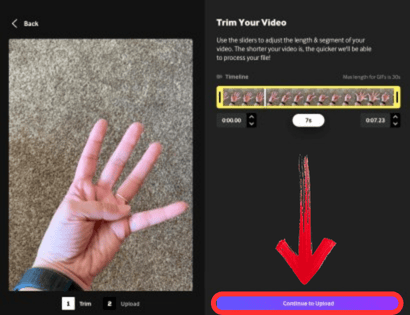
Step 4: You’ll be presented with the same options as before.
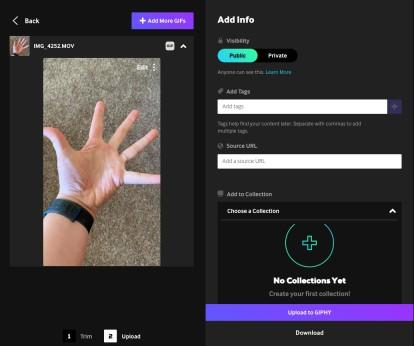
Step 4: Finally, click ‘Download'to export and use your GIF.
How to make a GIF from a YouTube Video
This is by far the fastest way to make a GIF if the clip you want is already online. Giphy's creator tool can directly import a video from a YouTube or Vimeo link. This saves you the entire step of having to download the video first. It's the perfect method for reacting to something you just watched.
Step 1: First, head on over to the Giphy website.
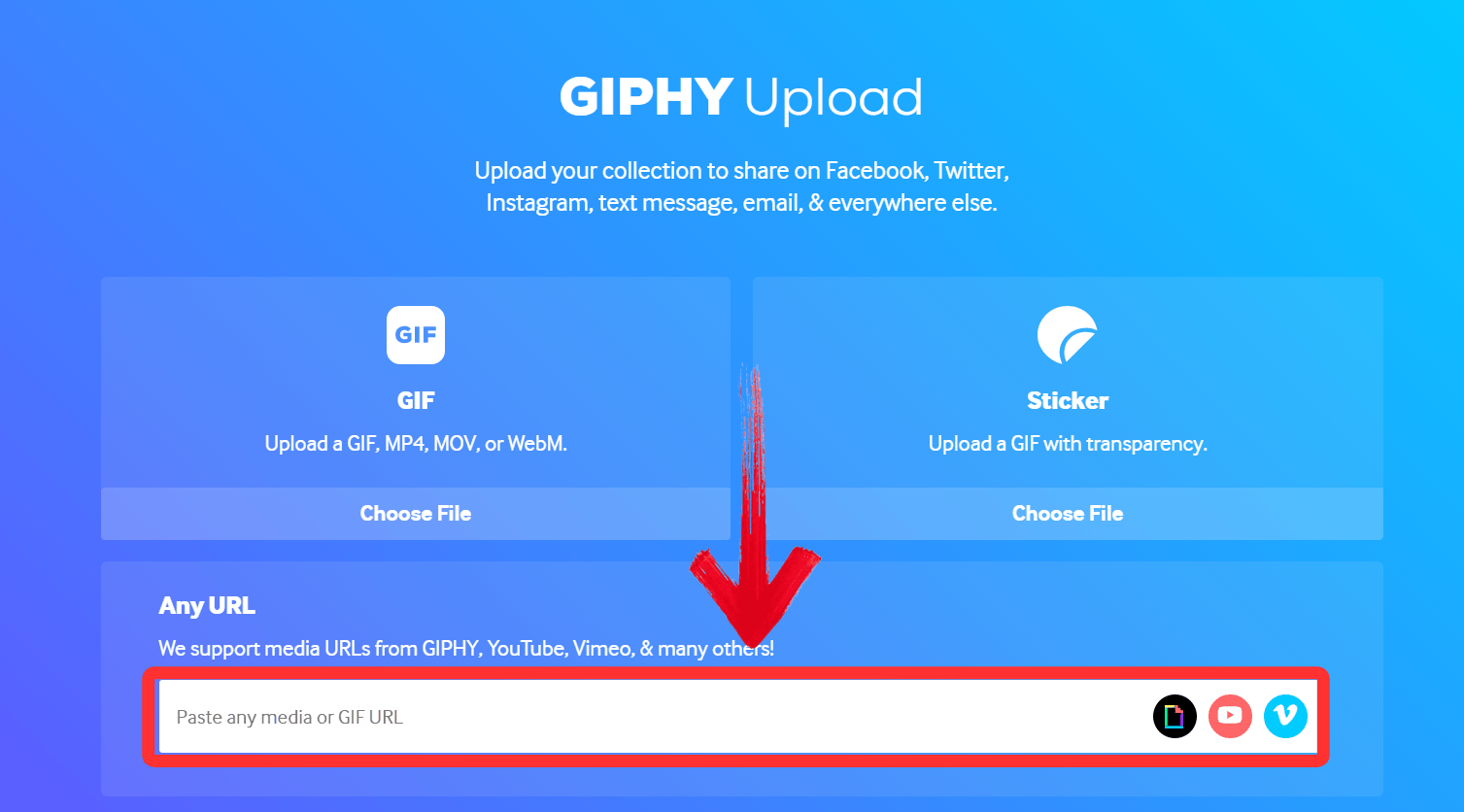
Step 2: Instead of uploading a file, paste your YouTube URL into the Any URL box at the bottom of the screen. Giphy will automatically import the video.
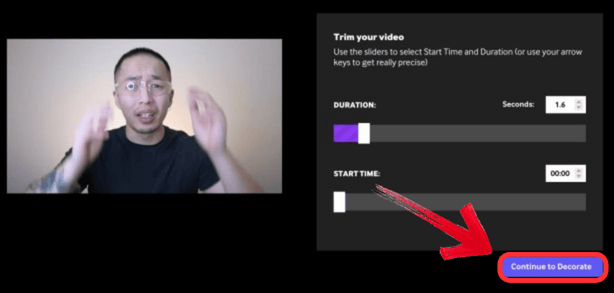
Step 3: Just like with a video file, use the sliders to select the perfect start time and duration for your clip.
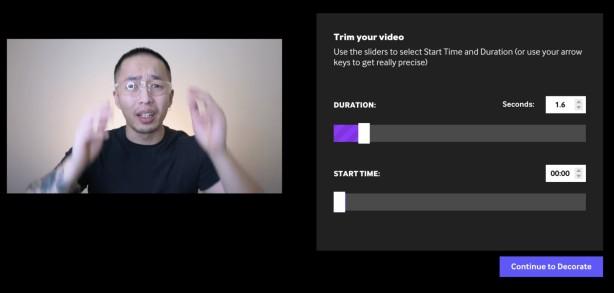
Step 4: Then, Continue to Decorate'to add your text and other effects. This is the easiest way to make your GIF without downloading any files first.
Step 4: Finally, click ‘Download'to export and use your GIF.
Free YouTube Video Downloader: Elevate Your Viewing Pleasure
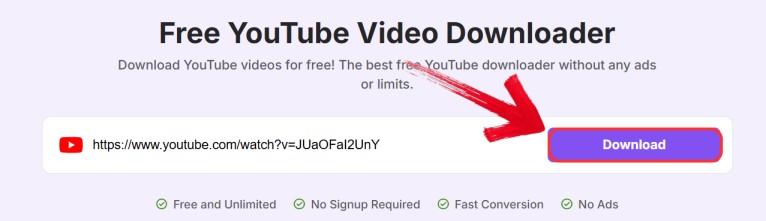
As you can see, making a GIF from a YouTube link is incredibly fast for short clips. But you've probably run into a situation where the video is too long for Giphy's importer, or you want to get theabsolute highest-quality file to work with to make your GIF look crisp. In those cases, it's much better to download the video first. For that, I've found a simple tool like Toolsmart's Free YouTube Video Downloader is perfect. It's completely free, doesn't require registration, and lets you grab the high-quality MP4file in seconds.
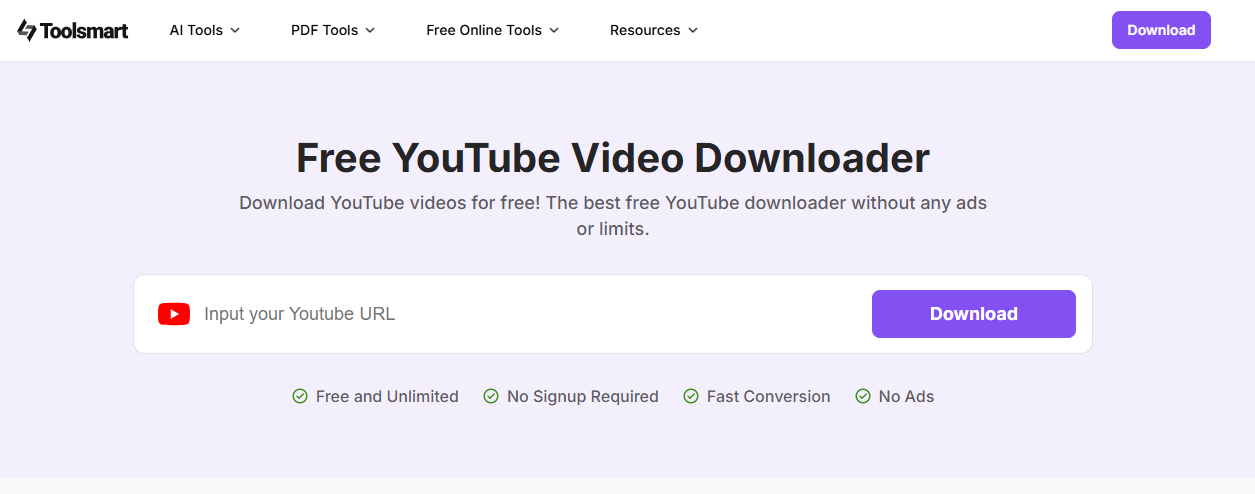
Toolsmart's Free YouTube Video Downloader is a fast, 100% free online tool that doesn't require any app installation or account sign-up. You've probably dealt with other downloaders that are slow or add annoying watermarks. Toolsmart solves this with a simple copy-paste workflow without any annoying ads. The best part is that it saves a crisp, lossless MP4 file straight to your device, making it perfect for offline viewing or for getting a high-quality source file to make the perfect GIF.
Features:
HD/4K Quality Output: Save videos in crisp MP4 format without any loss in quality.
One-Click Downloads: Grab your video in seconds with a simple, single-click process.
Audio Extraction: Convert your video and save it as an MP3 file to listen to the audio.
Cross-Platform Access: Use the tool on any device (Windows, Mac, Linux) directly in your browser.
Subtitle & Thumbnail Downloads: Save the video's subtitles or thumbnail image in addition to the video file.
How to use:
Here’s a simple guide to get started with Toolsmart’s YouTube downloader. You don’t need to sign up or download anything.
Step 1: Open your browser and head over to the Toolsmart YouTube Downloader site.
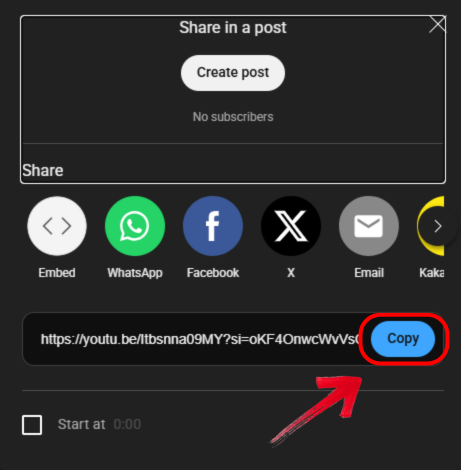
Step 2: Now, go to the YouTube video you want to download and copy its URL from the address bar.
Step 3: Back on the Toolsmart site, just paste that link into the input box on the page.
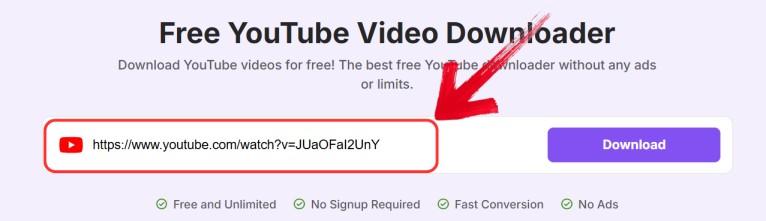
Step 4: Click the “Download” button and give Toolsmart a few seconds to process the video. After that, just save the file to your device.
FAQs
Q1: I only have a 20-second video—can I still use Giphy without hitting the upload wall?
Absolutely. Giphy's editor is designed for this. Just 'drag the trim handles' to select the best 15-second (or less) portion you want. Giphy will automatically use only that selection.
Q2: My GIF ends up fuzzy after upload—what settings keep it crisp?
The secret is your source file. Make sure your original video is at least 720p and under 100 MB. Giphy's converter works best with a high-quality source, which helps it preserve sharpness.
Q3: I want animated captions that appear mid-loop—how do I time them perfectly?
Yes, you can do this in the Decorate step. When you add your text, you will see timing sliders. You can drag the start and end sliders to match the exact seconds you want the text to appear.
Q4: Is there a trick to tagging so my GIF actually gets discovered by the right audience?
A good strategy is to use a mix of tags. I recommend combining one broad tag (like "reaction"), a context tag (like "facepalm"), and a unique branded tag to balance searchability with uniqueness.
Q5: What platforms does Toolsmart's Free YouTube Video Downloader support?
Because it's a web-based tool, it works on any modern operating system with a browser, including Windows, macOS, and Linux.
Q6: How fast is the download speed of Toolsmart's Free YouTube Video Downloader?
The tool is optimized for speed, and I've found it downloads most videos in just a few seconds, though this also depends on your internet connection.
Start With the Right Clip for Best Results
Making a GIF should be fast and fun, not a complicated task. As you've seen, once you know the simple steps, you can make a GIF on Giphy from your phone, desktop, or a YouTube link in just a few minutes. The most important part is just finding a good clip and trimming it well. And if your source clip is on YouTube, using a reliable tool like Toolsmart's Free YouTube Video Downloader to grab it first is the easiest way to ensure your final GIF looks crisp and professional.


