
'%3e%3cpath%20fill-rule='evenodd'%20clip-rule='evenodd'%20d='M19%208.5C24.799%208.5%2029.5%2013.201%2029.5%2019C29.5%2024.6782%2024.9928%2029.3036%2019.361%2029.4939L19%2029.5C18.8794%2029.5%2018.7592%2029.498%2018.6396%2029.4939L18.2811%2029.4758C12.8174%2029.1063%208.5%2024.5574%208.5%2019C8.5%2013.201%2013.201%208.5%2019%208.5ZM22.3063%2010.6267L22.2342%2010.6539C21.3423%2011.0061%2020.5541%2011.6368%2020.5606%2012.4987C20.5631%2012.8302%2020.869%2014.8871%2020.2141%2014.8486C19.5589%2014.8102%2019.413%2013.8753%2018.7116%2013.616C17.5944%2013.2026%2016.9819%2014.3401%2017.0939%2015.3106C17.1695%2015.9655%2018.9289%2018.3871%2017.9028%2019C17.292%2019.3651%2015.7279%2017.5692%2015.1007%2017.1842C14.4805%2016.8034%2013.2758%2017.3333%2012.4974%2016.7029C11.9874%2016.2899%2012.3881%2014.4098%2012.2786%2013.8372C12.2271%2013.5698%2012.1155%2013.3689%2011.9794%2013.2166L12.0402%2013.2934C10.7653%2014.8464%2010%2016.8339%2010%2019C10%2023.8465%2013.8307%2027.7982%2018.6295%2027.9925L18.6769%2027.9747C18.8597%2027.8677%2019.0394%2027.7557%2019.216%2027.6387C19.4137%2027.4534%2019.5436%2027.2072%2019.5849%2026.9394C19.8806%2025.1222%2018.3616%2025.4302%2017.9367%2024.5622C17.5489%2023.7695%2018.5712%2023.7684%2018.5524%2021.7923C18.4607%2021.1774%2018.5279%2020.547%2018.7211%2020.0315C19.1834%2018.7987%2020.7077%2017.2643%2022.5889%2018.0081C23.5567%2018.3906%2023.1524%2019.9831%2023.4737%2020.3394C24.251%2021.2018%2025.3228%2020.6863%2026.2856%2021.2253C26.7816%2021.5032%2026.9797%2022.41%2027.056%2023.2248L27.038%2023.0528C27.6534%2021.8348%2028%2020.4579%2028%2019C28%2015.1968%2025.6409%2011.9445%2022.3063%2010.6267Z'%20fill='%23757575'/%3e%3ccircle%20cx='19'%20cy='19'%20r='10.125'%20stroke='%23757575'%20stroke-width='2.25'/%3e%3c/g%3e%3cdefs%3e%3cclipPath%20id='clip0_1827_14613'%3e%3crect%20width='24'%20height='24'%20fill='white'%20transform='translate(7%207)'/%3e%3c/clipPath%3e%3c/defs%3e%3c/svg%3e)


Locating a proper invoice from Amazon often feels more complicated than it should be, yet these invoices are critical for reimbursements, tax compliance, and accurate record-keeping. Beyond proof of purchase, they also serve as formal documentation that businesses, freelancers, and individuals rely on for financial accountability. Yet, many people struggle because Amazon makes the process a bit confusing, especially on the mobile app. I’ll guide you through simple, clear steps on how to get invoice from Amazon. By the end, you’ll also discover a free tool that can generate professional invoices if Amazon’s version doesn’t match your needs.
Step-by-Step Guide to Getting an Invoice from Amazon
Amazon does provide digital invoices for all your orders, but finding them takes a little navigation. Let’s break it down by method so you can pick the one that works best for you. If you’ve ever asked yourself how to get invoice from Amazon for businessexpenses, the steps below will make the process much easier.
Method 1: Via Amazon Website
Accessing your invoice through the Amazon website is the most reliable option, especially if you want a properly formatted PDF.
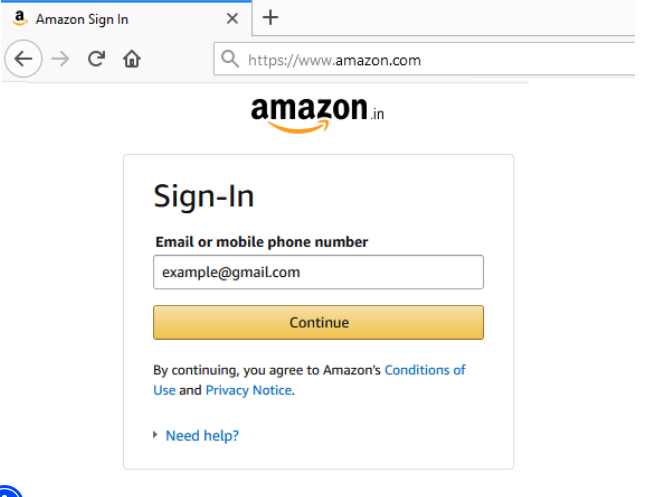
Step 1: First of all, log in to your Amazonaccount.
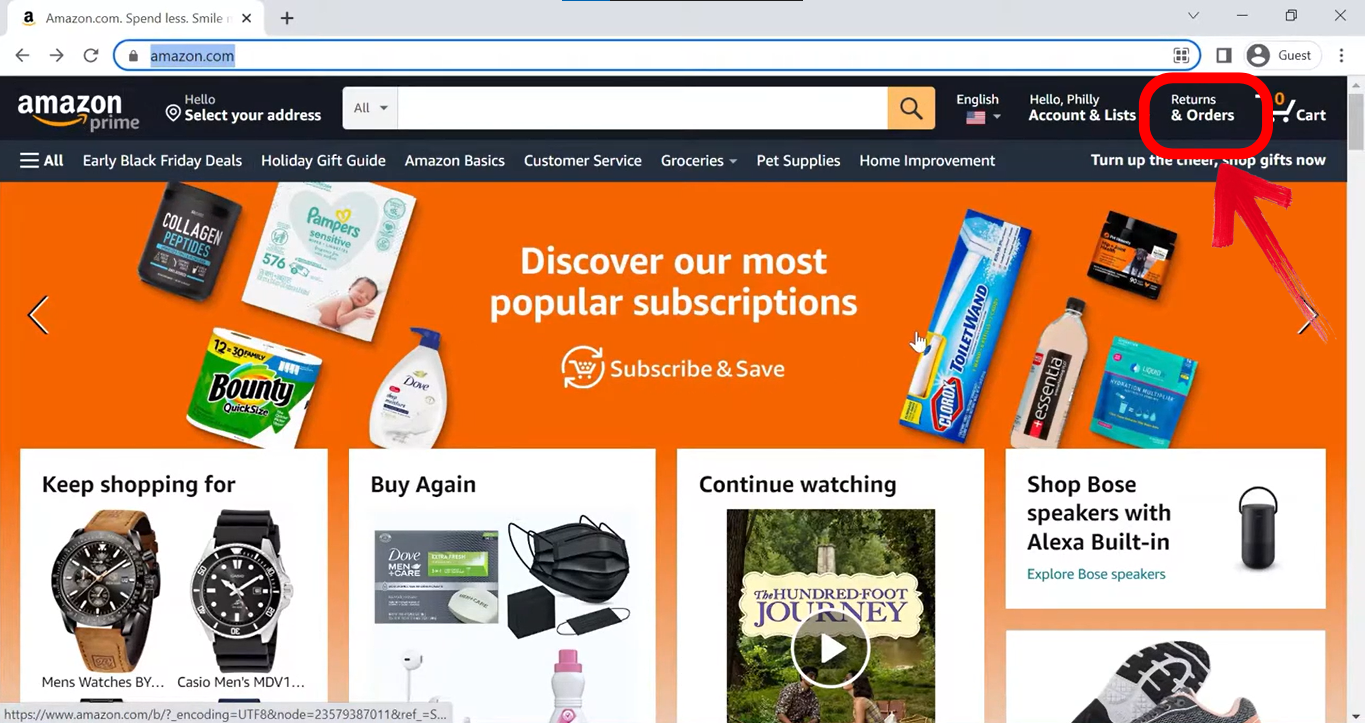
Step 2: Now click on “Returns & Orders” from the top-right menu to view your orders.
Step 3: Find the order you need, and you’ll be able to see your order details on your screen.
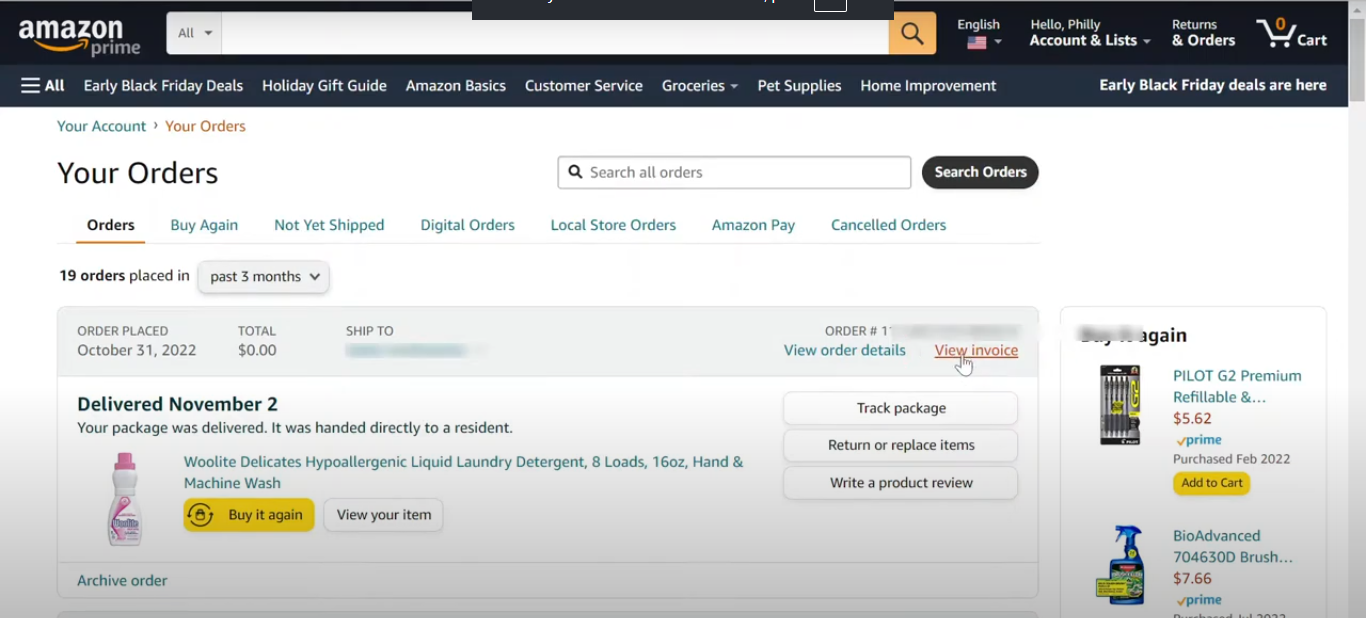
Step 4: Look for Invoice, click it and simply download your Invoice.
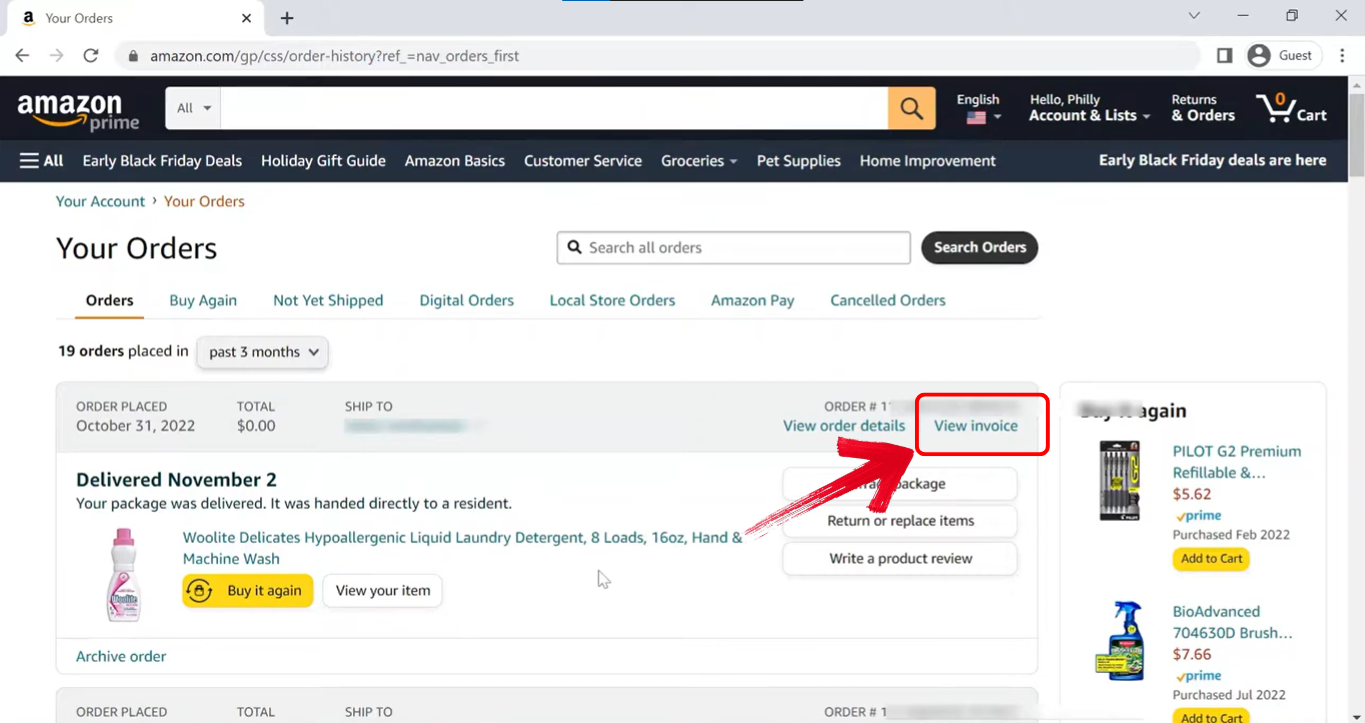
I usually prefer the website for invoices because it’s straightforward. The formatting also looks cleaner compared to the mobile app, which makes it easier to print or email directly.
Method 2: Via Amazon Mobile App
The Amazon app does provide invoiceaccess, though it’s slightly less intuitive. Here’s how to get an invoice from Amazon:
Step 1: Open the Amazon app and tap the menu icon (☰).
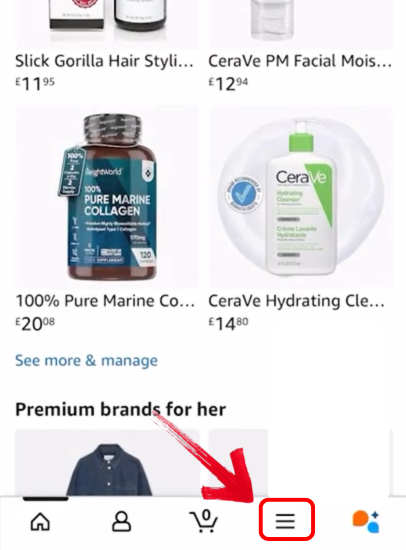
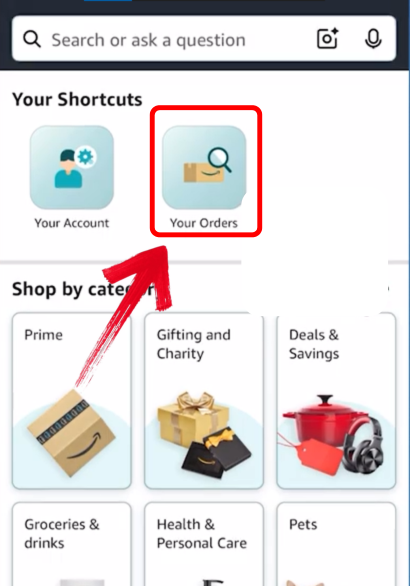
Step 2: Click on Your Orders from the top-right menu to see a complete list of everything you’ve purchased.
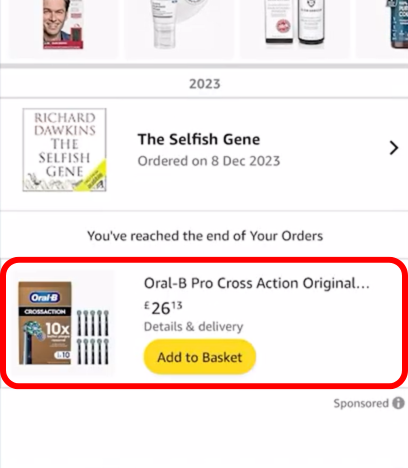
Step 3: Select the order you want from the list, making sure it’s the exact purchase you need the invoice for, since each order has its own separate details and invoice link.
Step 4: Now scroll down and under the “Order info” heading, click “Download invoice” to simply download the invoice of your order.
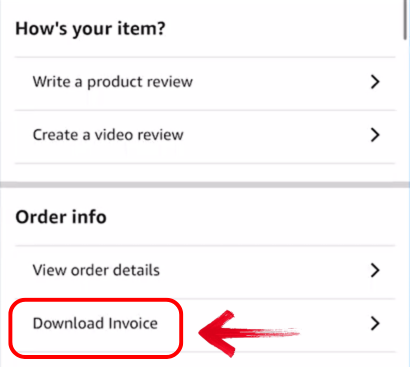
I use the mobile app when I’m on the go. Sometimes the “Invoice” button doesn’t appear, so I just screenshot the summary and later pull the official invoice from the website.
Method 3: Via Email
This method is handy if you don’t want to log in to Amazon every time.
Step 1: Open your email inbox and search for Amazon Invoice or the order confirmation email and open the email related to your order.
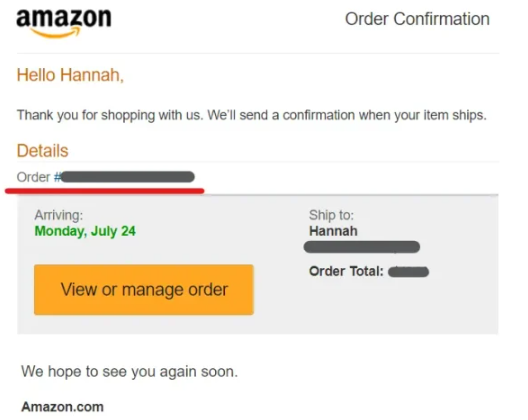
Step 3: Look for a link to view or print the invoice.

Email has saved me several times when I needed a quick invoice during meetings. It’s fast, but sometimes the link just redirects you back to Amazon, which can feel like an extra step.
Common Issues & How to Solve Them
Even with the steps above, you might face issues. Let me break down the common ones and how I usually handle them, especially if you’re still wondering how to find invoice on Amazon app.
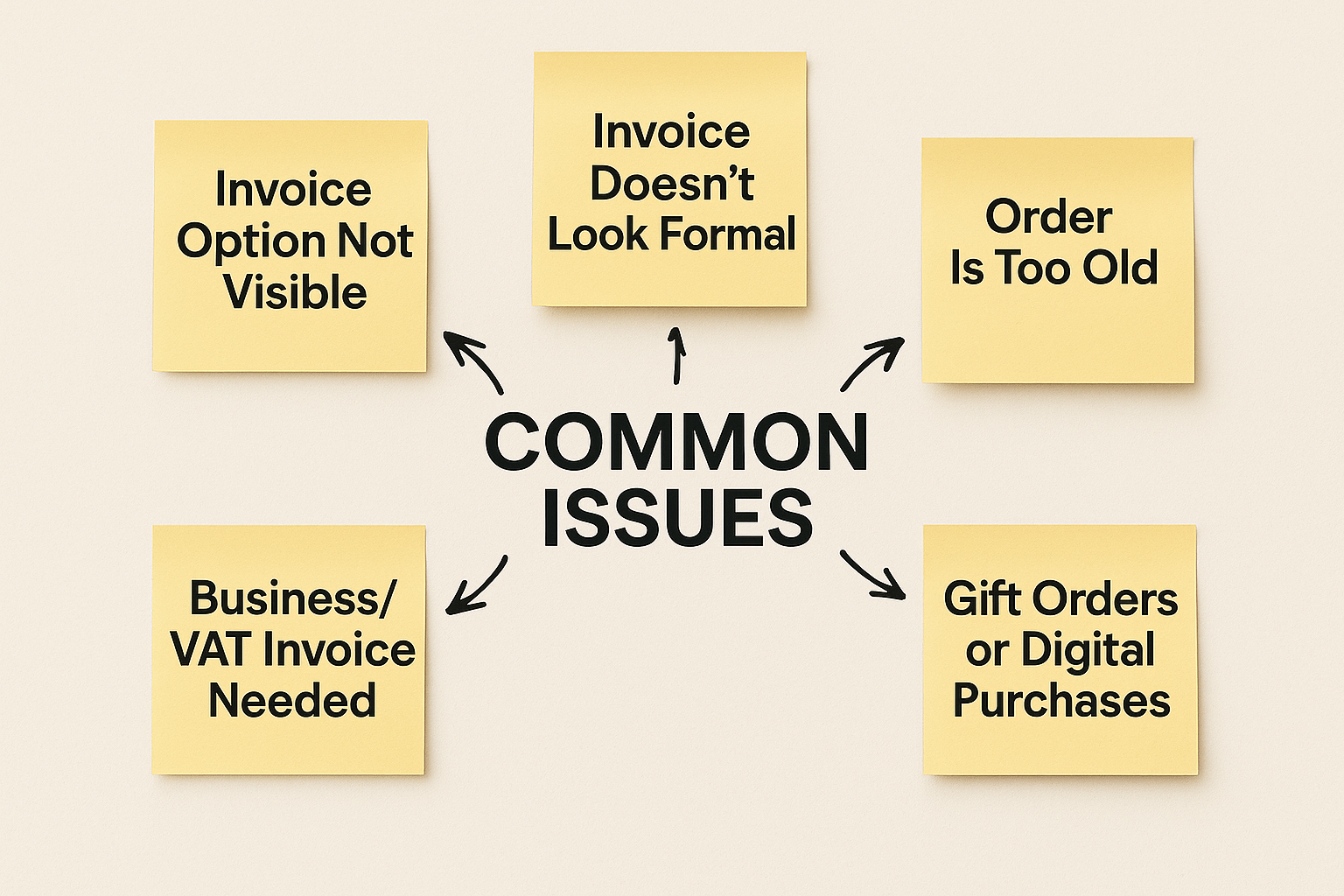
Invoice Option Not Visible
Sometimes the app doesn’t show an invoice button. In such cases, switching to the desktop site almost always works. Whenever I hit this roadblock, I just log in from my laptopand it’s instantly resolved.
Invoice Doesn’t Look Formal
Order summaries and invoices can look quite similar. If you want it formatted properly, use the Print option and then save it as a PDF. I’ve done this many times for reimbursements, it makes the invoice look professional enough for employers to accept.
Order Is Too Old
Old orders don’t disappear, but they can be harder to find. Use Amazon’s date filter in Your Orders to track them down. I once pulled up a 3-year-old invoice without issues just by filtering by year.
Business/ VAT Invoice Needed
If you require VAT details, ensure your business information is filled out under your Amazon account settings. When I first learned how to find Amazon invoice with the correct VAT fields, updating my profile saved me hours of back-and-forth with accounting.
Gift Orders or Digital Purchases
Certain digitalitems or gift purchases may not show invoices the same way. Sometimes only an order summary is available. In such cases, I usually recreate the invoice using a custom tool, since the summary alone doesn’t work for official purposes.
Pro Tip: For bulk access, use Amazon’s Download Order Reports under Your Account. It’s a lifesaver if you’re handling multiple purchases.
Create Professional Invoices with Free Invoice Generator
Sometimes Amazon’s invoice just doesn’t look professional enough, especially if you’re a freelancer or small business owner. That’s when Free Invoice Generator can be a game changer. Free Invoice Generator is a web-based tool designed for people who need clean, customizable invoices instantly. What makes it stand out is the fact that you don’t need to sign up or install anything. You can open the site, fill in your details, and generate an invoice in seconds.
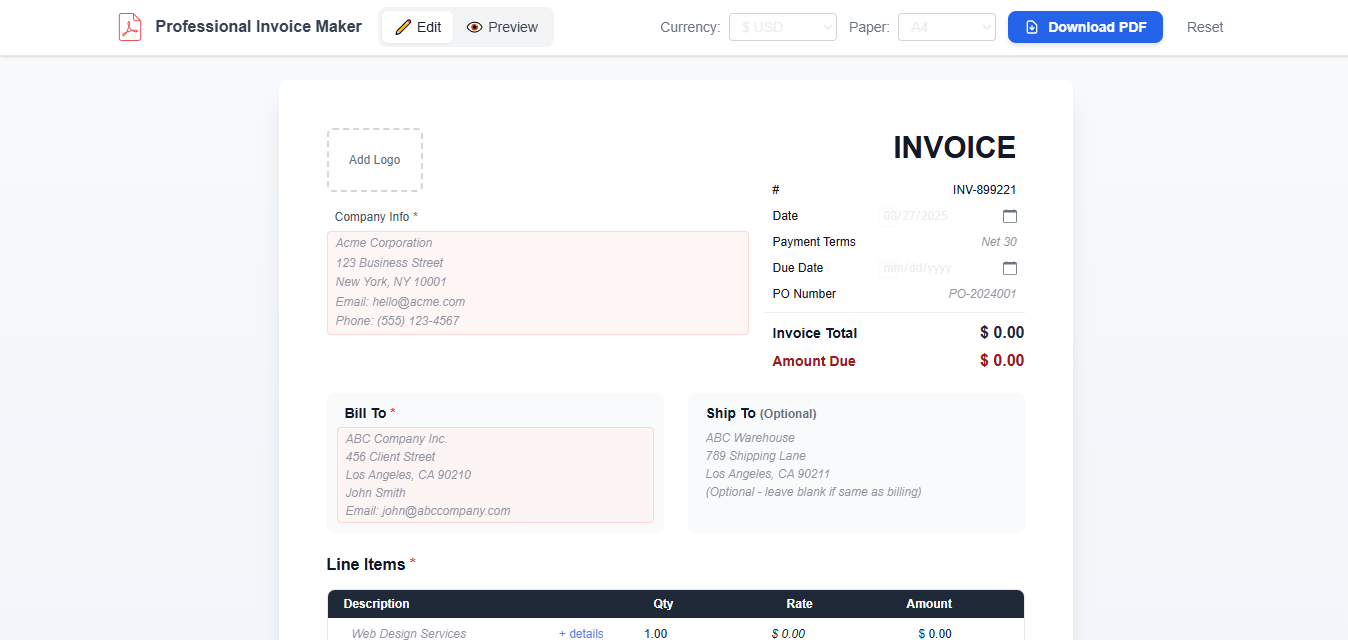
I’ve used it to create polished invoices that look far more professional than Amazon’s. It’s mobile-friendly too, so you can draft and send invoices on the go. The simplicity is its biggest strength, it strips away the complexity and gives you exactly what you need: a ready-to-send invoice.
Features:
Free & No Sign-Up: You don’t need an account. Just create invoices instantly. This saves time, especially when you’re in a hurry.
Customizable Templates: You can add your business logo, adjust the layout, and personalize the invoice to match your branding.
Itemized Details & Notes: Add multiple items, quantities, and taxes for clarity, and include personal notes or payment instructions to make the invoice more complete.
Professional Look: The invoices look sleek and polished compared to Amazon’s.
Pros:
Quick and effortless setup, no logins needed.
Offers flexibility to match your brand identity.
Mobile compatibility makes invoicing possible anytime.
Cons:
Doesn’t store past invoices automatically, you must download and save them.
Limited design options compared to paid software.
No built-in expense tracking features.
I often use Free Invoice Generator when I need to present something more professional than Amazon’s invoice. It’s simple, yet the polished results give my work a more serious edge.
FAQs
Q1: Can I get an invoice for every Amazon order?
Yes, every order comes with an invoice, though the format may differ depending on what you bought.
Q2: Is the Amazon invoice acceptable for reimbursement?
In most cases, yes. But if your employer needs extra details, Free Invoice Generator can help.
Q3: Is Free Invoice Generator really free?
Yes, it’s completely free with no sign-up or hidden charges.
Q4: Can I edit an Amazon invoice?
No, Amazon invoices can’t be edited. You can only create a new version with Free Invoice Generator.
Q5: Which is better for freelancers: Amazon invoices or Free Invoice Generator?
Amazon invoices are fine for proof of purchase, but Free Invoice Generator provides more customization and professionalism.
Key Insights You Can Use
Learning how to get invoice from Amazon doesn’t have to be stressful. You can easily retrieve it from the website, app, or even your email. If Amazon’s invoice feels too plain, Free Invoice Generatoroffers a free and simple way to create polished, branded invoices. Personally, I rely on Amazon invoices for record-keeping and switch to Free Invoice Generator whenever I need to look more professional. This combination keeps both my personal and professional accounting in check.


