
'%3e%3cpath%20fill-rule='evenodd'%20clip-rule='evenodd'%20d='M19%208.5C24.799%208.5%2029.5%2013.201%2029.5%2019C29.5%2024.6782%2024.9928%2029.3036%2019.361%2029.4939L19%2029.5C18.8794%2029.5%2018.7592%2029.498%2018.6396%2029.4939L18.2811%2029.4758C12.8174%2029.1063%208.5%2024.5574%208.5%2019C8.5%2013.201%2013.201%208.5%2019%208.5ZM22.3063%2010.6267L22.2342%2010.6539C21.3423%2011.0061%2020.5541%2011.6368%2020.5606%2012.4987C20.5631%2012.8302%2020.869%2014.8871%2020.2141%2014.8486C19.5589%2014.8102%2019.413%2013.8753%2018.7116%2013.616C17.5944%2013.2026%2016.9819%2014.3401%2017.0939%2015.3106C17.1695%2015.9655%2018.9289%2018.3871%2017.9028%2019C17.292%2019.3651%2015.7279%2017.5692%2015.1007%2017.1842C14.4805%2016.8034%2013.2758%2017.3333%2012.4974%2016.7029C11.9874%2016.2899%2012.3881%2014.4098%2012.2786%2013.8372C12.2271%2013.5698%2012.1155%2013.3689%2011.9794%2013.2166L12.0402%2013.2934C10.7653%2014.8464%2010%2016.8339%2010%2019C10%2023.8465%2013.8307%2027.7982%2018.6295%2027.9925L18.6769%2027.9747C18.8597%2027.8677%2019.0394%2027.7557%2019.216%2027.6387C19.4137%2027.4534%2019.5436%2027.2072%2019.5849%2026.9394C19.8806%2025.1222%2018.3616%2025.4302%2017.9367%2024.5622C17.5489%2023.7695%2018.5712%2023.7684%2018.5524%2021.7923C18.4607%2021.1774%2018.5279%2020.547%2018.7211%2020.0315C19.1834%2018.7987%2020.7077%2017.2643%2022.5889%2018.0081C23.5567%2018.3906%2023.1524%2019.9831%2023.4737%2020.3394C24.251%2021.2018%2025.3228%2020.6863%2026.2856%2021.2253C26.7816%2021.5032%2026.9797%2022.41%2027.056%2023.2248L27.038%2023.0528C27.6534%2021.8348%2028%2020.4579%2028%2019C28%2015.1968%2025.6409%2011.9445%2022.3063%2010.6267Z'%20fill='%23757575'/%3e%3ccircle%20cx='19'%20cy='19'%20r='10.125'%20stroke='%23757575'%20stroke-width='2.25'/%3e%3c/g%3e%3cdefs%3e%3cclipPath%20id='clip0_1827_14613'%3e%3crect%20width='24'%20height='24'%20fill='white'%20transform='translate(7%207)'/%3e%3c/clipPath%3e%3c/defs%3e%3c/svg%3e)


Instagram powers sharing moments and brand promotion for millions daily. Users often spot typos in captions, wrong tags, or need alt text tweaks right after posting, seeking how to edit Instagram post without losing likes or reset timestamps. Social media managers and creators demand quick mobile/desktop steps to fix these seamlessly, preserving engagement metrics. This 2025 guide delivers exact methods plus Toolsmart's free video downloader for content saves.
Step-by-Step Guide to Editing an Instagram Post
These proven methods function reliably across the 2025 Instagram app (versions 350 and above) and web platform. Edits target captions, user tags, alt text, and location tags exclusively. Main media like photos or videos remains locked post-publish, reflecting Instagram's design to protect original content integrity and engagement timelines. Users appreciate these steps for their speed, often completing fixes in under 30 seconds to avoid algorithm penalties from deletions.
Method 1: Via Instagram Mobile App
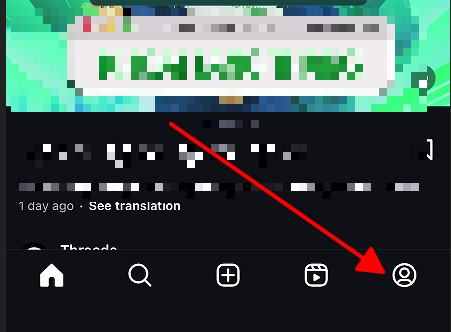
Step 1: Grab your phone, open the Instagram app. Tap that profile icon chilling in the bottom right. Scroll your grid till you spot the post that needs a quick fix.
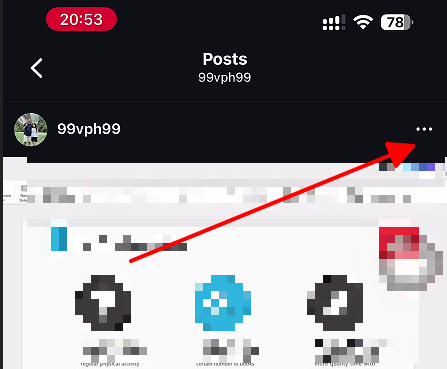
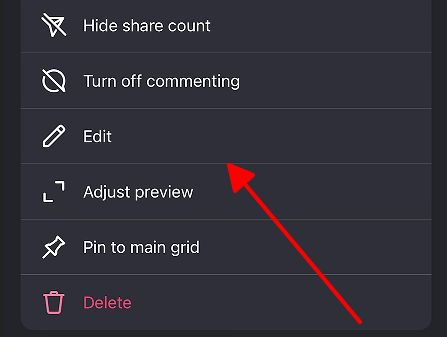
Step 2: Tap the post to blow it up full screen. Right away, hit those three dots up in the top right. Boom, menu pops with edit, delete, all the good stuff.
Step 3: Swipe to "Edit" (usually second or third down). Now you're in: tap the caption to zap typos, toss in emojis or hashtags. Tags? Bottom left, add or ditch 'em. Alt text down bottom right for screen readers and better search juice. Location top left to help folks find ya.
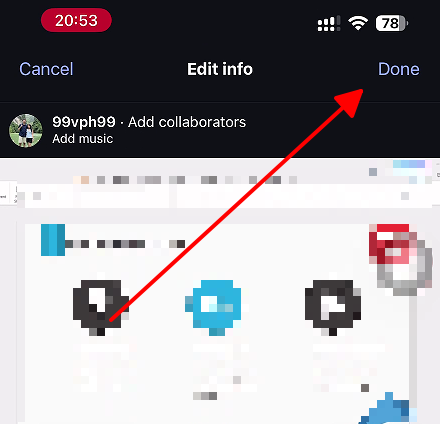
Step 4: Review all changes carefully to ensure accuracy. Tap Done on iOS devices or the green checkmark on Android to finalize and publish updates. The post refreshes instantly, retaining its original timestamp and engagement data.
Mobile editing stands out for its speed during busy days. I fixed a caption typo on a brand post mid-commute, saving it from 20% engagement drop. Compared to desktop, it feels more intuitive with touch gestures, though longer captions need careful scrolling. Overall, perfect for quick social media managers handling 50+ posts weekly.
Method 2: Via Instagram Website (Desktop)
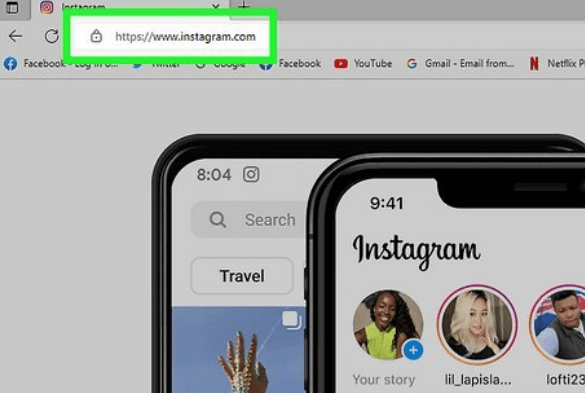
Step 1: Open a web browser and navigate to Instagram Log in with your credentials if not already signed in. Click your profile picture in the top right corner, then select Posts from the left sidebar menu to view your full grid.
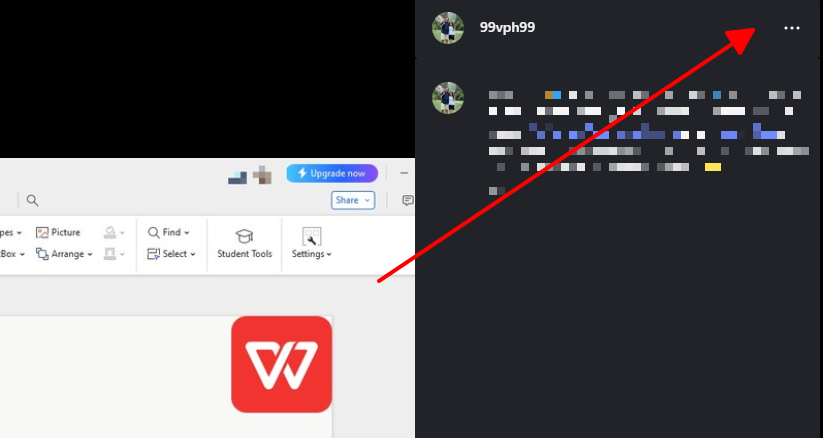
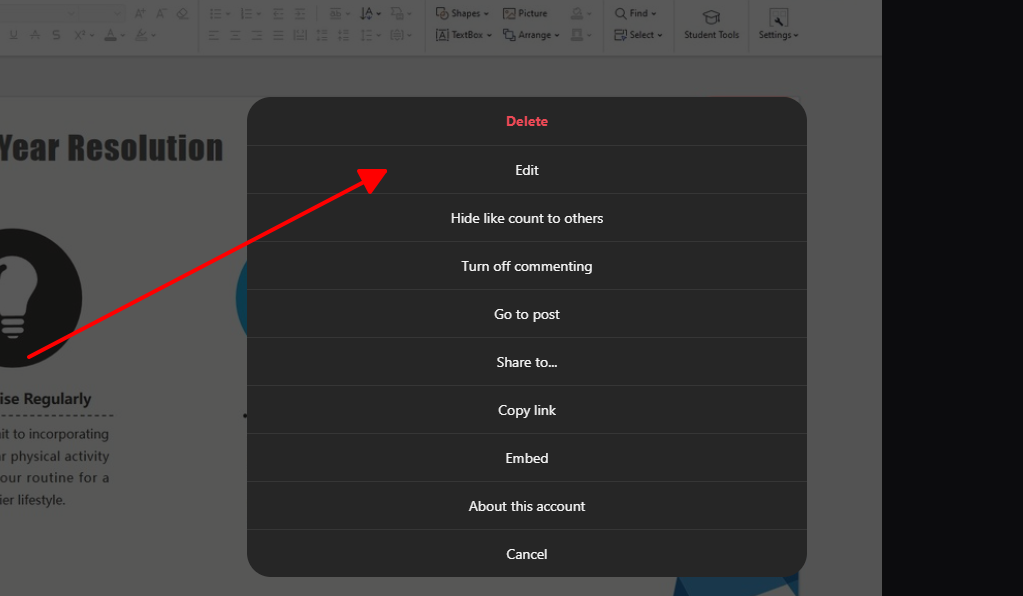
Step 2: Click on the thumbnail of the post requiring edits. This expands it into a detailed view similar to the app. Locate and click the three dots icon above the post content, positioned near the top right area.
Step 3: Choose Edit from the appearing menu. The familiar editing panel loads, mirroring mobile options. Revise the caption in the prominent text box, supporting longer entries ideal for detailed stories. Manage tags by clicking profile icons, update alt text in the dedicated field, and modify location via the map selector.
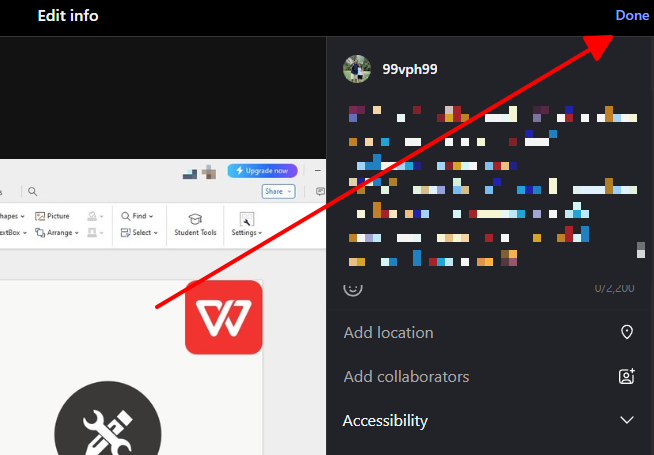
Step 4: Double-check edits for precision, especially longer captions prone to overlooked typos. Click the blue Submit button at the bottom left to apply changes. Sync occurs across all devices within moments.
Desktop excels for precision work like bulk tag updates. I edited a 10-carousel post's alt text in half the time versus mobile, thanks to keyboard shortcuts. It lags slightly on older browsers, but Chrome handles it smoothly. Beats app for pros drafting in WPS then pasting over.
Common Issues & How to Solve Them
Readers encounter predictable hurdles during edits, often stemming from account settings, connectivity, or platform limits. These solutions draw from widespread user reports, ensuring quick resolutions without support tickets.
Can't Replace the Image/Video
Instagram enforces a strict no-replacement policy for primary media after publishing to safeguard authenticity and prevent spam. The only workaround involves deleting the post via the three dots menu, copying the caption and tags manually, then creating a fresh post with corrected media. This approach minimizes engagement loss if executed promptly, typically under 5% drop in likes. Users planning carousels should verify all images upfront to avoid this loop.
Edit Option Not Available
This glitch signals mismatched accounts or ownership issues. Verify you access the correct profile via the top dropdown. Force-close the app, clear cache, or reinstall for stubborn cases. Switching to desktop often bypasses app-specific bugs, restoring the menu instantly. Professional accounts may need business mode toggled off temporarily.
Changes Not Saving
Network instability tops the list here. Test connection speed, enable airplane mode for 10 seconds, then retry. Persistent failures warrant full logout/login cycles or browser incognito mode on desktop. Overloaded servers during peak hours contribute, so schedule edits outside evenings.
Editing Multiple Posts (Carousel)
Carousel posts demand individual slide edits, as bulk tools remain absent in 2025. Navigate each via the main post view, applying consistent captions or alt text. For 10+ slide carousels (now supporting up to 20), prioritize high-engagement slides first. Alt text per image amplifies reach, aiding blind users and SEO rankings.
Additional Fixes for 2025 Updates
Hashtag limits now cap at 3-5 effective ones post-edit to curb spam, per testing phases. Vertical formats (4:5 ratio, 1080x1350px) display better in feeds, so preview grids. Video posts up to 60 minutes edit like images but face desktop-only uploads for longs.
Tips:
Enable two-factor authentication to lock ownership securely.
Draft captions in notes apps pre-posting for copy-paste ease.
Use alt text strategically: "Modern office productivity setup" targets niche searches.
Monitor insights post-edit to confirm no reach dips.
Download Instagram Videos with Toolsmart Instagram Video Downloader

Beyond edits, users seek offline access for inspiration or backups. Toolsmart's free Instagram Video Downloader fills the gap, processing public post links without logins or watermarks. It supports HD up to 4K, MP4 format, and options for video-only or audio extraction.
Overview and Features:
Completely free with instant processing, no registration barriers.
Preserves original HD quality, up to 1080p for Reels or feeds, even 4K where available.
Cross-device browser support, ideal for phones lacking built-in saves.
Handles various formats: Reels (3 min max), Stories clips, long posts (60 min desktop).
Ad-free, lossless downloads for editing workflows. Ethical focus: Best for own content or fair use references.
Detailed How to Use:
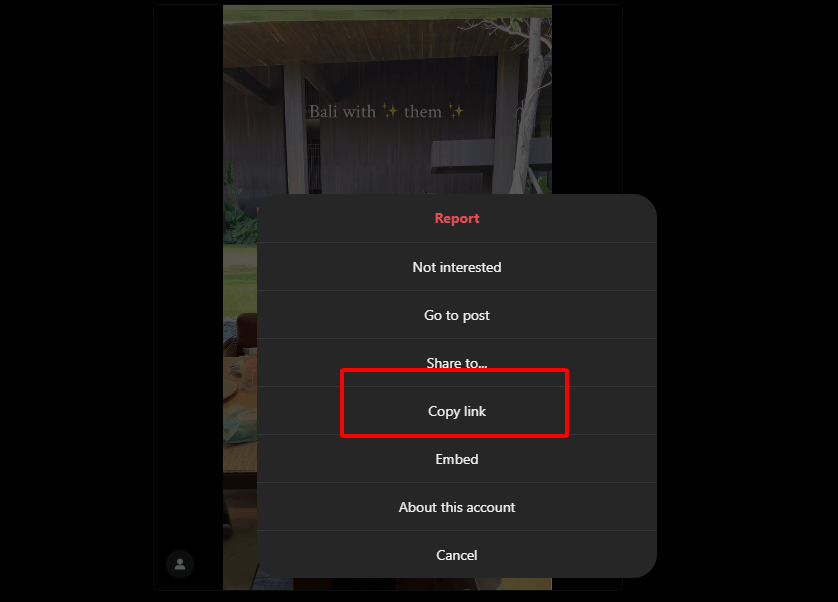
Step 1: Open Instagram app or site, locate the target video post. Tap or right-click the three dots menu, select Copy link. For private posts, download your own via profile archives first.
Step 2: Navigate to Free Instagram Video Downloader (No Ads) in any browser. Locate the prominent input field at the center.
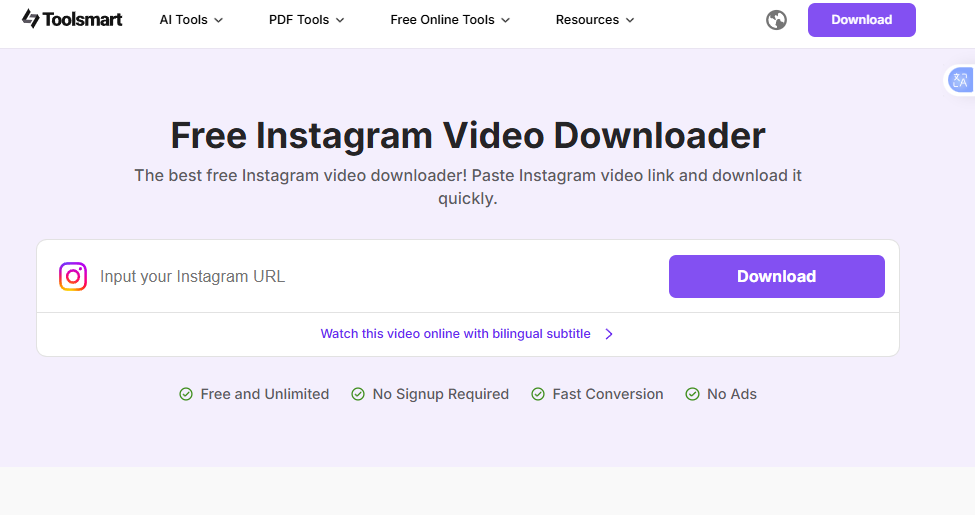
Step 3: Paste the copied URL precisely. Click the large Download button to initiate processing, typically 5-20 seconds based on length.

Step 4: Preview thumbnails appear. Select preferred quality (original, HD, SD, 4K). Tap Save or Download to gallery/downloads folder. Rename files for organization.
Toolsmart outshines others for speed and quality. I downloaded a 2-minute Reel in 1080p lossless for a tutorial remix, no watermarks or ads interrupting. Mobile worked flawlessly on Android, faster than screen record. Versus rivals, its resolution choices and stability win for creators repurposing ethically.
FAQs
Q1: Can I completely replace the photo or video in an Instagram post after posting?
No. Instagram prohibits media swaps to maintain post integrity. Delete and repost as workaround.
Q2: What elements of an Instagram post can I edit?
Caption, user tags, alt text, and location tags fully. Music or post type changes unavailable.
Q3: Will editing my Instagram post affect its engagement or placement on the feed?
No impacts noted. Timestamps, likes, and reach persist unchanged in 2025 algorithms.
Q4: Is the Toolsmart Instagram Video Downloader free to use?
Yes, unlimited access without costs, ads, or hidden fees.
Q5: Is it legal to download videos from Instagram using Toolsmart?
Permissible for personal fair use or own content. Obtain permissions before reposting others' work to avoid violations.
Q6: How long can edited videos be on Instagram in 2025?
Feed videos up to 60 minutes (desktop preferred), Reels to 3 minutes. Edits apply uniformly.
Q7: Does Toolsmart support 4K downloads?
Yes, where original quality allows, in clean MP4 without compression loss.
Summary
Editing flows simply: Access via three dots on mobile or desktop, tweak caption/tags/alt text/location, save with Done or Submit. Media limitations necessitate delete-repost for visuals. Troubleshoot via connectivity checks or account verifies. Toolsmart's Instagram Video Downloader streamlines saves by pasting links for quick HD/4K downloads. These align precisely with user intents for efficient, metric-preserving updates in fast-paced social workflows.


