
'%3e%3cpath%20fill-rule='evenodd'%20clip-rule='evenodd'%20d='M19%208.5C24.799%208.5%2029.5%2013.201%2029.5%2019C29.5%2024.6782%2024.9928%2029.3036%2019.361%2029.4939L19%2029.5C18.8794%2029.5%2018.7592%2029.498%2018.6396%2029.4939L18.2811%2029.4758C12.8174%2029.1063%208.5%2024.5574%208.5%2019C8.5%2013.201%2013.201%208.5%2019%208.5ZM22.3063%2010.6267L22.2342%2010.6539C21.3423%2011.0061%2020.5541%2011.6368%2020.5606%2012.4987C20.5631%2012.8302%2020.869%2014.8871%2020.2141%2014.8486C19.5589%2014.8102%2019.413%2013.8753%2018.7116%2013.616C17.5944%2013.2026%2016.9819%2014.3401%2017.0939%2015.3106C17.1695%2015.9655%2018.9289%2018.3871%2017.9028%2019C17.292%2019.3651%2015.7279%2017.5692%2015.1007%2017.1842C14.4805%2016.8034%2013.2758%2017.3333%2012.4974%2016.7029C11.9874%2016.2899%2012.3881%2014.4098%2012.2786%2013.8372C12.2271%2013.5698%2012.1155%2013.3689%2011.9794%2013.2166L12.0402%2013.2934C10.7653%2014.8464%2010%2016.8339%2010%2019C10%2023.8465%2013.8307%2027.7982%2018.6295%2027.9925L18.6769%2027.9747C18.8597%2027.8677%2019.0394%2027.7557%2019.216%2027.6387C19.4137%2027.4534%2019.5436%2027.2072%2019.5849%2026.9394C19.8806%2025.1222%2018.3616%2025.4302%2017.9367%2024.5622C17.5489%2023.7695%2018.5712%2023.7684%2018.5524%2021.7923C18.4607%2021.1774%2018.5279%2020.547%2018.7211%2020.0315C19.1834%2018.7987%2020.7077%2017.2643%2022.5889%2018.0081C23.5567%2018.3906%2023.1524%2019.9831%2023.4737%2020.3394C24.251%2021.2018%2025.3228%2020.6863%2026.2856%2021.2253C26.7816%2021.5032%2026.9797%2022.41%2027.056%2023.2248L27.038%2023.0528C27.6534%2021.8348%2028%2020.4579%2028%2019C28%2015.1968%2025.6409%2011.9445%2022.3063%2010.6267Z'%20fill='%23757575'/%3e%3ccircle%20cx='19'%20cy='19'%20r='10.125'%20stroke='%23757575'%20stroke-width='2.25'/%3e%3c/g%3e%3cdefs%3e%3cclipPath%20id='clip0_1827_14613'%3e%3crect%20width='24'%20height='24'%20fill='white'%20transform='translate(7%207)'/%3e%3c/clipPath%3e%3c/defs%3e%3c/svg%3e)


Pinterest is a powerful visual platform that helps users collect ideas, plan projects, and save posts for inspiration. Over time, these boards can become cluttered with outdated or irrelevant Pins, making it necessary to tidy things up. Many users search for how to delete pins on Pinterest simply because the delete option is not immediately visible or because different devices show different layouts.
So, how do you delete a Pin you created? This guide provides clear steps on how to delete a pin on Pinterest, whether you are using the website or mobile app.
Part 1: Step-by-Step Guide to Deleting Pins on Pinterest
Deleting Pins can mean two different things depending on the situation. If you created the Pin, you can delete it permanently from Pinterest. If you saved someone else’s Pin, you can only remove it from your board. Below are the simplest ways to do both on desktop and mobile.
Method 1: Via the Pinterest Website
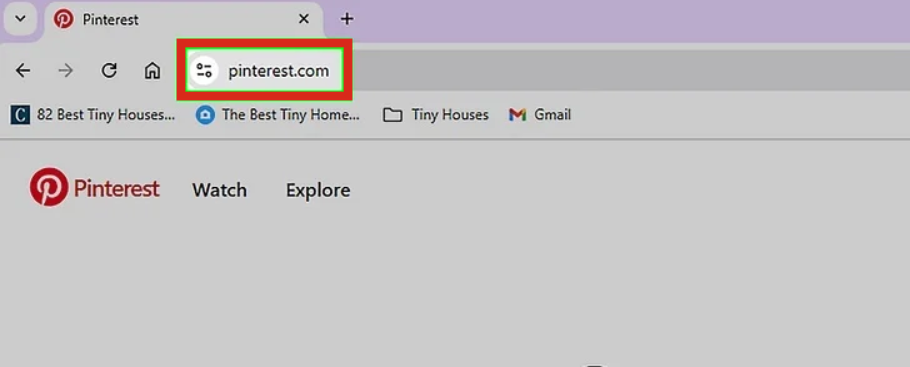
Step 1: Log in to your Pinterest account on a desktop browser.
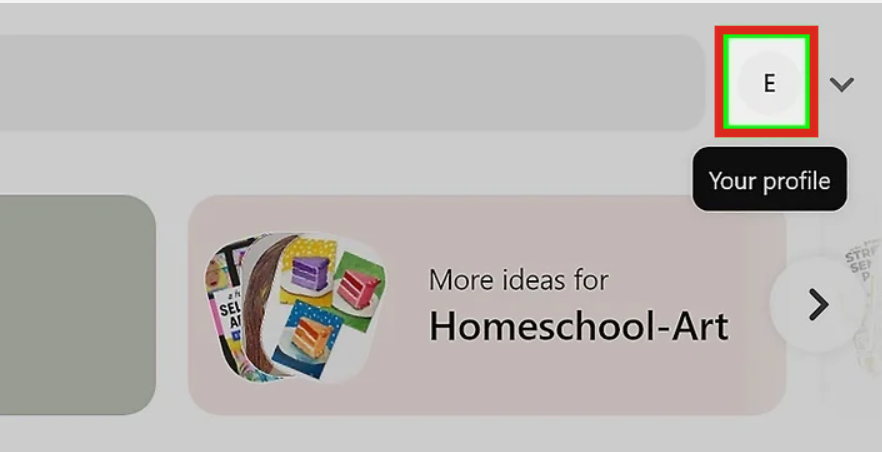
Step 2: Navigate to your profile and open the board containing the Pin you want to manage.
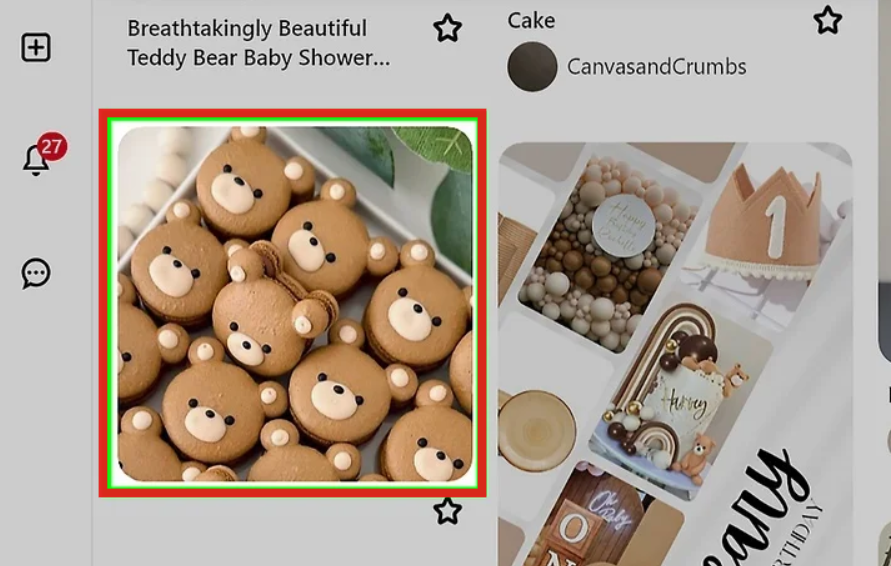
Step 3: Click the Pin to open it.
Step 4: Click the three dots ( … ) or the Edit icon.
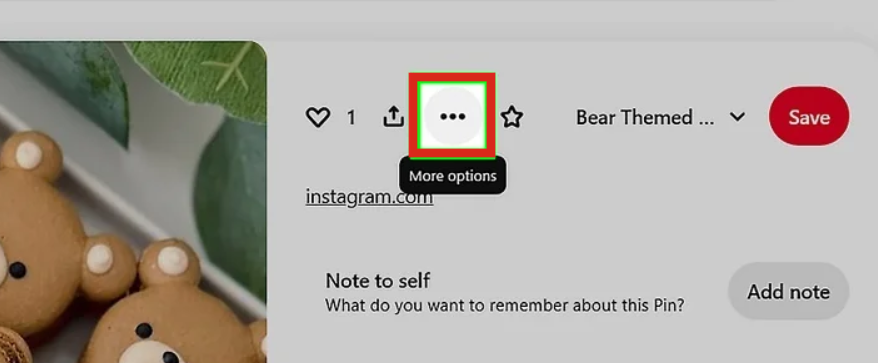
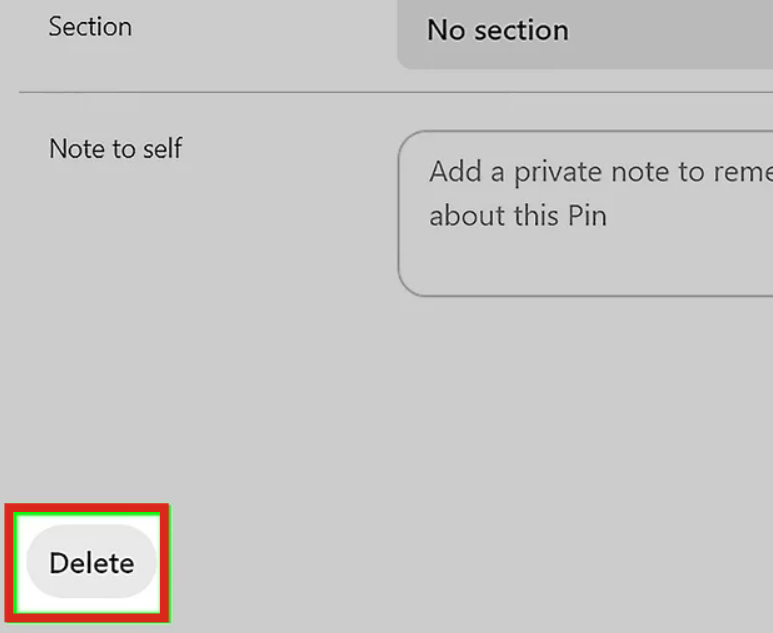
Step 5: Select Edit Pin, then Delete.
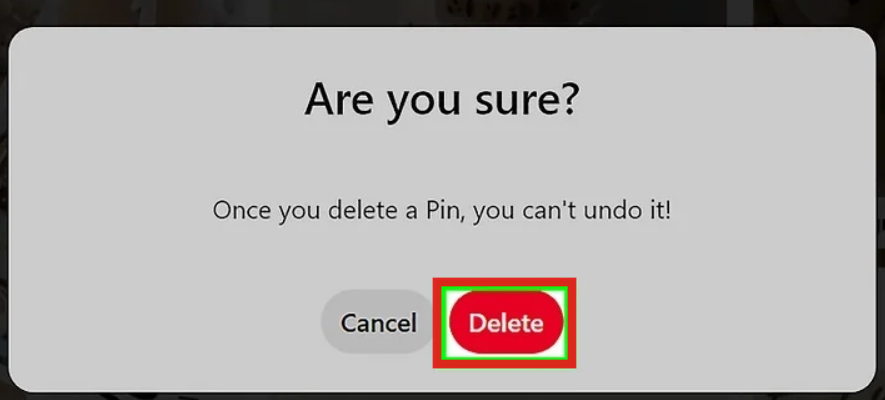
Step 6: Confirm when prompted.
Tip: If you only see Unsave or Remove from board, it means you did not create the Pin. In that case, you can only remove it from your board.
As someone who uses Pinterest frequently across different boards and collections, I have found that deleting Pins through the desktop interface is often the most reliable method. It allows faster navigation, especially when you want to sort and review Pins on large boards. This is also useful when learning how to delete Pins on a Pinterest board or when managing several content categories at once.
Method 2: Via Pinterest Mobile App
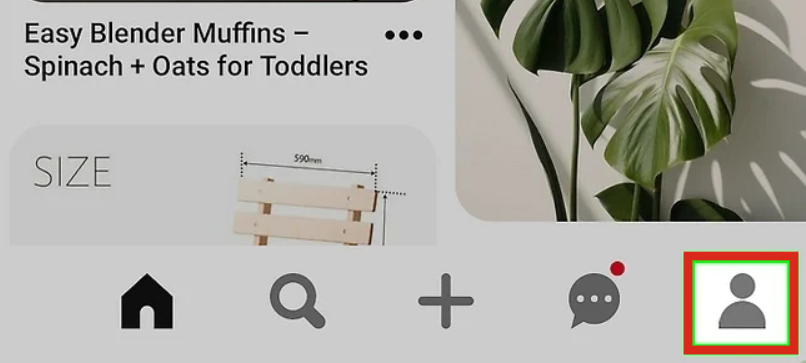
Step 1: Open the Pinterest app and tap your profile icon in the bottom-right corner.
Step 2: Tap the Pin to open it.

Step 3: Tap the three dots ( … ) in the top-right corner.
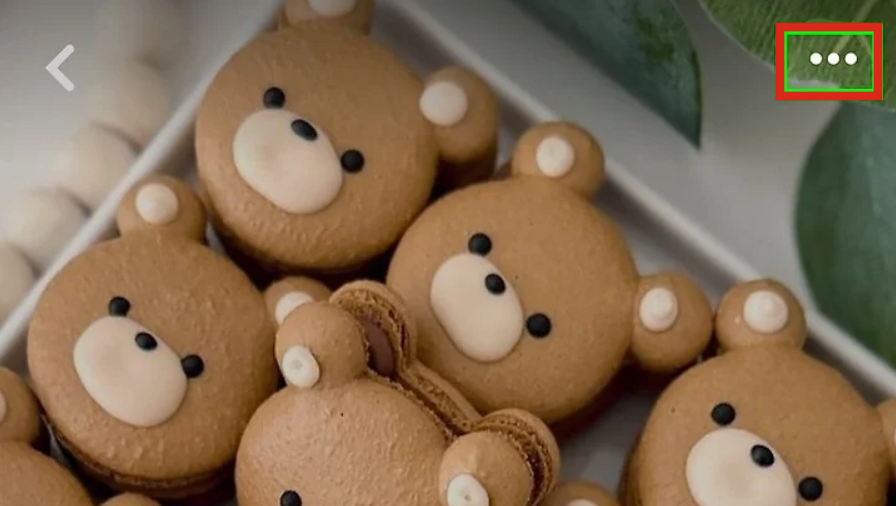
Step 4: Tap Edit Pin.

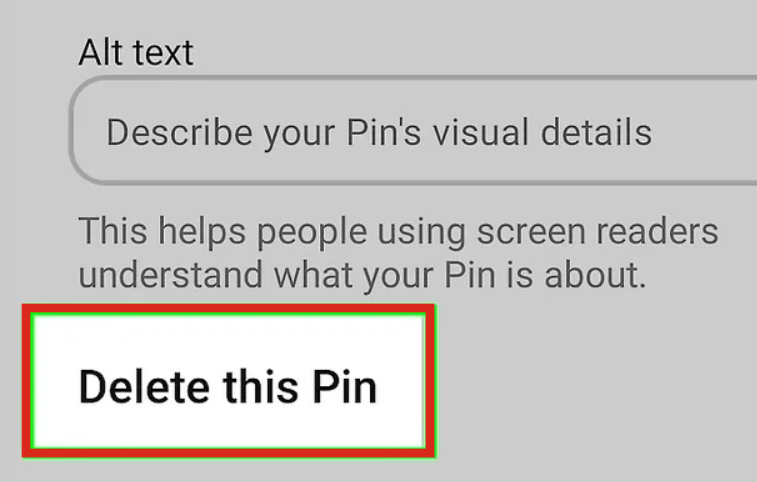
Step 5: Tap Delete this Pin.
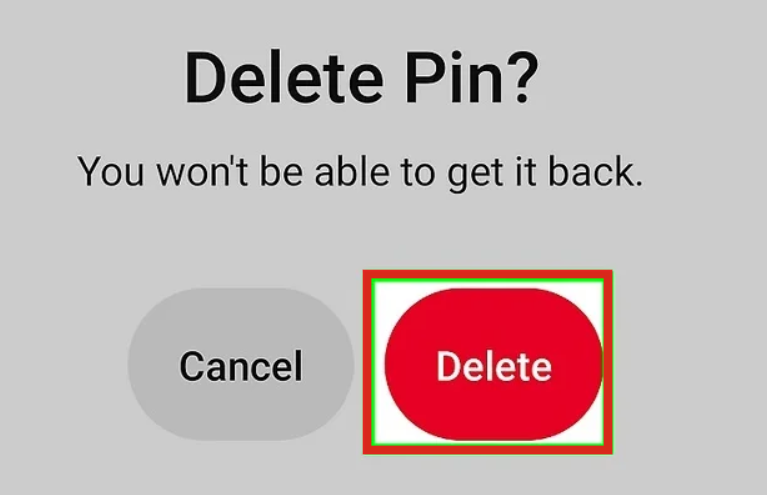
Step 6: Confirm to complete the action.
In my experience, most users search for how to delete Pins on Pinterest mobile because the interface is slightly different from desktop. Many options are hidden under the three-dot menu, which is where the Delete and Unsave options appear. If you are using Pinterest on iPhone or iPad, the steps are almost identical, which makes it easy once you understand where the delete option is located.
Method 3: Deleting Multiple Pins from a Board (Website)
Step 1: Go to your profile and open the board you want to clean up.
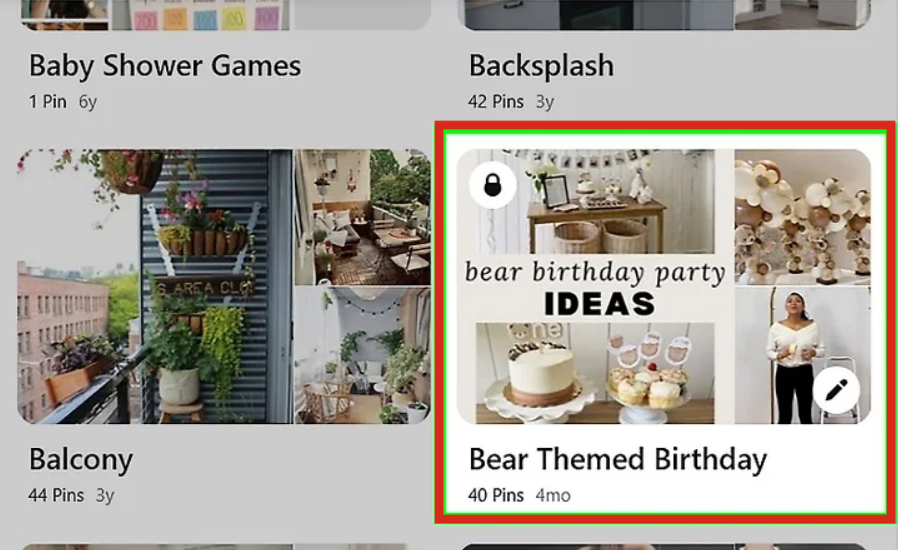
Step 2: Click the three dots and Organize.
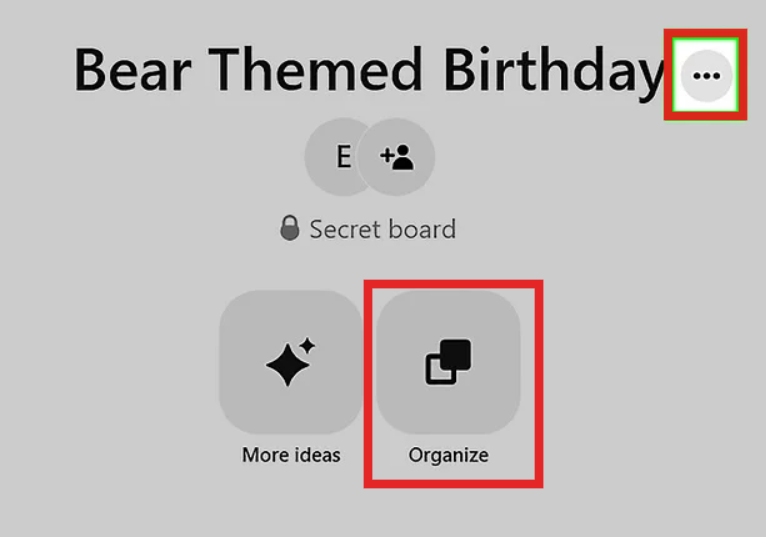
Step 3: Select multiple Pins by clicking on them.
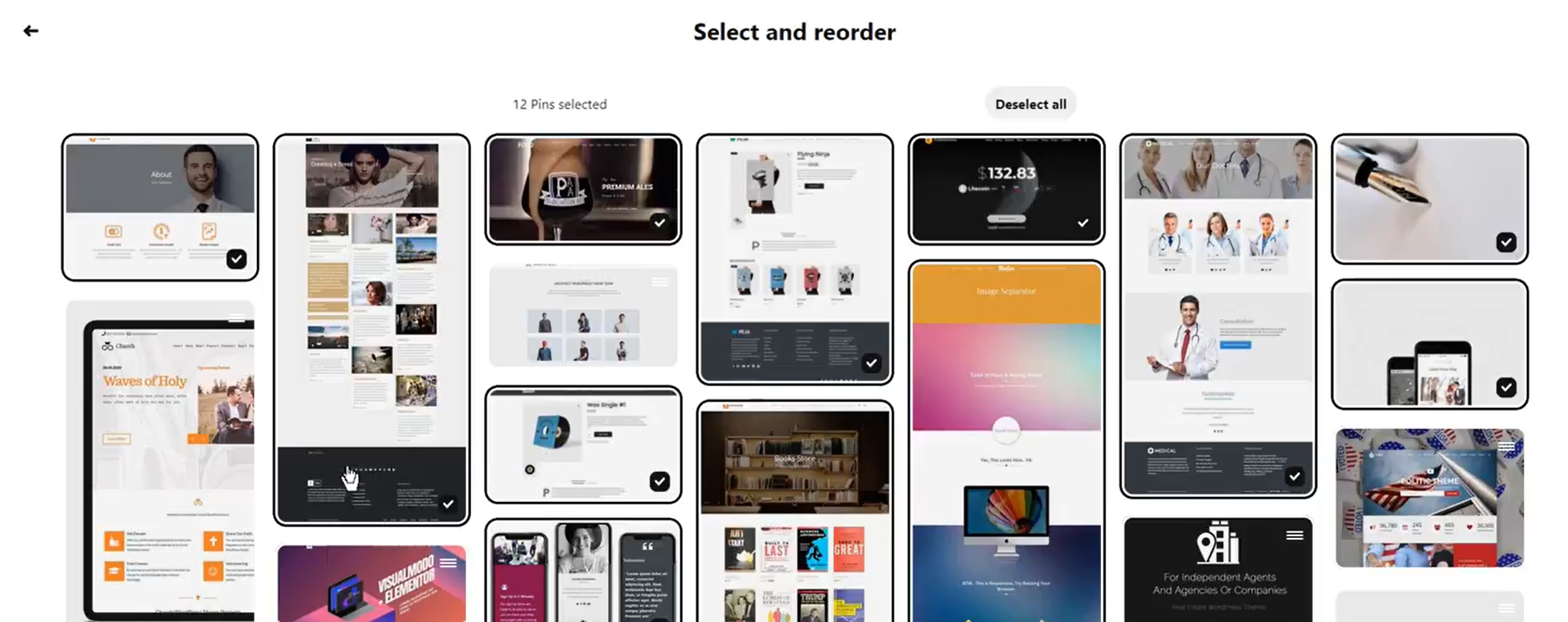
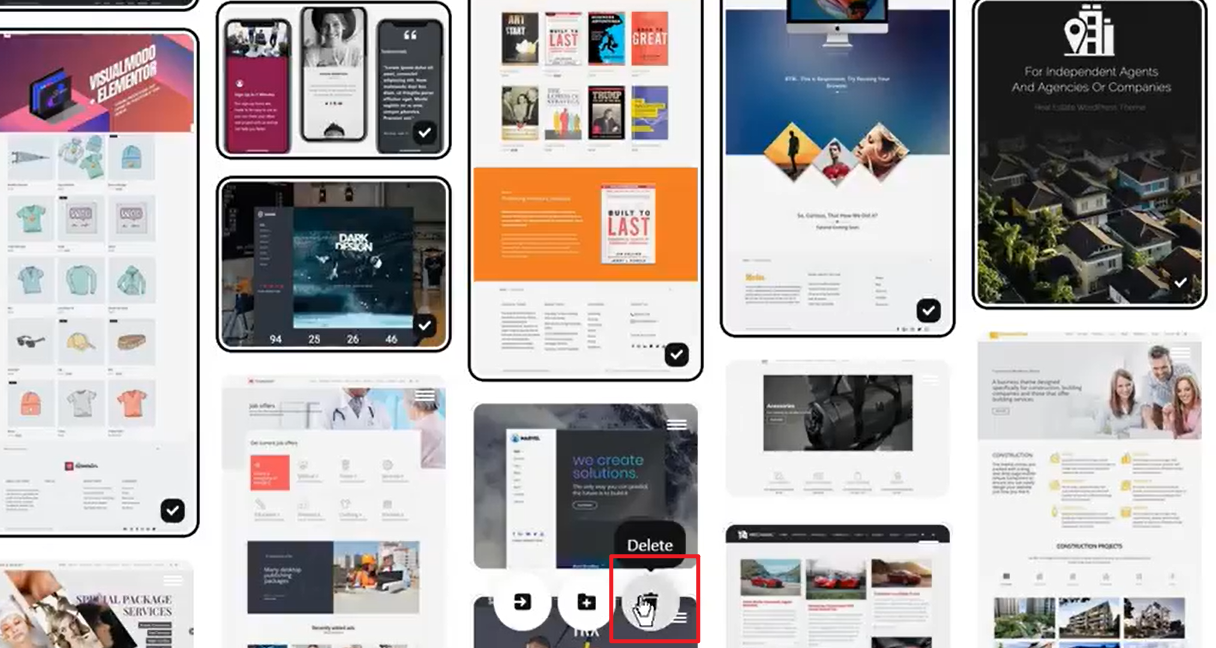
Step 4: Click Delete or Remove from board.
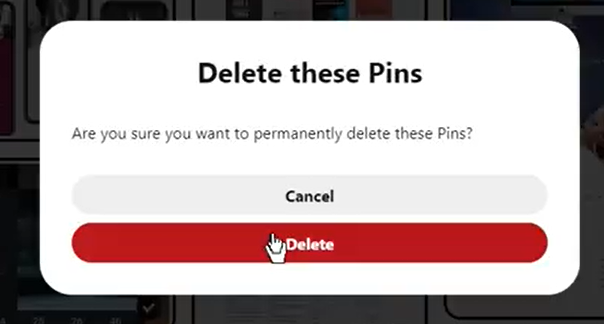
Step 5: Confirm your selection.
This method helps you learn how to delete Pins on Pinterest fast or remove several Pins on Pinterest in bulk. While it is not possible to delete Pins you created all at once, this feature is the most efficient option for removing multiple saved Pins at the same time.
From my own workflow, I often use the Organize function when cleaning up old mood boards or project boards. It reduces the effort and prevents the need to open each Pin individually. If your goal is to understand how to delete Pins on Pinterest all at once or how to delete several Pins on Pinterest, this is the only available bulk method on the platform.
Part 2: Common Issues & How to Solve Them
“Delete Pin” Option Not Showing
If you cannot find the Delete Pin option, it usually means you did not create the Pin. Pinterest only allows you to delete Pins you uploaded yourself. For saved Pins, the only available action is Unsave or Remove from board. This is a common scenario for users searching for how to remove Pins from Pinterest or how to delete Pins on Pinterest mobile, because the platform differentiates between ownership and saved content.
From my experience, this is the most frequent confusion when trying to clean up a board. Once you understand the difference between deleting and unsaving, the process becomes much easier.
Accidentally Deleted a Pin
If you created the Pin yourself and deleted it, Pinterest cannot recover it. The deletion is permanent. However, if you unsaved someone’s Pin, you can search for it again and save it easily. Using keywords, board history, or browsing your Saved feed usually helps you locate it again.
Can’t Find an Old Pin
Pinterest’s boards can grow quickly, and older Pins may get buried. Use the search bar within your board or profile, filter by keywords, or switch to the All Pins view. This helps you locate Pins faster before deciding whether to delete or remove them.
Want to Save a Video Pin Before Deleting
Many users decide to save a video before cleaning up a board. Using a downloader tool to save the video allows you to keep the content even after removing the original Pin. This solves the common problem of losing valuable media just because you want to delete clutter.
Deleting vs. Unpinning or Unsaving
Deleting permanently removes a Pin you created. Unsaving or removing from the board only removes a Pin you saved from another user’s board. The original Pin remains visible on Pinterest, posted by its creator. This distinction is essential when understanding how to delete Pins on Pinterest fast or avoid removing content you do not own.
Tip: Regular board maintenance is helpful. When cleaning up large boards, use the Organize feature on the Pinterest website. It is the fastest method for handling multiple Pins at once.
From my experience, the biggest productivity boost comes from using a combination of desktop and mobile cleanup. Desktop is useful for bulk removal, while the mobile app is convenient for quick, on-the-go cleanup.
Part 3: Save Your Favorite Videos with Free Pinterest Video Downloader
Before learning how to delete Pins on Pinterest all at once or how to delete Pins on Pinterest on iPhone, many users want to save video content from a Pin. This prevents losing helpful or creative ideas you want to keep for future reference. One convenient option is using a free Pinterest video downloader to download the video directly to your device.
Overview
Free Pinterest Video Downloader is a web-based tool that helps you download video Pins directly from your browser without installation or login. It works on both mobile and desktop, which makes it suitable whether you are using Pinterest on an iPad, iPhone, or a computer. It preserves the quality of your saved videos, which is helpful before you delete or unsave Pins.
Key Features
Free, no installation required
Works on any browser or device
Saves the video in high quality
No account signup is needed
Simple one-step process: paste and download
In my own use, this tool is handy when I want to clean up large boards but still keep the video content. It is especially useful when managing how to delete Pins on Pinterest in bulk, because downloading allows me to save reference material without bookmarking the Pin.
How to Use the Pinterest Video Downloader
Step 1: Find the video Pin you want to save.
Step 2: Tap the Share icon.
Step 3: Select Copy link.
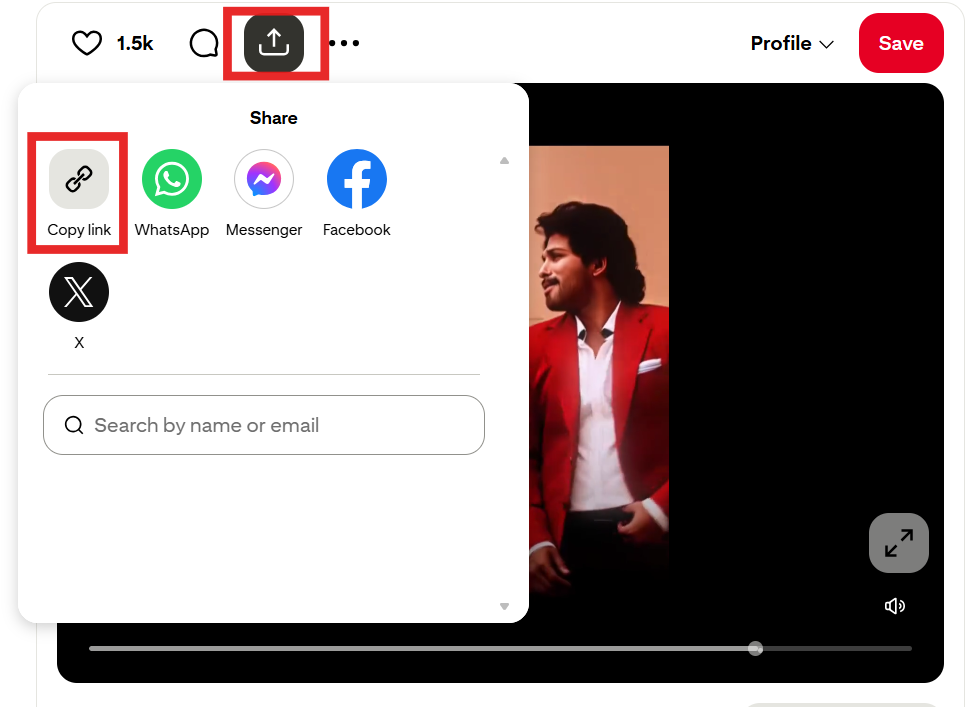
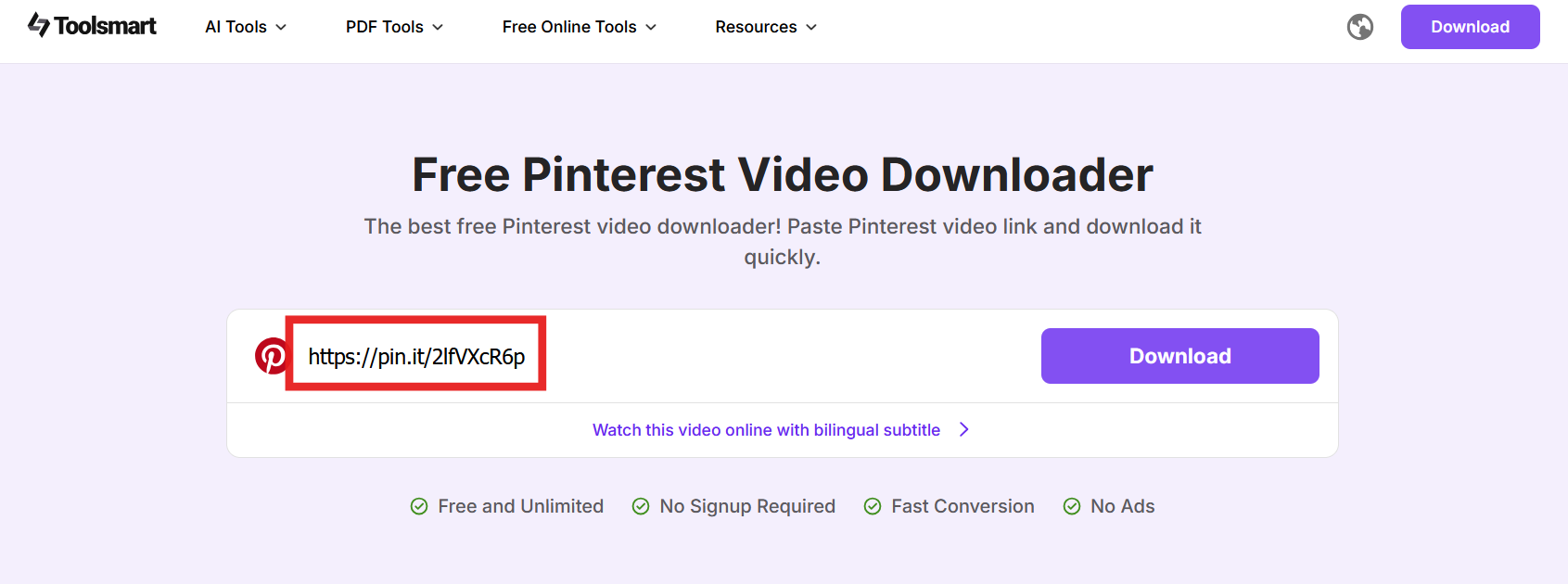
Step 4: Visit the Toolsmart Free Pinterest Video Downloader.
Step 5: Paste the link into the input field.
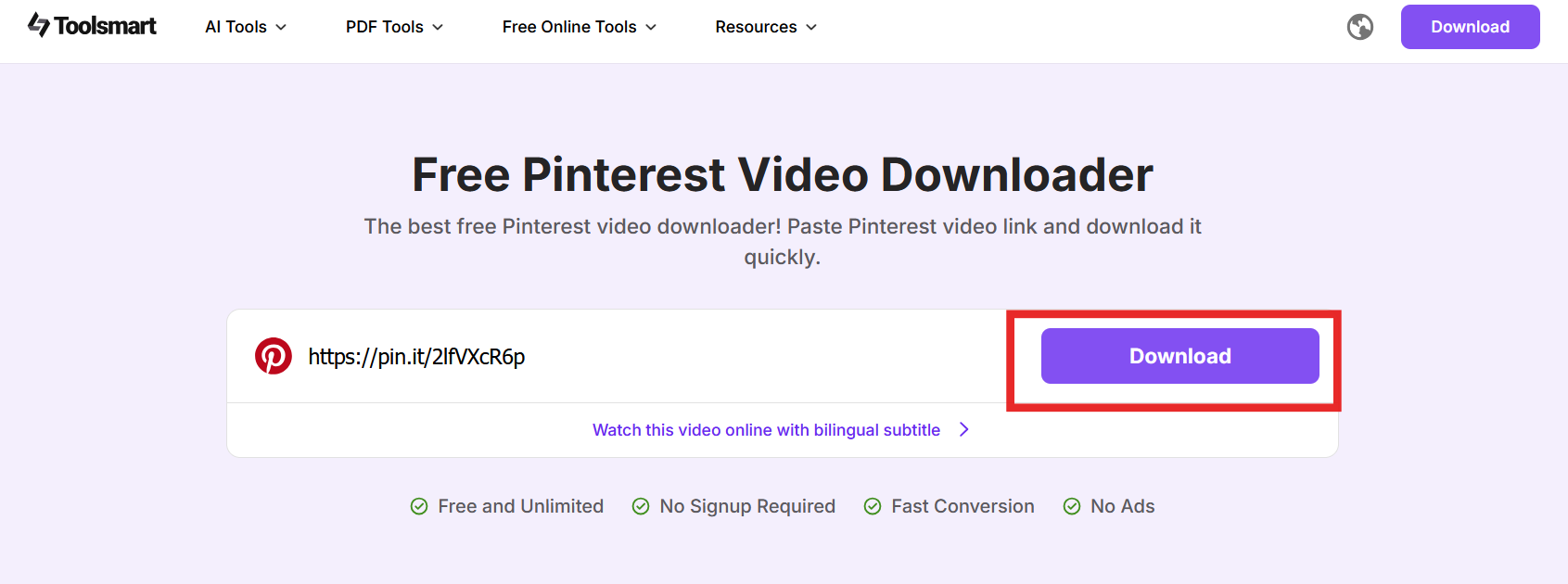
Step 6: Click Download and save the video to your device.
Tip: Use this method before you remove a Pin from a board. It avoids the problem of losing a helpful idea or reference.
From my experience, using a video downloader is helpful when you want to keep content that is part of your personal workflow or planning. It is a convenient alternative to saving Pins that you plan to delete later.
FAQs
Q1: What is the difference between deleting and unsaving a Pin?
Deleting permanently removes a Pin you created from Pinterest. Unsaving only removes a saved Pin from your board, but the original post remains available on Pinterest from its creator. This distinction is important when learning how to delete Pins on Pinterest because only your own Pins can be deleted.
Q2: Can I recover a deleted Pin?
No. If it is a Pin you created and you select Delete Pin, the action is permanent. However, if you remove or unsave someone’s Pin, you can find and save it again by searching keywords or visiting the original board where you found it.
Q3: Can I delete multiple Pins at once?
Yes, you can remove several saved Pins at the same time using the Organize option on the Pinterest website. While you cannot delete your own original Pins in bulk, this is the fastest option when you want to remove multiple Pins at once.
Q4: Is the Pinterest Video Downloader free to use?
Yes, the tool is free and does not require installation or account registration. It is a useful option when you want to save your favorite video Pins before deleting a Pin or removing it from your board.
Q5: Why would I want to download a Pinterest video?
Downloading allows you to keep a permanent copy of a video for personal reference, even if you later decide to unsave the Pin. This is especially helpful for tutorials, DIY content, and inspiration boards.
Summary
Deleting or removing Pins helps you maintain a clean and organized Pinterest profile. The fastest way to delete Pins is to identify whether you created the Pin or simply saved it. Use the Delete option to permanently remove Pins you uploaded, and use Unsave or Remove from board for Pins saved from others. Whether you are learning how to delete a pin on Pinterest from your computer or how to delete Pins on Pinterest mobile, both methods are simple once you understand where the delete option is located.
When you want to delete several Pins at once, use the Organize feature on the Pinterest website to remove multiple saved Pins efficiently. Finally, if you want to keep a copy of your favorite videos before removing Pins, use a free Pinterest video downloader to save them directly to your device. This gives you the flexibility to clean up your boards without losing content you might need later.


