
'%3e%3cpath%20fill-rule='evenodd'%20clip-rule='evenodd'%20d='M19%208.5C24.799%208.5%2029.5%2013.201%2029.5%2019C29.5%2024.6782%2024.9928%2029.3036%2019.361%2029.4939L19%2029.5C18.8794%2029.5%2018.7592%2029.498%2018.6396%2029.4939L18.2811%2029.4758C12.8174%2029.1063%208.5%2024.5574%208.5%2019C8.5%2013.201%2013.201%208.5%2019%208.5ZM22.3063%2010.6267L22.2342%2010.6539C21.3423%2011.0061%2020.5541%2011.6368%2020.5606%2012.4987C20.5631%2012.8302%2020.869%2014.8871%2020.2141%2014.8486C19.5589%2014.8102%2019.413%2013.8753%2018.7116%2013.616C17.5944%2013.2026%2016.9819%2014.3401%2017.0939%2015.3106C17.1695%2015.9655%2018.9289%2018.3871%2017.9028%2019C17.292%2019.3651%2015.7279%2017.5692%2015.1007%2017.1842C14.4805%2016.8034%2013.2758%2017.3333%2012.4974%2016.7029C11.9874%2016.2899%2012.3881%2014.4098%2012.2786%2013.8372C12.2271%2013.5698%2012.1155%2013.3689%2011.9794%2013.2166L12.0402%2013.2934C10.7653%2014.8464%2010%2016.8339%2010%2019C10%2023.8465%2013.8307%2027.7982%2018.6295%2027.9925L18.6769%2027.9747C18.8597%2027.8677%2019.0394%2027.7557%2019.216%2027.6387C19.4137%2027.4534%2019.5436%2027.2072%2019.5849%2026.9394C19.8806%2025.1222%2018.3616%2025.4302%2017.9367%2024.5622C17.5489%2023.7695%2018.5712%2023.7684%2018.5524%2021.7923C18.4607%2021.1774%2018.5279%2020.547%2018.7211%2020.0315C19.1834%2018.7987%2020.7077%2017.2643%2022.5889%2018.0081C23.5567%2018.3906%2023.1524%2019.9831%2023.4737%2020.3394C24.251%2021.2018%2025.3228%2020.6863%2026.2856%2021.2253C26.7816%2021.5032%2026.9797%2022.41%2027.056%2023.2248L27.038%2023.0528C27.6534%2021.8348%2028%2020.4579%2028%2019C28%2015.1968%2025.6409%2011.9445%2022.3063%2010.6267Z'%20fill='%23757575'/%3e%3ccircle%20cx='19'%20cy='19'%20r='10.125'%20stroke='%23757575'%20stroke-width='2.25'/%3e%3c/g%3e%3cdefs%3e%3cclipPath%20id='clip0_1827_14613'%3e%3crect%20width='24'%20height='24'%20fill='white'%20transform='translate(7%207)'/%3e%3c/clipPath%3e%3c/defs%3e%3c/svg%3e)


GIFs are the coolest way to loop hilarious moments, tutorials, or memes on TikTok, Instagram, or X, making your posts pop. But cropping a GIF to zoom in on the good bits can be a pain with tons of tools out there. Some add watermarks, limit sizes, or feel way too complex. How do you crop a GIF quick and free while keeping it crisp? This guide’s got your back with five dope free tools like Movavi, GIFGIFs, iLoveIMG, EZgif, and Kapwing, plus Toolsmart’s Free YouTube Video Downloader to grab videos for GIFs. Let’s make your GIFs shine bright!
Part 1: How to Crop a GIF: 5 Best Tools for You
Check out these five free tools to crop your GIFs, each with a vibe for different needs, from quick edits to pro-level tweaks.
Movavi

Movavi’s like your artsy pal who makes GIFs a breeze, turning videos into GIFs and cropping them super easy. Its editor’s loaded with fun tools to crop, spin, add text, or play with colors, perfect for whipping up slick GIFs for social media or projects, no pro skills needed!
Features: Drag-and-drop crop, rotate, reverse, color filters, text overlay, GIF-to-video, batch export.
Pros:
Preview crop area before export.
Supports video-to-GIF conversion.
Tons of editing options.
Cons:
Can’t share directly to Facebook.
Requires software download.
How to Crop a GIF:
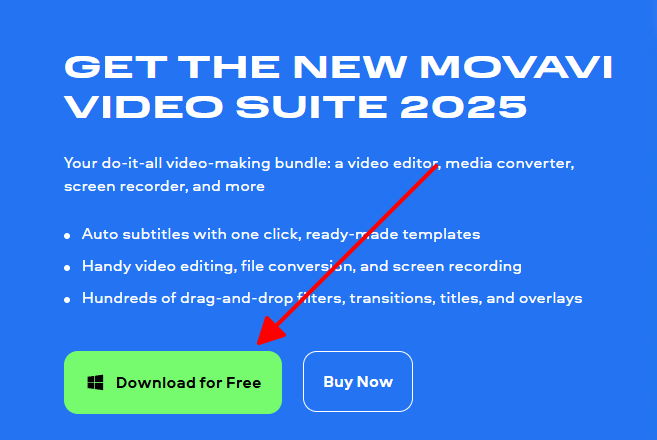
Step 1: Download and launch Movavi Video Editor.
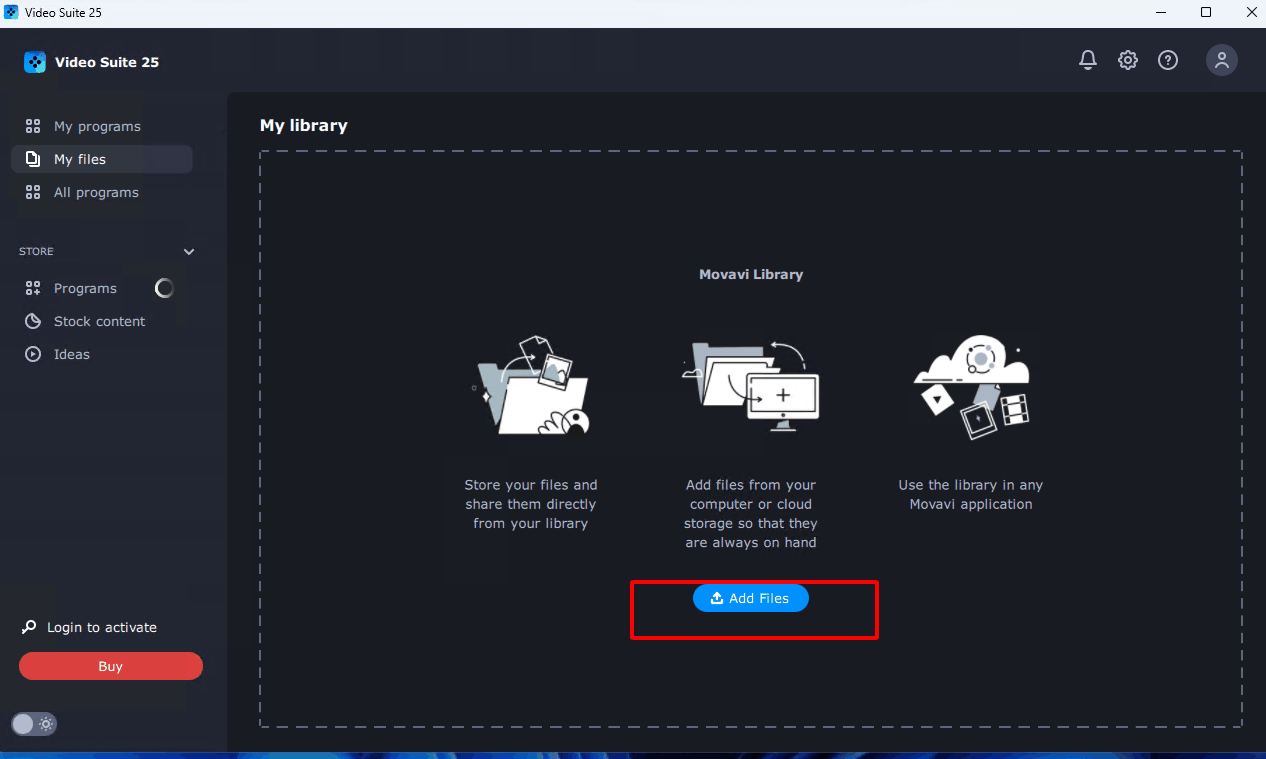
Step 2: Upload your GIF or video file.
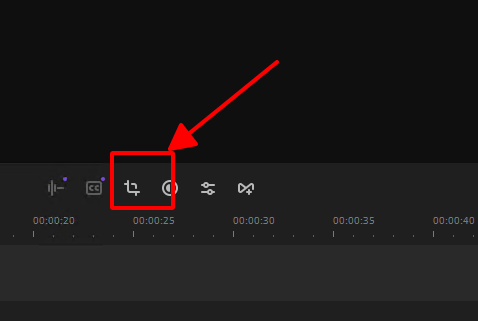
Step 3: Use the crop tool to select your desired area and preview.
Step 4: Save as a GIF or other format.
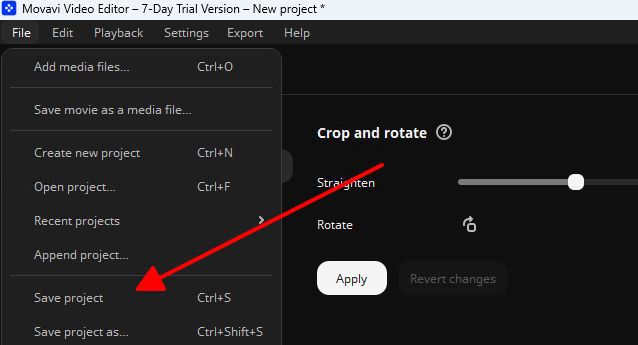
I used Movavi to crop a meme GIF, and it was super smooth—cropped and added text in minutes! It’s beginner-friendly, but downloading the software took a bit, and I wished for direct social sharing.
GIFGIFs

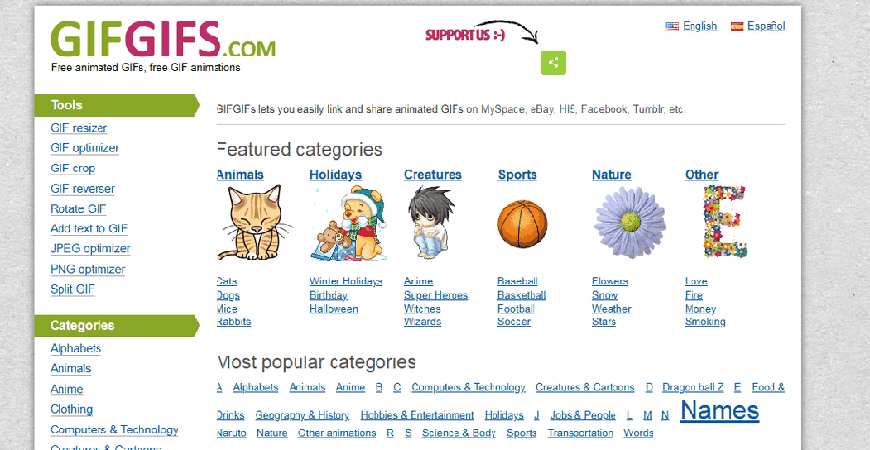
GIFGIFs is a no-fuss online tool that’s all about quick GIF edits right in your browser. It’s perfect for fast crops when you just need to trim a GIF without extra bells and whistles, ideal for casual users wanting to share memes or clips without downloading anything.
Features: Instant browser upload, pixel-level crop with width/height inputs, one-click process, immediate download.
Pros:
Shows file size before downloading.
Supports resizing, rotating, text.
Cons:
20MB file size limit.
No drag-to-crop option.
How to Crop a GIF:
Step 1: Open GIFGIFs in your browser.
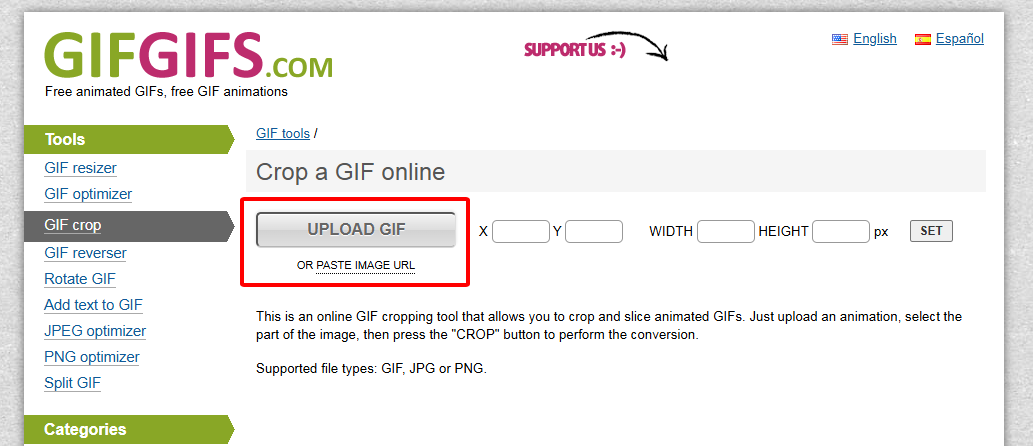
Step 2: Click “UPLOAD GIF” to add your file.
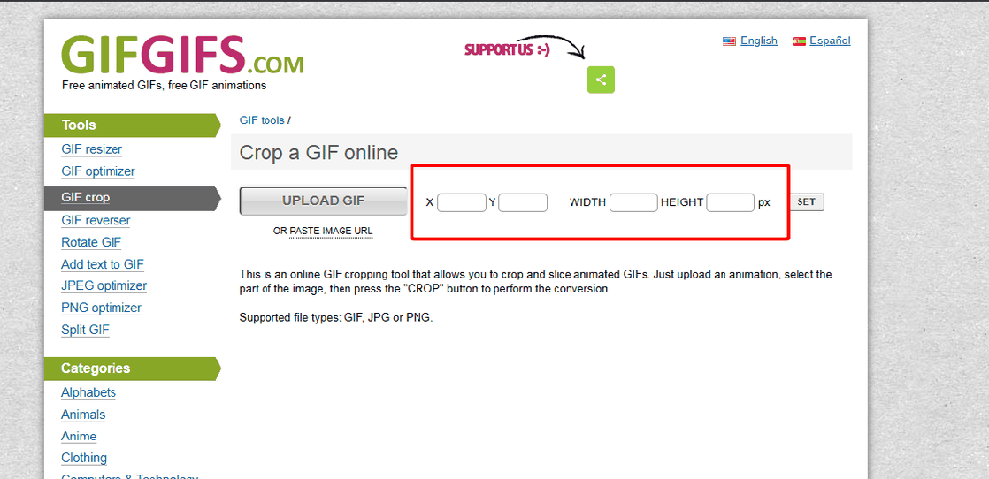
Step 3: Set exact width and height in pixels (check original size first).
Step 4: Hit “Crop” and download the result.
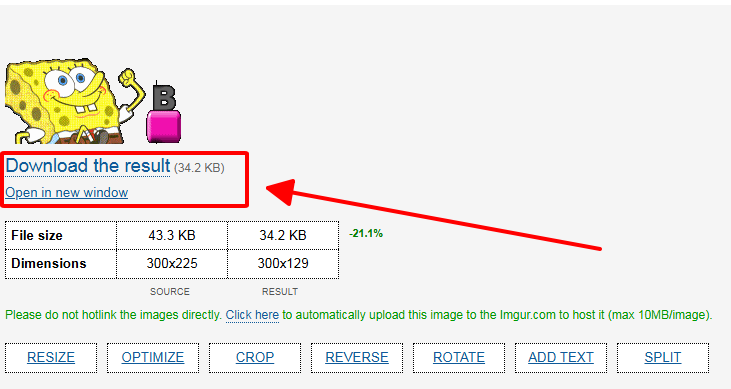
I cropped a funny cat GIF with GIFGIFs, and it was quick, but entering pixel values felt clunky without a drag option. The 20MB limit worked for small files, and no signup was a win
iLoveIMG
iLoveIMG is like a smooth, no-fuss online buddy that makes cropping GIFs crazy easy with its drag-and-drop setup. It’s perfect for anyone wanting quick, watermark-free edits without signing up, ideal for fast tweaks to share on social media or save for fun projects, all right in your browser.
Features: Drag-and-drop crop, no watermarks, instant preview, one-click download, lossless export.
Pros:
No watermarks, super simple to use.
No account needed, total time-saver.
Cons:
Sticks to image cropping only.
Can’t import GIFs via URL.
How to Crop a GIF:
Step 1: Head to iLoveIMG.com and pick “Crop Image.”
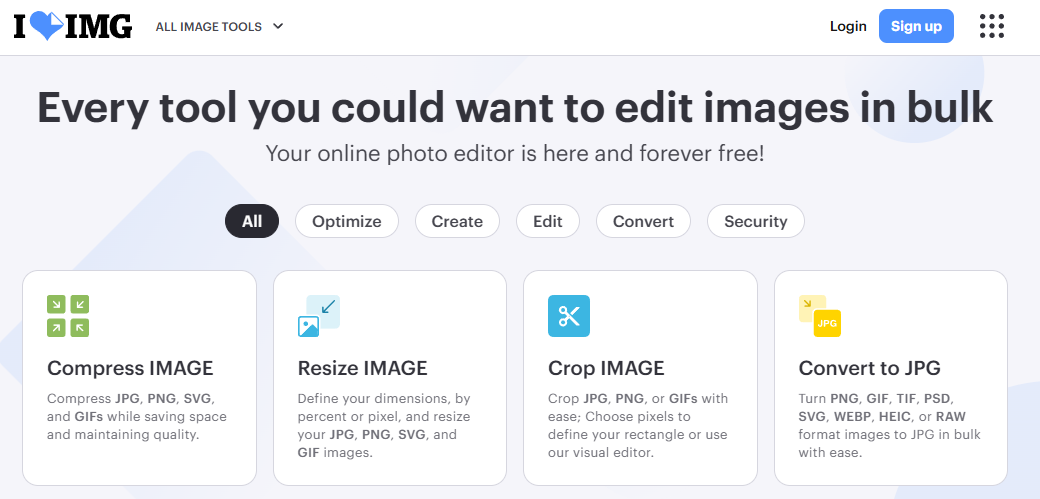
Step 2: Upload your GIF from your computer, Google Drive, or Dropbox.
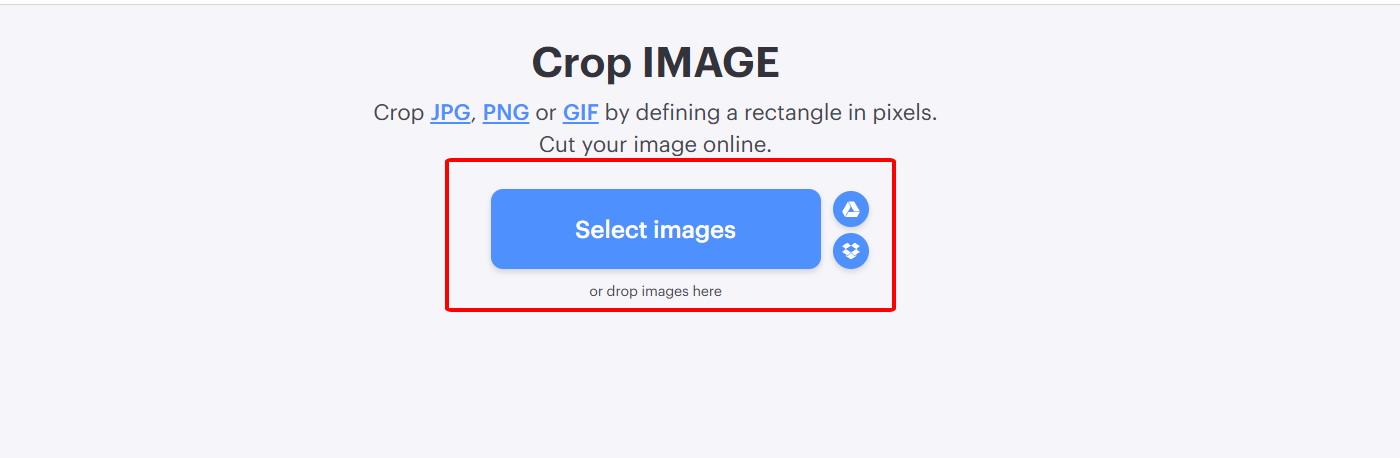
Step 3: Move the crop box or punch in width/height numbers.
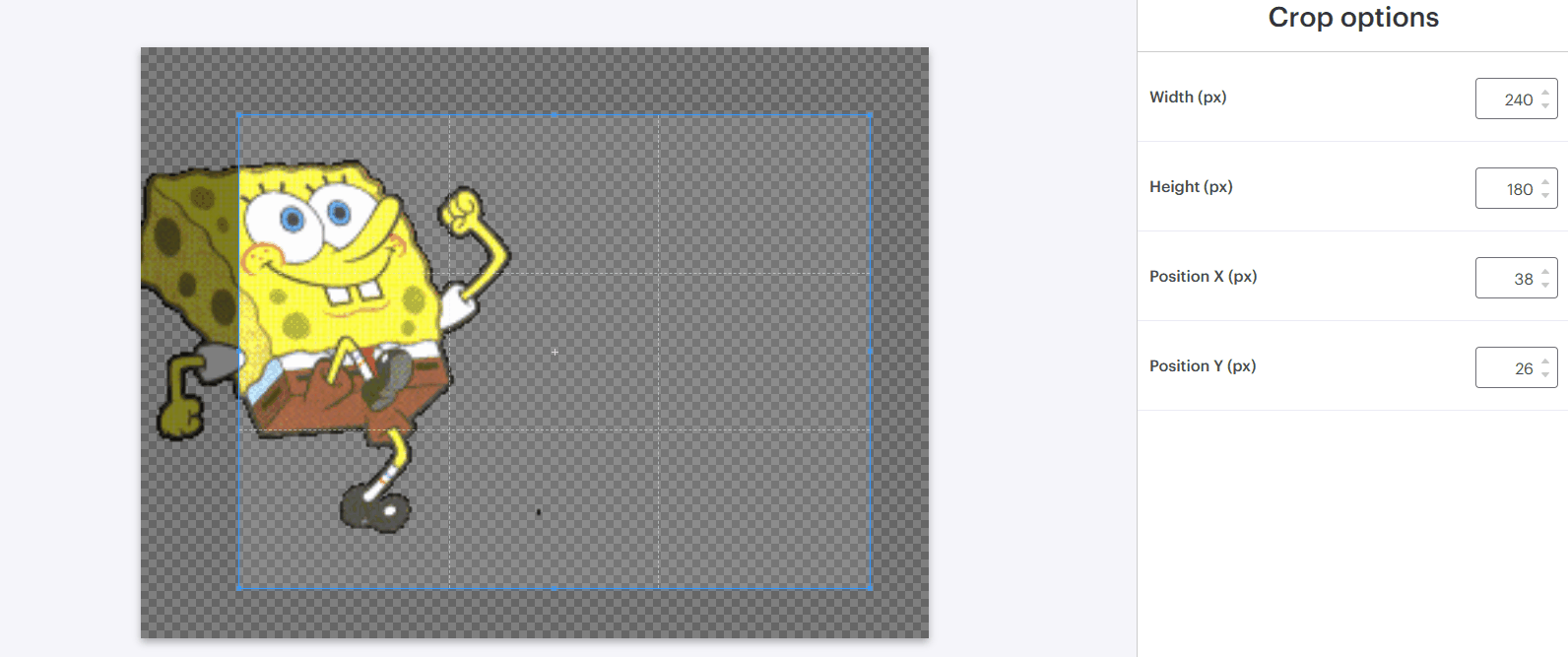
Step 4: Hit “Crop Image” to save and download.
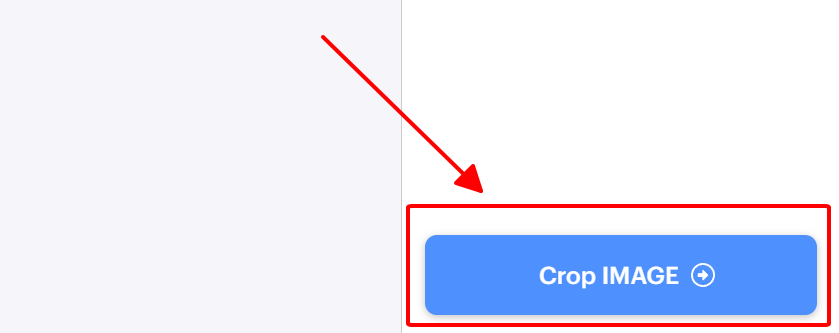
I cropped a GIF for Instagram with iLoveIMG, and it was a breeze—drag, crop, done in seconds! The watermark-free download rocked, but I wished I could just paste a URL for even faster edits.
Ezgif
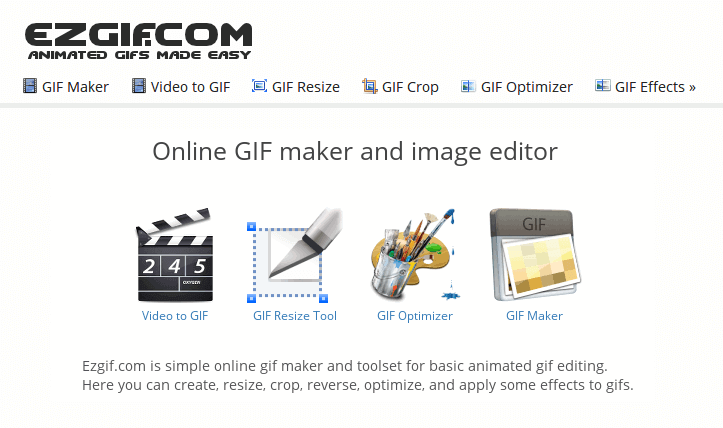
EZgif is like your trusty pocketknife for GIFs, packing a simple browser-based tool to crop, resize, or slap on text. Its straightforward vibe makes quick edits a breeze, and URL imports save time, making it a fave for anyone wanting versatile, watermark-free GIF tweaks on the fly.
Features: Crop, convert, resize, split, annotate, three crop modes, watermark-free, instant download.
Pros:
Multifunctional with no watermark.
Three cropping modes, URL import.
Cons:
No cloud drive imports.
35MB file size limit.
How to Crop a GIF:
Step 1: Visit EZgif.com and upload your GIF locally or via URL.
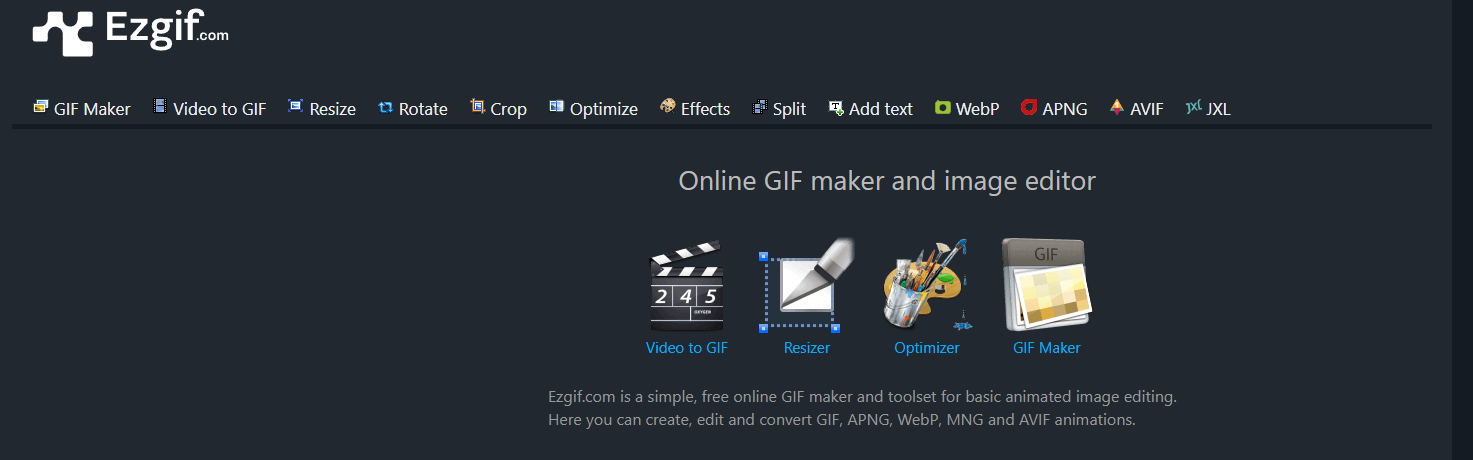
Step 2: Select “Crop” from the top bar, choose a mode (box, pixels, ratio).
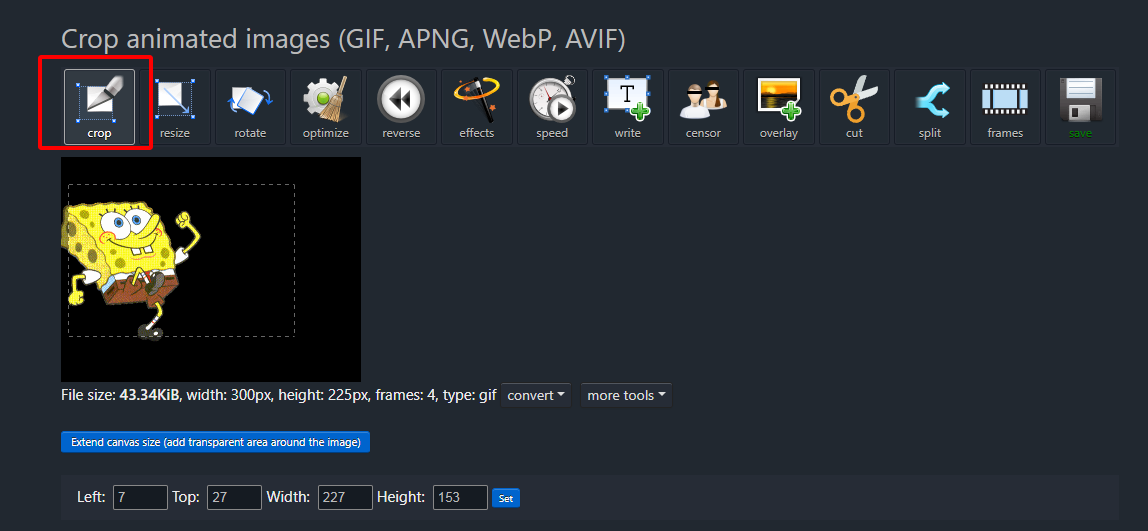
Step 3: Adjust crop area and hit “Crop.”
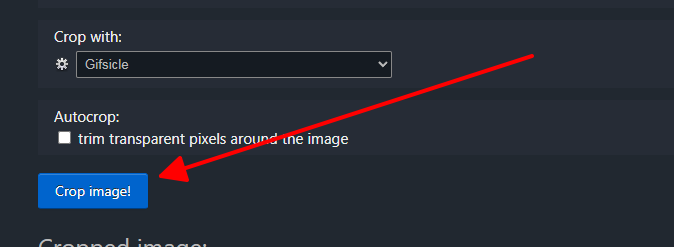
Step 4: Save the GIF file.
I cropped a reaction GIF with EZgif, and the URL import saved time. The three crop modes were cool, but the 35MB limit and no cloud imports were a slight drag. Super easy for beginners
Kapwing
Kapwing’s online editor is a creative powerhouse, letting you crop GIFs without signing in while offering video and image editing too. It’s perfect for social media pros or casual users wanting to crop, resize, or add subtitles to GIFs for platforms like Instagram or X with preset ratios.
Features: No-sign-in crop, resize, subtitle, GIF-to-video, templates, 4K export.
Pros:
No sign-in required.
Versatile editing tools.
Cons:
Watermark in free version.
Slightly complex for beginners.
How to Crop a GIF:
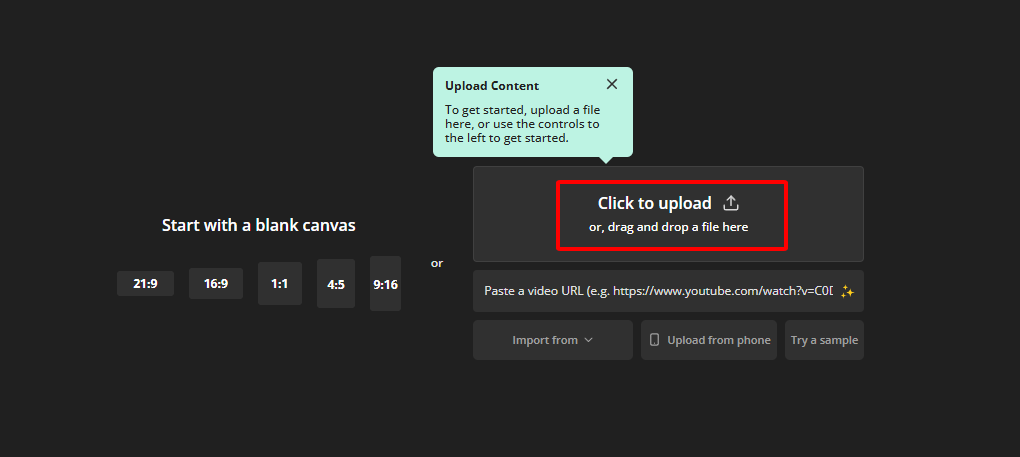
Step 1: Visit Kapwing.com and click “Get Started” in Studio.
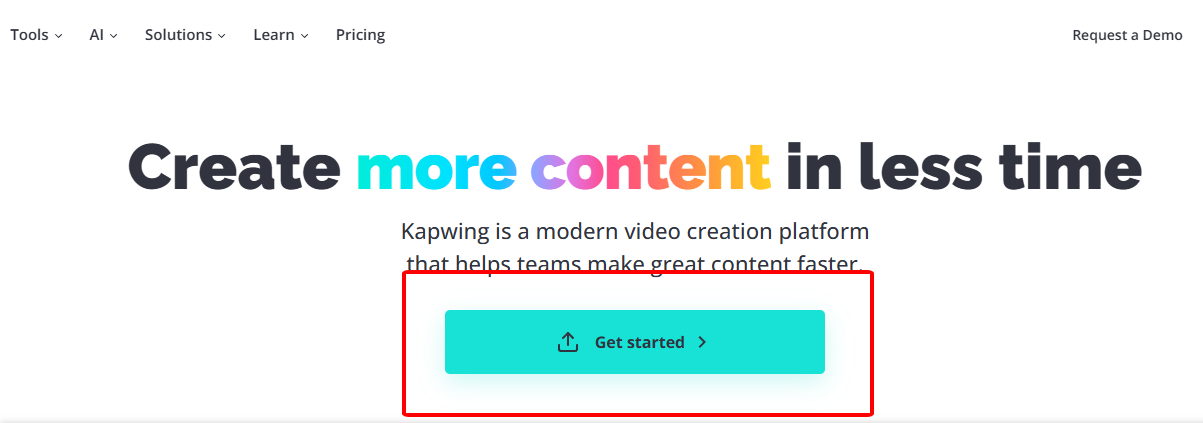
Step 2: Upload your GIF via drag, browse, or URL.
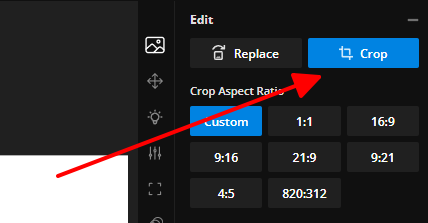
Step 3: Click “Crop” and adjust the box or pick presets like 1:1.
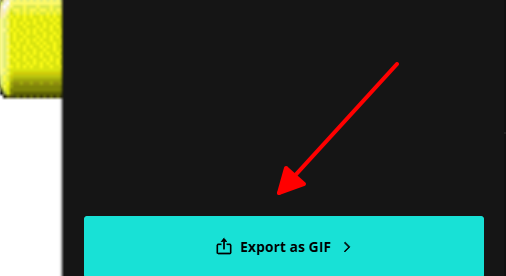
Step 4: Hit “Export GIF” to download.
I used Kapwing to crop a GIF for X, and the preset ratios were clutch for social posts. The watermark in free mode bugged me, and it felt a bit tricky at first, but the results rocked
Part 2: Best GIF Croppers for Android/iOS to Crop a GIF
Need to crop GIFs on your phone? These mobile apps make it easy for Android or iOS users to edit on the go.
GIF Maker
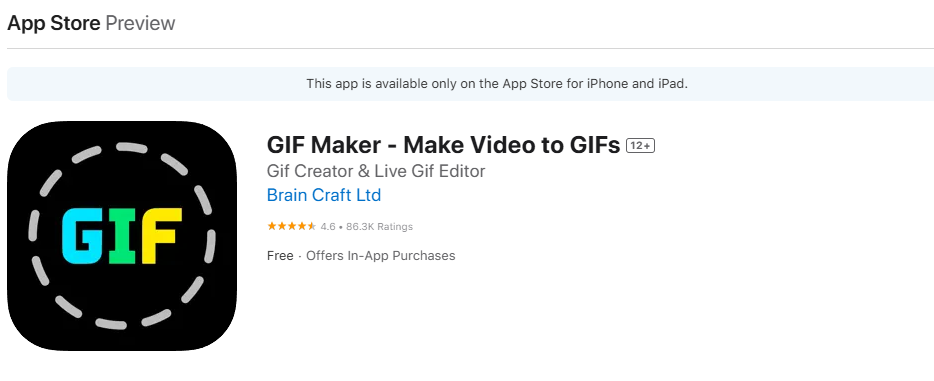
GIF Maker is a simple mobile app for creating and editing GIFs, perfect for quick crops without watermarks. It’s great for casual users wanting to tweak GIFs for social media with a clean, one-tap interface.
Features: Cut/crop, speed control, reverse, stickers/text, instant share.
Pros:
One-tap edits, no watermarks.
Clean, beginner-friendly UI.
Cons:
Ads can be frequent.
Limited advanced filters.
How to Crop a GIF:
Step 1: Open GIF Maker and select “Edit GIF” to pick your GIF.
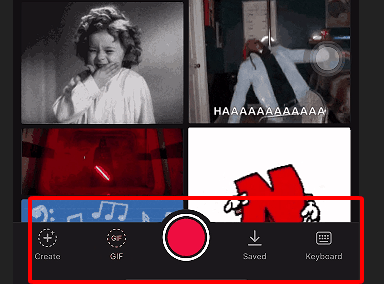
Step 2: Tap “Adjustment” and hit the pencil icon on the bottom toolbar.
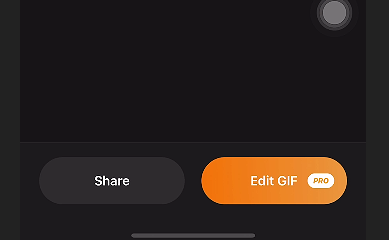
Step 3: Adjust the cropping frame to your liking.
Step 4: Click “Done” to save adjustments.
Step 5: Export as GIF, select quality, and hit “OK.”
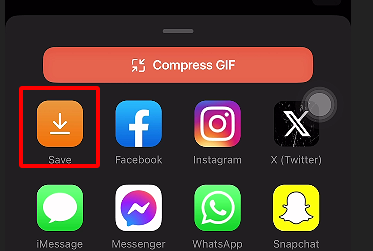
I cropped a meme GIF with GIF Maker on my Android, and it was a breeze—done in seconds! Ads popped up a lot, but the watermark-free export was a big win for quick mobile edits.
Picsart GIF & Sticker Maker
Picsart’s app is a creative beast, letting you crop, animate, and add effects to GIFs on iOS or Android. It’s perfect for users wanting pro-level edits with fun stickers and animations for social media.
Features: Cut/crop, animate stickers, AI effects, layers, speed control, no-ads Pro.
Pros:
All-in-one editor with rich effects.
Direct social sharing.
Cons:
Watermark on free exports.
Premium ($11.99/month) unlocks full features.
How to Crop a GIF:
Step 1: Open Picsart, select “Edit,” and pick your GIF from Gallery.
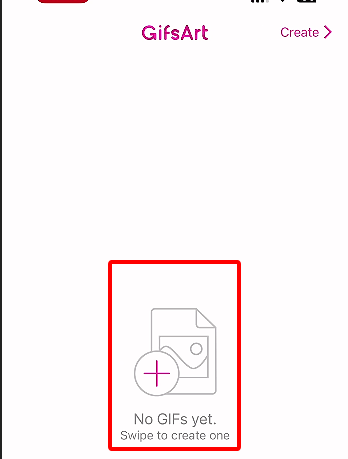
Step 2: Tap the “Crop” icon on the top toolbar.
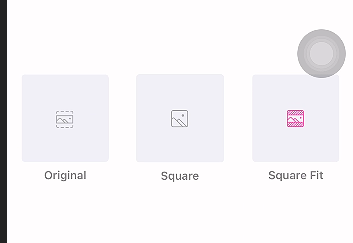
Step 3: Drag and adjust the cropping frame.
Step 4: Hit the “Save” icon to export.
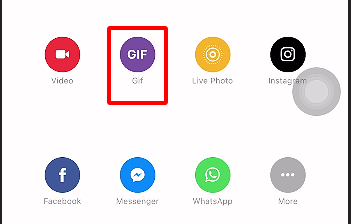
I used Picsart to crop a GIF for Instagram Stories, and the effects were so fun! The free version’s watermark was annoying, but the app’s versatility made it worth it for mobile edits.
Part 3: Comparison of the Above 5 Tools
Here’s how Movavi, GIFGIFs, iLoveIMG, EZgif, and Kapwing stack up:
File Size Limit: Movavi has no limit (desktop); GIFGIFs caps at 20MB, EZgif at 35MB, iLoveIMG and Kapwing vary by browser.
Watermark: iLoveIMG, EZgif, and GIFGIFs are watermark-free; Kapwing adds watermarks, Movavi doesn’t (desktop).
Ease of Use: iLoveIMG and EZgif are simplest; GIFGIFs needs pixel inputs; Kapwing’s complex; Movavi’s intuitive but requires download.
Crop Options: EZgif offers three modes; Movavi, Kapwing, iLoveIMG allow drag-to-crop; GIFGIFs uses pixels only.
Extra Features: Movavi and Kapwing offer video-to-GIF; EZgif and iLoveIMG include resize/text; GIFGIFs is basic.
Best For: Movavi for pro edits, EZgif for versatility, iLoveIMG for simplicity, GIFGIFs for quick crops, Kapwing for social media.
Comparison Table:
| Tool | File Size Limit | Watermark | Ease of Use | Crop Options | Extra Features | Best For |
|---|---|---|---|---|---|---|
| Movavi | None (desktop) | None | Intuitive | Drag-to-crop | Video-to-GIF, text | Pro edits |
| GIFGIFs | 20MB | None | Moderate | Pixel values | Resize, rotate, text | Quick crops |
| iLoveIMG | Browser-dependent | None | Very easy | Drag-to-crop | Resize, compress | Simplicity |
| EZgif | 35MB | None | Very easy | Three modes, URL | Resize, split, text | Versatility |
| Kapwing | Browser-dependent | Yes | Moderate | Drag-to-crop, presets | Video-to-GIF, subtitles | Social media |
Part 4: Free YouTube Video Downloader: Elevate Your Viewing Pleasure
Just played around with some slick GIF-cropping tools? If you’re scrolling YouTube and find a video begging to be a GIF, Toolsmart’s Free YouTube Video Downloader is your bestie. It’s totally free, no signup needed, and grabs public videos in crisp HD crazy fast, ready for cropping or tweaking.
Overview: A free, browser-based gem that downloads YouTube videos in 720p, 1080p, or 4K, ideal for snagging clips to turn into GIFs or compress for your projects.
Features:
Lossless HD/4K quality output.
One-click batch downloads.
MP3 audio extraction option.
Cross-platform web access, no install.
Supports subtitle and thumbnail download.
Pros:
Free, fast, no watermarks or signup.
Simple, beginner-friendly interface.
Cons:
Limited to public videos.
No batch cropping in free version.
How to Use:
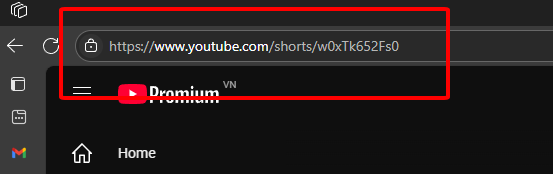
Step 1: Find a public YouTube video and copy its URL.
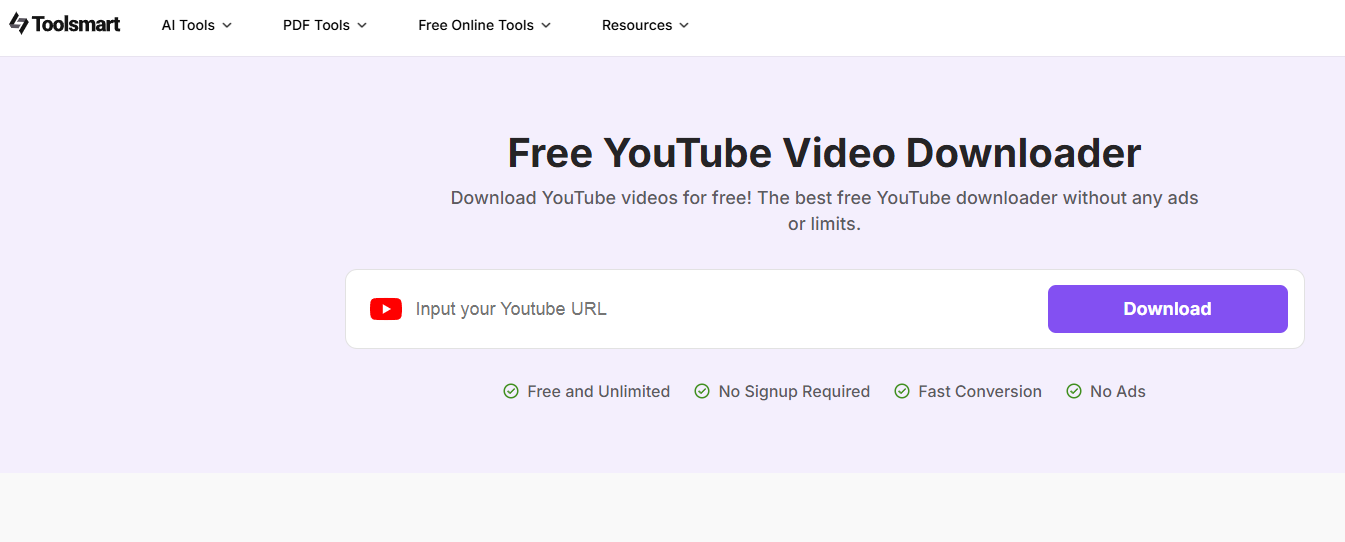
Step 2: Visit Toolsmart’s YouTube Video Downloader website.
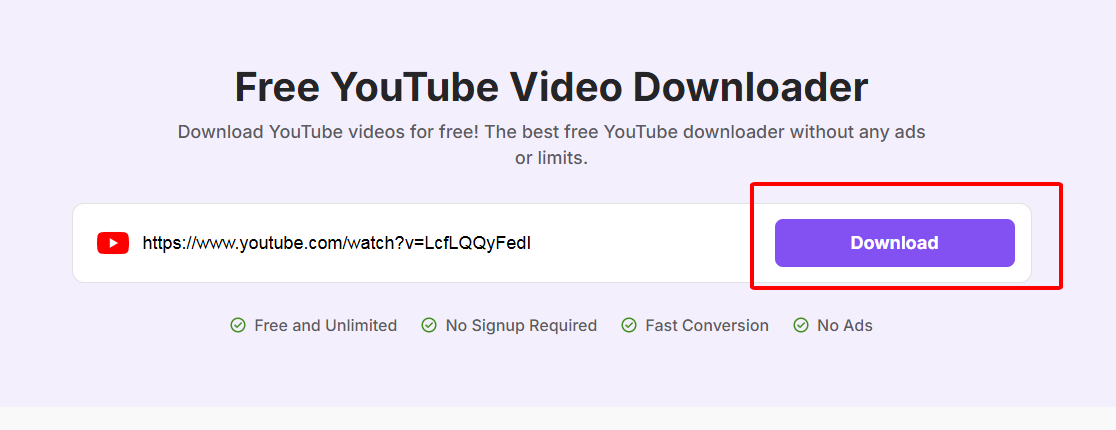
Step 3: Paste the URL in the input box.
Step 4: Click the purple “Download” button to save.
I downloaded a funny YouTube clip with Toolsmart, then cropped it into a GIF with EZgif. It was lightning-fast, no watermarks, and worked on my phone—perfect for quick meme-making!
Part 5: FAQs
Q1: Which tool can batch-crop GIFs without watermarks?
VideoProc Converter AI is the champ for batch-cropping GIFs without watermarks, but it’s not in our free list. Among these, Movavi’s desktop app can handle multiple files watermark-free.
Q2: Which site lets you crop GIFs only by typing pixel values?
GIFGIFs is the one, requiring you to enter exact width and height pixels for cropping, which can be precise but less intuitive.
Q3: Which editor requires no sign-in at all?
Kapwing lets you crop GIFs without signing in, making it super quick for one-off edits, though free exports include a watermark.
Q4: Which tool supports URL import for cropping?
EZgif stands out, letting you crop GIFs by pasting a URL, which saves time if you’re pulling from online sources.
Q5: What platforms does Toolsmart’s Free YouTube Video Downloader support?
Toolsmart’s downloader works on Windows, macOS, Linux, iOS, and Android—basically any device with a browser, and it’s super fast!
Summary
Cropping GIFs is a snap with free tools like Movavi for pro edits, EZgif for versatility, iLoveIMG for simplicity, GIFGIFs for quick crops, and Kapwing for social media vibes. Toolsmart’s Free YouTube Video Downloader is a gem for grabbing public videos in HD to turn into GIFs, no watermarks or signup needed. Whether for memes or tutorials, these tools make your GIFs pop!


