
'%3e%3cpath%20fill-rule='evenodd'%20clip-rule='evenodd'%20d='M19%208.5C24.799%208.5%2029.5%2013.201%2029.5%2019C29.5%2024.6782%2024.9928%2029.3036%2019.361%2029.4939L19%2029.5C18.8794%2029.5%2018.7592%2029.498%2018.6396%2029.4939L18.2811%2029.4758C12.8174%2029.1063%208.5%2024.5574%208.5%2019C8.5%2013.201%2013.201%208.5%2019%208.5ZM22.3063%2010.6267L22.2342%2010.6539C21.3423%2011.0061%2020.5541%2011.6368%2020.5606%2012.4987C20.5631%2012.8302%2020.869%2014.8871%2020.2141%2014.8486C19.5589%2014.8102%2019.413%2013.8753%2018.7116%2013.616C17.5944%2013.2026%2016.9819%2014.3401%2017.0939%2015.3106C17.1695%2015.9655%2018.9289%2018.3871%2017.9028%2019C17.292%2019.3651%2015.7279%2017.5692%2015.1007%2017.1842C14.4805%2016.8034%2013.2758%2017.3333%2012.4974%2016.7029C11.9874%2016.2899%2012.3881%2014.4098%2012.2786%2013.8372C12.2271%2013.5698%2012.1155%2013.3689%2011.9794%2013.2166L12.0402%2013.2934C10.7653%2014.8464%2010%2016.8339%2010%2019C10%2023.8465%2013.8307%2027.7982%2018.6295%2027.9925L18.6769%2027.9747C18.8597%2027.8677%2019.0394%2027.7557%2019.216%2027.6387C19.4137%2027.4534%2019.5436%2027.2072%2019.5849%2026.9394C19.8806%2025.1222%2018.3616%2025.4302%2017.9367%2024.5622C17.5489%2023.7695%2018.5712%2023.7684%2018.5524%2021.7923C18.4607%2021.1774%2018.5279%2020.547%2018.7211%2020.0315C19.1834%2018.7987%2020.7077%2017.2643%2022.5889%2018.0081C23.5567%2018.3906%2023.1524%2019.9831%2023.4737%2020.3394C24.251%2021.2018%2025.3228%2020.6863%2026.2856%2021.2253C26.7816%2021.5032%2026.9797%2022.41%2027.056%2023.2248L27.038%2023.0528C27.6534%2021.8348%2028%2020.4579%2028%2019C28%2015.1968%2025.6409%2011.9445%2022.3063%2010.6267Z'%20fill='%23757575'/%3e%3ccircle%20cx='19'%20cy='19'%20r='10.125'%20stroke='%23757575'%20stroke-width='2.25'/%3e%3c/g%3e%3cdefs%3e%3cclipPath%20id='clip0_1827_14613'%3e%3crect%20width='24'%20height='24'%20fill='white'%20transform='translate(7%207)'/%3e%3c/clipPath%3e%3c/defs%3e%3c/svg%3e)


Photoshop is one of the most powerful design tools out there, an ideal option for creative professionals looking for unique layouts like vertical typography. However, many beginners struggle to fix Photoshop no vertical text issue and end up getting blurry results. Luckily, there are some ways you can fix this for yourself without going through much hassle. In this guide, I’ll cover 4 methods you can use to resolve the text editing Photoshop problem, and introduce free AI design tools for polished results.
4 Methods to Create Vertical Text in Photoshop
Adding vertical text to your graphics can be a unique and innovative way to add a creative touch to them, helping you stand out from others while displaying your creativity. But Photoshop’scomplicated interface can be confusing to navigate, especially if you’re a beginner with no experience. That’s why I’ll be helping you simplify the process in this section, covering 4 of the most effective methods and vertical text alternative tools for the times when you’re dealing with Photoshop text not rotating,
Vertical Type Tool
Using the Vertical Type Tool is one of the simplest and most direct ways you can add vertically oriented text to your graphics, making it an ideal option for beginners looking for a straightforward solution.
Pros
Quick to Use
Accurate Results
Cons
Limited Formatting Options
If you’re still confused on how to use this, I’ll be covering the detailed step-by-step walkthrough of this method down below.
Step 1: Open the graphic you’re working on and select the Vertical Type Tool to get started.
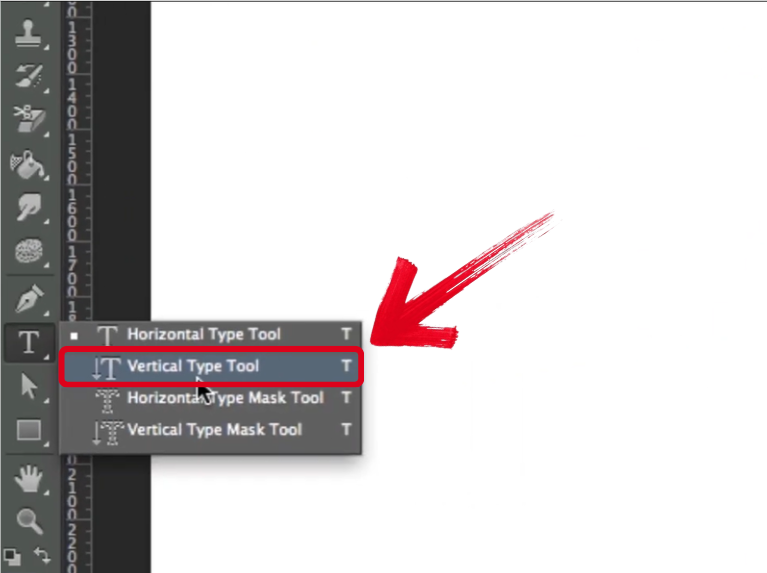
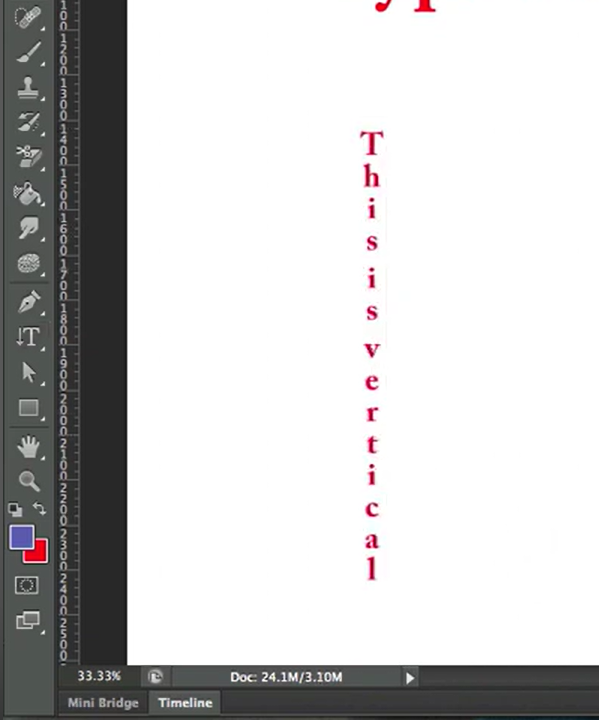
Step 2: Type whatever you want in the textbox provided, everything will be vertically aligned automatically.
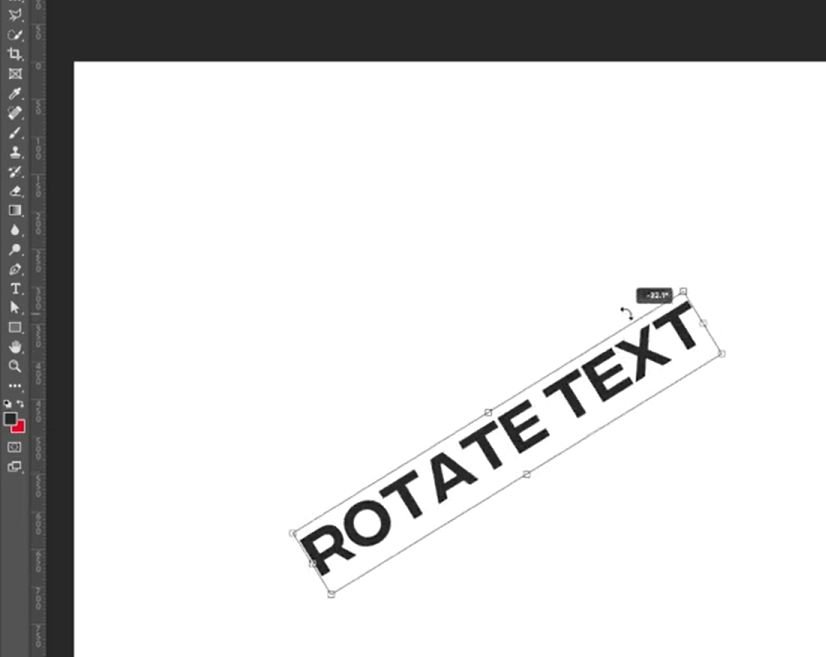
Rotate Horizontal Text Box
If creating a completely new text box seems too much of a hassle for you and you need something simpler, then you could use the Rotate Horizontal Text Box method. It saves a lot of time and ensures that your formatting stays the exact same, even when your text box is completely rotated.
Pros
Simplest Method
Maintains Original Formatting
Cons
Doesn’t work well with long paragraphs
If you’re still struggling with using this method for your vertical text, I’ll highlight all the steps you need to follow down below.
Step 1: Create a standard text box and add the text you want to format in your Photoshop graphic.
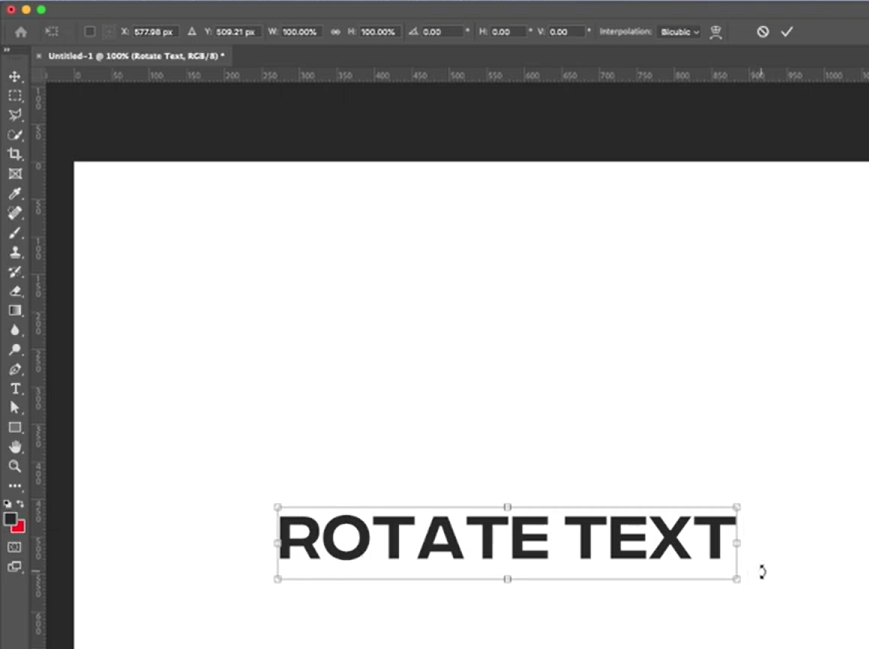
Step 2: Next, just rotate the text box until it’s fully vertical, or by directly rotating it90°.
Character Panel Adjustments
If you’re looking for a universal solution that works with all your text boxes, then using the Character Panel Adjustments might be a better option for you. While it does take more time than the other methods I’ve covered, it allows you to have more flexibility when it comes to adding vertical text.
Pros
Provides Flexibility
Cons
Requires Manual Formatting
Takes More Time
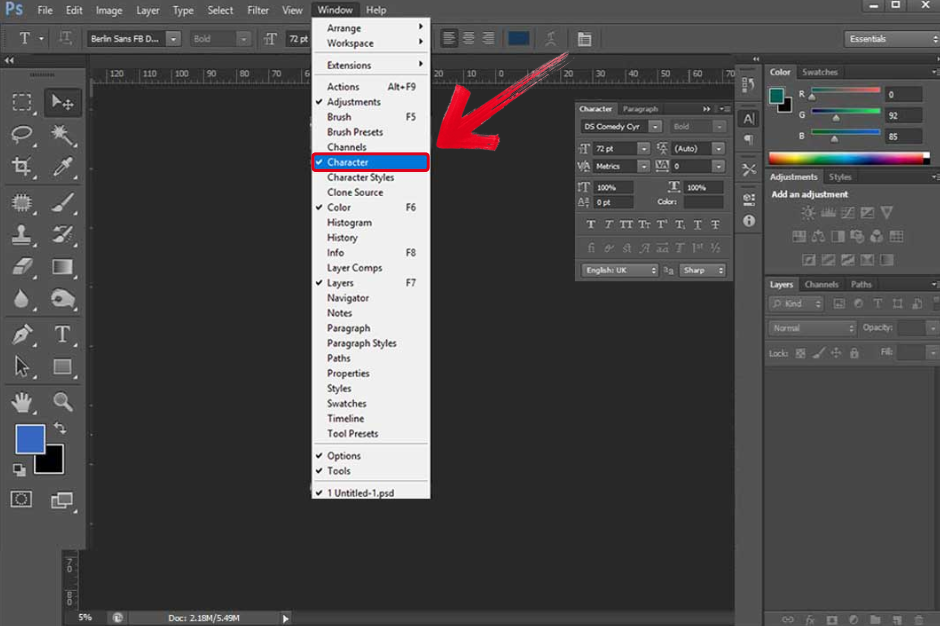
If you’re not sure how to add vertical text to your graphics using character panel adjustments, these are the steps you need to follow for effective results.
Step 1: Navigate to the Window Taband select Character to open the character panel.
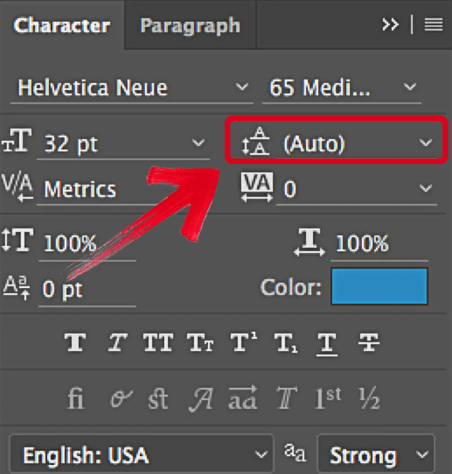
Step 2: Next, adjust the vertical spacing until your characters are vertically stacked and you’ll be done.
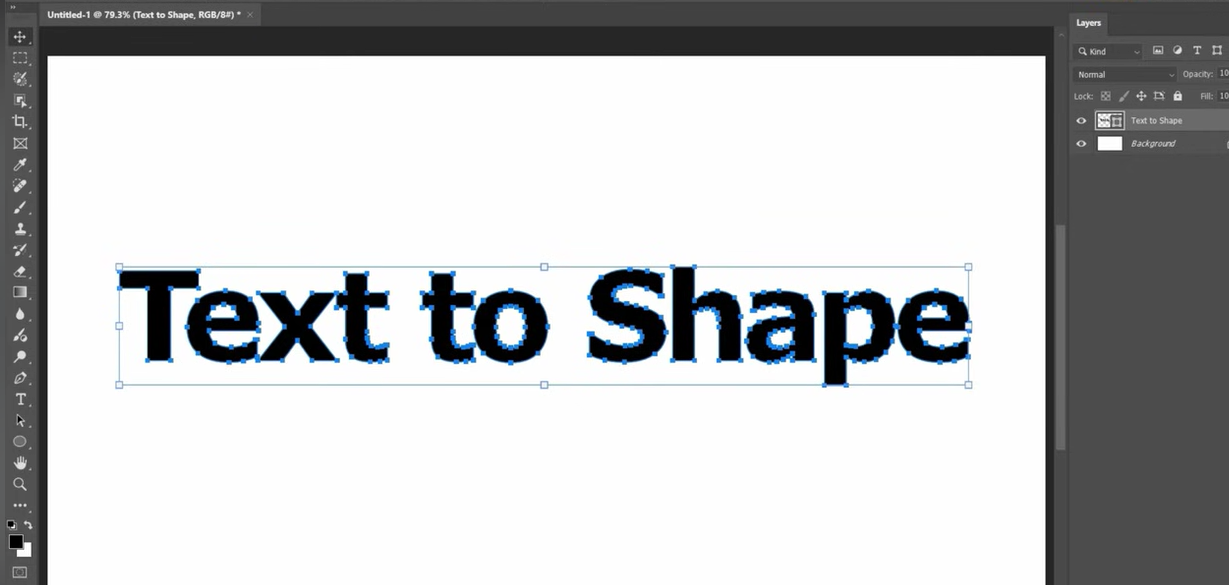
Convert Text to Shape and Arrange Vertically
If you want a dedicated method that gives you full creative control over the typography of your text, the Convert Text to Shape and Arrange Vertically is the way to go. It doesn’t allow you to edit it after the conversion, so you need to be careful and be sure of your changes before you go through with the conversion.
Pros
Custom Typography Control
Cons
Not Editable After Conversion
If you can’t figure out how to convert text to shape and arrange vertically, I’ll highlight each step of the process so you can get reliable results.
Step 1: Under the LayersTab, right-click the text layer you want to work with and select Convert to Shape.
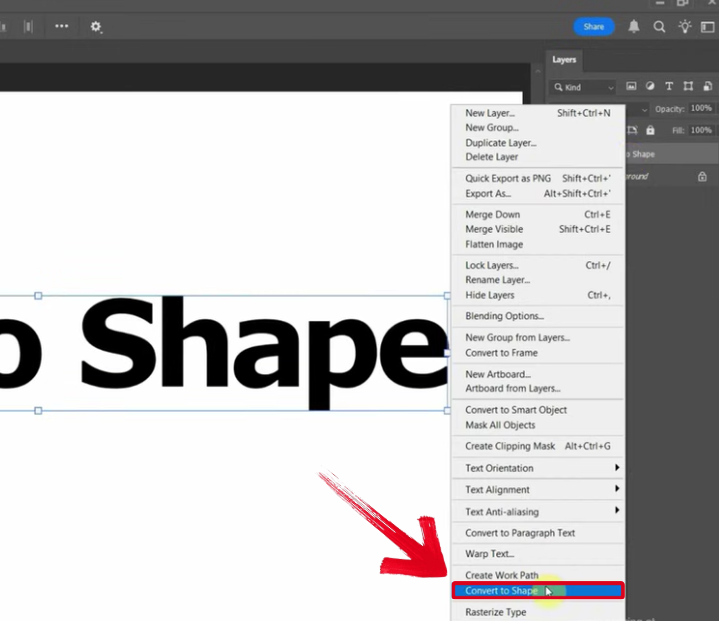
Step 2: Now, just use the Move Toolto manually adjust the text vertically to finish the process.
Common Problems with Vertical Text in Photoshop
If you’re adding vertical text to your files for the first time in Photoshop, you’re bound to run into some problems along the way. It can be quite confusing when you can’t figure out how to get yourself out of that problem, but it shouldn’t be that much of a hassle if you know what to do. In this section, I’ll be covering some of the most common problems I faced in my experience.
Issues
Blurry text after resizingfor web or print
Pixelated edges when enlarging designs
Inconsistent clarity across devices and platforms
These issues have a negative impact on the way my graphics are perceived, especially if I’m working on a client’s project. This is where an AI clarity tool becomes an essential for me, something that will help me refine and enhance my images without any hassle.
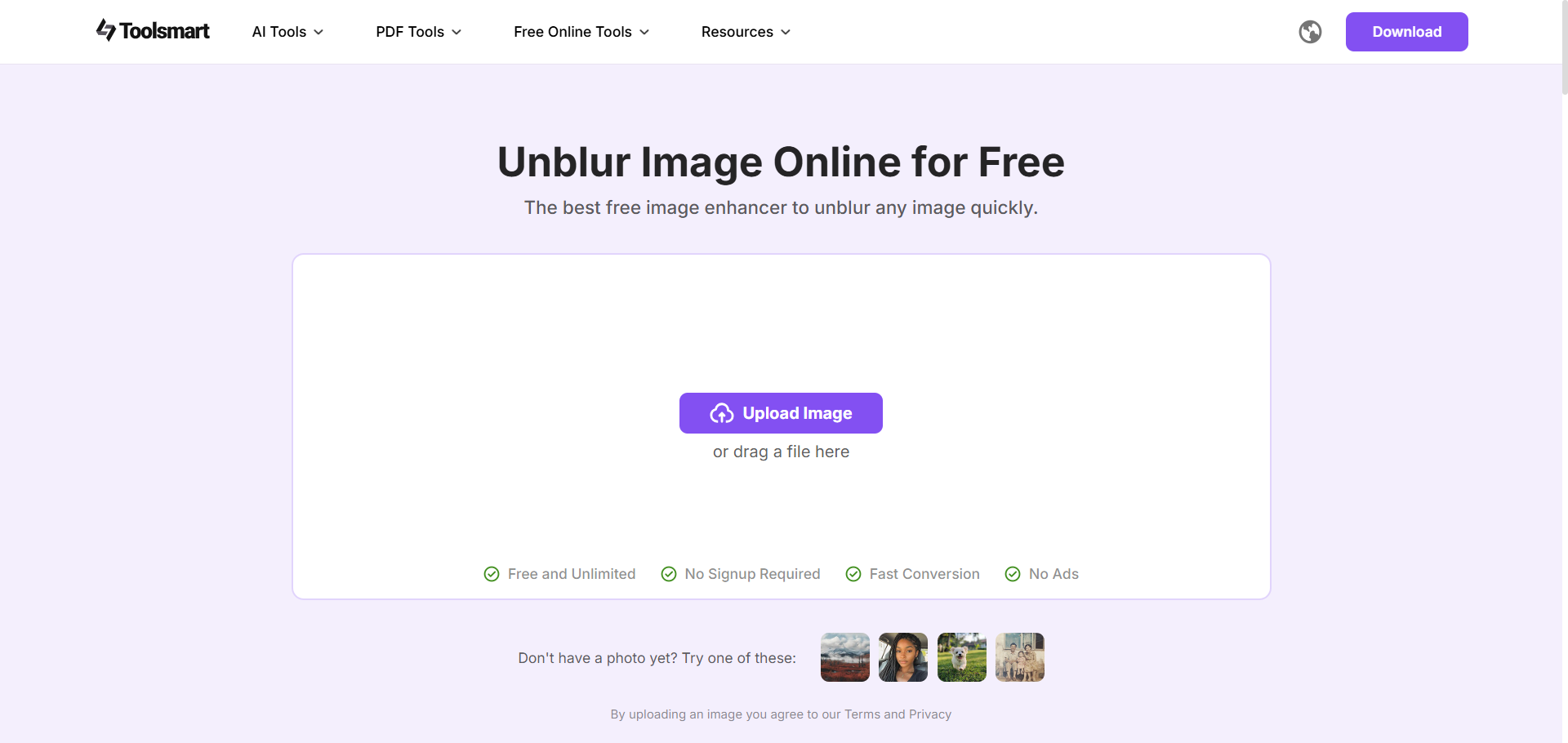
Fix Blurry Vertical Text with Toolsmart Unblur Image
There are many tools out there when it comes to enhancing your images, but I’ve found most of them to either be extremely unreliable or locked behind paywalls. This is where Toolsmart’s Unblur Image tool really shines. It’s my go-to option when it comes to boosting the clarity in my images and enhancing their general appearance, restoring my images back to their original quality after I’m done editing. With its free and feature-rich tool suite, it’s the perfect addition for anyone who values efficiency in their workflow.
How It Helps
Restores crisp edges to vertical text
Removes blur caused by resizing
Ensures designs stay professional for print and digital use
Why It’s the Best Companion to Photoshop
Completely Free
Web-Based Functionality
Beginner-Friendly and Intuitive
Works on text-based designs, photos, and logos alike
Once you’re done adding vertical text to your Photoshop graphic, simply upload it to Toolsmart’s Unblur Image tool and instantly enhance it, ensuring polished and sharp results every single time.
FAQs
Q1: Why can’t I find the Vertical Type Tool?
It’s located under the Type Tool, you need to long-press it to reveal it.
Q2: Can I rotate only one word vertically?
Yes, you can use a separate text layer.
Q3: Why does my vertical text look blurry after export?
Export resolution or resizing may reduce clarity, you can use Unblur Image to fix it.
Q4: Does Unblur Image work only for text?
No, it enhances both images and text.
Q5: Is Unblur Image free?
Yes, it’s 100% free and requires no login.
Polishing Photoshop Graphics
Adding vertical text can be a great way to add flair to your art, helping you display your creativity in a creative and unique manner. However, if you’re a beginner running into the Photoshop no vertical text issue, you can use one of the four methods I’ve covered in this guide to simplify the process for yourself. You can further enhance your images post-editing using Toolsmart’s Unblur Image tool. It’s free and incredibly reliable, providing quick and polished results every single time, without any hassle.


