How to Convert YouTube to MP3 320kbps (3 Easy Methods)
November 25, 20251124 views
0
Ripping clean audio from YouTube used to feel like a gamble. I’d try
one converter after another. Some were slow, others threw in ads, and a
few didn’t deliver true 320kbps despite the promise. When quality
matters, especially for music or editing, that kind of inconsistency
just won’t do. So I set out to find the best way to convert YouTube to
MP3 320kbps: reliably and without any confusion. In this guide, I’ll
take you through the three tools that actually got it right.
Use Word, Excel, and PPT for FREE
YouTube to MP3 320kbps
Using
Browser Extensions to Convert YouTube to MP3 320kbps
Browser extensions are probably the fastest way to convert a YouTube
video to MP3 without opening new tabs or downloading standalone
software. These tools live right in your browser, so grabbing audio is
often just a single click away. I tested Addoncrop’s
YouTube MP3 Converter and found it surprisingly efficient for a
browser-based option. While not every extension guarantees YouTube to
MP3 320kbps quality, this one came closer than most.
Only works on certain browsers (e.g., Chrome with Tampermonkey or Firefox)
Occasional compatibility issues with YouTube updates
Steps
to Convert Youtube to MP3 Using Browser Extension
If you’re using Addoncrop, setup is refreshingly quick. You just add
it to Chrome directly from their website, there’s no Crosspilot or extra
steps involved. Once it’s installed, converting YouTube to MP3 320kbps
becomes part of your usual browsing flow.
Step 1: Head to the extension’s
page in the Chrome Web Store and click the blue “Add to
Chrome” button to install the extension.
Add to Chrome
Step 2: Open the YouTube video you want to rip audio
from and click the “MP3” option beneath the video.
Click MP3
Step 3: A pop-up will appear letting you choose the
bitrate. Select 320kbps and hit the “Download” button. Your MP3 will be ready in a few
seconds and saved to your default Downloads folder.
Download File
I gave Addoncrop’s YouTube MP3 Converter 320kbps a shot when I needed
a fast way to save a few music tracks for offline listening. It wasn’t the best, but it got the job done
without forcing me to open extra tabs or deal with slow downloads. The
quality was solid enough for casual listening, which is really all I
needed. For a browser extension, it was surprisingly practical.
Using
Online Tools to Convert YouTube to MP3 320kbps
After running into limits with browser extensions like unstable
downloads or incomplete audio files, I started looking for something
more dependable. I remembered I’d bookmarked Toolsmart's
YouTube to MP3 Converter a while back and finally gave it a
proper run. It picked up both regular videos and Shorts without any
mess, and the output always came through in 320kbps MP3, which sounded
noticeably clearer on headphones. I didn’t have to adjust settings or
figure out which format to select, it took care of the technical details
so I could just download and go.
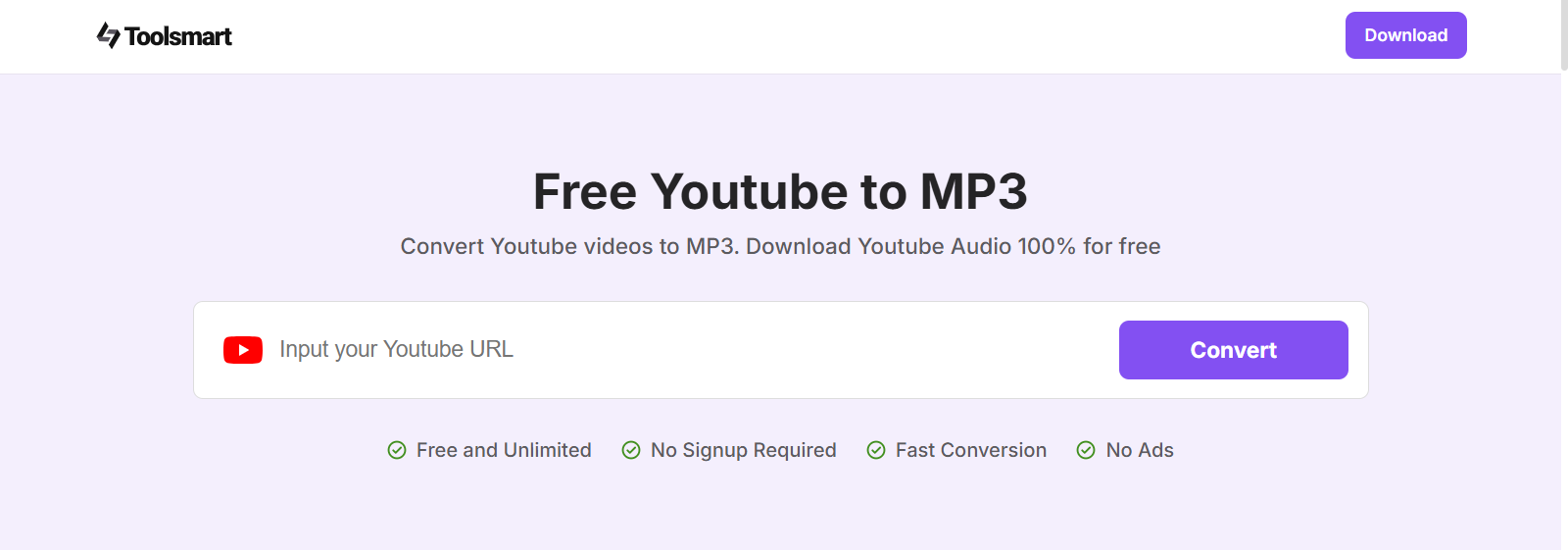
Toolsmart doesn’t require any software or technical know-how: just
paste the link, and it takes care of the conversion. The whole YouTube
audio rip process takes under a minute, and the file’s ready to use
right away. Here’s how it works step by step.
Step 1: Head to YouTube, open the video, and
copy the URL of the YouTube video you want to download from your
browser’s address bar.
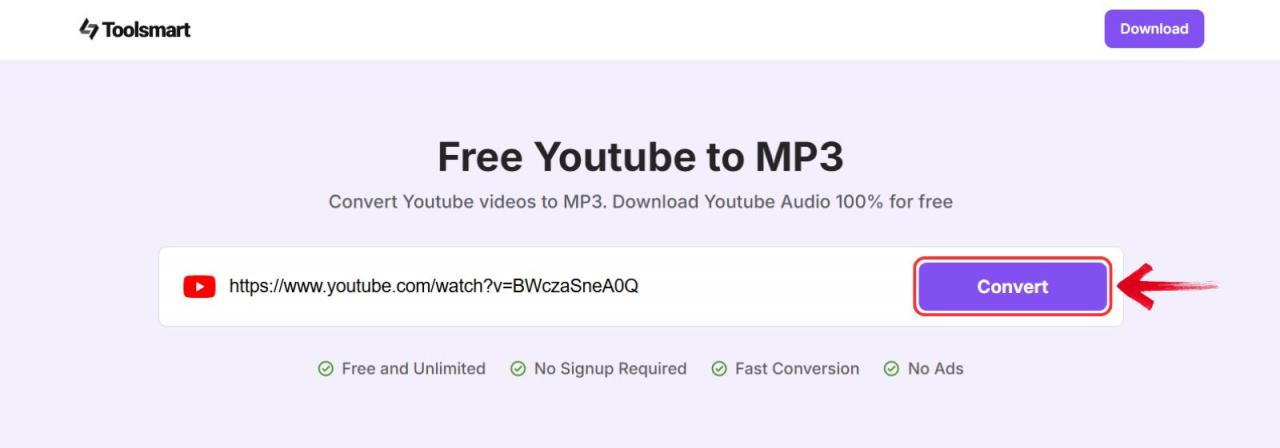
Step 3: Paste the link into the conversion box on
Toolsmart’s site and hit the "Convert" button to begin
converting the video to MP3.
Click Convert
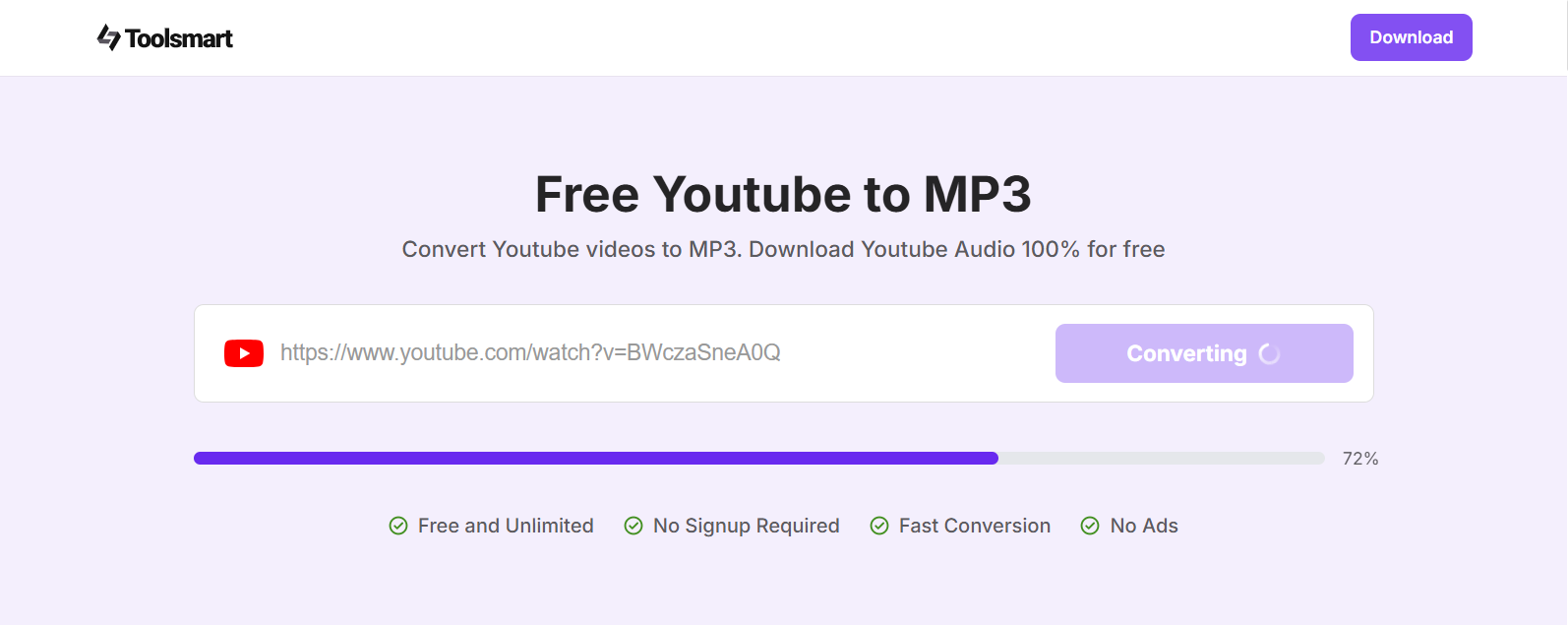
Step 4: The conversion process may take a few
seconds to a couple of minutes depending on how large the file is.
Conversion Process
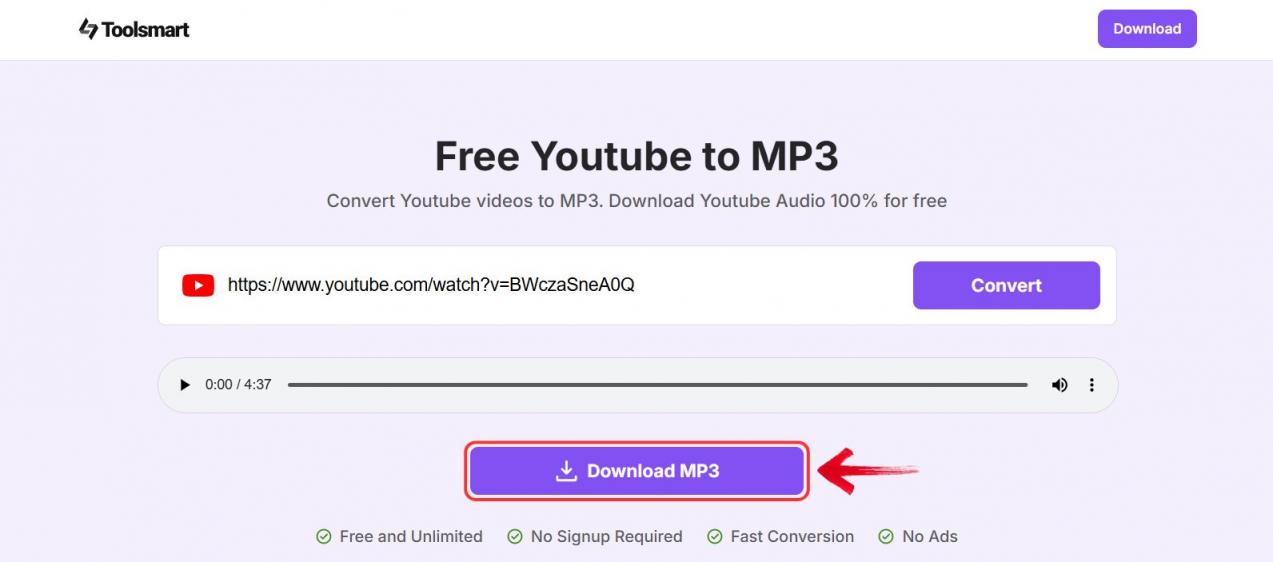
Step 5: Once the conversion is done, click on the "Download MP3" button to save the audio file.
Download button
I used ToolSmart to convert a 2-hour music livestream I didn’t want
to lose access to. It handled the full length without breaking the audio
or downgrading the quality. The 320kbps file sounded clean on both my
speakers and earbuds. I didn’t touch any settings, the converter just
got it right on the first try.
Using
Desktop Applications to Convert YouTube to MP3 320kbps
It doesn't matter if it's a favorite playlist, a long interview, or
just music you want in high quality, some videos are worth keeping
offline. That’s where desktop apps like AllClipDown come in. Unlike browser tools, it gives you more control over the
output, especially when you’re aiming for 320kbps MP3s. I installed it
on my laptop for bulk downloads and was surprised by how clean and
straightforward the interface was, even with its advanced options.
Steps
to Convert Youtube to MP3 with Desktop Application
Before you can start converting videos, you’ll need to install
AllClipDown from the Syscute website. It’s a lightweight desktop tool
built for high-quality audio extraction which is ideal if you want more
control than a browser extension offers. Here’s how to set it up and use
it to get clean 320kbps MP3s from YouTube.
Step 1: Head over to the official AllClipDown download
page and click the “Download Windows” button.
AllClipDown Download Page
Step 2: Next, go to YouTube and the URL of the video
you want to download from the address bar.
Copy URL
Step 3: Launch the AllClipDown software and paste
the copied URL into the designated input field.
Paste URL
Step 4: Select the MP3 format from the
available formats list and click on the "Download" button to initiate the download process. AllClipDown will then begin
downloading the YouTube video and converting it into MP3
format.
Select MP3 and Download
This one was a bit overkill for casual use, but great when I needed
to rip an entire playlist. It took up a chunk of RAM during conversion
but got the job done efficiently. I also appreciated the ability to tag
files directly in the app.
Comparison of Methods
Not all YouTube to MP3 tools are built for the same kind of user.
Some are great for quick one-off downloads, others shine when you need
full-quality audio or batch processing. After testing all three, I started noticing key differences
in speed, output quality, and ease of use. If you’re wondering which
tool suits your routine best, this side-by-side breakdown should
help.
Method
Quality
Speed
Ease of Use
Best For
Browser Extension
True 320kbps
Fast
Medium
Quick grabs from YouTube
ToolSmart Online
True 320kbps
Very Fast
Very Easy
Everyday single video use
Desktop App
True 320kbps
Medium-Fast
Moderate
Playlist downloads, tagging
Each tool has its strengths: Addoncrop keeps things fast and minimal,
AllClipDown gives you desktop-level control but ToolSmart hits the
balance I kept coming back to. It handled both regular videos and
Shorts, consistently delivered clean 320kbps audio,
and didn’t make me jump through setup hoops.
Why Choose
ToolSmart YouTube to MP3 Converter?
After trying different methods for converting YouTube to MP3 at
320kbps, I found myself using Toolsmart's
YouTube to MP3 Converter more often than I expected. It wasn’t
about special features, it was how steadily it handled what I actually
needed: clean audio, no weird bitrate issues, and no extra clicks. Even
when I grabbed audio from longer videos or random Shorts, the output was
always consistent. It’s the kind of tool that blends into your routine
because it just does the job right.
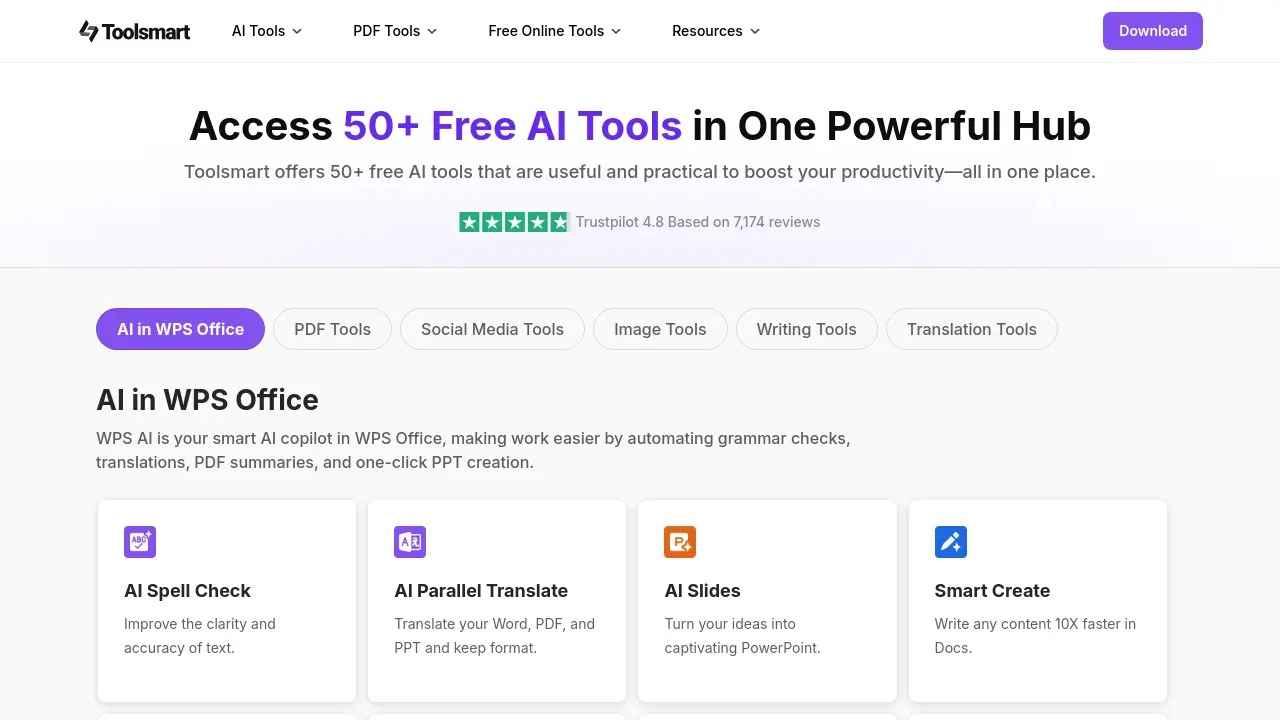
Toolsmart Homepage
What really made ToolSmart stand out for me were the small things
that added up especially when I was short on time or working from
different devices. Here are a few features that quietly made the
experience smoother every time:
No installs or logins: Opens in any browser and
works in seconds.
Ad-free interface: Nothing to click through or
close, just the video and the download.
Mobile friendly: Works just as well on my phone
as on desktop.
Safe and secure: There are no watermarks,
redirects, or sketchy behavior.
When you’re downloading a lot of music or collecting samples for editing, the last thing you want is to gamble on audio quality.
ToolSmart gave me exactly what it promised and didn’t waste my time
doing it.
100% secure
FAQs
1. How can I verify my
MP3 is truly 320kbps?
Use apps like Spek or Audacity to analyze the bitrate visually. Look
for a consistent spectrum above 16kHz.
2. Is it legal to
convert YouTube videos to MP3?
Only for personal use. Avoid ripping copyrighted material unless it’s
allowed under YouTube’s licensing terms.
3. Why does
ToolSmart perform better than others?
Its backend uses lossless extraction before encoding, which means
your audio doesn’t suffer re-compression.
4. Can I convert
age-restricted or private videos?
You may need to log in or use other methods as ToolSmart currently
handles public videos only.
High-Quality
YouTube to MP3 320kbps With Toolsmart
If you're serious about converting YouTube to MP3 320kbps, it's worth
being picky. Many tools fall short, offering fake bitrates or audio
riddled with artifacts. But between browser extensions, online
converters, and desktop apps, you’ve got options. In my experience, Toolsmart's
YouTube to MP3 Converter offered the best mix of simplicity and
audio quality. Its ability to deliver true 320kbps files with no hidden
compression and without forcing you through multiple redirects is a
standout. It lets me skip the install hoops, ditch the messy ads, and
get clean 320kbps MP3s every time. For music lovers, content creators,
or anyone who values clean sound, it’s the tool I’d recommend without
hesitation.
7+ years in productivity tech. I test and review the latest tools to simplify your workflow. Follow for honest app comparisons, practical guides, and curated tech picks to boost efficiency.

'%3e%3cpath%20fill-rule='evenodd'%20clip-rule='evenodd'%20d='M19%208.5C24.799%208.5%2029.5%2013.201%2029.5%2019C29.5%2024.6782%2024.9928%2029.3036%2019.361%2029.4939L19%2029.5C18.8794%2029.5%2018.7592%2029.498%2018.6396%2029.4939L18.2811%2029.4758C12.8174%2029.1063%208.5%2024.5574%208.5%2019C8.5%2013.201%2013.201%208.5%2019%208.5ZM22.3063%2010.6267L22.2342%2010.6539C21.3423%2011.0061%2020.5541%2011.6368%2020.5606%2012.4987C20.5631%2012.8302%2020.869%2014.8871%2020.2141%2014.8486C19.5589%2014.8102%2019.413%2013.8753%2018.7116%2013.616C17.5944%2013.2026%2016.9819%2014.3401%2017.0939%2015.3106C17.1695%2015.9655%2018.9289%2018.3871%2017.9028%2019C17.292%2019.3651%2015.7279%2017.5692%2015.1007%2017.1842C14.4805%2016.8034%2013.2758%2017.3333%2012.4974%2016.7029C11.9874%2016.2899%2012.3881%2014.4098%2012.2786%2013.8372C12.2271%2013.5698%2012.1155%2013.3689%2011.9794%2013.2166L12.0402%2013.2934C10.7653%2014.8464%2010%2016.8339%2010%2019C10%2023.8465%2013.8307%2027.7982%2018.6295%2027.9925L18.6769%2027.9747C18.8597%2027.8677%2019.0394%2027.7557%2019.216%2027.6387C19.4137%2027.4534%2019.5436%2027.2072%2019.5849%2026.9394C19.8806%2025.1222%2018.3616%2025.4302%2017.9367%2024.5622C17.5489%2023.7695%2018.5712%2023.7684%2018.5524%2021.7923C18.4607%2021.1774%2018.5279%2020.547%2018.7211%2020.0315C19.1834%2018.7987%2020.7077%2017.2643%2022.5889%2018.0081C23.5567%2018.3906%2023.1524%2019.9831%2023.4737%2020.3394C24.251%2021.2018%2025.3228%2020.6863%2026.2856%2021.2253C26.7816%2021.5032%2026.9797%2022.41%2027.056%2023.2248L27.038%2023.0528C27.6534%2021.8348%2028%2020.4579%2028%2019C28%2015.1968%2025.6409%2011.9445%2022.3063%2010.6267Z'%20fill='%23757575'/%3e%3ccircle%20cx='19'%20cy='19'%20r='10.125'%20stroke='%23757575'%20stroke-width='2.25'/%3e%3c/g%3e%3cdefs%3e%3cclipPath%20id='clip0_1827_14613'%3e%3crect%20width='24'%20height='24'%20fill='white'%20transform='translate(7%207)'/%3e%3c/clipPath%3e%3c/defs%3e%3c/svg%3e)