
'%3e%3cpath%20fill-rule='evenodd'%20clip-rule='evenodd'%20d='M19%208.5C24.799%208.5%2029.5%2013.201%2029.5%2019C29.5%2024.6782%2024.9928%2029.3036%2019.361%2029.4939L19%2029.5C18.8794%2029.5%2018.7592%2029.498%2018.6396%2029.4939L18.2811%2029.4758C12.8174%2029.1063%208.5%2024.5574%208.5%2019C8.5%2013.201%2013.201%208.5%2019%208.5ZM22.3063%2010.6267L22.2342%2010.6539C21.3423%2011.0061%2020.5541%2011.6368%2020.5606%2012.4987C20.5631%2012.8302%2020.869%2014.8871%2020.2141%2014.8486C19.5589%2014.8102%2019.413%2013.8753%2018.7116%2013.616C17.5944%2013.2026%2016.9819%2014.3401%2017.0939%2015.3106C17.1695%2015.9655%2018.9289%2018.3871%2017.9028%2019C17.292%2019.3651%2015.7279%2017.5692%2015.1007%2017.1842C14.4805%2016.8034%2013.2758%2017.3333%2012.4974%2016.7029C11.9874%2016.2899%2012.3881%2014.4098%2012.2786%2013.8372C12.2271%2013.5698%2012.1155%2013.3689%2011.9794%2013.2166L12.0402%2013.2934C10.7653%2014.8464%2010%2016.8339%2010%2019C10%2023.8465%2013.8307%2027.7982%2018.6295%2027.9925L18.6769%2027.9747C18.8597%2027.8677%2019.0394%2027.7557%2019.216%2027.6387C19.4137%2027.4534%2019.5436%2027.2072%2019.5849%2026.9394C19.8806%2025.1222%2018.3616%2025.4302%2017.9367%2024.5622C17.5489%2023.7695%2018.5712%2023.7684%2018.5524%2021.7923C18.4607%2021.1774%2018.5279%2020.547%2018.7211%2020.0315C19.1834%2018.7987%2020.7077%2017.2643%2022.5889%2018.0081C23.5567%2018.3906%2023.1524%2019.9831%2023.4737%2020.3394C24.251%2021.2018%2025.3228%2020.6863%2026.2856%2021.2253C26.7816%2021.5032%2026.9797%2022.41%2027.056%2023.2248L27.038%2023.0528C27.6534%2021.8348%2028%2020.4579%2028%2019C28%2015.1968%2025.6409%2011.9445%2022.3063%2010.6267Z'%20fill='%23757575'/%3e%3ccircle%20cx='19'%20cy='19'%20r='10.125'%20stroke='%23757575'%20stroke-width='2.25'/%3e%3c/g%3e%3cdefs%3e%3cclipPath%20id='clip0_1827_14613'%3e%3crect%20width='24'%20height='24'%20fill='white'%20transform='translate(7%207)'/%3e%3c/clipPath%3e%3c/defs%3e%3c/svg%3e)


Huge video files are a total drag for emailing, posting on TikTok, or saving space on your phone. Compressing them should be easy, but free tools often blur your clips or slap on watermarks. How do you shrink videos and keep them sharp? This guide’s got three sweet free compressors, VEED.IO, FreeConvert, and Clideo, plus Toolsmart’s Free YouTube Video Downloader to grab videos for compression. Whether you’re on iPhone, Android, or laptop, let’s make your videos small, crisp, and ready to pop!
Part 1: Top Tools for Compressing a Video

Check out these three killer free tools to compress your videos, each with a unique vibe for beginners, pros, or mobile users chasing quick, high-quality results.
VEED.IO
Need to shrink a video fast without it looking like a pixelated disaster? VEED.IO is your go-to pal, making compression super easy for social media or email. Its slick interface is a breeze for newbies, offering editing perks like trimming. This browser-based gem keeps quality decent and works on any device.
Features:
Compresses MP4, MOV, AVI, and more with adjustable resolution (720p, 1080p).
Real-time file size estimates and editing tools like trimming or subtitles.
Pros:
No software needed, runs on any browser.
Fast, intuitive interface with advanced bitrate settings.
Cons:
Free version caps file size at 50MB.
Premium features cost $12/month.
App Rating: 4.8/5 (user reviews)
How to Shrink a Video with VEED.IO
Step 1: Pop over to VEED’s video compressor website.

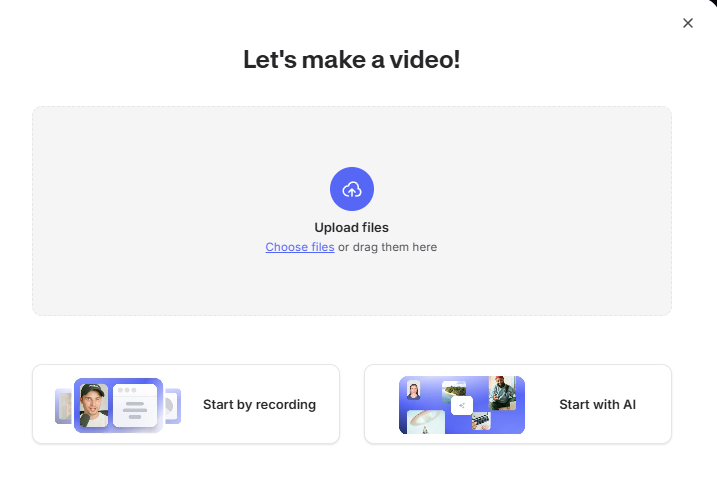
Step 2: Drag and drop your video or browse to upload it (MP4, MOV, you name it).
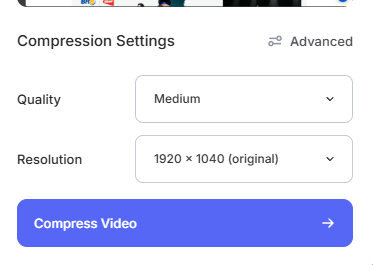
Step 3: Choose a compression setting like Low, Medium, or High, or mess with bitrate in Advanced.
Step 4: Hit export and download your smaller video.
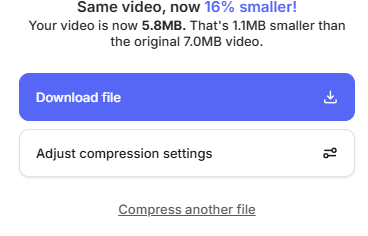
I used VEED to compress a 100MB family vacation clip for Instagram, and it shrank to 20MB in seconds, still looking sharp! It’s crazy easy for beginners, but the 50MB free limit meant splitting bigger files, which was a tiny hassle.
FreeConvert
Got a huge video eating your storage? FreeConvert is your trusty toolbox for compressing big files with precision for websites or emails. Its generous free limit and control over quality make it a standout. No signup needed, it’s perfect for pros or newbies needing shareable videos fast on any device.
Features:
Supports MP4, AVI, MKV, and more, up to 1GB free.
Customizable settings for resolution, bitrate, and codec (H.264, H.265).
Pros:
No signup needed, huge 1GB limit.
Precise control over file size and quality
Cons:
Slower for large files (5–10 minutes).
Ads in free version can be annoying.
App Rating: 4.6/5 (user reviews)
How to Use:
Step 1: Visit FreeConvert’s video compressor website.
Step 2: Upload your video (MP4, AVI, etc.) via drag or browse.
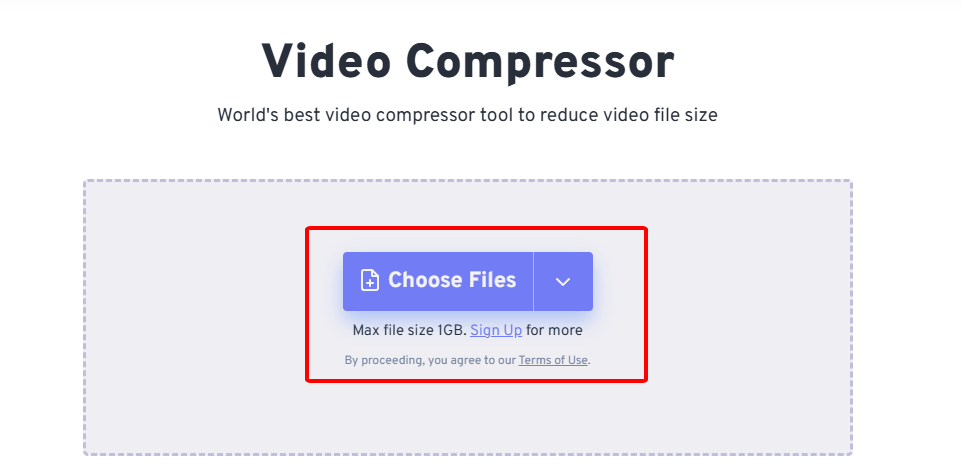
Step 3: Set target size or quality (default 40% reduction) and tweak codec.
Step 4: Click “Compress Video” and download when done.

I used FreeConvert to shrink a 500MB video for email, and it hit 100MB without losing sharpness. The controls are easy even for beginners, but big files took a few minutes, and those ads got on my nerves a bit.
Clideo
Wanna compress a video on the go? Clideo’s your chill buddy, making shrinking videos effortless, especially on your phone. Its mobile-friendly interface is perfect for quick social media or messaging app edits. With a preview feature, it’s a lifesaver for casual users wanting fast, clean results without tech headaches.
Features:
Compresses MP4, MOV, AVI, up to 500MB free.
Preview compression rate before downloading, supports multiple formats.
Pros:
No software needed, mobile-friendly interface.
Fast for smaller files, no signup required.
Cons:
Free version adds watermarks.
Premium ($9/month) for no watermarks, larger files.
App Rating: 4.7/5 (user reviews)
How to Shrink a Video with Clideo
Step 1: Swing by Clideo’s video compressor website.
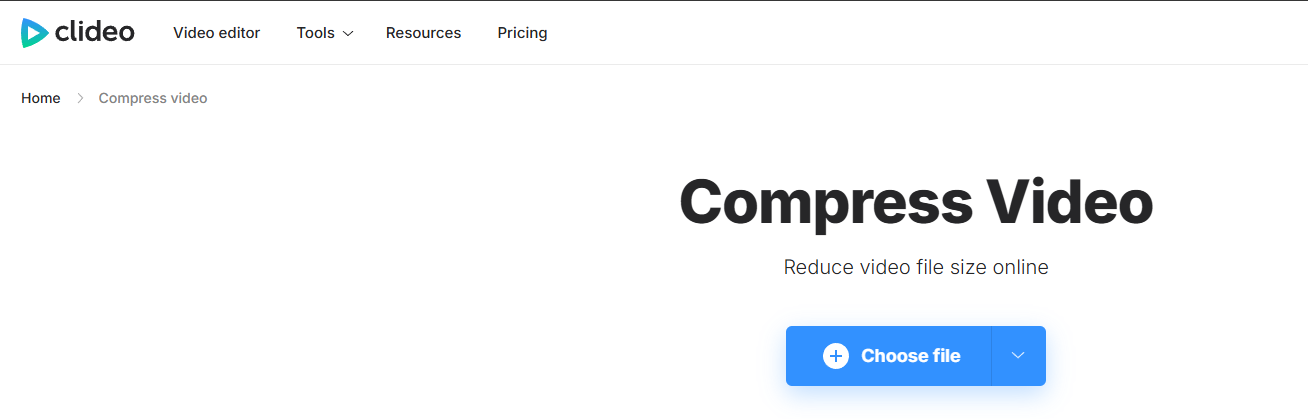
Step 2: Upload your video (MP4, MOV, whatever) from your phone or cloud storage.

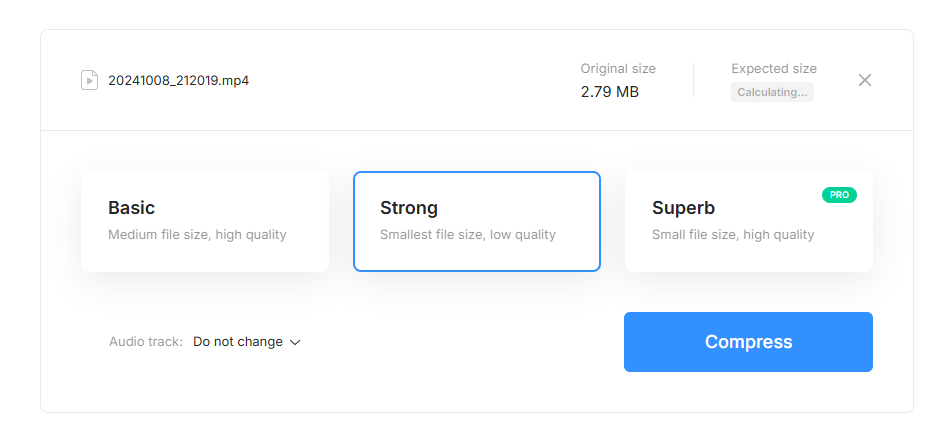
Step 3: Pick a compression preset like Low, Medium, or High, and check the size preview.
Step 4: Download your smaller video.
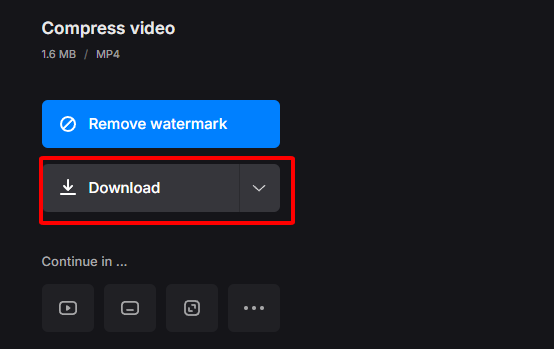
I used Clideo to compress a 200MB clip for TikTok, and it was done in a minute—so fast! The interface is super easy, perfect for newbies, but the free version’s watermark annoyed me. It’s a gem for mobile users needing quick results.
Part 2: Comparison of Video Compression Tools
Here’s how VEED.IO, FreeConvert, and Clideo stack up for compressing videos:
Max Free File Size: VEED.IO caps at 50MB, Clideo at 500MB, FreeConvert leads with 1GB, ideal for big files.
Free vs. Paid Features: VEED.IO’s free tier limits size; premium ($12/month) adds tools. Clideo’s free version has watermarks; Pro ($9/month) removes them. FreeConvert’s free tier is generous, but premium ($9.99/month) boosts speed.
Ease of Use: VEED.IO and Clideo are beginner-friendly with clean interfaces. FreeConvert’s advanced options suit pros but are still easy.
Best For: VEED.IO for quick social media edits, FreeConvert for large files, Clideo for mobile users.
Watermark: VEED.IO and FreeConvert are watermark-free; Clideo adds watermarks in free mode.
Output Formats: All support MP4, MOV, AVI; FreeConvert adds MKV, WebM.
Comparison Table:
| Tool | Max Free File Size | Free vs. Paid | Ease of Use | Best For | Watermark | Output Formats |
| VEED.IO | 50MB | Free limited, $12/month | Very easy | Social media edits | None | MP4, MOV, AVI |
| FreeConvert | 1GB | Free generous, $9.99/month | Easy, pro options | Large files | None | MP4, AVI, MKV, WebM |
| Clideo | 500MB | Free with watermark, $9/month | Very easy | Mobile users | Yes | MP4, MOV, AVI |
Part 3: Bonus Tool – Toolsmart Free YouTube Video Downloader

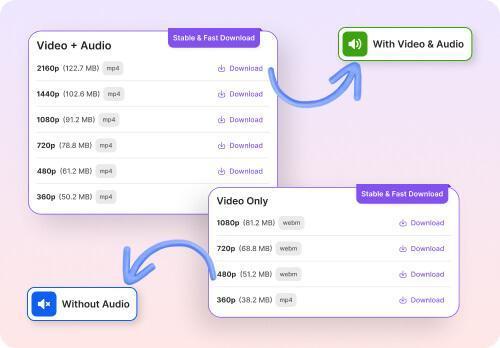
Wanna grab a YouTube video to compress for your next project? Toolsmart’s Free YouTube Video Downloader is a total game-changer, letting you snag public videos in crisp HD for editing or sharing, no watermarks or signup needed. It’s a must for creators prepping content to shrink with VEED or Clideo.
This free, browser-based tool downloads YouTube videos in 720p, 1080p, or 4K, perfect for grabbing clips to compress or analyze for your projects.
Features:
Downloads in high-quality formats without watermarks.
No login or software required, works on any device.
Supports MP4 for easy compression compatibility.
Pros:
Free, fast, and ad-free downloads.
Simple interface, great for beginners.
Cons:
Limited to public YouTube videos.
No batch downloading in free version.
Part 4: How to Use Toolsmart Free YouTube Video Downloader
Wanna grab a YouTube video to compress or tweak? Toolsmart’s Free YouTube Video Downloader is a total lifesaver, snagging public videos in crisp HD for shrinking with VEED, FreeConvert, or Clideo. Follow these easy steps for clean, watermark-free downloads, no signup or fuss needed—perfect for your next project!
Step 1: Pick a public YouTube video you wanna compress or edit.
Step 2: Grab the URL from YouTube’s “Share” button.

Step 3: Head to Toolsmart’s YouTube Video Downloader website.
Step 4: Paste the URL, choose 720p or 1080p, and hit “Download.”
Step 5: Save the video to your device for compression or editing.
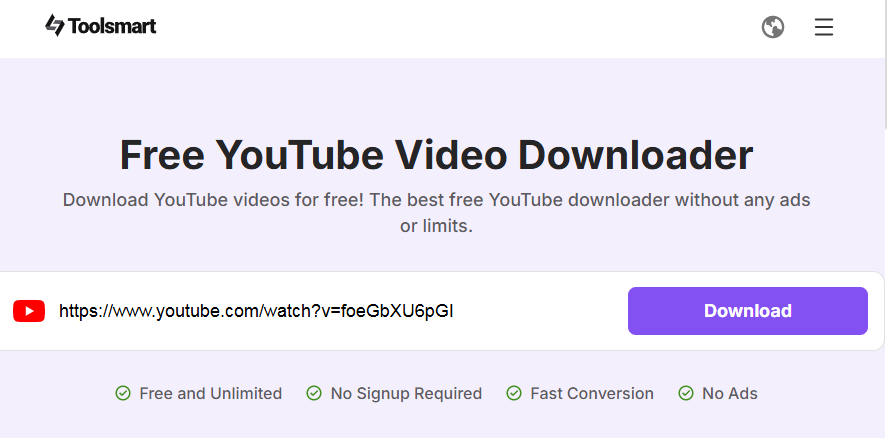
I used Toolsmart to download a tutorial video, then compressed it with VEED for email. It was stupid fast, no watermarks, and worked like a charm on my phone. Just don’t reupload without permission to stay legit!
Part 5: FAQs
Q1: Does compression reduce video quality?
It can, but tools like VEED.IO let you tweak settings to keep quality high. Adjust resolution or bitrate for the best balance. I compressed a clip with VEED, and it still looked sharp at 720p.
Q2: What’s the best format for compressed videos?
MP4 with H.264 codec is the go-to, it’s small, compatible, and keeps quality decent. It’s my favorite for sharing on Instagram or email without issues.
Q3: Can I compress videos on my phone?
Yup, Clideo and VEED.IO work great on mobile browsers, no apps needed. I compressed a video on my iPhone with Clideo, and it was super smooth for posting.
Q4: Is Toolsmart’s YouTube Video Downloader legal?
Yes, for personal use like compressing or editing videos. Don’t redistribute without permission to avoid copyright trouble. I used it to grab a clip for practice, totally legit.
Q5: Can I compress videos offline?
Clideo offers an offline app for basic compression, but VEED and FreeConvert need internet. I used Clideo’s app offline for a quick fix when traveling.
Summary
Compressing videos is a snap with free tools like VEED.IO for quick social media edits, FreeConvert for big files, and Clideo for mobile ease. Tweak settings to keep quality high and shrink files for sharing or storage. Toolsmart’s Free YouTube Video Downloader is a gem for grabbing public videos in HD to compress, no watermarks or signup needed. Whether on iPhone, Android, or laptop, these tools make your videos small, sharp, and ready to shine!


