
'%3e%3cpath%20fill-rule='evenodd'%20clip-rule='evenodd'%20d='M19%208.5C24.799%208.5%2029.5%2013.201%2029.5%2019C29.5%2024.6782%2024.9928%2029.3036%2019.361%2029.4939L19%2029.5C18.8794%2029.5%2018.7592%2029.498%2018.6396%2029.4939L18.2811%2029.4758C12.8174%2029.1063%208.5%2024.5574%208.5%2019C8.5%2013.201%2013.201%208.5%2019%208.5ZM22.3063%2010.6267L22.2342%2010.6539C21.3423%2011.0061%2020.5541%2011.6368%2020.5606%2012.4987C20.5631%2012.8302%2020.869%2014.8871%2020.2141%2014.8486C19.5589%2014.8102%2019.413%2013.8753%2018.7116%2013.616C17.5944%2013.2026%2016.9819%2014.3401%2017.0939%2015.3106C17.1695%2015.9655%2018.9289%2018.3871%2017.9028%2019C17.292%2019.3651%2015.7279%2017.5692%2015.1007%2017.1842C14.4805%2016.8034%2013.2758%2017.3333%2012.4974%2016.7029C11.9874%2016.2899%2012.3881%2014.4098%2012.2786%2013.8372C12.2271%2013.5698%2012.1155%2013.3689%2011.9794%2013.2166L12.0402%2013.2934C10.7653%2014.8464%2010%2016.8339%2010%2019C10%2023.8465%2013.8307%2027.7982%2018.6295%2027.9925L18.6769%2027.9747C18.8597%2027.8677%2019.0394%2027.7557%2019.216%2027.6387C19.4137%2027.4534%2019.5436%2027.2072%2019.5849%2026.9394C19.8806%2025.1222%2018.3616%2025.4302%2017.9367%2024.5622C17.5489%2023.7695%2018.5712%2023.7684%2018.5524%2021.7923C18.4607%2021.1774%2018.5279%2020.547%2018.7211%2020.0315C19.1834%2018.7987%2020.7077%2017.2643%2022.5889%2018.0081C23.5567%2018.3906%2023.1524%2019.9831%2023.4737%2020.3394C24.251%2021.2018%2025.3228%2020.6863%2026.2856%2021.2253C26.7816%2021.5032%2026.9797%2022.41%2027.056%2023.2248L27.038%2023.0528C27.6534%2021.8348%2028%2020.4579%2028%2019C28%2015.1968%2025.6409%2011.9445%2022.3063%2010.6267Z'%20fill='%23757575'/%3e%3ccircle%20cx='19'%20cy='19'%20r='10.125'%20stroke='%23757575'%20stroke-width='2.25'/%3e%3c/g%3e%3cdefs%3e%3cclipPath%20id='clip0_1827_14613'%3e%3crect%20width='24'%20height='24'%20fill='white'%20transform='translate(7%207)'/%3e%3c/clipPath%3e%3c/defs%3e%3c/svg%3e)


Adjusting the canvas size in Photoshop is one of the most essential skills you need to know to accommodate design elements and prepare images for printing. Even though Photoshop is filled with powerful editing tools, figuring out how to use them can be confusing for beginners. Luckily, you can simplify the process by using some simple and easy methods I’ll provide. In this guide, I’ll be walking you through how to change canvas size in Photoshop, and a bonus tool to refine your images afterwards.
Step-by-Step Guide to Changing Canvas Size in Photoshop
Figuring out how to resize canvas in Photoshop can be confusing if you’re a beginner learning Photoshop. Photoshop offers a couple of different ways for canvas size adjustment, each one being useful in specific circumstances. In this section, I’ll be covering each of these methods step by step and helping you figure out the best one for your own needs.
Method 1: Using the Canvas Size Tool
Using the canvas size tool is one of the best ways to adjust the size of your Photoshop canvas, as it allows you to be precise with your dimensions. I’ll be covering each step of the process so you don’t have to deal with any guesswork.
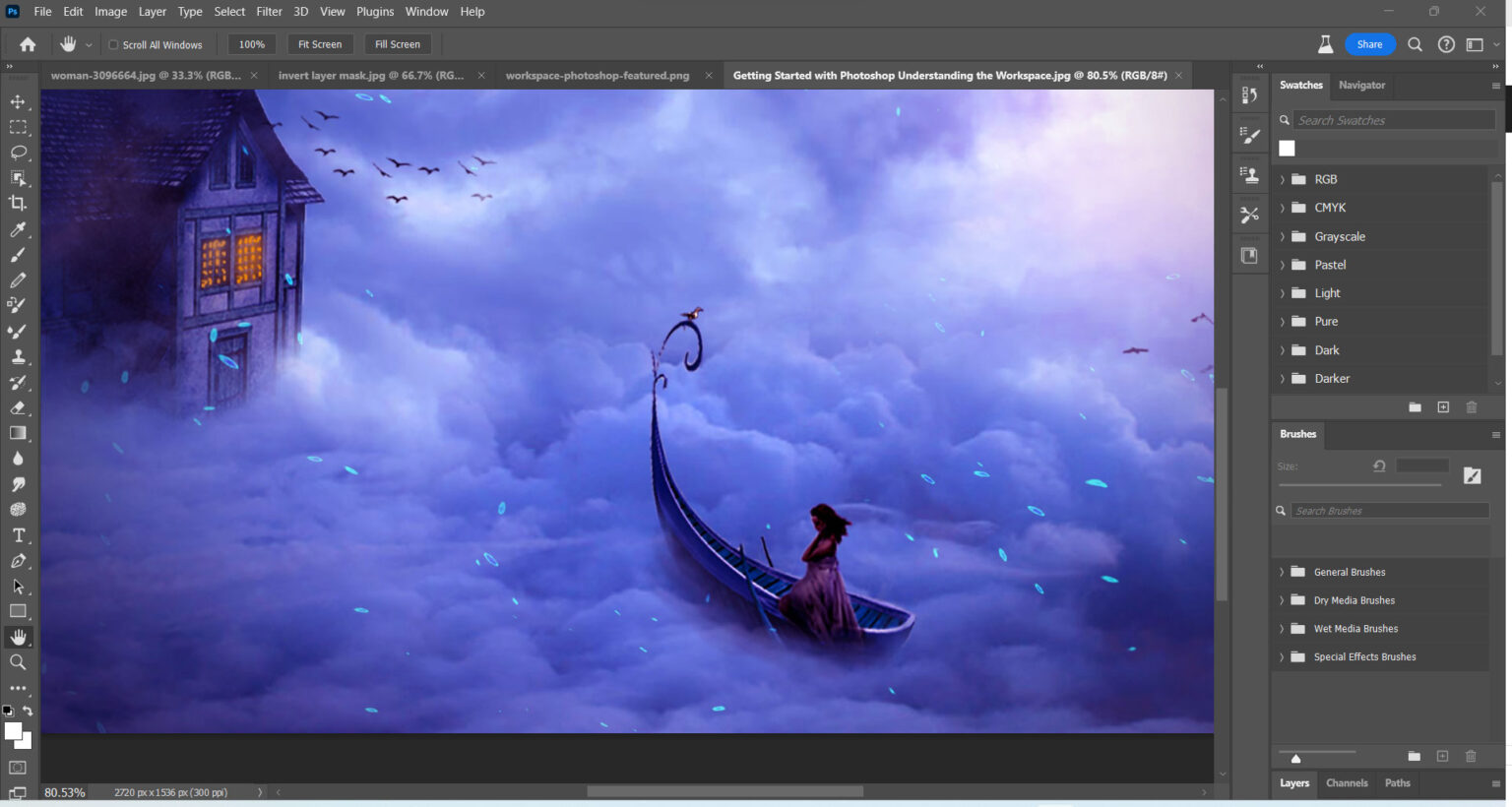
Step 1: Open your image in Photoshop and pressAlt + Ctrl + C on Windows, or Option + Command + C on Mac to open the canvas size menu.
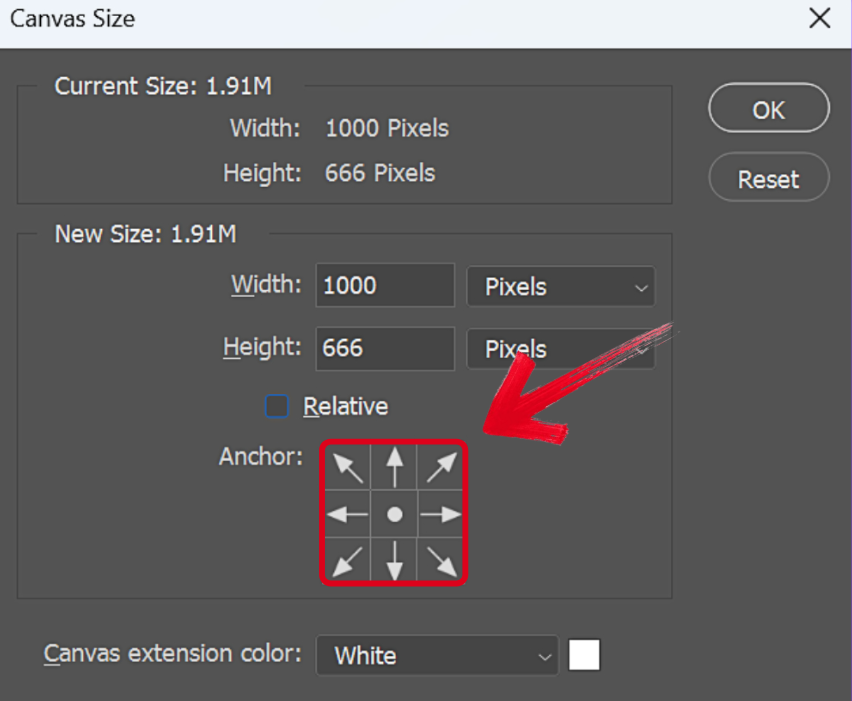
Step 2: Enter the dimensions you want your image canvas to have and use the Anchor grid to select where the new space is added.
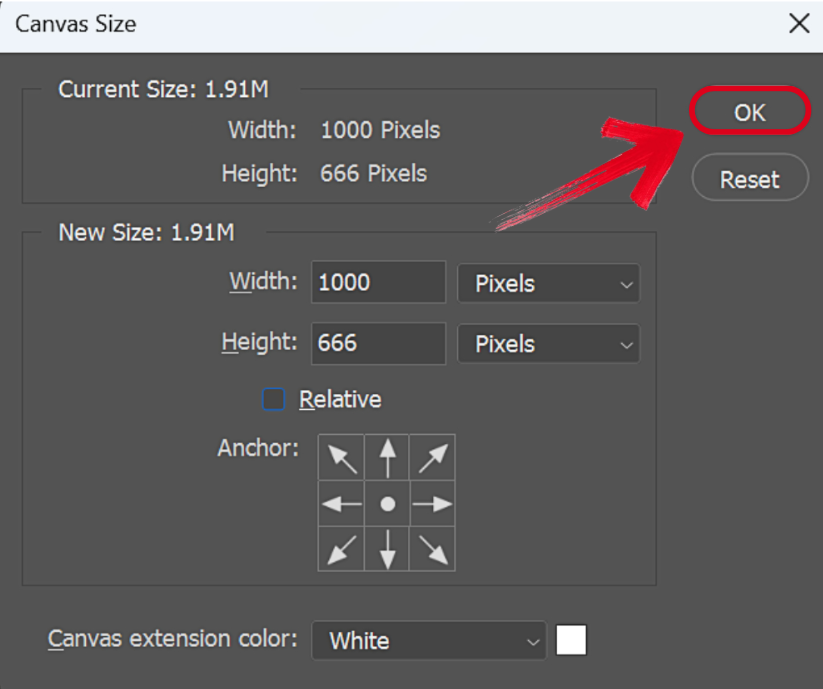
Step 3: Once you’re done, simply pressOK to apply your changes to the canvas.
Method 2: Using the Crop Tool
If you want a simpler, more straightforward way to adjust the size of your Photoshop canvas and losing precision is not a concern, you can use the crop tool method for yourself. I’ll be covering each step of the process to help you use the crop tool to adjust your canvas size.
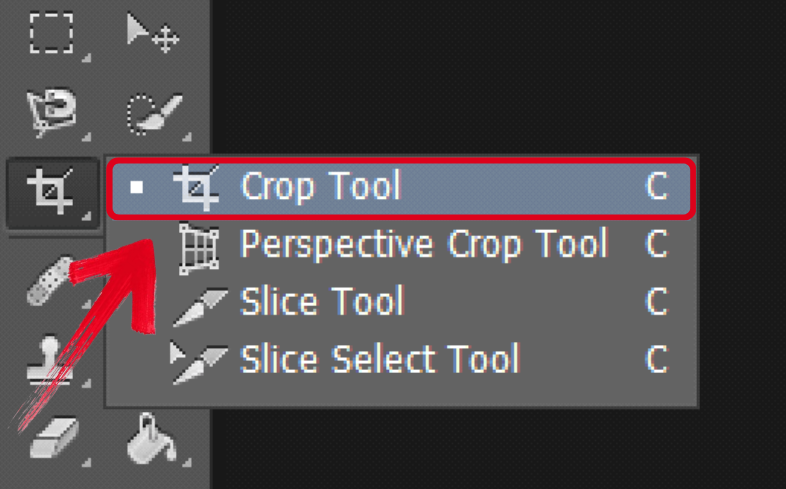
Step 1: Open your image in Canvas and select theCrop Tool (C) to get started.
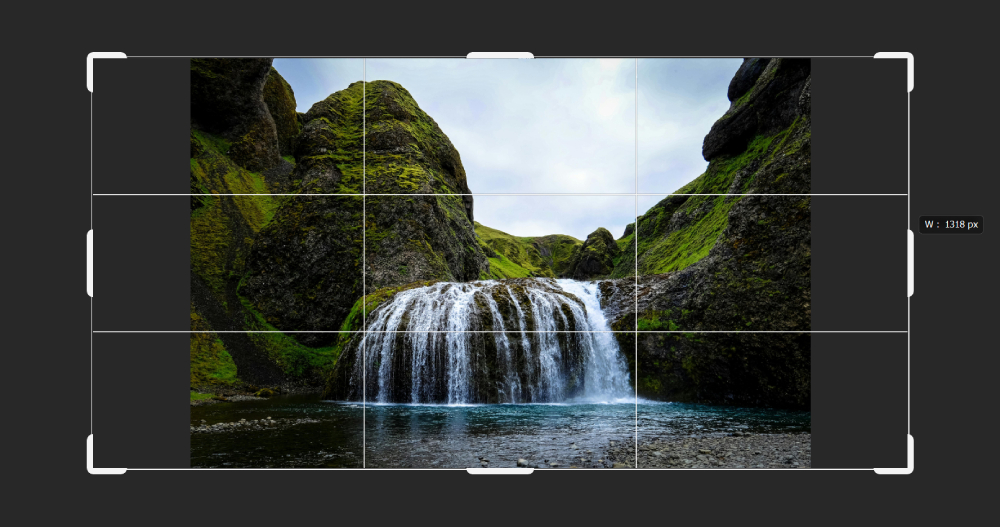
Step 2: Adjust the crop handles to extend or reduce the size of the canvas, and release the mouse to confirm the selection. Your extra space will now be added to the canvas.
Method 3: Adding Canvas for Specific Projects
For projects where you need to add a border or text, adding a canvas for specific projects will be the most helpful for you. The process is incredibly simple, and I’ll be highlighting the steps you need to follow to do this.
Step 1: Follow method 1 or 2 to adjust the size of your canvas and add more space to it.
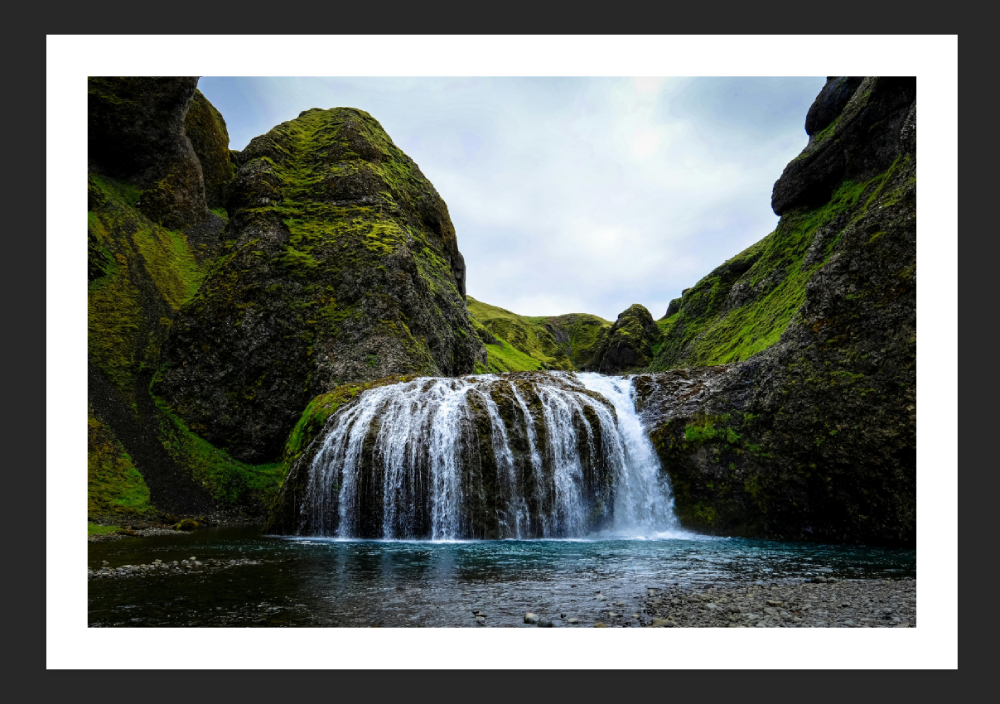
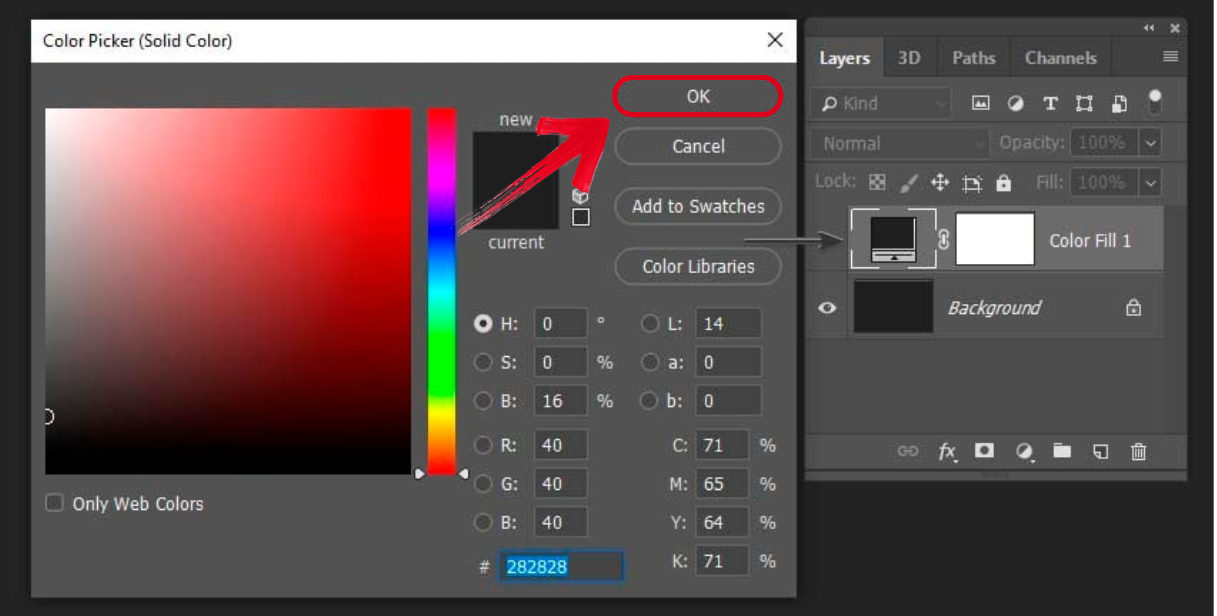
Step 2: Use the Background Color tool to fill in the extra space if you need, then press OK to apply changes.
Common Issues and Fixes
Photoshop can be a complicated tool to learn for a beginner, and making mistakes is unavoidable as you figure things out. I’ve noticed some common mistakesthat almost every single beginner makes when starting out, which can be avoided if you know what you’re doing. In this section, I’ll be highlighting these common issues and walking you through their fixes to ensure a smooth and hassle-free process.
Problem: Canvas resizing distorts the image.
Solution: Ensure "Relative" is unchecked in the Canvas Size dialog box.
Problem: Canvas extends in the wrong direction.
Solution: Adjust the Anchor gridto control where the new space is added.
Problem: Image quality degrades after resizing.
Solution: Use Toolsmart’s Image Enhancer to sharpen and refine the image afterward.
Complementary Tool: Using Image Enhancer After Resizing
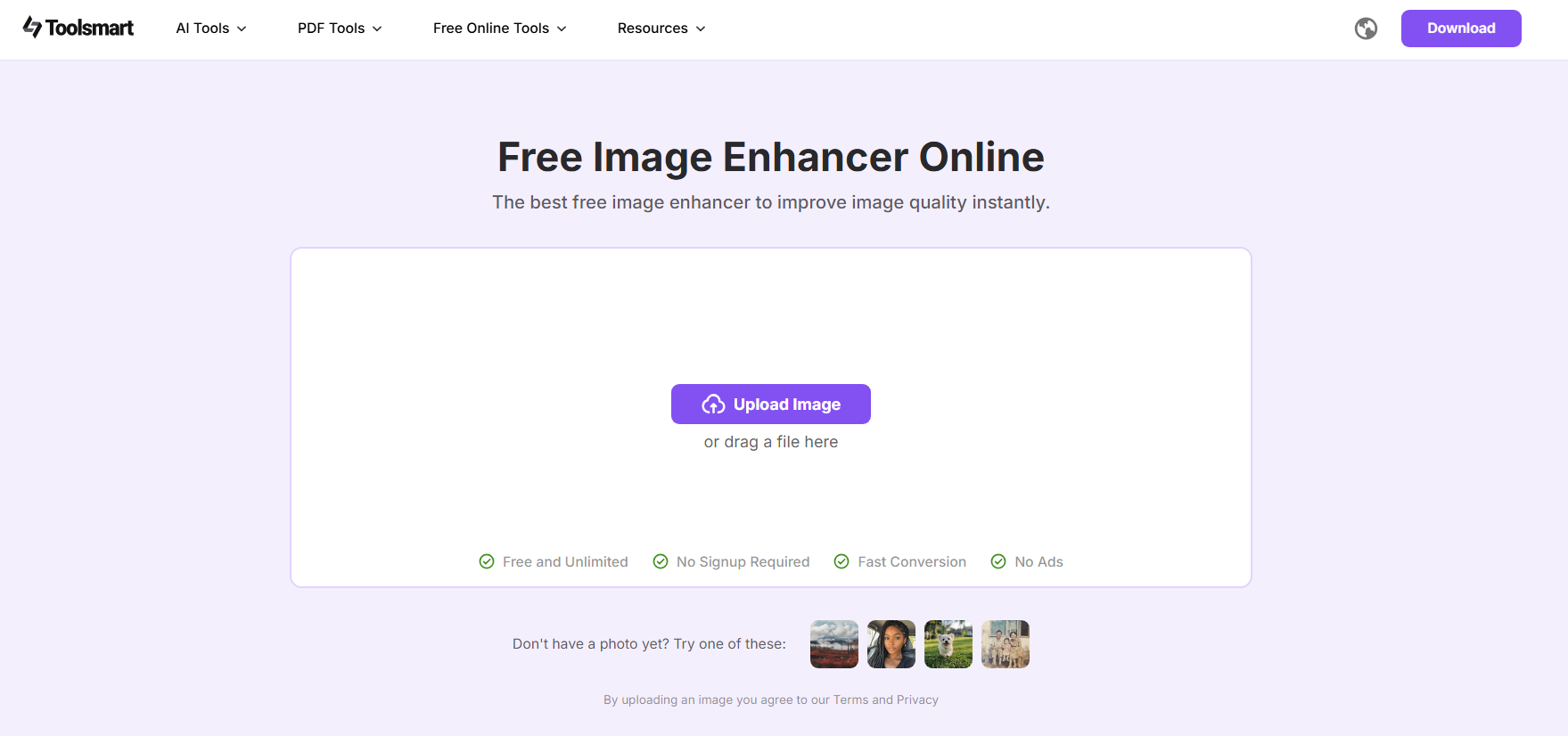
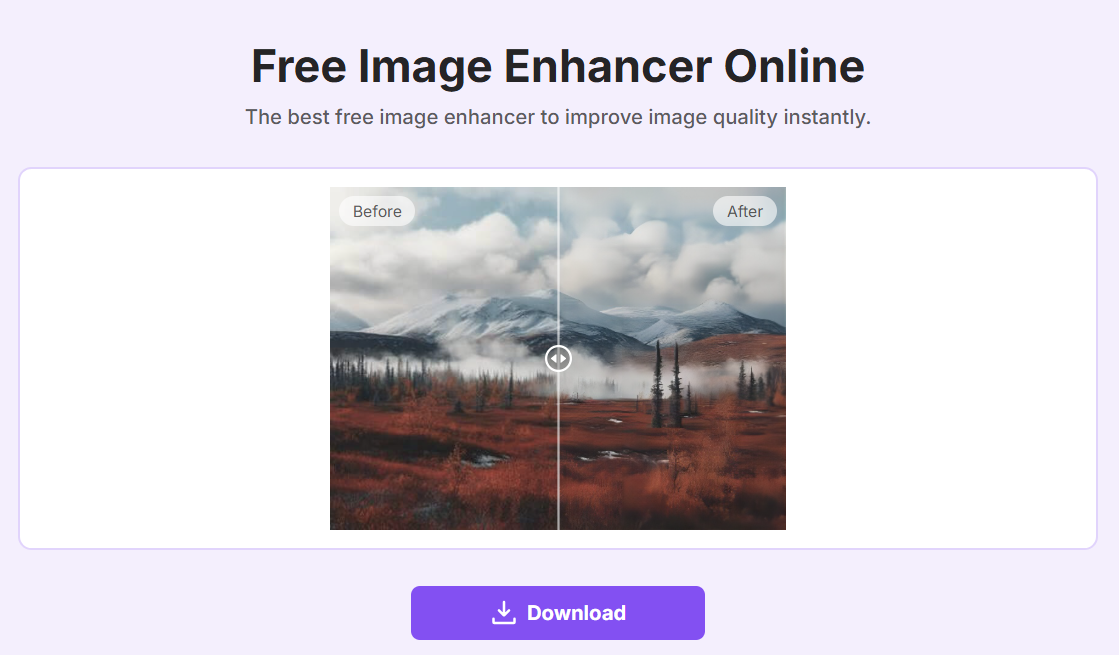
Once you’re done resizing your canvas, your images may lose their original sharpness and quality. There are many online tools you can use for enhancing your images, but I personally rely on Toolsmart’s Image Enhancer to ensure a smooth and seamless process. It’s completely free and helps me refine and restore my images back to their original clarity in just a few simple and easy steps, making it a perfect addition to my photo editing workflow.
Features
One-Click Enhancement: Automatically improves sharpness and details.
No Watermarks: Free version delivers clean and polished results, without any watermarks.
No Login Required: Use it instantly in your browser; no installation or registration required.
Mobile-Friendly: Works seamlessly across all your devices.
FAQs
Q1: Can I resize the canvas without cropping the image?
Yes. Use the Canvas Size tool (Alt + Ctrl + C) to add or remove space without cropping.
Q2: How do I maintain the aspect ratio when resizing the canvas?
In the Canvas Size dialog, ensure the chain icon is clicked to lock proportions, or use the Crop Tool with fixed ratios.
Q3: Is Image Enhancer free to use?
Yes, it’s 100% free with no watermarks or login required.
Q4: Which method is best for beginners?
The Canvas Size tool is the most straightforward for precise adjustments.
Resizing Photoshop Canvas
Learning how to change canvas size in Photoshop is essential if you’re editing images on a regular basis, helping you make extra space for additional elements or remove extra space easily. Navigating the Photoshop interface can get confusing for a beginner, but I’ve simplified the process for you with this guide, giving you some of the most effective ways to resize your Photoshop canvas. To restore your images after resizing them, Toolsmart’s Image Enhancer is the ideal choice. It’s free and incredibly fast, delivering polished and high-quality results in just a few steps.


