
'%3e%3cpath%20fill-rule='evenodd'%20clip-rule='evenodd'%20d='M19%208.5C24.799%208.5%2029.5%2013.201%2029.5%2019C29.5%2024.6782%2024.9928%2029.3036%2019.361%2029.4939L19%2029.5C18.8794%2029.5%2018.7592%2029.498%2018.6396%2029.4939L18.2811%2029.4758C12.8174%2029.1063%208.5%2024.5574%208.5%2019C8.5%2013.201%2013.201%208.5%2019%208.5ZM22.3063%2010.6267L22.2342%2010.6539C21.3423%2011.0061%2020.5541%2011.6368%2020.5606%2012.4987C20.5631%2012.8302%2020.869%2014.8871%2020.2141%2014.8486C19.5589%2014.8102%2019.413%2013.8753%2018.7116%2013.616C17.5944%2013.2026%2016.9819%2014.3401%2017.0939%2015.3106C17.1695%2015.9655%2018.9289%2018.3871%2017.9028%2019C17.292%2019.3651%2015.7279%2017.5692%2015.1007%2017.1842C14.4805%2016.8034%2013.2758%2017.3333%2012.4974%2016.7029C11.9874%2016.2899%2012.3881%2014.4098%2012.2786%2013.8372C12.2271%2013.5698%2012.1155%2013.3689%2011.9794%2013.2166L12.0402%2013.2934C10.7653%2014.8464%2010%2016.8339%2010%2019C10%2023.8465%2013.8307%2027.7982%2018.6295%2027.9925L18.6769%2027.9747C18.8597%2027.8677%2019.0394%2027.7557%2019.216%2027.6387C19.4137%2027.4534%2019.5436%2027.2072%2019.5849%2026.9394C19.8806%2025.1222%2018.3616%2025.4302%2017.9367%2024.5622C17.5489%2023.7695%2018.5712%2023.7684%2018.5524%2021.7923C18.4607%2021.1774%2018.5279%2020.547%2018.7211%2020.0315C19.1834%2018.7987%2020.7077%2017.2643%2022.5889%2018.0081C23.5567%2018.3906%2023.1524%2019.9831%2023.4737%2020.3394C24.251%2021.2018%2025.3228%2020.6863%2026.2856%2021.2253C26.7816%2021.5032%2026.9797%2022.41%2027.056%2023.2248L27.038%2023.0528C27.6534%2021.8348%2028%2020.4579%2028%2019C28%2015.1968%2025.6409%2011.9445%2022.3063%2010.6267Z'%20fill='%23757575'/%3e%3ccircle%20cx='19'%20cy='19'%20r='10.125'%20stroke='%23757575'%20stroke-width='2.25'/%3e%3c/g%3e%3cdefs%3e%3cclipPath%20id='clip0_1827_14613'%3e%3crect%20width='24'%20height='24'%20fill='white'%20transform='translate(7%207)'/%3e%3c/clipPath%3e%3c/defs%3e%3c/svg%3e)


Animated pictures are changing how people express themselves online and elevate digital storytelling in marketing, content creation, and personal memories. Many users want eye-catching animations but get overwhelmed by expensive software or confusing technical steps. The main desire here is a simple, accessible way to make photos move without headaches or costs. This guide responds to that intent by detailing approachable, step-by-step methods, each with real examples, to help anyone animate pictures, including a truly free AI-powered tool, Image Enhancer.
Step-by-Step Guide to Animating a Picture
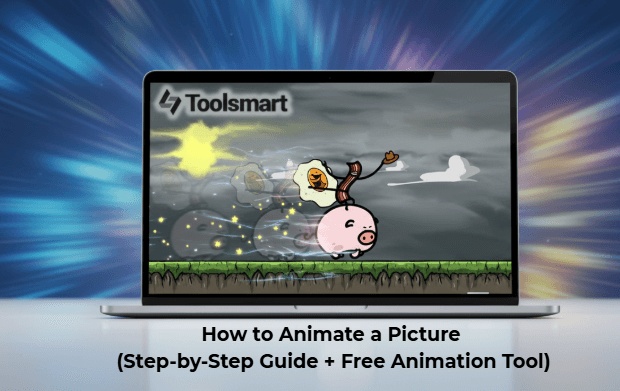
Folks hunting for how to animate a picture crave straightforward paths to cool results, especially free ones with clear visuals for posts, reels, or projects that don't eat your whole day.
Method 1: Using Canva

Canva feels like your go-to buddy for design without the hassle, packed with ready templates and smooth effects like gentle pans, dreamy fades, or exciting zooms that breathe life into any photo. It's a hit with social butterflies and busy marketers who need polished looks fast, no prior experience required, and it all happens right in your browser.
Step 1: Fire up canva.com, sign up or log in, totally free to kick things off.
Step 2: Click "Create a design" and grab a template like Instagram Post, Story, or start blank.
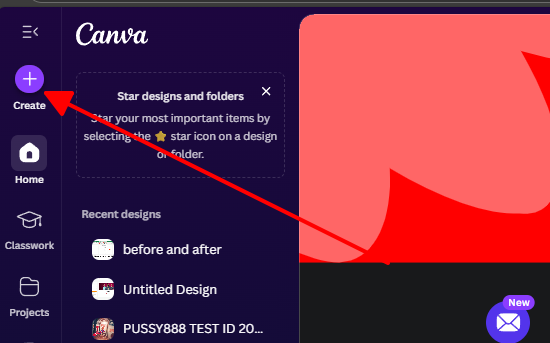
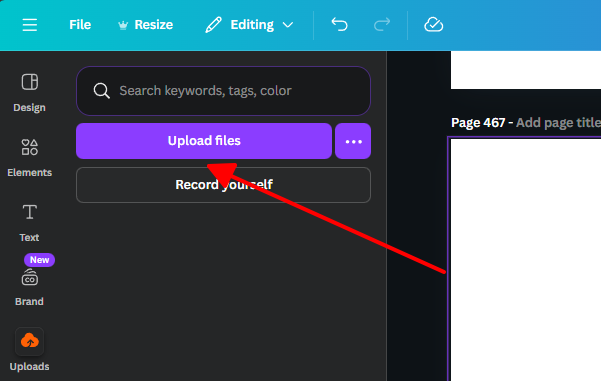
Step 3: Head to "Uploads," pick your photo from your computer or phone, and drag it onto the canvas.
Step 4: Click the image to highlight it, then spot the "Animate" button in the top toolbar.
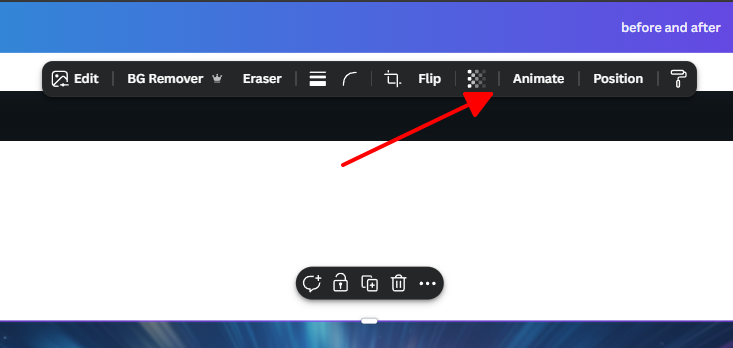
Step 5: Browse styles: try Fade for soft entry, Rise for upward lift, Pan for sweeping views, or Bubble for fun pops; preview each live.
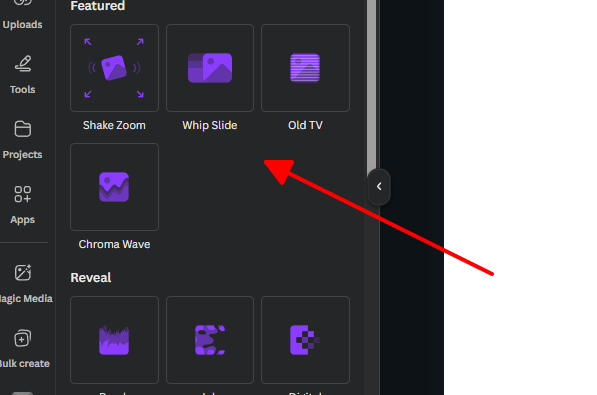
Step 6: Tweak speed and direction using the easy timeline slider below, loop it a few times to check flow.
Step 7: Hit "Download," choose GIF for endless loops or MP4 for video sharing, and save to your device.
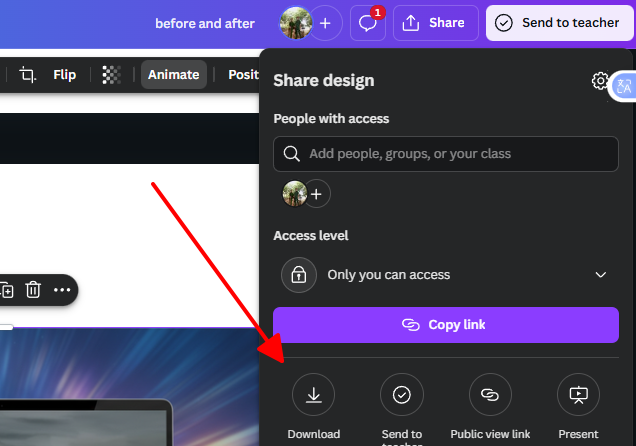
Step 8: Test it in your app or browser to ensure it plays smooth everywhere.
Last week, I pulled Canva for a client's dull product image in a sales deck. Added a slow Pan across the details, making it feel premium and inviting. The Zoom meeting feedback exploded, way more questions and interest than static slides ever got. Whole thing took under 5 minutes, free tier nailed it without begging for upgrades.
Method 2: Using AI-Powered Animators (e.g., EaseMate)
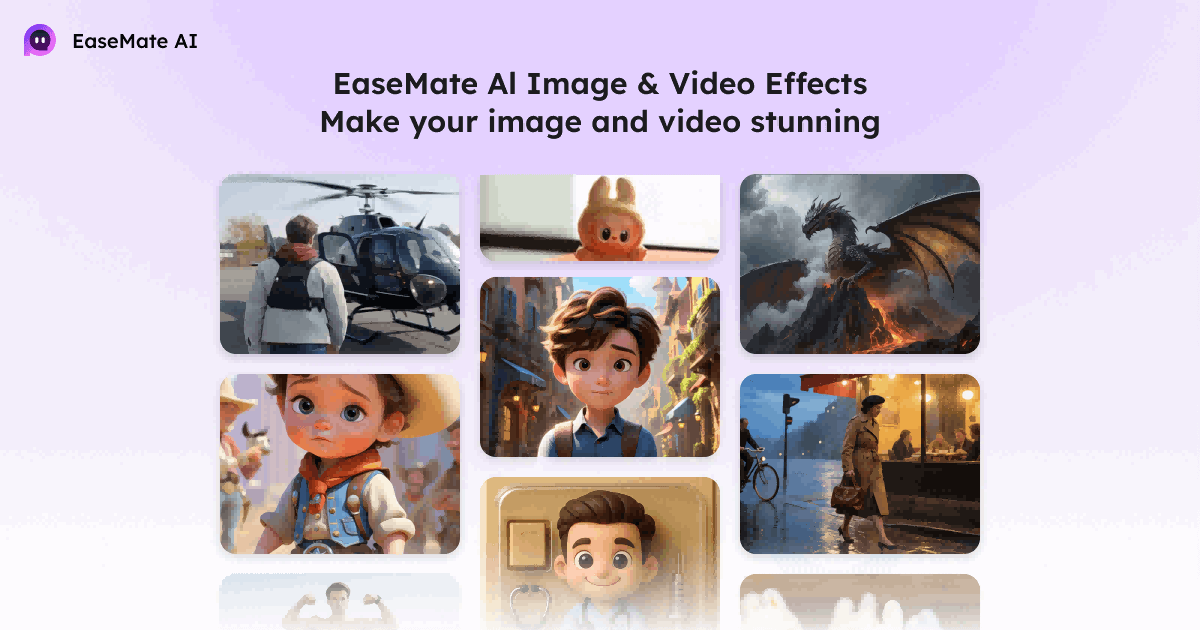
EaseMate steps in as the smart AI sidekick that scans your photo, picks out faces, hair, skies, or whatever, then layers on natural motions through simple text hints. It's built for anyone chasing a photo animator that delivers pro vibes instantly, skipping the manual grind for how to animate a photo results that stun.
Step 1: Open EaseMate AI Image Animator: Animate Any Photo with AI Free in any browser, jump right in no account nonsense.
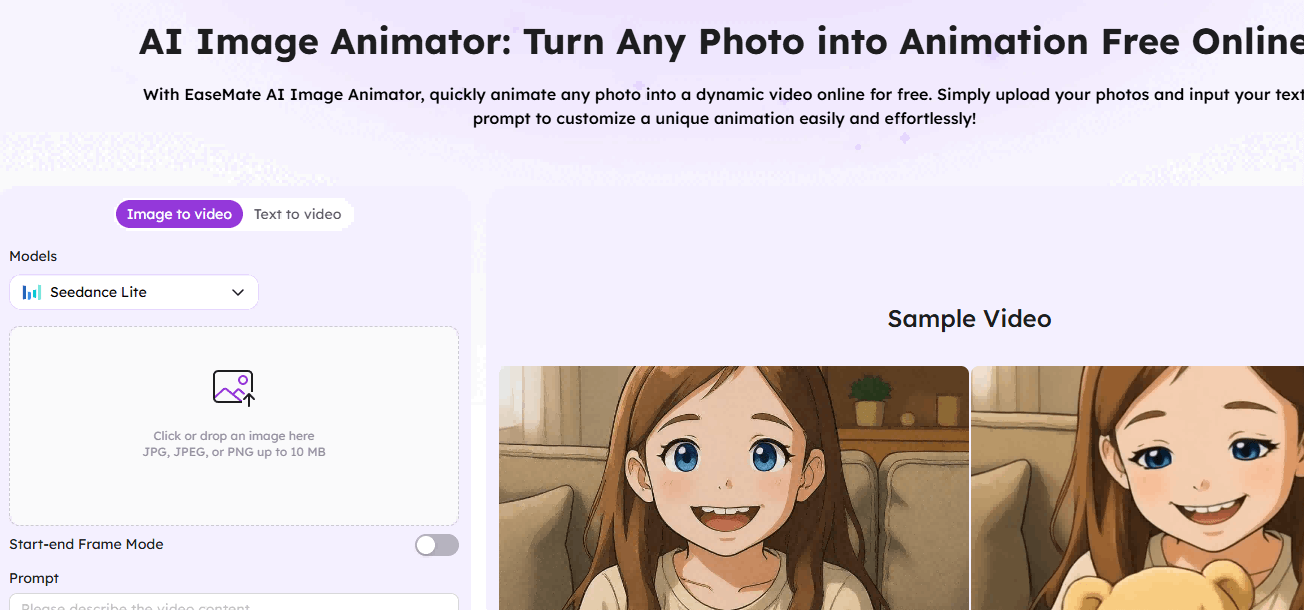
Step 2: Drag your picture onto the upload zone or click to browse and select it quick
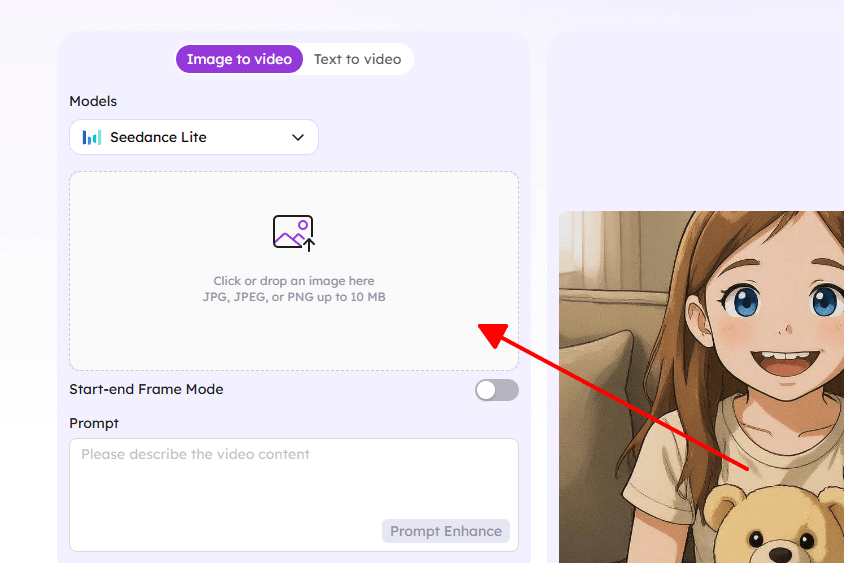
Step 3: Optional: type a fun prompt like "soft wind through hair" or "gentle waves lapping," or hit auto-animate for AI surprises.
Step 4: Sit tight 10-30 seconds while it crunches, then preview the full moving clip.
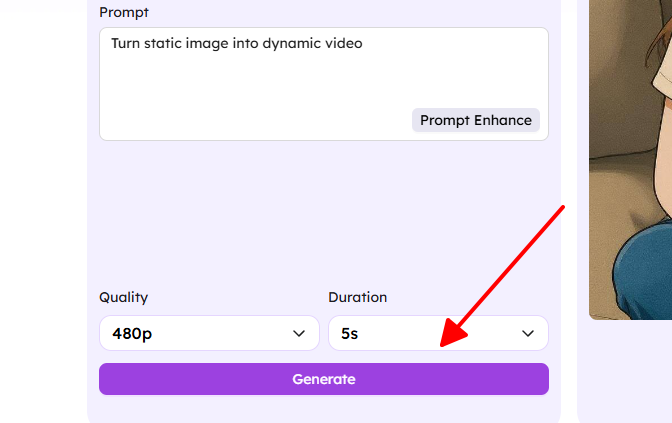
Step 5: Love it? Download as slick MP4 video or looping GIF, ready for anywhere.
Step 6: If tweaks needed, upload again with adjusted prompt and compare versions side by side.
I grabbed EaseMate for a friend's stiff headshot the other day. Prompted "subtle breathing and smile," and out popped a lifelike nod that screamed personality. Dropped it into a marketing email, replies tripled usual static ones. Pure time-saver, felt like cheating in the best way.
Method 3: Using Mobile Apps
Motionleap shines for phone warriors, letting you paint motion with your finger, guide paths with arrows, and lock static spots with masks, ideal to make image move on vacation pics or daily snaps without a computer.
Step 1: Snag Motionleap free from App Store or Google Play, install flies by.
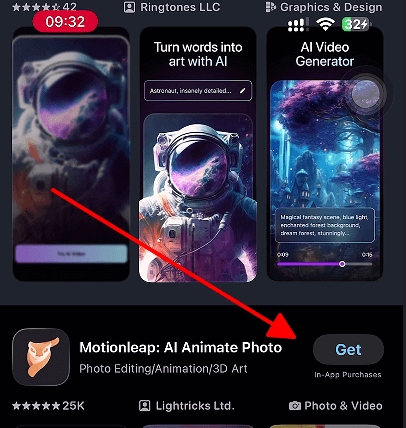
Step 2: Launch, tap big plus icon, pick photo from gallery or camera roll.
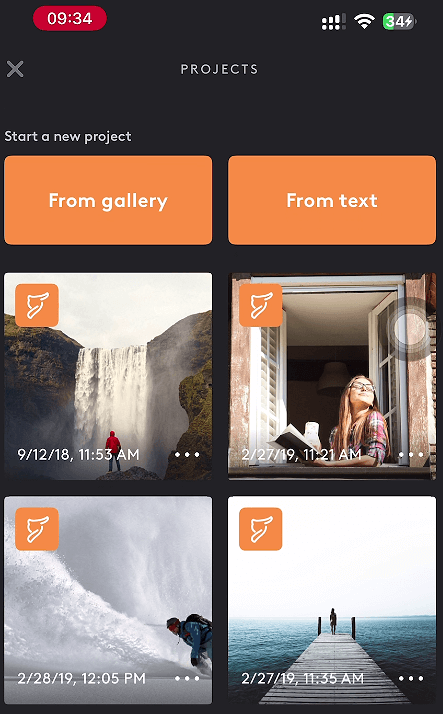
Step 3: Switch to "Animate" tab, brush freely over movers like clouds, water, or flames.
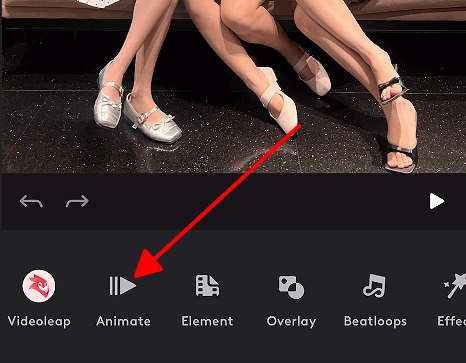
Step 4: Swipe arrows for flow direction and speed, tap freeze tool on still zones like faces or ground.
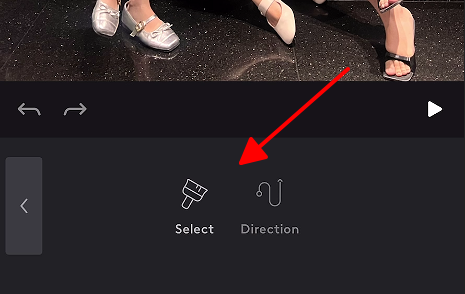
Step 5: Scrub timeline preview, layer effects like sparkles or loops if wanted.
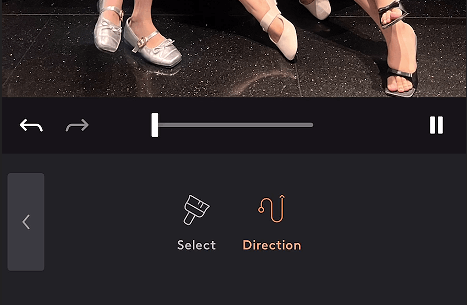
Step 6: Fine-tune intensity sliders till it mesmerizes.
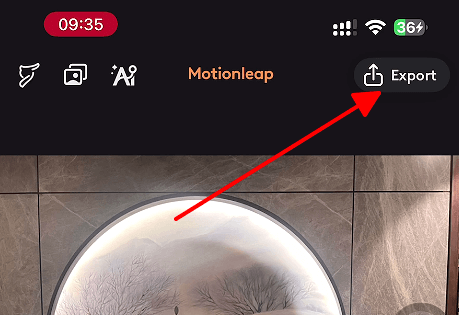
Step 7: Export choices: video for stories, GIF for posts, save or share direct.
Mid-hike last time out, sunset shot in hand, I Motionleaped rolling waves under still rocks. Posted to Stories, views and saves skyrocketed over plain pics. Pocket power made creativity spontaneous, no desk required.
Common Issues & How to Solve Them
Animation Looks Unnatural
Fast jerky moves scream fake; dial speed low, stick subtle like real wind. Preview loops endlessly to nail natural rhythm.
Low Image Quality After Animation
Crappy inputs blur worse; hunt high-res originals, enhance upfront. Megapixel matters for post-glow sharpness.
File Size Too Large
Frame overloads bloat files; slash to 15fps, cap 1080p export. Post-compress for socialzip.
Can’t Access Pro Features
Upgrade nags kill flow; pivot to unlimited free like Image Enhancer, zero lockouts.
Animation Doesn’t Loop Smoothly
Frame mismatches hitch; sync start-end precisely, leverage auto-loop tools.
Tips:
Static backs amp foreground pop.
Platform test before prime time.
Animate Your Pictures with Image Enhancer
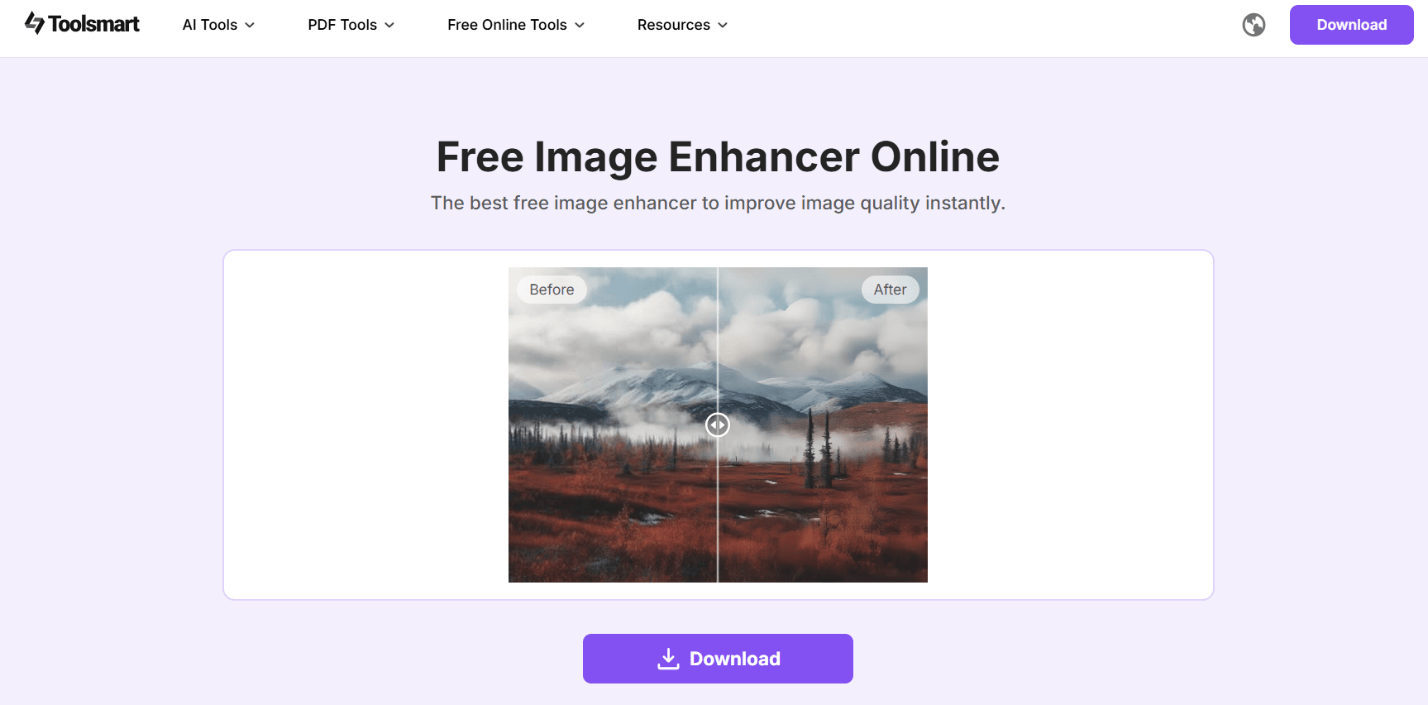
Toolsmart Image Enhancer owns the ring: AI duo punches sharpness skyward then motionates elements savvy, no login/download circus. Marketers/creators worship no-fuss how to animate a picture workflow 2025 prime.
Step 1: Free Image Enhancer Online (No Sign-up & No Ads) awaits browser bliss.
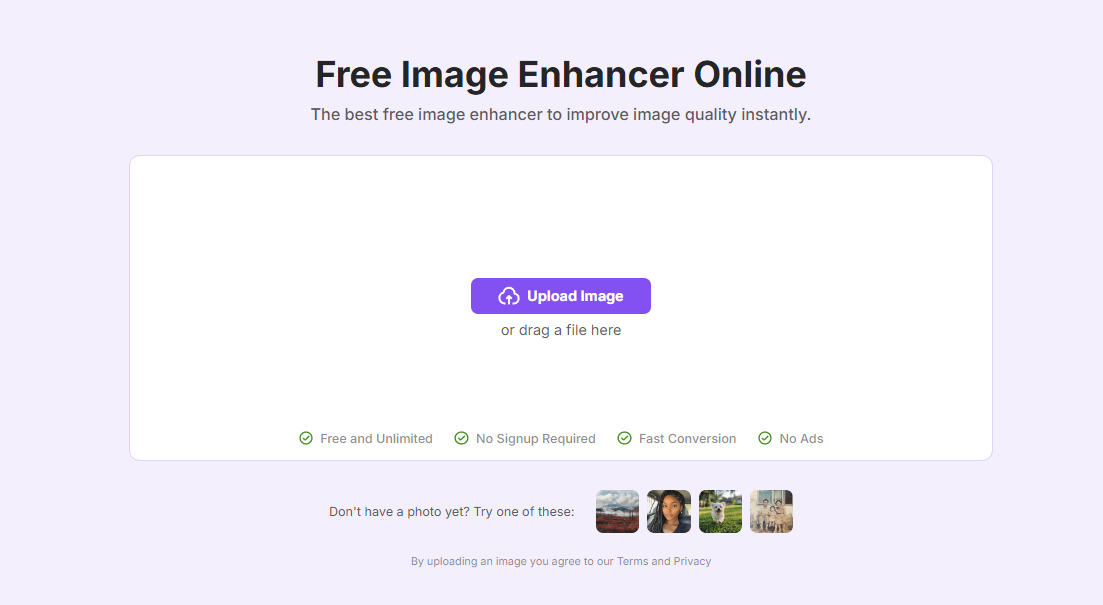
Step 2: Drag-drop photo nirvana or browse bullet.
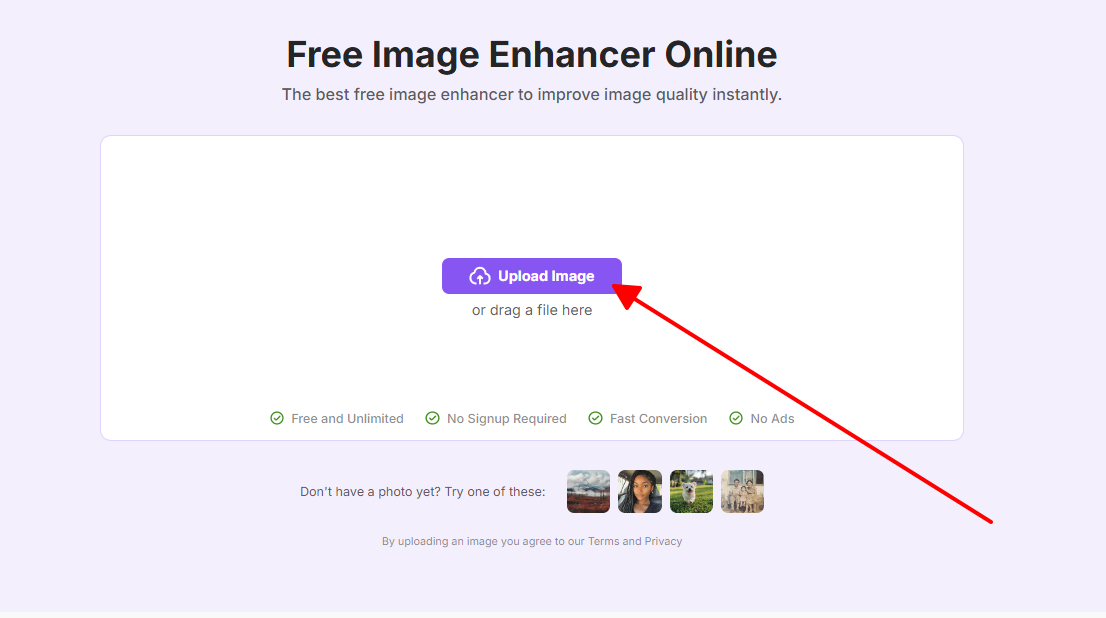
Step 3: "Animate" awakens, sway/breathe/pan/zoom carousel tempts.
Step 4: Live sliders sculpt intensity, preview god-mode.
Step 5: MP4 fluid/GIF endless/share zap exports.
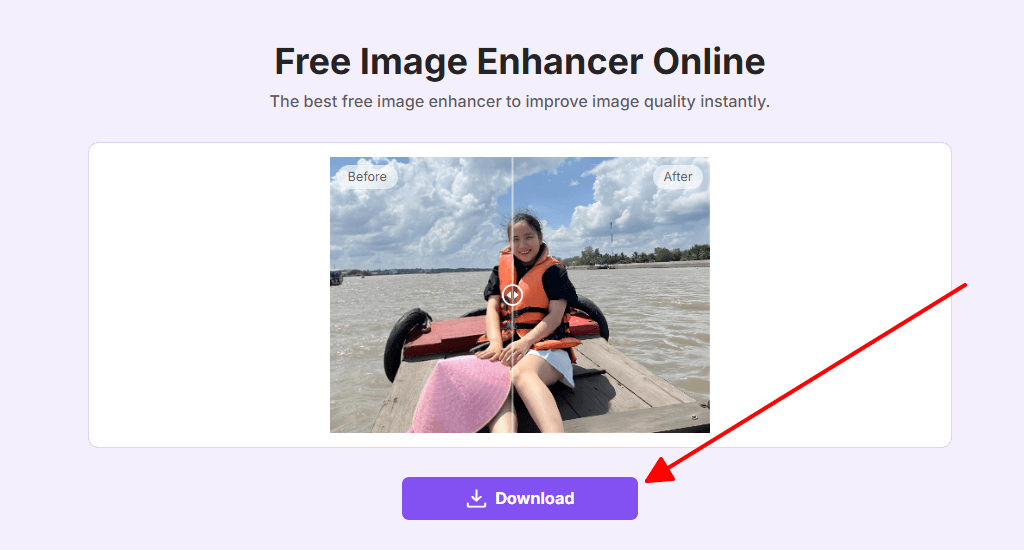
Grainy grandma portrait resurrection yesterday: upscale crystal, breathing smiles animated forward stepped. Family thread nostalgia nuked, "print this!" demands. Zero effort pinnacle pro.
FAQs
Q1: Can I animate any picture?
Yeah, pretty much any picture works as long as it's clear and you own the rights to use it. High-quality shots give the smoothest animations, but if yours is blurry or low-res, just enhance it first for way better results. JPG and PNG files play nice with all these tools no problem.
Q2: Do I need to pay to use Image Enhancer?
Nope, Toolsmart Image Enhancer is totally free with zero watermarks or hidden catches. Even in 2025, you get full access to the good stuff without paying a dime, perfect for anyone testing animations.
Q3: What's the best format for animated pictures?
Go GIF for quick social loops, they stay small and load fast everywhere. MP4 shines for longer smoother clips that look pro on Insta or TikTok. Pick based on your share spot.
Q4: Can I edit the animation after creating it?
Most apps make you start over for changes, but Toolsmart Image Enhancer lets you tweak and remake super quick. Keep your original pic saved and you're golden for easy fixes.
Q5: Which is better for beginners: Canva or Image Enhancer?
Image Enhancer wins hands down for newbies, one-click auto magic no thinking. Canva's great if you wanna play with styles and get creative control later on.
Summary
You've got everything you need to master how to animate a picture right now: Canva for custom template flair, EaseMate AI for effortless lifelike clips, Motionleap for mobile creativity anywhere, and Toolsmart Image Enhancer as the free standout that blends sharpening with motion in one go. Pick what fits your moment, beginners love the auto options while pros mix for unique results, and watch engagement skyrocket as static images fade into viral movers. Try one today and level up your 2025 content game, your stories were meant to move


