
'%3e%3cpath%20fill-rule='evenodd'%20clip-rule='evenodd'%20d='M19%208.5C24.799%208.5%2029.5%2013.201%2029.5%2019C29.5%2024.6782%2024.9928%2029.3036%2019.361%2029.4939L19%2029.5C18.8794%2029.5%2018.7592%2029.498%2018.6396%2029.4939L18.2811%2029.4758C12.8174%2029.1063%208.5%2024.5574%208.5%2019C8.5%2013.201%2013.201%208.5%2019%208.5ZM22.3063%2010.6267L22.2342%2010.6539C21.3423%2011.0061%2020.5541%2011.6368%2020.5606%2012.4987C20.5631%2012.8302%2020.869%2014.8871%2020.2141%2014.8486C19.5589%2014.8102%2019.413%2013.8753%2018.7116%2013.616C17.5944%2013.2026%2016.9819%2014.3401%2017.0939%2015.3106C17.1695%2015.9655%2018.9289%2018.3871%2017.9028%2019C17.292%2019.3651%2015.7279%2017.5692%2015.1007%2017.1842C14.4805%2016.8034%2013.2758%2017.3333%2012.4974%2016.7029C11.9874%2016.2899%2012.3881%2014.4098%2012.2786%2013.8372C12.2271%2013.5698%2012.1155%2013.3689%2011.9794%2013.2166L12.0402%2013.2934C10.7653%2014.8464%2010%2016.8339%2010%2019C10%2023.8465%2013.8307%2027.7982%2018.6295%2027.9925L18.6769%2027.9747C18.8597%2027.8677%2019.0394%2027.7557%2019.216%2027.6387C19.4137%2027.4534%2019.5436%2027.2072%2019.5849%2026.9394C19.8806%2025.1222%2018.3616%2025.4302%2017.9367%2024.5622C17.5489%2023.7695%2018.5712%2023.7684%2018.5524%2021.7923C18.4607%2021.1774%2018.5279%2020.547%2018.7211%2020.0315C19.1834%2018.7987%2020.7077%2017.2643%2022.5889%2018.0081C23.5567%2018.3906%2023.1524%2019.9831%2023.4737%2020.3394C24.251%2021.2018%2025.3228%2020.6863%2026.2856%2021.2253C26.7816%2021.5032%2026.9797%2022.41%2027.056%2023.2248L27.038%2023.0528C27.6534%2021.8348%2028%2020.4579%2028%2019C28%2015.1968%2025.6409%2011.9445%2022.3063%2010.6267Z'%20fill='%23757575'/%3e%3ccircle%20cx='19'%20cy='19'%20r='10.125'%20stroke='%23757575'%20stroke-width='2.25'/%3e%3c/g%3e%3cdefs%3e%3cclipPath%20id='clip0_1827_14613'%3e%3crect%20width='24'%20height='24'%20fill='white'%20transform='translate(7%207)'/%3e%3c/clipPath%3e%3c/defs%3e%3c/svg%3e)


Adding images is one of the first skills anyone learns in Photoshop, yet many beginners still find the process confusing. Photoshop offers multiple ways to insert pictures, and understanding which method to use can improve both workflow and editing quality.
So, how can you add images to Photoshop smoothly and without running into issues? This guide breaks everything down step-by-step.
Part 1: Why Adding Images Correctly in Photoshop Matters
Before learning the steps, it’s important to understand why the way you insert a picture affects the final result. Many users search for how to add an image to Photoshop, but simply getting the picture onto the canvas is not enough. The method you choose affects image quality, resolution control, and the flexibility you have during editing.
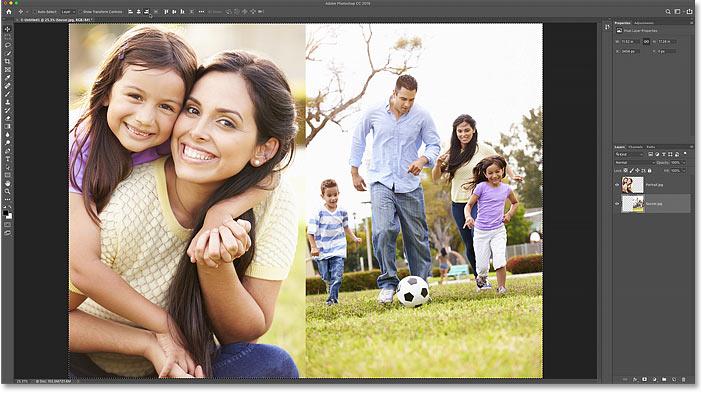
When an image is added correctly, Photoshop preserves the original resolution, ensures layers stay organized, and gives you full control over adjustments. This becomes especially important when working on projects that require precision, such as product photos, digital ads, or print designs.
Properly inserting images also streamlines your workflow. You avoid issues like pixelation, distorted scaling, or losing track of layers in large projects. Whether you are building a multi-layer composition or just replacing a photo, choosing the right method helps maintain clarity and ensures every edit is non-destructive.
Part 2: Basic Methods to Add a Picture in Photoshop
The simplest way to learn how to add a picture to Photoshop is to start with the basic import methods. These approaches work for beginners and professionals, and each method offers different advantages depending on your workflow.
Method 1: Drag and Drop
Step 1: Open Photoshop and create a new blank canvas or open an existing project.
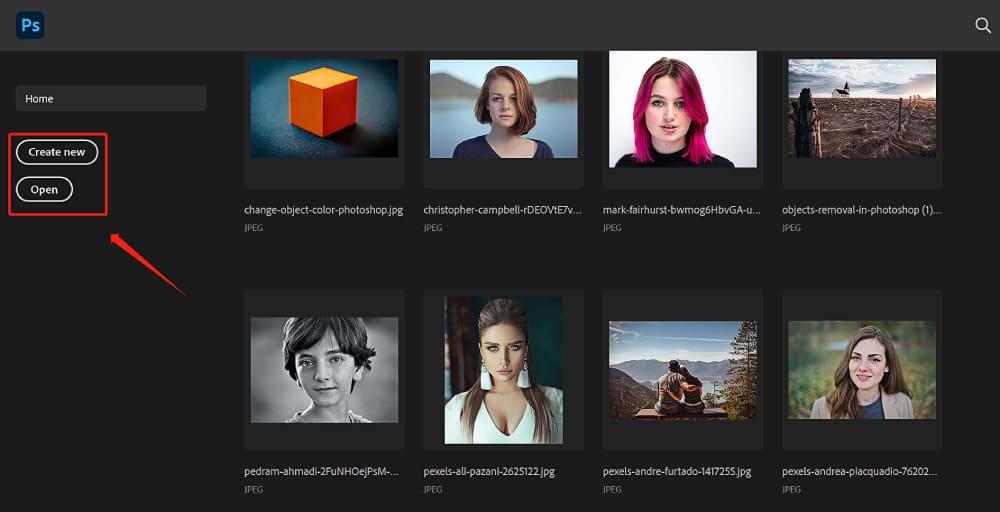
Step 2: Go to your computer’s file folder and select the image you want to insert.
Step 3: Drag the image directly into the Photoshop workspace.
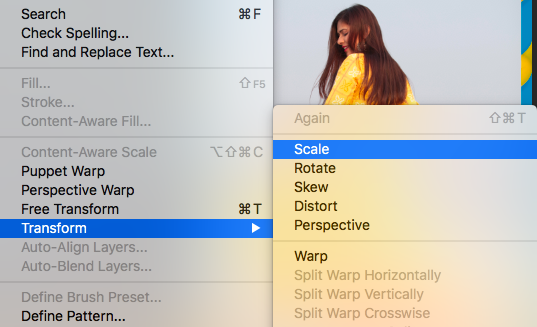
Step 4: Adjust the image by resizing or positioning it, then press Enter to place it.
My experience:
This is the fastest method when I’m working on quick drafts or testing layouts. Drag-and-drop lets me preview placements instantly without navigating menus, which keeps the workflow smooth.
Method 2: Using Place Embedded
Step 1: Go to File > Place Embedded.
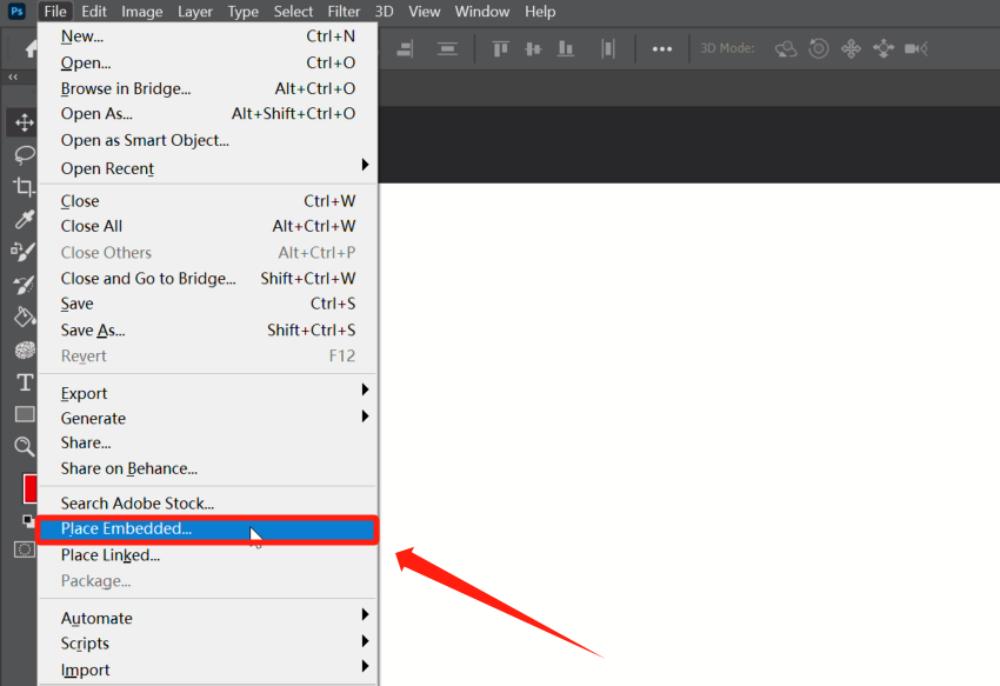
Step 2: Choose the image file you want to insert and click Place.
Step 3: Resize, rotate, or position the picture. Press Enter to confirm.
My experience:
I often use Place Embedded when I want the imported picture to remain flexible. It keeps the image as a Smart Object by default, making it easier to scale up or down without damaging quality.
Method 3: File Menu Import
Step 1: Click File > Open.
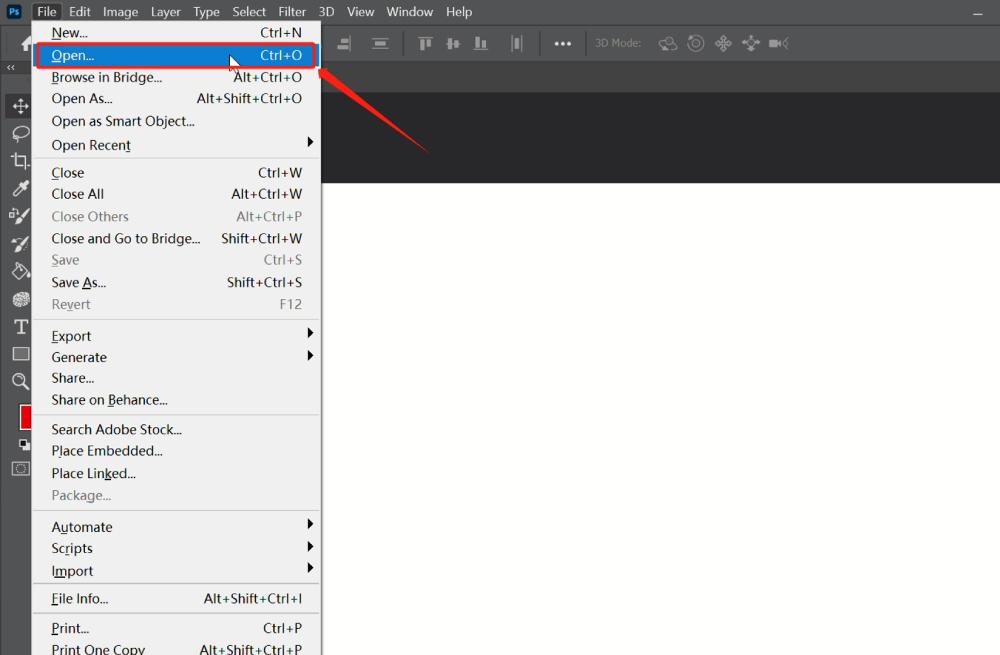
Step 2: Browse your folder and select the image.
Step 3: Photoshop will open the picture as a new document.
My experience:
This approach is ideal when I need to edit multiple photos separately before combining them. It gives me a clean workspace for each image without affecting the main project.
Part 3: Advanced Techniques for Adding Images
Once you understand the basic import methods, you can explore more advanced techniques that give you greater control, especially when working on layered compositions or multi-image projects. Many users eventually want to know how to add a second picture to Photoshop for collages or product designs, and these methods are ideal for that.
Layers and Smart Objects
When you insert images for detailed editing, converting them to Smart Objects helps preserve quality. Smart Objects allow you to scale, transform, warp, or apply filters without damaging the original pixels. Each imported image appears as a separate layer, making it easier to move, hide, or blend elements.
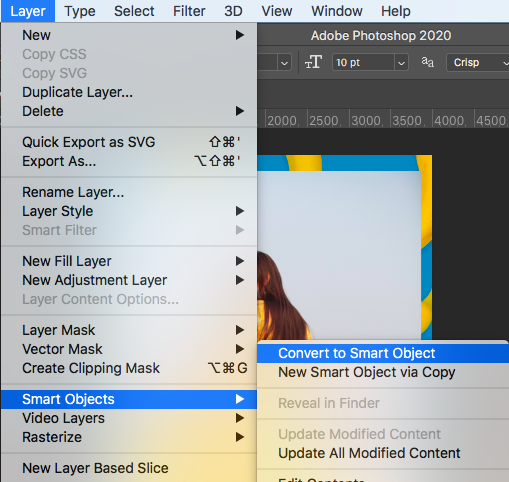
My experience:
I rely on Smart Objects when working with client images. It protects the resolution and gives me the freedom to try different effects without worrying about starting over.
Copy-Paste from Other Applications
Step 1: Copy an image from another program or browser.
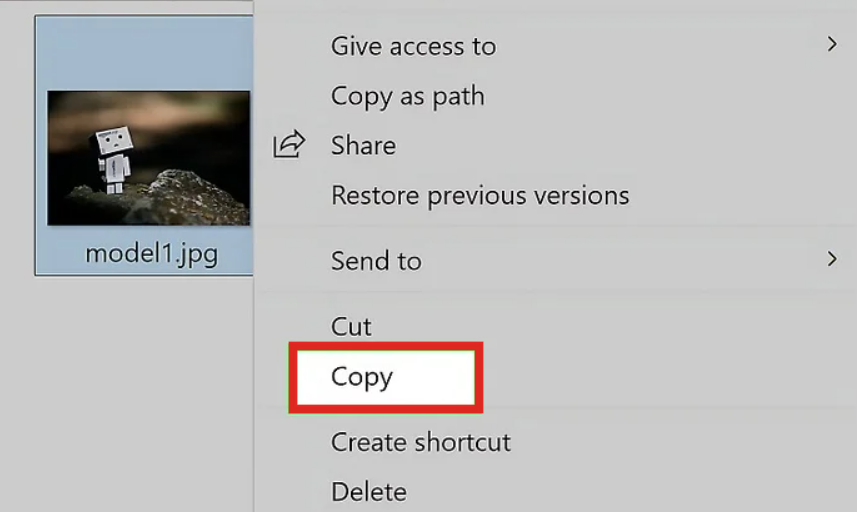
Step 2: In Photoshop, pressCtrl+V (Windows) or Cmd+V(Mac).
Step 3: The image will appear as a new layer, ready for adjustment.
My experience:
This method works well when I need quick references or when collecting assets from design libraries. It’s faster than saving files manually and still keeps the workflow organized.
Batch Import for Multiple Images
If you need to load many photos at once, for collages, product showcases, or layered illustrations, Photoshop provides a batch import option.
Step 1: Go to File > Scripts > Load Files into Stack.
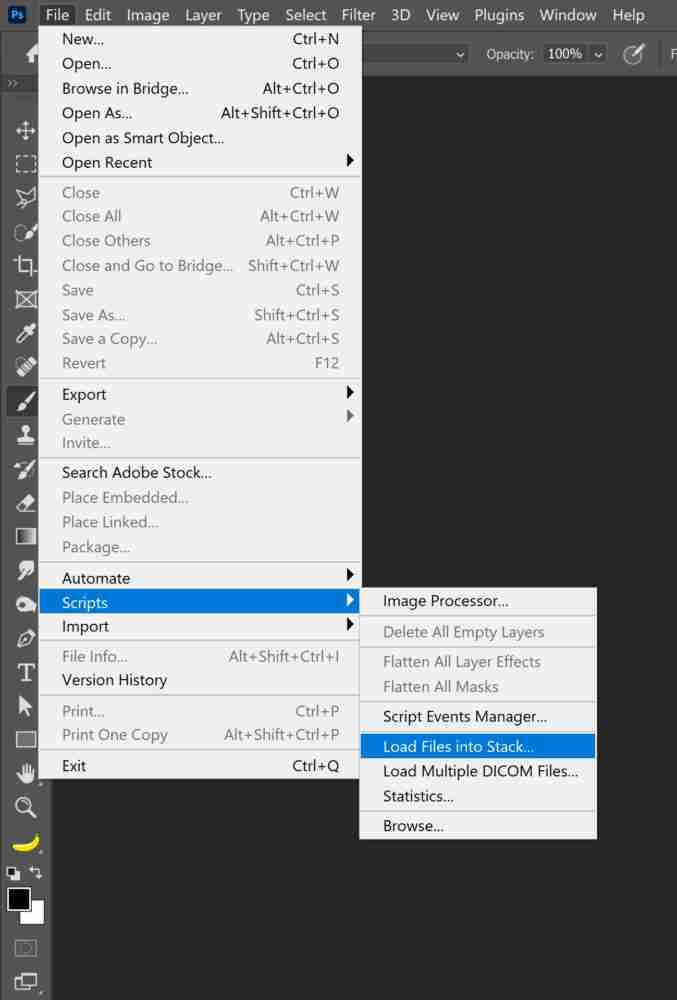
Step 2: Choose multiple images.
Step 3: Photoshop imports each picture as a separate layer in one document.
My experience:
This is one of the most efficient features when handling bulk images. It saves time and ensures all pictures are placed cleanly as individual layers, which is essential for professional layout work.
Part 4: Use Image Enhancer to Improve Photos Before Editing
Before learning advanced skills like how to create a shadow in Photoshop or adjusting colors and layers, starting with a high-quality image makes a noticeable difference. Many users also want to know how to add a background picture in Photoshop, but the result will always look better when the source image is clear and detailed. This is where Image Enhancer becomes useful.
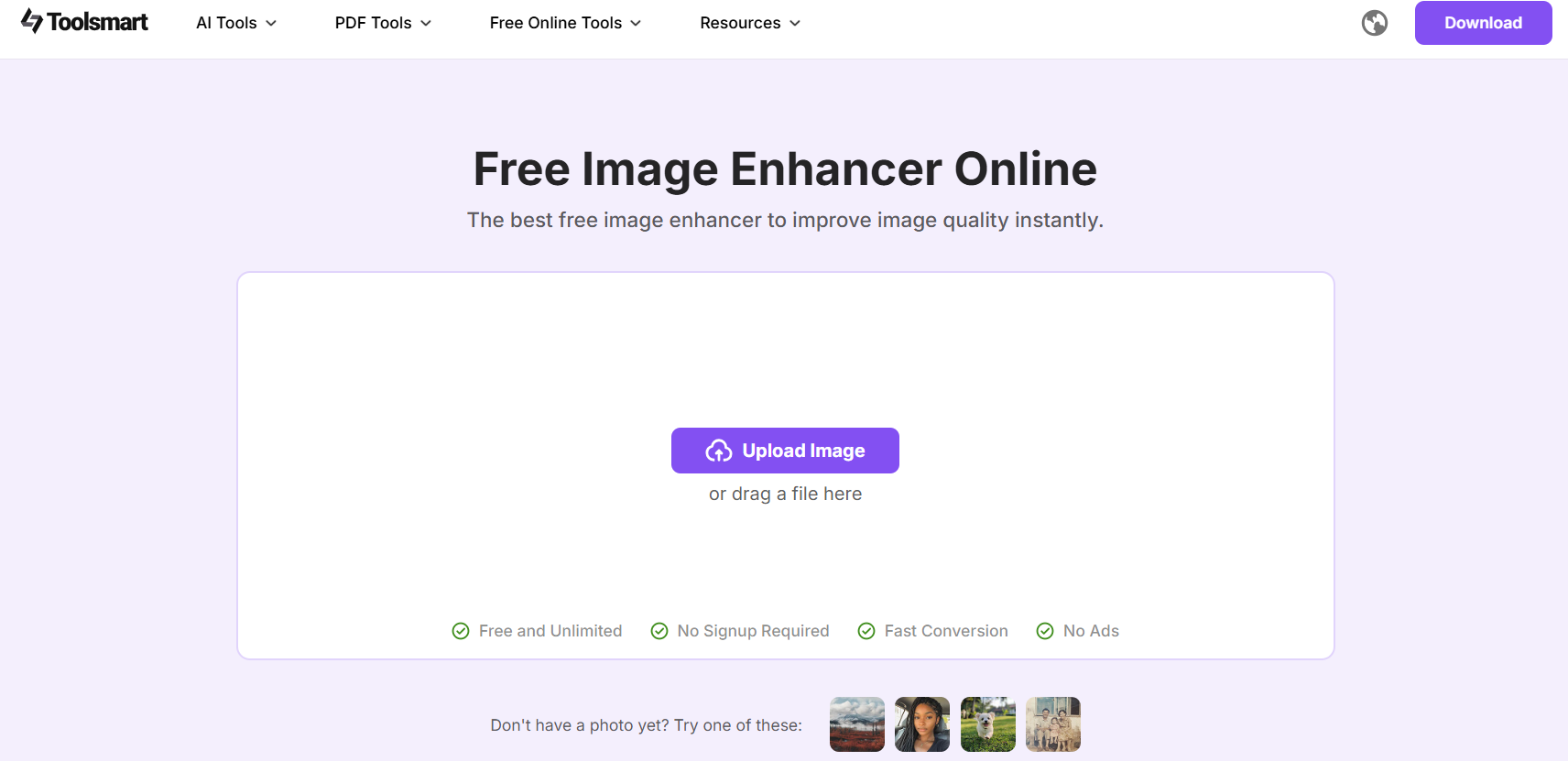
Image Enhancer by Toolsmart is an online tool designed to upgrade the quality of your photos before you import them into Photoshop. Whether you are dealing with blurry images, low-resolution graphics, or photos taken in poor lighting, enhancing them beforehand helps maintain sharpness throughout your edits.
Why I Recommend Image Enhancer
Free and watermark-free: You get clean, professional results without hidden restrictions.
No installation required: It runs directly in your browser, which is convenient when switching between tools.
Improves clarity and resolution: Enhanced images hold up better when resizing or applying effects inside Photoshop.
Steps
Step 1: Go to the Image Enhancer website.
Step 2: Upload your image.
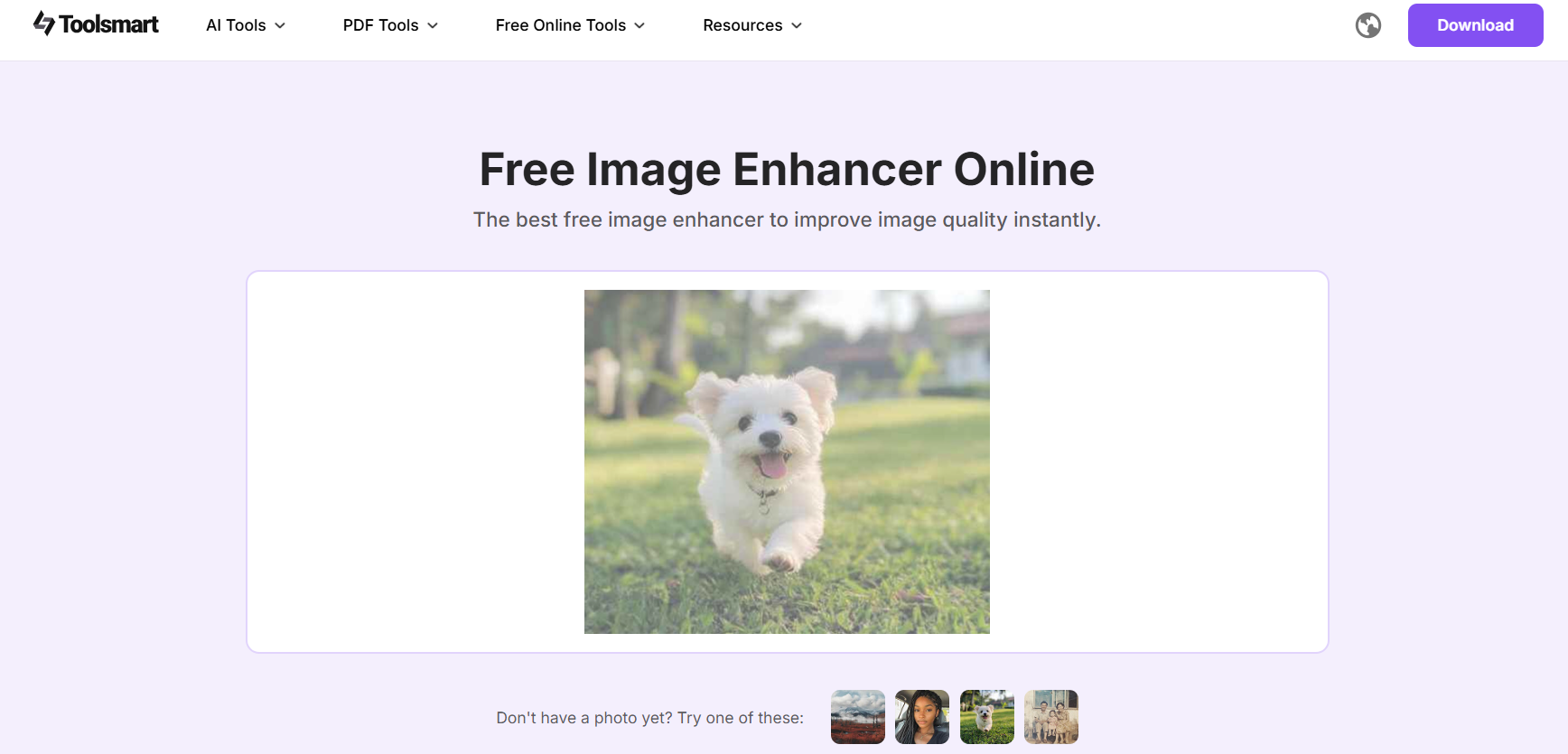
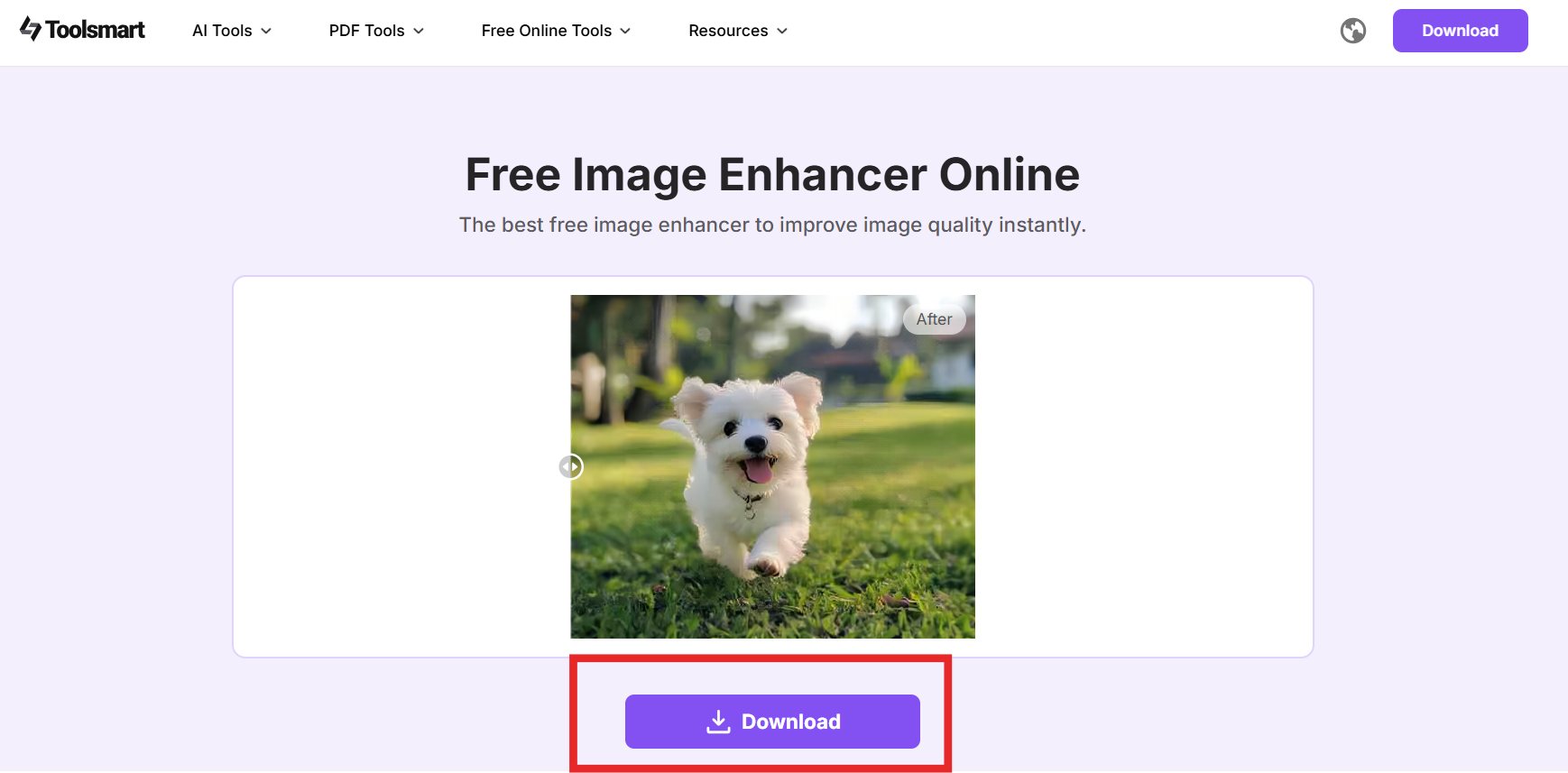
Step 3: Download the enhanced version and import it into Photoshop using any method covered earlier.
My experience:
I tend to enhance images first whenever I’m preparing graphics for presentations or product mockups. Starting with a cleaner image saves time later, reduces the need for heavy retouching, and keeps the final edits crisp. It’s especially helpful when clients provide images that are small or slightly pixelated.
FAQs
Q1: What’s the easiest way to add a picture to Photoshop?
For most users, drag-and-drop is the quickest method. You simply pull the file from your folder into the Photoshop workspace, and it appears instantly as a new layer.
Q2: Can I add multiple images at once?
Yes. You can use File > Scripts > Load Files into Stack to import several pictures simultaneously. Photoshop places each image on its own layer, which helps when building collages or multi-image designs.
Q3: How do I maintain image quality when adding to Photoshop?
Start with the highest-resolution file you have. If the picture is low quality, tools like Image Enhancer can help improve clarity before importing it into Photoshop.
Q4: Is Image Enhancer free to use?
Yes, Image Enhancer is completely free and does not add watermarks. It’s a convenient option for improving photo quality before editing.
Summary
Learning how to add a picture to Photoshop becomes much easier once you understand the different methods available. Drag-and-drop works best for quick imports, while Place Embedded gives you more control through Smart Objects. The File > Open method is ideal when working with individual photos in separate documents. For advanced projects, tools like layers, Smart Objects, copy-paste, and batch imports make managing multiple images far more efficient.
Before adding images, improving their quality can greatly enhance your final results. Using tools like Image Enhancer ensures your pictures start at the highest clarity, making editing smoother and more accurate. Whether you are creating designs, collages, or product visuals, choosing the right import method and preparing the image beforehand will streamline your workflow and elevate the overall quality of your Photoshop projects.



