
'%3e%3cpath%20fill-rule='evenodd'%20clip-rule='evenodd'%20d='M19%208.5C24.799%208.5%2029.5%2013.201%2029.5%2019C29.5%2024.6782%2024.9928%2029.3036%2019.361%2029.4939L19%2029.5C18.8794%2029.5%2018.7592%2029.498%2018.6396%2029.4939L18.2811%2029.4758C12.8174%2029.1063%208.5%2024.5574%208.5%2019C8.5%2013.201%2013.201%208.5%2019%208.5ZM22.3063%2010.6267L22.2342%2010.6539C21.3423%2011.0061%2020.5541%2011.6368%2020.5606%2012.4987C20.5631%2012.8302%2020.869%2014.8871%2020.2141%2014.8486C19.5589%2014.8102%2019.413%2013.8753%2018.7116%2013.616C17.5944%2013.2026%2016.9819%2014.3401%2017.0939%2015.3106C17.1695%2015.9655%2018.9289%2018.3871%2017.9028%2019C17.292%2019.3651%2015.7279%2017.5692%2015.1007%2017.1842C14.4805%2016.8034%2013.2758%2017.3333%2012.4974%2016.7029C11.9874%2016.2899%2012.3881%2014.4098%2012.2786%2013.8372C12.2271%2013.5698%2012.1155%2013.3689%2011.9794%2013.2166L12.0402%2013.2934C10.7653%2014.8464%2010%2016.8339%2010%2019C10%2023.8465%2013.8307%2027.7982%2018.6295%2027.9925L18.6769%2027.9747C18.8597%2027.8677%2019.0394%2027.7557%2019.216%2027.6387C19.4137%2027.4534%2019.5436%2027.2072%2019.5849%2026.9394C19.8806%2025.1222%2018.3616%2025.4302%2017.9367%2024.5622C17.5489%2023.7695%2018.5712%2023.7684%2018.5524%2021.7923C18.4607%2021.1774%2018.5279%2020.547%2018.7211%2020.0315C19.1834%2018.7987%2020.7077%2017.2643%2022.5889%2018.0081C23.5567%2018.3906%2023.1524%2019.9831%2023.4737%2020.3394C24.251%2021.2018%2025.3228%2020.6863%2026.2856%2021.2253C26.7816%2021.5032%2026.9797%2022.41%2027.056%2023.2248L27.038%2023.0528C27.6534%2021.8348%2028%2020.4579%2028%2019C28%2015.1968%2025.6409%2011.9445%2022.3063%2010.6267Z'%20fill='%23757575'/%3e%3ccircle%20cx='19'%20cy='19'%20r='10.125'%20stroke='%23757575'%20stroke-width='2.25'/%3e%3c/g%3e%3cdefs%3e%3cclipPath%20id='clip0_1827_14613'%3e%3crect%20width='24'%20height='24'%20fill='white'%20transform='translate(7%207)'/%3e%3c/clipPath%3e%3c/defs%3e%3c/svg%3e)


No need to drop cash on Photoshop to make your Mac photos pop. Whether you’re tweaking RAW files, making Insta-worthy shots, or zapping selfie blemishes, free tools deliver pro vibes without subscriptions. But finding a free, no-watermark blemish remover that’s easy and macOS-friendly is tough. How do you pick the best free photo editor for Mac in 2025? This guide covers four sweet editors—GIMP, Ashampoo, Fotor, and Darktable—with pros and cons, plus Toolsmart’s Free Image Enhancer to polish your pics. Let’s make ‘em shine for free!
Part 1: Free Photo Editing Software for Mac

Here’s the lowdown on four awesome free photo editors for Mac, perfect for quick fixes or pro-level edits, straight from the scoop onGIMP, Ashampoo, Fotor, and Darktable.
GIMP

GIMP (GNU Image Manipulation Program) is like the ultimate free toolkit, going toe-to-toe with Photoshop. It’s a go-to for photographers and designers who want powerful tools like layers, masks, and custom brushes without spending a dime.
Features: Layers, custom brushes, healing/clone tools to zap blemishes, RAW support with plugins, handles JPG/PNG/TIFF, tons of plugins for extra flair, runs smoothly on macOS, Windows, and Linux.
Pros:
Totally free with no subscriptions, ever.
Pro-grade tools for retouching, compositing, and artwork.
Runs offline, perfect for macOS users.
Cons:
Steep learning curve, especially for beginners.
Interface feels cluttered and can be overwhelming, according to TechRadar.
App Rating: 4.5/5 (user reviews).
How to Use:
Step 1: Grab GIMP from www.gimp.org.

Step 2: Fire up GIMP and load your photo (JPG or PNG).

Step 3: Use the Heal or Clone tool to nix blemishes or tweak layers.

Step 4: Save as JPG/PNG or export as TIFF.

I tried using GIMP to smooth out blemishes on a portrait, and believe my words, the healing brush just worked like magic, poof, they disappeared! Where GIMP will truly shine is in all kinds of intricate editing, but it's kinda slow for the easiest of fixes.
Ashampoo Photo Optimizer

Ashampoo Photo Optimizer is a marvel in editing software for beginners. Finalizing mere fine-tunings on shots is as effortless as a click of the button for auto-optimization, be it brightening shots or removing slight blemishes for your MacBook Air or Pro.
Features: One-click auto-fix for exposure, contrast, and colors, slider control for sharpness and color, spot removal tool, an overwhelming amount of batch processing supported for JPG/PNG, macOS-optimized.
Pros:
Crazy easy with no learning curve, great for newbies.
Clean, ad-free interface that’s smooth on macOS.
Batch editing saves time for multiple photos.
Cons:
No layer editing or advanced tools like GIMP.
Blemish removal isn’t as precise for detailed portraits, per TechRadar.
App Rating: 4.4/5 (Capterra).
How to Use:
Step 1: Download from www.ashampoo.com.

Step 2: Import your photos and hit “Auto-Optimize.”

Step 3: Use the spot removal tool for blemishes.
Step 4: Save as JPG/PNG.

Ashampoo fixed up a batch of vacation pictures, making them burst into color in seconds—a total game-changer for me! However, trying to remove any distinct local blemishes on the close-up face felt rather awkward compared to the pinpoint accuracy of GIMP.
Fotor

Fotor’s a super slick web-based editor with AI-powered tools that make blemish removal, filters, and one-tap touch-ups a breeze, perfect for banging out Insta-worthy shots or quick fixes on your Mac. It’s a total go-to for social media vibes or casual edits.
Features: AI blemish remover, one-tap enhancement for lighting/color, filters, frames, stickers, batch processing, supports JPG/PNG, mobile app and macOS app available.
Pros:
Super beginner-friendly with a clean, intuitive interface.
Awesome for quick, Insta-ready edits with AI tools.
Batch processing for multiple photos, per Fotor.
Cons:
Free exports come with a watermark, which is annoying.
Ads in the free version can slow you down, per Aftershoot.
App Rating: 4.6/5 (App Store).
How to Use:
Step 1: Hop over to www.fotor.com or fire up the Fotor app on your Mac.

Step 2: Toss in your photo (JPG or PNG).

Step 3: Hit up the AI blemish remover or one-tap enhance tool for quick fixes.

Step 4: Save as JPG or PNG (heads-up, free version adds a watermark).

I used Fotor to smooth out skin in a selfie for Instagram, and the AI made it look flawless in a snap. The app’s so easy to use, but that watermark on free downloads was a buzzkill for pro posts.
Darktable

Darktable is a free, open-source editor built for photographers who love RAW processing, offering pro-level tools like exposure blending, lens correction, and color grading, perfect for Mac users wanting Lightroom-like power.
Features: RAW processing for 400+ cameras, non-destructive editing, advanced masking, color correction, tone curves, supports JPG/PNG, macOS-optimized.
Pros:
Free with no watermarks, rivals Lightroom for RAW edits.
Runs offline, smooth on macOS.
Precise control for advanced photographers.
Cons:
Complex interface, not great for beginners.
No built-in blemish remover, needs workarounds, per Aftershoot.
App Rating: 4.5/5 (user reviews).
How to Use:
Step 1: Download from www.darktable.org.

Step 2: Import your photo (RAW/JPG).

Step 3: Adjust exposure, color, or masking edits.

Step 4: Export as JPG/PNG.

Darktable is what I used to adjust a RAW landscape shot; color control was unreal-this is like Lightroom, but free! There is a lot of looking at the interface, so it is not perfect for quick blemishes fixing.
Part 2: Comparison of Mac Photo Editors
| Tool | Best For | Learning Curve | Offline Use | Unique Feature |
| GIMP | Advanced editing | Steep | Yes | Layers, custom brushes |
| Ashampoo Photo Optimizer | Quick, beginner edits | Minimal | Yes | One-click optimization |
| Fotor | Social media, casual edits | Easy | Partial (web-based) | AI blemish remover, batch |
| Darktable | RAW processing | Steep | Yes | Non-destructive RAW edits |
GIMP’s a beast for pro edits but takes time to master. Ashampoo’s perfect for quick, no-fuss fixes. Fotor’s great for social media but adds watermarks. Darktable shines for RAW but isn’t beginner-friendly. Toolsmart’s enhancer adds a final polish to any of these.
Part 3: Bonus Tool – Toolsmart Free Image Enhancer Online

After zapping blemishes or editing your photos, Toolsmart’s Free Image Enhancer Online takes them to the next level by sharpening details, boosting colors, and fixing compression issues, making your images pop for prints or posts, per Toolsmart. It’s free, runs in your browser, and needs no signup, perfect for Mac users wanting a pro finish.
Overview: AI-powered tool to enhance photos, improving clarity, vibrancy, and sharpness for a polished look.
Features: Sharpens details, enhances colors, adjusts brightness/contrast, supports JPG/PNG, no login required, browser-based.
Pros:
Free, no signup or limits, super easy.
Makes photos crisper and more vibrant.
Runs smoothly in any Mac browser.
Cons:
No batch processing in free version.
Limited to JPG/PNG formats.
How to Use:
Step 1: Swing by toolsmart.ai/feature-free-image-enhancer.
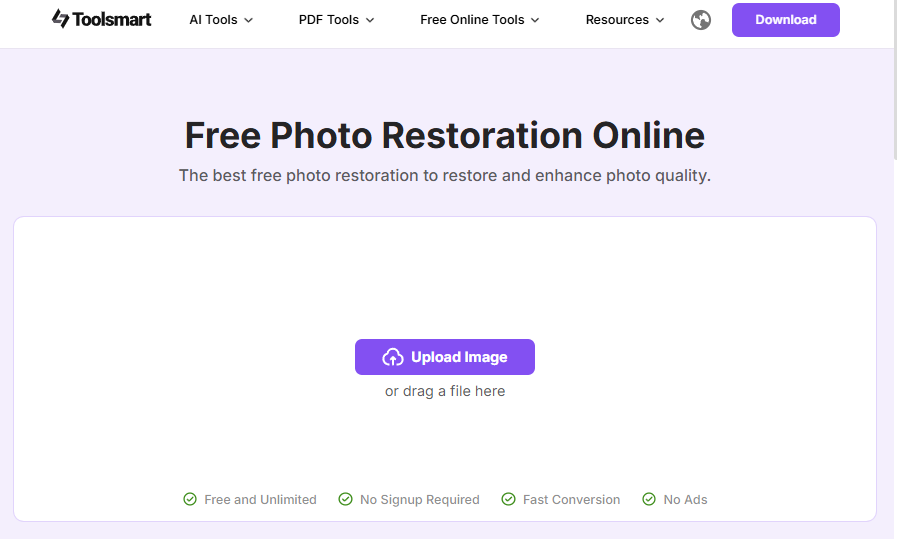
Step 2: Drop in your photo (JPG or PNG).
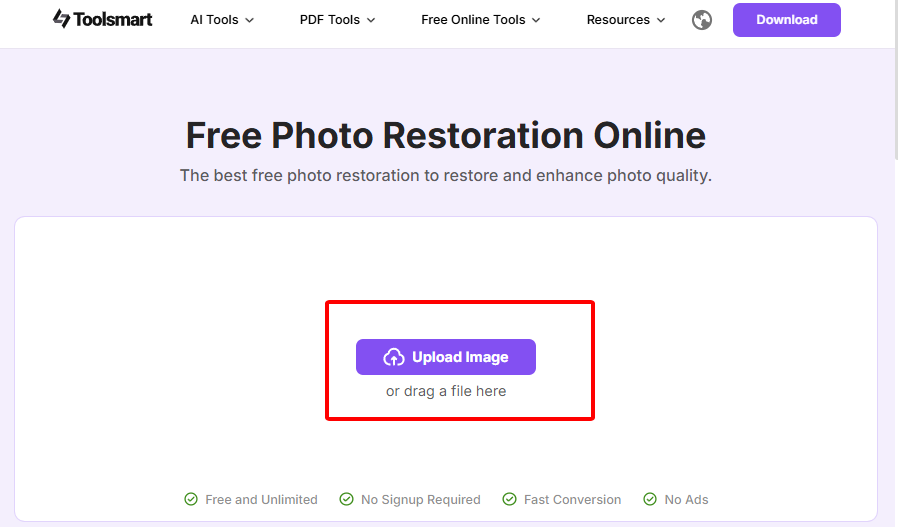
Step 3: Play with sliders for sharpness or contrast, or let the AI do its auto-enhance magic.
Step 4: Grab your souped-up image with a quick download.
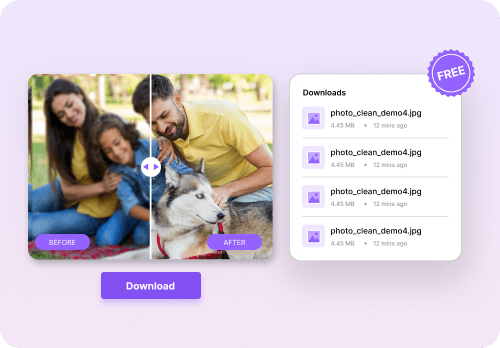
I used Toolsmart to jazz up a Fotor-edited selfie, and wow, it made the colors pop and details super crisp—Insta gold! It’s crazy easy to use, but tweaking one pic at a time was a bit slow when I had a bunch to fix.
Part 4: FAQs
Q1: Is GIMP really free forever?
Yup, it’s open-source with no hidden costs, perfect for Mac users on a budget.
Q2: Which app is best for Instagram photos?
Fotor’s one-tap filters and templates are a slam dunk for quick, Insta-ready edits.
Q3: Can I edit RAW files for free on Mac?
Darktable’s your go-to for RAW editing, and GIMP handles RAW with plugins.
Q4: Why enhance photos after editing?
Toolsmart fixes compression blur and boosts sharpness, making your edits look pro.
Q5: Is there a free blemish remover app with no watermark?
GIMP and Darktable are watermark-free, and Toolsmart’s enhancer polishes without watermarks.
Summary
Free photo editing software for Mac like GIMP, Ashampoo Photo Optimizer, Fotor, and Darktable lets you create stunning edits without spending a cent. GIMP’s got pro-level tools but a tricky interface, Ashampoo’s a breeze for quick fixes, Fotor’s perfect for social media with AI blemish removal, and Darktable crushes RAW processing. Toolsmart’s Free Image Enhancer takes your photos to the next level, sharpening details and boosting colors for a pro finish, no signup needed. Whether you’re removing blemishes from selfies or tweaking RAW shots on your MacBook, these tools make your photos pop on macOS!


