
'%3e%3cpath%20fill-rule='evenodd'%20clip-rule='evenodd'%20d='M19%208.5C24.799%208.5%2029.5%2013.201%2029.5%2019C29.5%2024.6782%2024.9928%2029.3036%2019.361%2029.4939L19%2029.5C18.8794%2029.5%2018.7592%2029.498%2018.6396%2029.4939L18.2811%2029.4758C12.8174%2029.1063%208.5%2024.5574%208.5%2019C8.5%2013.201%2013.201%208.5%2019%208.5ZM22.3063%2010.6267L22.2342%2010.6539C21.3423%2011.0061%2020.5541%2011.6368%2020.5606%2012.4987C20.5631%2012.8302%2020.869%2014.8871%2020.2141%2014.8486C19.5589%2014.8102%2019.413%2013.8753%2018.7116%2013.616C17.5944%2013.2026%2016.9819%2014.3401%2017.0939%2015.3106C17.1695%2015.9655%2018.9289%2018.3871%2017.9028%2019C17.292%2019.3651%2015.7279%2017.5692%2015.1007%2017.1842C14.4805%2016.8034%2013.2758%2017.3333%2012.4974%2016.7029C11.9874%2016.2899%2012.3881%2014.4098%2012.2786%2013.8372C12.2271%2013.5698%2012.1155%2013.3689%2011.9794%2013.2166L12.0402%2013.2934C10.7653%2014.8464%2010%2016.8339%2010%2019C10%2023.8465%2013.8307%2027.7982%2018.6295%2027.9925L18.6769%2027.9747C18.8597%2027.8677%2019.0394%2027.7557%2019.216%2027.6387C19.4137%2027.4534%2019.5436%2027.2072%2019.5849%2026.9394C19.8806%2025.1222%2018.3616%2025.4302%2017.9367%2024.5622C17.5489%2023.7695%2018.5712%2023.7684%2018.5524%2021.7923C18.4607%2021.1774%2018.5279%2020.547%2018.7211%2020.0315C19.1834%2018.7987%2020.7077%2017.2643%2022.5889%2018.0081C23.5567%2018.3906%2023.1524%2019.9831%2023.4737%2020.3394C24.251%2021.2018%2025.3228%2020.6863%2026.2856%2021.2253C26.7816%2021.5032%2026.9797%2022.41%2027.056%2023.2248L27.038%2023.0528C27.6534%2021.8348%2028%2020.4579%2028%2019C28%2015.1968%2025.6409%2011.9445%2022.3063%2010.6267Z'%20fill='%23757575'/%3e%3ccircle%20cx='19'%20cy='19'%20r='10.125'%20stroke='%23757575'%20stroke-width='2.25'/%3e%3c/g%3e%3cdefs%3e%3cclipPath%20id='clip0_1827_14613'%3e%3crect%20width='24'%20height='24'%20fill='white'%20transform='translate(7%207)'/%3e%3c/clipPath%3e%3c/defs%3e%3c/svg%3e)


Creating professional invoices doesn’t have to cost you a dime. I’ve personally worked with different formats and tools over time, and one of the simplest yet effective options I’ve found is using a free invoice template Google Docs offers. These templates are flexible, accessible, and user-friendly. In this guide, I’ll walk you through the best options available, how to customize them, and even introduce you to a free alternative that might save you time. By the end, you’ll know exactly which template fits your needs and how to use it effectively.
Top Free Invoice Templates for Google Docs
When it comes to top free invoice template Google Docs, you have plenty of options that balance simplicity and professionalism. These templates help you manage billingwithout relying on paid tools. By using a Google Docs invoice sample, you can streamline invoicing while keeping everything customizable.
1. Google Docs Built-In Invoice Templates
The Google Docs Built-In Invoice Template is the quickest option if you need something simple and professional. It comes pre-designed inside the Docs Template Gallery, so you don’t have to download anything extra. You can easily edit client details, add items, and save it directly to your Google Drive. For anyone who needs a fast, no-fuss solution, this template works perfectly.
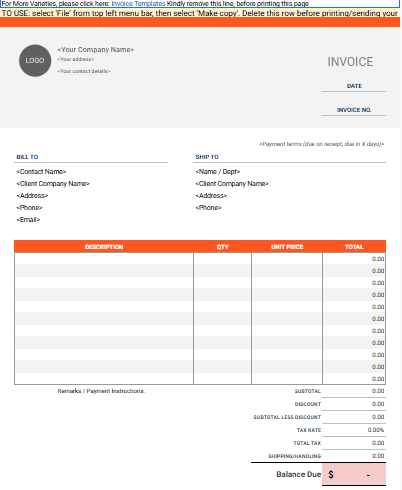
Features: Professional layouts, simple to edit, with instant Drivebackup.
Best for: Quick and simple invoices.
Access: Open Google Docs > Template Gallery > Invoice.
Pros:
Easy to access directly in Docs.
Free with no sign-ups needed.
Works seamlessly across devices.
Cons:
Limited customization.
Designs can feel too basic.
No automatic calculations.
I often turn to this option when I need to generate a quick invoice. It’s efficient and reliable, but it offers limited control over branding, so I generally reserve it for straightforward tasks. While it lacks advanced customization, its convenience makes it an excellent backup tool when time is the priority.
2. InvoiceSimple Google Docs Invoice Template
The InvoiceSimple Google Docs Invoice Template is designed with freelancers and small businesses in mind. Its clean, minimal layout makes invoices look professional without extra effort. You can quickly edit fields for client details, services, and costs before saving or printing. It’s a straightforward option that balances simplicity with a polished appearance.
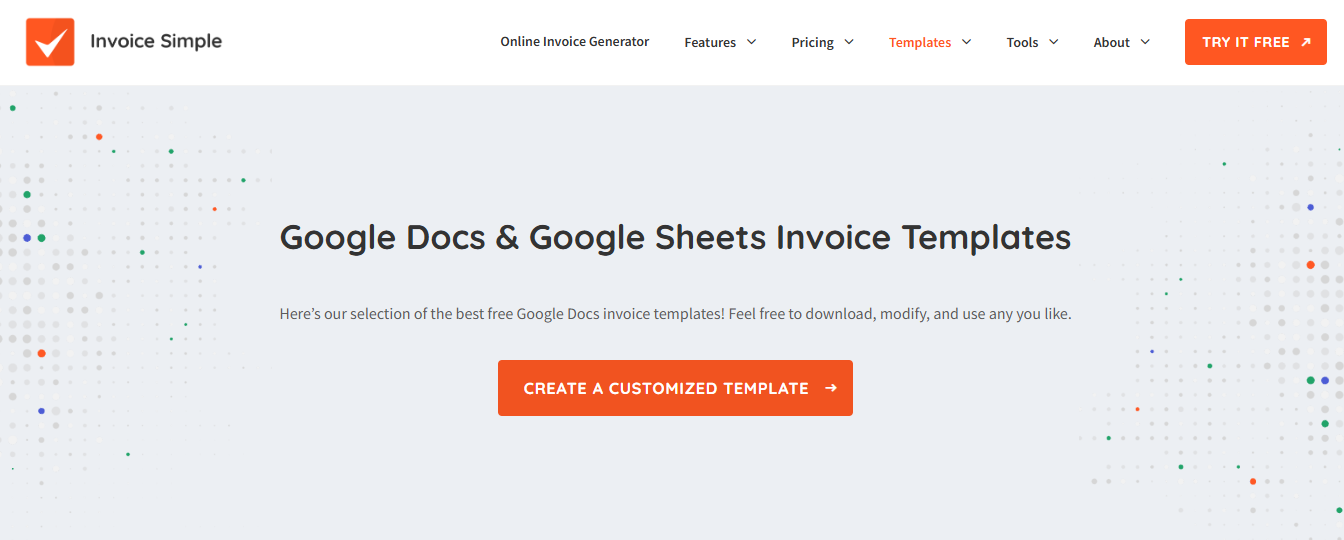
Features: Streamlined layout, editable fields, ready-to-print format.
Best for: Freelancers and small businesses.
Pros:
Simple design that looks polished.
Easy customization for names, prices, and notes.
Printable without layout issues.
Cons:
Doesn’t offer multiple template variations.
Still requires manual calculation.
Branding customization is limited.
I’ve recommended this template to several freelancer colleagues because it’s clean and delivers exactly what’s needed. It performs well for straightforward invoicing, but I often find myself wishing it offered more design flexibility. Adding stronger branding options would make it even more valuable for long-term professional use.
3. Wave Apps Google Docs Invoice Template
The Wave Apps Google Docs Invoice Template brings a polished, professional layout tailored for service-based businesses. It allows you to add your logo, brand details, and customize sections to align with your company identity. Since it’s easy to duplicate and reuse, it saves time when managing recurring invoices. This makes it a solid choice for businesses that value both consistency and presentation.
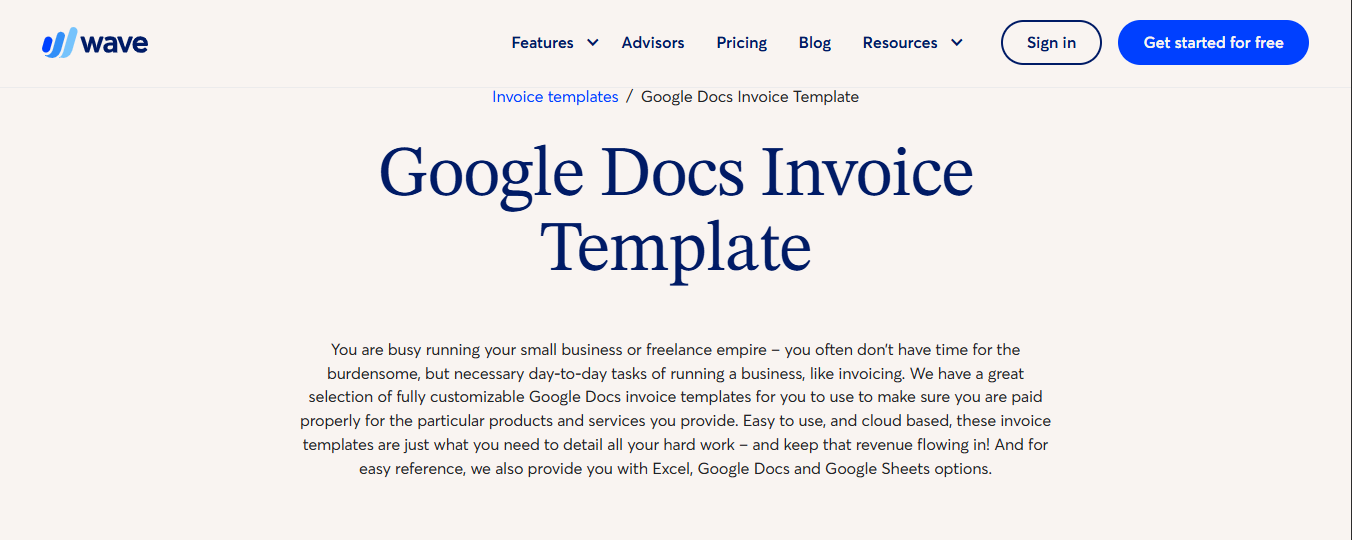
Features: Refined structure, effortless copying, tailored for branding.
Best for: Service-based businesses.
Pros:
Great for maintaining a professional brand.
Easily reusable and editable.
Free to use without extra tools.
Cons:
Still doesn’t have automation.
Requires a bit more formatting than built-in Docs templates.
Works better alongside Wave’s platform than as a standalone.
I used the Wave Apps template when I wanted my invoices to have a polished and client-ready appearance. It worked effectively and gave my documents a professional edge. However, over time I transitioned to Wave’s full platform for automated invoicing, since it provided more efficiency and reduced the need for manual updates.
4. Float Google Docs Invoice Template
The Float Google Docs Invoice Template is tailored for consultants and agencies that bill on a project or time-tracking basis. Its modern design makes invoices look organized and client-friendly without requiring heavy edits. You can easily adjust sections for project milestones, hourly rates, or retainers. This makes it especially useful for professionals who manage multiple projects at once.
Features: Project-focused, designed for time logs, contemporary style.
Best for: Consultants and agencies.
Pros:
Modern design suited for professional services.
Helpful if you bill per project.
Simple editing process.
Cons:
Not ideal for very basic invoicing.
You may need to tweak the template for complex projects.
Limited customization on style.
This template impressed me when I was handling a project-based assignment, as it provided a clear and structured format for billing. It made organizing project details and client charges straightforward, which added to the overall professionalism of my invoices. However, I eventually sought out tools with automation features to save time and reduce manual input.
5. TheGoodDocs Free Invoice Templates
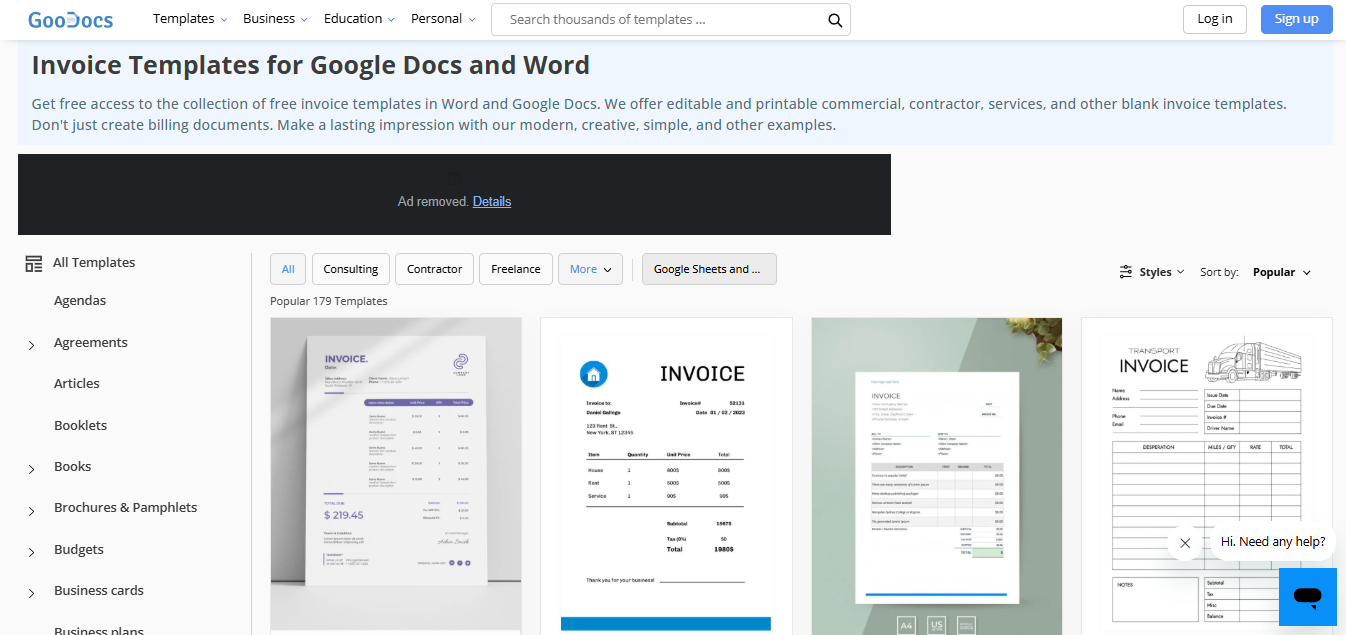
The TheGoodDocs Free Invoice Templates collection offers a wide variety of styles that integrate smoothly with Google Docs. Unlike more basic options, these templates give you flexibility to choose formats that reflect your brand identity. You can experiment with layouts that suit creative businesses, professional services, or general use. This makes it a great resource for anyone who wants invoices that stand out without extra cost.
Features: Diverse layouts, fully adaptable, seamless with Google Docs.
Best for: Users looking for variety.
Pros:
Wide range of templates to choose from.
Customization is much easier compared to built-ins.
Different styles available depending on business type.
Cons:
Overwhelming choice if you want something quick.
Some templates may need formatting tweaks.
Not always optimized for printing.
I enjoyed exploring the wide range of templates TheGoodDocs offered, as it gave me the freedom to select a style that closely aligned with my brand. The variety allowed me to move beyond generic layouts and present invoices that felt more personalized and professional. The only drawback was that some templates required extra adjustments before they were client-ready, which added a bit more time to the process.
6. Smartsheet Google Docs Invoice Templates
The Smartsheet Google Docs Invoice Templates are designed for businesses that need detailed and well-structured invoices. They integrate effectively with Google Sheets, making it easier to add automatic calculations and track financial data. The templates carry a professional look, which works well for clients expecting more formal documentation. This option is best suited for users who prioritize accuracy and detailed record-keeping.
Features: Structured layouts, built-in Sheets support, professional finish.
Best for: Businesses needing detailed invoicing.
Pros:
Excellent for detailed and structured invoicing.
Easy to integrate with Sheets for calculations.
Professional design.
Cons:
Can be overwhelming for smaller tasks.
Not as quick to set up.
Requires familiarity with Sheets for best results.
When I needed more detailed records, the Smartsheet template quickly became my go-to for its structured design and comprehensive formatting. It enabled me to produce invoices that were accurate, consistent, and carried a strong professional impression. While the setup process took longer compared to simpler templates, the added clarity and organization made the extra effort highly worthwhile.
Comparative Analysis
A comparative look at these tools shows how each template serves different invoicingneeds. Some focus on speed and simplicity, while others emphasize branding or detailed record-keeping. By reviewing them side by side, it becomes easier to choose the right fit for your workflow. Exploring a Google Docs invoice format for business helps highlight which template aligns best with professional goals. Here’s a breakdown of how these tools compare:
| Tool | Key Features | Pricing | Best For | Website |
|---|---|---|---|---|
| Google Docs Built-In | Basic templates, easy access | Free | Quick invoices | docs.google.com |
| InvoiceSimple | Customizable, clean layout | Free | Freelancers | InvoiceSimple |
| Wave Apps | Branding support, professional | Free | Service businesses | Wave Apps |
| Float | Project-based, modern | Free | Agencies | Float |
| TheGoodDocs | Variety of styles | Free | General use | TheGoodDocs |
| Smartsheet | Detailed, Sheets-integrated | Free | Detailed invoicing | Smartsheet |
Key Takeaways:
Best for Simplicity: Google Docs Built-In is the best option since it is Ideal when you need easy access and a straightforward layout, making it perfect for quick invoicing.
Best for Freelancers: InvoiceSimple is a great option as it is designed with freelancers in mind, it balances clean formatting with a no-fuss setup.
Best for Branding: Wave Apps’s Great for customization and polished presentation, helping invoices reflect your personal or business brand.
Best for Agencies: Float is an ideal option since Its structured design makes it perfect for handling project-based billing in agencies.
Best for Variety: TheGoodDocs should be your goto app as it offers a wide range of styles and options, so you can pick one that aligns with your brand identity.
Best for Detail: Smartsheet With its thorough formatting and structured layouts, it’s the go-to for professionals who need detailed records.
Comparing these templates side by side highlighted how different businesses benefit from distinct tools. I often find myself rotating between Wave for its polished branding and TheGoodDocs for its variety, depending on the project at hand. This flexibility allows me to balance efficiency with presentation, ensuring that each client receives an invoice tailored to their expectations.
Common Mistakes & How to Avoid Them
When working with invoices, even small errors can make a big difference in how professional you appear to clients. Many users overlook key details that affect efficiency and accuracy, but these issues can be avoided with the right practices. By focusing on a customizable invoice template in Google Docs, you can reduce mistakes and maintain consistency in your invoicing process.
Mistake 1: Using Non-Customizable Templates
Many users stick to generic templates that don’t reflect their brand. Always look for templates that let you add your logo, colors, and fonts. Once I started customizing, clients saw me as more professional.
Mistake 2: Not Using Auto-Calculations
Manual math increases the risk of errors. Use Google Sheets integration for calculations. I made silly errors before, so now I always link with Sheets.
Mistake 3: Poor File Management
Losing invoices in random folders creates confusion. Create a dedicated folder in Drive. I now name each invoice by date and client, and it’s a game-changer.
Mistake 4: Ignoring Mobile Compatibility
Editing on mobile can be a struggle. Use templates designed for the Docs app. I tested on my phone before sending, and it saved me from layout issues.
Mistake 5: Forgetting to Save Copies
Without backups, you risk losing important records. Always download PDFs. Having PDF backups has helped when clients misplaced files.
Many professionals underestimate how small errors in invoices can damage client trust or delay payments. From overlooking essential details to relying on cluttered designs, these slip-ups often create unnecessary friction. By recognizing these common pitfalls early, you can streamline your invoicing process and present a more reliable, professional image.
Create Professional Invoices with Free Invoice Generator
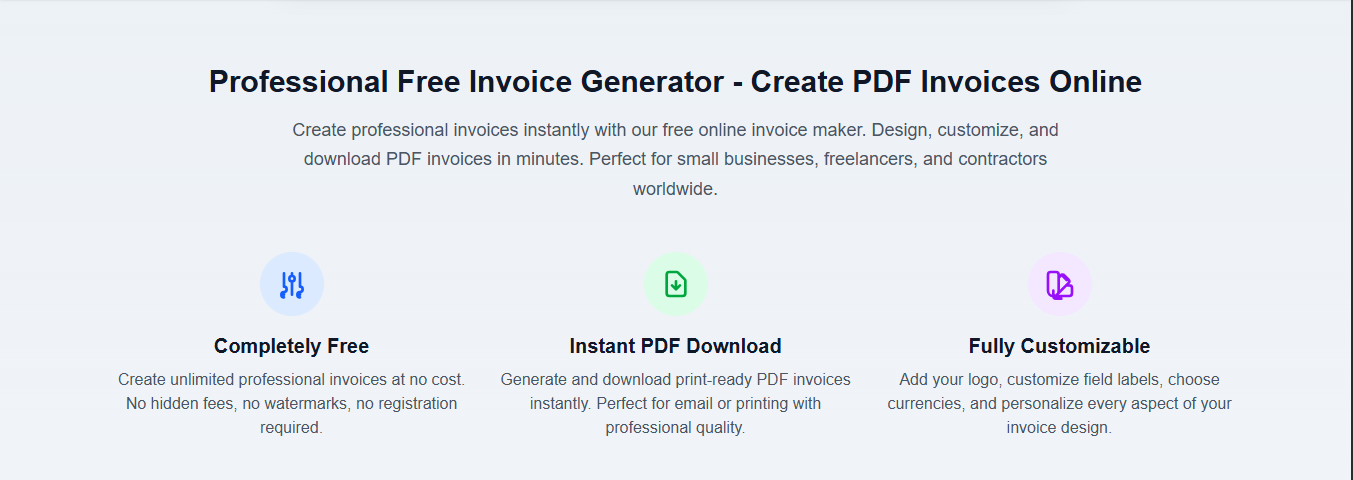
While Google Docs invoice templates are handy, I eventually discovered Free Invoice Generator, which made invoicing even easier. Unlike static templates, this tool is fully dynamic and customizable. It saves me time with built-in automation and gives me more control over the look of each invoice. For anyone scaling their work or freelancing long-term, it feels like a natural upgrade from the basics.
Features:
Branding & Customization: Offers multiple templates with full control over colors, logos, and layout to match your business identity.
Smart Functionality: Handles automatic calculations, tax fields, and formatting so you don’t waste time fixing details manually.
Easy Access: Instantly download invoices as PDFs without sign-up, keeping the process quick and hassle-free.
Steps:
Here’s an easy step-by-step guide on how to edit your invoice.
Step 1: First of all, go to the official website ofFree Invoice Generatoron your browser and choose a template.
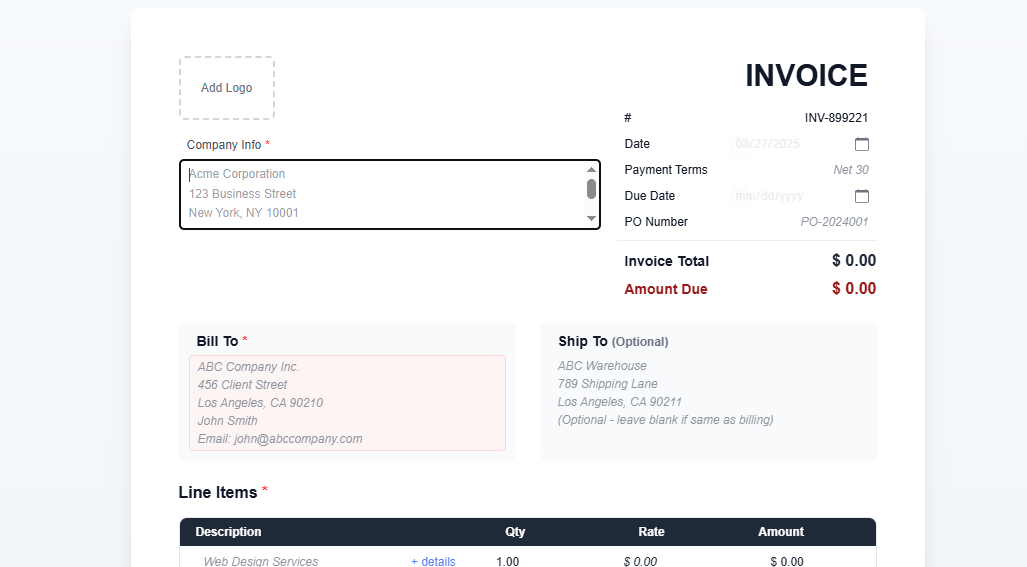
Step 2: Now find the section where you can add business and client details and edit them accordingly.
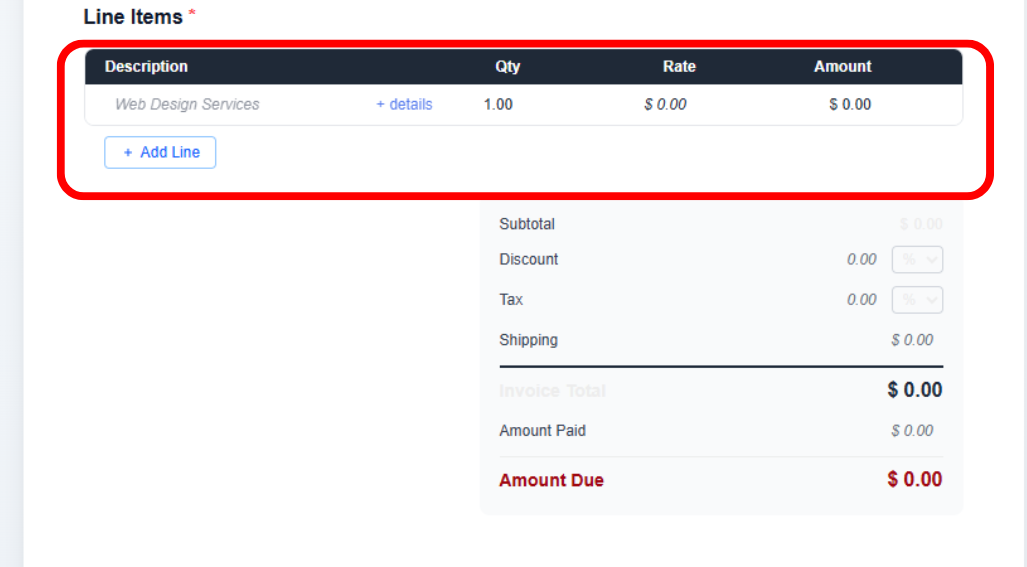
Step 3: Customize items, prices, and taxes as per your and client’s requirements.
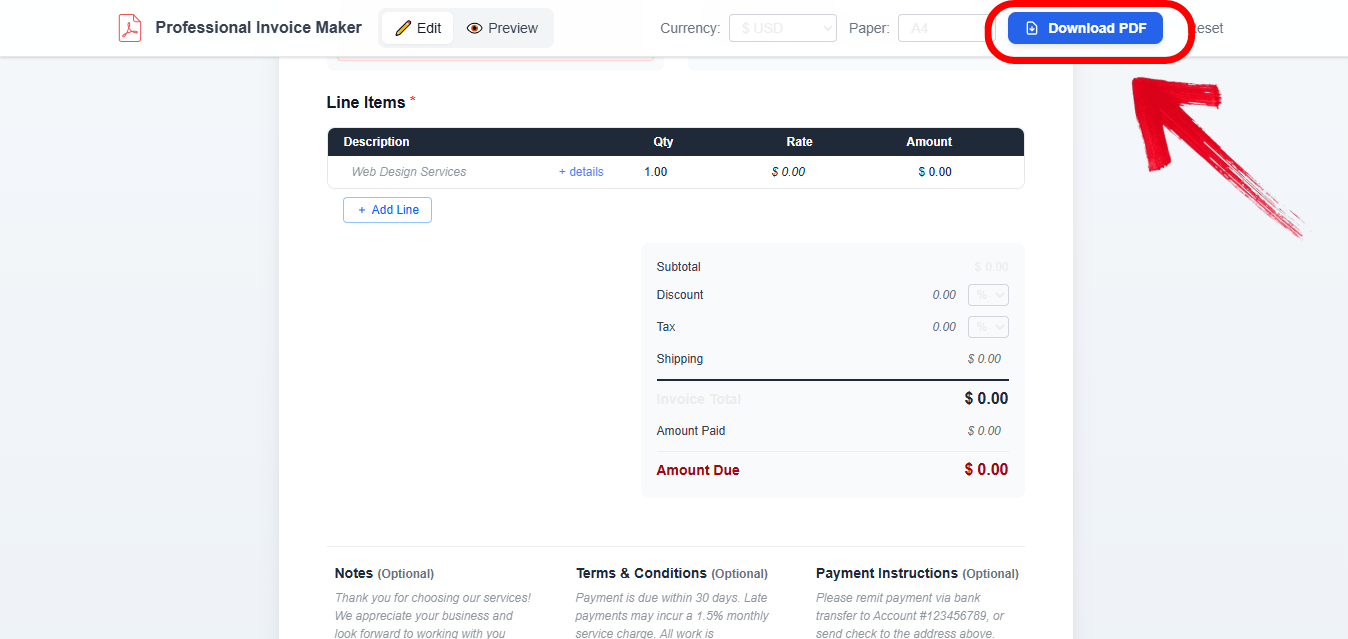
Step 4: Now preview and download the invoice by clicking “Download PDF” on the top right of your screen.
Pros:
Completely free with no watermarks.
Branding options make invoices stand out.
Automatic tax and total calculations.
Cons:
Requires internet connection.
Doesn’t integrate with Google Docs.
Limited offline use.
I switched to Free Invoice Generator when I began handling more complex invoices, and it immediately gave me greater flexibility. The ability to customize branding, automate calculations, and download polished PDFs made my invoices look more professional without adding extra hassle. It quickly became my preferred tool for projects that required a higher level of detail and presentation.
FAQs
Q1: Are Google Docs invoice templates really free?
Yes, all the options mentioned are free to use.
Q2: Can I add my logo?
Yes, most templates allow it. For advanced branding, use Free Invoice Generator.
Q3: Do I need a Google account?
Yes, you’ll need one to use Google Docs templates.
Q4: Is Free Invoice Generator free?
Yes, completely free with no sign-up.
Q5: Can I use these templates commercially?
Yes, they’re suitable for business use.
Invoice Insights in a Nutshell
Using a free invoice template in Google Docs is a smart way to keep your process simple while avoiding the cost of paid software that often offers similar designs. If you just need something quick and straightforward, the built-in templates do the job. For a sharper branded look, Wave and InvoiceSimple step up, while Smartsheet is perfect if you’re handling more detailed records. Personally, I find Free Invoice Generatorthe most flexible choice, since it lets you customize without the usual hassle. Whatever you decide, the real win is keeping your invoices professional, clear, and easy for clients to work with.


