
'%3e%3cpath%20fill-rule='evenodd'%20clip-rule='evenodd'%20d='M19%208.5C24.799%208.5%2029.5%2013.201%2029.5%2019C29.5%2024.6782%2024.9928%2029.3036%2019.361%2029.4939L19%2029.5C18.8794%2029.5%2018.7592%2029.498%2018.6396%2029.4939L18.2811%2029.4758C12.8174%2029.1063%208.5%2024.5574%208.5%2019C8.5%2013.201%2013.201%208.5%2019%208.5ZM22.3063%2010.6267L22.2342%2010.6539C21.3423%2011.0061%2020.5541%2011.6368%2020.5606%2012.4987C20.5631%2012.8302%2020.869%2014.8871%2020.2141%2014.8486C19.5589%2014.8102%2019.413%2013.8753%2018.7116%2013.616C17.5944%2013.2026%2016.9819%2014.3401%2017.0939%2015.3106C17.1695%2015.9655%2018.9289%2018.3871%2017.9028%2019C17.292%2019.3651%2015.7279%2017.5692%2015.1007%2017.1842C14.4805%2016.8034%2013.2758%2017.3333%2012.4974%2016.7029C11.9874%2016.2899%2012.3881%2014.4098%2012.2786%2013.8372C12.2271%2013.5698%2012.1155%2013.3689%2011.9794%2013.2166L12.0402%2013.2934C10.7653%2014.8464%2010%2016.8339%2010%2019C10%2023.8465%2013.8307%2027.7982%2018.6295%2027.9925L18.6769%2027.9747C18.8597%2027.8677%2019.0394%2027.7557%2019.216%2027.6387C19.4137%2027.4534%2019.5436%2027.2072%2019.5849%2026.9394C19.8806%2025.1222%2018.3616%2025.4302%2017.9367%2024.5622C17.5489%2023.7695%2018.5712%2023.7684%2018.5524%2021.7923C18.4607%2021.1774%2018.5279%2020.547%2018.7211%2020.0315C19.1834%2018.7987%2020.7077%2017.2643%2022.5889%2018.0081C23.5567%2018.3906%2023.1524%2019.9831%2023.4737%2020.3394C24.251%2021.2018%2025.3228%2020.6863%2026.2856%2021.2253C26.7816%2021.5032%2026.9797%2022.41%2027.056%2023.2248L27.038%2023.0528C27.6534%2021.8348%2028%2020.4579%2028%2019C28%2015.1968%2025.6409%2011.9445%2022.3063%2010.6267Z'%20fill='%23757575'/%3e%3ccircle%20cx='19'%20cy='19'%20r='10.125'%20stroke='%23757575'%20stroke-width='2.25'/%3e%3c/g%3e%3cdefs%3e%3cclipPath%20id='clip0_1827_14613'%3e%3crect%20width='24'%20height='24'%20fill='white'%20transform='translate(7%207)'/%3e%3c/clipPath%3e%3c/defs%3e%3c/svg%3e)


There was a time when MP3s ruled digital music, now M4A is taking over. Apple devices love it: it’s lighter, sounds better, and stores cleaner metadata. But let’s be real, most of us still have massive MP3 libraries collecting dust. Playing them on modern devices? Glitchy at best. Re-downloading everything? Too risky, especially when you care about quality. So I built a simple system for MP3 to M4A conversion without quality loss: free, online, and Windows-friendly. And I’ll also show you how I get high-quality MP3s straight from YouTube using Toolsmart.
Top 5 Popular MP3 to M4A Converter Tools
If you're searching for a free online MP3to M4A converter that won’t mess with your audio quality, you’re in the right place. I’ve tried and tested some of the most talked-about tools so you don’t waste time on broken links or sketchy sites. Below, I’ll walk you through five reliable options that make converting your music quick, easy, and stress-free. These tools are perfect for anyone looking to upgrade their audio format without the hassle.
VideoProc
VideoProcisn’t just a video editor, it’s a beast when it comes to media conversion. I first came across it when I needed a fast, loss-free way to switch formats, and it delivered. While the full version is paid, the trial version covers MP3 to M4A well. Its interface is clean and performance-focused, perfect for users who want full control.
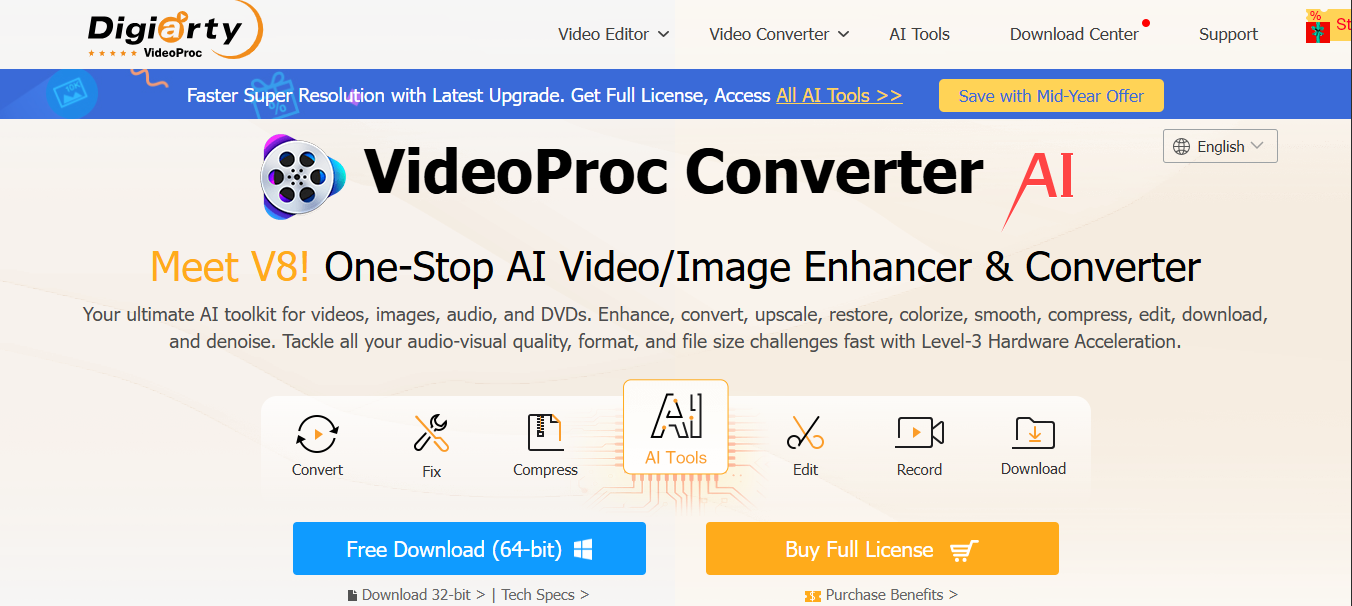
I was especially impressed with how it handled MP3 to M4A conversion without quality loss, even during batch processing. The speed was unmatched as compared to other tools and converted files were ready in seconds without lag. Plus, the customization level for audio codecs and bitrates makes it a great choice for advanced users too.
Features:
Supports full-format audio and video conversion:From MP3, M4A, WAV to MP4, MKV, MOV and more, VideoProc covers almost every format you’ll ever need.
GPU acceleration for faster processing: With hardware acceleration, conversions take seconds instead of minutes, even for large files.
Allows bitrate and codec customization: You can tweak audio settings like AAC, sample rate, and bitrate to match your specific quality or device needs.
Pros:
High-speed conversion using hardware acceleration
Maintains audio quality during conversion
Advanced settings for detailed customization
Cons:
Limited features in free version
Installation required
Slight learning curve for beginners
VideoProc felt a bit advanced at first, but once I got the hang of it, I appreciated its power. The quality was excellent, and it was fast. For users who value precision and high-performance conversion, it’s absolutely worth the learning curve.
Tipard Video Converter
Tipard Video Converter is another powerful tool I explored. It's more of a multimedia suite than a simple converter, but it still excels at MP3 to M4A conversion. I liked how smooth and clutter-free the layout was. No lag, no unnecessary ads, just clean and functional use.
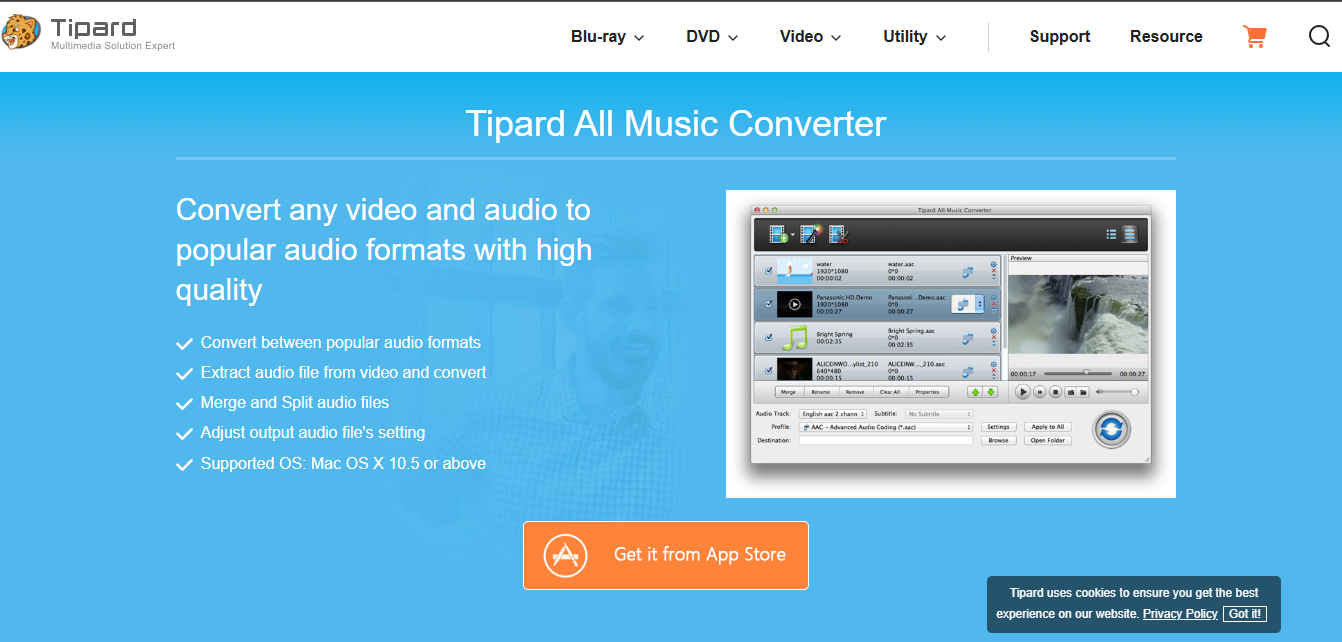
Its ability to handle multiple files at once made bulk conversions super efficient, especially for large playlists. Plus, it maintains excellent audio fidelity, which is essential for how to convert MP3 to M4A on Windows without any drop in quality.
Features:
Supports 500+ media formats: From common formats like MP3, M4A, MP4, to more obscure file types, Tipard has impressive range and versatility.
Built-in editor and trimmer: You can trim, cut, and tweak audio before converting, which is perfect for removing silence or unwanted sections.
Batch conversion available: Easily process entire folders of files in one go, saving time and keeping your workflow efficient.
Pros:
Converts multiple files at once
User-friendly interface
No watermarking in output
Cons:
Full version is pricey
Requires installation
Not mobile-compatible
I used Tipard when converting entire folders of MP3 files. The batch feature saved me hours. I loved the simplicity and stability. It handled each file consistently without crashing or compromising on quality, which made the whole process feel effortless.
CloudConvert
Cloudconvertis a browser-based tool I came across when I wanted something quick, no installs, no sign-ups. It supports nearly any format combo you can think of. For MP3 to M4A conversion without quality loss, this is a gem. The interface is minimal and intuitive, making it perfect for beginners who want fast results. It also lets you tweak output settings like codec, bitrate, and volume, giving you a lot more control than you'd expect from a free tool.
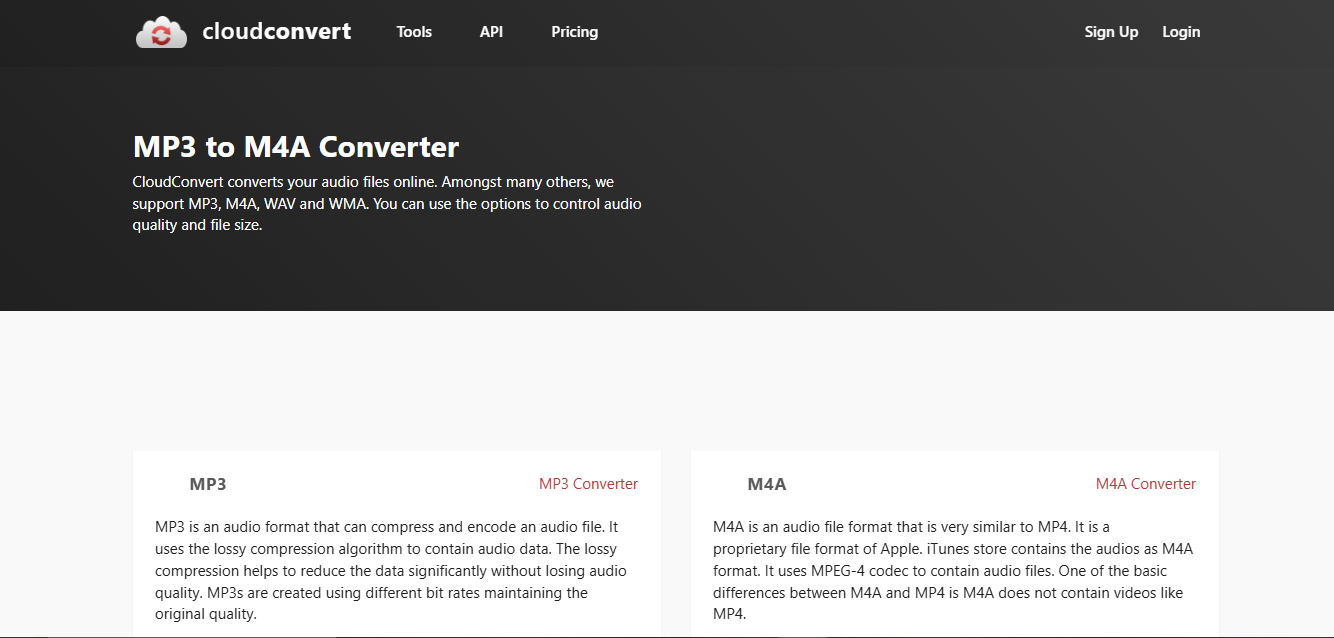
I also liked that it’s cloud-based, so there’s no strain on your device’s performance. Plus, it integrates with services like Google Drive and Dropbox, which is especially handy when working on how to convert MP3 to M4A on Windows using online storage.
Features:
200+ supported formats: From MP3, M4A, FLAC to MP4, AVI, and more, CloudConvert can handle just about any media file you throw at it.
Cloud-based conversion: All processing happens online, which means no CPU overload or heavy software slowing down your system.
File integrations with Dropbox, Google Drive, etc.: Easily import and export files directly from your cloud storage, streamlining your workflow big time.
Pros:
Fully online with no download needed
High-quality output
No spammy ads or popups
Cons:
Free version has daily limits
Slower with large files
Privacy concerns for sensitive audio
This is my go-to when I’m in a rush. Just drag, drop, convert. Works well if you only need to do a few conversions a day.
Zamzar
Zamzar has been around for years, and it shows in how polished and reliable it is. I was able to upload and convert within a few clicks. It doesn’t go deep on features, but it nails the basics beautifully. For someone who just wants a no-fuss, browser-based tool that works every time, Zamzar’s a solid pick.
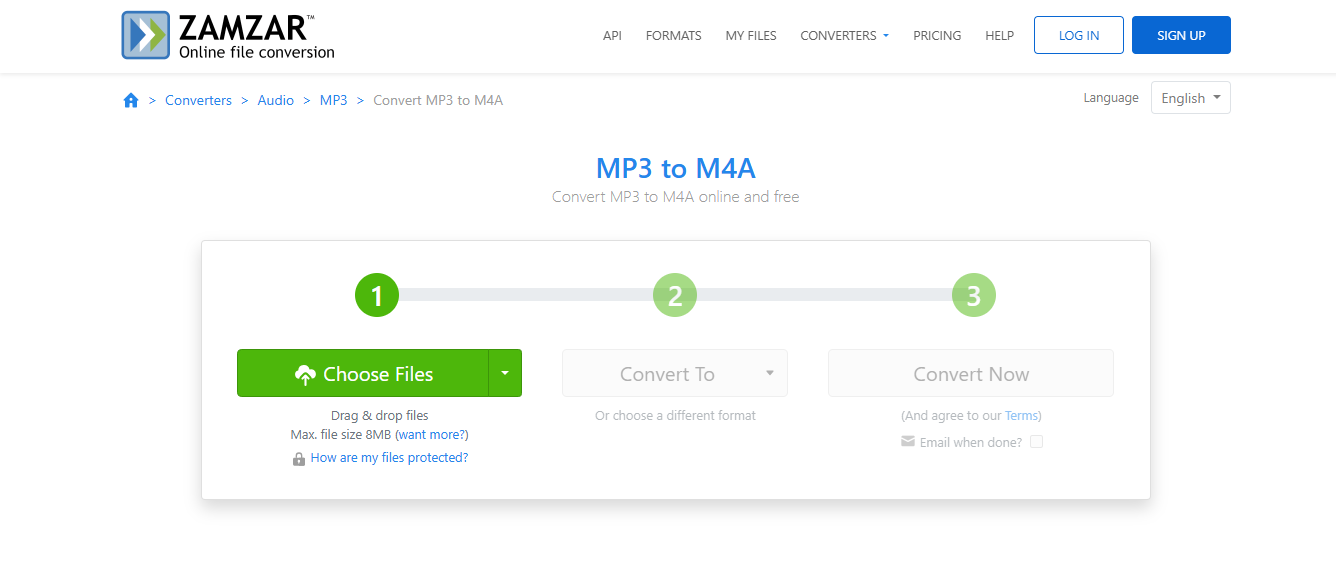
It also has email notifications for completed conversions, which is great when you’re multitasking. I especially appreciated how well it handled MP3 to M4A conversion for iTunes and Apple Music, making it easy to prep tracks for Apple devices without complications.
Features:
Simple web interface: Clean and beginner-friendly, Zamzar keeps things straightforward; just upload, choose format, and convert.
Email notification for finished conversions:Great for multitaskers, you’ll get a ping when your file’s ready, no need to sit and wait.
Supports audio, video, documents: Handles more than just audio; you can convert videos, PDFs, and other documents all in one place.
Pros:
No sign-up needed
Smooth process, no errors
Compatible with any browser
Cons:
File size limit for free users
Conversion speed depends on traffic
Minimal customization
I used Zamzar on my phone when I needed something quick while traveling. It’s not flashy, but very dependable. The mobile browser experience was smooth, and I didn’t have to deal with pop-ups or shady redirects; just a clean, reliable conversion in minutes.
FreeConvert
Freeconvert was one of the more surprising finds. It has a sleek interface and a surprising amount of flexibility for a free online tool. It supports high-quality MP3 to M4A conversion and lets you tweak output settings. What stood out to me was how well it balanced simplicity with advanced features, perfect for both casual users and audio nerds. You can adjust codec, volume, fade-in/out, and even trim audio directly in the browser.
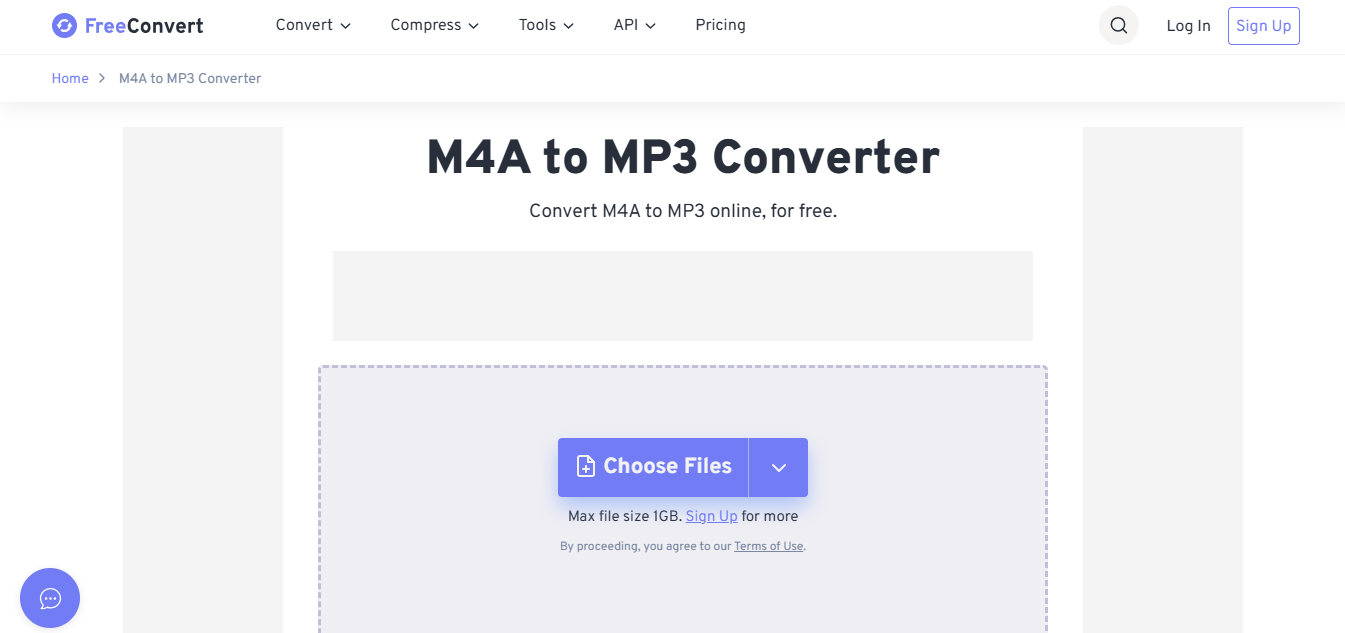
Plus, it clearly displays file limits and estimated conversion times, so you’re never left guessing. It’s also ideal for anyone exploring free online MP3 to M4A converter tools that don’t compromise on quality.
Features:
High file size limits (up to 1GB): Unlike many free tools, FreeConvert lets you upload large files, perfect for full albums or long recordings.
Custom output settings: Fine-tune audio with options for codec, bitrate, volume, fade effects, and trimming, all built into the browser.
Drag-and-drop interface: Just drag your MP3 in, pick M4A, and convert; no complex menus or clutter to slow you down.
Pros:
Large file support for free
No watermarking
Intuitive UI with ad-free flow
Cons:
Slightly slower processing
Pop-up when redirecting to download
Some features locked behind sign-up
FreeConvert became a favorite for larger files. I liked how it didn’t compress things too harshly. Perfect for long recordings. Even with complex audio, the output stayed crisp, and I didn’t feel like I was sacrificing quality just to get a free result.
Comparison of MP3 to M4A Converter Tools
Now that we’ve explored each tool individually, it’s time to line them up side by side. If you're still unsure which one suits your workflow best, this quick comparison will help you decide. I’ve evaluated each based on speed, usability, and customization, so you don’t waste time guessing. This section especially helps those wondering about the best MP3 to M4A converter for Windows 10 in terms of real-world functionality.
| Tool | Clean Interface | Ease of Use | Format Options | Customization | Speed | Accessibility |
|---|---|---|---|---|---|---|
| VideoProc | Excellent | Good | Excellent | Excellent | Excellent | Desktop-only |
| Tipard | Excellent | Excellent | Excellent | Good | Good | Desktop-only |
| CloudConvert | Excellent | Excellent | Excellent | Good | Average | Fully Online |
| Zamzar | Excellent | Excellent | Good | Basic | Good | Fully Online |
| FreeConvert | Excellent | Good | Excellent | Excellent | Average | Fully Online |
CloudConvert and FreeConvert win in ease and accessibility. But if you're looking for raw power and custom control, VideoProc takes the crown. Tipard follows closely with its advanced batch features, while Zamzar stands out for quick, reliable conversions without the fluff. It really depends on what you prioritize: speed, control, or simplicity.
Download Your Video with Toolsmart’s YouTube Video Downloader
Before I convert anything, I like getting high-quality MP3s straight from YouTube. Toolsmart’s YouTube to MP3 page feature changed the game for me. It’s completely free, super clean, and supports high-definition audio up to4K video resolution. There are no pop-ups, no fake buttons, just pure functionality. You paste the link, click once, and boom, your MP3 is ready in seconds.
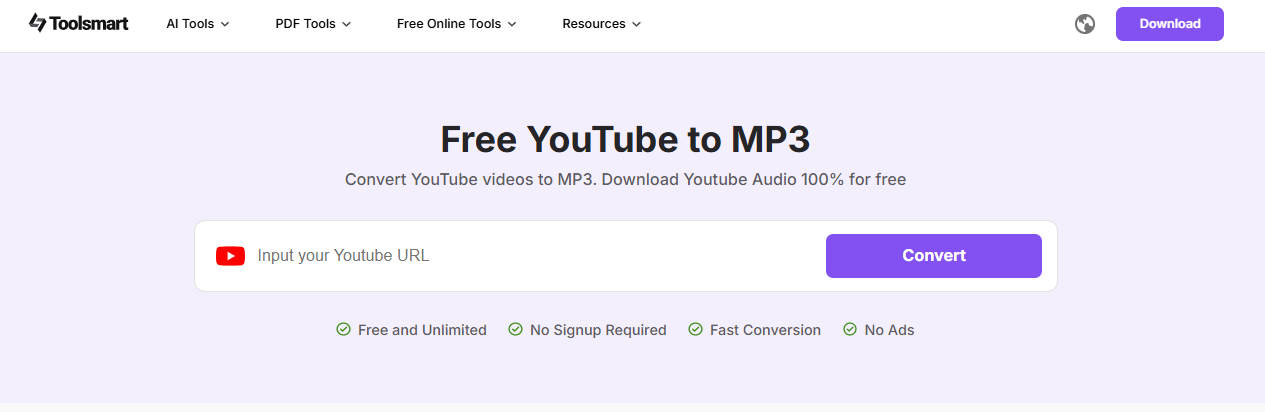
It also offers multiple output formats like MP4 and MKV, which makes it insanely versatile. If you're serious about crisp audio with zero hassle, Toolsmart is honestly the best way to start your MP3 to M4A workflow.
Features:
100% free access: There are no paywalls, trials, or hidden upgrade prompts, just full features available from the moment you land on the site. Perfect for frequent users who don’t want limits.
Up to 4K video/audio quality: I was genuinely impressed by the resolution it supported, pulling music from live sessions or high-end uploads always delivered sharp, detailed audio.
Multi-format downloads (MP4, MKV, etc.):Toolsmart isn’t just about MP3, it lets you grab files in the format you actually need for your device or project, all without extra conversions.
Pros:
No watermarkingor fees
Multiple formats supported
Seamless one-click interface
How to Use:
Step 1: First of all, go to the official website ofToolsmart YouTube to MP3 on your browser.
Step 2: Drop your YouTube video link into the input box and hit “Convert” to start the process.
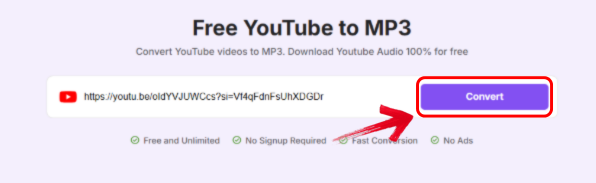
Step 3: Once done, a “Download MP3”option will appear under your link. Click it and it will start downloading and save your audioon your device.

I really appreciate that Toolsmart keeps things distraction-free: no ads, no pop-ups, just clean conversions. It’s become my go-to for grabbing high-resolution MP3s quickly and reliably. The overall experience feels professional and smooth every single time.
Bonus Tips - More AI Tools with Toolsmart
Toolsmart isn’t just a downloader, it’s a whole productivity suite. From enhancing low-res images to auto-generating plots and outlines, the toolset goes way beyond basic media work. There’s a handy document converter that works with Word, Excel, PPT, and PDF formats seamlessly. The text style converter was a surprise,it let me output content in nine distinct writing tones, from casual to academic.
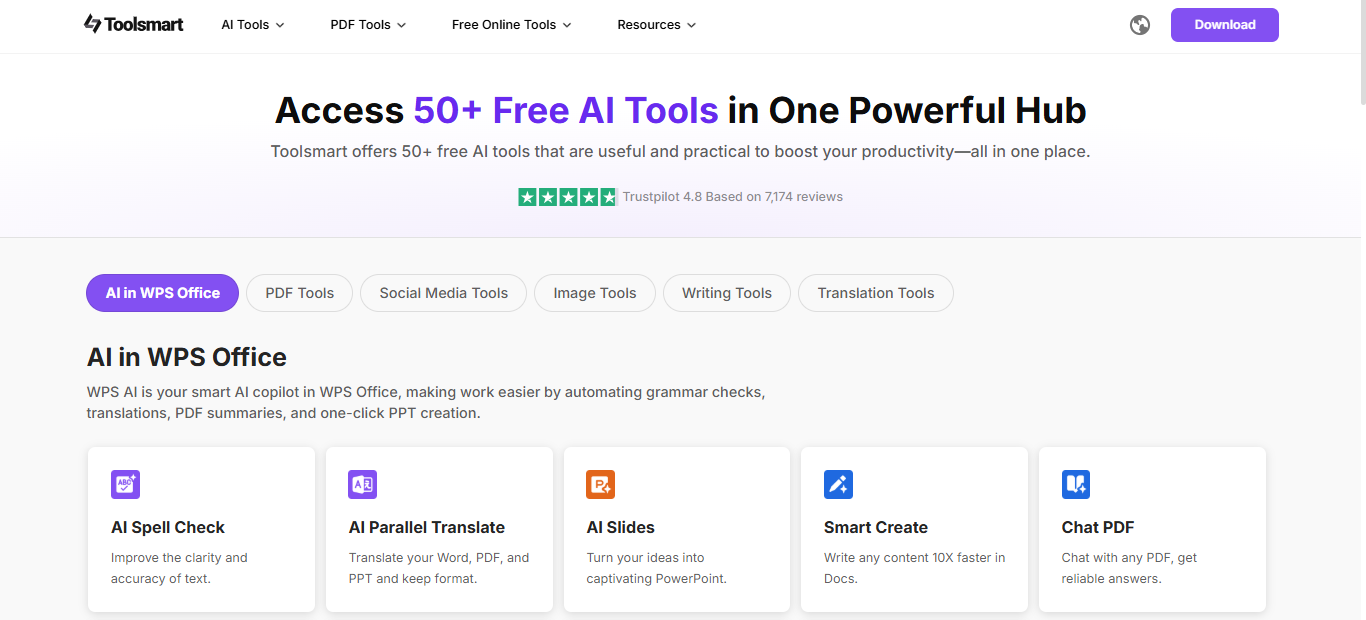
I even used their image enhancer to sharpen blurry screenshots for apresentation, and it worked way better than I expected. What’s great is that everything’s free, clean, and web-based, no installs or paywalls. Here are a few of the standout tools I found genuinely useful:
Free Image Enhancer: I used this to upscale thumbnails. Crisp results.
Free Plot Generator: Great for spicing up YouTube descriptions or blog outlines.
Text Style Converter: Converts one paragraph into different tones. Handy for social captions.
Document Conversions: Converted PDFs to Word without breaking formatting. I loved it.
All Services Ad-Free: No hidden paywalls or annoyances. Just clean functionality.
Honestly, Toolsmart feels like the underdog that should be viral. It's been smooth across the board, no matter what I used. From downloads to file conversions and creative tools, everything just works; no bugs, no limits, no nonsense.
FAQs
Q1: How to Convert MP3 to M4A Using VLC Media Player? (VideoProc)
Step 1: Download and open VLC Media Player.
Step 2: Go to Media > Convert / Save or press Ctrl+R.
Step 3: Load your MP3 file via the +Add button.
Step 4: Hit Convert / Save > click wrench icon > choose MPEG 4 Audio (AAC).
Q2: Why is M4A better than MP3? (Zamzar)
M4A files offer better sound quality at smaller sizes. It’s iTunes-optimized and more efficient for modern devices.
Q3: Are my converted files stored forever?
No, Toolsmart deletes MP3 files within an hour. Your data stays private.
Q4: Is the YouTube to MP3 feature truly free?
Yes. There are no fees, no installs, and no ads. Just paste the URL and download instantly.
From YouTube to M4A—My Go-To Digital Workflow
If you’re looking for the most reliable, free online MP3 to M4A converter tools, this guide covers it all. I’ve tested these top five myself, and they all have their strengths, from power users to quick fixes. But for grabbing high-definition MP3s before conversion? Toolsmart is unbeatable. No ads, no stress, just fast, clean downloads every time. Start with Toolsmart’s YouTube to MP3 page, then choose the converter that matches your style. Time to upgrade your music library, no quality sacrificed.


