
'%3e%3cpath%20fill-rule='evenodd'%20clip-rule='evenodd'%20d='M19%208.5C24.799%208.5%2029.5%2013.201%2029.5%2019C29.5%2024.6782%2024.9928%2029.3036%2019.361%2029.4939L19%2029.5C18.8794%2029.5%2018.7592%2029.498%2018.6396%2029.4939L18.2811%2029.4758C12.8174%2029.1063%208.5%2024.5574%208.5%2019C8.5%2013.201%2013.201%208.5%2019%208.5ZM22.3063%2010.6267L22.2342%2010.6539C21.3423%2011.0061%2020.5541%2011.6368%2020.5606%2012.4987C20.5631%2012.8302%2020.869%2014.8871%2020.2141%2014.8486C19.5589%2014.8102%2019.413%2013.8753%2018.7116%2013.616C17.5944%2013.2026%2016.9819%2014.3401%2017.0939%2015.3106C17.1695%2015.9655%2018.9289%2018.3871%2017.9028%2019C17.292%2019.3651%2015.7279%2017.5692%2015.1007%2017.1842C14.4805%2016.8034%2013.2758%2017.3333%2012.4974%2016.7029C11.9874%2016.2899%2012.3881%2014.4098%2012.2786%2013.8372C12.2271%2013.5698%2012.1155%2013.3689%2011.9794%2013.2166L12.0402%2013.2934C10.7653%2014.8464%2010%2016.8339%2010%2019C10%2023.8465%2013.8307%2027.7982%2018.6295%2027.9925L18.6769%2027.9747C18.8597%2027.8677%2019.0394%2027.7557%2019.216%2027.6387C19.4137%2027.4534%2019.5436%2027.2072%2019.5849%2026.9394C19.8806%2025.1222%2018.3616%2025.4302%2017.9367%2024.5622C17.5489%2023.7695%2018.5712%2023.7684%2018.5524%2021.7923C18.4607%2021.1774%2018.5279%2020.547%2018.7211%2020.0315C19.1834%2018.7987%2020.7077%2017.2643%2022.5889%2018.0081C23.5567%2018.3906%2023.1524%2019.9831%2023.4737%2020.3394C24.251%2021.2018%2025.3228%2020.6863%2026.2856%2021.2253C26.7816%2021.5032%2026.9797%2022.41%2027.056%2023.2248L27.038%2023.0528C27.6534%2021.8348%2028%2020.4579%2028%2019C28%2015.1968%2025.6409%2011.9445%2022.3063%2010.6267Z'%20fill='%23757575'/%3e%3ccircle%20cx='19'%20cy='19'%20r='10.125'%20stroke='%23757575'%20stroke-width='2.25'/%3e%3c/g%3e%3cdefs%3e%3cclipPath%20id='clip0_1827_14613'%3e%3crect%20width='24'%20height='24'%20fill='white'%20transform='translate(7%207)'/%3e%3c/clipPath%3e%3c/defs%3e%3c/svg%3e)


Turning your photos into drawings is like giving them a super cool, artsy twist—perfect for killer social media posts, sweet personalized gifts, or just having fun. Want a pencil sketch, watercolor vibe, or cartoon style? AI tools make it a breeze. But finding a free one that gives clean, pro-looking results without watermarks or tech headaches is tough. How do you convert photo to drawing online free and make it pop? This guide dives into four awesome free tools—Fotor, Canva, Monica, and VanceAI—spills what they’re great at, and shows how Toolsmart’s Free Image Enhancer polishes your sketches to shine. Whether you’re a student, creator, or just playing around, let’s turn your pics into art that wows!
Part 1: Tools for Converting Photos to Drawings
Here’s the scoop on four stellar free tools to turn your photos into drawings, packed with features to create stunning sketches, based on insights from Fotor,Canva,Monica, and VanceAI.
Fotor Photo to Sketch
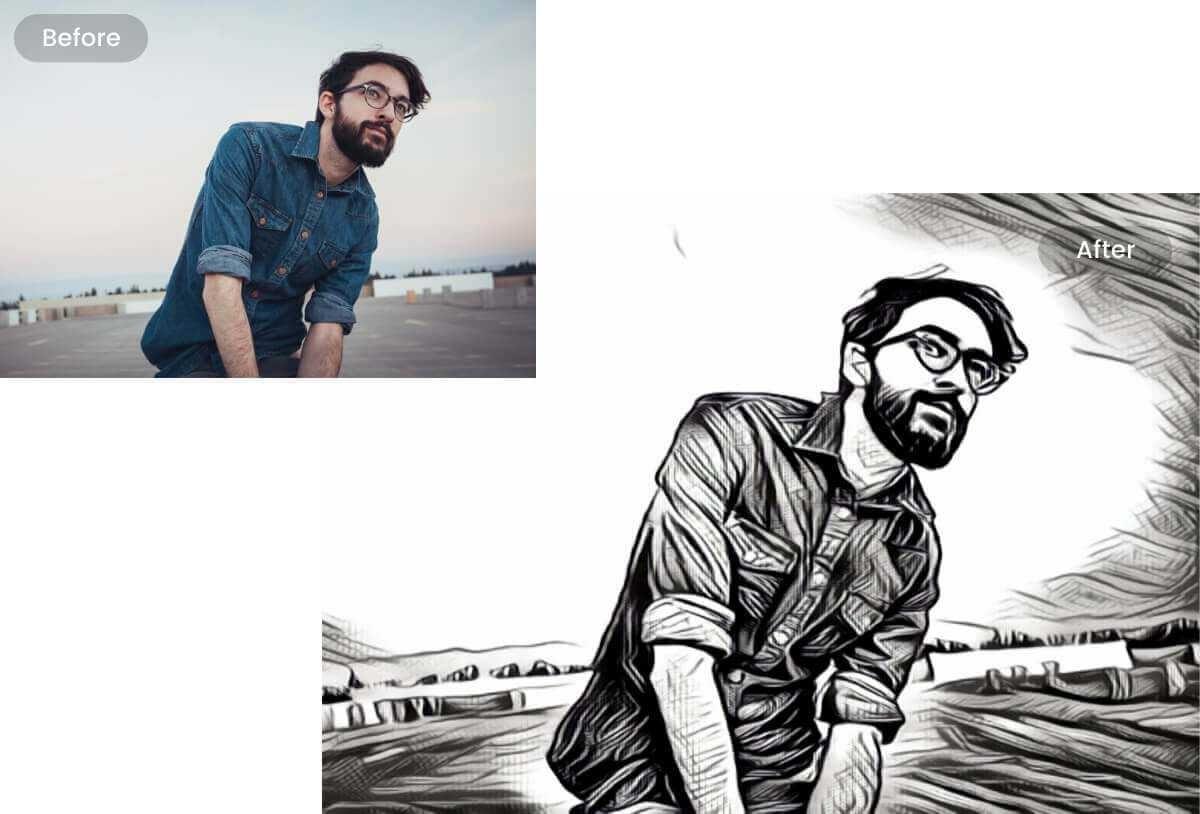
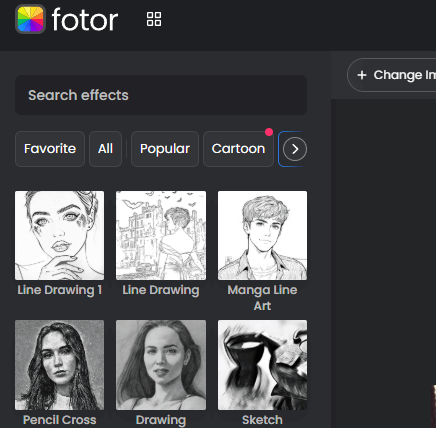
Fotor’s photo-to-sketch tool is a total champ for whipping up super realistic pencil sketches, cool inky drawings, or watercolor vibes in no time. It’s perfect for portraits, landscapes, or adorable pet pics, with a dead-simple interface that works on your phone or laptop, ideal for creators who want artsy results without the headache.
Features: Loads of sketch filters (pencil, ink, watercolor), supports JPG/PNG/JPEG, adjustable intensity sliders, no signup needed for basic use, mobile app good to go.
Pros:
Super realistic pencil and ink effects that look hand-drawn.
One-click conversions are fast and easy.
Works on web and mobile for editing anywhere.
Cons:
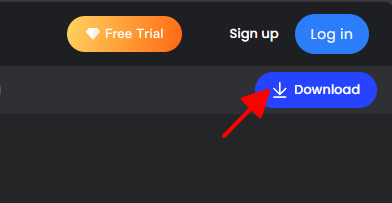
Free downloads come with a watermark, which is a drag.
Premium filters and watermark removal need a subscription ($8.99/month).
App Rating: 4.6/5 (App Store).
How to Use:
Step 1: Head to fotor.com/features/photo-to-sketch.
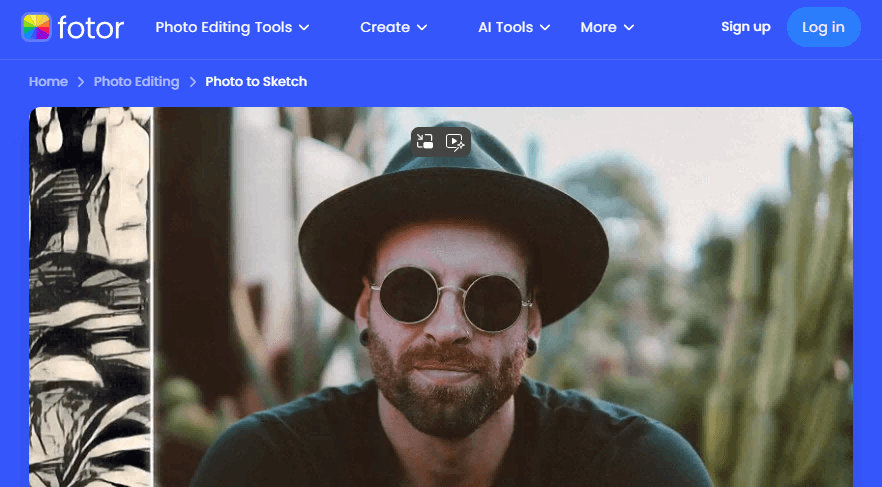
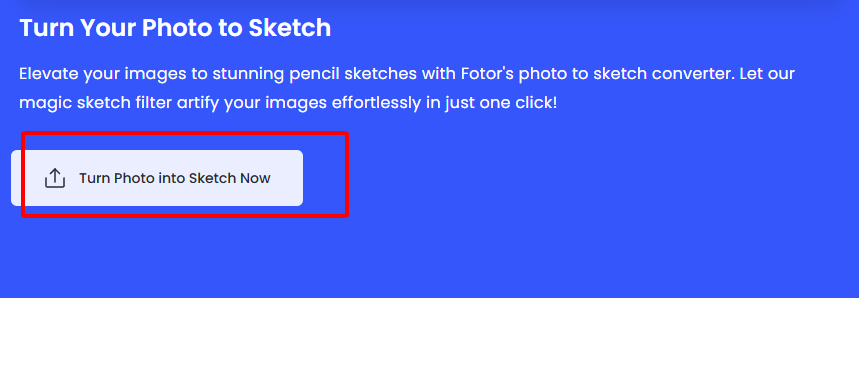
Step 2: Drop in your photo (JPG or PNG).
Step 3: Choose a sketch filter (like pencil) and play with the intensity slider.
Step 4: Save it as JPG or PNG (free version has a watermark).
I tried Fotor to turn a selfie into a pencil sketch, and wow, it looked like a legit artist drew it in seconds! It’s crazy easy, even for total newbies, but that watermark on free downloads was a bummer for pro posts.
Canva Photo to Sketch
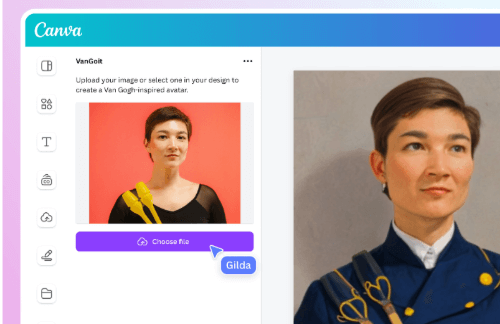
Canva’s photo-to-sketch feature is a breeze for transforming photos into pencil or cartoon-style drawings, all within its popular design platform. It’s ideal for social media creators or anyone wanting to combine sketching with other design tweaks, with a dead-simple interface that’s perfect for beginners.
Features: Includes pencil sketch and cartoon
filters, adjustable effect strength, supports JPG/PNG, integrates with
Canva’s design tools (logos, text), mobile app for on-the-go
edits.
Pros:
Free with no signup for basic use, super beginner-friendly.
Drag-and-drop interface makes it a cinch.
Combines sketching with design for social media posts.
Cons:
Fewer sketch styles than Fotor, a bit limited.
Some effects or elements need Canva Pro ($12.99/month).
App Rating: 4.7/5 (App Store).
How to Use:
Step 1: Visit canva.com/features/photo-to-sketchor open the Canva app.
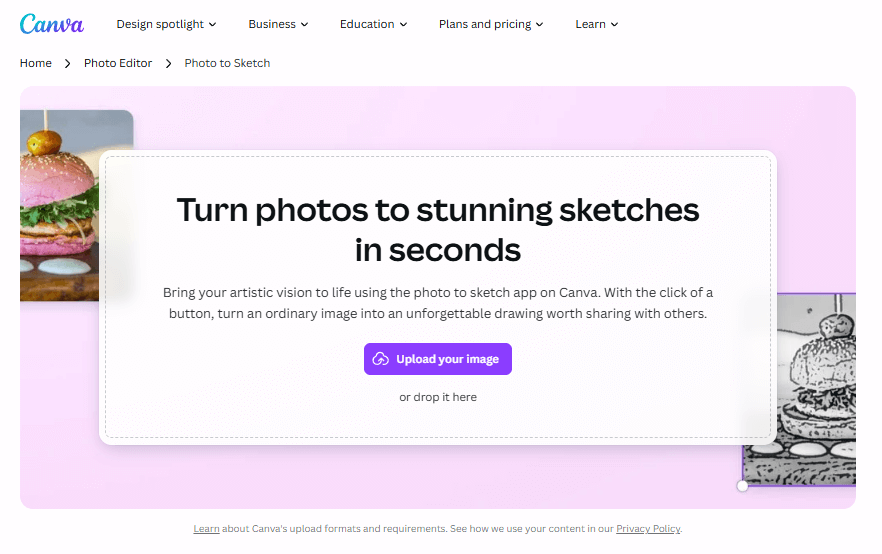
Step 2: Upload your photo and click “Edit Photo.”
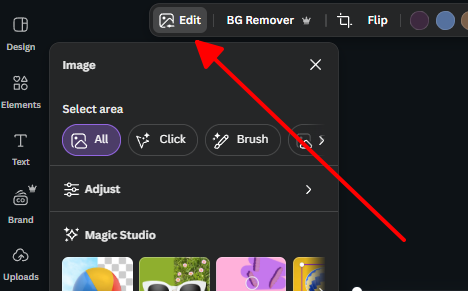
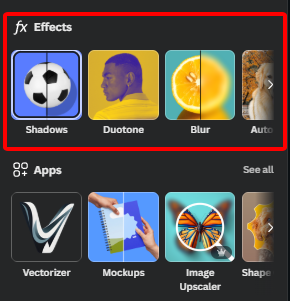
Step 3: Choose a sketch effect from the “Effects” menu.
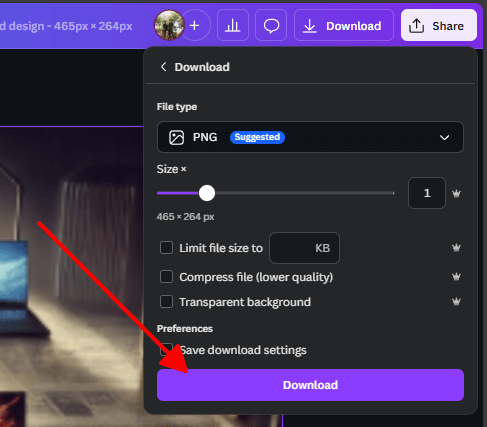
Step 4: Download as PNG/JPG, no watermark.
I turned my dog’s photo into a cartoon sketch with Canva for an Instagram post, and it was quick and fun—perfect for social media. The interface is a dream, but I wished it had more sketch styles to play with.
Monica Photo to Sketch
Monica’s AI photo-to-sketch tool is a total star, whipping up lifelike pencil, charcoal, or vibrant colored sketches that are perfect for jaw-dropping portraits or sweet gift ideas. Its free trial and laid-back, device-friendly setup make it a breeze for anyone to create top-notch sketches without any fuss.
Features: Offers pencil, charcoal, and colored sketch styles, supports JPG/PNG, gives sharp high-res results, no signup needed for the trial, works like a charm on web and mobile browsers.
Pros:
Watermark-free during the free trial, a big win.
Detailed, realistic sketches that pop.
Fast and works on any device.
Cons:
Free trial limits you to a few conversions.
Fewer style options compared to Fotor.
App Rating: 4.5/5 (user reviews).
How to Use:
Step 1: Visit monica.im/image-tools/photo-to-sketch.
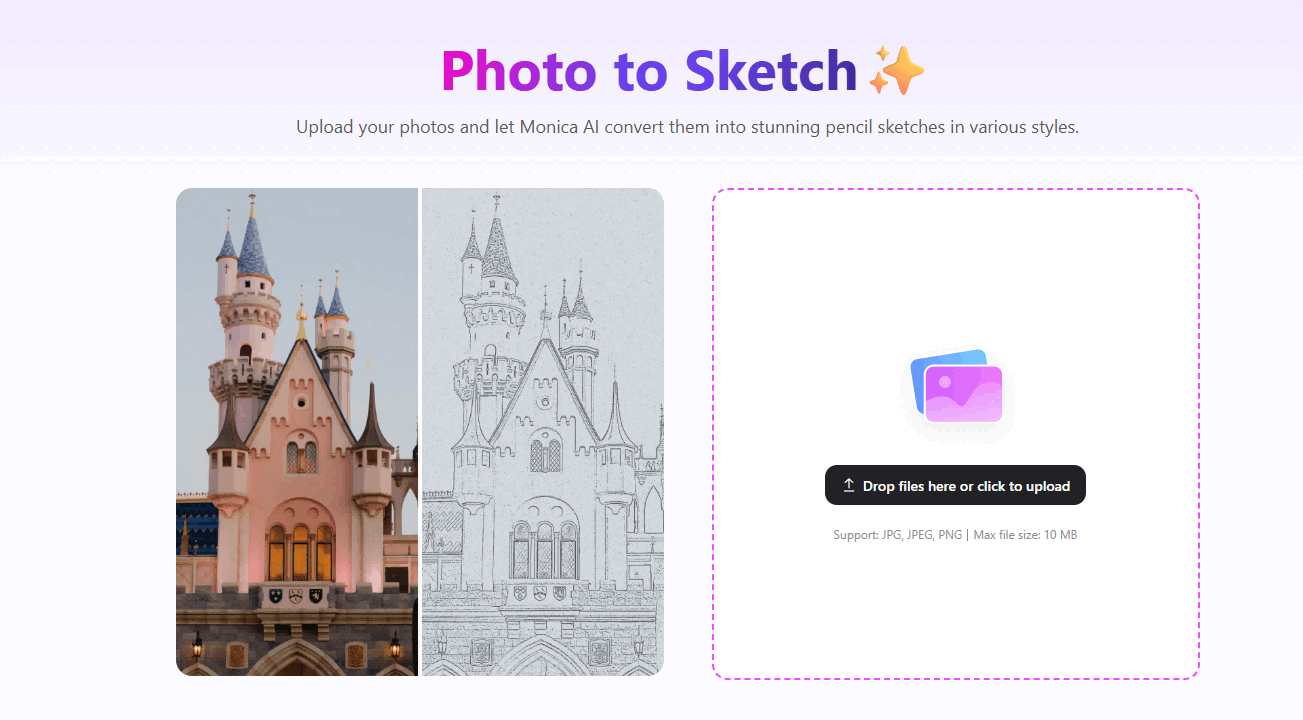
Step 2: Upload your photo (JPG/PNG).
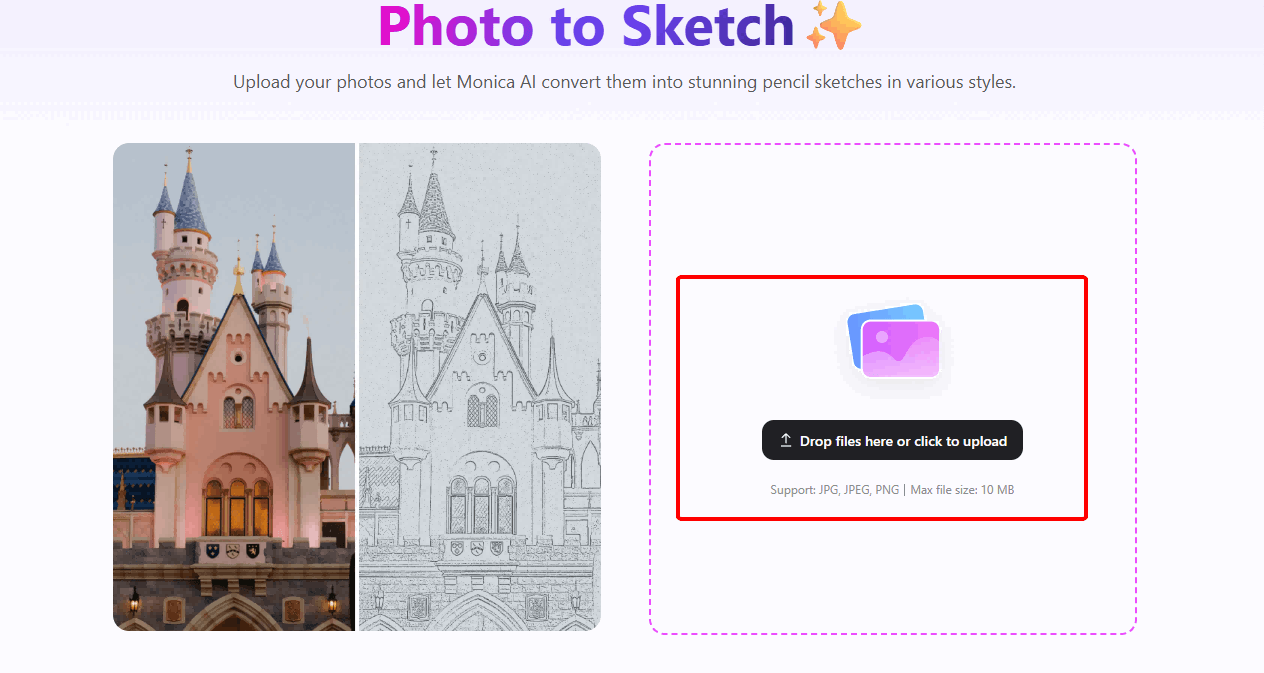
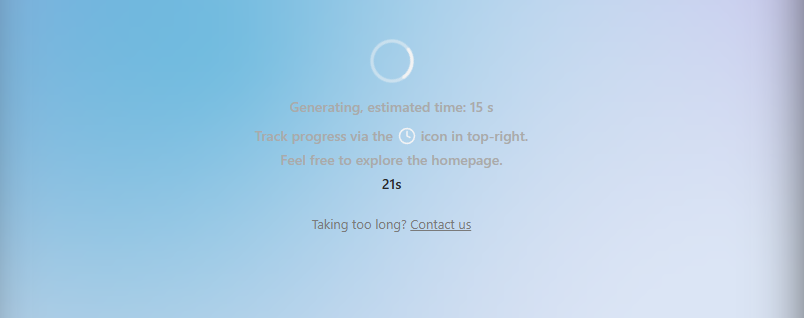
Step 3: Select a sketch style (e.g., pencil) and click “Generate.”
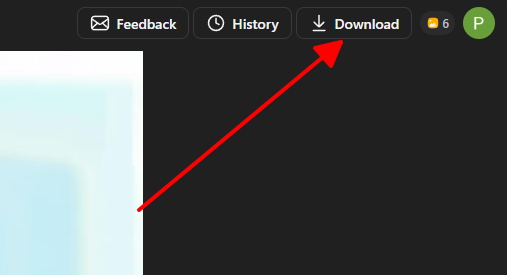
Step 4: Download the sketch, watermark-free in trial.
I used Monica to make a family photo into a pencil sketch for a holiday card, and it looked so real, like an artist’s work. The free trial was awesome, but the conversion limit pushed me to consider paying for more.
VanceAI Photo to Sketch
VanceAI’s AI magic turns your photos into awesome pencil sketches, clean line drawings, or anime-style art, perfect for social media, prints, or fun projects. It’s crazy fast, gives watermark-free sketches in the free version, and pumps out pro-quality results you’ll love.
Features: Pencil, line drawing, anime filters, supports JPG/PNG, adjustable detail levels, watermark-free in free tier, high-resolution output.
Pros:
Watermark-free free conversions, huge plus.
Crisp, realistic sketches for pro use.
Super fast processing, under 3 seconds.
Cons:
Free tier caps at 3 conversions/month.
Unlimited use requires premium ($6/month).
App Rating: 4.4/5 (user reviews).
How to Use:
Step 1: Visit vanceai.com/photo-to-sketch.
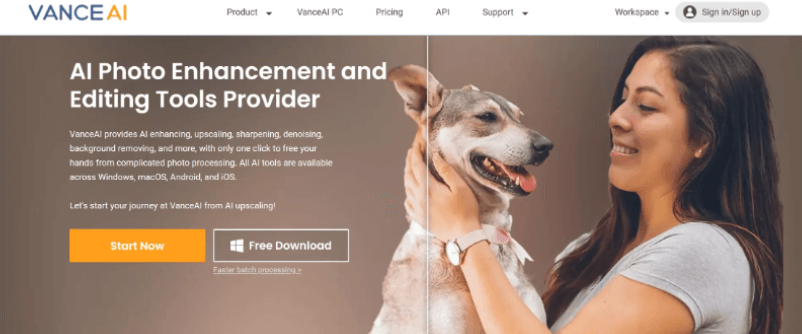
Step 2: Upload your photo (JPG/PNG).
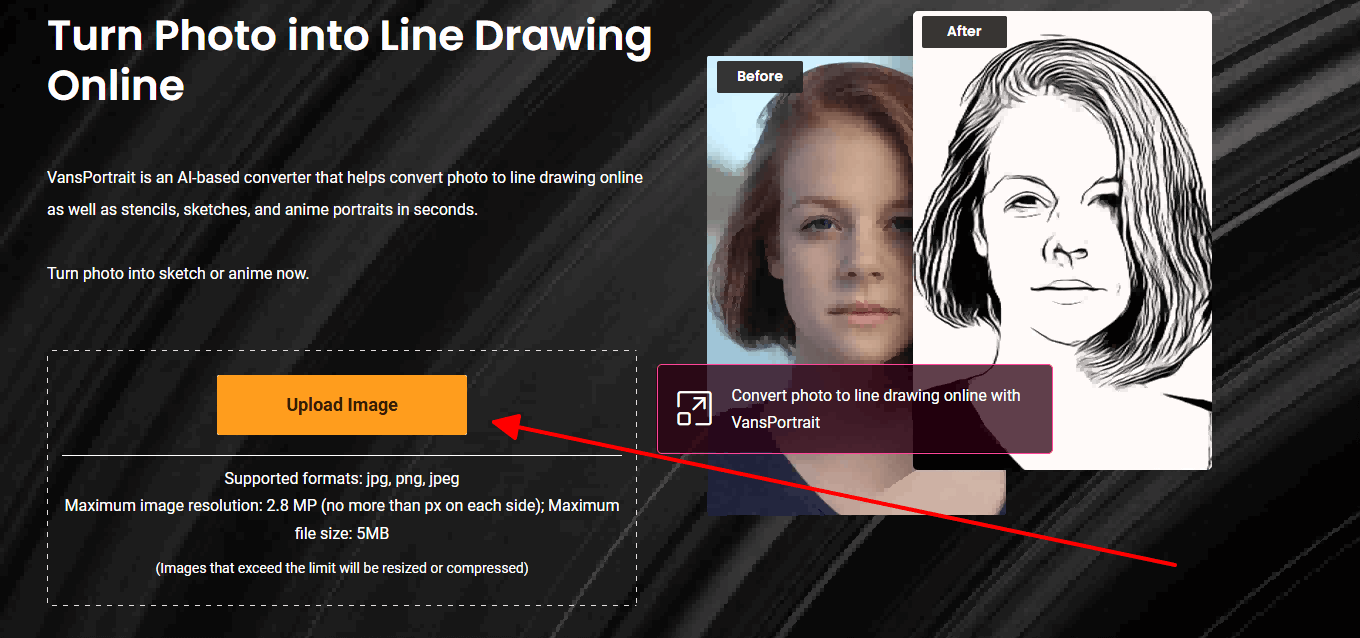
Step 3: Choose a sketch or anime style and click “Start.”
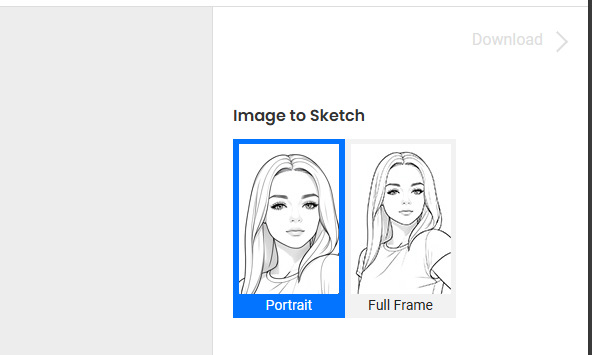
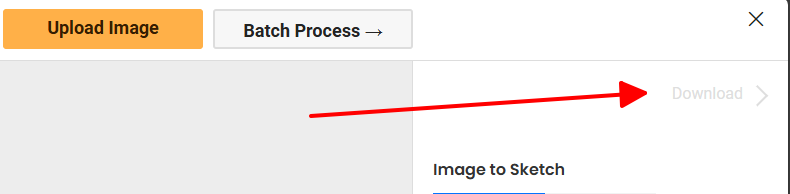
Step 4: Download the watermark-free sketch.
I turned a landscape photo into a pencil sketch with VanceAI for a gift print, and it was so sharp and detailed—perfect for framing. The free tier’s great, but the 3-conversion limit felt tight for multiple projects.
Part 2: Comparison of Photo-to-Drawing Tools
| Tool | Art Style Variety | Output Quality | Free vs. Paid | Processing Speed | Watermark Policy |
| Fotor | Pencil, ink, watercolor | High | Free with watermark, $8.99/month for no watermark | ~5s | Watermark on free |
| Canva | Pencil, cartoon | Good | Free, $12.99/month for premium effects | ~3s | No watermark |
| Monica | Pencil, charcoal, colored | High | Free trial, limited conversions | ~4s | Watermark-free trial |
| VanceAI | Pencil, line, anime | High | Free (3/month), $6/month unlimited | ~3s | Watermark-free free tier |
Fotor’s got tons of styles but sticks a watermark on free downloads. Canva’s super easy but lacks variety. Monica’s trial is watermark-free but caps conversions. VanceAI delivers crisp, watermark-free sketches but limits free use. Toolsmart’s Image Enhancer adds a pro polish to these results.
Part 3: Bonus Tool - Toolsmart Free Image Enhancer Online
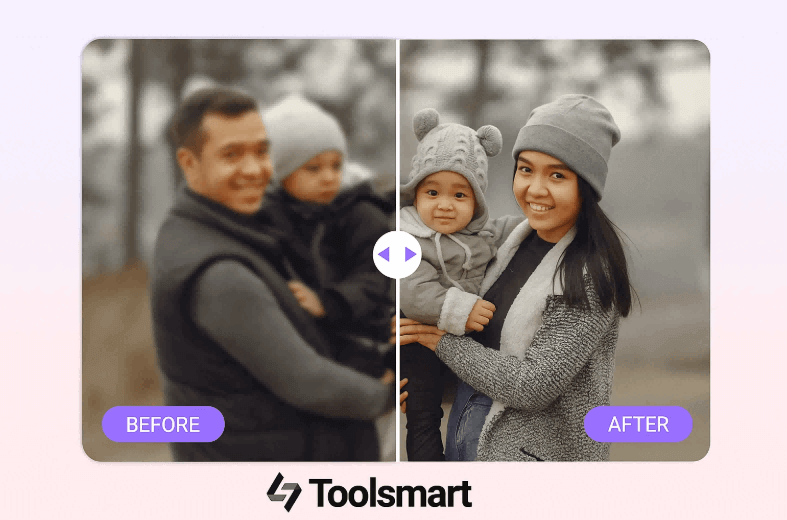
Your sketch looks great, but want to make it really pop? Toolsmart’s Free Image Enhancer Online uses AI to sharpen lines, boost contrast, and enhance details, turning your sketches into pro-level art for prints, social media, or gifts, per Toolsmart. It’s free, works in your browser, and needs no signup, making it a perfect add-on.
Overview: AI-powered tool to enhance sketches or photos, improving clarity and vibrancy for a polished look.
Features: Sharpens lines, enhances contrast, adjusts brightness, supports JPG/PNG, no login required, browser-based.
Pros:
Free, no signup or limits.
Makes sketches crisper and more vibrant.
Dead-simple, browser-based interface.
Cons:
No batch processing in free version.
Limited to JPG/PNG formats.
How to Use:
Step 1: Pop over to toolsmart.ai/feature-free-image-enhancer.
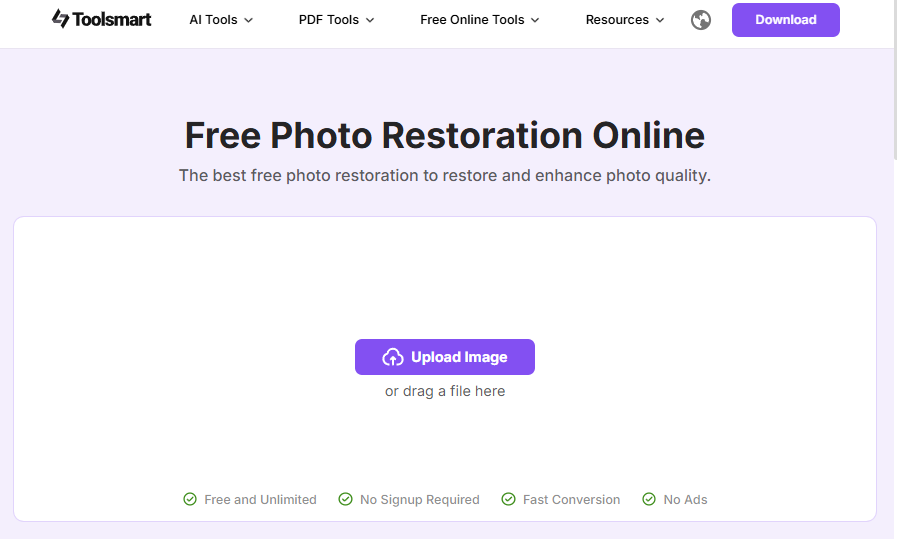
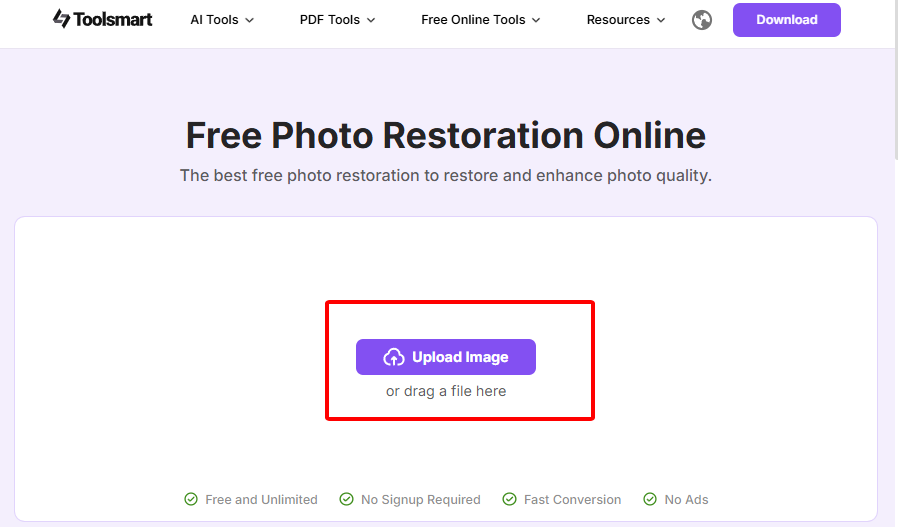
Step 2: Upload your sketch or photo (JPG or PNG).
Step 3: Mess with sliders for sharpness, contrast, or brightness, or let the AI work its magic automatically.
Step 4: Grab your enhanced image with a quick download.
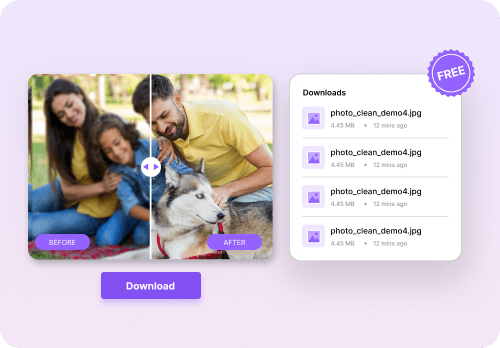
I used Toolsmart to spruce up a VanceAI pencil sketch of my pup, and holy cow, it made the lines razor-sharp and the colors pop—perfect for framing! It’s crazy simple to use, but doing one pic at a time was a bit of a drag when I had a bunch to tweak.
Part 4: FAQs
Q1: Which tool is best for pencil sketch effects?
Fotor and VanceAI nail realistic pencil sketches with clean, detailed lines, great for portraits or landscapes.
Q2: Can I convert photos to drawings on mobile?
Yup, Canva and Fotor have mobile apps, and Monica and VanceAI work smoothly on mobile browsers.
Q3: How do I avoid watermarks on free conversions?
VanceAI and Monica’s free trials are watermark-free, while Fotor adds one unless you pay.
Q4: Why enhance a converted drawing?
Toolsmart’s enhancer sharpens faint lines and boosts contrast, making sketches look pro for prints or posts.
Q5: Can I use these sketches commercially?
Yes, but check terms—VanceAI allows commercial use in its free tier, per VanceAI.
Summary
Turning photos into drawings is a blast with free tools like Fotor, Canva, Monica, and VanceAI, perfect for creating artsy portraits, social media posts, or gifts. Fotor’s got variety but adds watermarks, Canva’s easy but limited, Monica’s trial is watermark-free, and VanceAI delivers crisp, watermark-free sketches. Toolsmart’s Free Image Enhancer takes your sketches up a notch, sharpening lines and boosting contrast for a pro finish, no signup needed. Whether you’re crafting a pencil drawing for Instagram or a gift, these tools make it simple to turn photos into stunning art that pops!.


