Best Free Video Enhancers: Improve Video Quality in Minutes
December 15, 2025795 views
0
Finding a reliable video enhancer free tool has become increasingly
important as more people create content for social media and online
platforms. Many users want to improve clarity, boost resolution, or fix
noise without expensive software or advanced editing skills. But most
tools are either too complex, paid-only, or leave watermarks. This guide
solves that problem by comparing the best free video enhancement
options, including AI-powered tools.
Best Free Video Enhancers
Part 1: Top Free Video
Enhancers
Free online tools have become powerful enough to handle tasks such as
upscaling, noise reduction, stabilization, and color correction. Many of
these platforms now use AI to deliver results that previously required
professional editing software. Whether you need a 4K video enhancer
online free service or a simple browser-based tool, the options below
offer reliable performance with minimal effort.
Best for: Users who want fast results with AI video
enhancement and an easy workflow
Wink AI video enhancer free
Wink Video Enhancer is a strong choice for anyone looking for a free
online video enhancer because it combines AI upscaling, noise reduction,
and color correction in a simple interface. It delivers impressive
output even for older or low-resolution footage.
How to Use Wink Video Enhancer
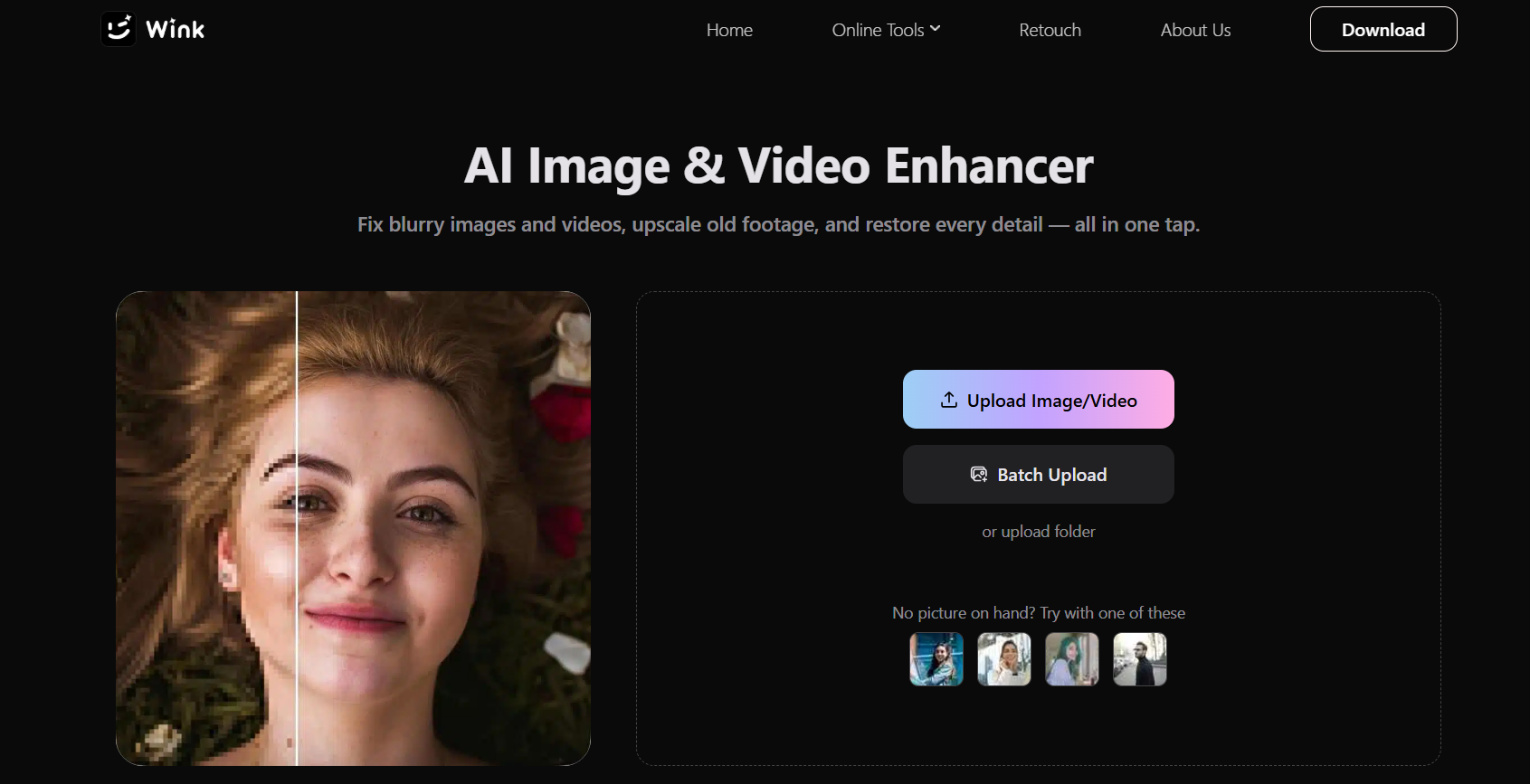
Step 1: Go to the Wink Video Enhancer
webpage.
Wink video enhancer free 4K
Step 2: Upload or drag and drop your video file
into the workspace.
Upload video to video enhancer free online 4K
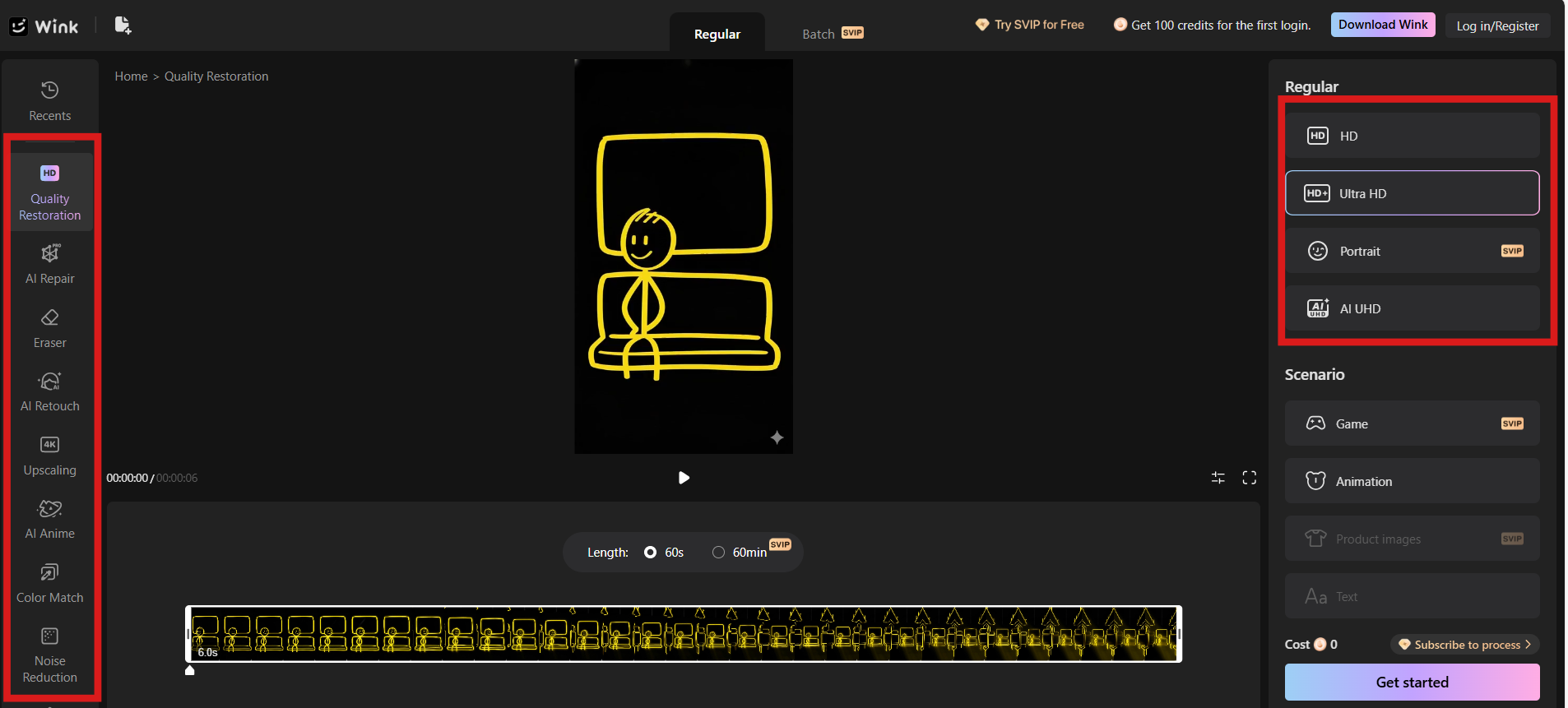
Step 3: Choose the enhancement settings, such as
AI upscale or noise reduction.
Choose the enhancement settings
Step 4: Click Process to begin AI analysis and
wait for the tool to generate the enhanced version.
Step 5: Review the preview and download the
final output.
Pros
Clean and intuitive interface suitable for beginners
Strong AI enhancement that works well for resolution
upgrades
Includes a free tier for basic processing
Cons
The free version may restrict video length or usage
Processing large or 4K files may take time, depending on server
load
My Experience
Using Wink felt convenient because it processes common formats
smoothly and produces consistent results. When testing it with several
clips, the AI upscale performed better than most video enhancer free AI
tools, especially when improving older footage for social media.
Best for: Professional-grade video restoration and
advanced enhancement
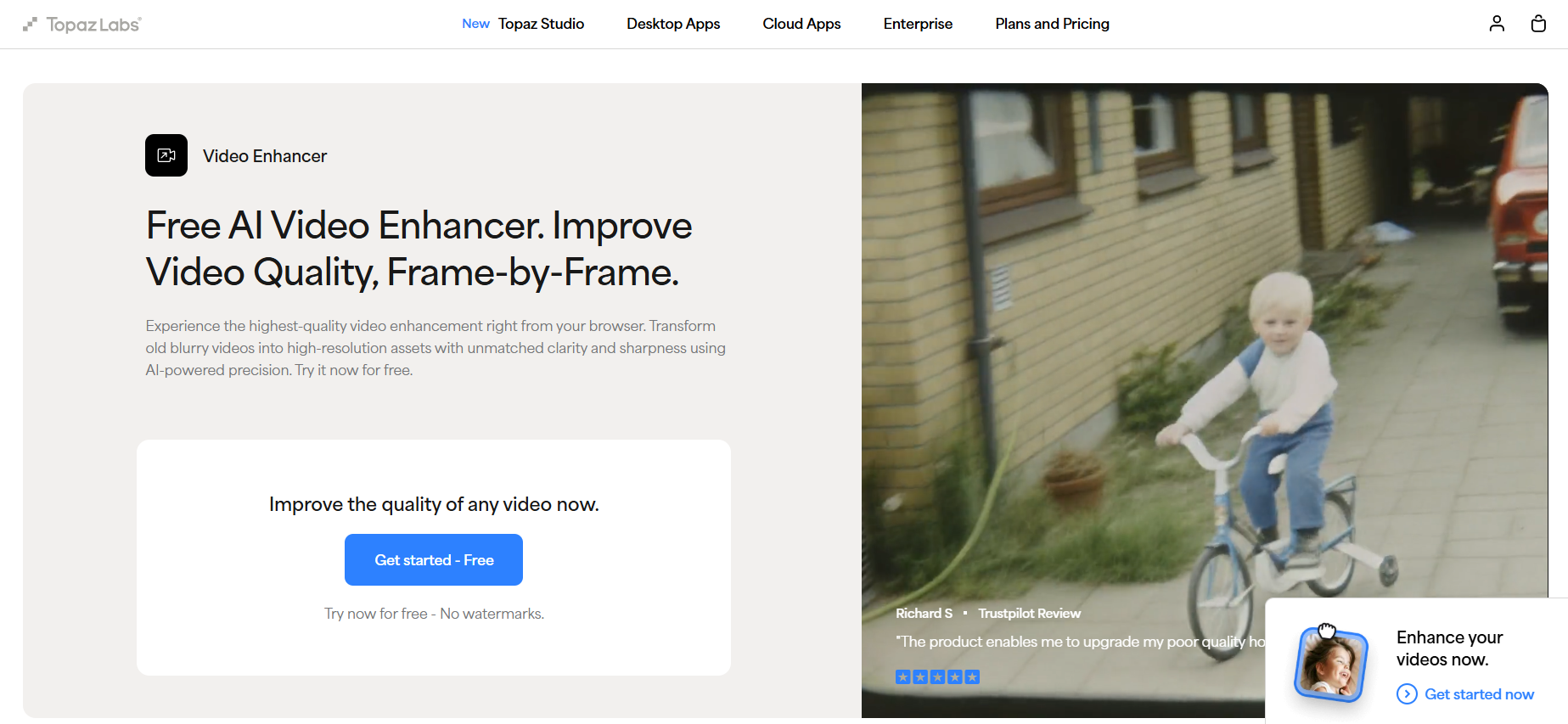
Topaz Video AI
Topaz Video AI is considered one of the strongest AI enhancement
tools available today. Although it is not a fully video enhancer free
software, its free trial lets you experience professional AI models,
including deblur, upscale, and frame interpolation. If you need
high-level enhancement or want output close to native 4K, this solution
delivers outstanding results.
How to Use Topaz Video AI
Step 1: Open the Topaz Video AI official
website.
Topaz Video AI
Step 2: Click Get Started and upload your video
file.
Upload the video to Topaz Video AI
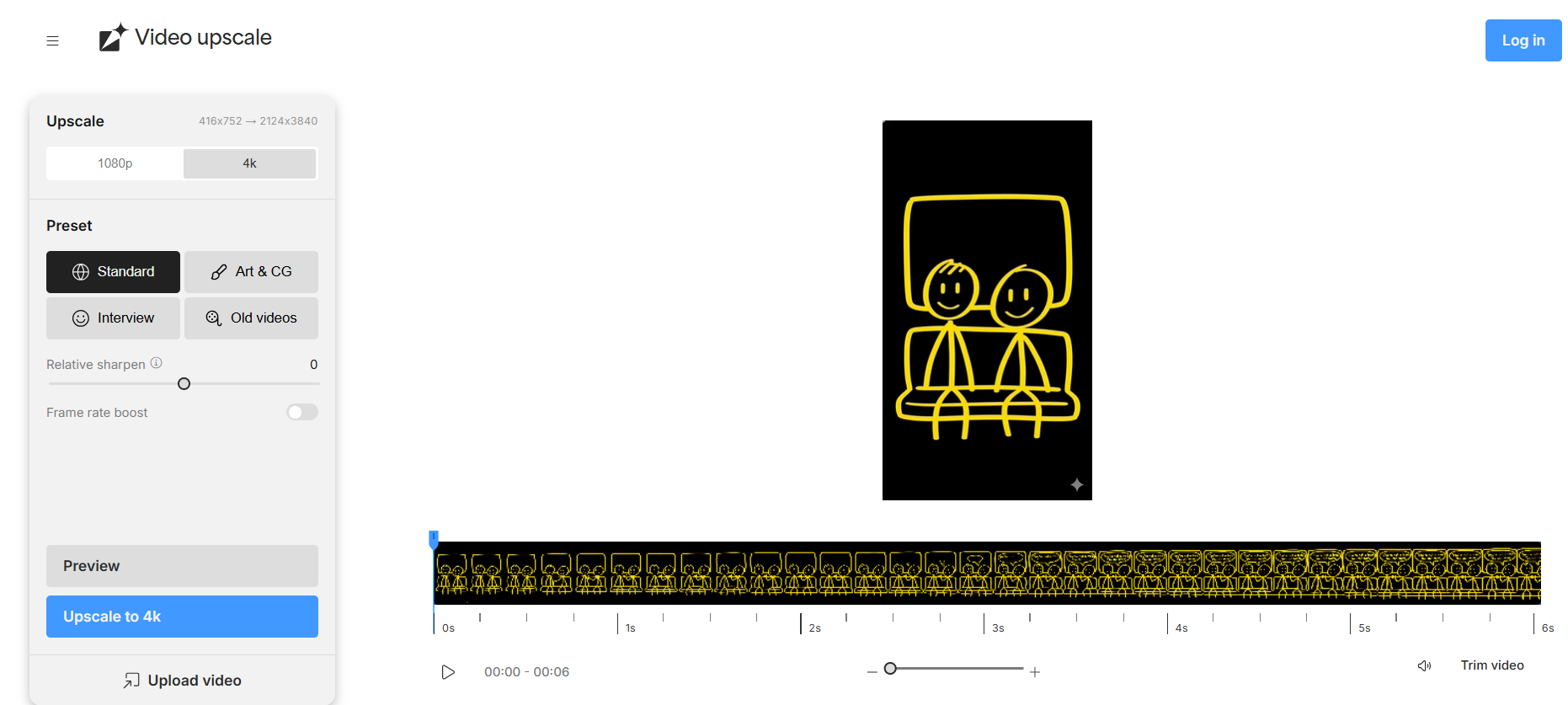
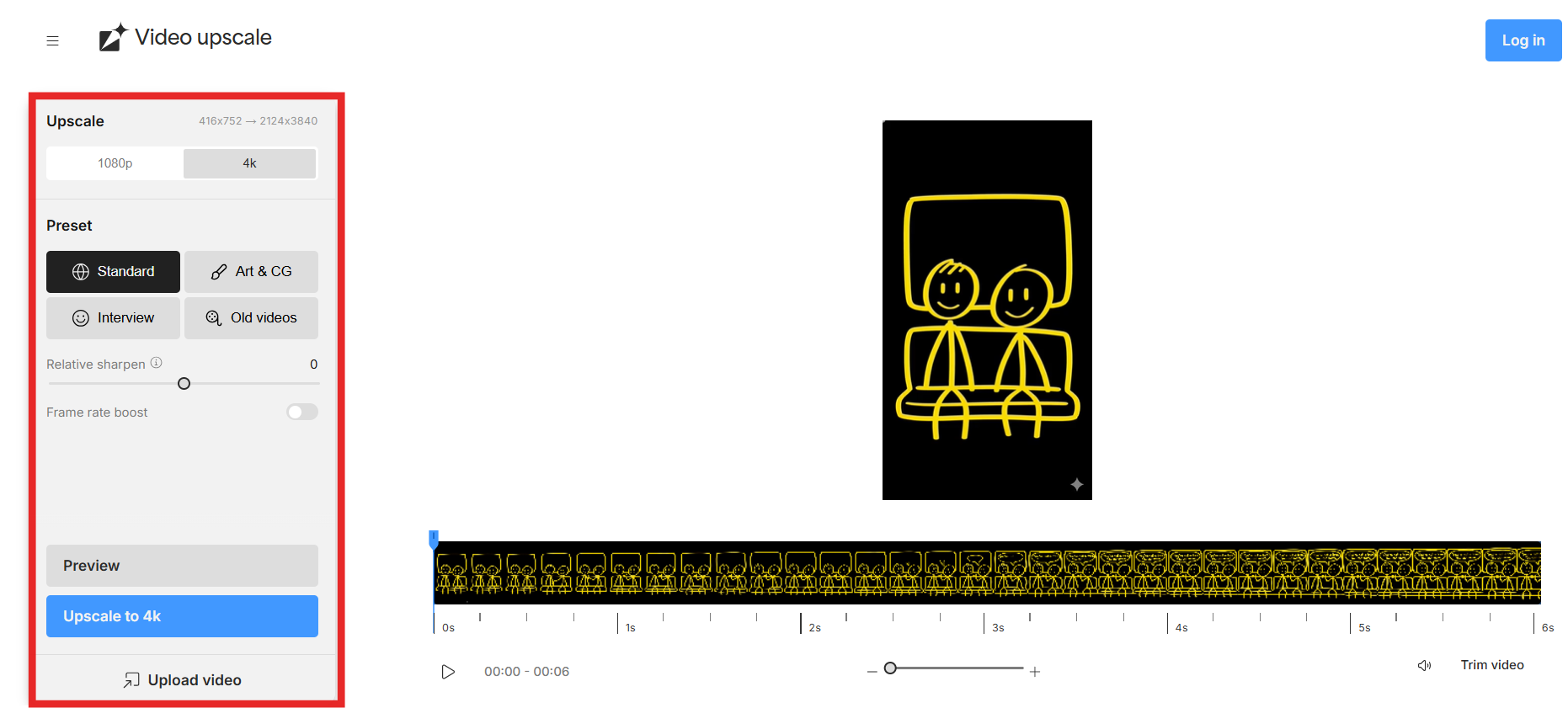
Step 3: Select the enhancement model, such as
upscale or motion deblur.
Choose the enhancement settings
Step 4: Adjust the settings, preview the result,
and refine if necessary.
Step 5: Export the enhanced video and choose
your preferred output format.
Pros
Professional-level output and advanced restoration
Rich customization options for enhancement
Excellent results when converting older videos into higher
resolution
Cons
Requires installation and a capable computer
The full version is paid after the trial
My Experience
Topaz Video AI is not for quick fixes, but it makes a noticeable
difference when working on professional edits. The AI output is cleaner
and sharper compared to many other free video enhancer tools, especially
when improving old or motion-blurred footage.
Best for: Beginners and users who want a simple
one-click enhancement
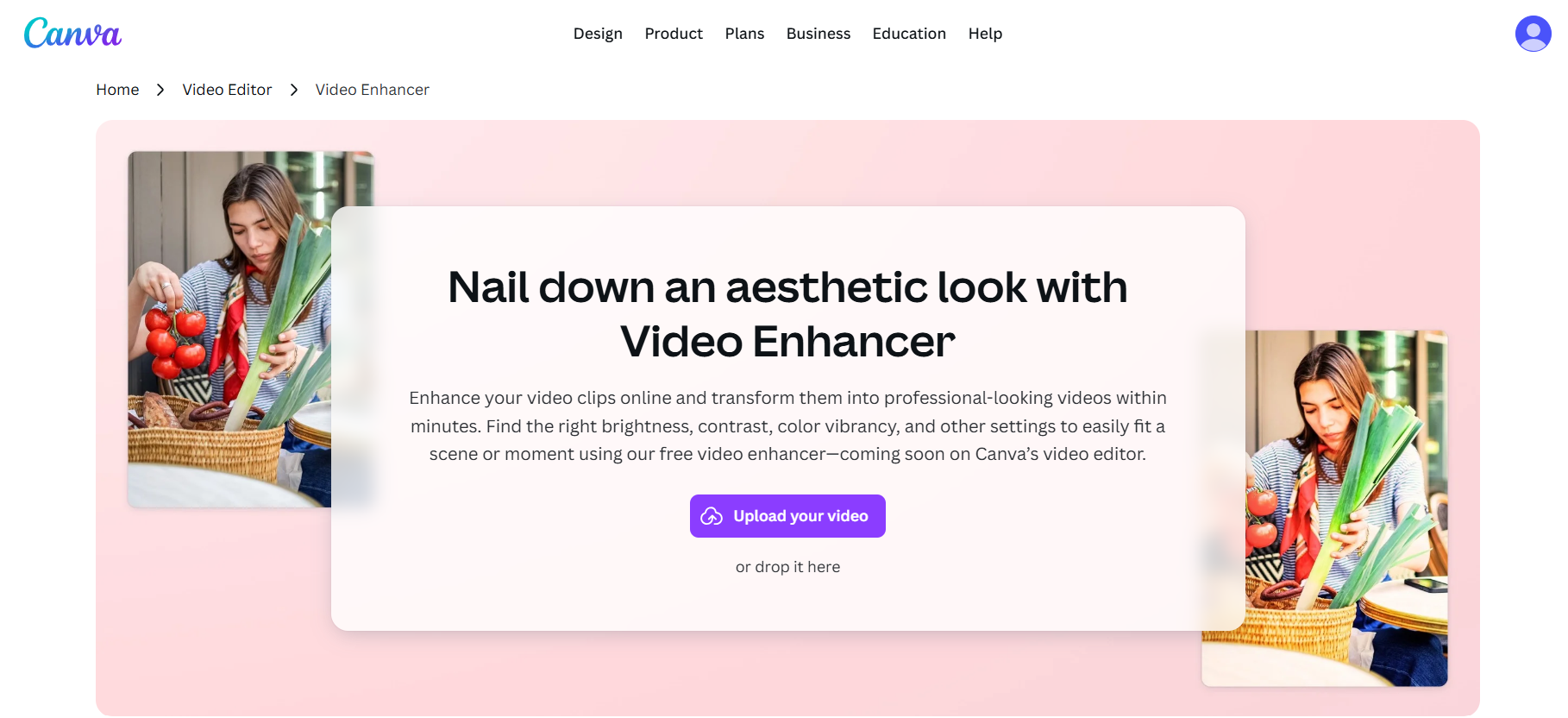
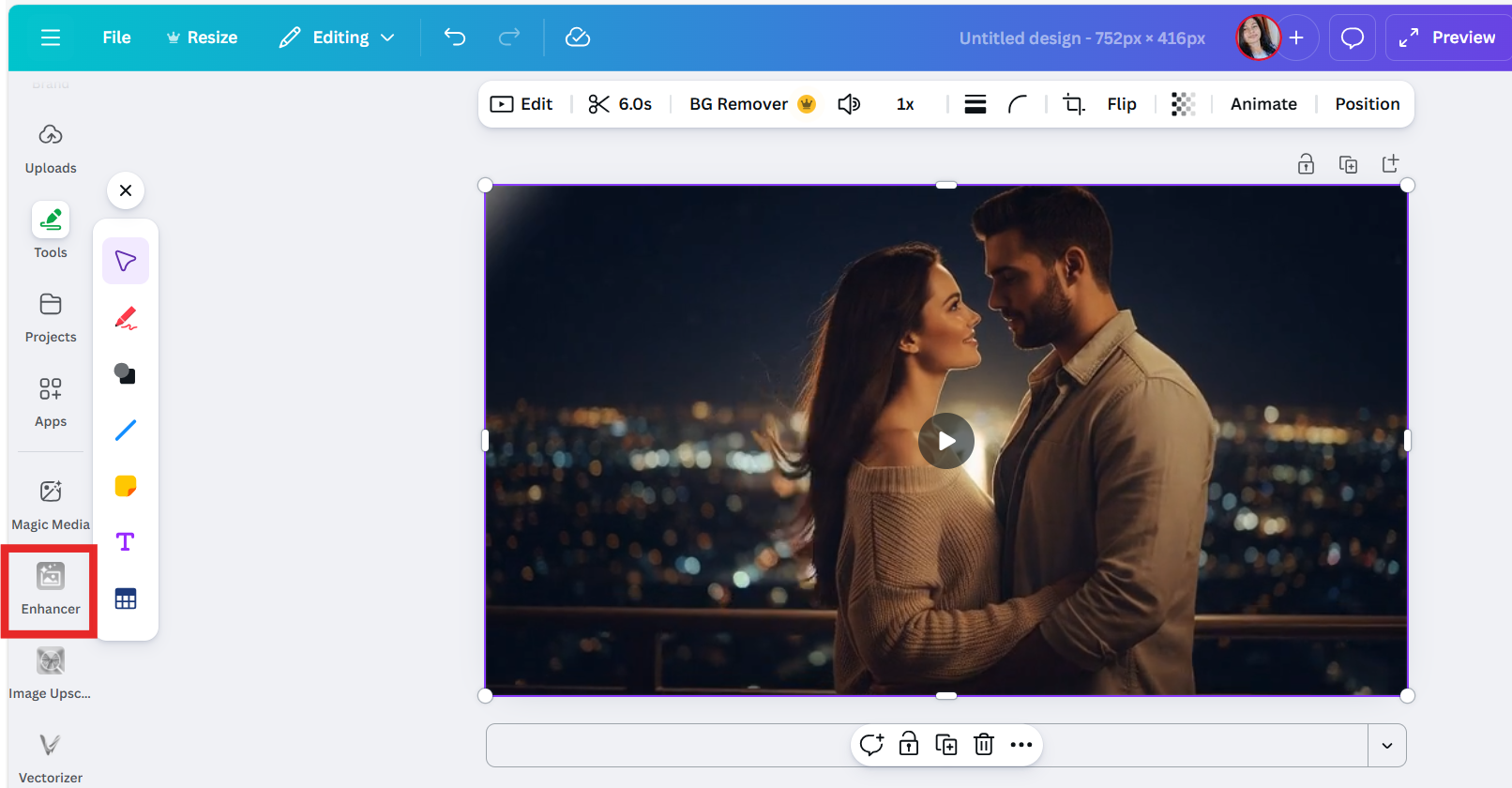
Canva Video Enhancer
Canva includes a built-in video enhancer that allows users to quickly
improve color, brightness, and sharpness. While Canva is known mainly
for design layouts, the video enhancer tool is useful for anyone who
needs an easy video enhancer free option integrated into a creative
workflow.
How to Use Canva Video Enhancer
Step 1: Open Canva Video Enhancer.
Canva Video Enhancer
Step 2: Upload your video to the project
editor.
Step 3: Click on the video and select Enhance
from the toolbar.
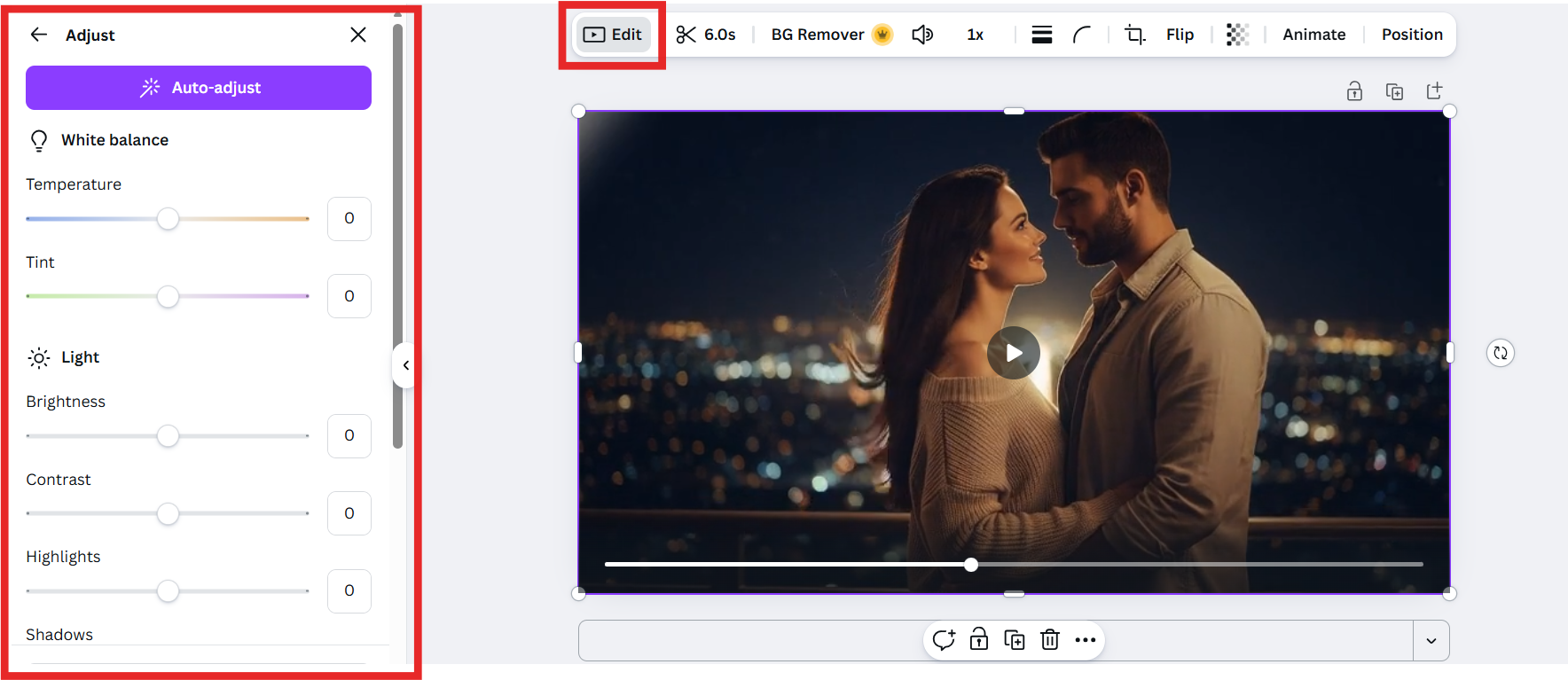
Canva Video Enhancer
Step 4: Adjust settings like brightness or
contrast and preview changes.
Adjust the enhancement settings
Step 5: Download the optimized video or continue
editing your design.
Pros
Very beginner-friendly and no technical knowledge
required
Integrates well with other Canva templates and social media
exports
Fast processing for short clips
Cons
Fewer advanced features than dedicated AI tools
Some features are locked behind Canva Pro
My Experience
Canva Video Enhancer is great when working with short clips for
social media. It is not designed for 4K video enhancer online free
quality upgrades, but for beginners, it offers a simple and effective
way to improve visuals without downloading extra software.
Best for: Social media creators and content
marketers
VMake Video Enhancer
VMake is a flexible solution that works as a browser-based video
enhancer, free online. It offers AI upscaling, background removal, and
noise reduction, making it useful for users who want fast, social
media–ready output without installing software.
How to Use VMake Video Enhancer
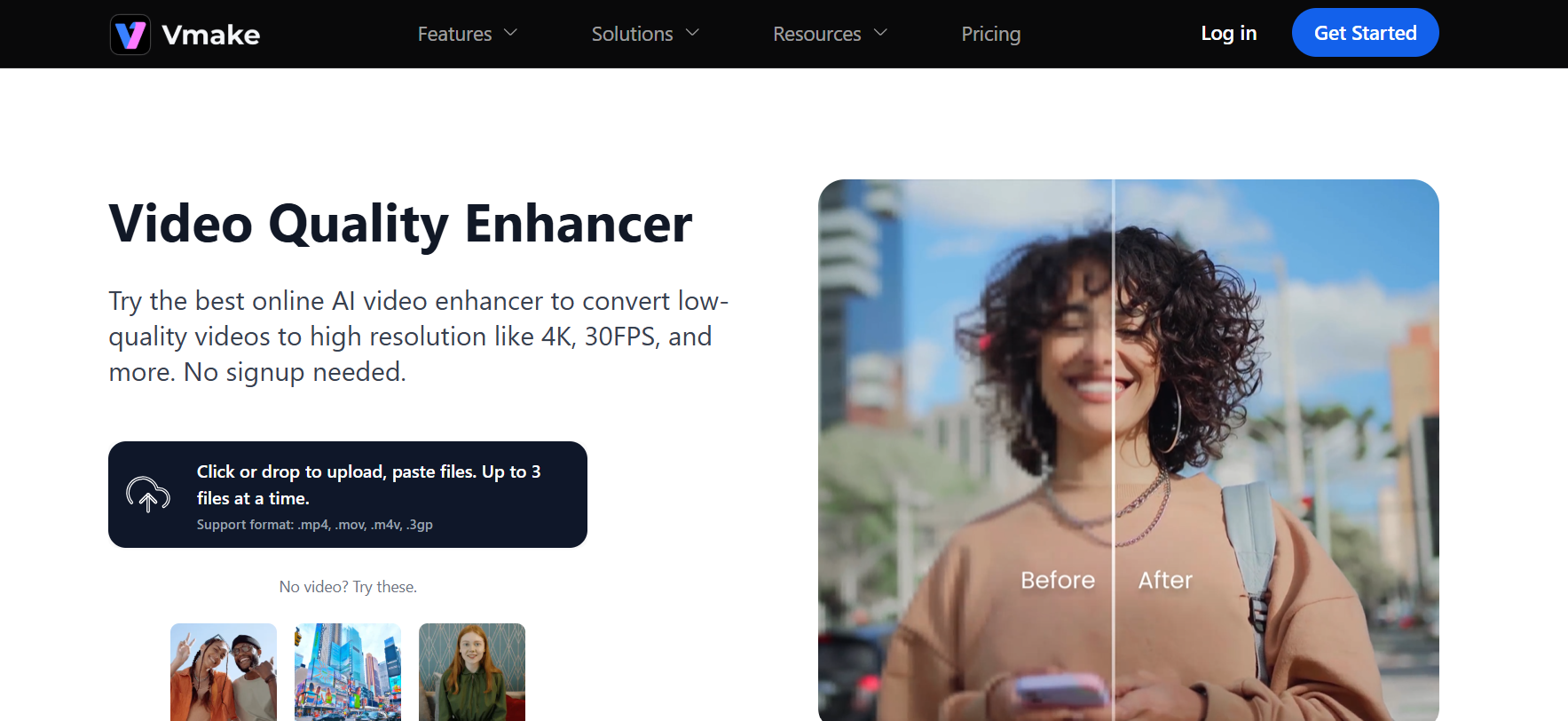
Step 1: Visit the VMake Video Enhancer
website.
VMake Video Enhancer
Step 2: Click Upload Video and select your
file.
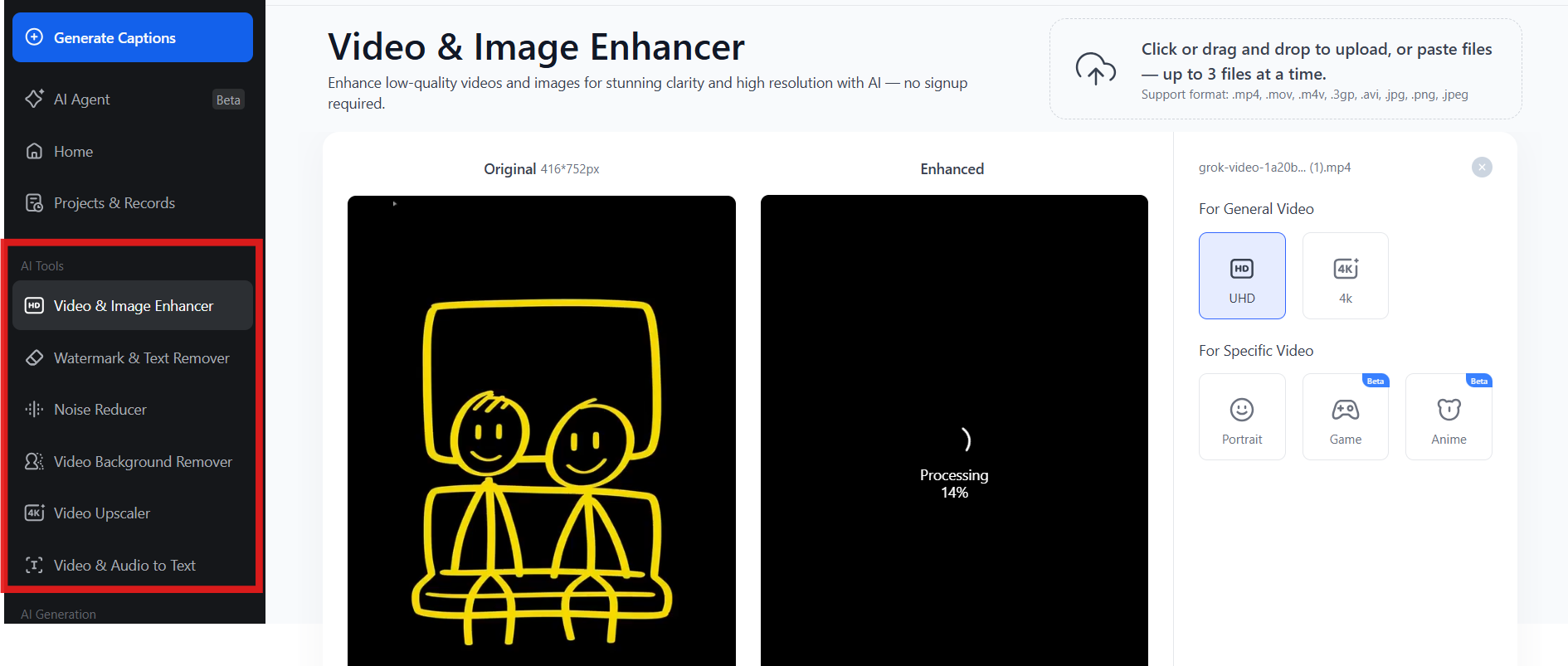
Step 3: Choose your enhancement option, such as
Upscale or Background Removal.
Choose the enhancement settings
Step 4: Click Generate and allow the system to
process the video.
Step 5: Preview and download the final
result.
Pros
Offers more than just enhancement, including background
removal
Fully online tool with no installation required
Easy workflow suitable for quick edits
Cons
The free version may include a watermark
Advanced functionality requires a paid plan
My Experience
VMake provides more flexibility than many video enhancer free no
watermark alternatives. The AI upscaling performs well for social media
clips, and the ability to remove backgrounds makes it helpful for
brands, marketers, and content creators.
Best for: Quick enhancement and simple one-click
improvements
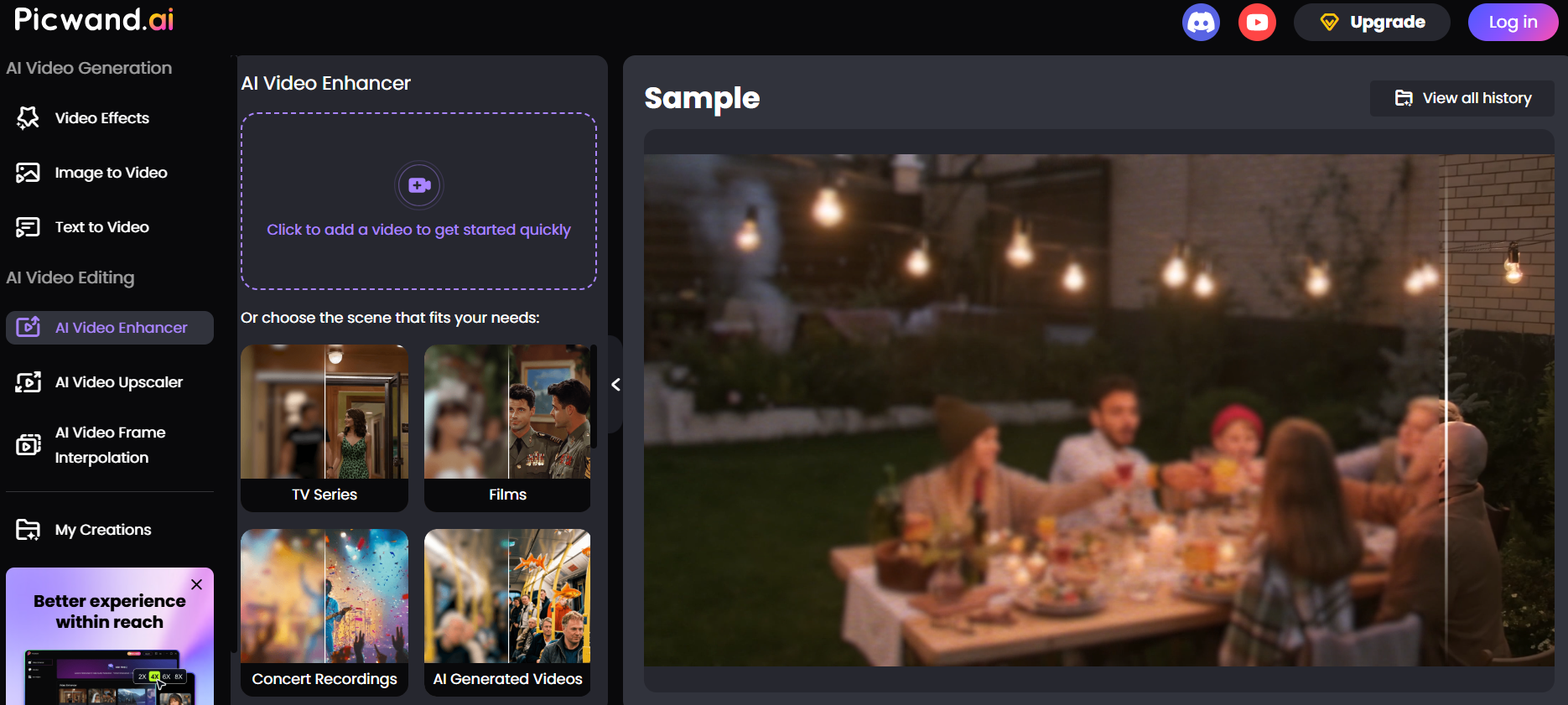
Picwand AI Video Enhancer
Picwand is a lightweight option for users looking for an online video
enhancer free download alternative. It offers AI upscaling and basic
color correction with a minimal interface. The tool is straightforward
and designed for fast results.
How to Use Picwand AI Video Enhancer
Step 1: Visit the Picwand AI Video Enhancer
website.
Picwand AI Video Enhancer
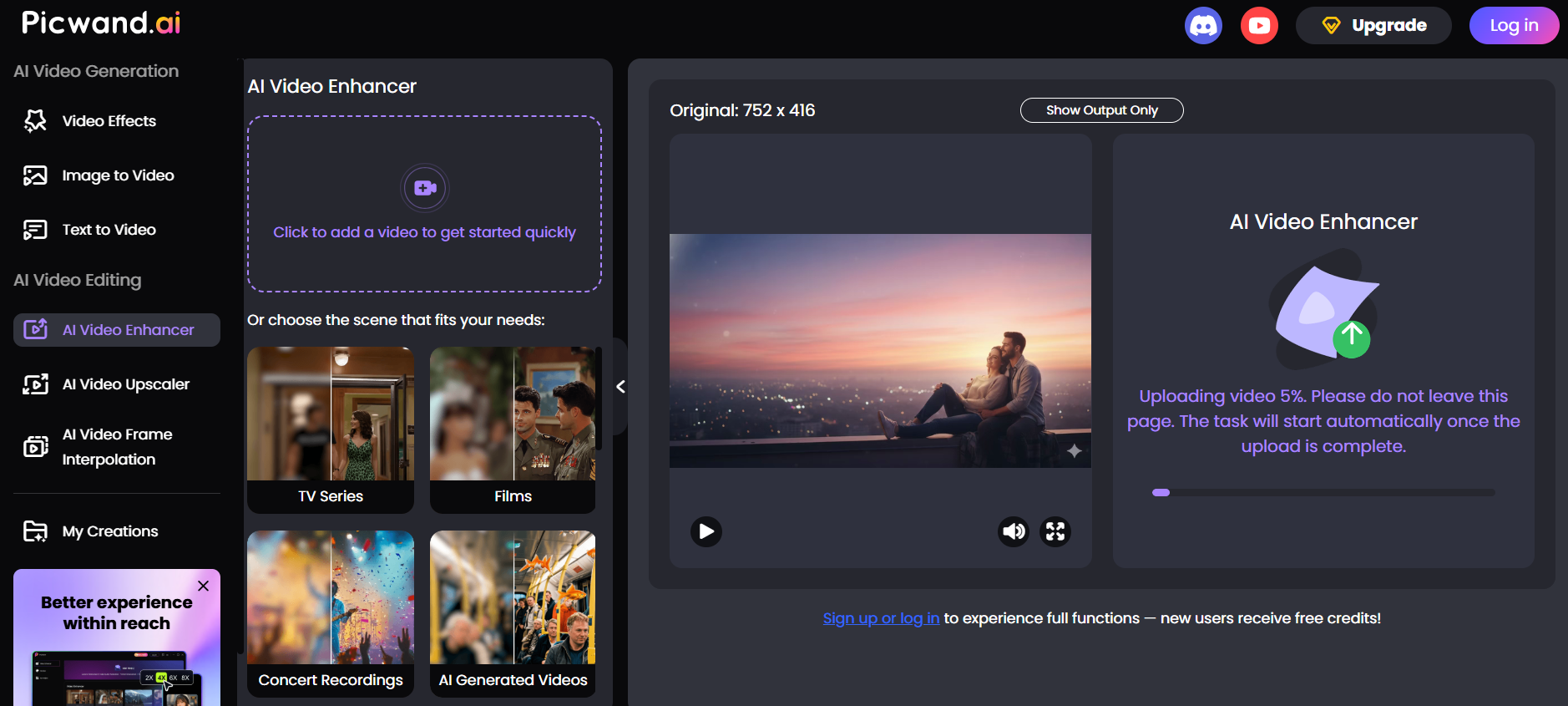
Step 2: Click Upload to add your video.
Upload the video
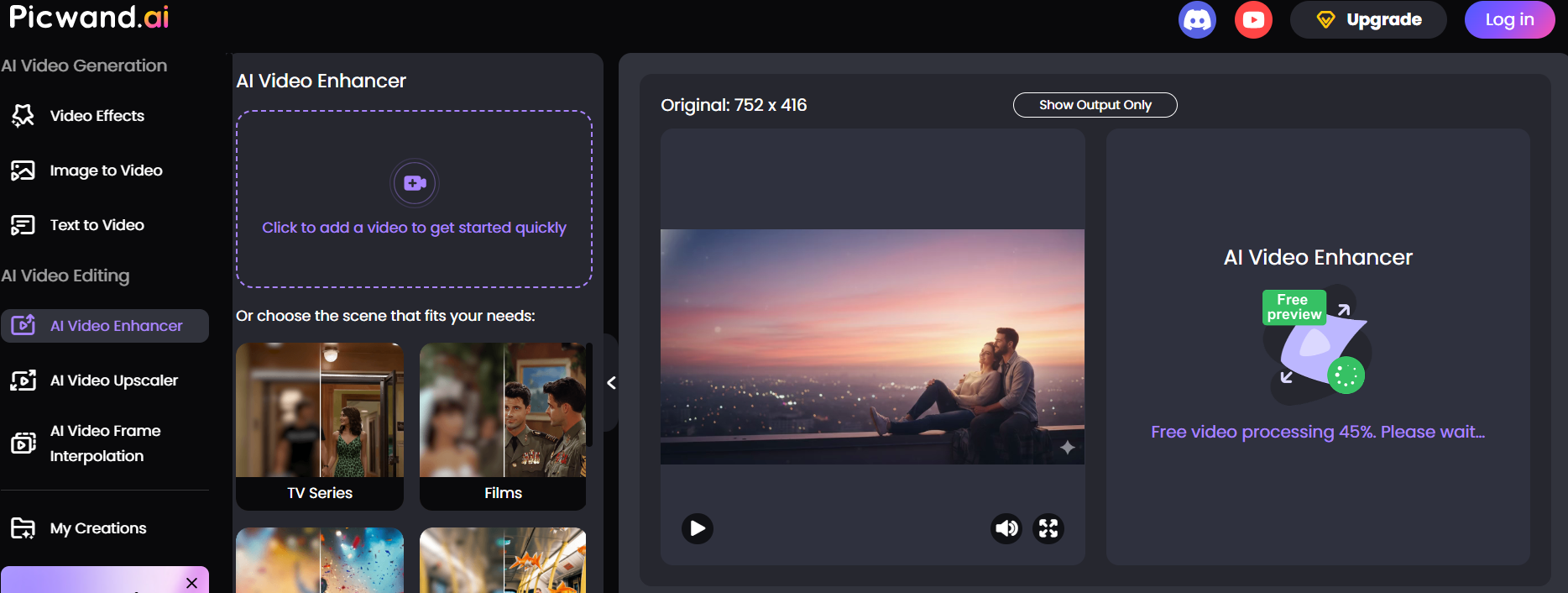
Step 3: The tool will automatically start
analysis and enhancement.
Processing the video
Step 4: Preview the processed video.
Step 5: Download the improved version.
Pros
No installation or sign-up required
Extremely easy to use
Fast processing for small to medium files
Cons
Limited customization and manual controls
May not fix very low-quality footage
My Experience
Picwand is ideal when you need a simple video enhancer free app
alternative that works in the browser without accounts or setup. It is
especially effective for improving clarity and contrast in short video
clips.
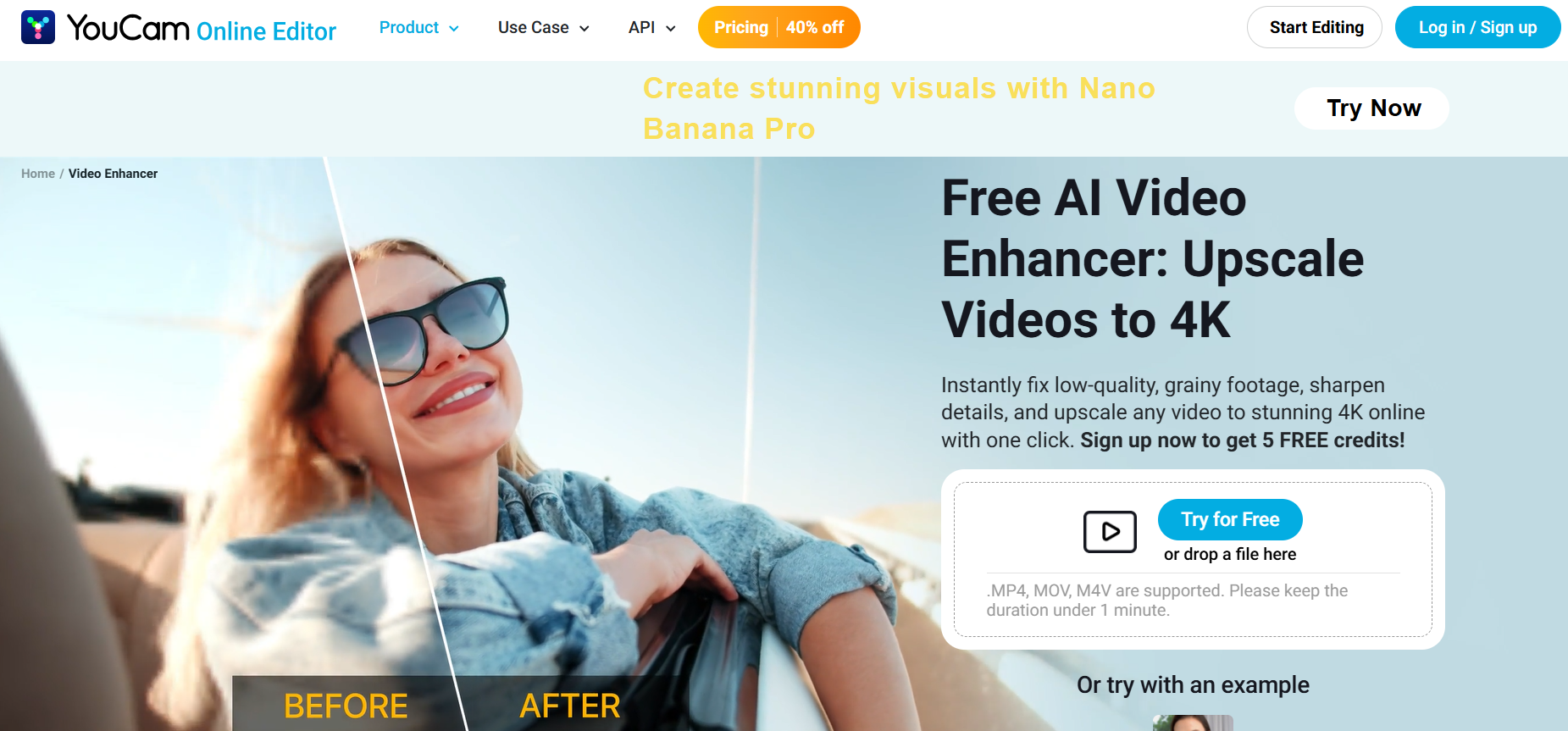
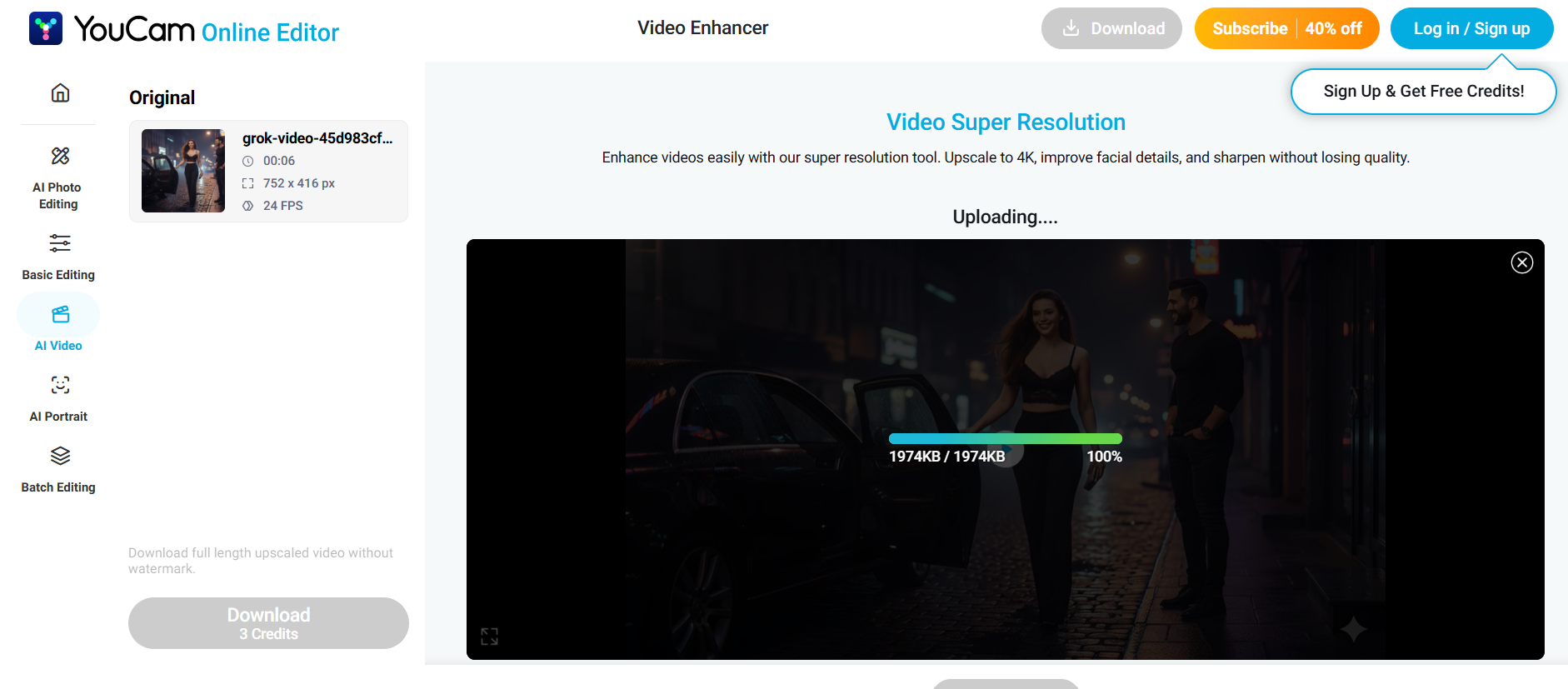
YouCam Enhance is a useful online video enhancer free tool for fixing
personal videos, old footage, or home recordings. It includes basic AI
improvements such as sharpening, color correction, and resolution
enhancement, with simple controls suited to beginners.
How to Use YouCam Enhance
Step 1: Go to the YouCam Enhance Video Enhancer
website.
YouCam Enhance Video Enhancer
Step 2: Click Upload Video and select your
clip.
Upload Video
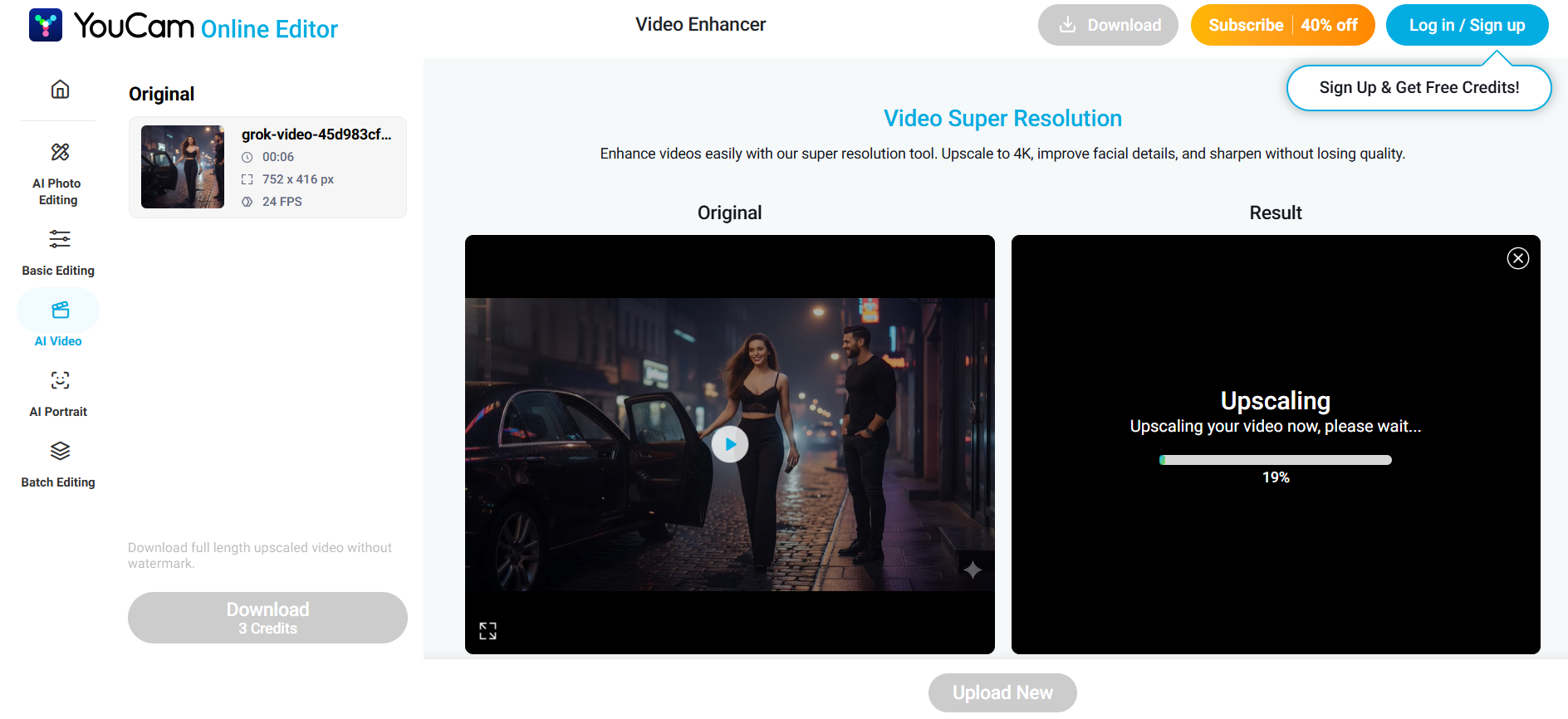
Step 3: The AI will automatically enhance the
footage.
Upscaling the Video
Step 4: Preview the before-and-after
comparison.
Step 5: Download the updated video.
Pros
Beginner-friendly interface
No installation required
Free online version supports simple improvements
Cons
May restrict file length or size
Not as advanced as professional solutions
My Experience
YouCam Enhance performs well for quick video improvements and basic
fixes. While it is not a high-end 4K video enhancer online free
solution, it is solid for home videos, small projects, and casual
use.
Part 2:
Top Free Video Enhancers: Comparative Analysis
Best for Personal Videos: YouCam Enhance Video
Enhancer
Best Free Downloader and Converter: YouTube
Video Downloader
These options offer a wide range of features to match different
needs, from simple one-click enhancement to advanced AI-based
correction. Whether you need a video enhancer free AI tool for
restoration work or a fast enhancement for social media, there is a
solution for every workflow.
Part 3: Common
Mistakes and How to Avoid Them
Enhancing video quality is simple with the right tools, but certain
mistakes can reduce output quality or cause unnecessary rework. Below
are some common issues users face when using a free video enhancer
solution and how to avoid them.
Mistake 1: Using
Low-Resolution Source Video
Problem: Starting with poor-quality footage often
leads to unsatisfactory results even after enhancement. Solution: Always work with the highest resolution and
cleanest version of the original video.
Mistake 2: Over-Enhancing
the Video
Problem: Too much sharpening or color correction can
make footage look unrealistic. Solution: Apply adjustments gradually and review before
exporting.
Mistake 3: Ignoring Aspect
Ratio
Problem: Stretching, cropping, or resizing
incorrectly can distort footage on YouTube or social platforms. Solution: Confirm the aspect ratio requirements for
your destination platform.
Mistake 4: Not Backing
Up Original Files
Problem: Once the original footage is overwritten,
fixing earlier changes becomes difficult. Solution: Always keep a backup copy of your raw
video.
Mistake 5: Using
Unsupported Formats
Problem: Some video enhancer free online tools only
support specific formats, such as MP4 or MOV. Solution: Check compatibility and convert the video if
needed before starting.
Part
4: Download and Enhance Videos with YouTube Video Downloader
YouTube
Video Downloader by Toolsmart is a useful free tool that lets
you download videos in high quality for offline editing, enhancement, or
archival. It is especially helpful when you want to improve videos using
a video enhancer, free online or desktop tool afterward.
YouTube Video Downloader by Toolsmart
Overview
YouTube Video Downloader allows you to download videos directly in
multiple formats. It does not require installation or registration,
which makes it suitable for fast editing workflows.
Features
100 percent free and secure
No watermark on downloads
Select from multiple formats and resolutions
Works without sign-up or installation
How to Use YouTube Video
Downloader
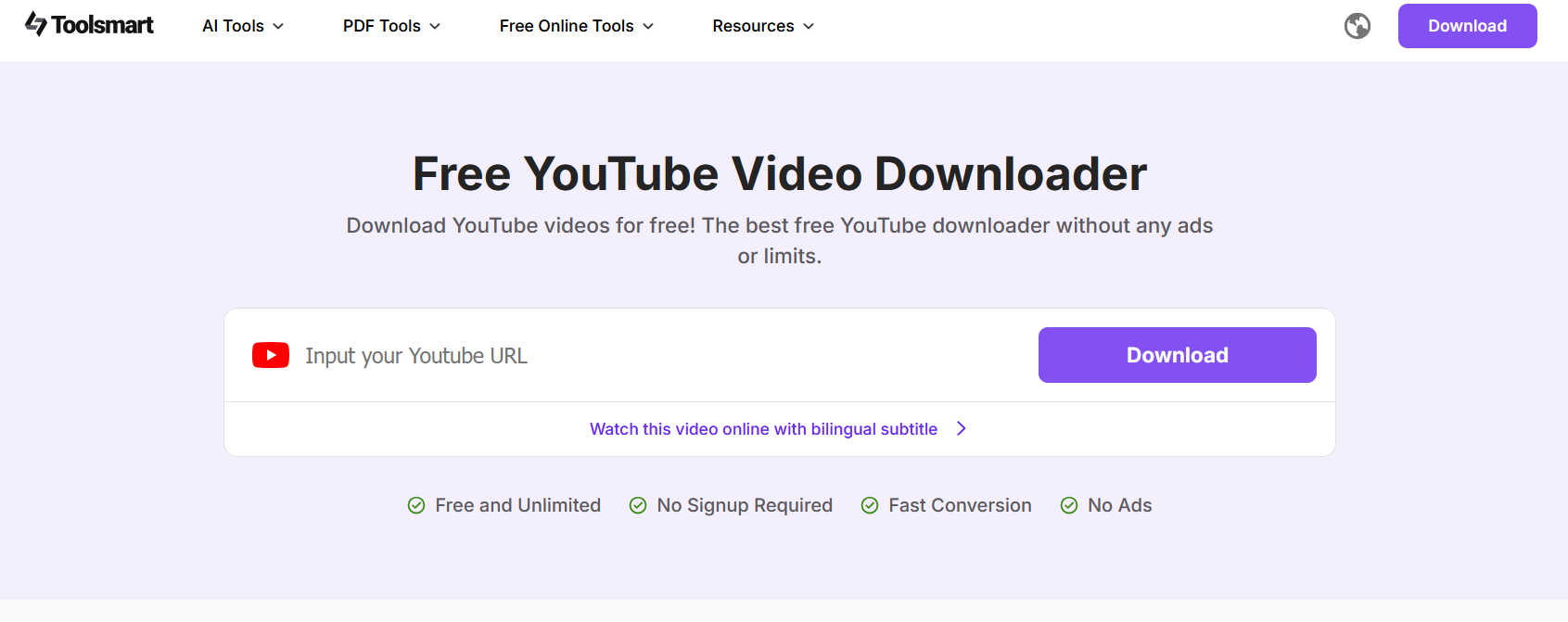
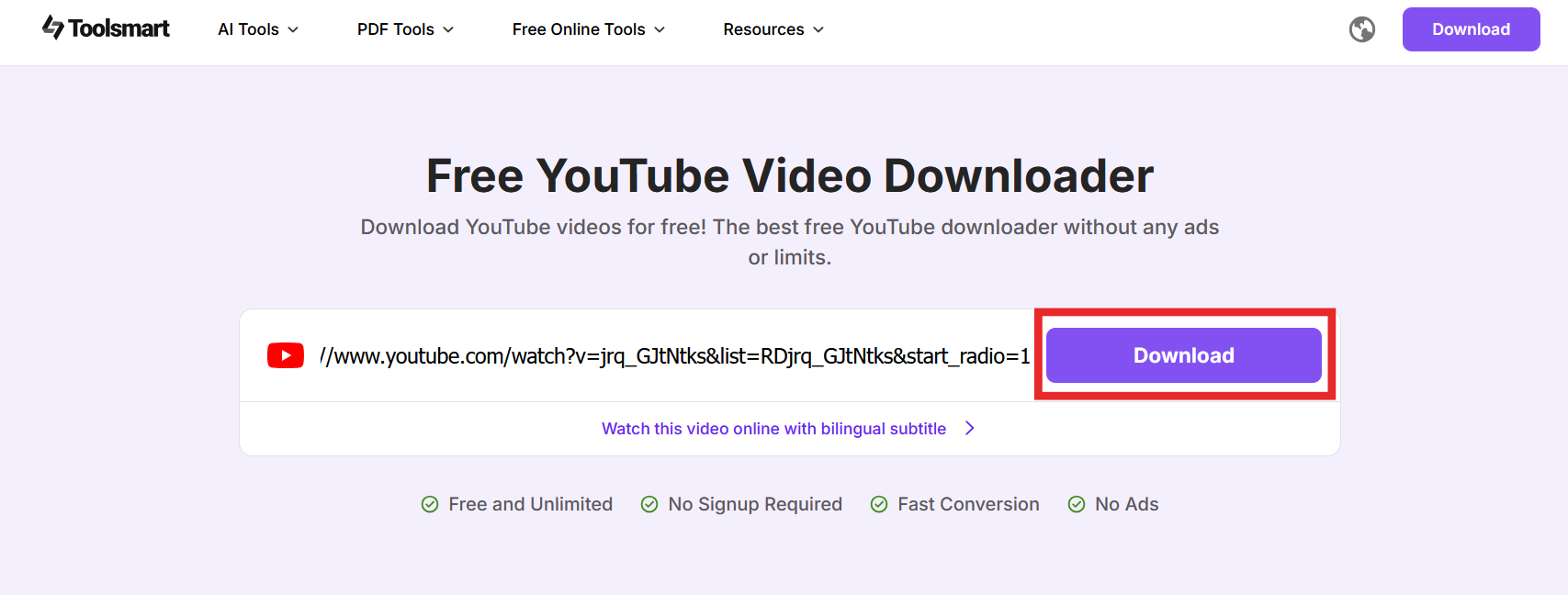
Step 1: Open YouTube Video Downloader.
Open YouTube Video Downloader
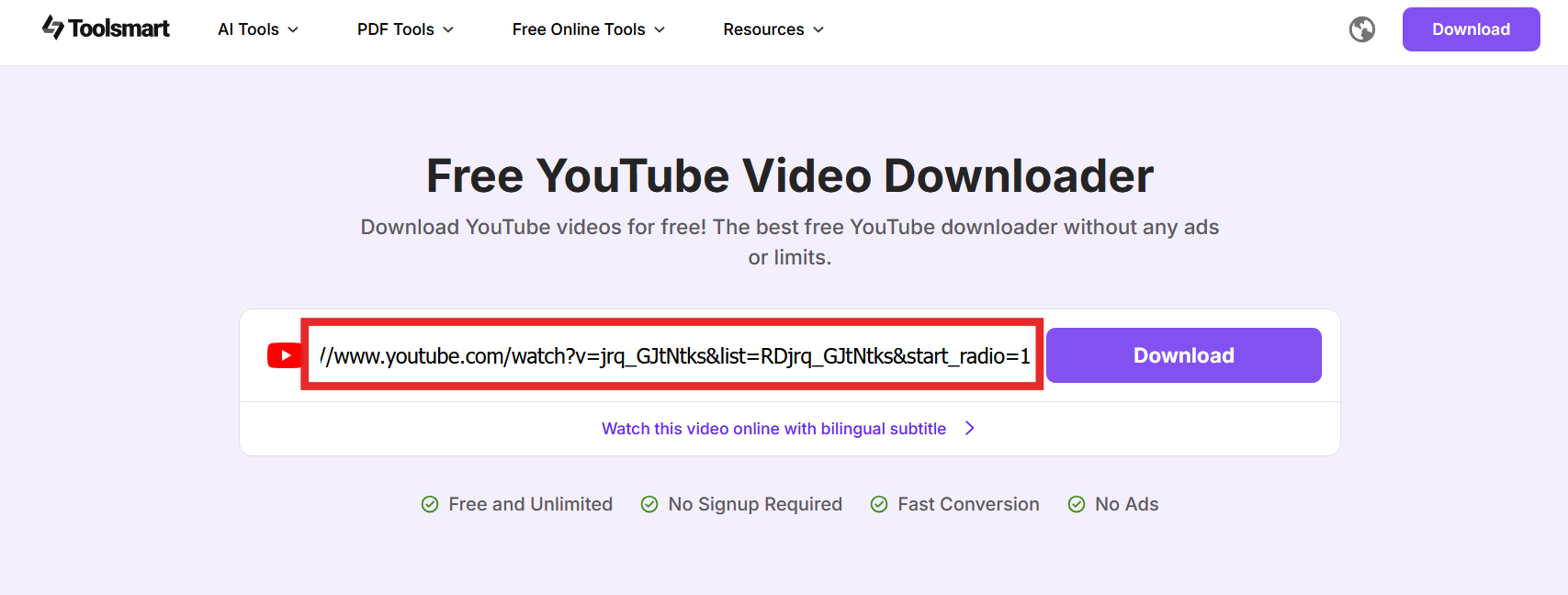
Step 2: Paste the URL of the YouTube video you
want to save.
Paste the URL of the YouTube video
Step 3: Click Download to download the video to
your device.
Click Download
Once you have the downloaded file, you can enhance it using a
preferred tool such as Wink or VMake. This is particularly helpful if
the video has low resolution, needs color adjustment, or requires AI
correction before posting to social media.
Tip:
Using a downloader first ensures you have the highest possible source
quality to begin enhancement. This is often the most overlooked step
when people try to enhance video quality for free.
FAQs
Q1: Are these video enhancers really free?
Yes, most tools provide either a free plan or a free trial. Some
offer limited usage or export options, but they are suitable for
enhancing video quality without paying for professional software.
Q2: Can I enhance videos on my phone?
Yes. Many platforms provide mobile-friendly versions or apps. You can
use a free video enhancer app or use browser-based tools that run
directly on your device.
Q3: What is the best video enhancer for YouTube
content?
Wink and VMake are strong choices because they offer AI upscaling,
support common formats, and provide settings optimized for social media
platforms.
Q4: Can I use YouTube Video Downloader for other
platforms?
It is designed for YouTube only. If you want downloads from other
platforms, consider specific tools for that service.
Summary
Free video enhancers make it simple to improve clarity, color, and
resolution without expensive software or advanced editing experience.
Whether you want a fast, one-click online solution or a professional
AI-based workflow, there are multiple options available for enhancing
video quality.
Choose a tool based on your needs: advanced AI enhancement,
convenience, social media editing, or support for 4K processing. And if
you want to download videos for enhancement, YouTube
Video Downloader is the most straightforward and accessible tool
for getting started.
Office software expert with 15+ years of experience since 2009. I specialize in tech tutorials, productivity tools, and digital solutions for everyday users. Passionate about making technology simple and accessible for everyone.

'%3e%3cpath%20fill-rule='evenodd'%20clip-rule='evenodd'%20d='M19%208.5C24.799%208.5%2029.5%2013.201%2029.5%2019C29.5%2024.6782%2024.9928%2029.3036%2019.361%2029.4939L19%2029.5C18.8794%2029.5%2018.7592%2029.498%2018.6396%2029.4939L18.2811%2029.4758C12.8174%2029.1063%208.5%2024.5574%208.5%2019C8.5%2013.201%2013.201%208.5%2019%208.5ZM22.3063%2010.6267L22.2342%2010.6539C21.3423%2011.0061%2020.5541%2011.6368%2020.5606%2012.4987C20.5631%2012.8302%2020.869%2014.8871%2020.2141%2014.8486C19.5589%2014.8102%2019.413%2013.8753%2018.7116%2013.616C17.5944%2013.2026%2016.9819%2014.3401%2017.0939%2015.3106C17.1695%2015.9655%2018.9289%2018.3871%2017.9028%2019C17.292%2019.3651%2015.7279%2017.5692%2015.1007%2017.1842C14.4805%2016.8034%2013.2758%2017.3333%2012.4974%2016.7029C11.9874%2016.2899%2012.3881%2014.4098%2012.2786%2013.8372C12.2271%2013.5698%2012.1155%2013.3689%2011.9794%2013.2166L12.0402%2013.2934C10.7653%2014.8464%2010%2016.8339%2010%2019C10%2023.8465%2013.8307%2027.7982%2018.6295%2027.9925L18.6769%2027.9747C18.8597%2027.8677%2019.0394%2027.7557%2019.216%2027.6387C19.4137%2027.4534%2019.5436%2027.2072%2019.5849%2026.9394C19.8806%2025.1222%2018.3616%2025.4302%2017.9367%2024.5622C17.5489%2023.7695%2018.5712%2023.7684%2018.5524%2021.7923C18.4607%2021.1774%2018.5279%2020.547%2018.7211%2020.0315C19.1834%2018.7987%2020.7077%2017.2643%2022.5889%2018.0081C23.5567%2018.3906%2023.1524%2019.9831%2023.4737%2020.3394C24.251%2021.2018%2025.3228%2020.6863%2026.2856%2021.2253C26.7816%2021.5032%2026.9797%2022.41%2027.056%2023.2248L27.038%2023.0528C27.6534%2021.8348%2028%2020.4579%2028%2019C28%2015.1968%2025.6409%2011.9445%2022.3063%2010.6267Z'%20fill='%23757575'/%3e%3ccircle%20cx='19'%20cy='19'%20r='10.125'%20stroke='%23757575'%20stroke-width='2.25'/%3e%3c/g%3e%3cdefs%3e%3cclipPath%20id='clip0_1827_14613'%3e%3crect%20width='24'%20height='24'%20fill='white'%20transform='translate(7%207)'/%3e%3c/clipPath%3e%3c/defs%3e%3c/svg%3e)