
'%3e%3cpath%20fill-rule='evenodd'%20clip-rule='evenodd'%20d='M19%208.5C24.799%208.5%2029.5%2013.201%2029.5%2019C29.5%2024.6782%2024.9928%2029.3036%2019.361%2029.4939L19%2029.5C18.8794%2029.5%2018.7592%2029.498%2018.6396%2029.4939L18.2811%2029.4758C12.8174%2029.1063%208.5%2024.5574%208.5%2019C8.5%2013.201%2013.201%208.5%2019%208.5ZM22.3063%2010.6267L22.2342%2010.6539C21.3423%2011.0061%2020.5541%2011.6368%2020.5606%2012.4987C20.5631%2012.8302%2020.869%2014.8871%2020.2141%2014.8486C19.5589%2014.8102%2019.413%2013.8753%2018.7116%2013.616C17.5944%2013.2026%2016.9819%2014.3401%2017.0939%2015.3106C17.1695%2015.9655%2018.9289%2018.3871%2017.9028%2019C17.292%2019.3651%2015.7279%2017.5692%2015.1007%2017.1842C14.4805%2016.8034%2013.2758%2017.3333%2012.4974%2016.7029C11.9874%2016.2899%2012.3881%2014.4098%2012.2786%2013.8372C12.2271%2013.5698%2012.1155%2013.3689%2011.9794%2013.2166L12.0402%2013.2934C10.7653%2014.8464%2010%2016.8339%2010%2019C10%2023.8465%2013.8307%2027.7982%2018.6295%2027.9925L18.6769%2027.9747C18.8597%2027.8677%2019.0394%2027.7557%2019.216%2027.6387C19.4137%2027.4534%2019.5436%2027.2072%2019.5849%2026.9394C19.8806%2025.1222%2018.3616%2025.4302%2017.9367%2024.5622C17.5489%2023.7695%2018.5712%2023.7684%2018.5524%2021.7923C18.4607%2021.1774%2018.5279%2020.547%2018.7211%2020.0315C19.1834%2018.7987%2020.7077%2017.2643%2022.5889%2018.0081C23.5567%2018.3906%2023.1524%2019.9831%2023.4737%2020.3394C24.251%2021.2018%2025.3228%2020.6863%2026.2856%2021.2253C26.7816%2021.5032%2026.9797%2022.41%2027.056%2023.2248L27.038%2023.0528C27.6534%2021.8348%2028%2020.4579%2028%2019C28%2015.1968%2025.6409%2011.9445%2022.3063%2010.6267Z'%20fill='%23757575'/%3e%3ccircle%20cx='19'%20cy='19'%20r='10.125'%20stroke='%23757575'%20stroke-width='2.25'/%3e%3c/g%3e%3cdefs%3e%3cclipPath%20id='clip0_1827_14613'%3e%3crect%20width='24'%20height='24'%20fill='white'%20transform='translate(7%207)'/%3e%3c/clipPath%3e%3c/defs%3e%3c/svg%3e)


Color replacement tools are extremely important, especially if you’re a graphic designer or a branding expert. But finding good color replacement tools that don't overcomplicate things and don't break the bank are difficult to find nowadays. Most tools lead to unnatural tones that turn a small task into an hour-long struggle. This guide walks you through the best picks, from beginner-friendly to pro-level, so that you can experiment creatively with accuracy.
Top 5 Color Replacement Tools
Picking one online color replacement tool from the many options out there can be tough when you don't know what you’re looking for or where to start. You might need a heavy-duty program for high-end print work, or simply a browser-based utility for a quick social media update without any installation. The tools below cover free, paid, AI-powered, and professional-grade tools, so you can learn how to replace colorin photo.
1. Adobe Photoshop Color Replacement Tool
Photoshop color replacement tool is known as the industry titan, but it can also be intimidating. It can be too technical for beginners. However, the real power lies in the fact that, unlike basic tools that just slap a flat color over an object, Photoshop’s specialized brush allows the preservation of original texture and lighting details by adjusting the tolerance and sampling modes. It makes it seem like you never actually made a change to the colors.
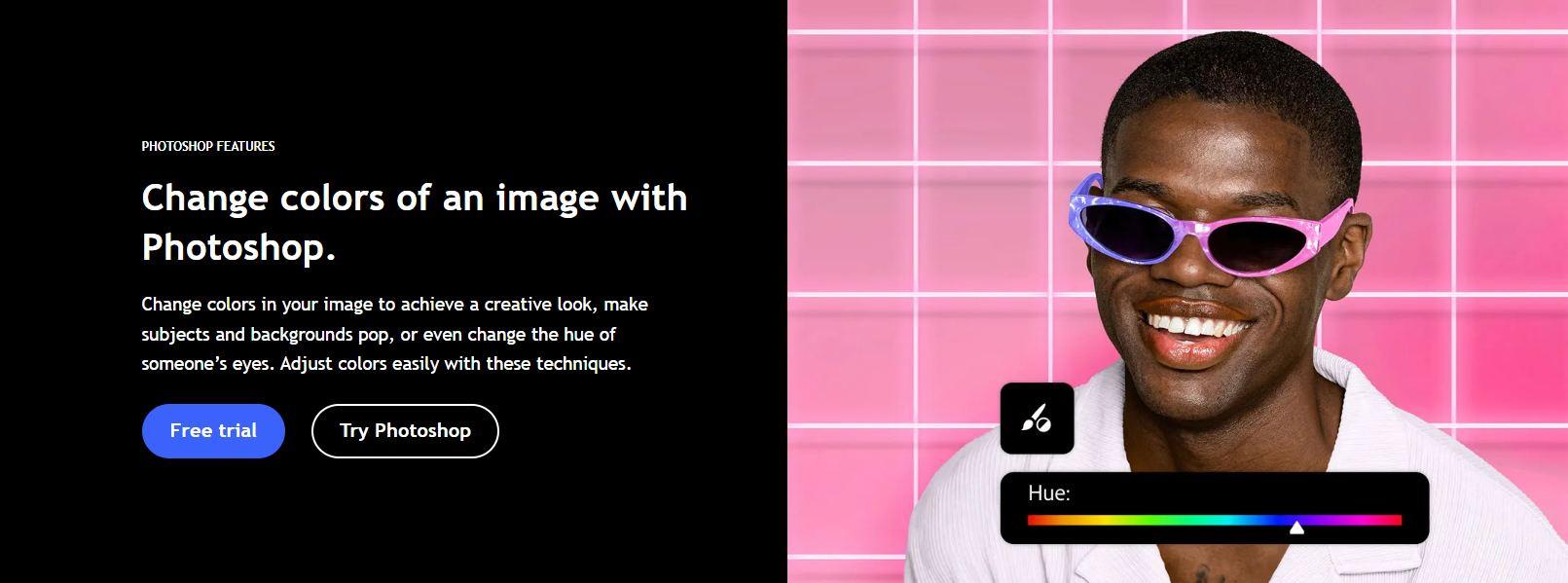
The Fuzziness slider is particularly important here, allowing you to soften the edges of the selection so the new color blends naturally into shadows rather than creating harsh, unnatural lines. It effectively separates the color information from the luminance, meaning a red shirt can be turned blue without losing the folds and creases that define its shape.
Features:
Precise Color Selection: Targets specific hues with exact RGB values to ensure only the intended area changes.
Advanced Masking: Isolates complex objects like hair or transparent glass to create a seamless, professional finish.
HSL Control: Adjusts hue, saturation, and luminance independently to match the lighting conditions perfectly.
Professional-Grade Editing: Provides non-destructive layers so the original image remains safe during experimentation.
Best for:
Professional designers and photographers requiring detailed control.
2. LunaPic Color Replacement Tool
Most people ignore LunaPicbecause its interface looks dated, but beneath that old-school menu is a surprisingly robust engine that handles transparency and color swapping better than many modern, sleek apps. Its Magic Wand handles a range of colors without manually tracing them.
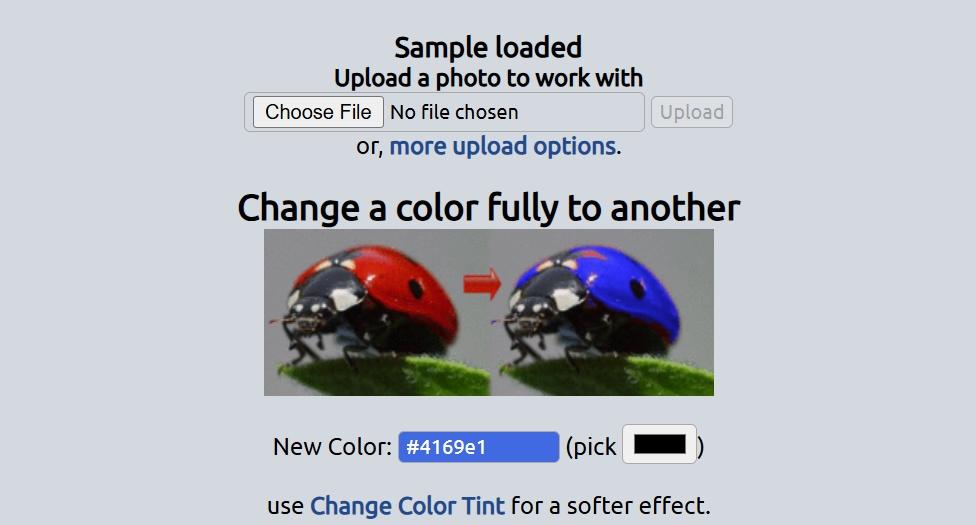
The tool also includes a Threshold adjustment, which helps distinguish between similar shades, which are vital when trying to replace a specific logo color without affecting the surrounding background. It serves as an excellent browser companion for those on a borrowed computer or anyone needing a ten-second fix without navigating a paywall or sign-up screen.
Features:
Free Online Editor: Runs directly in the browser to save disk space and eliminate installation time.
Easy Color Picker: Selects the target shade instantly by clicking on the image, simplifying the workflow.
Instant Preview: Shows changes in real-time so adjustments can be made before saving the final file.
No Installation Required: Accessibility from any device with an internet connection allows for on-the-go editing.
Best for:
Quick and simple color changes without downloading software
3. Fiveko Color Replacement Tool
Sometimes layers, filters, or AI are unnecessary when you need to finish your work quickly. Fivekois built for exactly that purpose. Its Shadow Handling mode prevents the new color from looking flat, which is a common issue with other free tools. The interface allows for specific RGB channel targeting, which is useful if you’re a professional who knows the exact color values you want to manipulate.
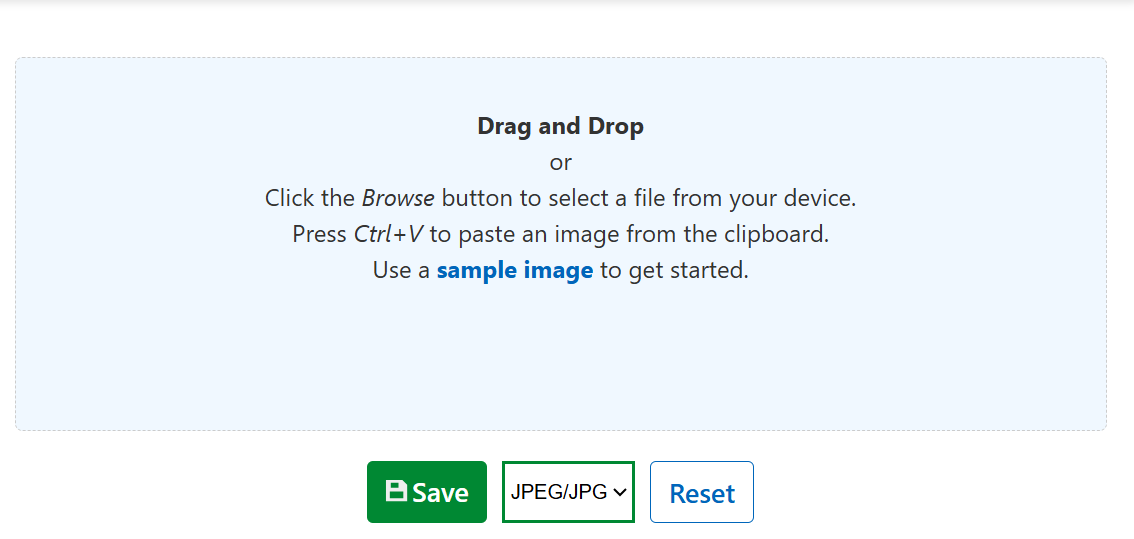
While it lacks the polish of a paid app, it is incredibly lightweight. For those working on an older machine or a slow internet connection, this tool loads instantly and gets the job done without dragging down system resources or adding watermarks.
Features:
Online and Free: Offers immediate access to color tools without hidden fees or subscription walls.
Tolerance Adjustment: Controls how strictly the tool selects similar shades to prevent unwanted bleeding.
Real-Time Preview: Displays the result immediately to ensure the new color looks natural before downloading.
User-Friendly Interface: Removes complex menus to help beginners achieve results in seconds.
Best for:
Users looking for a balance between simplicity and functionality.
4. Pixlr Color Replace Tool
Pixlrmimics the layout of professional desktop software with layers, history panels, and blending modes, but runs entirely in a browser. It has proven particularly useful for Chromebook users or students who need to submit high-quality work without access to a powerful PC.
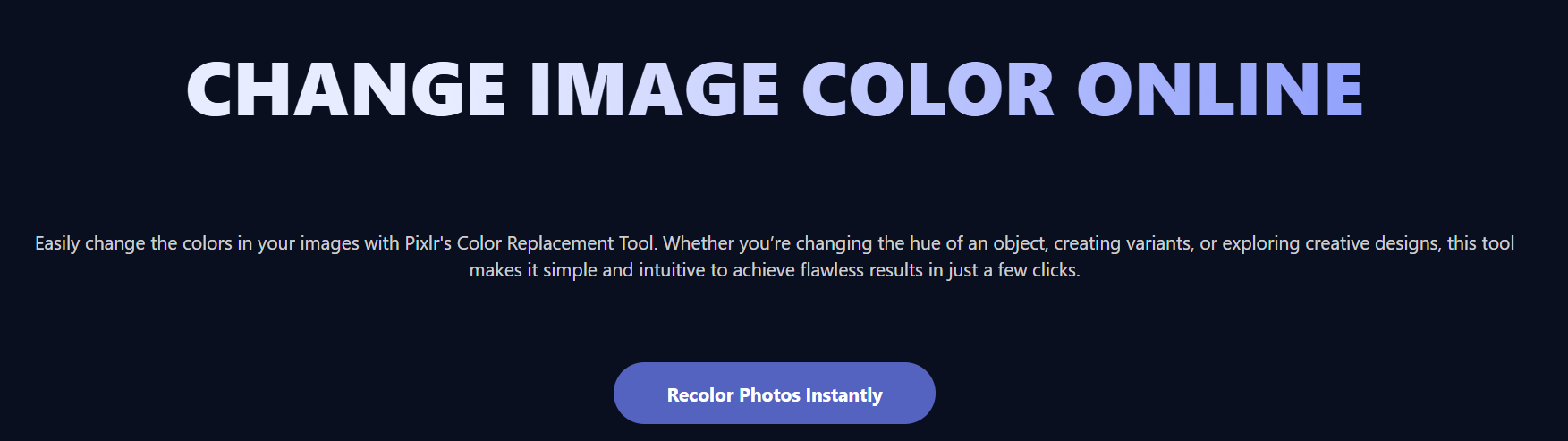
The Color Replace brush in Pixlr allows for localized edits instead of changing a color globally across the whole image. You can paint over specific areas, offering a level of manual control rarely seen in free browser tools.
Features:
Browser-Based Platform: Delivers powerful editing capabilities without requiring high-end hardware.
Layer Support: Organizes edits on separate levels to allow complex composites and non-destructive changes.
Intuitive Sliders: Adjusts hue, saturation, and lightness easily to fine-tune the final look.
Cross-Platform Compatibility: Works smoothly on both desktop and mobile devices for flexible editing.
Best for:
Users who want a Photoshop-like experience without the cost or complexity.
5. Fotor Color Changer
Fotortakes a different approach by letting Artificial Intelligence do the work. Instead of manually brushing over pixels, the AI automatically recognizes objects and background zones. This is a game-changer for e-commerce store owners who need to batch-process fifty product photos to show different color variants.
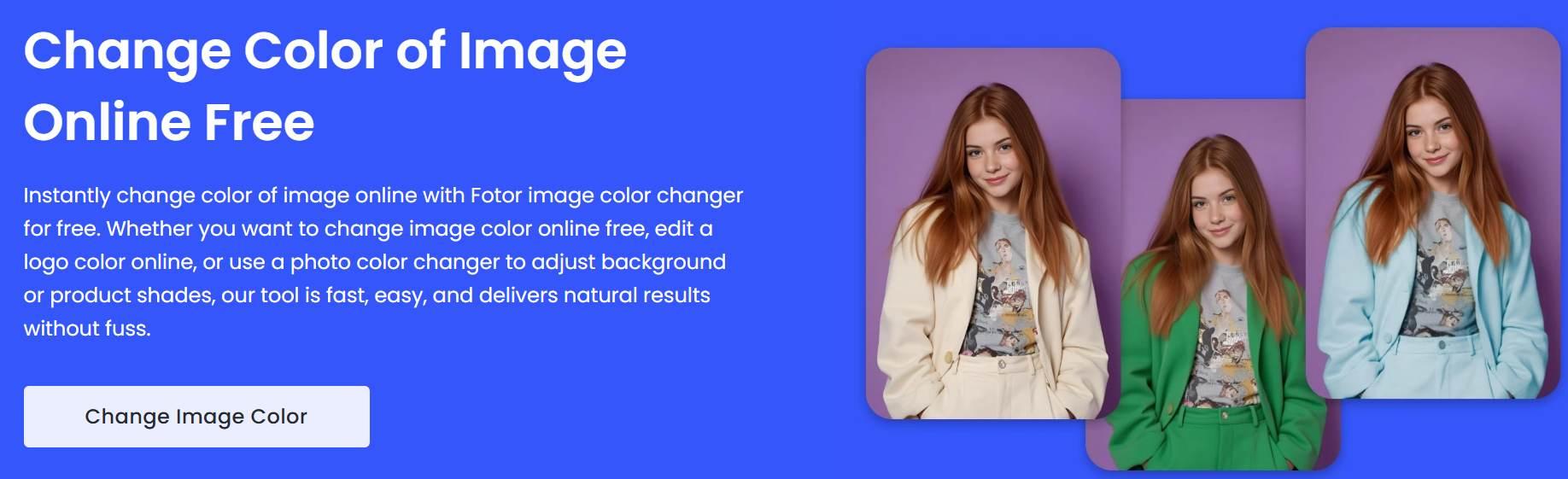
Beyond simple swapping, Fotor offers Color Splash effects, allowing one color to pop while the rest is desaturated. While the credit system for high-end AI features can be a bit restrictive for those on a tight budget, the time saved on manual masking is often worth the investment for high-volume tasks.
Features:
AI-Powered Replacement: Detects and selects objects automatically to save time on manual masking.
One-Click Background Change: Swaps the entire backdrop instantly to create consistent product images.
Selective Editing Tools: Focuses on specific areas to apply color changes only where needed.
Batch Processing: Edits multiple images at once to streamline workflows for e-commerce inventories.
Best for:
E-commerce product photo editing and quick visual enhancements.
Top 5 Color Replacement Tools: Comparative Analysis
With so many features overlapping between these platforms, making a final decision often comes down to budget and specific use cases. It is easy to get lost in technical details, so seeing the options side-by-side helps clarify. The following analysis breaks down the key differences, offering a clear view of which tool provides the best value for professionals versus casual users.
| Tool | Key Features | Pricing | Best For |
|---|---|---|---|
| Adobe Photoshop | Precise selection, advanced masking, professional-grade editing | Paid | Professionals needing detailed control |
| LunaPic | Easy color picker, instant preview, no installation | Free | Quick, simple changes |
| Fiveko | Tolerance adjustment, real-time preview, user-friendly | Free | Balancing simplicity and function |
| Pixlr | Layer support, intuitive sliders, desktop/mobile friendly | Freemium | Photoshop-like experience without cost |
| Fotor | AI-powered, one-click background change, batch processing | Freemium | E-commerce and quick enhancements |
Choosing the right tool depends entirely on your specific goals. If you demand pixel-perfect control and advanced masking, Adobe Photoshop remains the unrivaled choice for professionals. However, if you want a zero-cost solution without the hassle of installation, LunaPic stands out as the best free online option. For a middle ground, Fiveko offers a great balance of features without overwhelming you, while Pixlr delivers a sophisticated, Photoshop-like experience directly in your browser. Finally, if you need speedand modern automation for your projects, Fotor Color Changer is the premier choice for AI-powered changes.
Common Mistakes & How to Avoid Them
Even with the most advanced algorithms and AI-powered software, errors always remain. Achieving a near-perfect color swap requires more than simply selecting an area and shifting a slider. You need to have a fundamental understanding of light, texture, and blending.
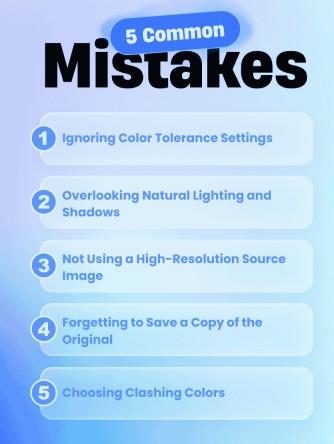
Many editors, particularly beginners, often overlook subtle environmental cues in an image, leading to edits that feel artificial. If you can understand these issues, the quality of the final output can be significantly elevated, transforming a clumsy edit into a professional-grade visual.
Ignoring Color Tolerance Settings
One of the most frequent errors is ignoring the tolerance settings, which often causes the new color to bleed into the background or miss edges entirely. If you leave this setting on by default, the software might grab pixels you didn't intend to change, or conversely, leave behind speckles of the old color. You need to adjust the range manually to clearly define the boundary, ensuring the tool differentiates between the target shade and similar surrounding colors for a clean selection.
Overlooking Natural Lighting and Shadows
A color swap often looks fake because the natural lighting and shadows are ignored, making the object appear like a flat sticker placed on top of the photo. Real objects have depth defined by light and darkareas. Simply painting over them erases that dimension. To prevent this flat look, you should utilize blending modes like Multiply or Color that allow the new hue to interact with the original luminance, preserving the texture and realistic shadows of the scene.
Not Using a High-Resolution Source Image
Attempting to edit a low-quality image is often a recipe for disaster, as compression artifacts become exaggerated during color manipulation. If the source file is pixelated, the selection tools cannot find a crisp edge, leading to messy lines that ruin the final edit. You should always start with the highest resolution possible or use an enhancer, as a clean base allows for precise masking that low-res files simply cannot support.
Forgetting to Save a Copy of the Original
Destructive editing is a classic rookie mistake where the original file is permanently overwritten. Once you save over the master file, that original pixel data is lost, leaving you stranded if the new color scheme doesn't work out later. It is crucial to get into the habit of working on a duplicate layer, saving your file as soon as you make a change, giving you the freedom to experiment without the risk of ruining the original image forever.
Choosing Clashing Colors
Sometimes the technical edit is perfect, but the result still feels wrong because the chosen color clashes with the rest of the image. A neon hue in a soft, vintage setting will always look artificial to the human eye, breaking the viewer's immersion. You should rely on basic color theory or palette generators to find complementary shades, ensuring the new color feels like it naturally belongs in the environment rather than being forced in.
Enhance Your Image After Color Replacement with Image Enhancer
Attempting to replace colors on a grainy, low-quality image often leads to a waste of time. If the software cannot distinguish the edges of an object because of pixelation, the mask will look terrible and unprofessional. You must make sure that your initial photo is of high quality so that any software you use doesn't make mistakes. This is where Toolsmart Image Enhancer becomes a critical part of the workflow.
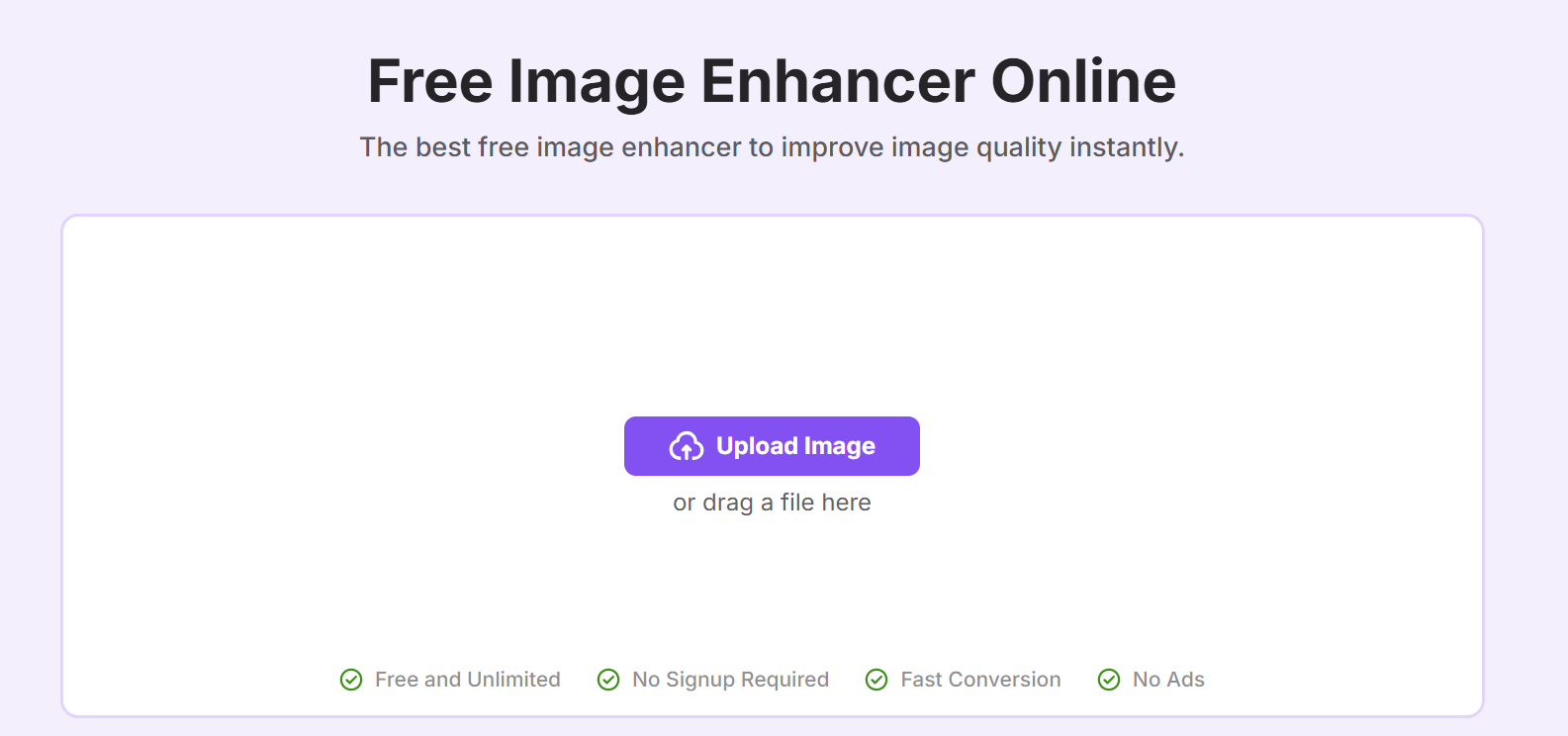
Toolsmart Image Enhancer is a free, AI-poweredtool that works across any device without downloads or watermarks. With a single click, it can instantly improve clarity, adjust tones, and sharpen details in your photos. Its mobile-friendly interface makes it easy to process images on the go, and batch processing allows you to enhance multiple photos at once.
Features:
Zero Cost: It is 100% free and leaves no watermarks, ensuring the final image looks professional.
Frictionless Access: No sign-up or download is required, allowing for immediate editing.
One-Click AI Enhancement: Automatically upscales and clarifies the image without needing manual adjustments.
Universal Support: Handles all common image formats used in design and social media workflows.
How to Use Image Enhancer Before Color Editing:
Using Toolsmart’s Image Enhancer is incredibly straightforward, even if you’re not a tech expert. I always appreciate tools that get straight to the point without unnecessary complications, and this one fits the bill perfectly. Here’s how you can quickly enhance your images in just a few simple steps:
Step 1: Head on over to the Toolsmart Free Image Enhancer website.
Step 2: Click on the “Upload image”option or drag your image directly onto the screen

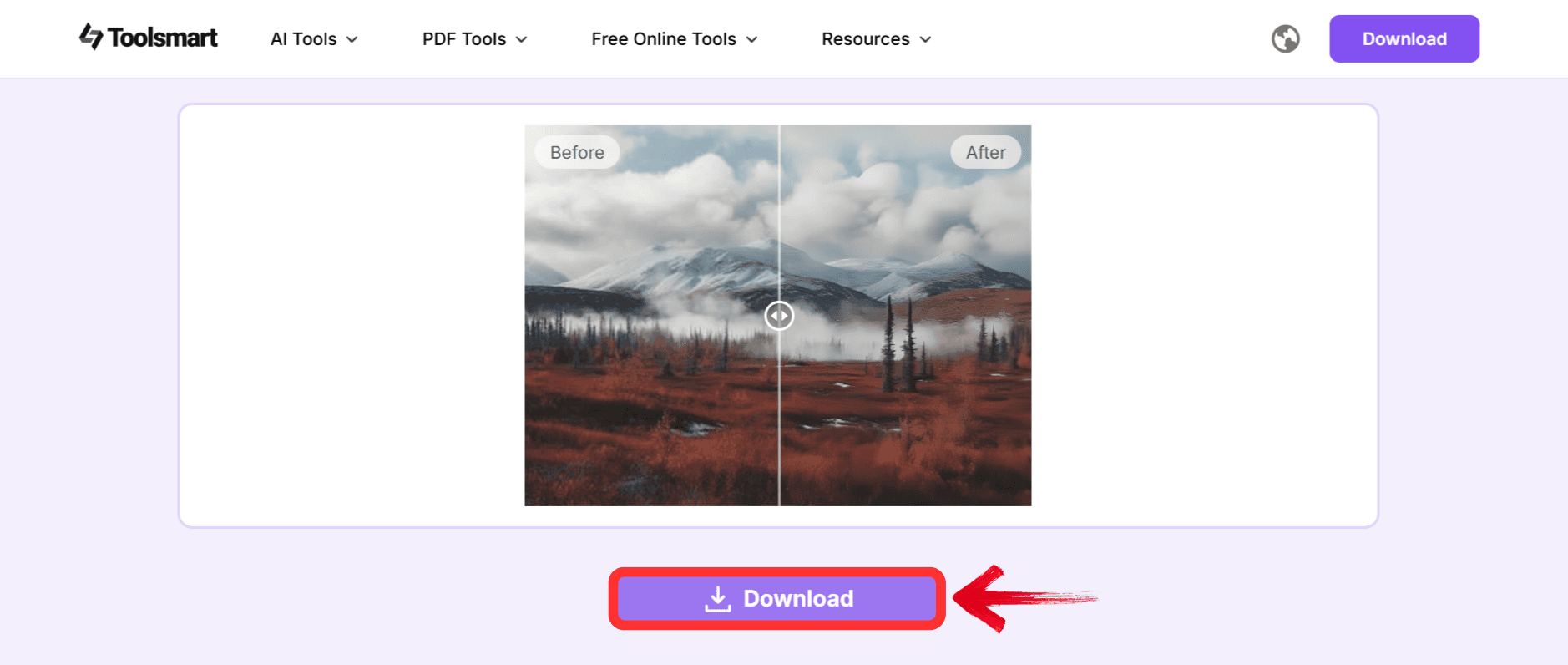
Step 3: Once you’re done, click“Download” to save it to your device.
FAQs
Q1: Are there free color replacement tools that don’t require a download?
Yes, tools like LunaPic and Fiveko run directly in your web browser, saving you from installing heavy software.
Q2: Can I use color replacement tools on mobile?
While some tools are mobile-friendly, I suggest using a desktop browser for the most precise control over small details.
Q3: Is Image Enhancer only for photos before color replacement?
No, you can use it to improve any image for social media, printing, or general archival purposes.
Q4: What file formats are supported by these tools?
Most online editors handle JPG, PNG, and GIF files. Professional software like Photoshop supports a much wider range of formats, including RAW.
Preparing Your Image for Optimal Color Replacement
Color replacement tools allow you to make precise or broad changes to your images, which is vital for design and branding. Your options range from powerful software like Photoshop to accessible online editors like LunaPic. For the best possible results, I recommend starting with a high-quality file processed by Toolsmart Image Enhancer.


