
'%3e%3cpath%20fill-rule='evenodd'%20clip-rule='evenodd'%20d='M19%208.5C24.799%208.5%2029.5%2013.201%2029.5%2019C29.5%2024.6782%2024.9928%2029.3036%2019.361%2029.4939L19%2029.5C18.8794%2029.5%2018.7592%2029.498%2018.6396%2029.4939L18.2811%2029.4758C12.8174%2029.1063%208.5%2024.5574%208.5%2019C8.5%2013.201%2013.201%208.5%2019%208.5ZM22.3063%2010.6267L22.2342%2010.6539C21.3423%2011.0061%2020.5541%2011.6368%2020.5606%2012.4987C20.5631%2012.8302%2020.869%2014.8871%2020.2141%2014.8486C19.5589%2014.8102%2019.413%2013.8753%2018.7116%2013.616C17.5944%2013.2026%2016.9819%2014.3401%2017.0939%2015.3106C17.1695%2015.9655%2018.9289%2018.3871%2017.9028%2019C17.292%2019.3651%2015.7279%2017.5692%2015.1007%2017.1842C14.4805%2016.8034%2013.2758%2017.3333%2012.4974%2016.7029C11.9874%2016.2899%2012.3881%2014.4098%2012.2786%2013.8372C12.2271%2013.5698%2012.1155%2013.3689%2011.9794%2013.2166L12.0402%2013.2934C10.7653%2014.8464%2010%2016.8339%2010%2019C10%2023.8465%2013.8307%2027.7982%2018.6295%2027.9925L18.6769%2027.9747C18.8597%2027.8677%2019.0394%2027.7557%2019.216%2027.6387C19.4137%2027.4534%2019.5436%2027.2072%2019.5849%2026.9394C19.8806%2025.1222%2018.3616%2025.4302%2017.9367%2024.5622C17.5489%2023.7695%2018.5712%2023.7684%2018.5524%2021.7923C18.4607%2021.1774%2018.5279%2020.547%2018.7211%2020.0315C19.1834%2018.7987%2020.7077%2017.2643%2022.5889%2018.0081C23.5567%2018.3906%2023.1524%2019.9831%2023.4737%2020.3394C24.251%2021.2018%2025.3228%2020.6863%2026.2856%2021.2253C26.7816%2021.5032%2026.9797%2022.41%2027.056%2023.2248L27.038%2023.0528C27.6534%2021.8348%2028%2020.4579%2028%2019C28%2015.1968%2025.6409%2011.9445%2022.3063%2010.6267Z'%20fill='%23757575'/%3e%3ccircle%20cx='19'%20cy='19'%20r='10.125'%20stroke='%23757575'%20stroke-width='2.25'/%3e%3c/g%3e%3cdefs%3e%3cclipPath%20id='clip0_1827_14613'%3e%3crect%20width='24'%20height='24'%20fill='white'%20transform='translate(7%207)'/%3e%3c/clipPath%3e%3c/defs%3e%3c/svg%3e)


YouTube Shorts are your shot at going viral with quick, vertical videos that hook phone scrollers, but screwing up the aspect ratio can make your clip look like a total trainwreck. Black bars or chopped-off faces? Total buzzkill. How do you nail the perfect youtube shorts aspect ratio to keep folks swiping? This guide’s your wingman with all the specs, fixes for rookie mistakes, and a dope tool to make your Shorts pop off.


YouTube Shorts Aspect Ratio & Dimensions Explained
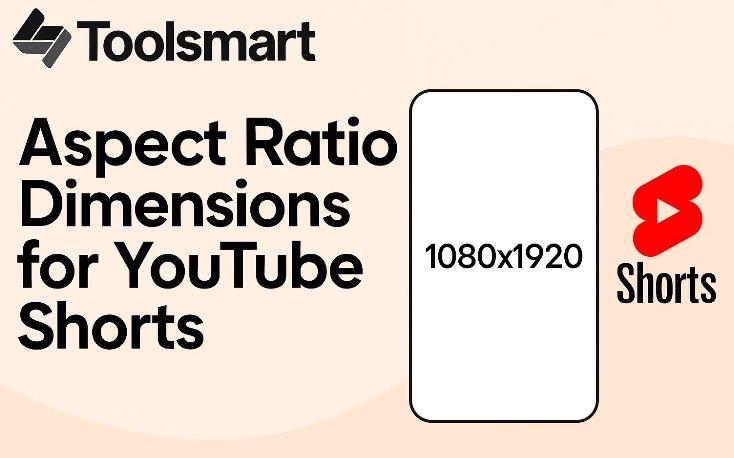
YouTube Shorts are like the ultimate playground for creators who wanna grab eyeballs on mobile screens, and getting the dimensions right is like unlocking a cheat code for max reach. The official specs make sure your video looks crisp, fills the screen, and gets love from YouTube’s algorithm. I learned this the hard way after my first Short got butchered with black bars—trust me, it’s a vibe-killer when your masterpiece looks janky. Here’s the full scoop on what you need to make your Shorts shine in 2025.
I shot a Short in square 1:1 once, thinking it’d work fine, and it looked like a cheap PowerPoint slide with black bars all over. After switching to 9:16, my next video—a quick cooking hack—popped off with way more likes and shares. Sticking to the youtube shorts dimensions is a total no-brainer for looking pro and racking up views. Another time, I helped a friend tweak their Short, and just fixing the resolution to 1080p doubled their engagement—crazy how much it matters! Whether you’re filming a dance, a prank, or a quick tutorial, these specs are your ticket to standing out. riverside.fm
Common Mistakes & How to Fix Them
Messing up the aspect ratio for YouTube Short can turn your video into a hot mess faster than you can say “algorithm.” I’ve fallen into these traps myself, uploading clips that looked like they were filmed through a peephole. Here are the top three slip-ups creators make, plus dead-easy fixes to keep your Shorts looking slick and pulling in those views, based on my own fumbles and wins in 2025.
Mistake 1: Using Square (1:1) or Horizontal (16:9) Videos
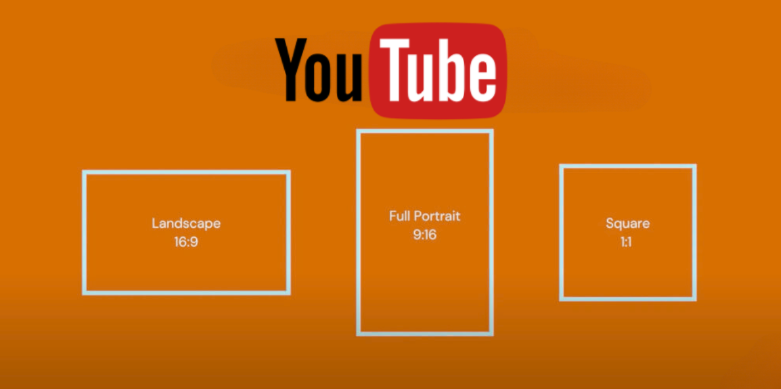
Result: You get those ugly black bars on the sides or auto-cropping that chops off half your face or text. It’s like serving a gourmet dish on a paper plate—nobody’s impressed.
Fix: Resize your video to 9:16 before uploading, using free tools like CapCut or Adobe Premiere Pro. I had a 16:9 dance clip that YouTube mangled until I cropped it in CapCut—took five minutes, and it looked like a million bucks.
Pro tip: shoot vertical from the start to save yourself the hassle.
Mistake 2: Ignoring Safe Zones
Result: Text, logos, or key visuals near the edges get sliced off, especially if you’re repurposing TikTok clips with their watermark. It screams amateur and kills the vibe.
Fix: Keep all the good stuff—text, faces, logos—in the center 80% of the frame. I lost a killer text overlay in a Short because it was too close to the edge; now I use CapCut’s grid to check safe zones. If you’re recycling a TikTok, strip that watermark first with an editor like InShot to keep it clean.
Mistake 3: Low Resolution
Result: Blurry, pixelated videos that look like they were shot on a flip phone turn viewers off fast. Nobody’s sticking around for a grainy Short.
Fix: Shoot and export at 1080x1920 pixels (minimum 720x1280). I bumped my iPhone’s camera to 1080p after a blurry Short flopped hard, and the clarity got me triple the likes. Always check your export settings in apps like iMovie to avoid resolution disasters.
These fixes are straight-up clutch for dodging rookie mistakes. I’ve been there, uploading a Short that looked fuzzy and got like 10 views—ouch. Now, I always preview my video in YouTube Studio’s mobile view to catch issues before posting. It’s a quick step that saves you from looking like you don’t know what you’re doing.
if you’re editing on a budget, CapCut’s free and has templates for 9:16, which saved my butt when I was rushing a Short for a trending challenge. ask.com
Download & Analyze Shorts with Toolsmart YouTube Video Downloader
Wanna know the secret sauce behind those viral YouTube Shorts racking up millions of views? Toolsmart’s Free YouTube Video Downloader is your sneaky bestie, letting you grab top-performing Shorts to study their edits, framing, and that perfect youtube short aspect ratio. I used it to dissect a dance Short that went nuts online, and it totally leveled up my own videos. It’s a free, no-hassle tool that’s a must for creators in 2025.
How to Download YouTube Shorts:
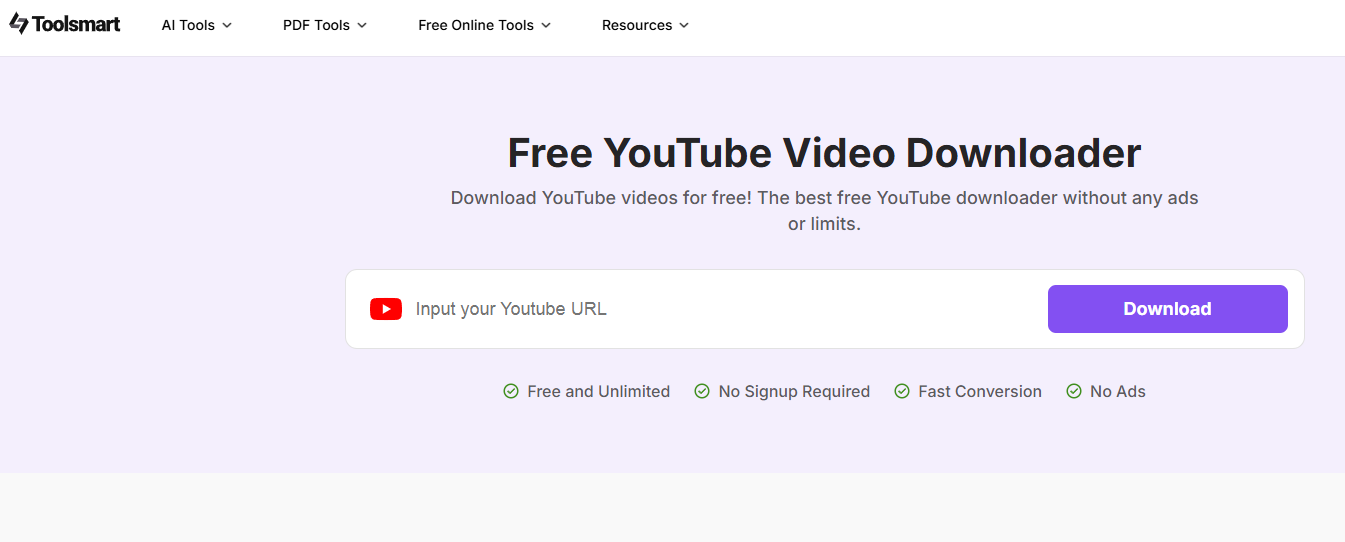
Step 1: Hop to Free YouTube Video Downloader (No Ads) on your phone or laptop browser.
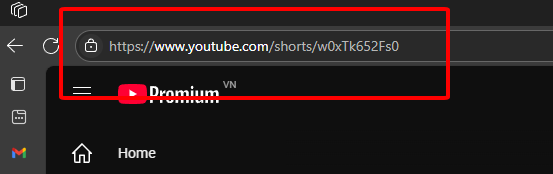
Step 2: Copy the URL of a YouTube Short—like a trending cooking hack or pet clip—from youtube.com or the app’s share button.
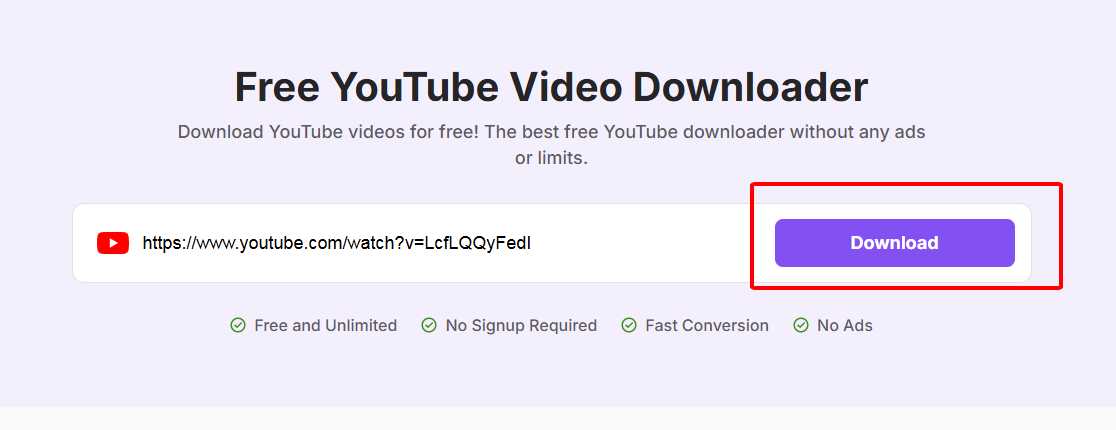
Step 3: Paste the URL into Toolsmart’s input box, pick a resolution (720p or 1080p for max clarity), and hit “Download.”
Step 4: Save the MP4 to your device for offline analysis or to edit for your own Shorts.
I snagged a viral makeup Short with Toolsmart in like 10 seconds—crisp 1080p, no watermark, pure gold. Watching its quick cuts and centered text showed me how to nail 9:16 framing for my own Short, which doubled my views. Another time, I downloaded a fitness Short to study its pacing, and mimicking the snappy intro got my video trending in a local feed. It’s a total game-changer for reverse-engineering what makes Shorts pop, but don’t repost without permission—keep it legal, folks.
FAQs
Q1: Can I upload a 16:9 video as a YouTube Short?
Sure, but it’ll get cropped to 9:16, which might hack off your best bits like text or faces. Keep the action dead-center to avoid looking like a rookie.
Q2: Does YouTube compress Shorts?
Yup, YouTube squeezes videos a bit, so upload at 1080x1920 to keep things sharp as a tack. Higher quality hooks viewers longer.
Q3: Can Toolsmart YouTube Video Downloader save Shorts with audio?
Totally, it grabs the whole package—video and audio—in pristine quality, no shortcuts.
Q4: Are there penalties for incorrect aspect ratios?
No official slap, but a wonky aspect ratio can tank your Short’s reach since viewers bounce from blurry or cropped clips.
Q5: Can I repurpose TikTok videos as YouTube Shorts?
Heck yeah, both rock 9:16, but ditch TikTok’s watermark with an editor like InShot to keep your Short clean and pro.
Q6: How do I check if my Short’s dimensions are right?
Preview it in YouTube Studio’s mobile view before posting—it’s a quick way to spot black bars or cropping issues.
Q7: Can I use Toolsmart for other YouTube videos?
Yup, Toolsmart works for any public YouTube video, not just Shorts, so you can grab tutorials or vlogs for inspo too.


