
'%3e%3cpath%20fill-rule='evenodd'%20clip-rule='evenodd'%20d='M19%208.5C24.799%208.5%2029.5%2013.201%2029.5%2019C29.5%2024.6782%2024.9928%2029.3036%2019.361%2029.4939L19%2029.5C18.8794%2029.5%2018.7592%2029.498%2018.6396%2029.4939L18.2811%2029.4758C12.8174%2029.1063%208.5%2024.5574%208.5%2019C8.5%2013.201%2013.201%208.5%2019%208.5ZM22.3063%2010.6267L22.2342%2010.6539C21.3423%2011.0061%2020.5541%2011.6368%2020.5606%2012.4987C20.5631%2012.8302%2020.869%2014.8871%2020.2141%2014.8486C19.5589%2014.8102%2019.413%2013.8753%2018.7116%2013.616C17.5944%2013.2026%2016.9819%2014.3401%2017.0939%2015.3106C17.1695%2015.9655%2018.9289%2018.3871%2017.9028%2019C17.292%2019.3651%2015.7279%2017.5692%2015.1007%2017.1842C14.4805%2016.8034%2013.2758%2017.3333%2012.4974%2016.7029C11.9874%2016.2899%2012.3881%2014.4098%2012.2786%2013.8372C12.2271%2013.5698%2012.1155%2013.3689%2011.9794%2013.2166L12.0402%2013.2934C10.7653%2014.8464%2010%2016.8339%2010%2019C10%2023.8465%2013.8307%2027.7982%2018.6295%2027.9925L18.6769%2027.9747C18.8597%2027.8677%2019.0394%2027.7557%2019.216%2027.6387C19.4137%2027.4534%2019.5436%2027.2072%2019.5849%2026.9394C19.8806%2025.1222%2018.3616%2025.4302%2017.9367%2024.5622C17.5489%2023.7695%2018.5712%2023.7684%2018.5524%2021.7923C18.4607%2021.1774%2018.5279%2020.547%2018.7211%2020.0315C19.1834%2018.7987%2020.7077%2017.2643%2022.5889%2018.0081C23.5567%2018.3906%2023.1524%2019.9831%2023.4737%2020.3394C24.251%2021.2018%2025.3228%2020.6863%2026.2856%2021.2253C26.7816%2021.5032%2026.9797%2022.41%2027.056%2023.2248L27.038%2023.0528C27.6534%2021.8348%2028%2020.4579%2028%2019C28%2015.1968%2025.6409%2011.9445%2022.3063%2010.6267Z'%20fill='%23757575'/%3e%3ccircle%20cx='19'%20cy='19'%20r='10.125'%20stroke='%23757575'%20stroke-width='2.25'/%3e%3c/g%3e%3cdefs%3e%3cclipPath%20id='clip0_1827_14613'%3e%3crect%20width='24'%20height='24'%20fill='white'%20transform='translate(7%207)'/%3e%3c/clipPath%3e%3c/defs%3e%3c/svg%3e)


Ever dug out an old video just to cringe at the pixelation? AI video upscaling fixes that with smart tech that sharpens and enlarges clips without the blur. But picking the right tool amid low-quality headaches and steep software costs can be tough. This piece spotlights top AI upscaler video options, compares them head-to-head, and shares prep tricks for killer results.
Top AI Video Upscale Tools
Folks hunting AI tools want ones that handle grainy old footage easily, weighing quality against cost and hassle.
Topaz Video Enhance AI
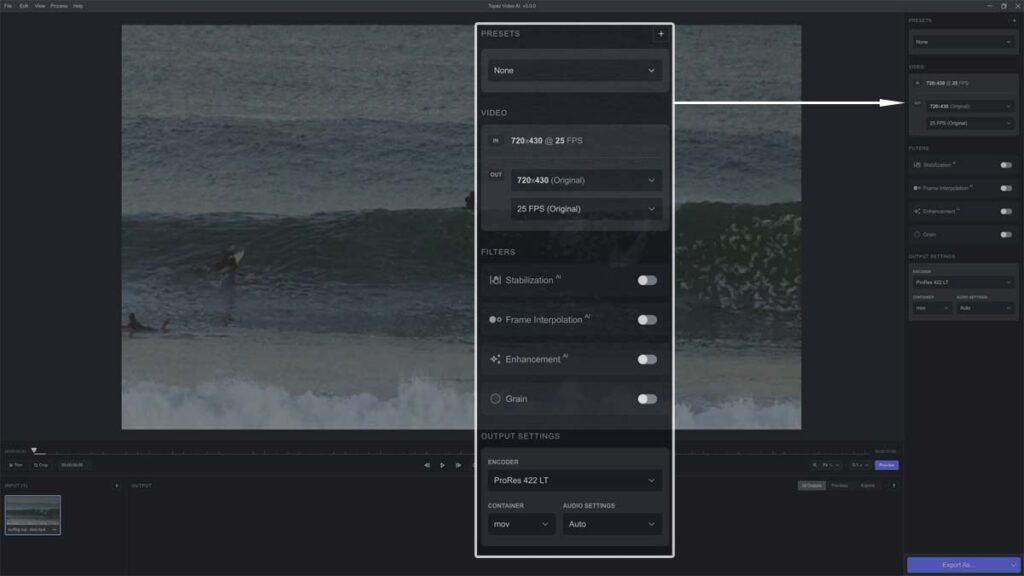
Listen, Topaz Video Enhance AI is the beast when it comes to AI upscale video, packing models like Artemis that nail low-light scenes and Gaia that smooths out fast action, cranking stuff up to 4K or even 8K without looking fake. You get batch mode for churning through folders of clips, plus sliders to tweak every little thing from noise to deinterlacing, making it a pro's dream for turning junk into gold-standard footage that fools the eye. Sure, it ain't cheap or lightweight, but for serious work, nothing touches its detail magic.
Best for: Pros like filmmakers chasing peak quality on tough jobs.
How to Use:
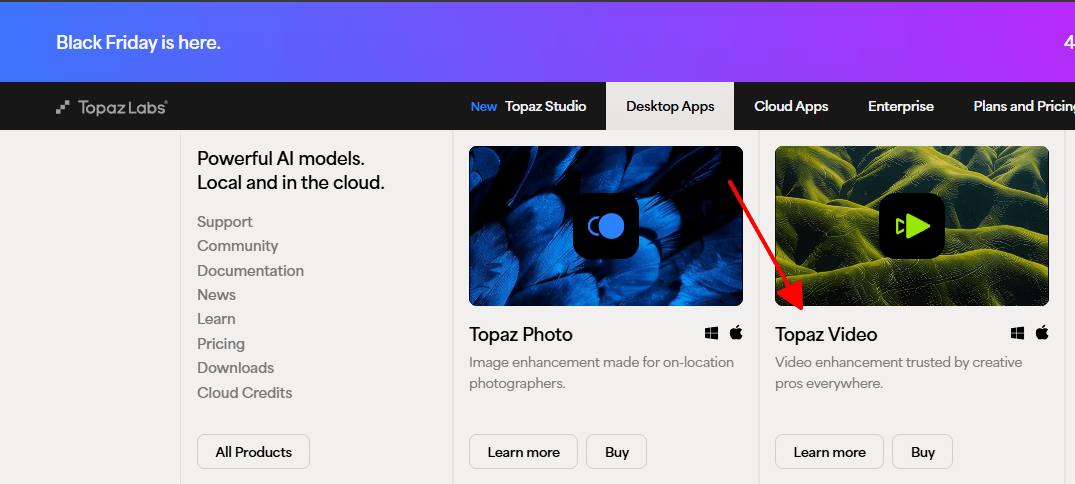
Step 1: Install from the official site and launch the app.
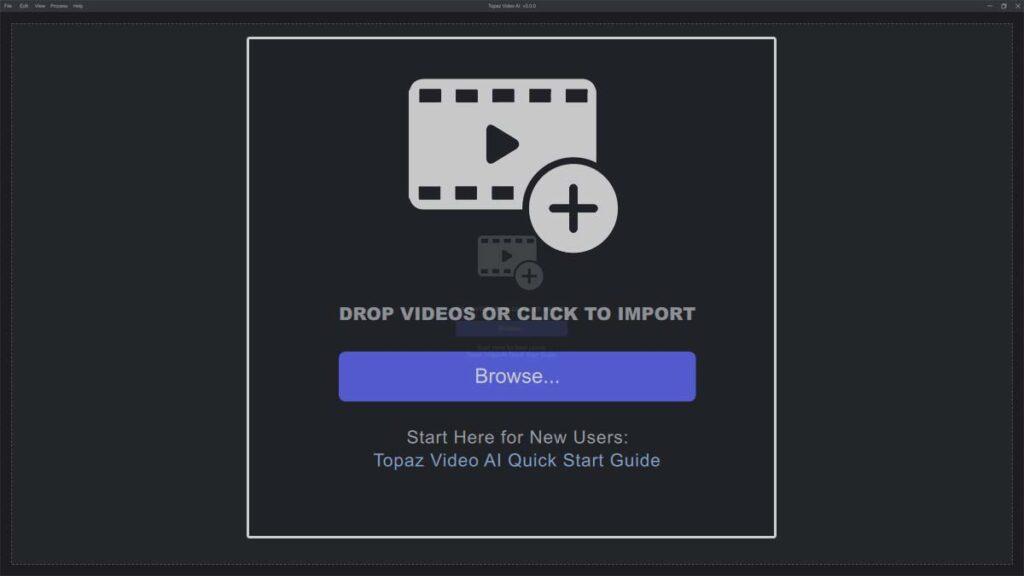
Step 2: Load your video, choose a model, and dial in settings.
Step 3: Preview changes, then export the upgraded file.
Pros:
Top-tier sharpness and natural details.
Deep customization and batch support.
Handles 8K upscales smoothly.
Cons:
High cost at $299 lifetime.
Needs powerful GPU for speed.
Steep learning curve for beginners.
Last month I used Topaz to upscale a client's 20-year-old wedding video from 480p to 4K. The facial details and colors came alive amazingly, though my mid-range PC took 3 hours for a 15-minute clip. Compared to free tools, the quality gap was massive but worth the investment for professional delivery.
Picwand AI Video Upscaler
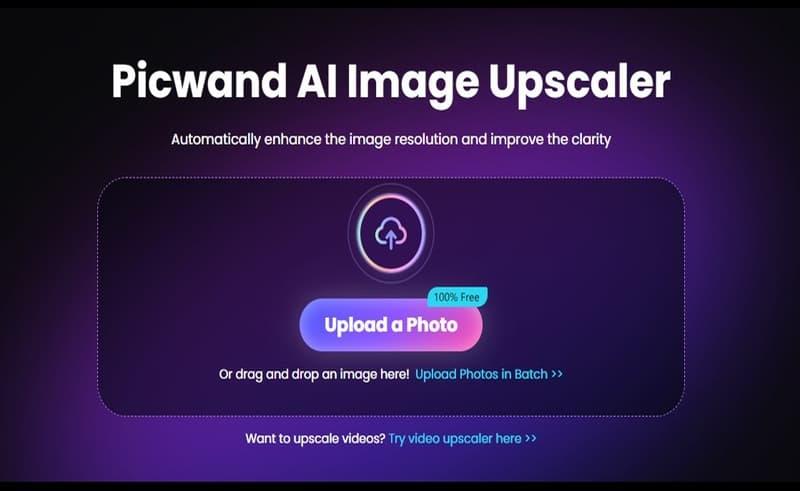
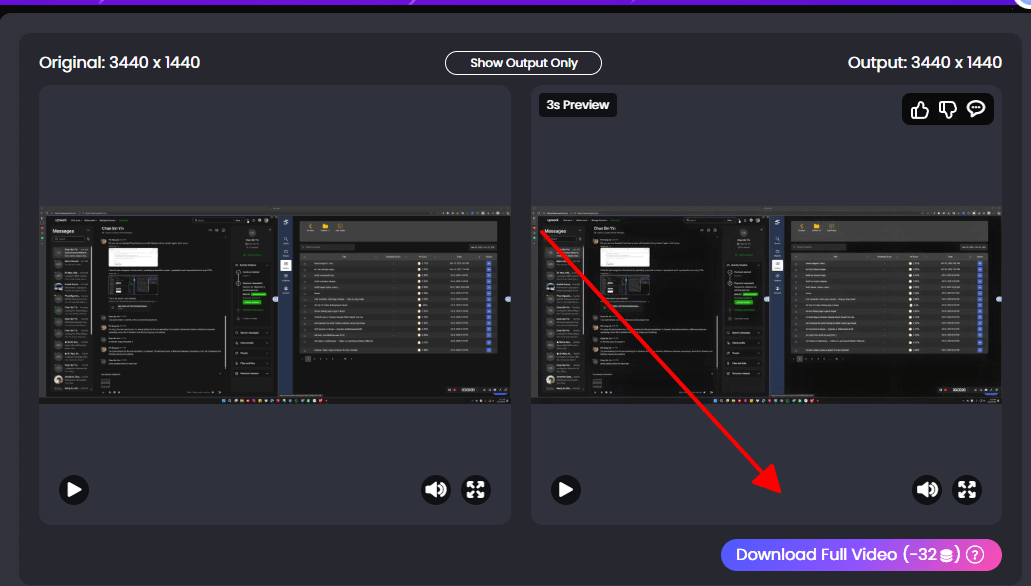
Picwand AI Video Upscaler is your quick online buddy for video upscale jobs, no downloads needed, it swallows MP4s, MOVs and spits out 4K gems using AI trained on tons of real clips to dodge those ugly artifacts. Drag, drop, tweak a slider or two, and you're done in minutes from any laptop or phone, perfect for that last-minute social post or demo without committing to big software. The free version hooks you, but yeah, it nags with watermarks until you pony up.
Best for: Casual users wanting online ease for one-time boosts.
How to Use:
Step 1: Head to the site and upload your clip or paste a link.
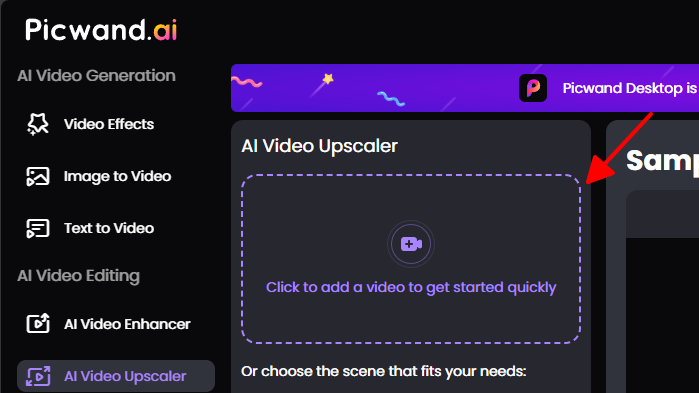
Step 2: Pick resolution and quality sliders.
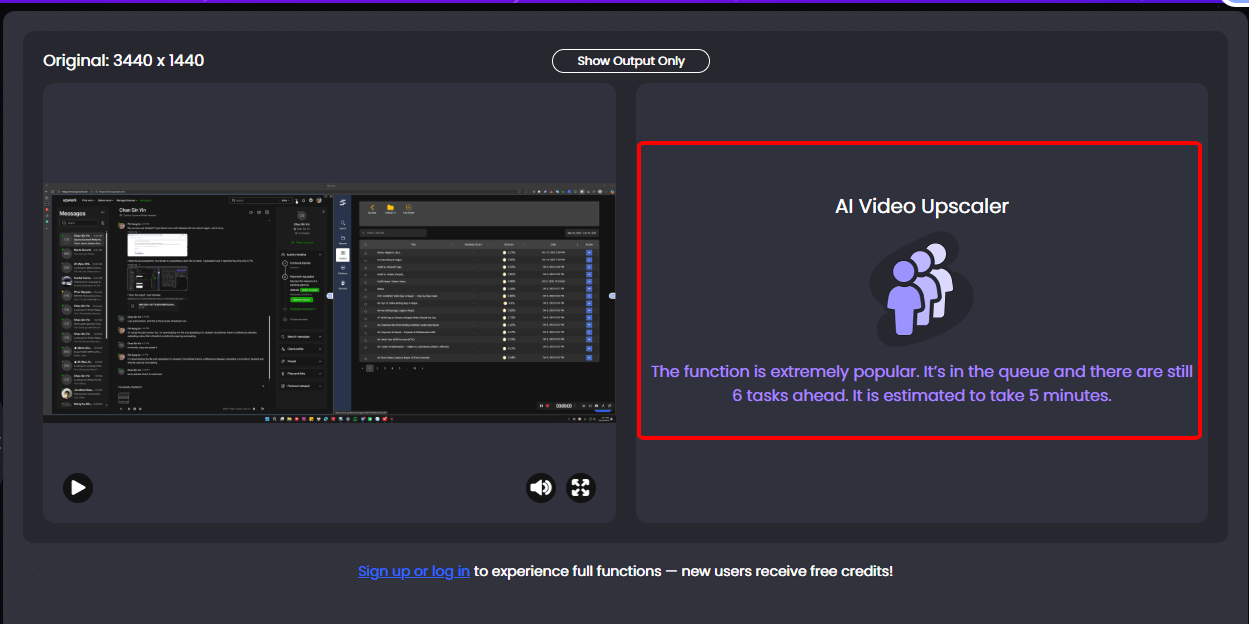
Step 3: Hit upscale, then grab the result.
Pros:
Zero setup required.
Simple layout and quick runs.
Supports multiple formats.
Cons:
Free plan adds watermarks.
Caps on file sizes.
Limited advanced tweaks.
Picwand saved me when I needed to quickly upscale a smartphone product demo from 720p to 1080p for social media. Processing took just 4 minutes versus 30+ on desktop apps, though the free watermark forced a paid upgrade. Perfect for urgent fixes where speed trumps perfection.
TensorPix
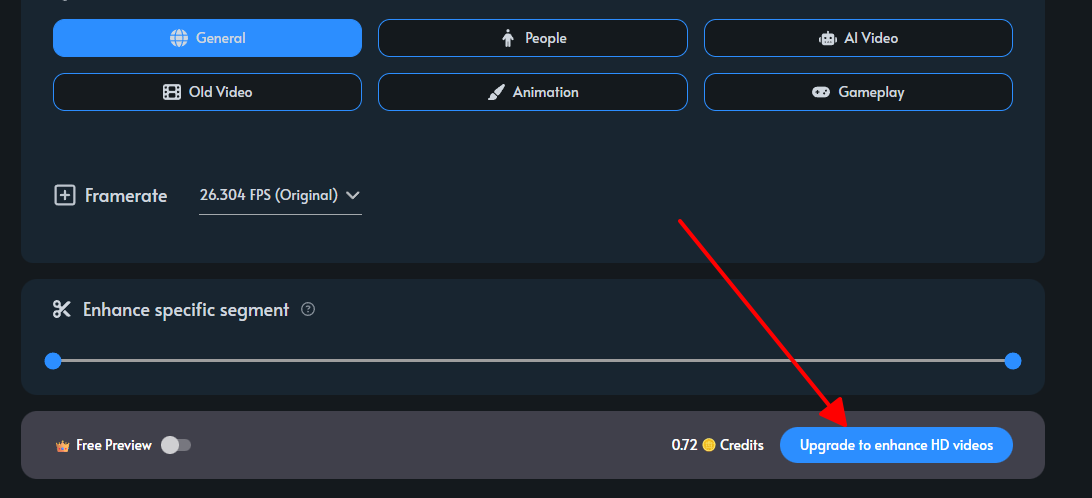
TensorPix feels like a Swiss Army knife online for AI upscale video plus denoising, steadying shakes, and color pops, all powered by cloud so your old laptop doesn't sweat. Grab presets for old films or sports, link your Drive or Dropbox, and sliders make it dead simple to stack fixes without jumping apps. Flexible plans let you dip in cheap or go all-in for teams, though wait times creep up on big files.
Best for: Folks blending fixes beyond just resolution hikes.
How to Use:
Step 1: Sign up and upload from local or cloud.
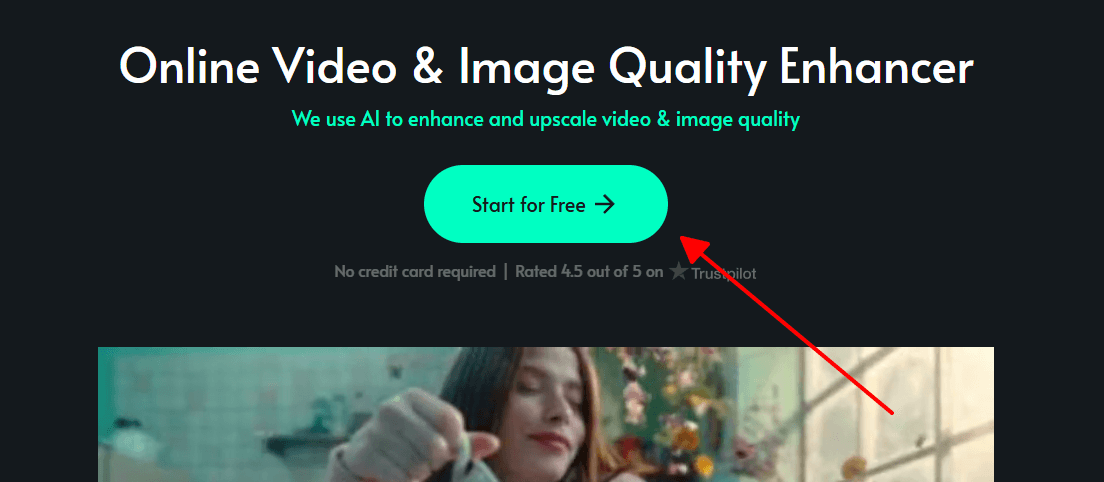
Step 2: Set sliders for upscale, denoise, or tones.
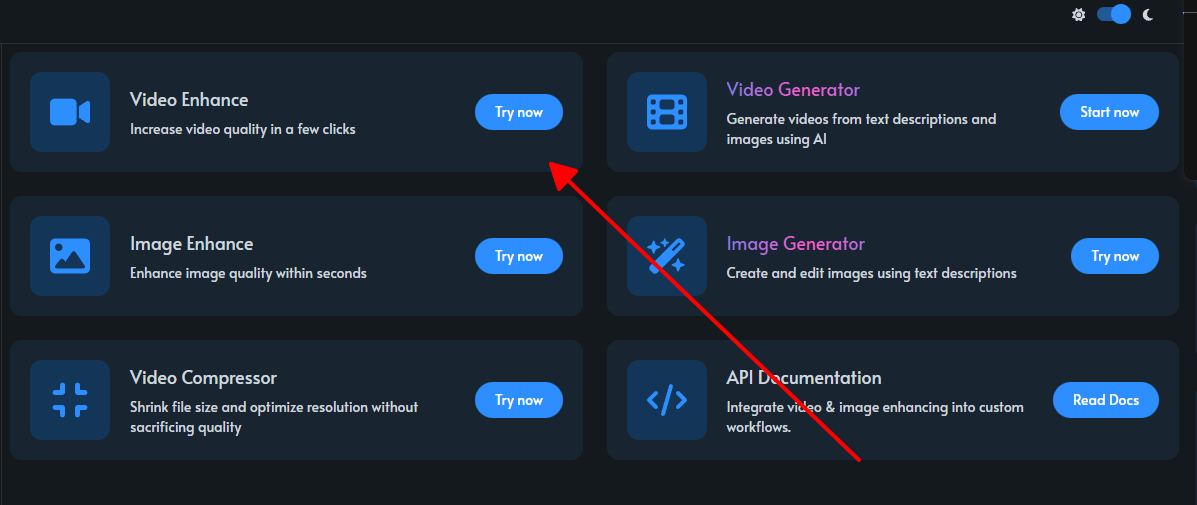
Step 3: Run process and download.
Pros:
All-round tweaks in one tool.
Easy sliders and storage ties.
Intuitive web interface.
Cons:
Pay-per-use from $5.50 monthly.
Lags on long clips.
Fewer output formats.
TensorPix worked well restoring colors in my grandfather's 1990s vacation footage alongside upscaling. The multi-fix approach saved separate editing steps, but a 25-minute clip queued overnight during peak hours. Better than single-purpose tools for comprehensive restoration projects.
Canva Video Upscaler
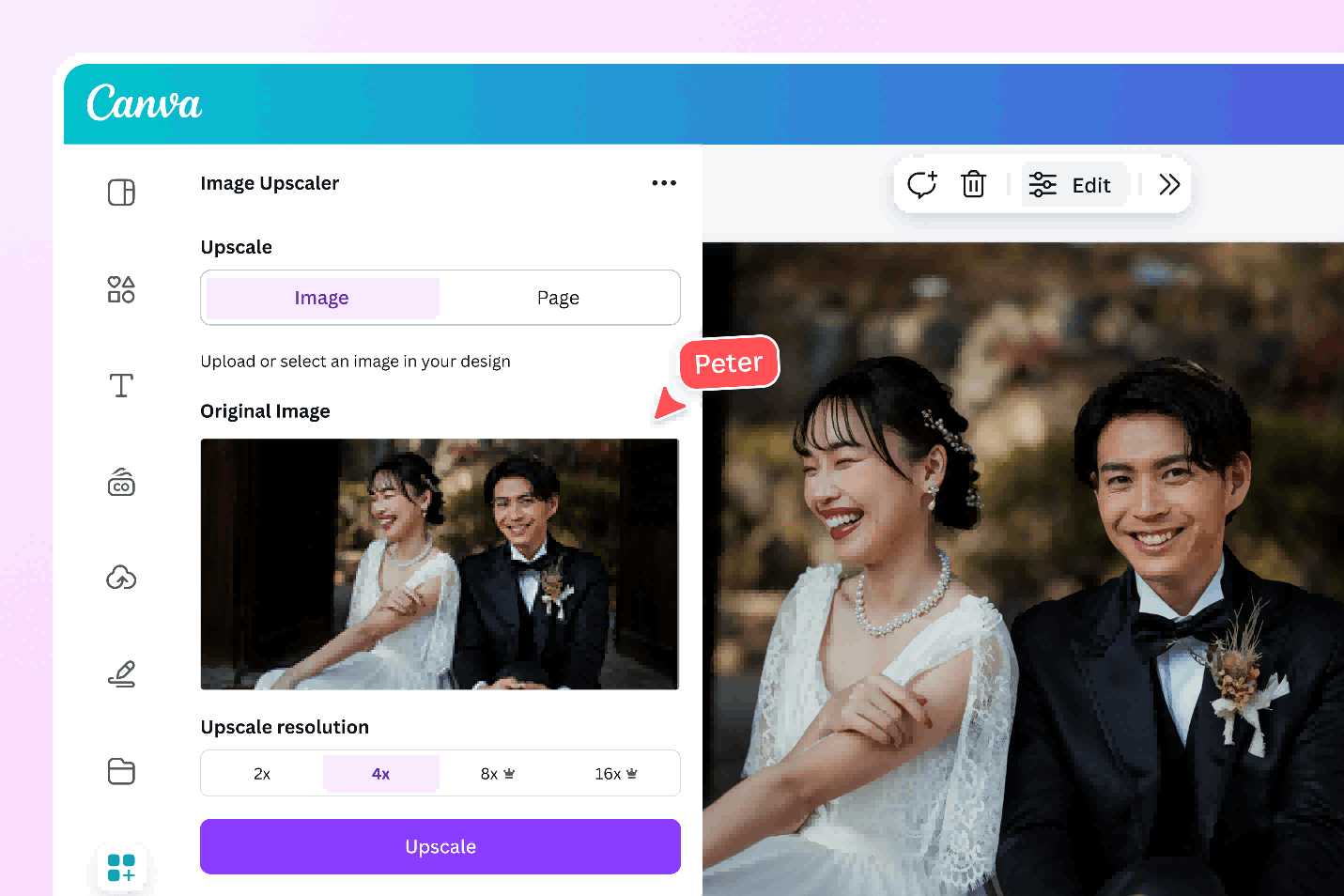
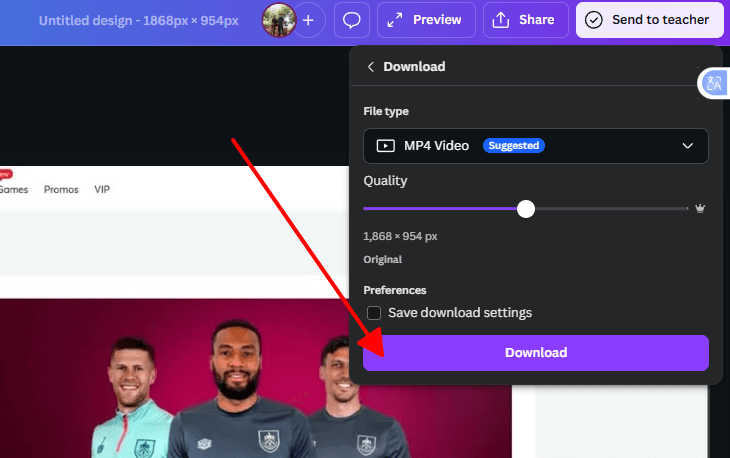
Canva Video Upscaler sneaks right into your design flow, spotting crappy clips and bumping them 2x or 4x while you slap on text or graphics, no app-switching nonsense. It's a no-brainer for anyone already in Canva's world of templates, turning rough reels into polished stories for Insta or YouTube with team shares baked in. Keeps it simple, but don't expect Hollywood-level tweaks.
Best for: Marketers and teams in the Canva world.
How to Use:
Step 1: Start or open a Canva design with your video.
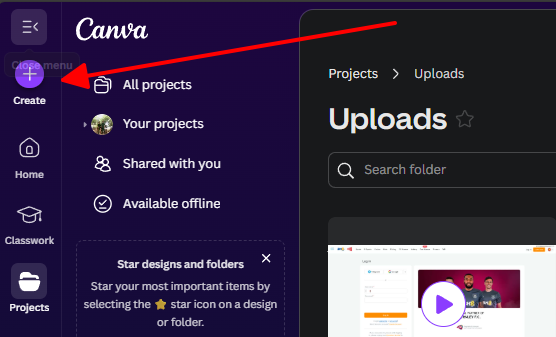
Step 2: Edit clip, select upscale to target res.
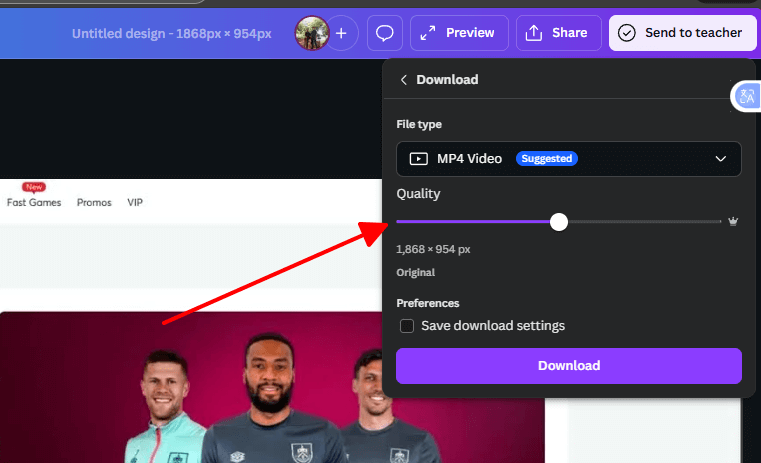
Step 3: Save and export.
Pros:
Fits existing workflows.
Group edits and collab features.
No extra apps needed.
Cons:
Stays in Canva ecosystem.
Light on advanced dials.
Pro plan required.
Within Canva, I upscaled client social media ads directly in their graphics projects, maintaining brand consistency. The workflow stayed smooth for teams, but lacked Topaz-level detail recovery on heavily compressed footage. Ideal when design integration matters more than maximum quality.
CapCut AI Video Upscaler
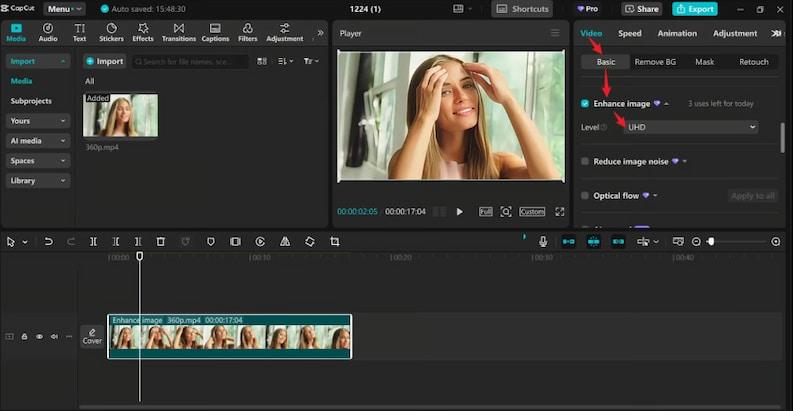
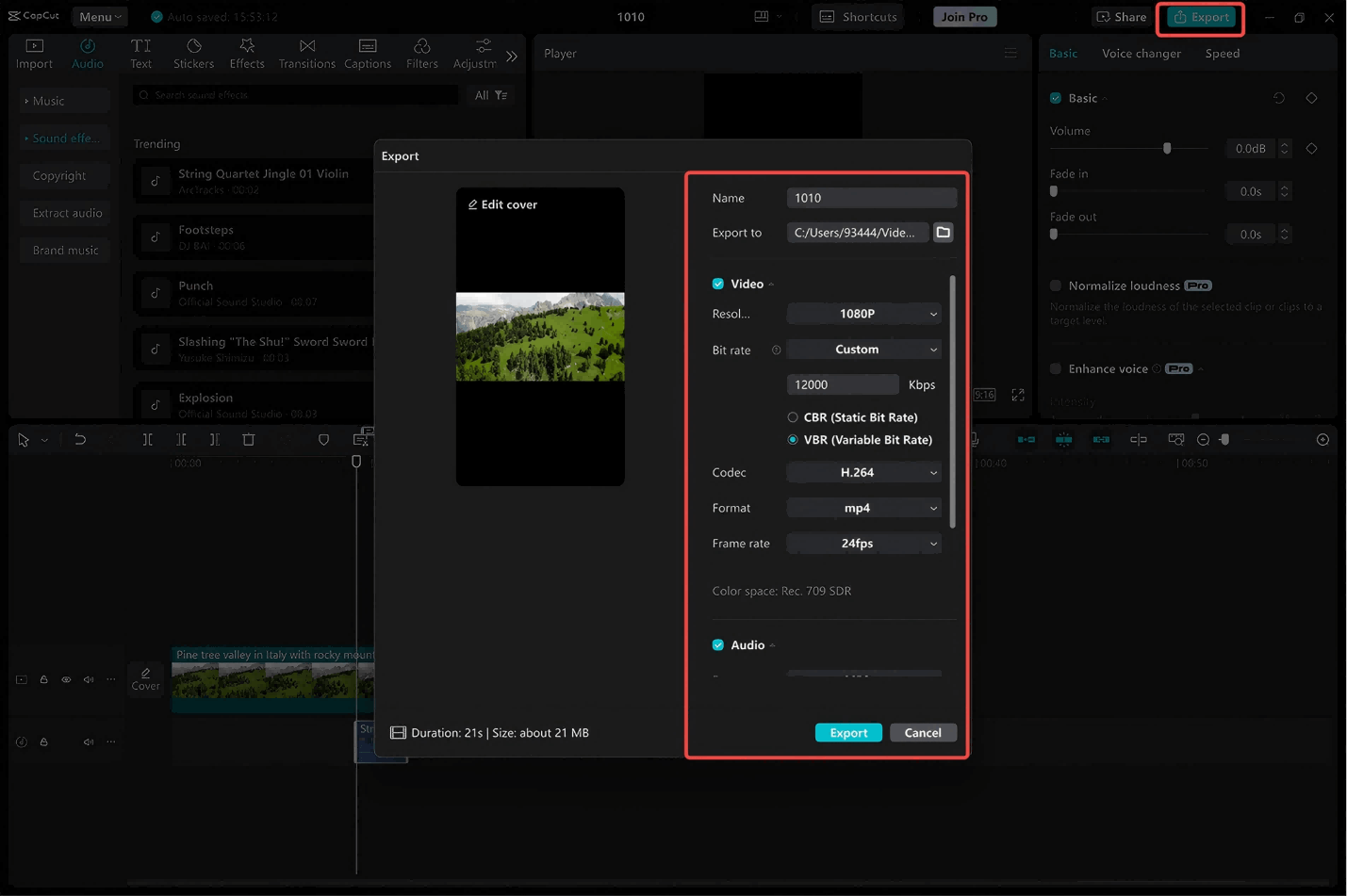
CapCut AI Video Upscaler is the free powerhouse from TikTok folks, zapping clips to 1080p web or 4K desktop with a single tap amid effects, cuts, and beats galore. Mobile warriors love how it owns vertical video, letting you enhance mid-edit for viral speed without a dime, though web caps remind you it's entry-level. Dead simple entry to AI smarts.
Best for: Beginners and social creators on tight budgets.
How to Use:
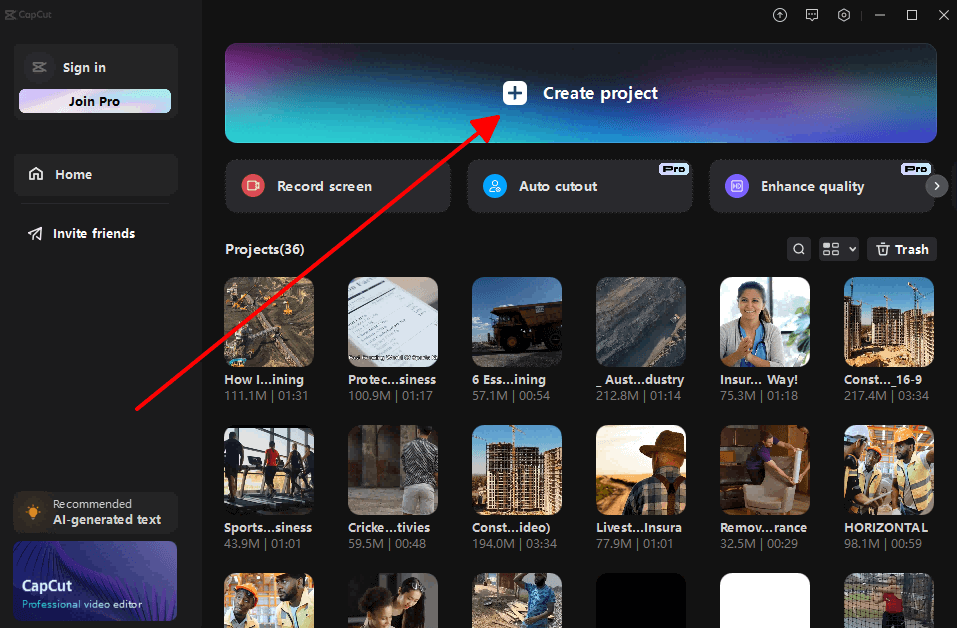
Step 1: Fire up CapCut app or web, import project.
Step 2: Pick clip, tap enhance and AI upscale.
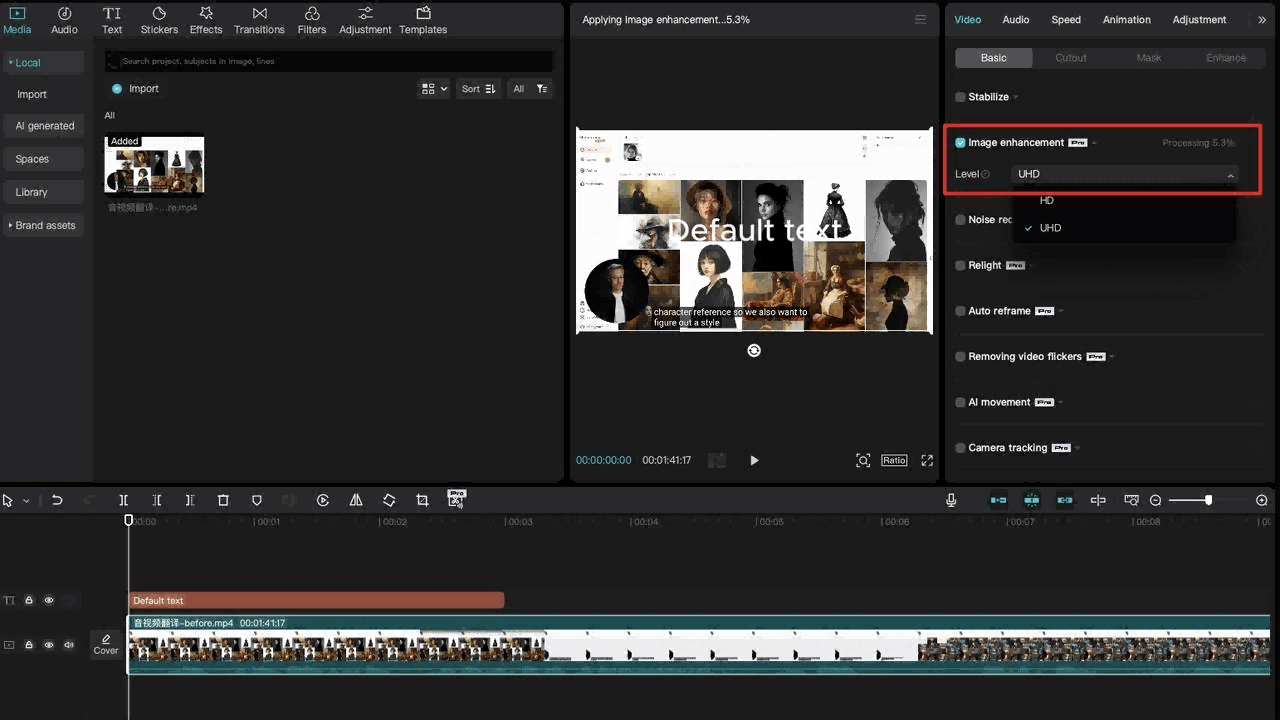
Step 3: Export to save.
Pros:
No cost at all.
Mobile ready and dead simple.
One-click operation.
Cons:
Caps at 1080p on web.
Free marks some outputs.
Basic enhancement depth.
CapCut handled my TikTok test clips instantly from phone to final export, perfect for content volume. Quality stayed good for social platforms but showed artifacts on faces compared to paid tools. Best free starter before graduating to pro software.
Top AI Book Cover Generators: Comparative Analysis
| Tool | Key Features | Pricing | Best For |
| Topaz Video Enhance AI | 8K models, batch, fine tweaks | $299 lifetime | Quality pros |
| Picwand AI Upscaler | Web-fast, format flex | Freemium | Quick online |
| TensorPix | Multi-fix, cloud sync | $5.50/mo+ | All-in-one web |
| Canva Upscaler | Design flow, collab | Freemium | Canva teams |
| CapCut Upscaler | Free one-click, mobile | Free | Budget social creators |
Common Mistakes & How to Avoid Them
Mistake 1: Starting with Super Low-Res Videos
AI is magic, but it can't pull details out of nowhere. Feed it a really crappy low-res clip, and you'll end up with something still blurry or weirdly fake-looking. Grab the best quality source you can find first. Garbage in means garbage out, but good input gives you crisp, believable results.
Mistake 2: Forgetting About Aspect Ratio
Upscaling can stretch or squash your video if the proportions get messed up, totally wrecking the composition. Pick tools that lock in the original aspect ratio. Always peek at the preview before hitting export to dodge any wonky distortions.
Mistake 3: Going From 480p to 4K in One Giant Leap
Jumping straight from potato quality to 4K often spits out freaky artifacts or plastic-looking textures. Break it into smaller steps if you can. Or go with AI tools built to handle massive jumps without going off the rails.
Mistake 4: Not Checking Terms of Service
Plenty of online upscalers sneakily claim rights to your uploaded videos. Don't skip reading their privacy policies, especially for anything personal or sensitive. Stick to trusted tools to keep your stuff safe.
Mistake 5: Grabbing Videos Without Permission
It's easy to want to upscale random clips you love online, but messing with stuff you don't own can get you hit with copyright strikes. Only touch videos you've made or got clear okay for. Check YouTube creators' licenses before downloading.
Prepare Your Source Video with YouTube Video Downloader

YouTube Video Downloader is this dead-simple free web tool that snags YouTube clips in a snap. No fuss, no fees. It's your perfect first move to lock down high-quality footage (but only if you have the rights!) before tossing it into an AI upscaler for that extra sharpness punch.
Key Features:
Totally free, zero watermarks
No login or signup nonsense
Just copy-paste and go
Blazing fast downloads in HD, 1080p, even 4K
Video+audio, video-only, or audio extracts
Unlimited grabs, no ads interrupting
How to Use YouTube Video Downloader:
Step 1: Head over to YouTube Video Downloader.

Step 2: Snip the YouTube URL from your browser or share button, paste it right in.
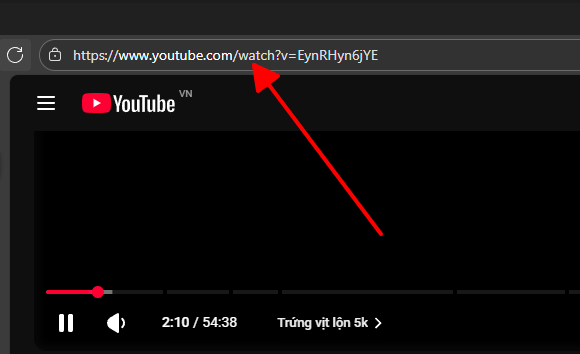
Step 3: Choose your quality (up to 4K) and format, smack Download, and boom. It's on your device.
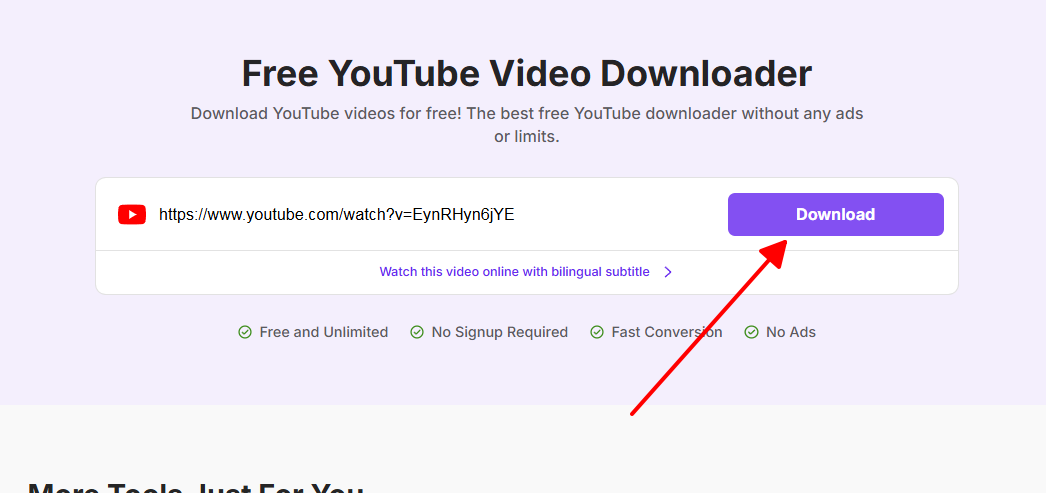
Those screenshots show exactly how brain-dead easy it is, from paste to pristine high-res file. Content creators swear by it for grabbing educational vids or raw footage fast without quality drops. Way better than bloated downloaders for your AI upscale prep.
FAQs
Can AI fix super blurry clips?
AI upscaling improves blurry videos by predicting missing details, but results depend heavily on source quality. Extremely degraded footage shows limits where no tool can invent completely lost information. Start with the best available input for realistic expectations.
Legal to upscale YouTube grabs?
Legality depends on the video's license and your usage intent. YouTube's terms generally prohibit downloads without creator permission except for fair use cases. Always verify creator licenses and intended commercial vs personal use before processing.
AI upscale vs old methods?
Traditional interpolation averages surrounding pixels creating blurry enlargements, while AI models trained on millions of videos predict realistic details. AI produces natural textures and sharper edges that interpolation cannot match. The difference becomes obvious on faces and fine patterns.
Need beast PC?
Desktop tools like Topaz demand powerful GPUs for reasonable processing speeds on long videos. Online solutions like Picwand and TensorPix offload computation to cloud servers, working fine on basic laptops. Choose based on your hardware and clip length requirements.
Summary
AI upscale video tools turn meh footage into eye-catchers tailored to your wallet and workflow. Topaz crushes for pro polish but guzzles power, Picwand flies for fast online hits, TensorPix juggles fixes smartly, Canva glues into designs effortlessly, and CapCut kicks off free for social hustlers. Nail good sources, dodge big leaps, and check rights, and you'll revive those old tapes like magic.


