
'%3e%3cpath%20fill-rule='evenodd'%20clip-rule='evenodd'%20d='M19%208.5C24.799%208.5%2029.5%2013.201%2029.5%2019C29.5%2024.6782%2024.9928%2029.3036%2019.361%2029.4939L19%2029.5C18.8794%2029.5%2018.7592%2029.498%2018.6396%2029.4939L18.2811%2029.4758C12.8174%2029.1063%208.5%2024.5574%208.5%2019C8.5%2013.201%2013.201%208.5%2019%208.5ZM22.3063%2010.6267L22.2342%2010.6539C21.3423%2011.0061%2020.5541%2011.6368%2020.5606%2012.4987C20.5631%2012.8302%2020.869%2014.8871%2020.2141%2014.8486C19.5589%2014.8102%2019.413%2013.8753%2018.7116%2013.616C17.5944%2013.2026%2016.9819%2014.3401%2017.0939%2015.3106C17.1695%2015.9655%2018.9289%2018.3871%2017.9028%2019C17.292%2019.3651%2015.7279%2017.5692%2015.1007%2017.1842C14.4805%2016.8034%2013.2758%2017.3333%2012.4974%2016.7029C11.9874%2016.2899%2012.3881%2014.4098%2012.2786%2013.8372C12.2271%2013.5698%2012.1155%2013.3689%2011.9794%2013.2166L12.0402%2013.2934C10.7653%2014.8464%2010%2016.8339%2010%2019C10%2023.8465%2013.8307%2027.7982%2018.6295%2027.9925L18.6769%2027.9747C18.8597%2027.8677%2019.0394%2027.7557%2019.216%2027.6387C19.4137%2027.4534%2019.5436%2027.2072%2019.5849%2026.9394C19.8806%2025.1222%2018.3616%2025.4302%2017.9367%2024.5622C17.5489%2023.7695%2018.5712%2023.7684%2018.5524%2021.7923C18.4607%2021.1774%2018.5279%2020.547%2018.7211%2020.0315C19.1834%2018.7987%2020.7077%2017.2643%2022.5889%2018.0081C23.5567%2018.3906%2023.1524%2019.9831%2023.4737%2020.3394C24.251%2021.2018%2025.3228%2020.6863%2026.2856%2021.2253C26.7816%2021.5032%2026.9797%2022.41%2027.056%2023.2248L27.038%2023.0528C27.6534%2021.8348%2028%2020.4579%2028%2019C28%2015.1968%2025.6409%2011.9445%2022.3063%2010.6267Z'%20fill='%23757575'/%3e%3ccircle%20cx='19'%20cy='19'%20r='10.125'%20stroke='%23757575'%20stroke-width='2.25'/%3e%3c/g%3e%3cdefs%3e%3cclipPath%20id='clip0_1827_14613'%3e%3crect%20width='24'%20height='24'%20fill='white'%20transform='translate(7%207)'/%3e%3c/clipPath%3e%3c/defs%3e%3c/svg%3e)


With visuals dominating almost every project, the ability to catch subtle edits, track design tweaks, or spot tiny differences between images has become essential. But doing this manually can be tedious and time-consuming, often leading to missed details. An AI tool to compare 2 pictures of differences changes that, giving you accuracy, speed, and clarity at every step. In this guide, the most reliable tools are introduced, showing exactly how each one highlights differences and fits into different workflows. By the end, you’ll know which solution works best for your specific needs.
6 Best AI Tools to Compare Image Differences
When you’re trying to pinpoint exactly what changed between two visuals, having the right AI tool to compare 2 pictures of differences saves you a lot of time. Instead of zooming in endlessly or juggling screenshots, AI now handles most of the heavy lifting for you. These six tools stand out because they balance accuracy, speed, and ease of use, making your comparison process far more efficient.
1. MaxAI Image Compare
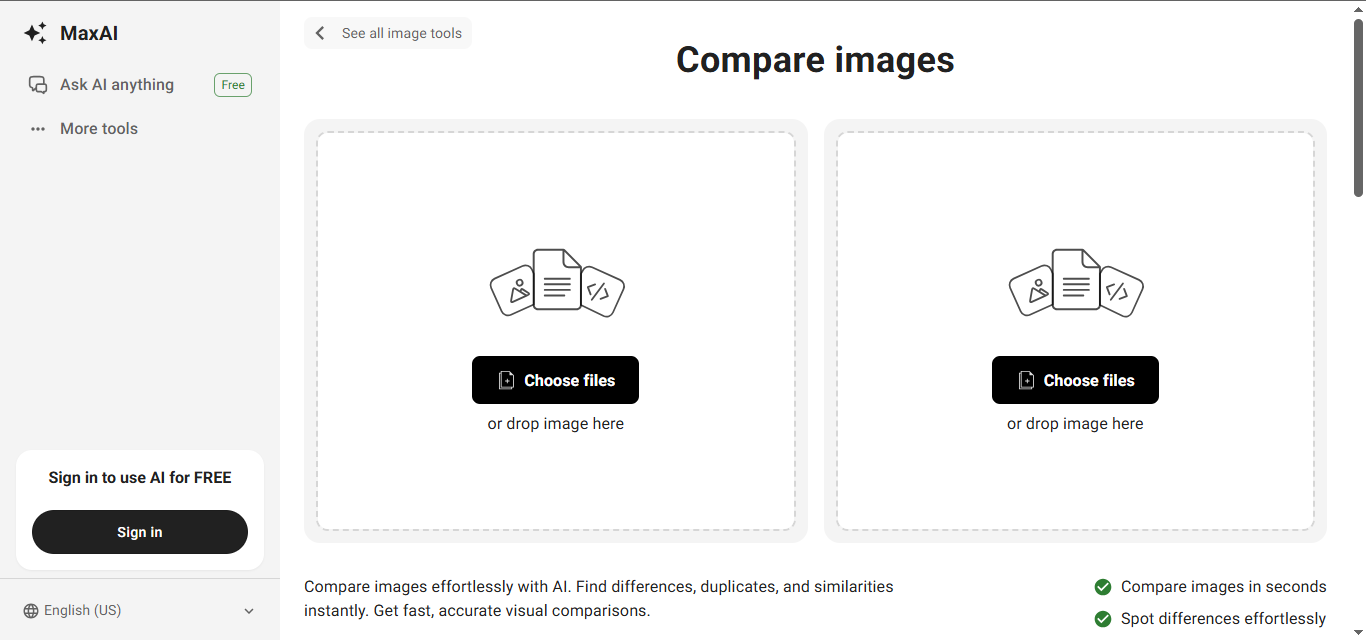
MaxAI Image Compare has become a go-to option for many users who need instant clarity. Before diving into its features, let me share why I think it stands out. It’s fast, visually intuitive, and ideal if you don’t want to sign up or deal with a complex dashboard. You simply upload two images, and the AI points out differences almost instantly. As someone who values efficiency, I find it extremely helpful for everyday comparison tasks.
Features:
AI-powered difference detection that highlights visual changes clearly. It gives you immediate insights without manual zooming.
Support for common image formats like JPG and PNG, allowing you to work with anything you already have.
Real-time comparison for users who want quick results without technical steps.
Pros:
Simple interface designed for quick use without learning curves.
No account creation needed, saving time.
Fast processing ideal for people working on tight deadlines.
Cons:
Limited customization for sensitivity adjustments.
No batch comparison support.
Lacks advanced analytics for professional-grade evaluations.
MaxAI Image Compare works beautifully for simple image difference checks. I use it when I need quick clarity without setting up anything complex.
2. Diffchecker Image Compare
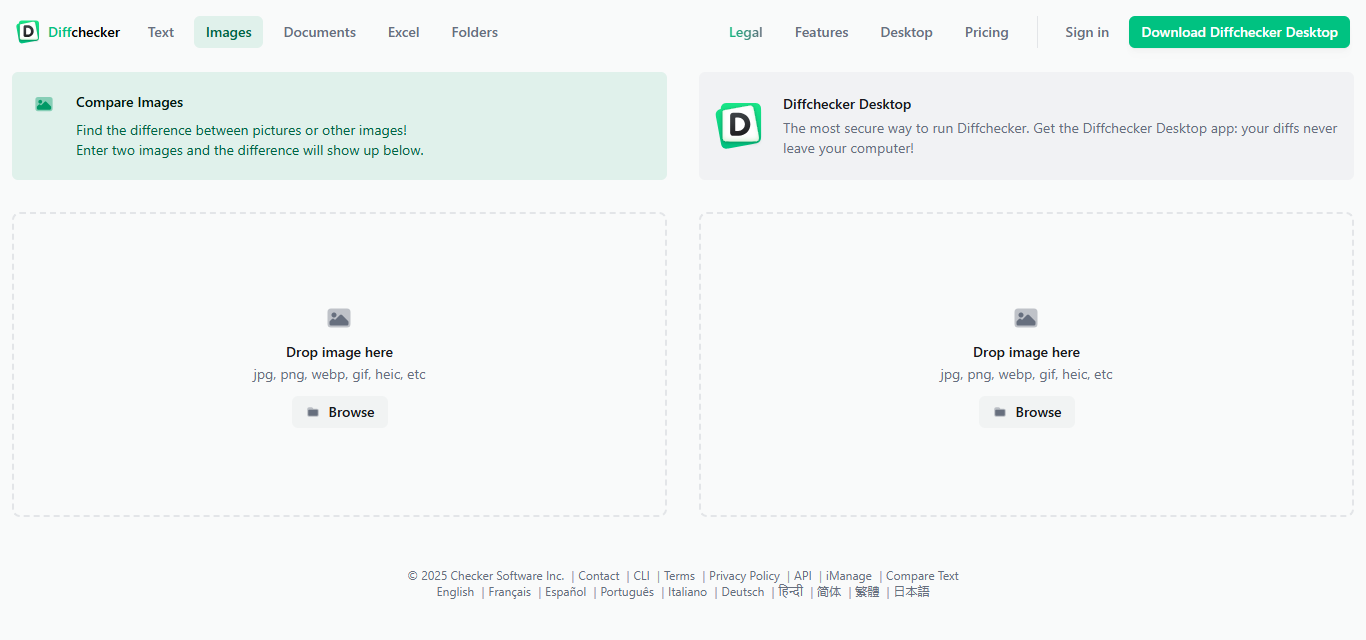
Diffchecker Image Compare is another tool I’ve used often. It feels dependable, especially for educators and general users who want something visually straightforward. The interface includes slider-based comparison and color-coded diff outputs, which help you understand changes even at a glance. It’s also quick to load, making it easy to run multiple checks back-to-back. I’ve found it especially useful when verifying small layout shifts in screenshots or UI elements.
Features:
Overlay and slider options for comparing design variations or screenshots.
Color-coded difference highlighting to make changes more noticeable.
Web-based functionality without installation.
Pros:
Very easy for beginners to understand.
No software download required.
Works smoothly for one-time comparisons.
Cons:
Limited to two images at a time.
No advanced AI scoring.
Not ideal for technical users needing automation.
I like using Diffchecker for quick academic or personal tasks. It’s ideal for comparing simple image changes with minimal effort.
3. Vidnoz AI Image Comparison
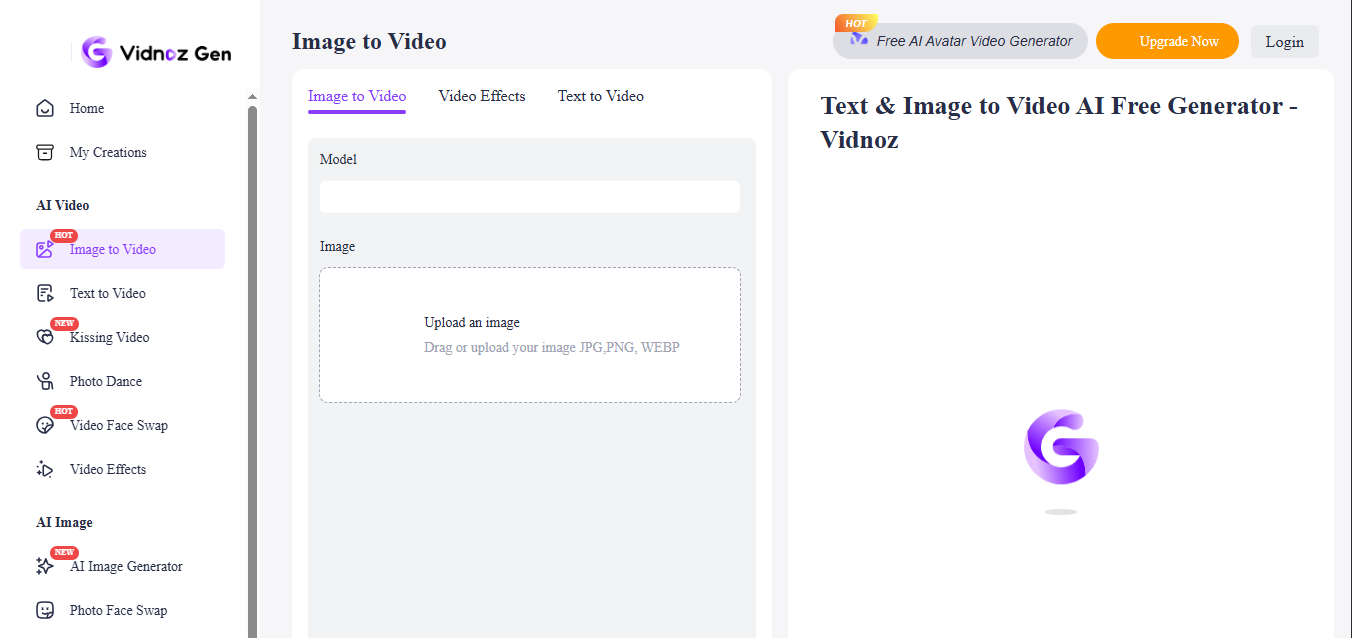
Vidnozoffers more advanced capabilities compared to basic comparison tools. Before I cover its features, let me say that its strength lies in batch processing and similarity scoring, making it perfect for people who handle multiple image sets. The tool also helps maintain consistency across design variations with clear, structured outputs. Its advanced analysis makes it especially useful for detailed visual evaluations.
Features:
AI-driven similarity scoring that quantifies image differences.
Batch comparisons allowing you to process multiple images at once.
Supports high-resolution files for detailed analysis.
Pros:
Cloud-based, requiring no local resources.
Handles multiple files efficiently.
Ideal for comparing marketing assets.
Cons:
Free tier includes watermarks.
Higher-quality exports require paid access.
Slower processing when working with very large files.
I mostly use Vidnoz when I’m working on design testing or marketing visuals where batch processing matters.
4. Web ToolBox Image Compare Slider
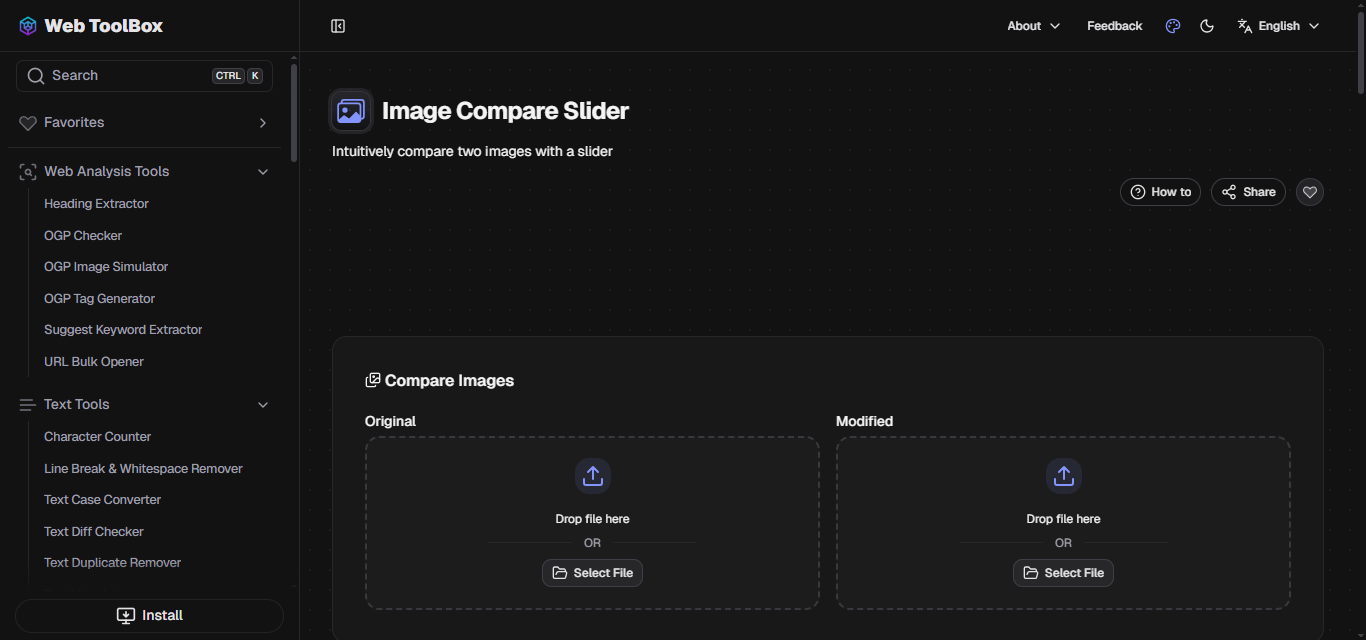
Web ToolBox feels refreshing because of its privacy-first approach. Rather than uploading images to a server, it processes everything in your browser. This is comforting when dealing with sensitive visuals or client work. The slider-based interface allows for quick side-by-side comparisons, making subtle differences easy to spot. It also handles images of any size without slowing down the process. Overall, it provides a fast, secure, and efficient way to review visual changes.
Features:
Slider-based comparison for intuitive visual analysis.
Direct URL support useful for website mockups.
Instant processing thanks to client-side functionality.
Pros:
No file uploads, making it more private.
No image size limits.
Extremely fast and lightweight.
Cons:
No heatmap or difference highlighting.
Requires manual alignment of images.
Missing professional-grade comparison metrics.
I use Web ToolBox when privacy matters. It’s one of the easiest client-side tools when I want to avoid backend processing.
5. TextCompare.org Image Compare
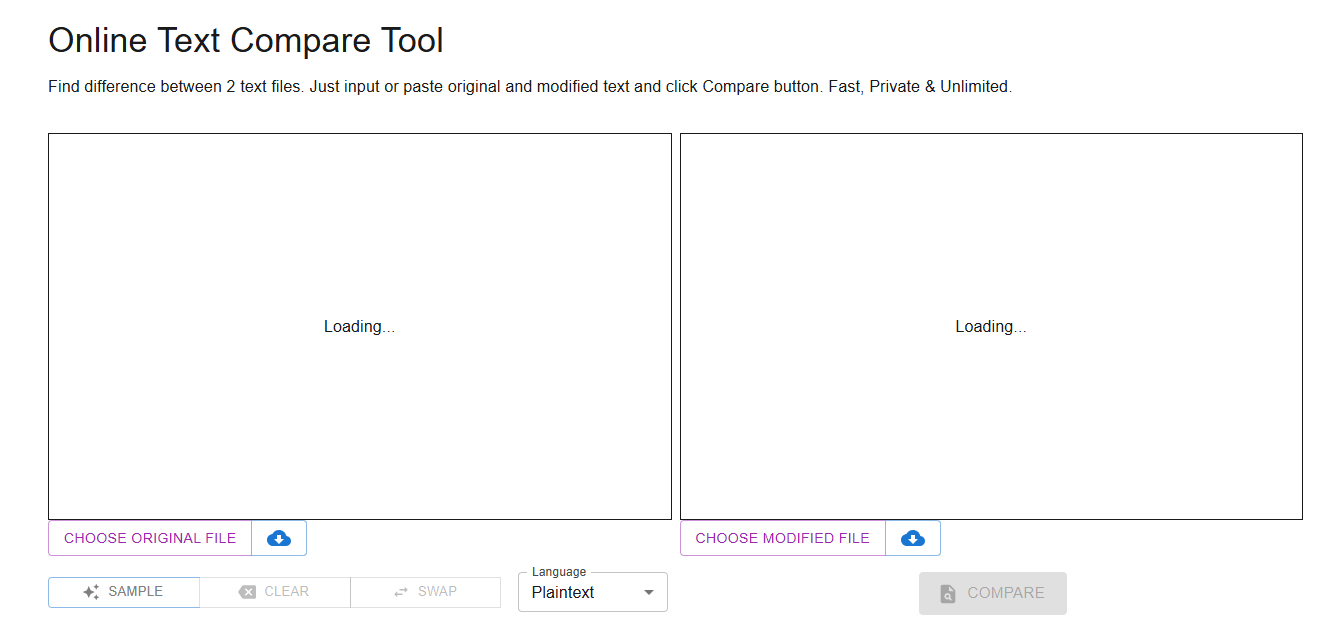
TextCompare.org is simple enough that you can use it without reading instructions. It’s built for speed and minimalism, allowing users to perform quick image comparisons effortlessly. The interface is clean and uncluttered, making it easy to focus on differences without distractions. It is ideal for one-off checks or casual tasks where simplicity and efficiency are the main priorities.
Features:
Side-by-side and overlay comparison modes for flexible viewing.
Instant on-page processing without delay.
Clean and ad-free interface.
Pros:
Completely free.
Quick, responsive, and clutter-free.
Perfect for simple comparisons.
Cons:
No save or share options.
No API or automation features.
Lacks advanced sensitivity settings.
Whenever I need a distraction-free comparison tool, TextCompare is the one I open first.
6. Img2Go Image Comparison Tool
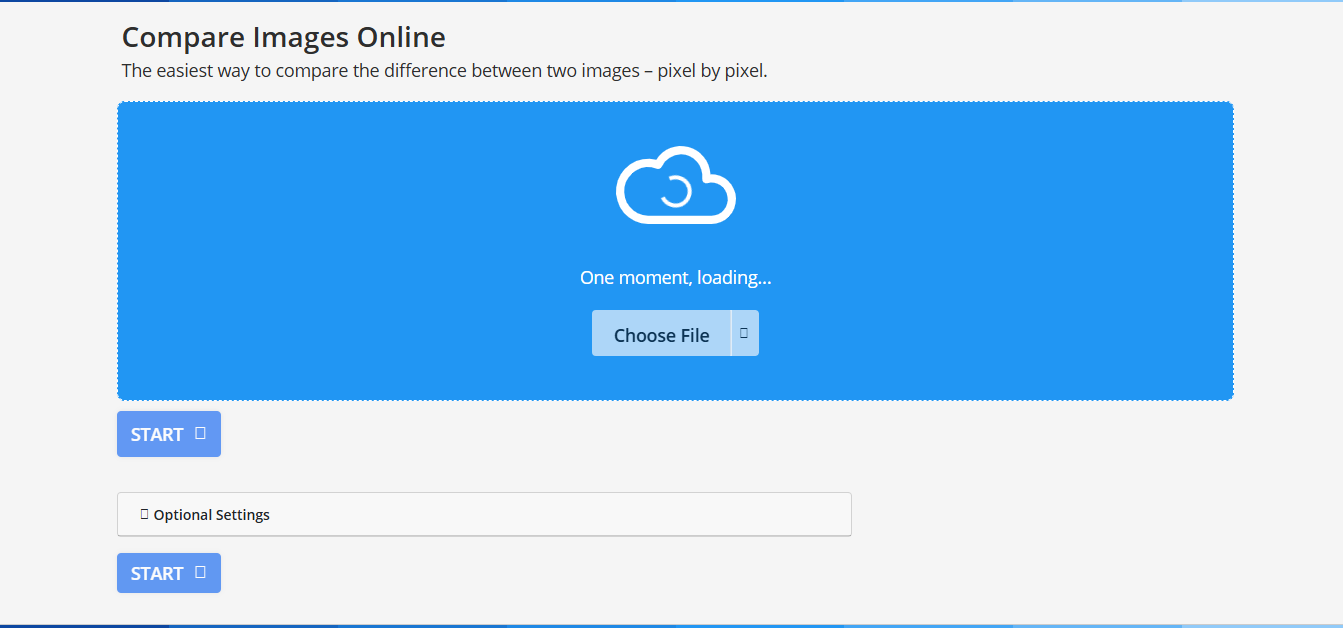
Img2Go is feature-rich while still being very approachable. Before I explain the features, I want to highlight why it works well for UI and design teams. You get synchronized zooming, overlays, and multiple comparison modes in one clean interface. These features make it easier to detect subtle differences, verify responsive layouts, and ensure consistency across design assets.
Features:
Synchronized zoom and pan for detailed inspections.
Slider mode and toggleable overlay view for multi-angle analysis.
Broad file format support including JPG, PNG, GIF, WebP.
Pros:
Web-based with no installation.
No registration required.
Handles images privately through client-side processing.
Cons:
Shows ads in its free version.
Has a 10MB file size limit.
No batch automation.
Img2Go is perfect for layout verification or spotting small UI inconsistencies. I rely on it when I need precision.
Comparison Table for Image Difference Tools
A clear comparison table always helps you decide faster, especially when each tool serves a slightly different purpose. Instead of jumping between multiple sites and guessing which option fits your workflow, this breakdown gives you a direct, side-by-side view of their strengths. You can quickly see how each tool performs in terms of features, costs, and processing methods. This makes it much easier for you to choose the option that aligns with your exact image comparison needs.
| Attribute | MaxAI | Diffchecker | Vidnoz | Web ToolBox | TextCompare.org | Img2Go |
|---|---|---|---|---|---|---|
| Primary Strength | Fast AI diff | Simple slider | AI scoring + batch | Privacy, no limits | Ultra-simple diff | Feature-rich web tool |
| Key Features | Highlighted changes | Slider + color diff | Scoring + batches | Slider + URL input | Side-by-side + highlight | Zoom-sync + overlay |
| Pros | Easy, instant, no signup | No install, beginner-friendly | High-res, cloud-based | Client-side, unlimited | Free, ad-free, fast | No signup, web-based |
| Cons | Few advanced controls | Only 2 images | Watermarks on free plan | No heatmaps; manual align | No save, no advanced tools | Ads; 10MB limit |
| Best For | Quick visual checks | Students, general users | Marketers, design tests | Devs/designers needing privacy | Fast one-off checks | UI/QA teams |
| Processing | Server-side AI | Server-side | Cloud | Client-side | Server-side | Client-side |
| Cost | Free | Free | Freemium | Free | Free | Free (ads) |
Seeing all tools together helps me choose the right one depending on how complex my task is.
Enhance Your Images with Toolsmart Image Enhancer
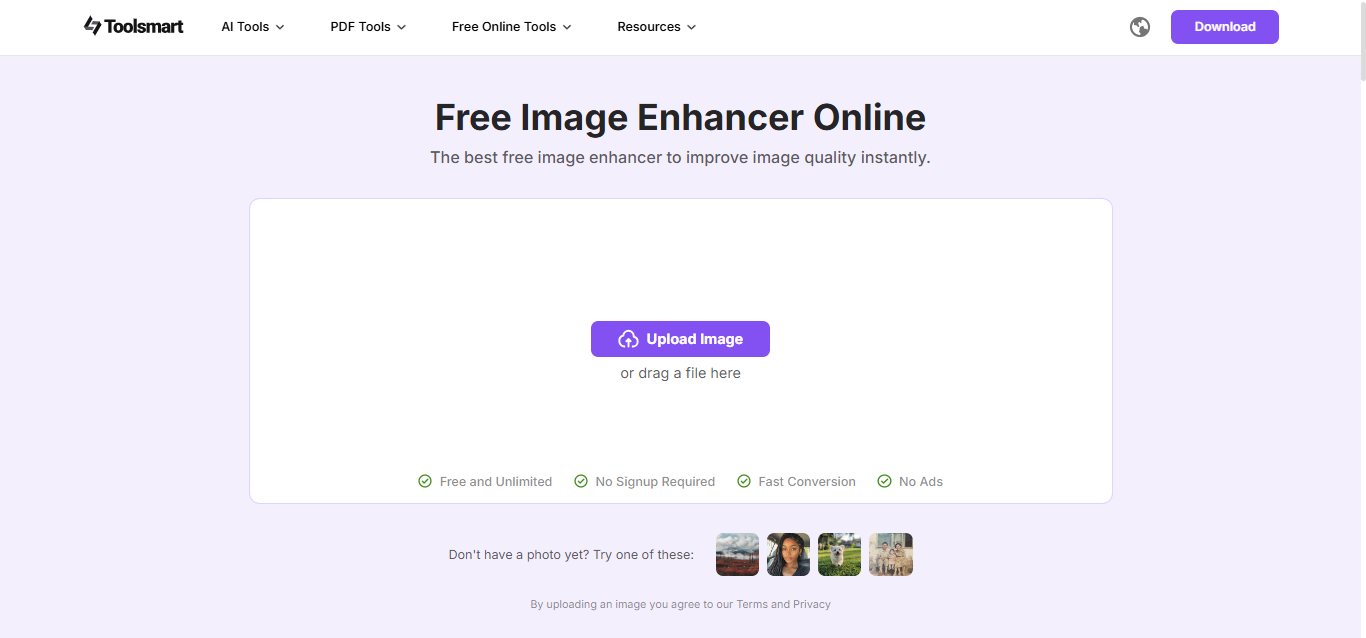
High-quality input images always lead to better comparison results. That’s where Toolsmart Image Enhancer becomes an excellent add-on. I’ve used it many times before comparing screenshots and found that clearer images make differences easier to spot. It also reduces noise that can confuse AI-based tools, especially when you’re working with low-resolution assets. Sharper visuals help you detect subtle design tweaks that might get overlooked in raw files.
I’ve noticed that enhanced images load faster in most comparison tools, making the whole process smoother. If you're aiming for the most accurate diff output, improving imagequality upfront genuinely pays off.
Why Toolsmart Image Enhancer Helps:
Improves clarity and resolution to enhance comparison accuracy.
Works without login or account creation.
Supports bulk image enhancement.
How to Use Toolsmart Image Enhancer:
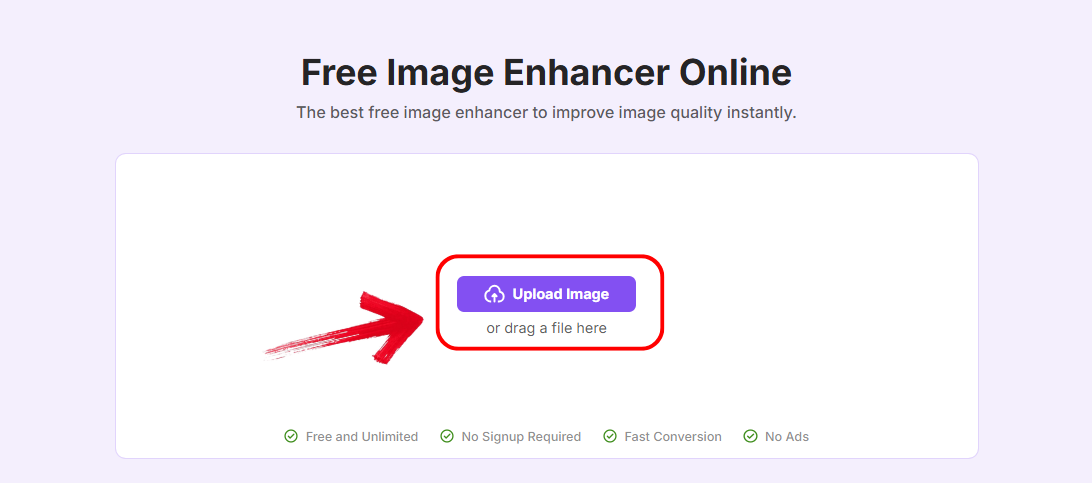
Step 1: First of all, navigate to the official website of Toolsmart Free Image Enhancer on your browser.
Step 2: Click “Upload Image” and select the photo you’ve just finished editing with Picwand, YouCam, or any other app.
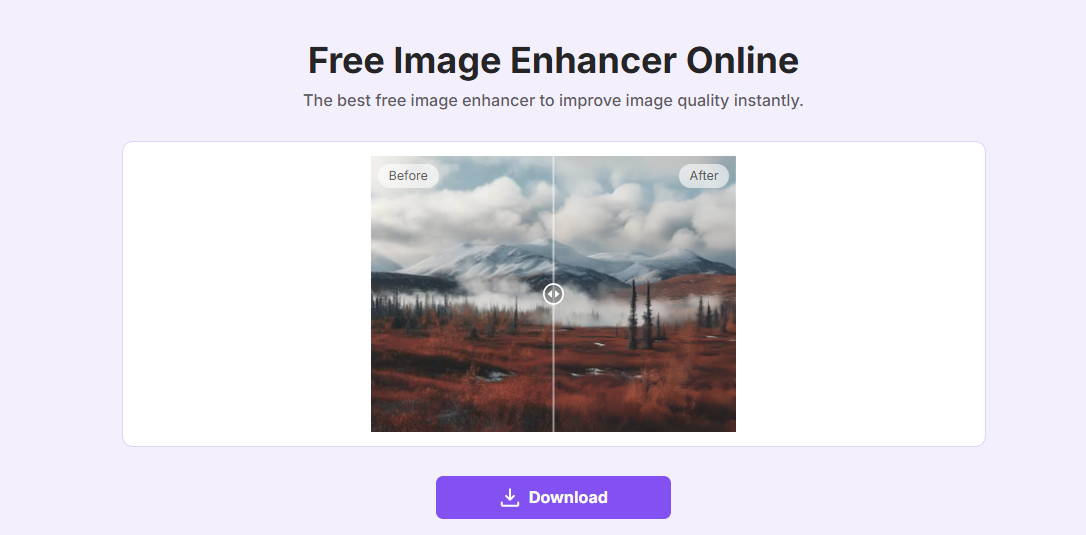
Step 3: Wait a few seconds. The AI will automatically enhance sharpness and colors. You’ll see a side-by-side preview.
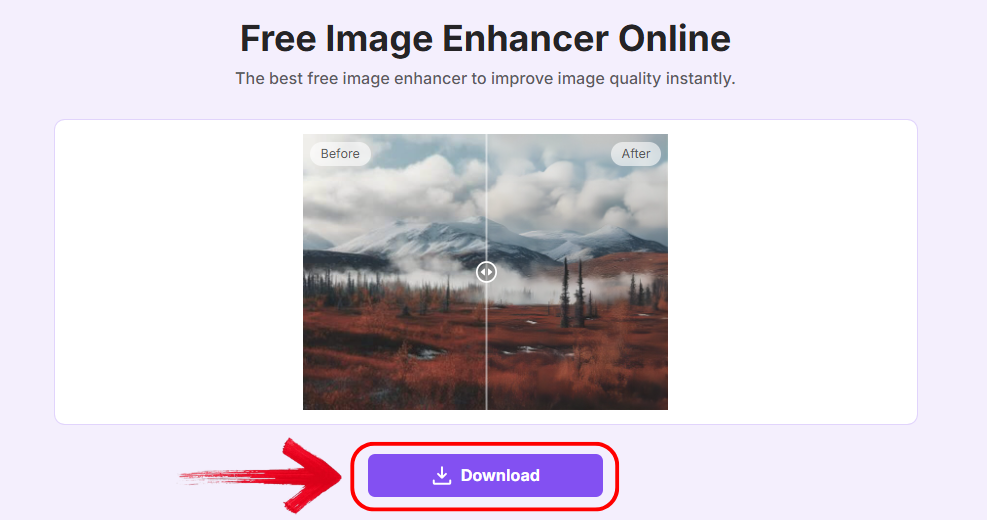
Step 4: Click “Download” to save your enhanced photo without any watermark.
Enhancing images beforehand always helps me notice smaller differences during image comparisons.
FAQs
Q1: Can MaxAI Image Compare detect very small differences?
It can catch minor changes, but for ultra-fine details, enhancing your images with Toolsmart Image Enhancer helps improve accuracy.
Q2: Is OpenCV suitable for non-developers?
Not really, OpenCV requires Python skills. Users without a coding background should stick to MaxAI or Bubble.io.
Q3: Does Toolsmart Image Enhancer support batch processing?
Yes, it allows multiple images to be uploaded and enhanced in one go.
Q4: Are these tools free to use?
MaxAI and Toolsmart Image Enhancer are free, OpenCV is fully open-source, and Bubble.io may include some usage-based costs.
Smarter Ways to Spot Every Pixel Change
In this article, the best AI tool to compare 2 pictures of differences was explored, showing the practical strengths of each platform. Improving image quality with Toolsmart Image Enhancer was also highlighted as a way to boost comparison accuracy. Each tool offers unique advantages, helping users tackle different types of visual comparison tasks. By understanding these differences, it becomes easier to select the tool that fits your workflow. Toolsmart Image Enhancer, in particular, adds clarity and precision, making comparisons faster and more reliable.


